

Which Plans Can Be Given as a Gift
You can offer a plan as a gift for subscription plans: monthly, quarterly, or annual. Gifts don’t work on:- Free plans
- One-time payment plans
- Subscriptions billed Daily, Weekly, Every two weeks, or Twice per year
- Installment plans
- iOS prices
Turn On Gifts for a Plan
You can turn on gifts when you create a plan, or later from the plan’s settings:- Go to Admin > Plans and select your plan.
- Open the Visibility & Sharing tab.
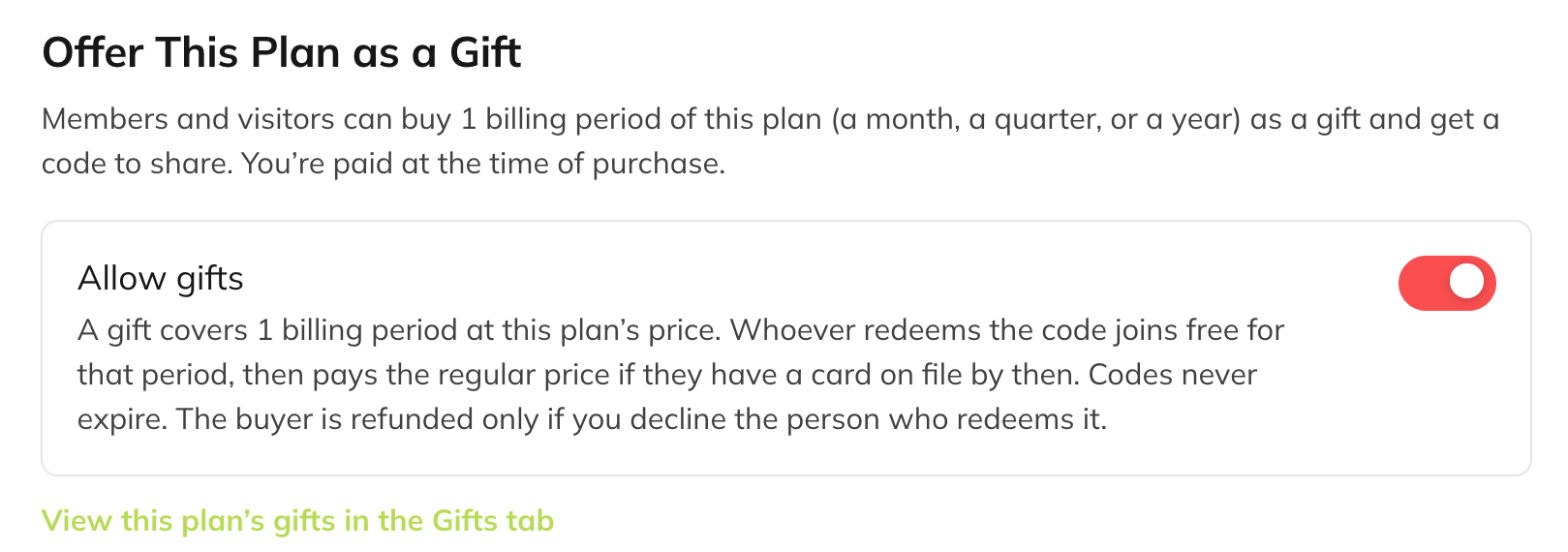
- Under Offer This Plan as a Gift, turn on Allow gifts.
What Members See
Members signed in to your community on web see a gift icon next to the join button on the plan. People who haven’t joined your community can buy a gift too: they create an account during the gift checkout but don’t join your community, so you can promote gifts to your whole email list. Their gift lives in their purchase email, and they show in the Gifts tab with their name but not in your Members tab. The buyer pays for one billing period at the plan’s price, plus any tax. Promo codes don’t apply to gifts. Buying a gift doesn’t give the buyer access to the plan. After paying, the buyer gets the gift code by email. The person they give it to enters the code in the Discount Code field at checkout and joins without entering a card. Members can learn more in How Do I Give or Redeem a Gift Membership?Preview Buying and Redeeming a Gift
You can try the gift experience yourself with View as Plan Join Flow:- On the plan, select the gift icon next to the join button.
- Payment is disabled in the preview, so select Skip Step in the simulation bar. You see the gift confirmation with a sample code.
- Select Redeem Gift in the simulation bar to see what the recipient sees. The plan opens with the sample code and its price already selected.
- Continue to checkout, where the gift pays for the first period with nothing due today. Select Skip Step to join the plan.
Emails and Notifications About Gifts
Mighty sends these automatically, so there’s nothing to set up:- The buyer gets an email with the gift code and a message to share, an email when someone uses the code, and an email if the gift is refunded.
- The person who redeems the gift gets an email and notification when they redeem it, reminders to add a card before the gift ends (30 days before for three-month and yearly gifts, then three days and one day before every gift), and a notification if the gift ends without a card.
- A member who applies a gift code to their current plan gets an email and notification confirming it.
Plans That Need Your Approval
On a plan with questions or approval, a gift code is held while the join request waits for you. The gift shows as Awaiting approval in the Gifts tab.- If you approve the request: The gift is applied and the member joins free for the gift’s period, starting the day you approve. If the plan has a free trial, the trial starts on approval and the gift starts when the trial ends.
- If you decline the request: Mighty automatically refunds the buyer the full gift payment, and the gift shows as Refunded.
View a Plan’s Gifts
Go to Admin > Plans, select your plan, and open the Gifts tab. You can also select View this plan’s gifts in the Gifts tab on the Visibility & Sharing tab. The Gifts tab appears only on plans that can be given as a gift, have Allow gifts turned on, or already sold a gift code. The Gifts tab lists every gift code bought for the plan, with these columns:- Bought by
- Code (only the last 4 characters show)
- Status
- Used by
- Bought on
- Paid
- Used on
- Active: The code hasn’t been used yet.
- Awaiting approval: Someone redeemed the code and their join request is waiting for you.
- Used: Someone joined with the code.
- Refunded: The buyer was refunded. The status shows the refund date.
Members Who Joined With a Gift and No Card
A member who redeems a gift doesn’t need to add a card to join. In the plan’s Members tab, a member whose gift is paying for their current billing period and who hasn’t added a card shows the status Gift - No Card. Hover over the status to see when their gift ends. The status changes back to Active once the member adds a card or the gift period ends. These members still appear when you filter by Active. Mighty reminds these members to add a card before their gift ends. If there’s no card on the renewal date, their membership ends that day. There’s no past-due period for these members.Moving Gift Members to Another Plan
You can’t move a gift member to another paid plan while they’ve paid only with gifts and have no card. Ask them to add a card first. Moving them to a free plan works as usual. You also can’t move a member while their gift is still waiting to be applied to their next invoice. Move them after it has been applied.How Gifts Work With Workflows
Gifts fire your Workflows the same way other purchases do:- When someone joins with a gift code: Purchased (or Accessed) Plan fires once, for the gift’s billing interval. Webhooks and Zapier fire too. Redeemed Promo Code doesn’t fire, because a gift code isn’t a promo code.
- When a gift ends and the member hasn’t added a card: Member’s Payment Failed fires, then Removed from Plan when their membership ends. Canceled Subscription to Plan doesn’t fire, because the member didn’t choose to cancel.
- When a current member applies a gift code to their next invoice: no Workflow fires.
Deactivate a Plan With Gift Codes
You can’t deactivate a plan while it has gift codes that are Active or Awaiting approval. When you select Deactivate Plan, a Can’t Deactivate [Plan Name] Yet message lists what’s left to do. To deactivate the plan:- Turn off Allow gifts on the plan so no new codes are sold. Hiding the plan doesn’t stop gift sales, because members with the plan’s link can still buy a gift. Hiding it also doesn’t stop people from redeeming unused codes: the link in the gift message still opens a hidden plan for its recipient, at the gift’s price only.
- Approve or decline every join request that’s holding a gift code. Declining refunds the person who bought the code.
- Contact Mighty support to refund the buyers of unused codes. Support refunds each buyer in full, and the code shows as Refunded in the Gifts tab.
- Deactivate the plan.