As a Host, you have powerful tools to keep your Mighty Network safe and welcoming. You can review reported content and members, remove or ban people when necessary, and control whether comments are allowed.
Blocking or Reporting a Member
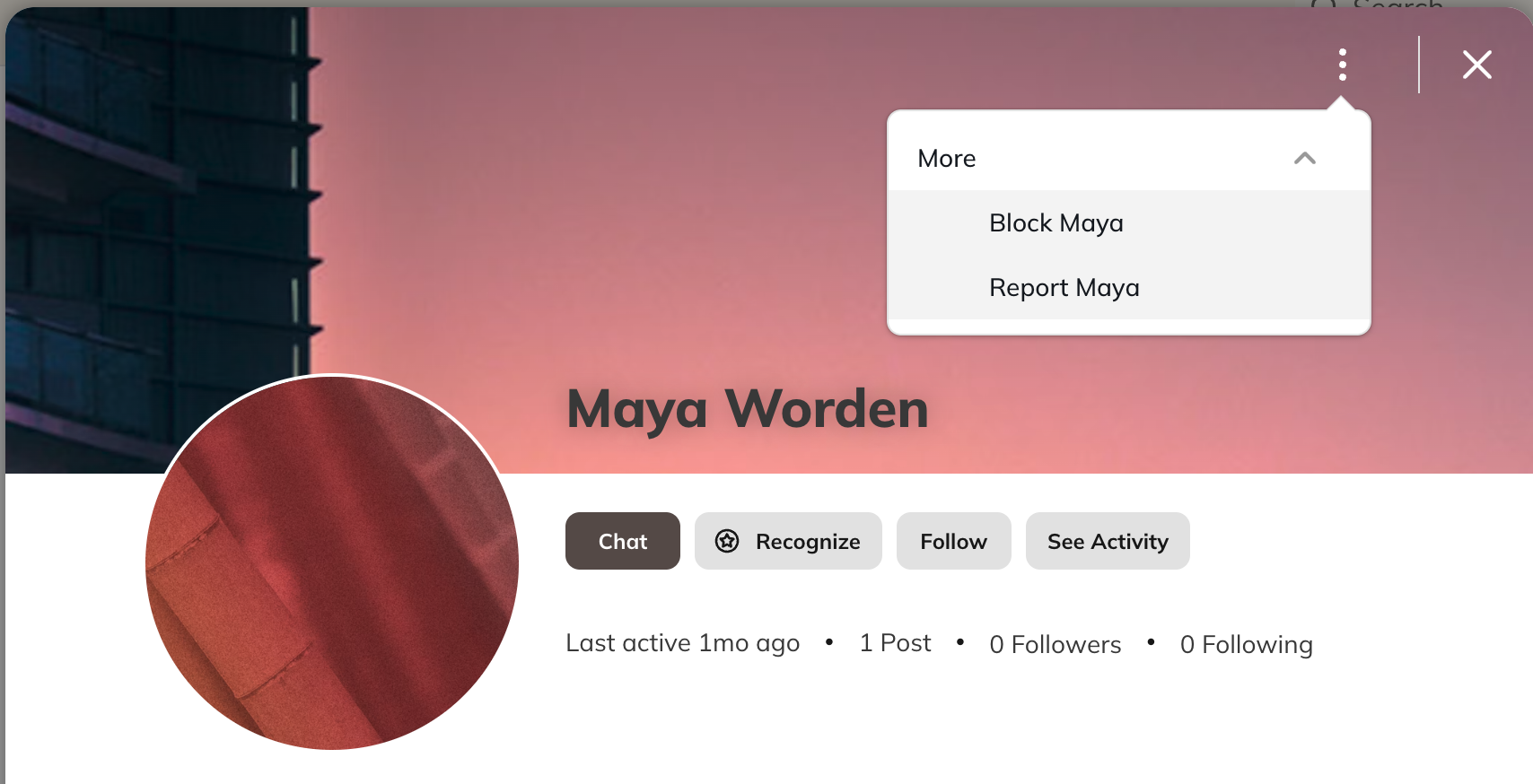
All roles (Hosts, members, etc…) can block or report other members directly from their profile or from a chat. From a profile:- Go to the member’s profile
- Click the three-dot menu
- Select More
- Choose Block or Report
- Open the chat window with the member
- Click the three-dot menu
- Select More
- Choose Block or Report
- The blocker will no longer get notifications or direct messages from that member
- The 1-to-1 chat disappears from notifications after the next login
- Posts from the blocked member no longer appear in the blocker’s Activity Feed
- Go to the blocked member’s profile → three-dot menu → More → Unblock
- Or, just send them a new message in a 1-to-1 chat
- Go to their profile → three-dot menu → Report [Member’s Name]
- Select the reason for reporting
- After submitting, members will see confirmation and the option to block the person they reported
 When a report is submitted, all Hosts receive a notification with the details. As a Host, you can then review and take action, such as removing or banning the reported member.
Reporting a post:
When a report is submitted, all Hosts receive a notification with the details. As a Host, you can then review and take action, such as removing or banning the reported member.
Reporting a post:
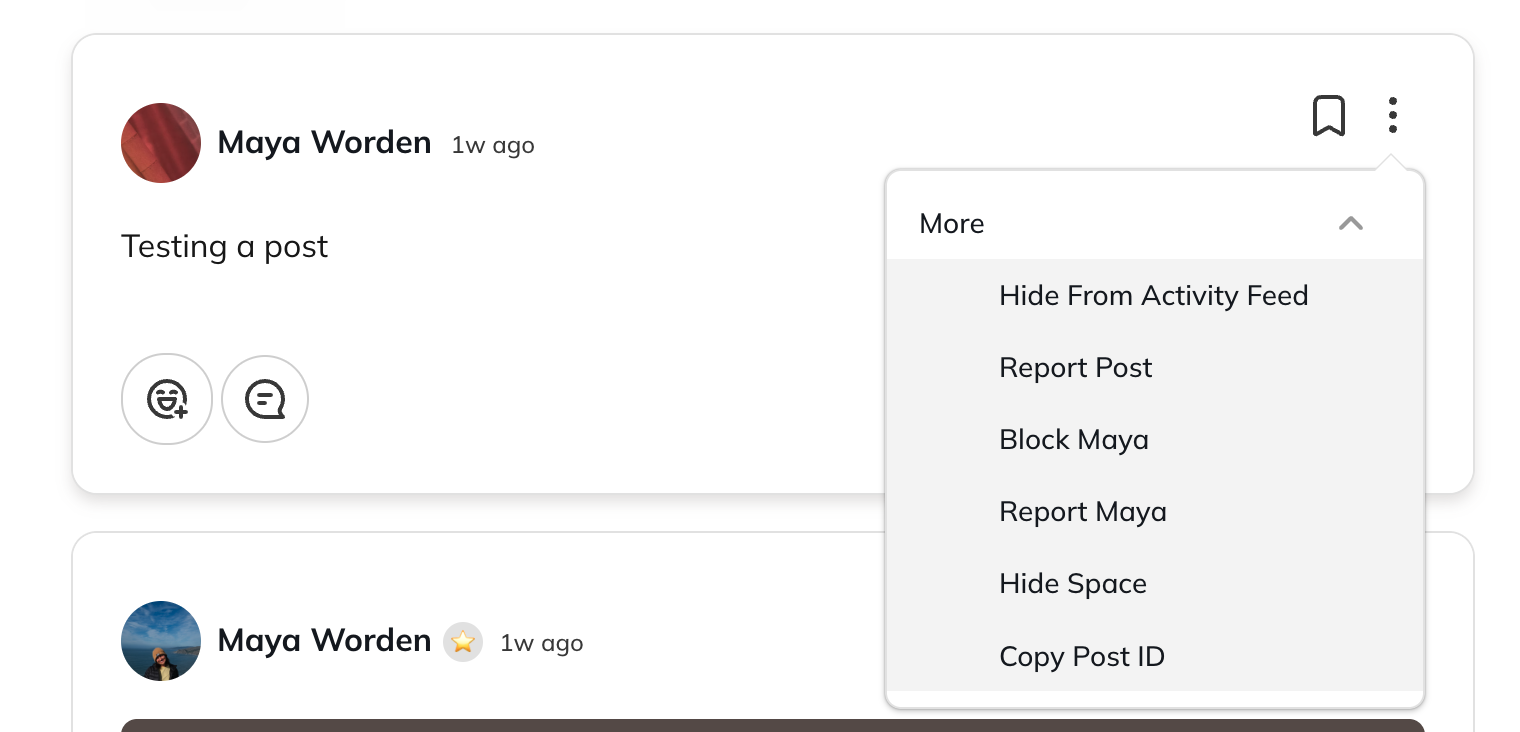
- Click the three-dot menu on the post
- Select More
- Choose Report Post
 If two or more members report the same post, it’s automatically hidden from the Activity Feed until a Host reviews it.
To learn more about member moderation options, check out the article What Blocking and Reporting Tools do Members Have in My Mighty Network?
If two or more members report the same post, it’s automatically hidden from the Activity Feed until a Host reviews it.
To learn more about member moderation options, check out the article What Blocking and Reporting Tools do Members Have in My Mighty Network?
Reviewing Reported Content and Members
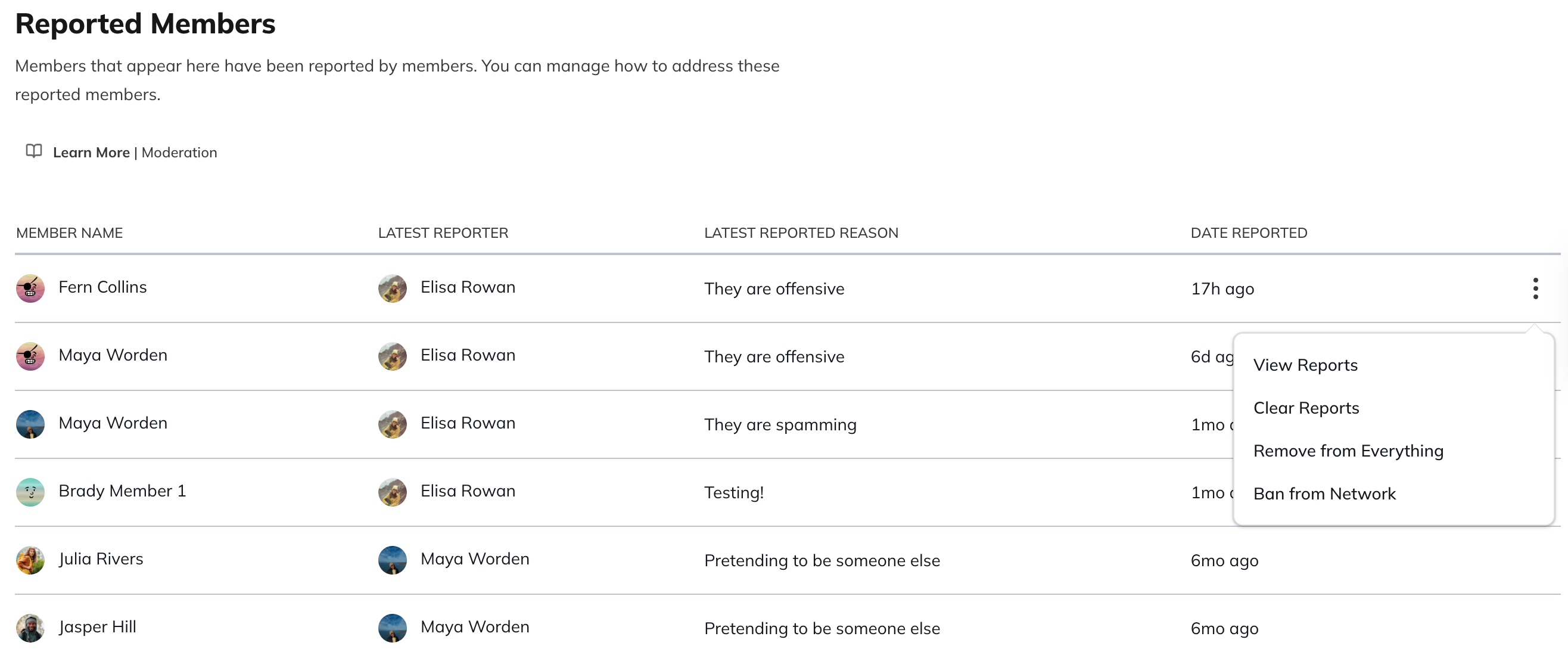
When content gets reported, you’ll find it in Admin Settings under Moderation. Just click your profile picture in the top right corner, go to Admin Settings, and scroll down to find the Moderation section. Reported Members: You’ll see a list of anyone who’s been reported.-
From this list, you can select the three dot menu next to their name and:
- View why they were reported
- Clear the report if no action is needed
- Remove or ban the member if further action is required
 Reported Content: Reported posts appear here.
- If the content is reported by two or more people it is automatically hidden from everyone except the creator. Content reported by one person stays visible, but appears on your list. Posts created by Hosts always stay visible, even if they are reported.
-
From this list, you can select the three dot menu next to the post and:
- Delete the content for everyone
- Clear reports to restore visibility
- Remove/ban the person who created it
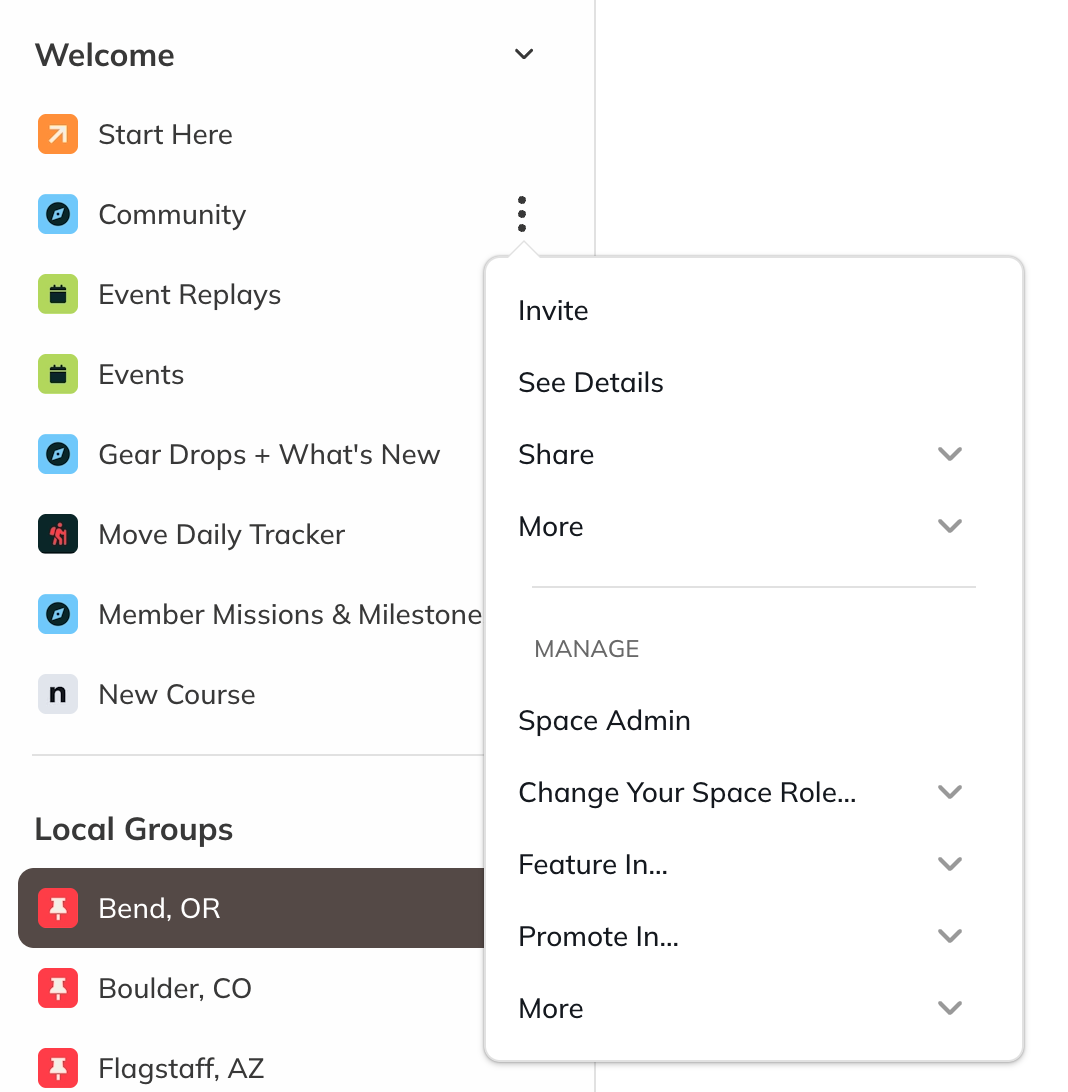
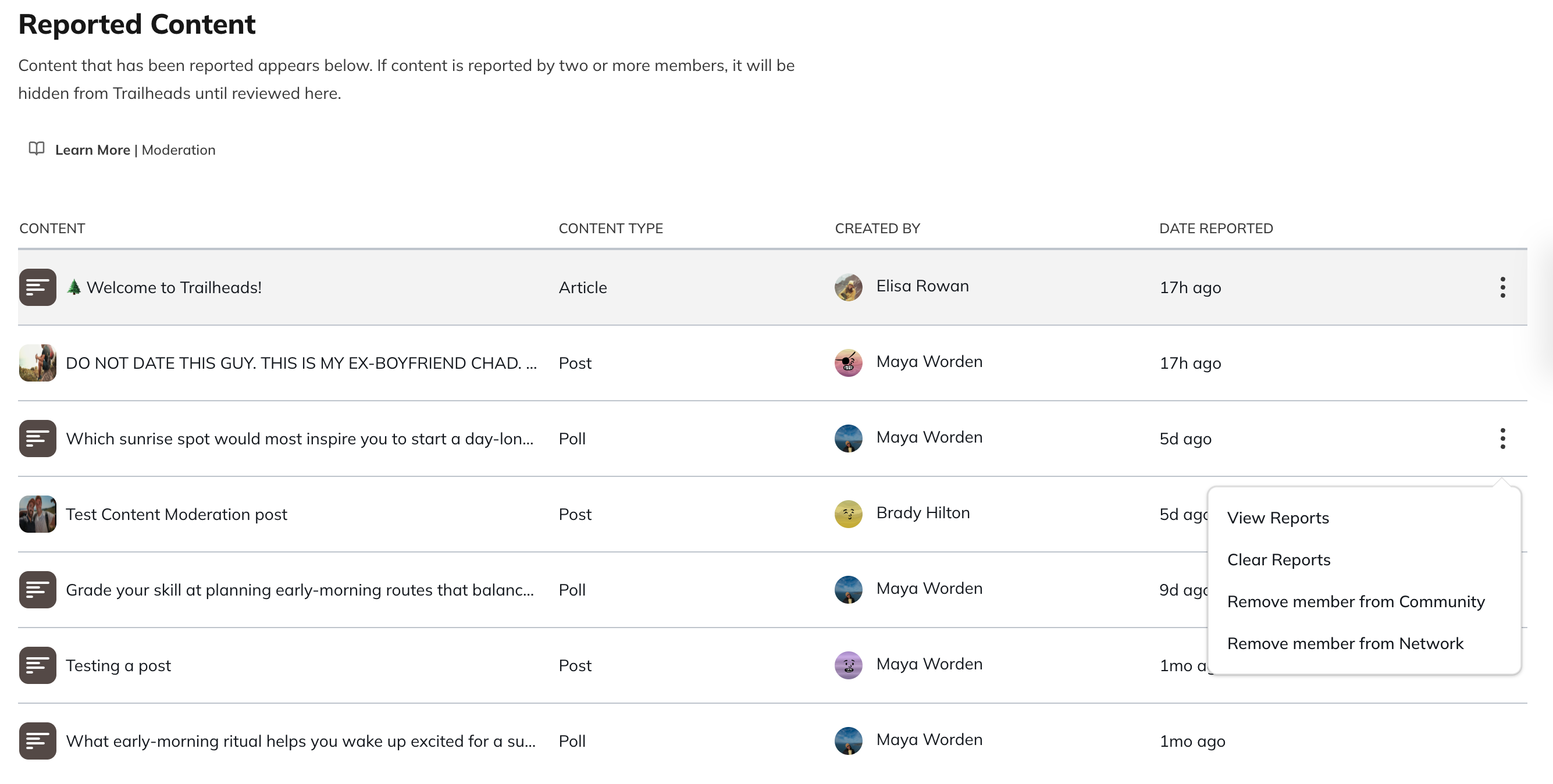 Note: Network Hosts can see all reports but you will need to be either a Space Host or moderator of the Space in which the post was created in order to take action on it. You can easily change your role in a Space by going to the three dot menu for the Space and clicking “Change Your Space Role”.
Removing or Banning a Member
Sometimes removing or banning a member is the best way to keep your community safe. The difference comes down to permanence:-
Removing from Everything:
- Revokes their membership, but keeps their posts and comments in the community
- Hides their profile and deletes their chats
- Allows them to rejoin later, with most of their past contributions restored
-
Banning a Member:
- Permanently deletes nearly all of their contributions, including posts, comments, events, chats, and reactions (emoji reactions on posts, comments, and chats)
- Keeps any Course content they created but replaces them as author with the Host who banned them
- Blocks them from rejoining with the same email
- This action cannot be undone
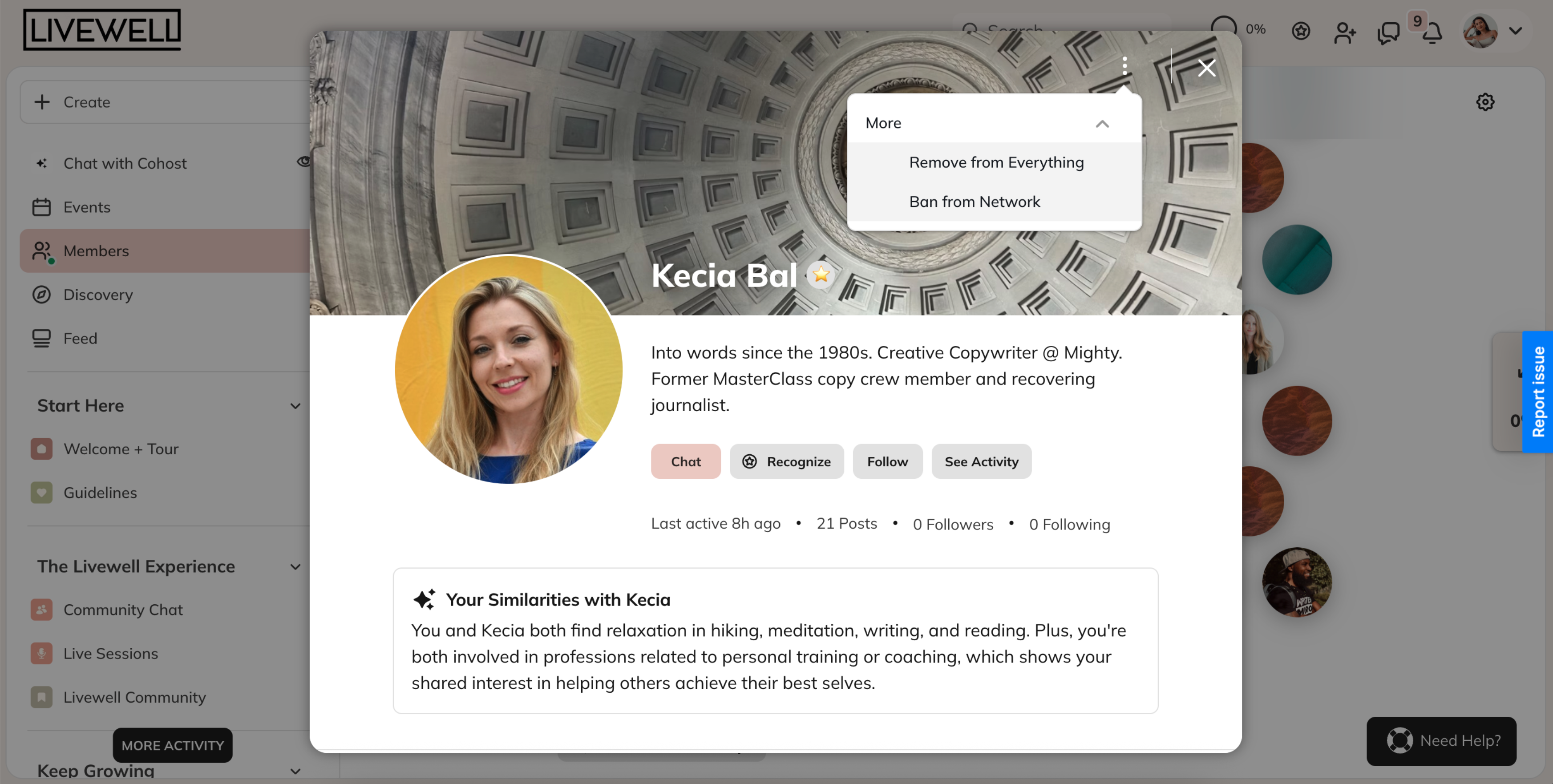 Or in the three dot menu next to their name in the Member List in Admin > Members.
If you only want to remove someone from a Space, open the Space’s Member List, find their name, and choose Remove from Space. If the Space is tied to a Plan, removing it also removes them from that Plan and any connected Spaces.
Or in the three dot menu next to their name in the Member List in Admin > Members.
If you only want to remove someone from a Space, open the Space’s Member List, find their name, and choose Remove from Space. If the Space is tied to a Plan, removing it also removes them from that Plan and any connected Spaces.
Turning Off Comments
You also have the ability to turn comments on or off on all content giving you more control over conversations in your community.-
Who can control comments:
- Network Hosts and Moderators, and any Space Host or Space moderator: For any post in their Network or Space
- Members: Only for posts they’ve created
- Where it works: Quick Posts, Questions, Articles, Events, and Lessons
- Comments are on by default
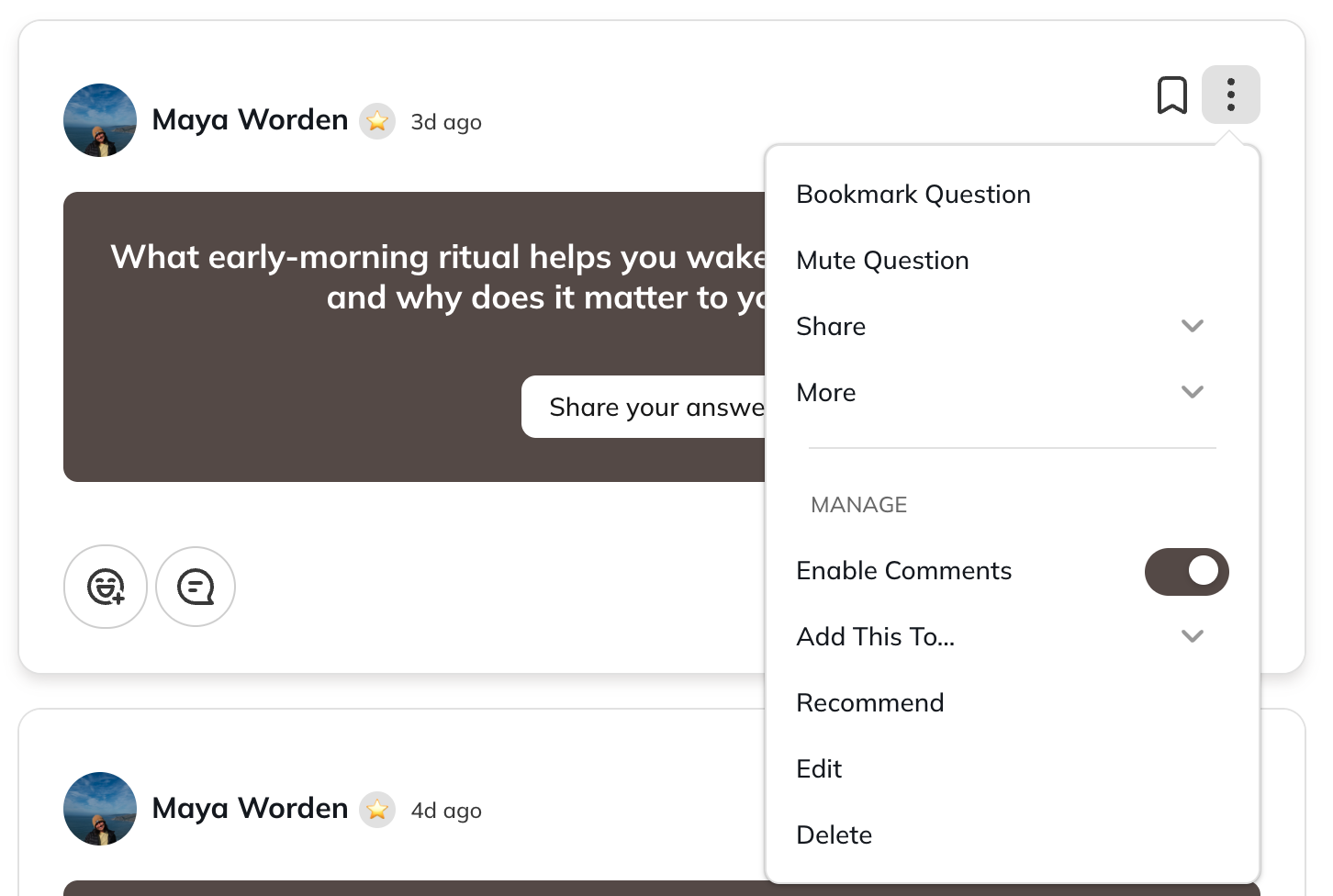
- Open the three-dot menu on a post and enable or disable comments