

- View as a specific member
- View as a plan member
- View a plan join flow
Why Use Member View?
Member view helps you verify that your Network experience works exactly as intended. You can use it to:- Confirm what members can access based on their plan
- Troubleshoot questions about gated content
- Check visibility across Spaces and Collections
- Preview promotional banners or targeted content
- Validate plan setup before sharing a plan
- Resolve member support questions faster
View as a Specific Member
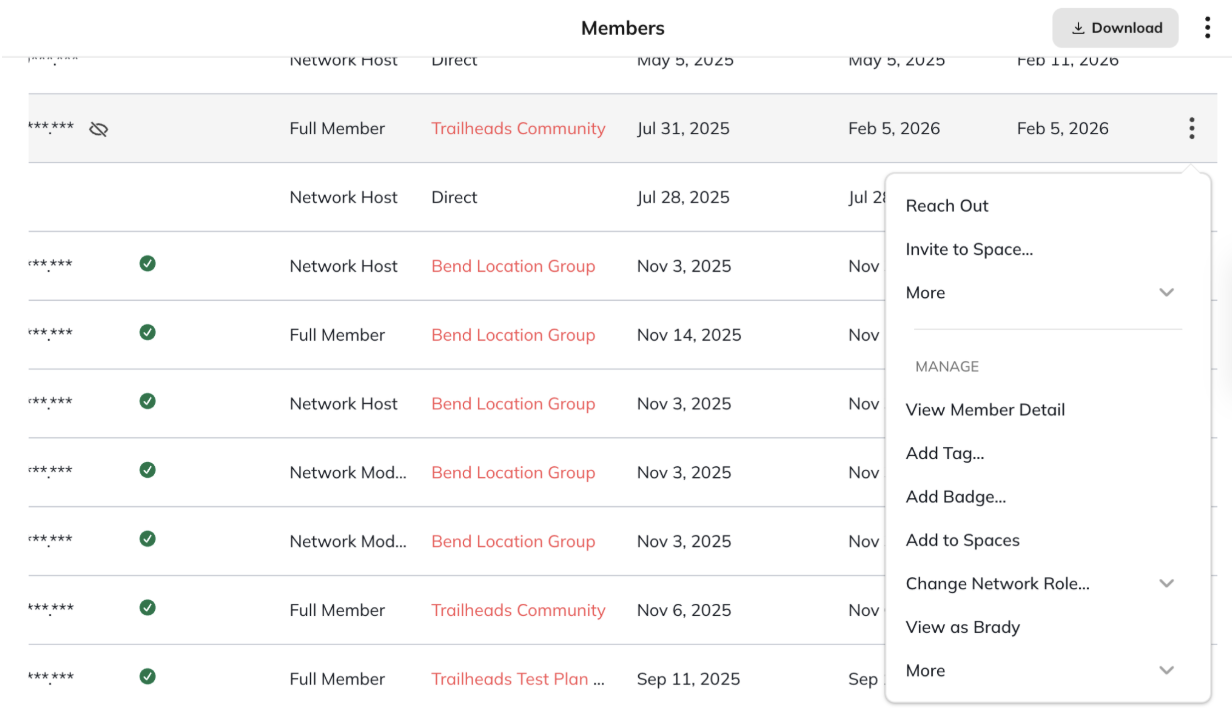
To preview your Network as a member:- Go to Admin > Members
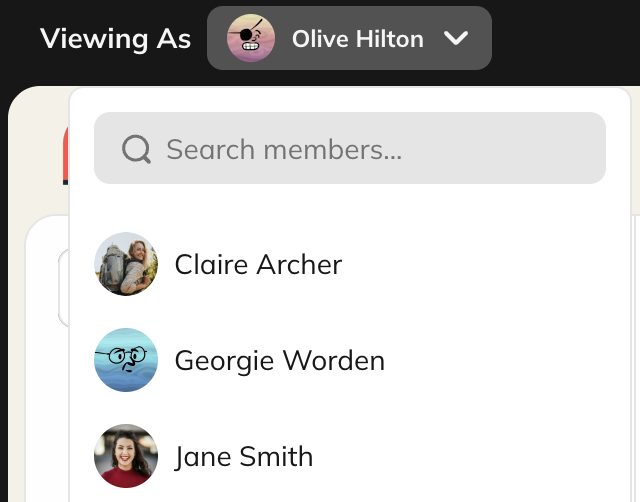
- Select the member you want to view as.
- Click the **three dot menu > **“View as [Member Name, e.g., Bob]”.
- The member detail page
- Member profiles
What You Can and Can’t Do in the Specific Member View
You can:
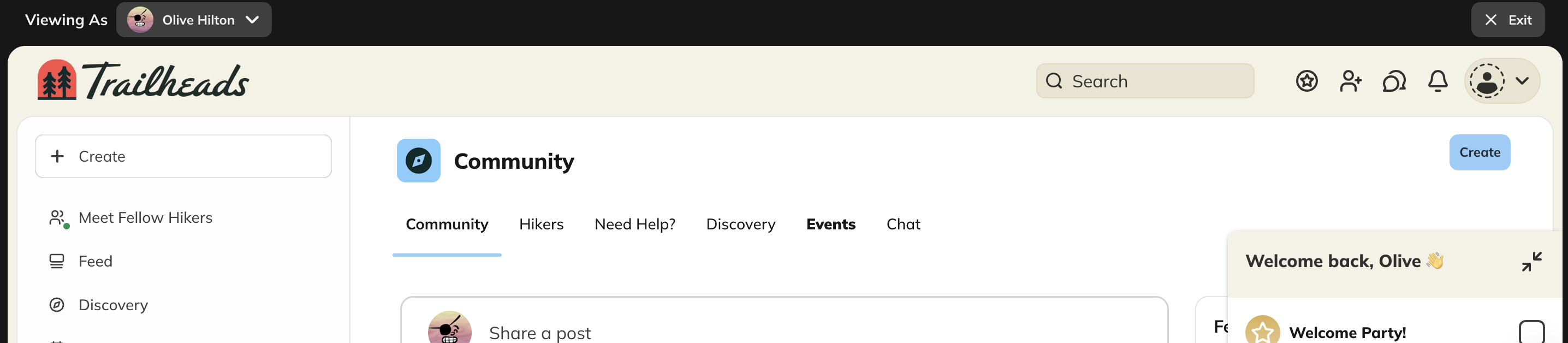
- Navigate your Network as that member
- View Spaces, Collections, and content available to them
- Confirm plan-based access and visibility
- Confirm notification settings
You can’t:
- Send messages or access direct messages
- Post, comment, react, or edit content
- Make purchases or join spaces
- Change account settings
- View sensitive information such as payment details
- View as Network moderators
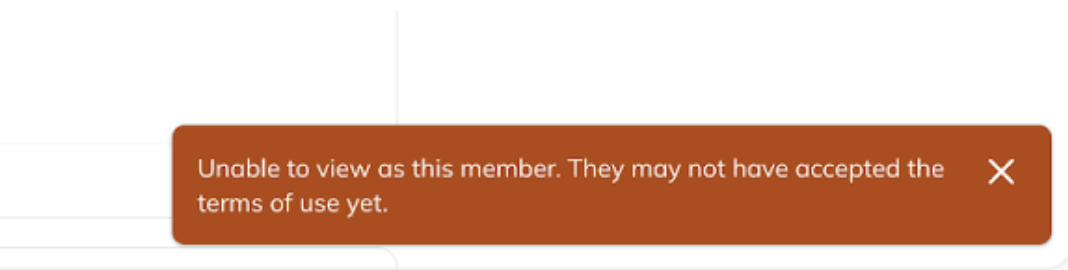
- View as members who haven’t accepted our terms of use (see screenshot)
View as a Plan Member
This option lets you preview your Network as a member who has joined a specific plan. Mighty generates a simulated plan member, which shows exactly what someone on that plan would experience after joining. This is useful when you want to confirm:- which Spaces the plan unlocks
- how gated content appears
- what members can access after purchase
Simulated plan members:
- Do not appear in your Network
- Do not trigger automations
- Do not appear in analytics or queries
- Are automatically removed after use
How to View as a Plan Member
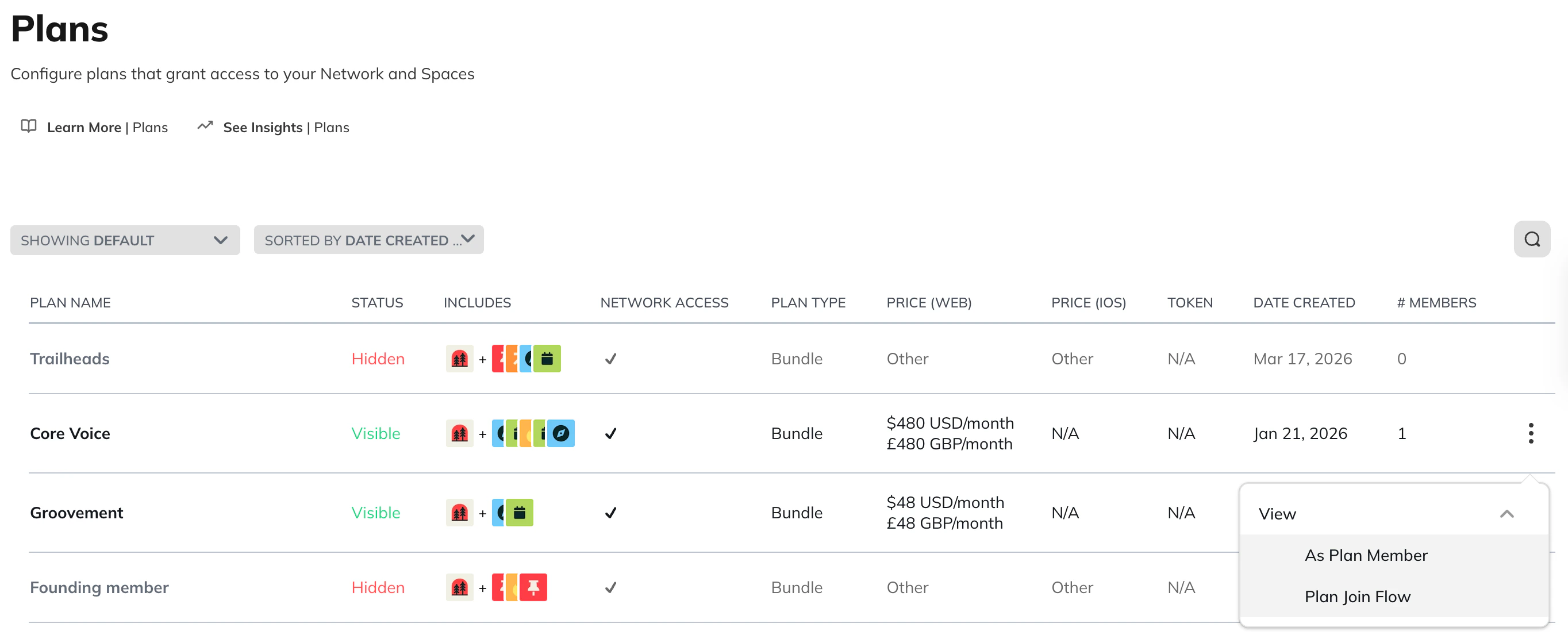
- Go to Admin > Plans and Access > Plans.
- Find the plan you want to preview.
- Select the three-dot menu.
- Select View as Plan Member.
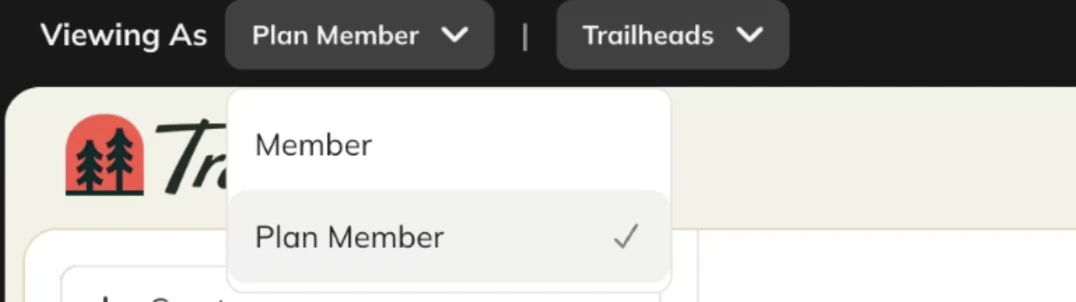
- switch between plans
- switch to viewing your Network as a specific member
View a Plan Join Flow
This option lets you preview the full join experience for a plan. You can simulate how someone joins a plan, including:- free plans
- paid plans
- gated plans
- plans that grant access to Spaces or the Network.
How to View as Plan Join Flow
- Go to Admin > Plans and Access > Plans.
- Select the three-dot menu next to the plan.
- Select View as Plan Join Flow.
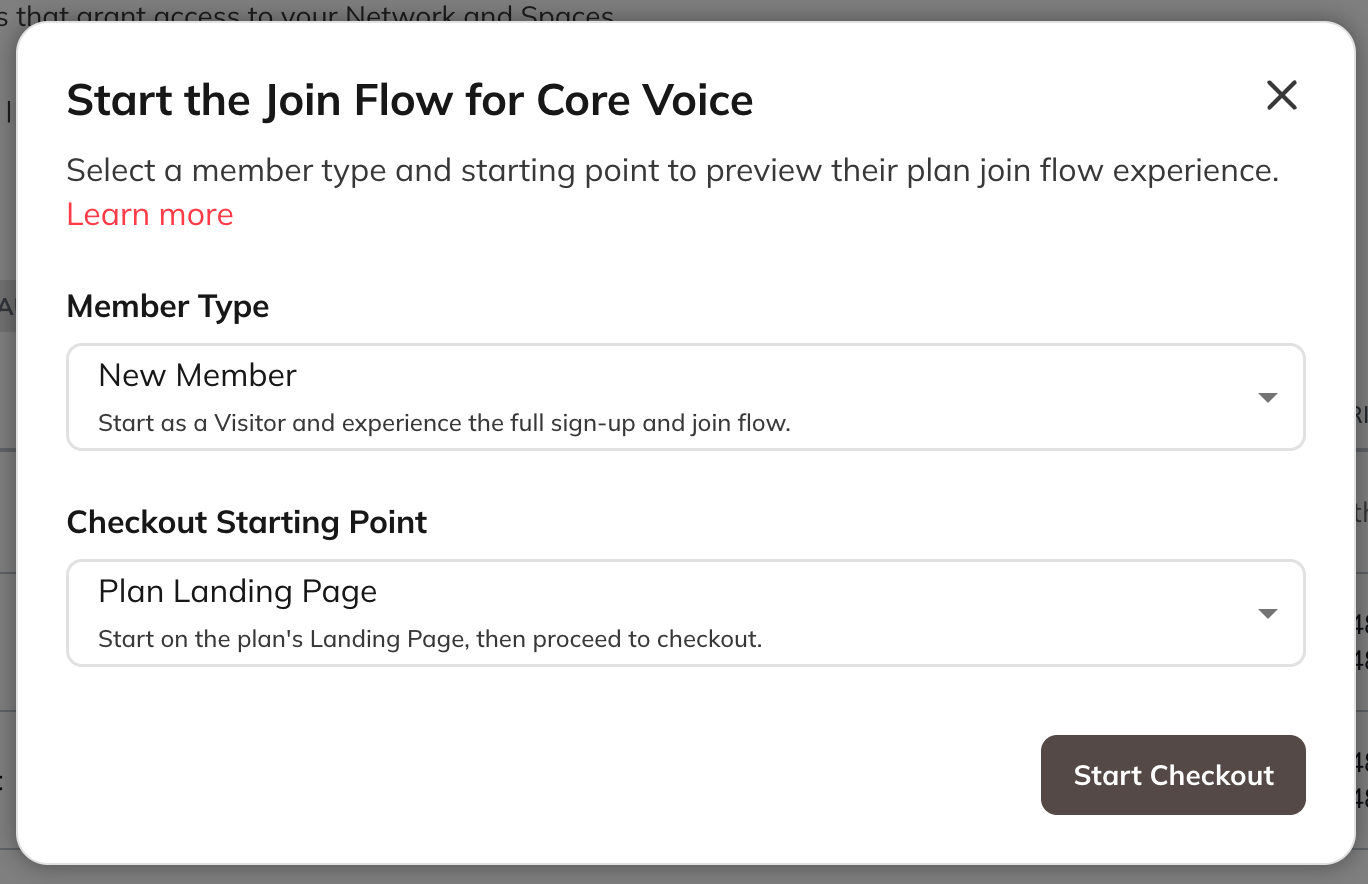
Configure Your Join Flow Preview
When starting the preview, select:Member type
- New member
- Start as a Visitor and experience the full sign-up flow
- Full member
- Start as an existing member of your Network and experience purchasing this plan.
- Go to a plan that grants access only to a Space or Spaces
- View As Plan Member
- Select:
- New member
- Whatever checkout starting point you would like
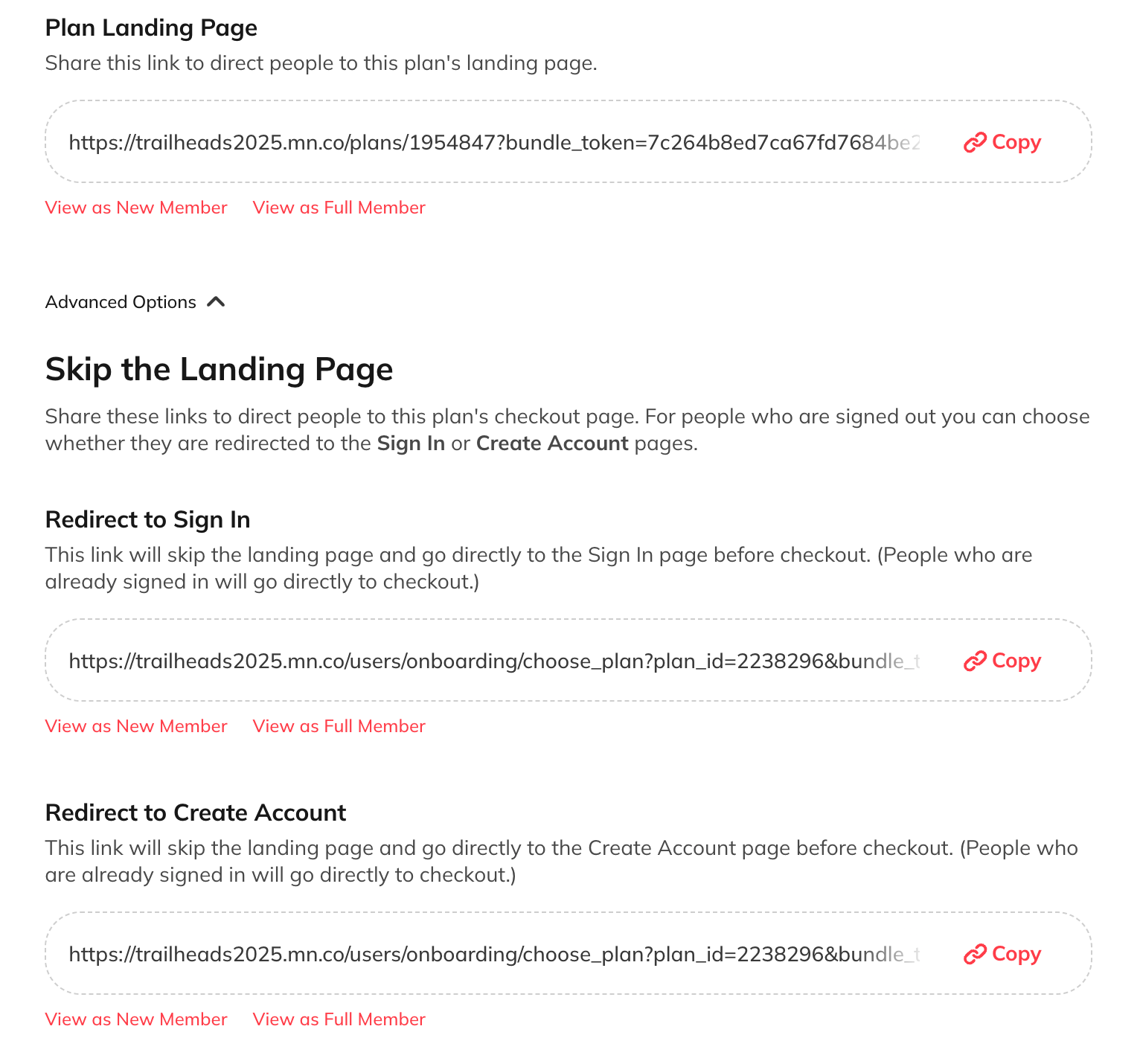
Join Flow Starting point
You can preview the flow from different steps:- Plan Landing Page
- Create Account (Full members go directly to gates: screening questions, approvals or payment)
- Sign In (Full members go directly to gates: screening questions, approvals or payment)

Known Limitations
Some actions aren’t available during join flow preview. These include:- Entering promo codes
- Payment form interaction
- Signing out
- Switching plans mid-flow
- Email verification
- Multi-Factor Authentication
- Logging in with Social Sign On (google, facebook, etc.)
- Signing in
- Logging in with single sign-on (SSO)*
- Exiting the plan flow\