

What is MCP?
MCP (Model Context Protocol) is a way for AI tools to securely connect to other platforms and services. In Mighty Networks, MCP allows Hosts and members to interact with Network content through supported AI tools, while still following the same permissions and access rules that exist within your Network. For example, you or a member could ask an AI assistant:- “Show me posts with the most comments in the last week.”
- “Summarize my unread notifications.”
- “Create a new Space for me using the Feed template”
- “Create a new payment plan for a $29/month tier.”
- “Create a new collection called ‘Resources.’”
- “Any themes, positive or negative, that have emerged in comments over the past month?”
- “Based on what’s performed well before, make a new draft multiple choice poll for me to approve.”
- “Give me a snapshot of recent activity from [member’s name].”
Click here for the full list of capabilities
MCP does not give anyone access to content they wouldn’t normally be able to view inside your Network. There is no limit to how many tools you can connect your Network to!Accessing MCP settings
To manage MCP access, go to Admin > Integrations > MCP.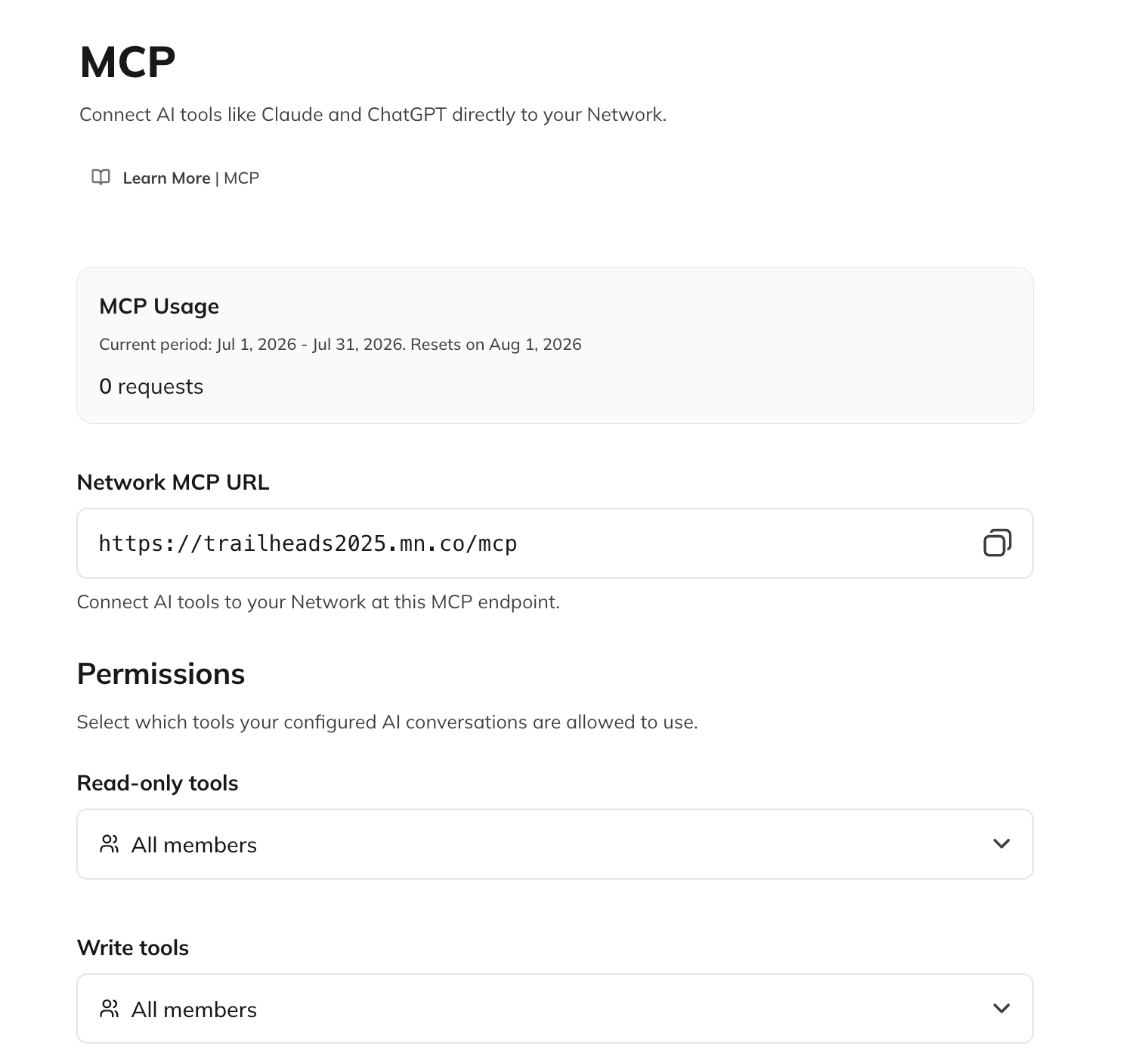
- View your Network’s MCP connection URL
- Choose who can use an MCP connection to access information
- Choose who can use an MCP connection to take actions
- Review MCP usage information
- Learn how MCP permissions work
Configure MCP permissions
MCP permissions are managed at the Network level.Read-only tools
Choose who can use the MCP to find and view information from your Network:- No one
- Hosts only
- Hosts and moderators
- All members
Write tools
Choose who can use the MCP to perform supported actions:- No one
- Hosts only
- Hosts and moderators
- All members
Connect your Network
Head to your preferred AI Assistant and add it as a Custom Connector Here are instructions for two popular assistants:- ChatGPT
- Settings -> Security & Login -> Enable Developer Mode
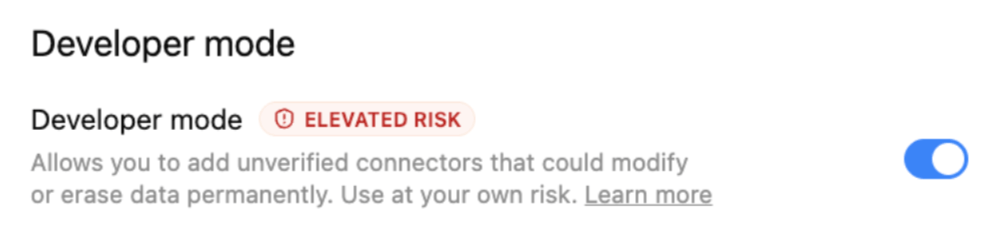
- New Plugin
- Add in the Name, Description and url (From your Network)
- Authentication > OAuth
- Create
- Settings -> Security & Login -> Enable Developer Mode
- Claude
- Settings -> Customize -> Connectors
- Add -> Add Custom Connector
- Add in the name and url
Pro tip: You can always ask your AI Assistant how to set it up!
How permissions work
MCP follows both:- Your Network’s MCP settings
- Existing Mighty Networks permissions
- Members can’t access Host-only information through the MCP.
- Moderators don’t receive Host-only administrative capabilities.
- Hosts continue to have access to Host-level MCP features.
- Members only see content they already have permission to view.
Member access
If you’ve enabled MCP for members, they can connect their own AI tools using their Mighty Networks account. Members can find their connection details in the Connectors area. Because each member connects with their own account, the MCP always reflects that member’s permissions and access level.The Connectors page
For members, the MCP connections are managed through the Connectors page in Personal Settings. Members with MCP access can find their connection information here or disconnect from all clients. For more information, check out this member facing article.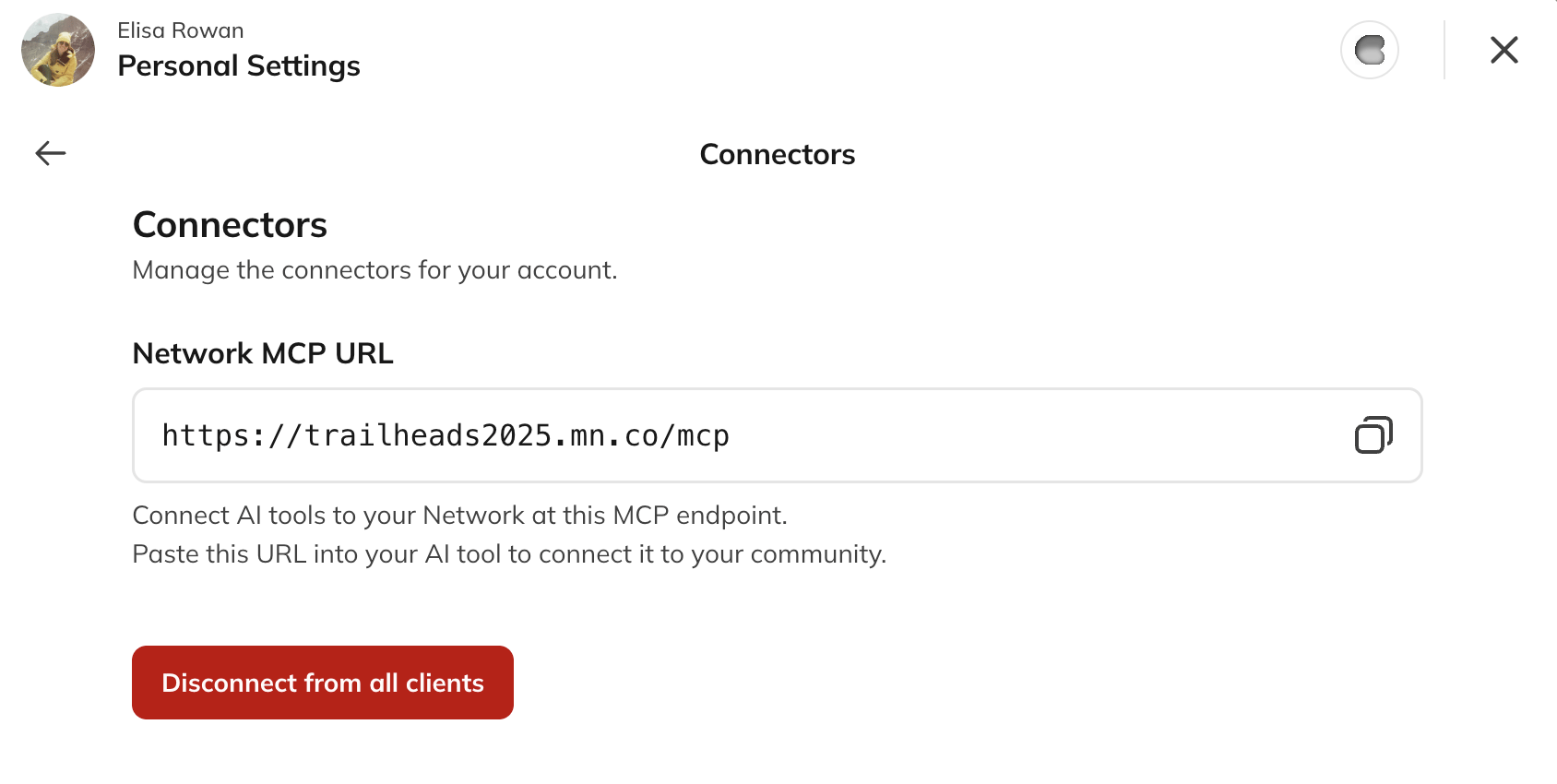
MCP usage tracking
MCP activity counts toward your Mighty API usage. You can monitor usage in Network Admin.List of Full Capabilities
Network & Settings
Retrieve info about the Network — name, Big Purpose, billing plan, payment settings“Give me an overview of my Network — name, Big Purpose, and current billing plan.”Update the Network’s title, Big Purpose, or description
“Update my Network’s Big Purpose to reflect our new focus on small business owners.”See the feature list for your current Mighty Networks billing plan
“What features do I get with my current billing plan?”See features for a specific billing plan tier
“What features come with the next plan tier up?”
Spaces
List all Spaces in the Network“List all my Spaces and tell me which ones have gone quiet.”Create a new Space from a template
“Create a new Space for a members-only book club using the Feed template.”Update a Space’s title, description, or feature toggles
“Update the description of my ‘Getting Started’ Space to reflect our new onboarding flow.”Move a Space to the top/bottom of its collection, or above/below another
“Move my ‘Announcements’ Space above ‘General Discussion’ in the sidebar.”See available templates to use when creating a Space
“What Space templates are available to me?”See which Space features are available on your billing plan
“What Space features can I turn on with my current plan?”
Spaces Collections
List Spaces Collections in the Network“List all my Spaces Collections.”Create a new Collection (or reuse an existing one with the same name)
“Create a new Collection called ‘Resources.’”Update a Collection’s details
“Rename my ‘Misc’ Collection to something clearer based on what’s actually in it.”Move a Collection within the sidebar
“Move my ‘Community’ Collection to the top of the sidebar.”Move a Space into a different Collection
“Move my ‘Events’ Space into the ‘Community’ Collection.”
Content & Feed
Get the Global Feed“Pull the Global Feed and tell me what’s trending across all Spaces right now.”Get the Feed for a specific Space
“Show me recent activity in my ‘General Discussion’ Space.”Fetch a specific post, event, or poll
“Pull up my most recent poll and show me how it’s doing.”Fetch comments on a post
“Show me all the comments on last week’s announcement post.”List event instances
“List my upcoming events for this month.”Search posts, events, polls, Spaces, members, and comments
“Search the Network for mentions of ‘refund policy’ so I can see how members are reacting.”Draft an article, post, question, or poll for you to review and publish yourself — it can write the copy, but can’t post it directly
“Draft a poll about our next event theme based on what’s performed well before."
"Write a draft article welcoming new members to the community.”
Payments
Create a new payment plan/bundle with pricing“Create a new payment plan for a $29/month premium tier.”List existing payment subscription plans (Web or iOS)
“List my existing subscription plans.”
Notifications
Get your notifications, newest first“Summarize my unread notifications and flag anything that needs my attention.”