

Unlock Options for Lessons
These are the unlock options available today: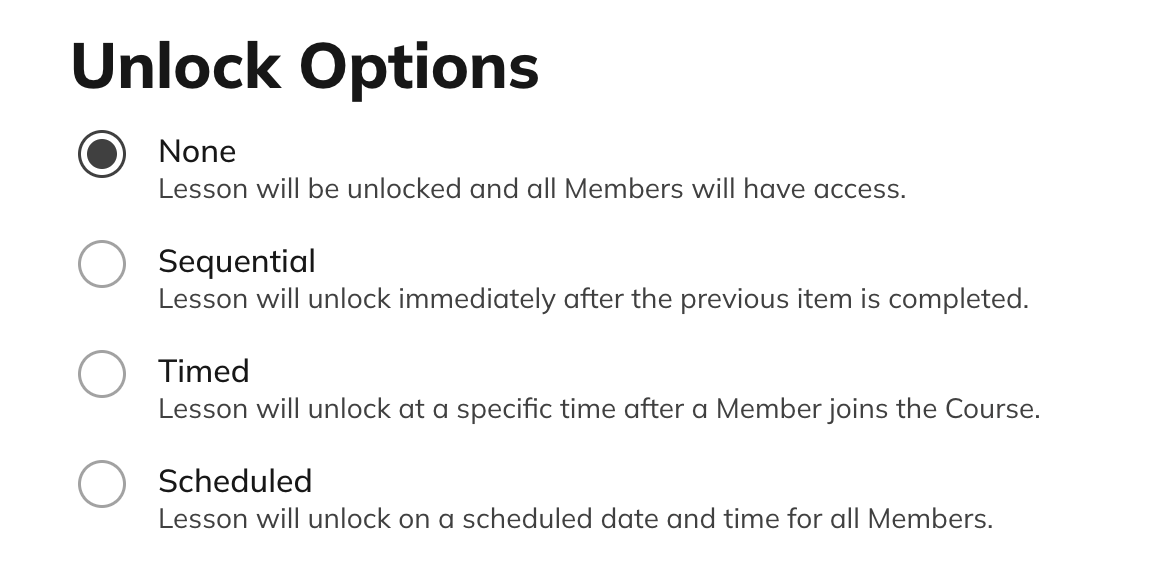
None
The Lesson is available immediately when the member starts the Course.Sequential
Members unlock the Lesson only after completing the previous one.This is a per-user experience, so unlock timing varies by member.Timed
The Lesson unlocks a set number of days after a member joins the Space.- Unlocks at the exact join time (e.g., joined at 12pm → unlocks at 12pm).
- Members are notified when new material unlocks.
- If new Lessons are added after a member joins, timers still apply to the original join date.
- If a member leaves and rejoins, the timer still uses the first join date.
- Bulk-selecting Timed Unlock applies the same unlock day to all selected Lessons.
- To stagger unlocks (e.g., Day 7 → Day 14 → Day 21), set each Lesson individually.
Scheduled
The Lesson unlocks on a specific date and time.- To keep it hidden until the unlock date, set the Lesson to Hidden.
- If Visible, members can see the Lesson title but can’t access content until the unlock time.
Important
Any unlock changes apply to existing members and new members.What Locked Lessons Look Like
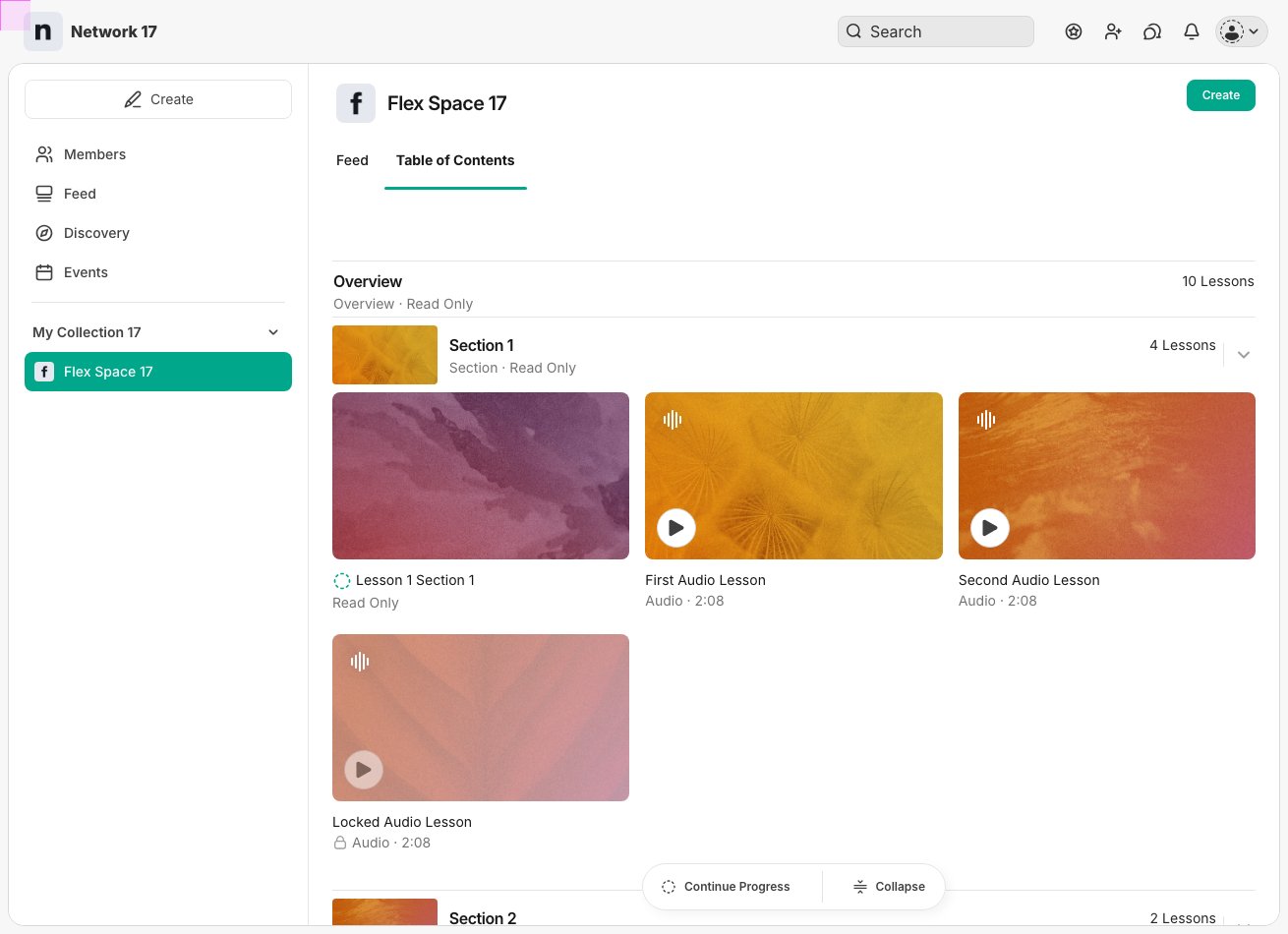
Locked Lessons will have a time icon, when hovering over it will show when the Lesson will unlock.
Unlock Notifications
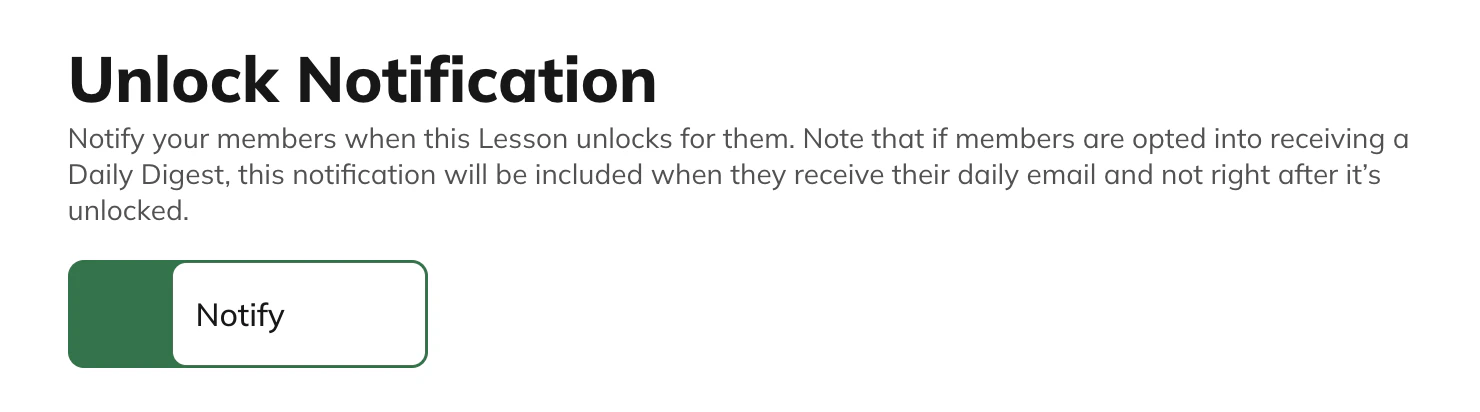
For Scheduled and Timed unlocks, you can choose whether members receive a notification.- Toggle ON → Members receive a notification when the Lesson unlocks.
- Toggle OFF → No notification is sent.
Completion Tracking for Lessons
These are the available completion options: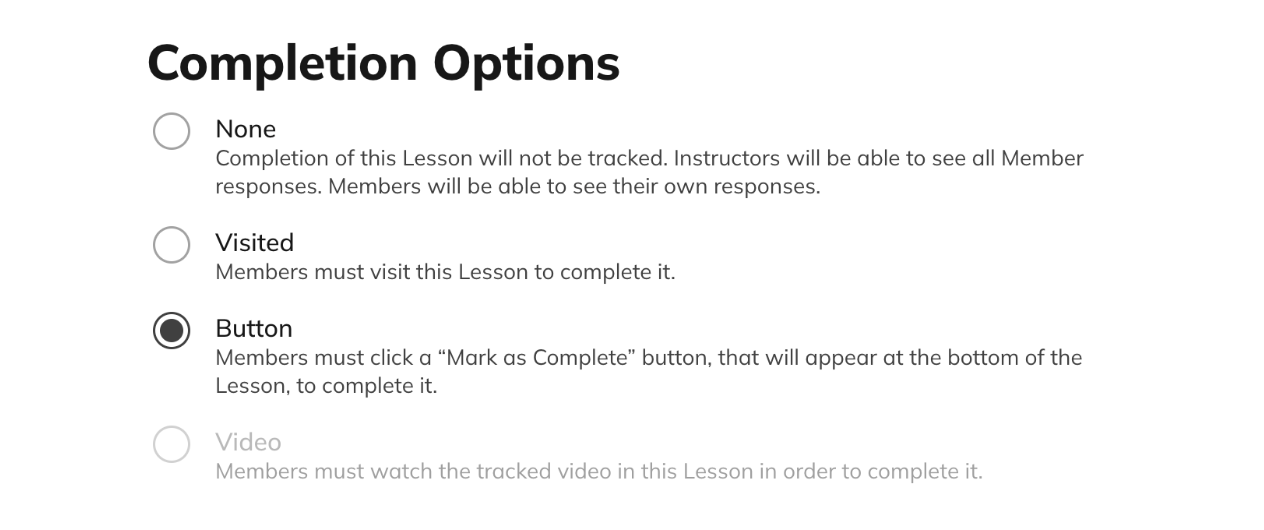
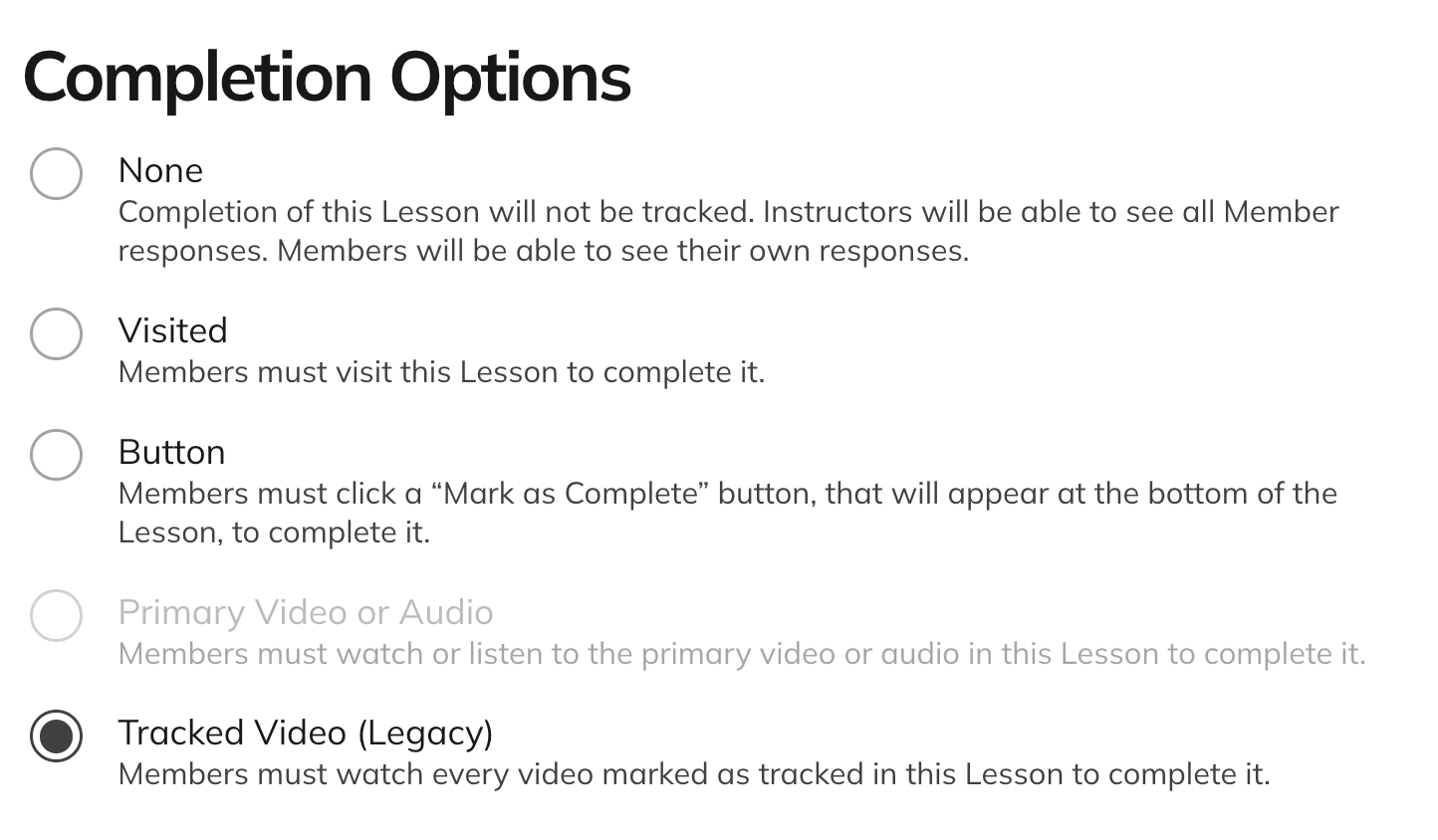
None
The completion of the Lesson won’t be tracked.Visited
A member must open the Lesson to complete it.Button
A member must click Mark as Complete. Note: If Unlock Settings = None, Button Completion does not block access to the next Lesson. To require completion, use Sequential unlocking.Tracked Video (Legacy)
A member must watch every video marked as tracked in the Lesson. This option appears only in Lessons where you tracked videos before Continuous Playback launched. It keeps your existing setup working. It doesn’t appear in new Courses.- You can track native MP4 uploads or embedded YouTube videos.
- Loom, Vimeo, and Wistia cannot be tracked.
- Choose the tracked video using the timer icon.
- Members may fast-forward through both embedded and native videos.
Primary Video or Audio may appear grayed out in Completion Options. It isn’t available yet.
Additional Notes
- You cannot reset completion on behalf of a member.
- Edits to completion settings apply immediately to all members.
- If you add a new video and enable tracking, members who previously completed the Lesson stay completed.
- If you choose any of the completion options, there will be a checkmark next to the Lesson once it’s been completed.
Completion Automation
You can use Automations to assign Badges, send confetti and more when members complete a:- Lesson
- Section
- Quiz
Measuring Member Completion
If completion tracking is on, you can see each member’s progress at a glance. Go to: Space Settings > Members > Member List You’ll see:- % complete
- Last Lesson or Quiz viewed
- Last Lesson or Quiz completed
Reset Progress
You can also allow members to reset their Course progress:- In your Space, go to Manage > Space Features > Course.
- Enable Reset Progress.
- From the three-dot menu in the Continue Progress bar at the bottom of the Course page.
- On both web and mobile.
What happens when progress is reset:
- Lesson progress and Quiz attempts are cleared.
- Locked content may become locked again.
- Hosts cannot reset progress on a member’s behalf.
- Previous Quiz attempts still appear in the CSV export.
- If a removed member rejoins with the same account, their previous Course progress is restored.
The Continue Progress Bar
Members see a Continue Progress bar at the bottom of the Course page. It replaces the progress card that used to appear on the right side of the Course page. From the bar, members can:- Select Continue Progress to jump to the Lesson they’re on
- Select Collapse to collapse the Sections in the Course
- Reset their progress from the three-dot menu, if you’ve enabled Reset Progress