

Turning Posts On or Off
To change this setting, go to: Space > Gear Icon > Features > Manage. Here, you can:- Allow everyone to make Posts, or
- Limit Posts to Hosts and Moderators.
How to Create a Post
On web: go to your Feed and start a Post On mobile: open the Mighty Networks iOS or Android app and tap the pencil icon at the bottom.You can add or create:
- A single photo or up to 6 photos
- A video file
- A video link (YouTube, Vimeo etc..)
- A file
- A poll
- Add a background image
- GIF
- Emojis
Adding Text to Images
If you post a single image, you can add text either:- Below the image (like a caption), or
- On top of the image (making it the background).
Image Sizes
- 21:9 (horizontal), or
- 3:4 (vertical).
Formatting
You can bold, italicize, add links and more by highlighting the text.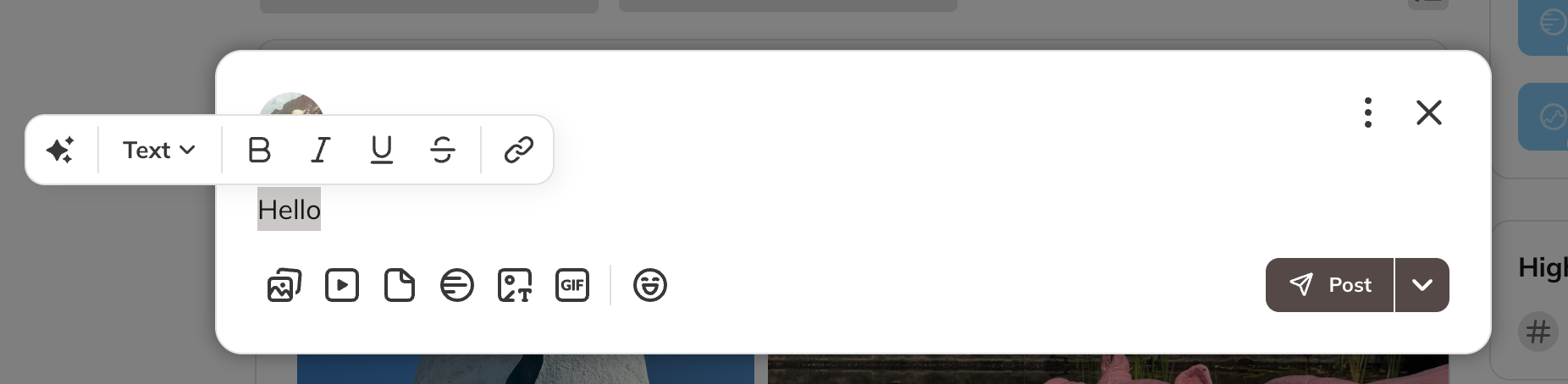
Comments
You can turn comments on or off for any post. Who can control comments:- Hosts and Moderators: on any post in their Network or Space
- Members: only on their own posts
- Open the three-dot menu on a post
- Toggle comments on or off
- Turning them off hides existing comments, but they come back if you turn comments back on
Hashtags, GIFs, and Emojis
You can use hashtags, emojis, and GIFs in Posts, Chat, Articles, or comments.Hashtags
- Anyone can make hashtags.
- Type “#” plus your text (letters, numbers, or underscores).
- No spaces or special characters (&, $, etc.).
- You can use more than one hashtag per post.
- Hashtags show up in a dropdown as you type.
GIFs and Emojis
You can add GIFs and emojis to posts, comments, chat, or Articles.Posting in Your Mighty Network
When you finish creating a Post, select Post in the upper-right corner to publish it. Before you publish, you’ll see notification options, including Notify All.Notify All
If you select Notify All, every member with notifications enabled will receive an immediate push notification and email when your Post is published. Use this option only for important or time-sensitive updates that all members should see.Schedule a Post
You can also schedule a Post to publish at a later date and time. This feature is available on desktop and can be used for all content types, including Posts, Articles, Events, Polls, and Questions. To schedule a Post, you must be the Space Host or Space moderator.- On web, open your Post draft.
- Select the down arrow next to Post.
- Choose Schedule Post and set the date and time.
Managing Scheduled Posts
You can view and manage all scheduled Posts in your Mighty Network:- Select your profile picture.
- Choose Scheduled Posts.
- View all upcoming scheduled Posts from any Host or moderator.
- Select a Post to edit its content or scheduled time.
- Use the three-dot menu to Move or Delete a Post.
Make it Better (AI Tool)
If you’re on the Launch plan (or higher) and have AI enabled, you can highlight any text in your post and click the “Make it Better” sparkle icon. Options include:- Fix spelling and grammar
- Shorten or expand text
- Change the tone (Casual, Fun, Professional, Sincere, Witty)