

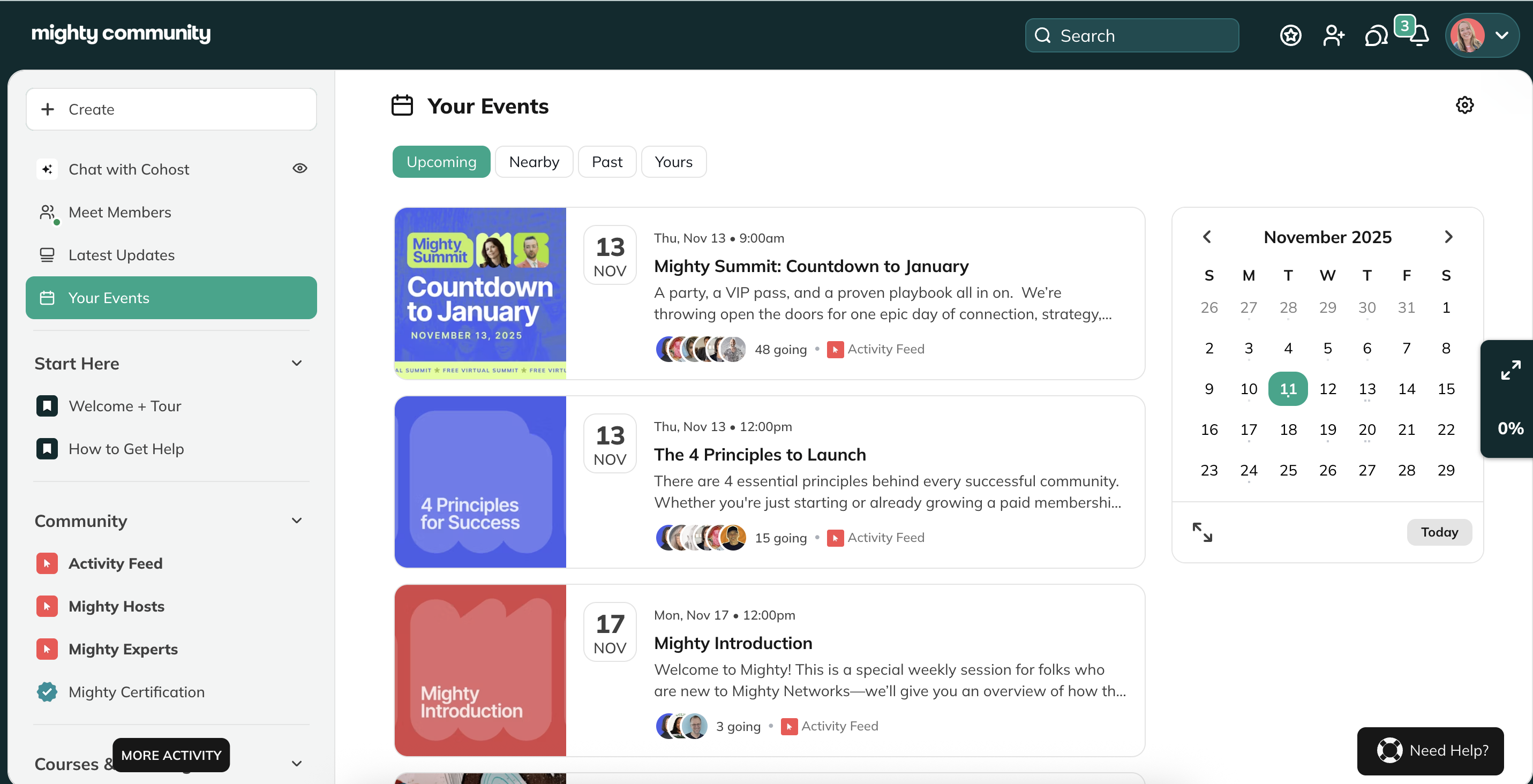
Viewing Events in Calendar View
When you view Events on the web, you’ll see an Expand Calendar icon on the right side of your Events list—either in a Space or in your Global Events feature.- Click the Expand icon to open the full-page Calendar View.
- You’ll see one month at a time.
- Use the arrows to move between past or upcoming months.
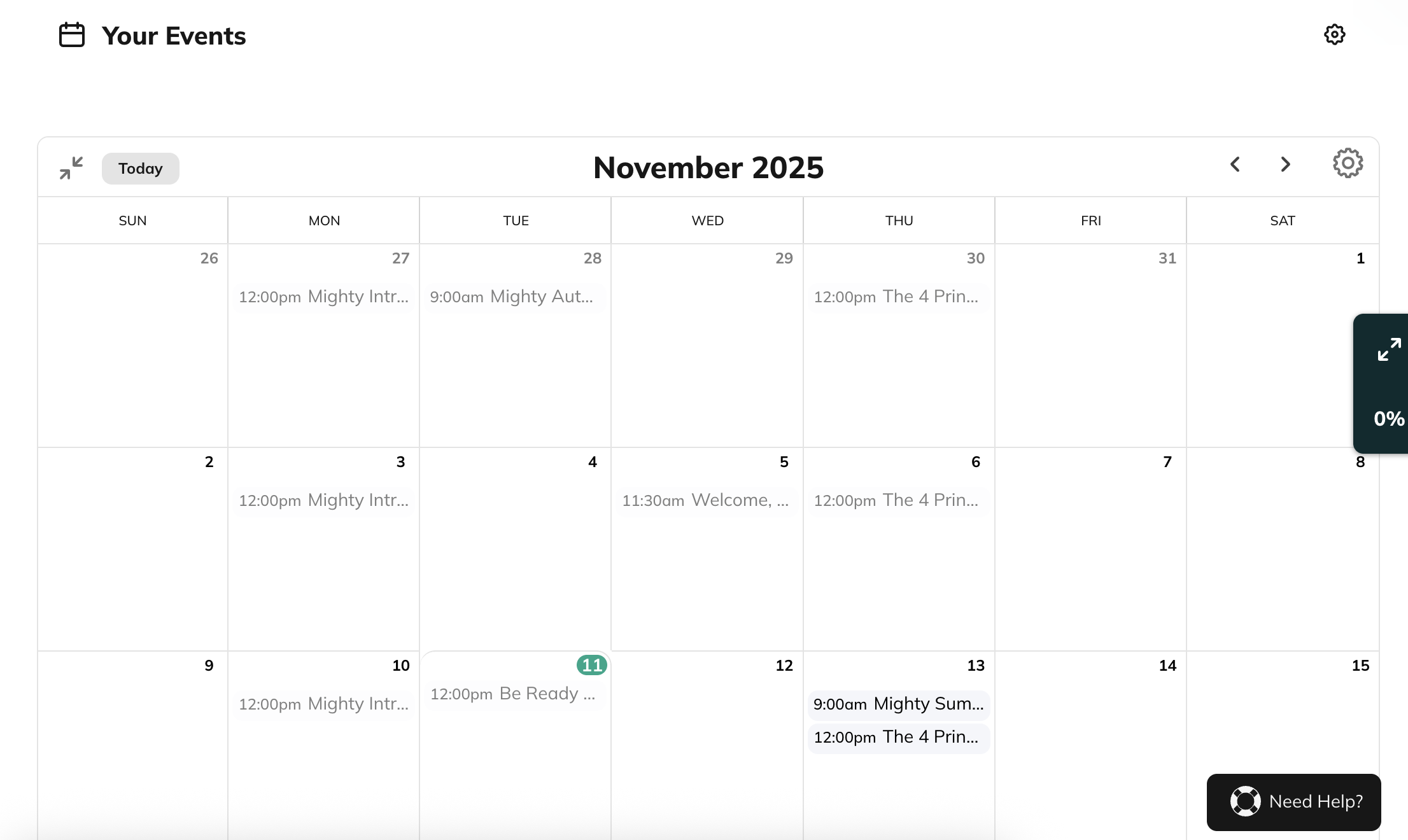
How Events Display in the Calendar
- If you have the Global Events feature enabled, you’ll see all Events you have access to across your Mighty Network—listed in chronological order.
- Inside a Space, you’ll only see Events happening in that specific Space.
- Members see only Events in Spaces they belong to.
Choose Which Events to Display
Click the gear icon to choose:- Show All Events, or
- Show My Events Only (Events you’ve RSVP’d to)
- On the small calendar sidebar of the Events page, next to the Expand icon.
- In the upper-right corner of the full-page calendar after you expand it.
Syncing Events with Your Personal Calendar
From the Calendar View, you can automatically sync Mighty Networks Events to your personal calendar.How to Sync Your Events
- On the web, open the Events page in a Space or in your Global Events feature.
- Click the gear icon on the calendar sidebar, next to the Expand icon (not the Space settings gear). You can also expand the calendar first and click the gear icon in its top-right corner.
- Select Sync to My Calendar.
-
Choose your sync options:
- Only Events I’ve RSVP’d to, or
- All Events
-
Select your calendar service:
- Google Calendar
- Outlook Calendar
- Apple Calendar
Syncing Individual Events
You can also add a single Event to your personal calendar directly from its Event page.- Click Add to Calendar on the Event.
- Choose your preferred calendar app.
- Follow the prompts to export that Event only.
Keeping Your Calendar Up to Date
Once synced, your personal calendar will automatically update with any Event changes made in your Mighty Network—including deleted Events. However, the update timing depends on your calendar provider:- Google Calendar: Syncs every few hours to a few days.
- Apple Calendar: Defaults to syncing weekly (we recommend setting it to every 1 hour).
- Outlook Calendar: Syncs every few hours to a few days.
Manually Refreshing Your Calendar
If your Events aren’t updating:- Remove the subscribed Mighty Networks calendar from your personal calendar.
- Return to your Mighty Network and sync again using the steps above.
Helping Your Members Stay Synced
If you edit an Event scheduled within two weeks, you’ll see an option to message your members. You can use this to remind them how to refresh their calendars and make sure their updates are reflected. Here’s a simple message you can send: “If you don’t see the latest updates in your calendar, remove your Mighty Networks calendar and re-add it using the sync steps in your Events calendar view.”Event Reminder Notifications
Members who RSVP Going or Maybe automatically receive reminders:- Online Events: 10 minutes before the Event starts
- Local Events: 24 hours before