

Profile Fields help you gather key details about your members so you can create better experiences and foster stronger connections in your Mighty Network. They’re available on every plan, and there’s no limit to how many you can make visible.
Profile Fields support dropdown, short text, long text, date, date range, number, toggle, location, URL, and phone number response types.
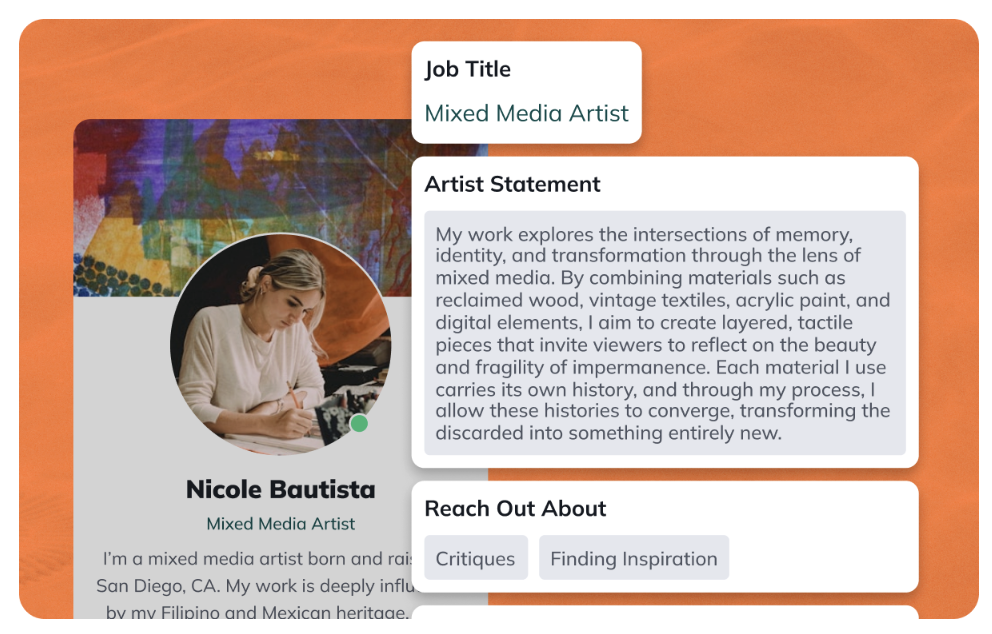
How to Create a Profile Field
To create a new Profile Field, go to Admin > Members > Profile Fields — the direct path is/admin/custom-fields — and select Create Field.
Then follow these steps:
- Choose a response type Decide how members will respond: You can’t edit the response type after creating the field.
- Dropdown — single or multi-select
- Short text — up to 255 characters
- Long text — up to 2,000 characters
- Date — a single date, or a date range
- Number — a numeric value, like years of experience or number of children
- Toggle — a simple yes/no or on/off response
- Location — one or more places a member is interested in
- URL — one or more links
- Phone number — a phone number
- Name and describe the field
- Enter a Field name, which will appear on the member profile if you set the field to be visible.
- Add a description that appears next to the input field.
- Add placeholder text that appears when the field is empty.
- Click Next: Configure to move to setup.
Configuring Dropdown Fields
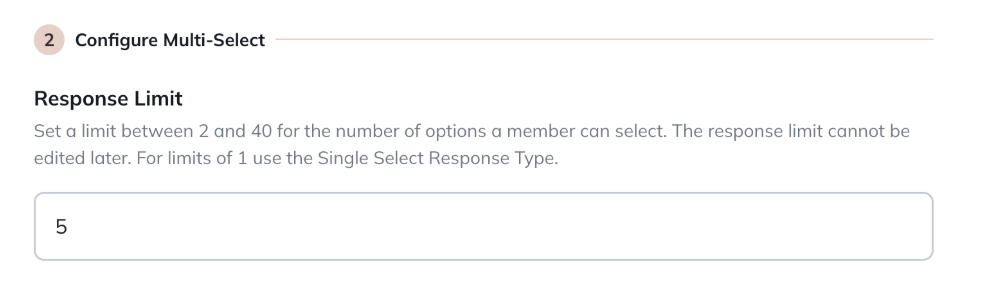
If you select single or multi-select, you’ll see configuration options for dropdowns.- Response limits: For multi-select fields, set a response limit between 2 and 40 options.
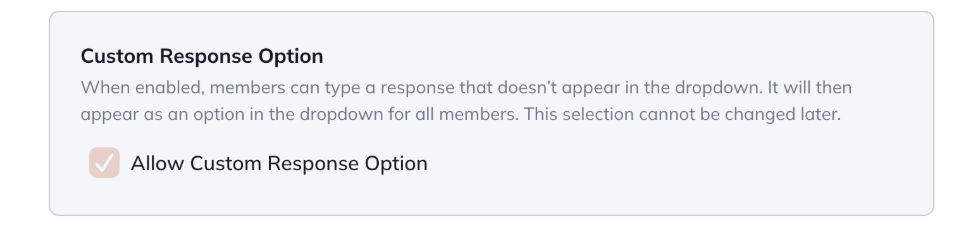
- Custom responses: Choose whether to allow members to add their own responses (up to 40 characters). Once added, custom responses appear as dropdown options for all members.
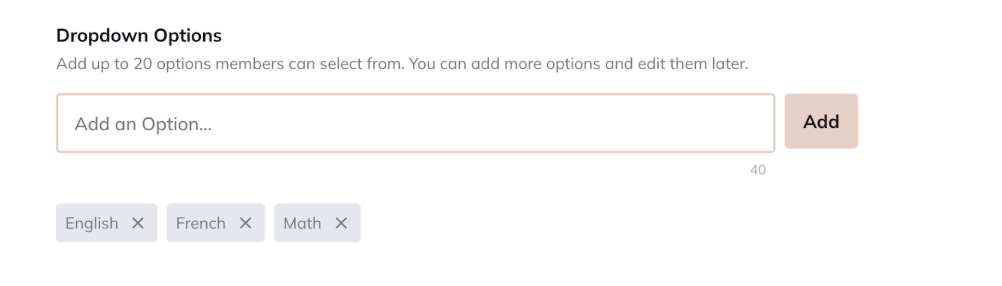
- Dropdown options: Add up to 20 options when you first create the field. You can add more later—there’s no limit.
Configuring Text Fields
Short and long text fields don’t require additional configuration.Use short text for brief responses (1–255 characters) and long text for open-ended answers (1–2,000 characters).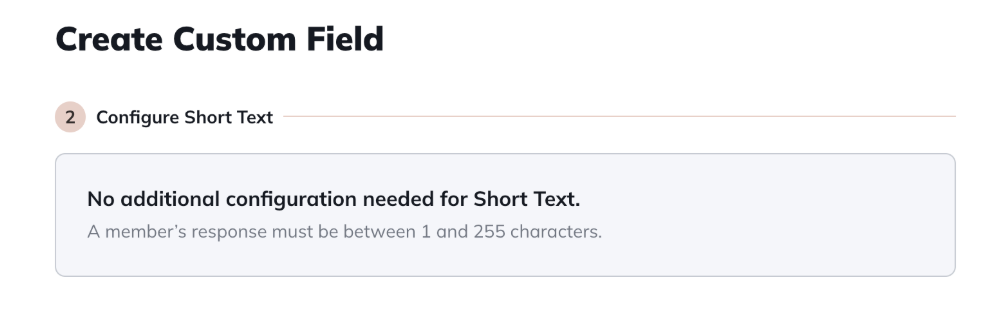
Configuring Date and Date Range Fields
Ask members for a single date or a range of dates — useful for things like event attendance, availability windows, or birthdays.- Date — a single date
- Date range — a start date and an end date
- Toggle year optional if you only need the month and day, such as for a recurring date like a birthday
Configuring Number Fields
Collect a specific number from members, such as years of experience, number of children, or follower count. You can then filter your Member List or build an Audience by number range, like members with more than five years of experience.Configuring Toggle Fields
A toggle field gives members a simple yes/no or on/off choice — for example, “I’m interested in receiving a monthly newsletter.”Configuring Location Fields
A Location Profile Field asks members which places they’re interested in, visit, or want to connect around. This is different from the built-in Location field on a member’s profile, which is about where they live — for example, a member could live in San Francisco but select Los Angeles and New York as places they frequently visit. When you create a Location field, choose:- Location level — how precise the place should be
- Address — a street address or a specific place, like a park or business. Address-level fields are private by default (see Setting Privacy Options below).
- City — a city or town, e.g. Nashville, TN
- State — a state, province, or region, e.g. Tennessee
- Country — a whole country, e.g. Japan
Configuring URL Fields
Let members add one or more links to their profile — for example, a personal website, portfolio, or social profile.Configuring Phone Number Fields
Ask members for a phone number. Phone Number fields are private by default (see Setting Privacy Options below).Setting Privacy Options
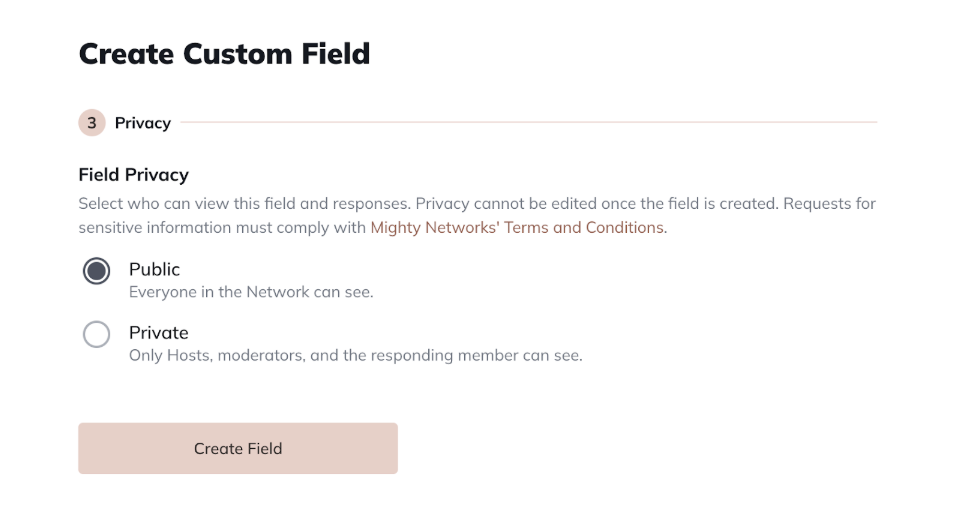
For every Profile Field, you’ll configure privacy settings that determine who can view responses.These settings cannot be changed later.- Public: Everyone in the Network can see responses.
- Private: Only Hosts, moderators, and the responding member can see responses.
Make This Field Public? Address and phone number fields often hold sensitive information. If you make this field public, every member can view what’s entered here.City, State, and Country-level Location fields don’t require this extra confirmation, so members can still be found by their general location. Be mindful not to request sensitive information. All data collection must comply with Mighty Networks’ Terms and Conditions.
Making a Field Visible
After you create a field, it’s hidden by default.To make it visible, toggle Visible in the upper right corner of the field. There’s no limit to how many Profile Fields you can make visible. You’ll also have the option to notify all members. If enabled, members will receive an email and in-app notification letting them know a new field is available.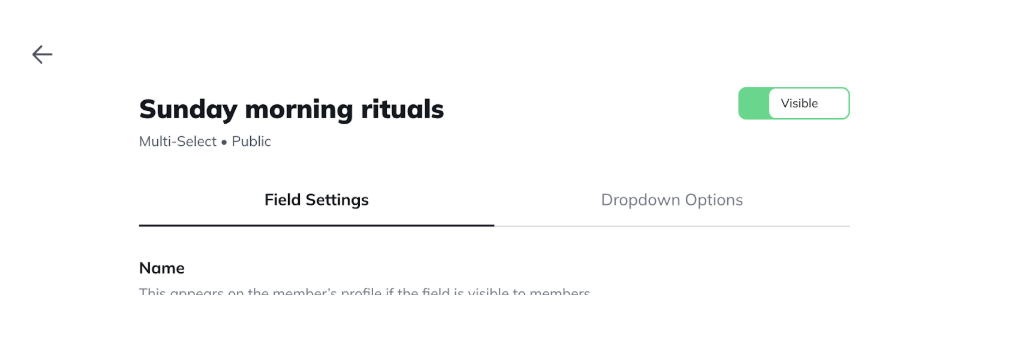
Managing Profile Fields
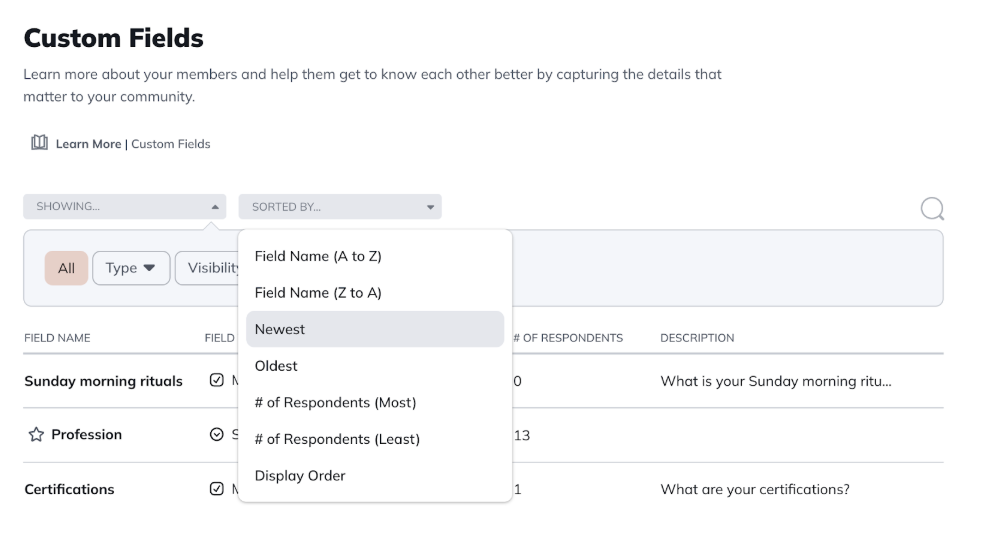
All of your fields appear in the Profile Fields list. From here, you can:- Edit a field
- Change the Display Field
- Hide or make a field visible
- Delete a field
- Field Name (A to Z)
- Field Name (Z to A)
- Newest
- Oldest
- Display Order
Display Fields
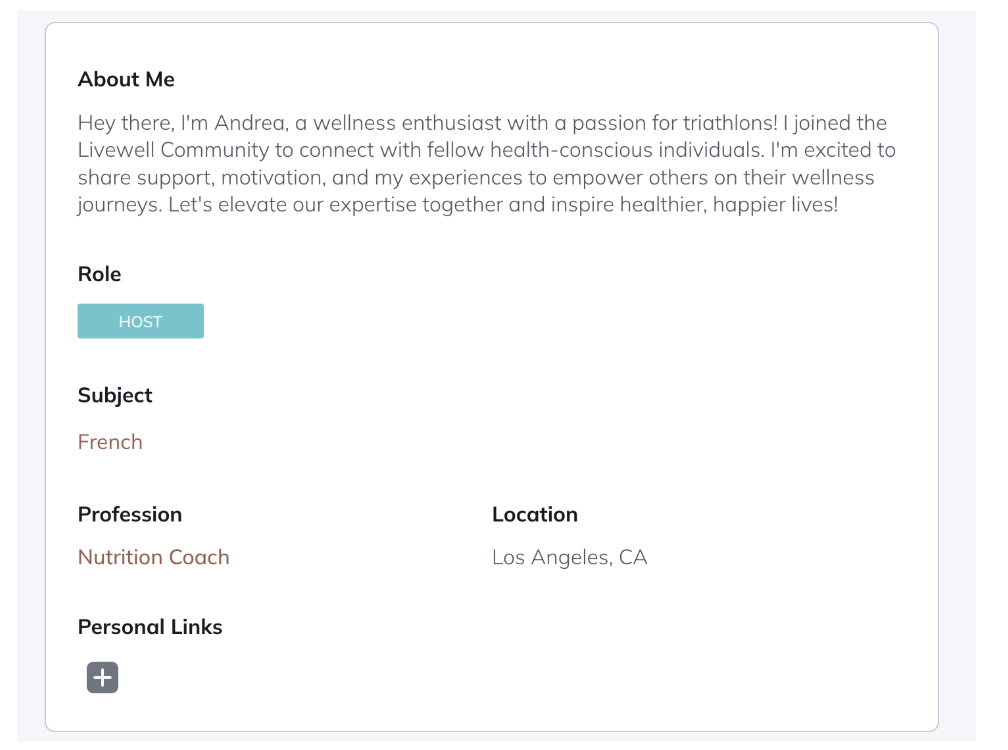
The Display Field is the primary field that appears on member profiles and under the Explore filter in Global and Space Members.A star icon appears next to the current Display Field. Only public single-select fields can be set as the Display Field. To change it:- Open the three-dot menu next to the current Display Field and select Remove as Display Field.
- Choose another eligible field and set it as the Display Field.
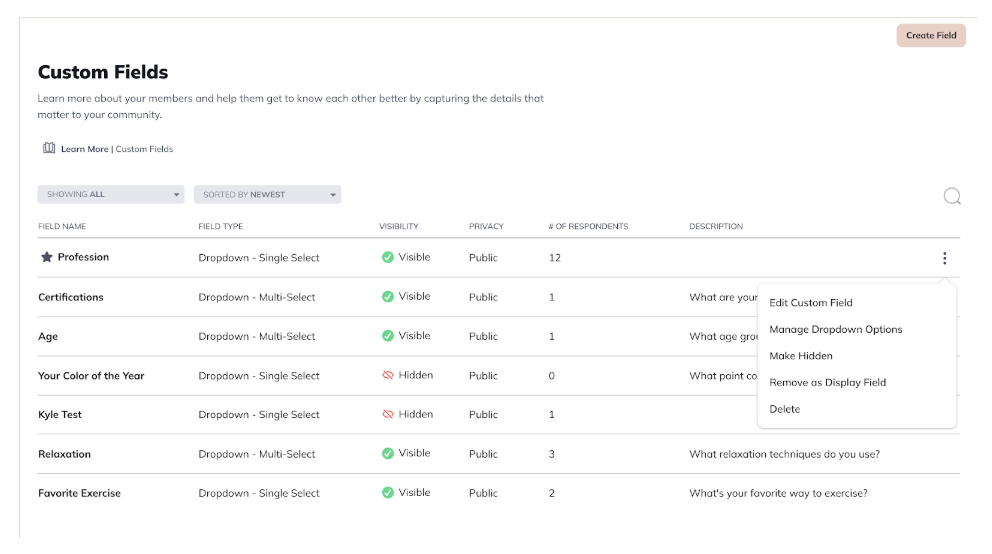
Merging and Reordering Fields
- Merge options: If you allow custom responses for dropdowns, you can merge duplicate or similar responses. Go to Edit Profile Field > Merge Option Into… to combine them.
- Reorder fields: Change the order in which fields appear on member profiles by going to Members > Reorder Profile Fields.
Viewing Member Responses
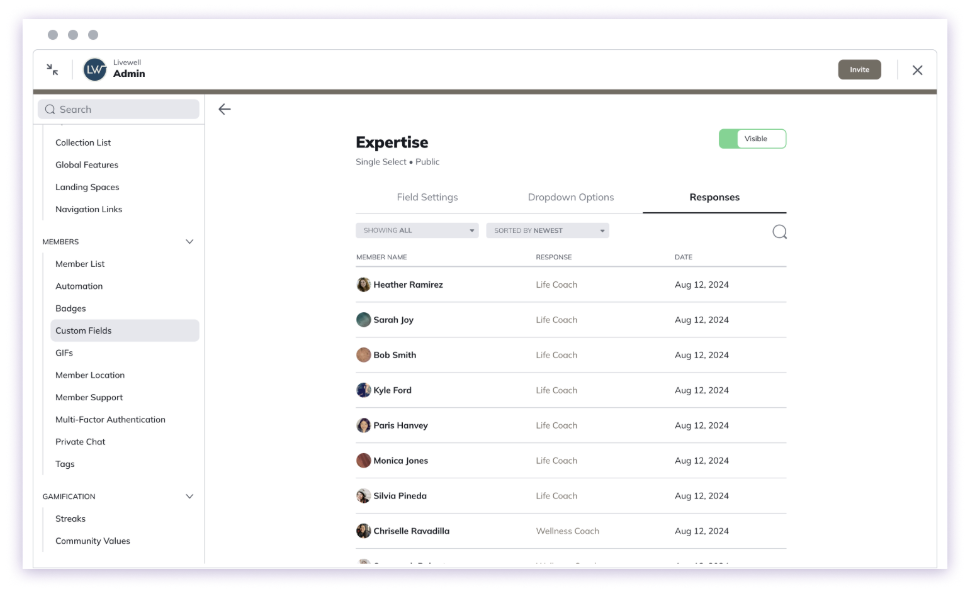
To review responses:- From the Profile Fields list, open the three-dot menu next to a field and select Edit Profile Field. Then click the Responses tab.
- You can also view and filter responses in the Member List under Admin > Members > Member List.
Filtering Your Member List
You can filter your Member List by Profile Field responses. For example, you could find:- Members with 100–500 miles of hiking experience
- Members interested in a particular country
- Members who answered yes to mentoring
- Members available within a certain period
- Members who have shared a website or portfolio
- Send members a message
- Add a Badge
- Add a Tag
- Review the members who share a particular response
Member Experience
Members will see Profile Fields when editing their profile or by going to Personal Settings > Account > Private Responses. You can also choose to notify them of new fields when they are created. The notifications will take them directly to their profile where they can fill out their answers.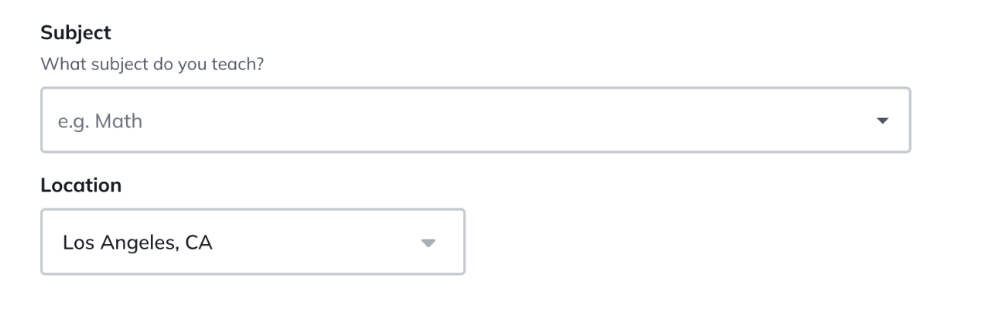
Using Profile Fields in Audiences
You can include or exclude members from an Audience based on their Profile Field responses, such as:- Whether they submitted any response
- Whether they submitted a specific response
- Whether a number falls within a particular range
- Other conditions, depending on the field type
Using Profile Fields in Automations
Profile Fields can be used in Automations, which combine a Trigger and an Action. You can trigger actions when a member:- Responds to a Profile Field, or
- Removes a response to a Profile Field.
- Welcome members who say they’re open to introductions
- Send next steps to members interested in a particular city
- Add a Tag to members with a certain level of experience
- Award a Badge when someone reaches a numeric milestone
- Send relevant resources based on a member’s goals or interests
- Follow up after a member shares their availability
Search and Insights
- Search: Members can use the global search bar to find others who selected the same dropdown responses, including both predefined and custom ones.
- Mighty Insights™: Use the Profile Fields dashboard in Mighty Insights™ to see data such as total respondents, field types, visibility, and privacy settings. You can also open a Detail Dashboard for deeper insights.