

Move Articles, Posts, and Events
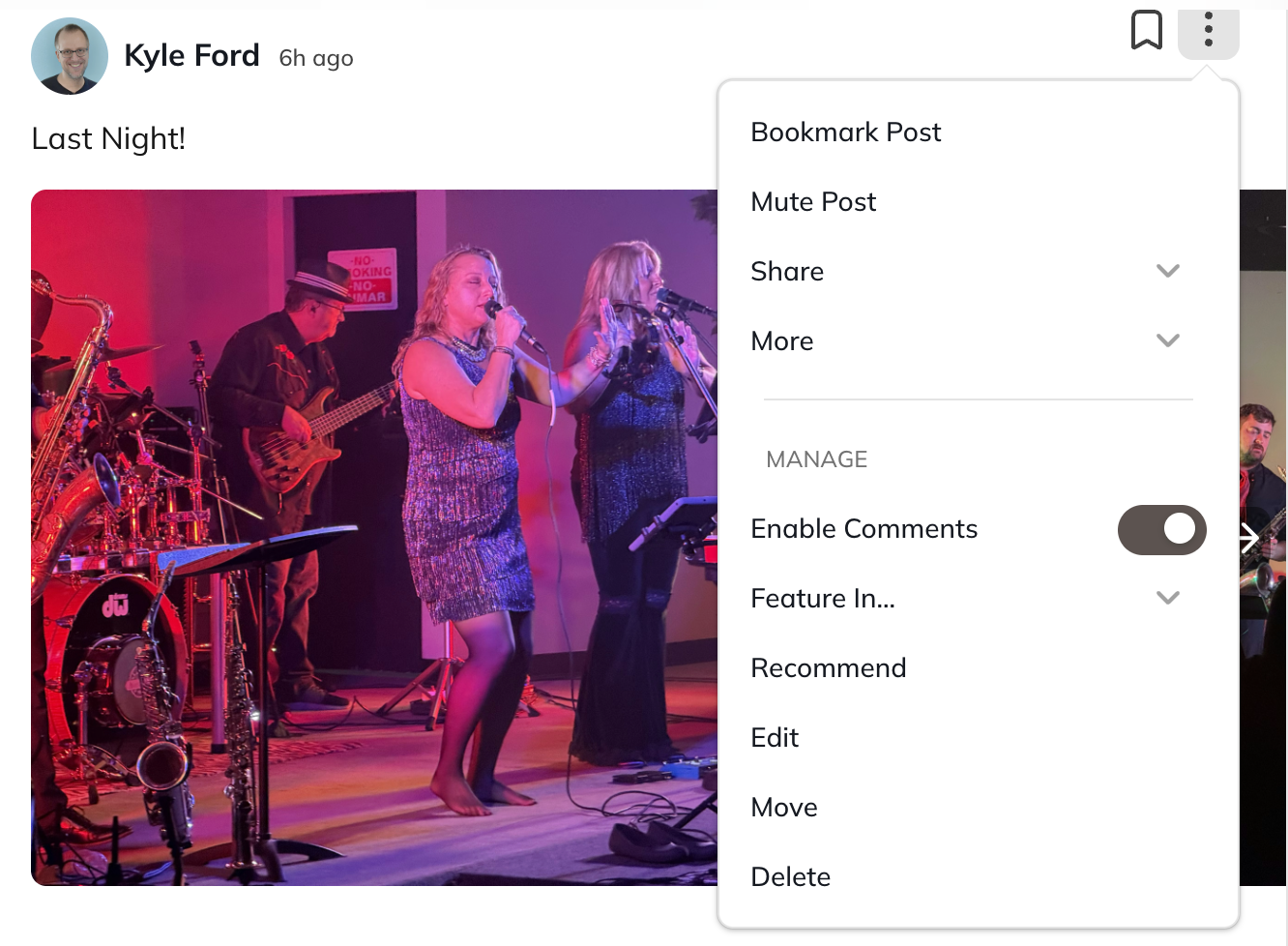
If the Article or Post is pinned in the Welcome or Featured sections, unpin it before moving.- Open the three-dot menu next to the post.
- Select Move.
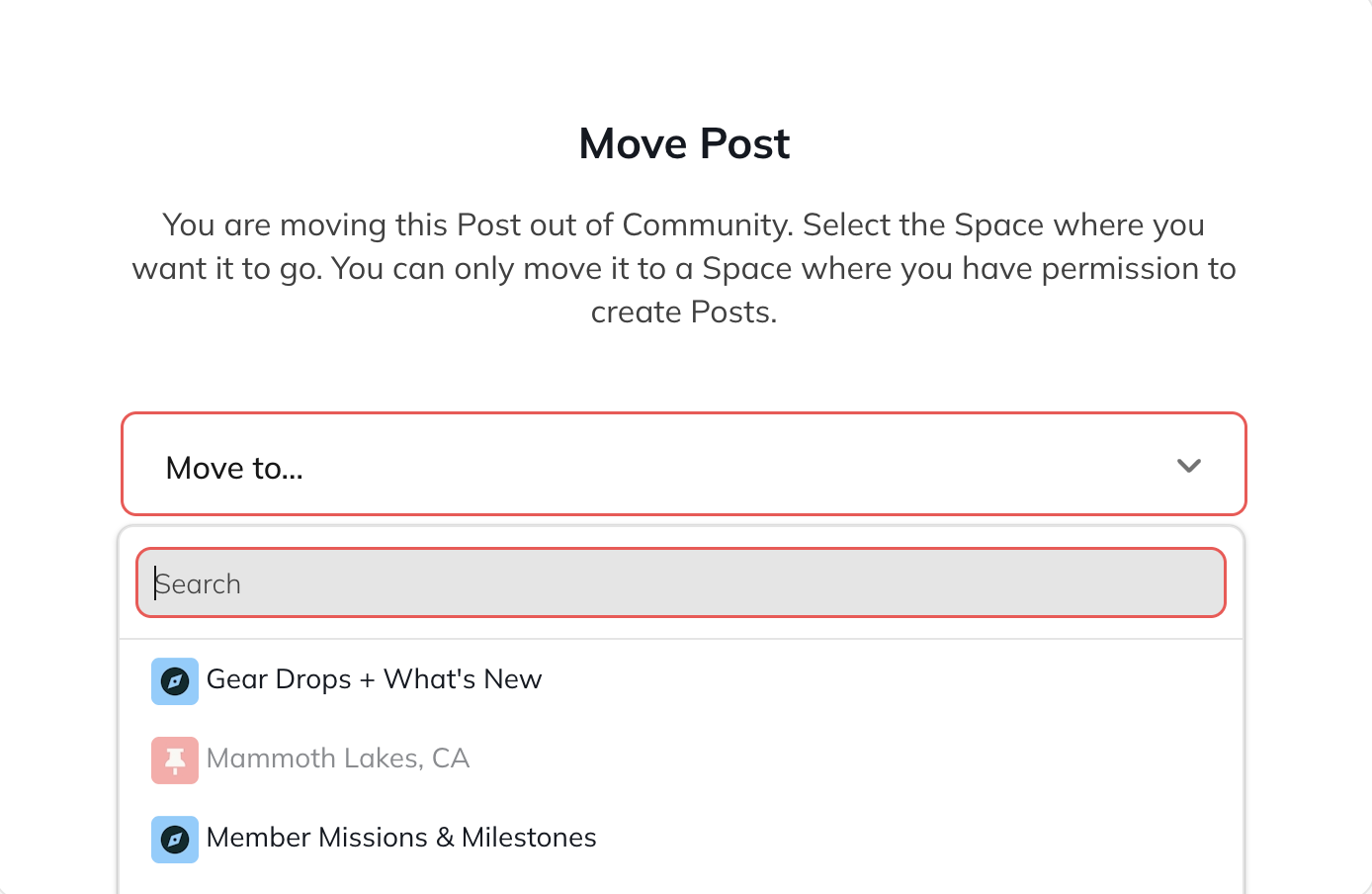
- Choose the Space you want to move the content to.
- If a Space is greyed out, that means the content type isn’t enabled in that Space.To enable it, go to the Space > gear icon > Space Features > Feed > Manage, then toggle on the content type (Posts, Articles, Events, etc.).
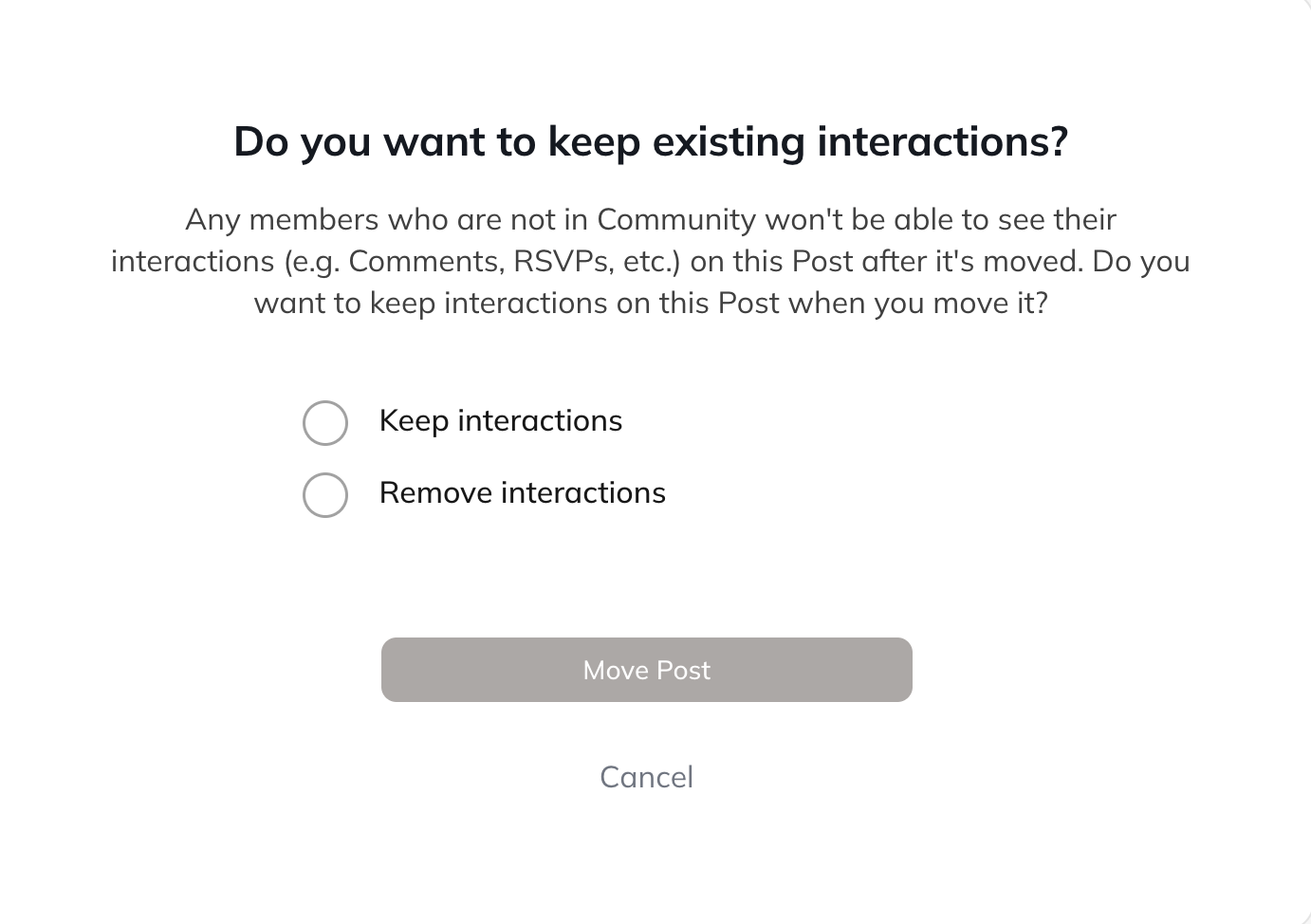
 Next, choose whether you want to keep or remove interactions.
About Moving Events
- Only the event creator can move an Event.
- When moving an Event, the creator will see the option to keep RSVPs.
- You can duplicate an Event and change the Space if needed.
Scheduled posts
Scheduled posts cannot be moved.To move a scheduled post:- Copy the content into a new Post, Article, or Question.
- Reschedule the new post.
- Delete the original.
Move Lessons, Sections, and Quizzes
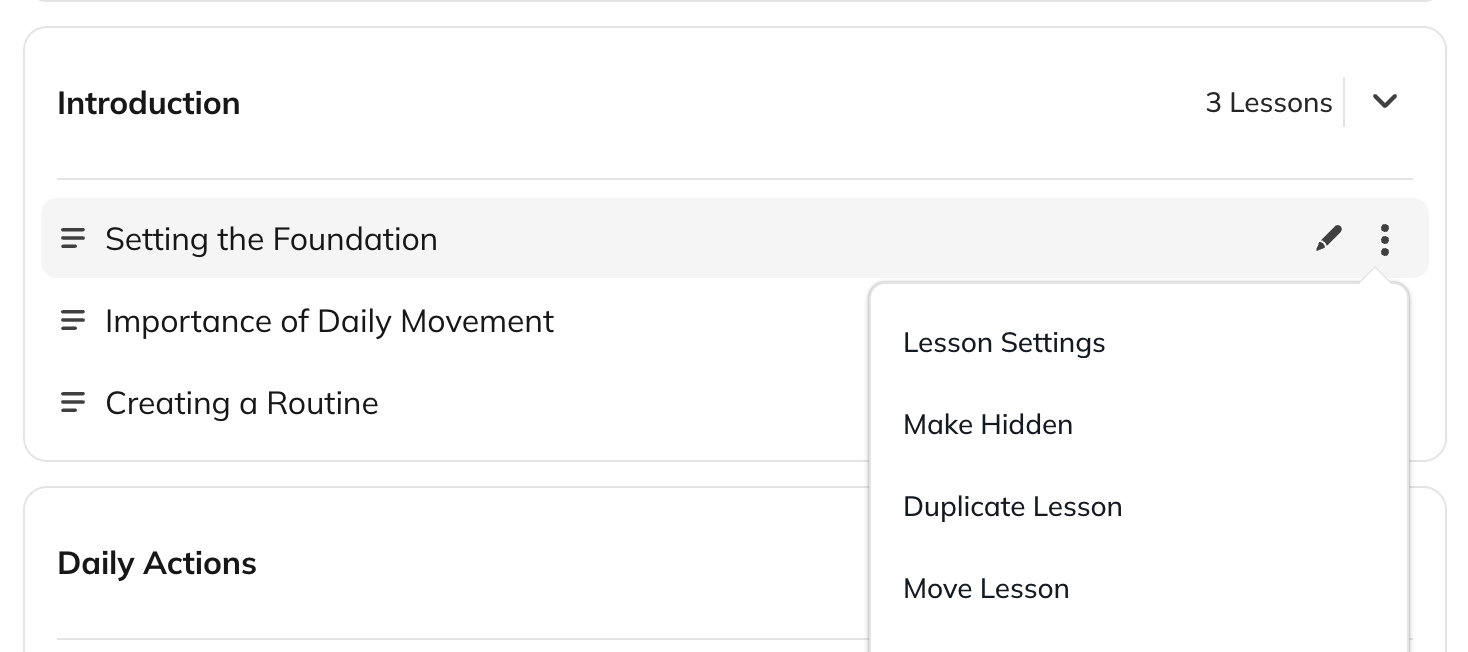
You can move Lessons, Sections, and Quizzes to another Space.- Open the three-dot menu for the item.
- Select Move Lesson, Move Section, or Move Quiz.
- Choose the Space you want to move it to.
What transfers when you move course content
- Content and settings
- Comments
- Member progress (see details below)
- Quiz responses
- Automations
- Any links to the content (Articles, Pages, Landing Pages, or emails) will continue to work
About Moving Course Content
- The destination Space must have the Course feature enabled, and you must have permission to create Lessons there.
- If you move a Section, all Lessons in the Section move with it.
- You cannot move the Course Overview.
- Moved content appears at the bottom of the list. You can reorder it after moving.Content cannot be moved in bulk at this time.
Member Progress
- If a member is already in the destination Space, their progress moves with the content.
- If they are not in the Space, their progress will appear once they join.
Move Multiple Posts
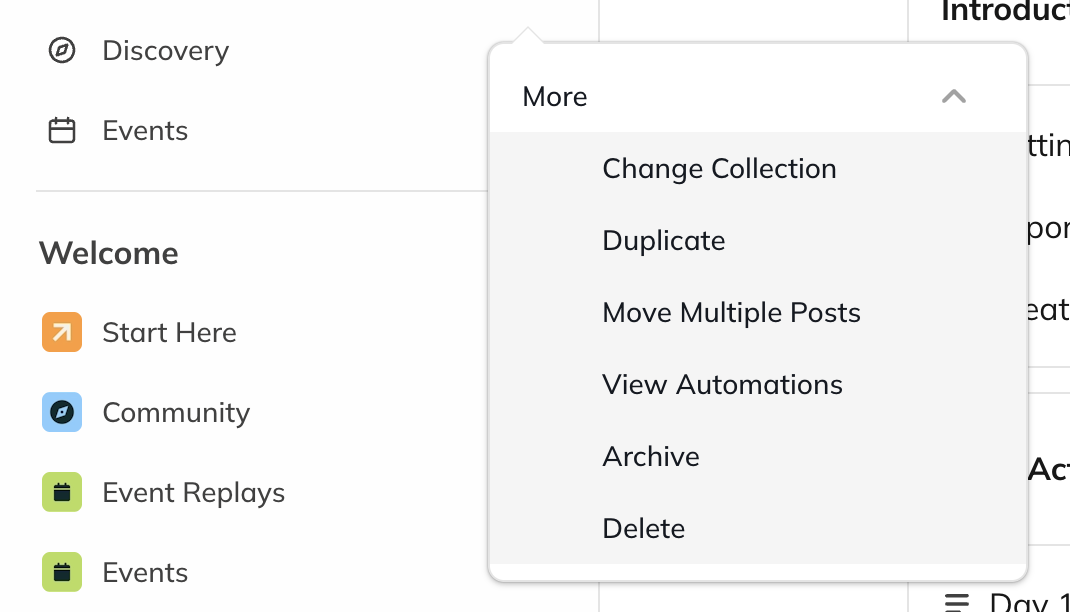
You can move multiple posts from one Space to another. This feature is available to both Space Hosts and Network Hosts.- Open the three-dot menu next to the Space in the left navigation.
-
Select More > Move Multiple Posts.
- If you are a Network Host but not a Space Host, you will be prompted to become a Space Host first before proceeding with the bulk move.
-
Choose whether you want to move All Posts or posts with a specific hashtag.
- This is helpful for reorganizing content across Spaces or updating your hashtag structure.
-
Select the destination Space.
- You can only move posts to a Space where you are a Host.
- Click Move Posts.
About Moving Multiple Posts
- Reactions, comments, and interactions will move with the posts.
- If you don’t see certain posts, check whether their content types are enabled in the destination Space.