

Space Host
A Space Host has full control over the Space. They can manage settings, content, members, visibility, and features within that Space. Their permissions do not extend beyond the Space unless they also hold a Network-level role.Space Moderator
A Space moderator has a more limited set of permissions. They can help manage members and content inside the Space but cannot change all Space settings or perform full administrative actions like a Space Host. Note: Limited members cannot become Space Hosts or Space moderators.What permissions do Space Hosts and Space Moderators have?
Moderation clears content, it doesn’t rewrite it. A Space moderator can delete another member’s comment, reply, or Chat message, but editing another person’s words is a Space Host power. Posts are the one exception: posts are long, and moderators have always been able to fix a typo in one.Chat and livestream messages can’t be edited at all once they’re sent — not by the person who wrote them, and not by a Host. Delete the message and send a new one instead.
Space Hosts and Space moderators can only remove members who joined the Space directly. A member who joined through a paid plan can’t be removed at the Space level — removing them means cancelling that plan, which a Network Host does from the Network level.
Make Someone a Space Host or Moderator
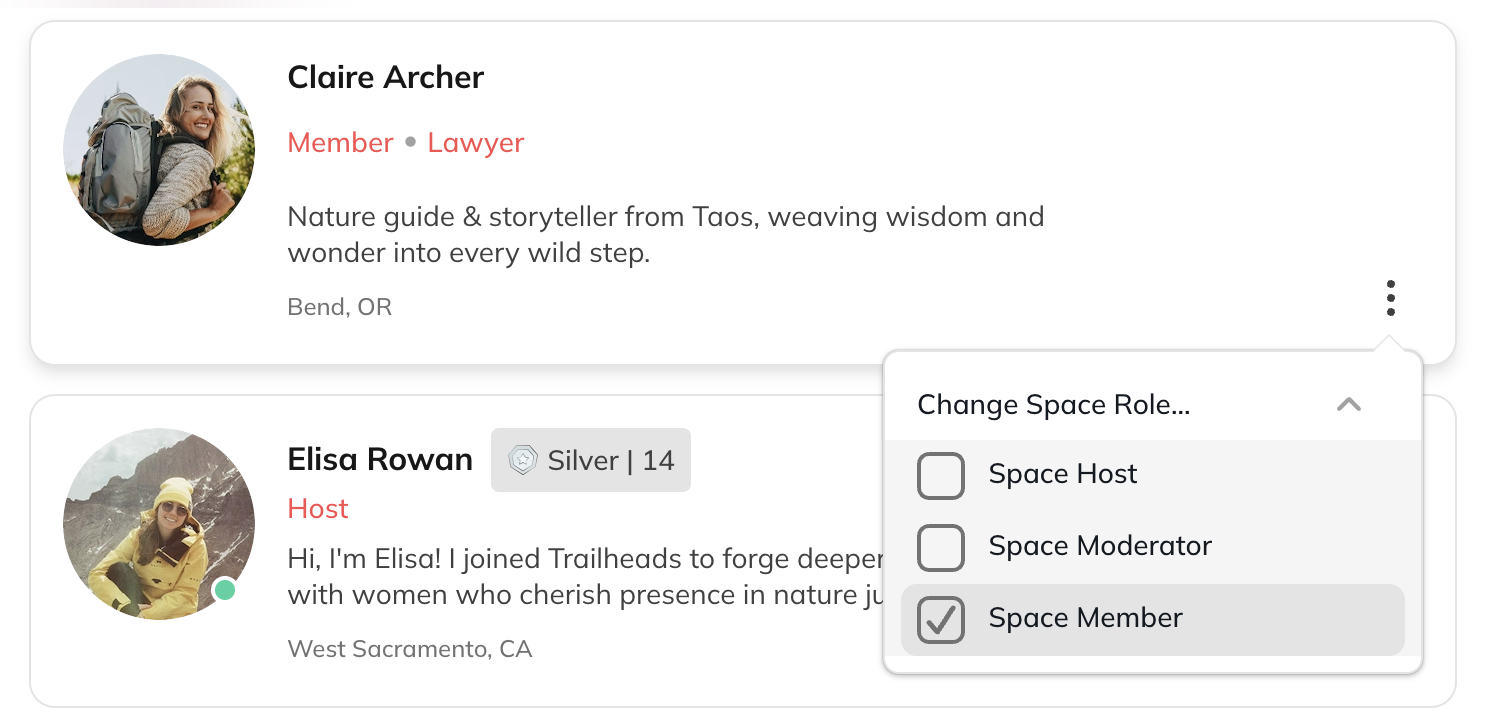
To change a member’s role in a Space:- Go to Space Members.
- Search for the member.
- Select More > Change Role > Space Host (or Space moderator).
- Click the gear icon for the Space.
- Go to Space Members > Member List.
- Open the three-dot menu next to the member’s name.
- Select Change Role.
Course Owners
In a Space with a Course, you can assign Owners to individual Lessons. Course Owners can edit Lesson content, manage visibility, and toggle comments on or off.Requirements
A Course Owner must first be a Space moderator or Space Host.Assign a Course Owner
- Open the Lesson.
- Go to Lesson Settings.
- Select Choose an Owner or Invite New Owner.
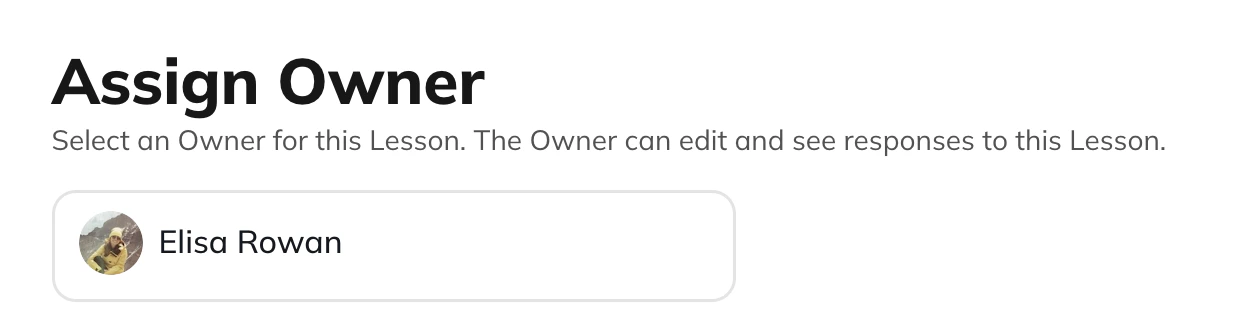
- They appear as an Owner on the Course Overview.
- They can edit Lesson content and settings.
- The Lesson Owner receives notifications for comments on the Lesson, along with anyone else taking part in the discussion (earlier commenters and people who are @mentioned).
Section Owners
A Section shows the Instructor(s) based on Lesson ownership:- If all Lessons in a Section share the same Owner, the Section will display one Instructor.
- If Lessons have different Owners, all will appear as Section Owners.