

Already connected Kit? To move to the latest version of the integration, disconnect and then reconnect from your Mighty Network under Admin > Integrations > Kit. Your sync settings are saved to your Network and carry over, so confirm them once you reconnect.
Before You Begin
To use this integration, you’ll need a Kit account on the Creator or Creator Pro plan. As a Mighty Network Host, you’ll also receive a 30-day extended free trial to try Kit and explore the integration.How to Connect Kit
You can connect from either Mighty or Kit.From Mighty Networks
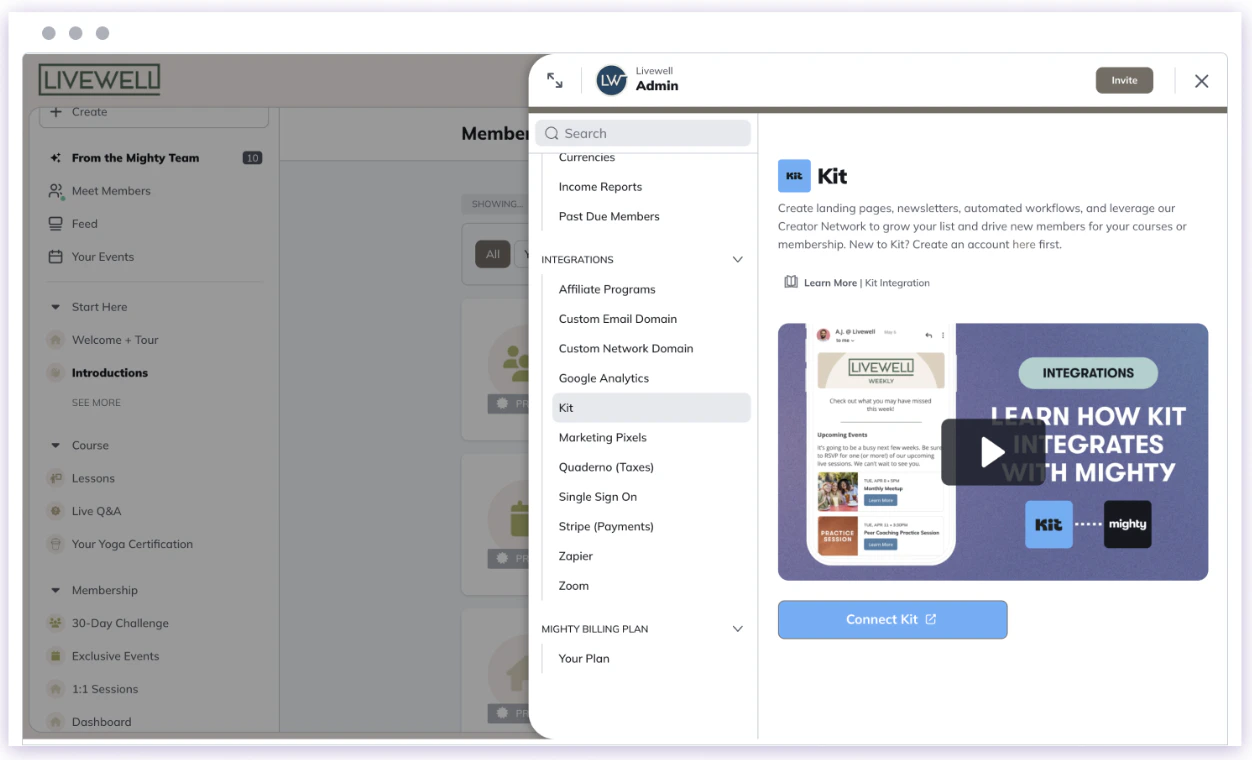
- Go to Admin > Integrations > Kit.
- Select Connect Kit.
- You’ll be redirected to Kit, where you can either create a new account or log in to an existing one.
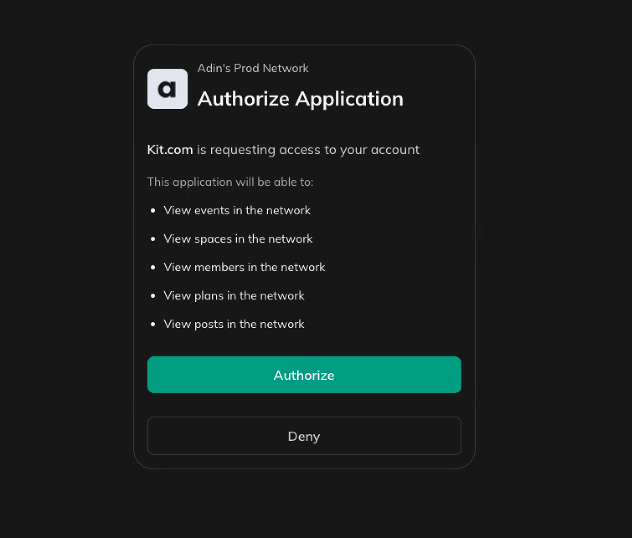
From Kit
- Go to the Mighty Networks app details page or the Kit App Store.
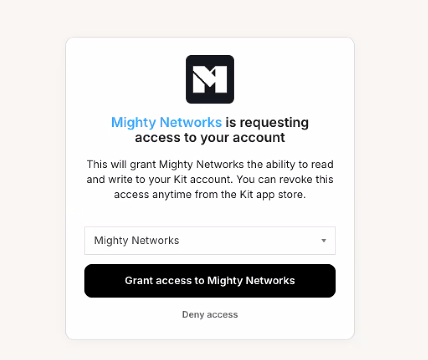
- Select Install and follow the prompts to connect your Mighty Network.
- If your Network uses a custom domain, you may be asked to enter your Network address to continue.
Managing Your Kit Account
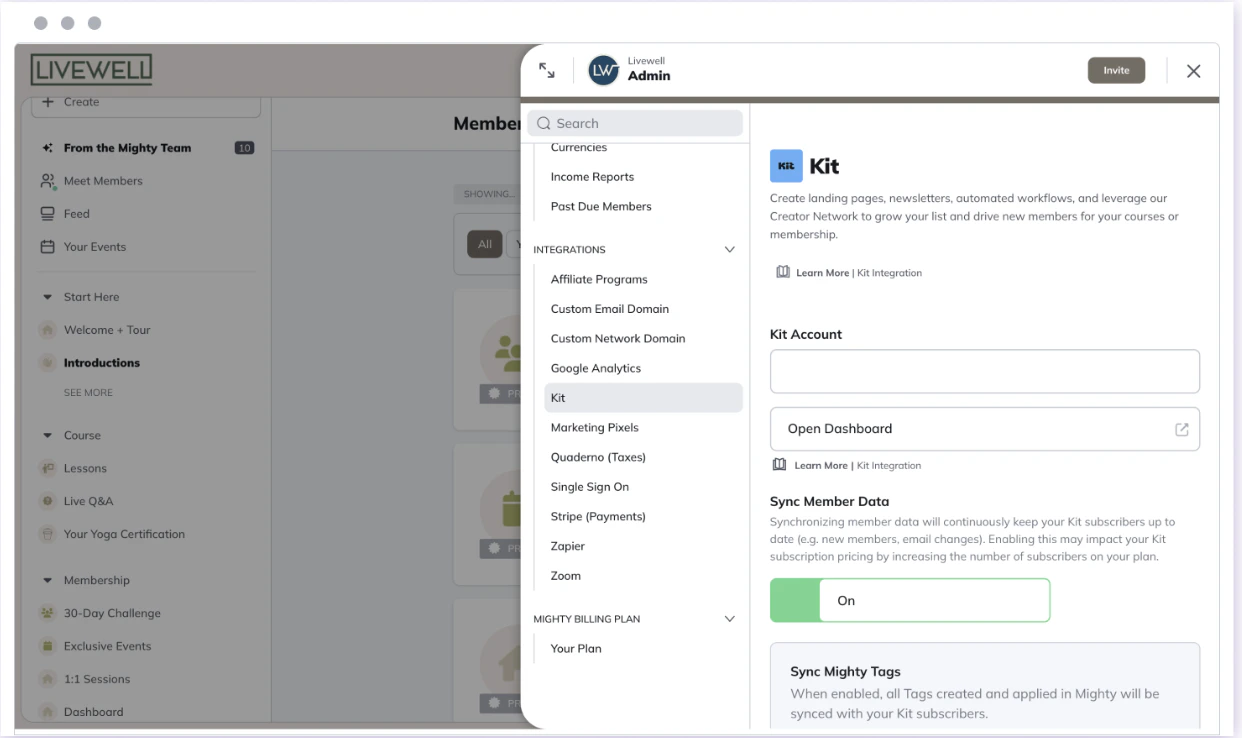
Once you connect your account, you’ll see a screen where you can change your Kit settings.- Kit Account: Displays the email connected to your Mighty Network.
- Open Dashboard: Opens your Kit account in a new browser tab.
Syncing Member Data
Sync Member Data is off by default. Enable it to sync member information between Mighty and Kit. When you enable it, a confirmation message appears. Once syncing is active:- Mighty Network member information is synced to your Kit account.
- Members receive the tags “Your Network Name” and “Mighty Networks Integration.”
- If a member leaves, is banned, or deleted, the “Mighty Networks Integration” tag is removed.
- Updates to member names or emails in Mighty automatically sync to Kit.
- Members who have unsubscribed from marketing emails aren’t synced.
Limited Memberships
Limited memberships—those with access to specific Spaces only—are also synced and receive three tags:- Mighty Integration
- [Network Name]
- Limited Member [Network Name]
Syncing Tags
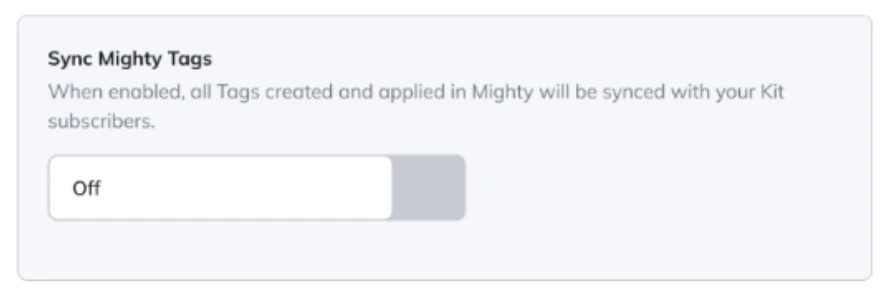
If Sync Member Data is enabled, you’ll also see the option to Sync Mighty Tags. Tags are internal member segments that can be synced with Kit to create email audiences (for example, “Legacy Members” or “First-Time Homebuyers”). When a new Tag is created in Mighty, it automatically appears in Kit as:(Network Name) (Mighty)
Syncing Waitlist Leads
If you’re running a Waitlist, you can automatically sync waitlist signups to Kit.- Go to Admin > Integrations > Kit.
- Turn on Sync Waitlist Emails.
Deleting or Editing Tags
If you delete a Tag in Mighty:- Members are unsubscribed from that Tag in Kit.
How to Use the Integration
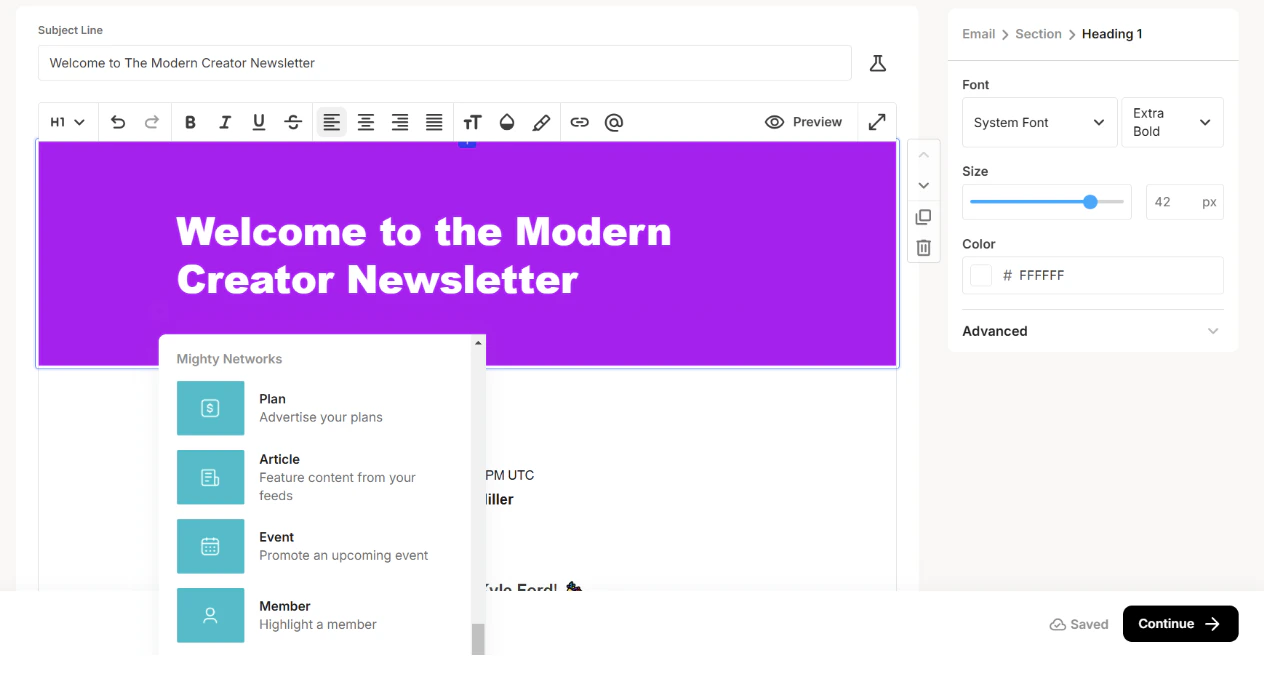
To start using the integration:- In Kit, go to Send > Broadcast or Sequence.
- Open the email editor and click the + icon.
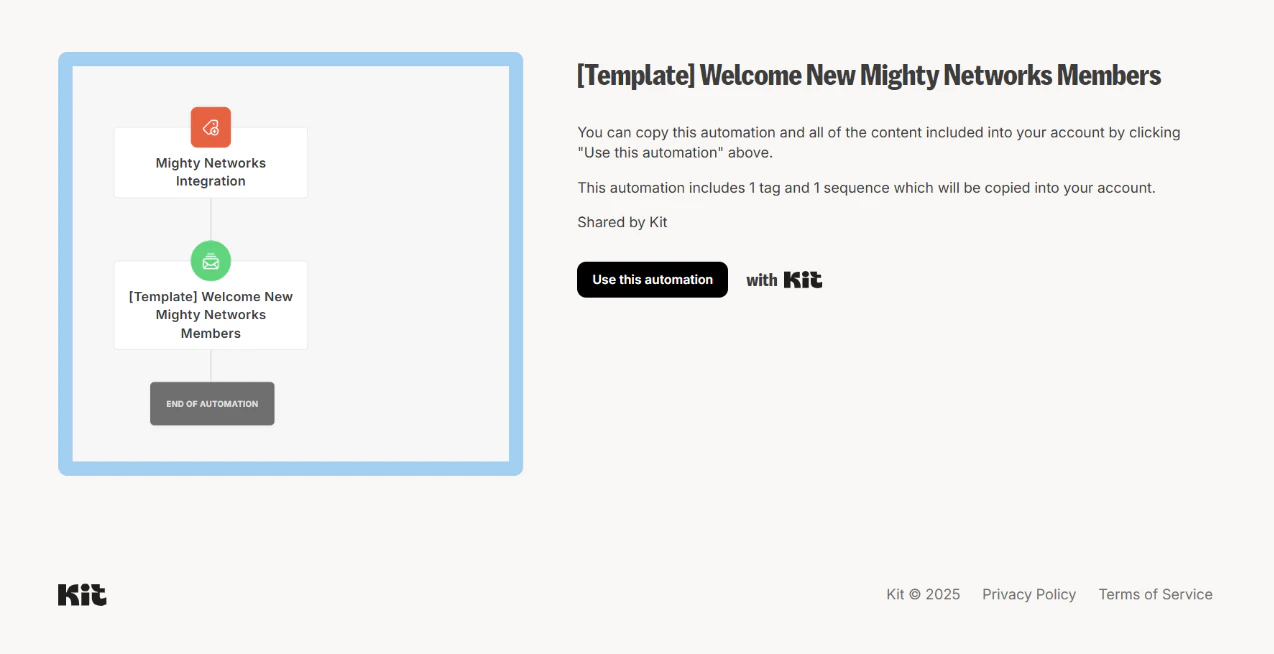
- Choose from new Mighty Networks content blocks to add content directly from your Network.
How to Disconnect Kit
You can disconnect Kit from either Mighty or Kit. Disconnecting from your Mighty Network is the most reliable way to fully end the connection on both sides.From Mighty Networks
- Go to Admin > Integrations > Kit.
- Select Disconnect.
- Confirm the disconnection when prompted.
From Kit
- Go to the Mighty Networks app details page or the Kit App Store.
- Select Uninstall.
- Confirm in the pop-up window.
- How to connect Mighty Networks and Kit
- How to add Mighty Networks content to your emails
- Syncing your Mighty Networks subscribers to Kit