

- Selling merchandise to members
- Offering discounted products only available inside your community
- Creating members-only storefronts for premium plans
- Embedding a single product or an entire Shopify collection
Before you begin
You’ll need:- A Shopify store
- The Buy Button sales channel enabled in Shopify
- A product (or collection) you’d like to sell
- A Lovable account
Step 1: Enable Shopify Buy Button
In Shopify:- Go to Sales Channels.
- Add the Buy Button sales channel if it isn’t already installed.
- Open the Buy Button sales channel.
- Create a Buy Button for your product (or collection).
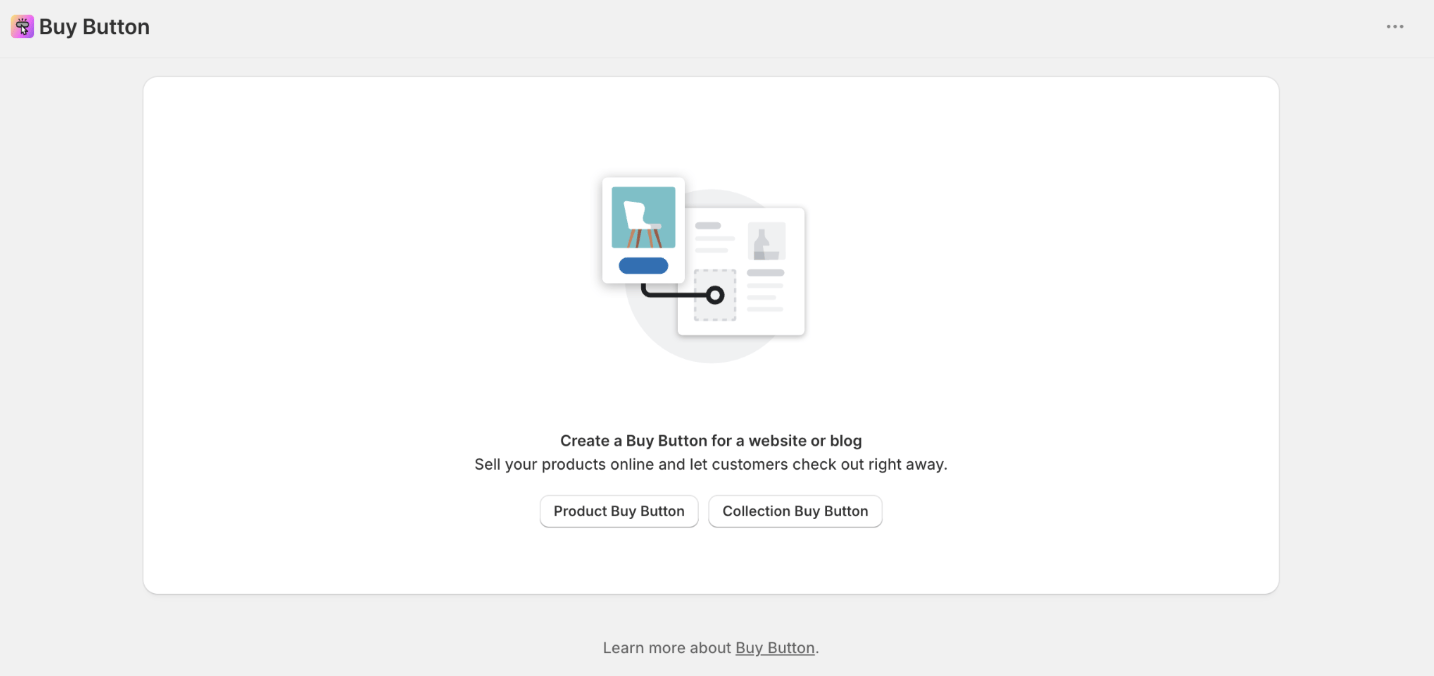
- Product layout
- Button color
- Product display
- Checkout style
- Click Generate Code.
- Copy the JavaScript embed code.
Step 2: Create your embedded experience in Lovable
Head to our Shopify Lovable Template Select remix to make your own template Connect it to your Shopify store by pasting the JavaScript code into the chat When Lovable asks additional questions:- Make the project Public
- Publish the project once generation is complete
- Choose a custom URL if desired
Step 3: Embed the experience in Mighty Networks
In your Mighty Network:- Open the page where you’d like to display your products.
- Edit the page.
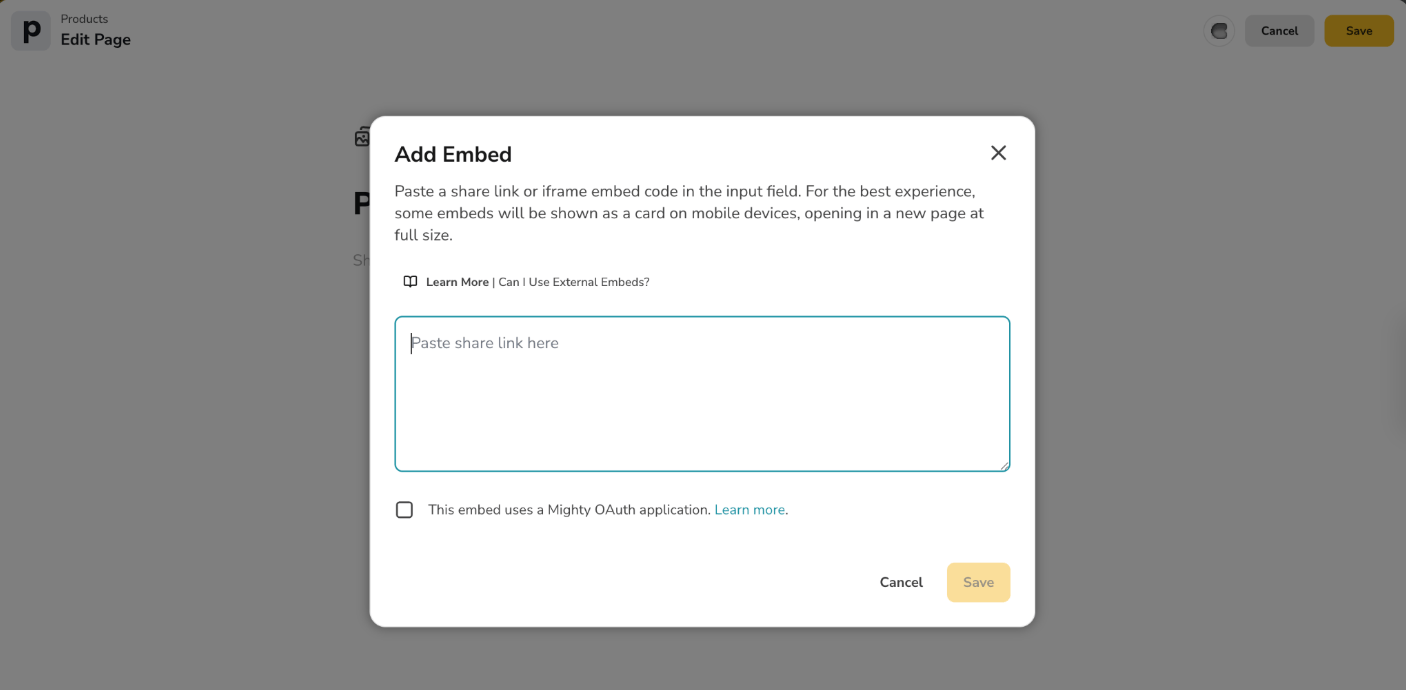
- Add an Embed section.
- Paste the iframe code from your Lovable project.
- Save your changes.
-1.png?fit=max&auto=format&n=6yLTsqrkgS69vJIz&q=85&s=797db42cd3dcc7ec5805106e463704d8)
Using multiple products
If you’re embedding multiple individual Buy Buttons on the same page, each embedded Buy Button runs independently. This means each button maintains its own shopping cart, which can create separate cart experiences. For a smoother shopping experience, consider embedding a Shopify Collection instead of multiple individual Buy Buttons. A collection provides a unified storefront and shared shopping cart for all included products.Troubleshooting
I don’t see the Buy Button sales channel
Make sure the Buy Button sales channel has been added to your Shopify store from Sales Channels.My embed doesn’t display correctly
Verify that:- Your Lovable project is published publicly.
- You’ve embedded the project using an iframe snippet: