

Accessing Your Member Lists
Network Member List
- To see a full list of members in your Mighty Network go to Admin > Members
Space Member List
- To see a full list of members in a Space, click into the Space and go to Manage > Members
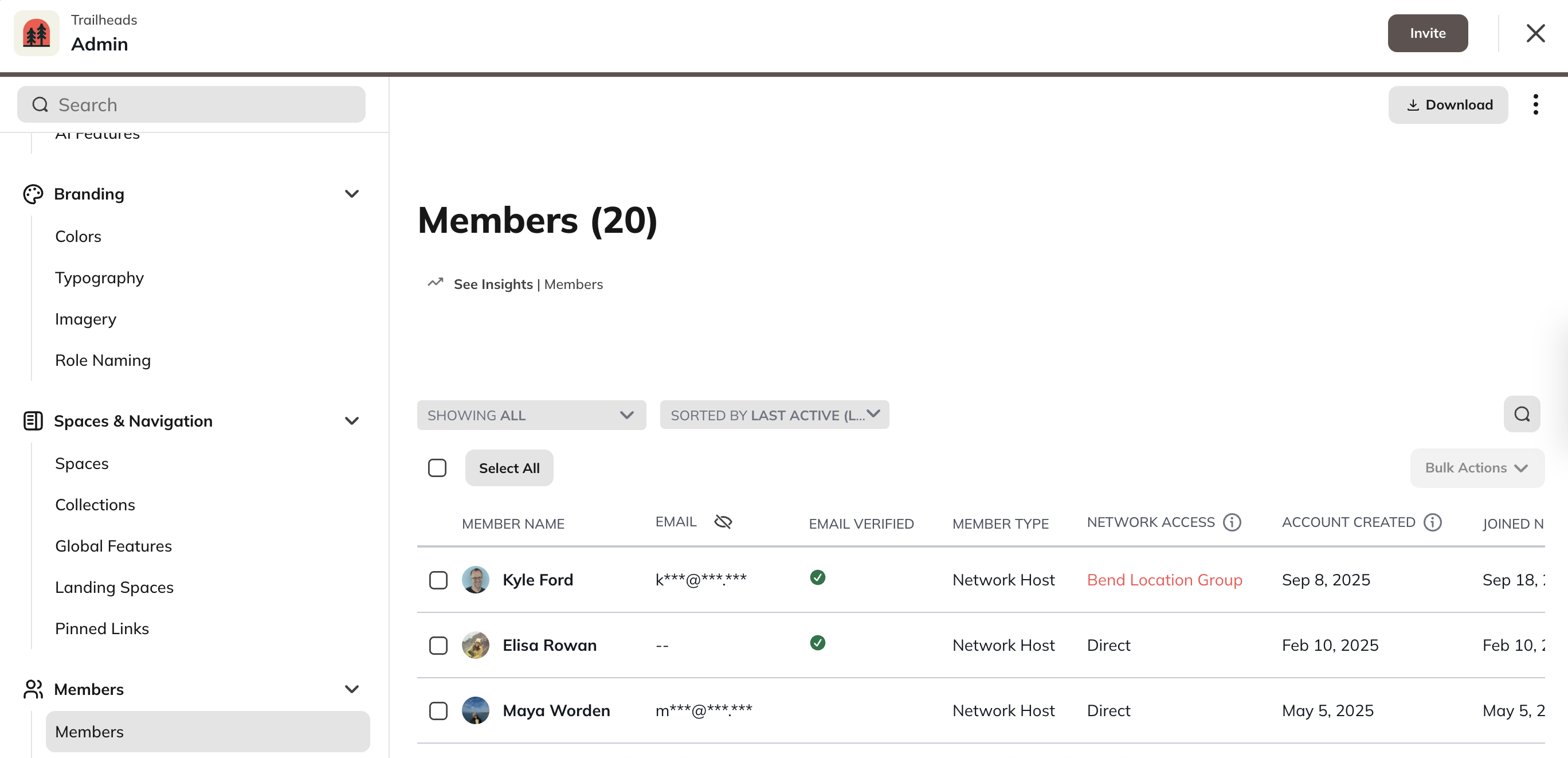
Member List Columns
The member list includes these columns:- Member Name
- Email Verified
- Member Type
- Network Host
- Network moderator
- Full member
- Limited member
- Network/Space Access
- Plan Name
- Multiple Plans
- Direct
- Invite
- Auto Join
- Anyone Can Join
- Account Created
- The date the account was created. This could be different from the join date if you have approvals turned on or if the account creation was abandoned at any point.
- Joined Network Date
- Last Active
Filters
You can filter your list by:- Spaces: Shows which members belong to a specific Space.
- Plans: Shows which members are part of specific Plans.
- Member Type: Host, Moderator, Full Member, or Limited Member.
- Tags and Badges: Available on the Launch Plan** **and higher.
- Audience: Filter by an audience you’ve defined for promotional banners.
- Inactive Members: Shows members who haven’t logged in within the last 30 days.
- You can re-engage them using Activity Assist (learn more in this article).
- Add Filter: Sort by specific Custom Fields you’ve created.
Sorting Options
You can sort your member list by:- Name: A–Z or Z–A
- Role
- Date Joined: Earliest or Latest
- Last Active: Earliest or Latest
Menu Options
In the three dot menu next to the member’s name, you have options to: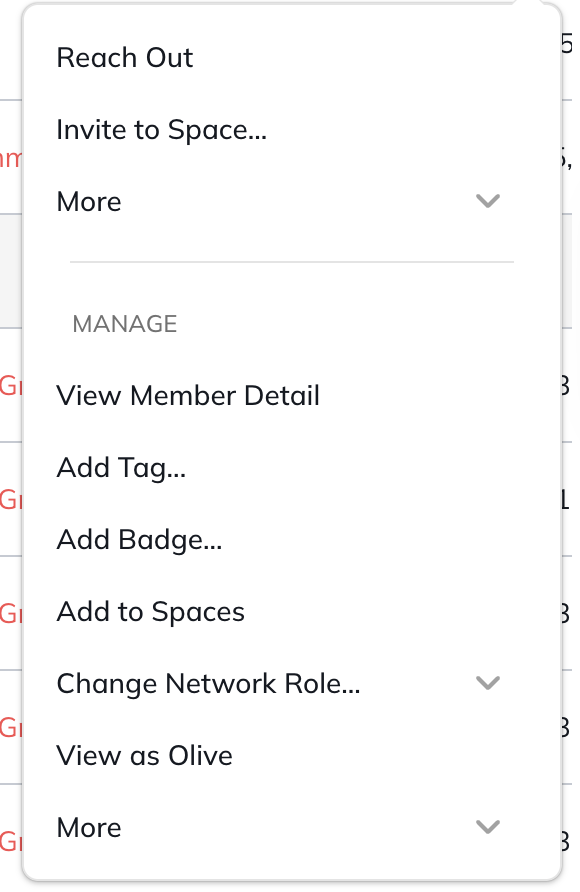
- Reach out: opens a DM with the person
- Invite to Space
- More
- View Member Detail
- Add Tag
- Add Badge
- Change Network Role
- View as Member
- More
Bulk Actions
From your Network or Space member list, you can perform bulk actions, such as:- Sending a message to multiple members
- Adding or removing Tags and Badges
- Adding to Networks and Space(s)