

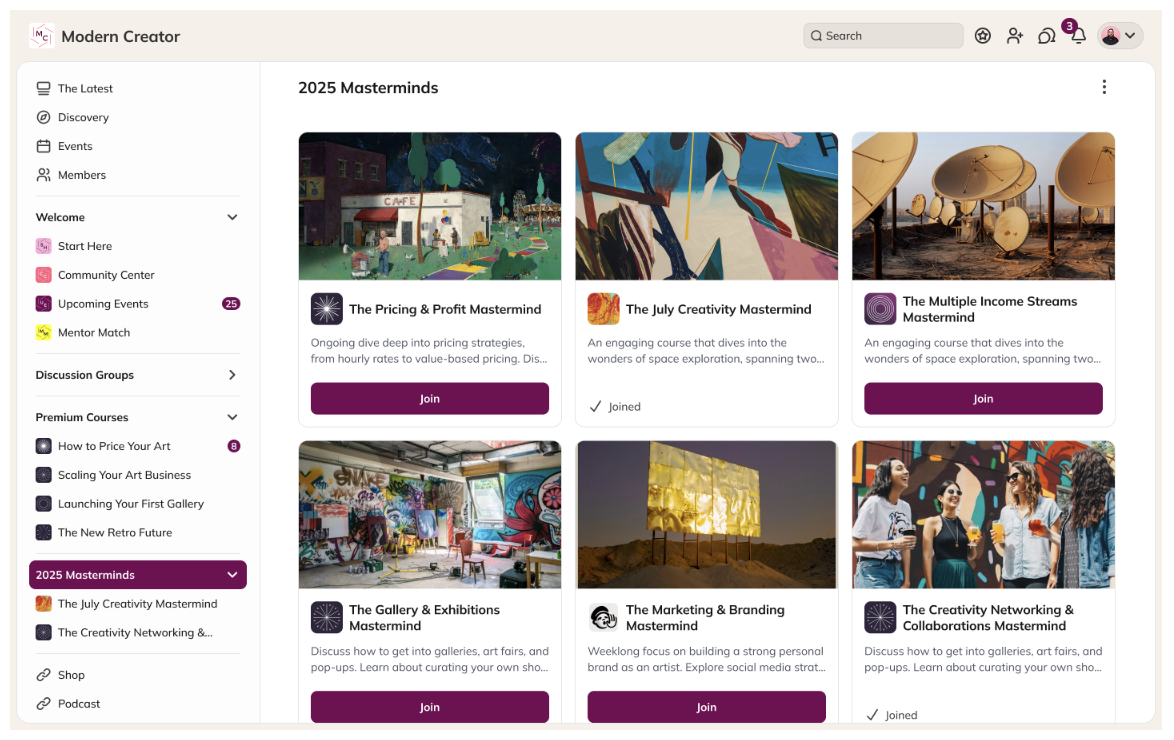
Looking for guidance? Chat with Cohost!
It will be able to name and create your new Collection.How to Create a Collection
It’s easy! You have two ways to create one: From the main navigation:- Go to the bottom of the left-hand menu.
- Select Create > Collection.
- Add a name and an optional tagline.
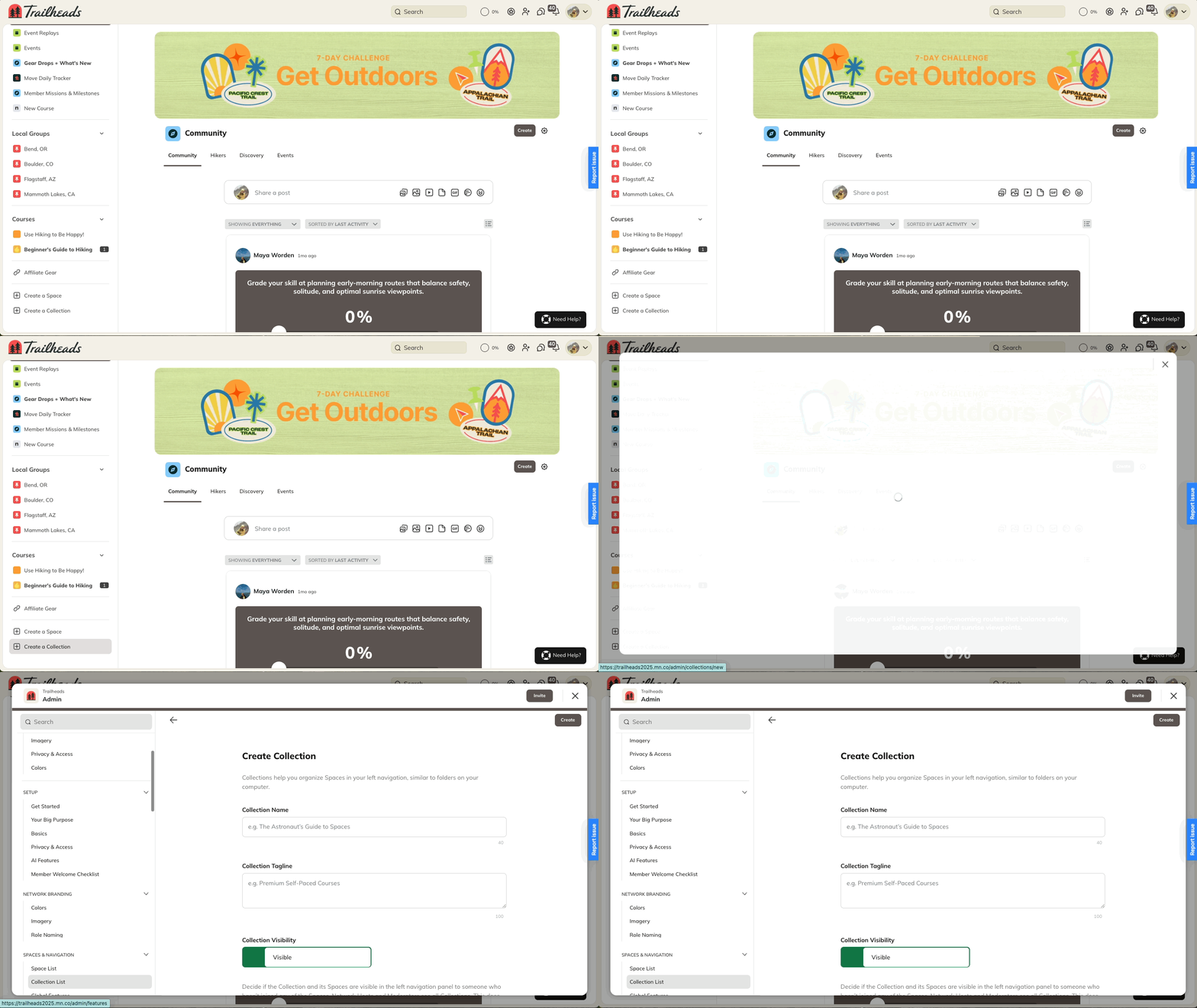
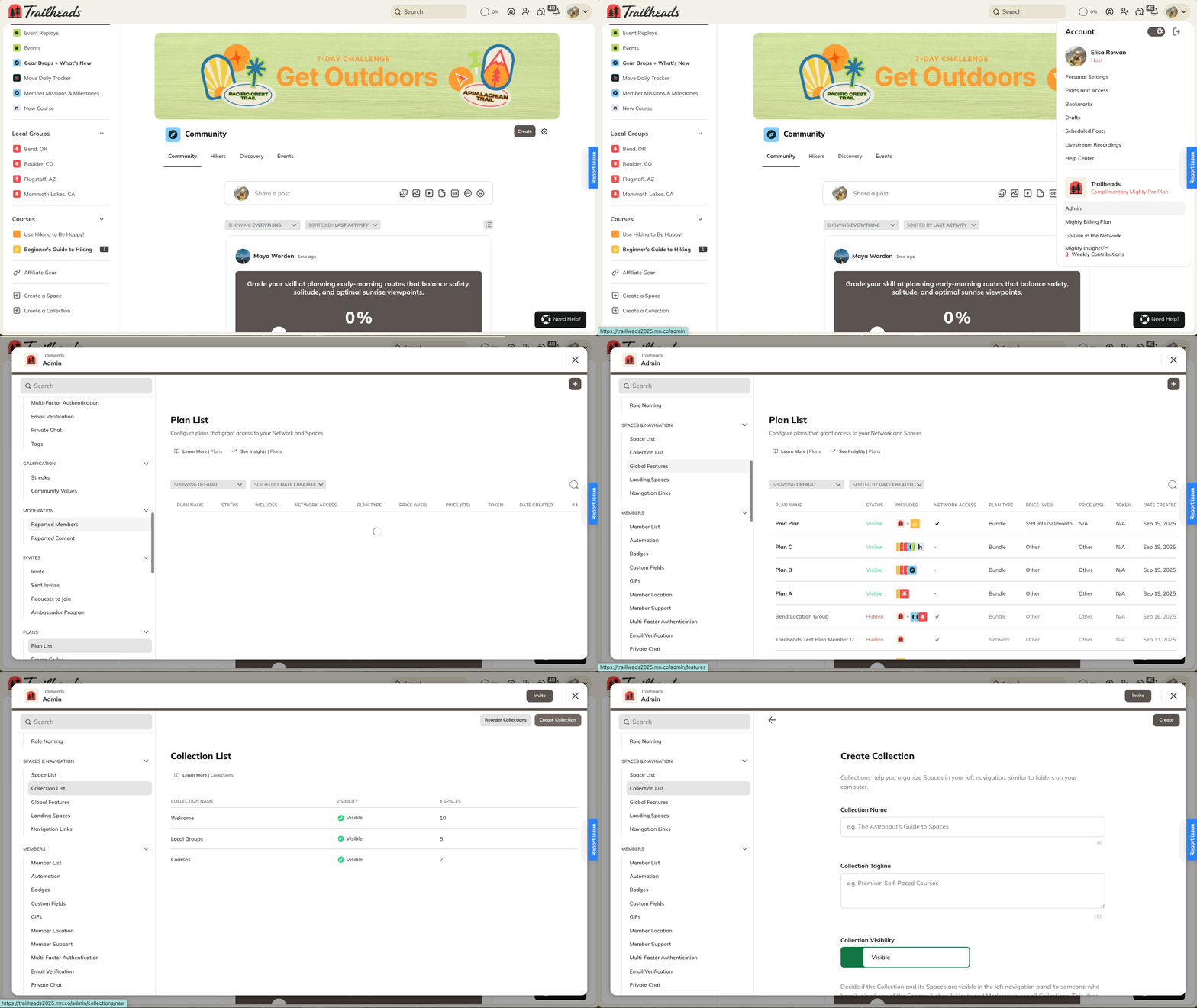
- Go to Admin > Spaces & Navigation > Collection List.
- Click Create Collection.
How to Access Collection Settings
Both Network Hosts and Network Moderators can access Collection Settings. You can open Collection Settings in a few ways:- Go to the Collection and click the gear icon.
- Go to Admin > Spaces & Navigation > Collection List, then use the three-dot menu > Manage Collection.
- From the left-hand navigation, hover over the Collection name and click the three-dot menu > Manage Collection.
Collection Details
In Collection Details, you can:- Rename the Collection
- Add or edit a tagline
- Hide or delete the Collection
Reordering
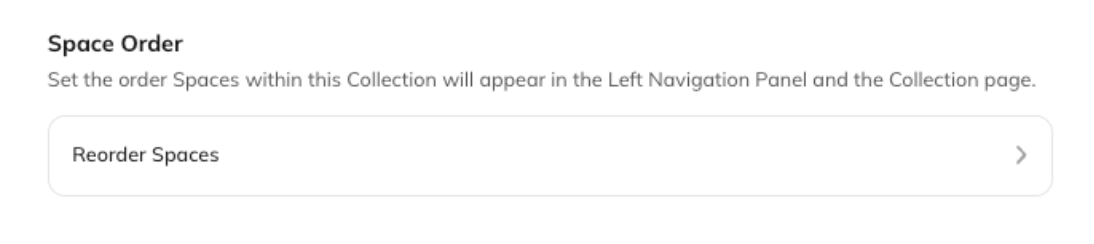
You can reorder both Spaces within a Collection and Collections themselves:- Reorder Spaces:
- Go to Drag and drop them in the order you want.
- Reorder Collections:
- Go to Admin > Spaces & Navigation > Collection List > Reorder Collections.
Collection Visibility
Hiding a Collection controls whether it appears in the left-hand menu for members who haven’t joined any Spaces inside it.- Hosts and Moderators always see all Collections.
- Hiding a Collection doesn’t change the privacy of the Spaces inside.
- Hide Collections as a staging area for Spaces you’re still building.
- Create a Collection just for Hosts and Moderators to coordinate.
Deleting or Sharing a Collection
- Delete: Go to Manage Collection Settings or use the three-dot menu > Delete.
- Share: In the three-dot menu, select Share to copy a direct link.
- This link shows members all the Spaces within the Collection.
Featuring Plans or Spaces
You can highlight Plans or Spaces within a Collection:- To feature Plans:
- Go to Manage Collection > Reorder Spaces and select the Plans Carousel
- Members will see a scrolling row of featured plans.
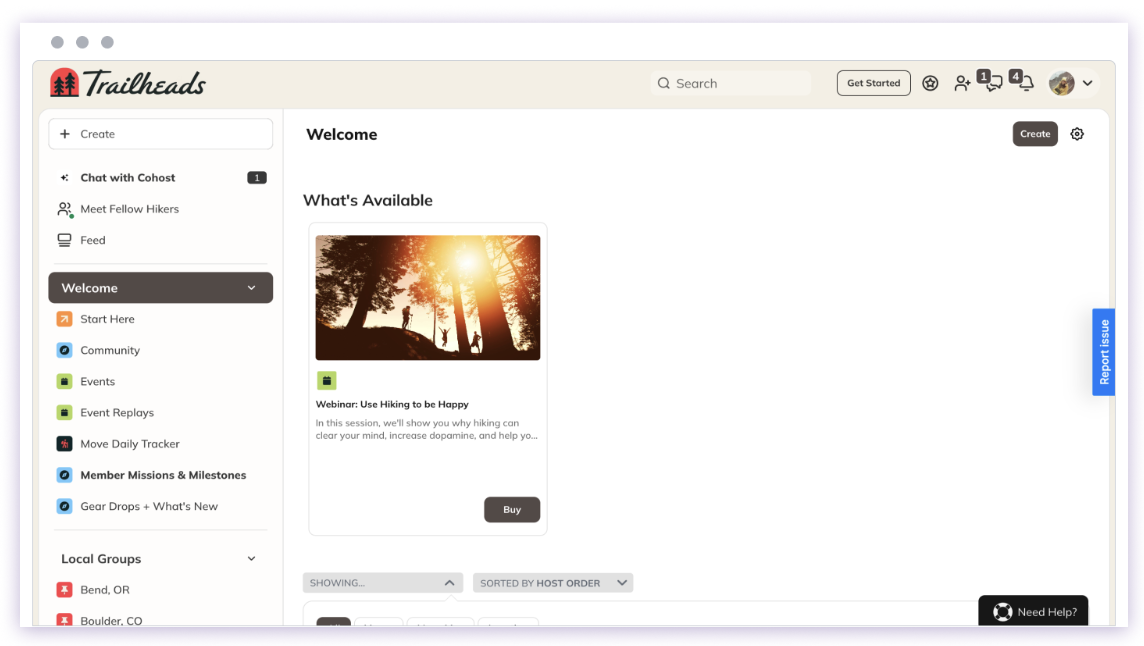
- To feature Spaces:
- Click the three-dot menu next to a Space and choose Add this to > Featured Section.