

Getting Started
Whether you’re a seasoned developer or interested in trying out “vibe coding” (creating your own applications using emerging AI tools), we’re here to help! Let’s start by defining some basic terms, Admin REST API (Application Programming Interface): On Mighty, our Admin REST API lets you (as a Host) connect 3rd-party services to your Mighty Network, then push and pull information. Example: syncing your community’s member data with Salesforce or another CRM. Mighty API: Our Mighty API (available on the Scale plan and up) brings the Member API and Admin API together. Build custom member experiences and administrative tools that act on behalf of an authenticated member, host, or admin. Example: embedding a custom “personality quiz” for members to take, then share their results. Embeds (iframes): The way 3rd-party applications and websites can be embedded directly into your Mighty Network. When coupled with either API and our “authenticated iframes” feature, custom applications can now seamlessly integrate with your community. Note: For the most seamless iframe experience across all platforms, you’ll need to ensure that you’re on the following builds or later:- iOS: 8.274.80
- Android: 8.274.43
Lovable Library
There are many services that can help you on your vibe coding journey (including Replit, Netlify and more), but we’re big fans of Lovable, and have created a library of sample starter applications for you to easily “remix” and adjust for your own community. They’re all pre-configured to work with any Mighty Network, and you’ll simply need to add your community’s API keys and basic information when asked. Just create a Lovable account, then choose from one of our starter options to remix (make your own editable copy)..png?fit=max&auto=format&n=yttUQtD_2_BfVa1C&q=85&s=80717ee92c2e69f4e3e83df6955f16f8)
- Basic OAuth Sample (Mighty API)
-2.png?fit=max&auto=format&n=WSgjCjWMKme4pdg-&q=85&s=3d2a92ea592a04ca22088dba8a4d3dbf "Image (1) 2")
- Member Map Sample (Admin REST API, visibility could optionally be gated as well via Mighty API)
-3.png?fit=max&auto=format&n=WSgjCjWMKme4pdg-&q=85&s=1731c6ef32ffadff2b90b5fcd8f86f48 "Image (1) 3")
- Leaderboard Sample (Admin API)
-copy-2.png?fit=max&auto=format&n=WSgjCjWMKme4pdg-&q=85&s=43ec7e6fc670f45ba11fc858c0c699bf "Image (1) Copy 2")
- Mini-Website Sample (Admin API)
-copy-3.png?fit=max&auto=format&n=WSgjCjWMKme4pdg-&q=85&s=b6acbe2ff315334462483c46d10d7766 "Image (1) Copy 3")
- Survey Sample (Mighty API)
-copy.png?fit=max&auto=format&n=WSgjCjWMKme4pdg-&q=85&s=d0a30aaa06a4a19bfc93125e6f0d6f7e "Image (1) Copy")
- Personality Quiz Sample (Mighty API)
-5.png?fit=max&auto=format&n=WSgjCjWMKme4pdg-&q=85&s=975c4186ed87aaf2382bcd63796c47d9 "Image (1) 5")
- Habit Tracker Sample (Mighty API)
-4.png?fit=max&auto=format&n=WSgjCjWMKme4pdg-&q=85&s=8aa1d4ed0887c7fff01da544df9d169f "Image (1) 4")
- Shopify ‘Buy Button’ Sample (No API Needed)
- To learn more, check out this article
-copy-4.png?fit=max&auto=format&n=WSgjCjWMKme4pdg-&q=85&s=92013ee6c5e677ae1b8aac46ed79e636 "Image (1) Copy 4")
- RSS Display: Add in an RSS feed from your newsletter, YouTube channel, blog, social media and more to show the latest posts updated hourly
-copy-5.png?fit=max&auto=format&n=ol_8Yex4NUHx2OLY&q=85&s=e27996329b948dc41a07d5add56148e5 "Image (1) Copy 5")
- Kit Signup Form: Easily paste in your Kit newsletter signup form in your community (great too for pre-community signup email collection on Kit if needed, if placed in a publicly-accessible Space)
-copy-6.png?fit=max&auto=format&n=ol_8Yex4NUHx2OLY&q=85&s=b955e43551caa5699b83ace5b5dcf3be "Image (1) Copy 6")
- Daily Journal: A simple variant of the recent “Habit Tracker” template focused on freeform text entry. Embed it into Course lessons to let members take daily private notes as they progress.
-copy-7.png?fit=max&auto=format&n=RA-EChONrUuSO2I9&q=85&s=95e6f349ad45dcb587394c30f55254f2 "Image (1) Copy 7")
Admin API Features
Admin API apps act as the host — no member sign-in, no OAuth app needed.- In Mighty, go to Admin > Integrations > Admin API and click New API Key. Give it a name specific to this feature (e.g., Member Map) — use a separate key per Lovable app.
- On the same Admin API page, grab your Network ID.
- If the feature needs to target one specific Space, open that Space in a desktop browser and copy the number near the end of the URL — that’s the Space ID.
- In Lovable, remix the sample and fill in whatever it asks for (typically the API key + Network ID, sometimes Space ID).
- Publish the app in the upper right corner
- Embed it in Mighty: open a Page, Article, Lesson or anywhere you can embed
- If you see the checkbox at the bottom: “This embed uses a Mighty OAuth application” you don’t need to select it.
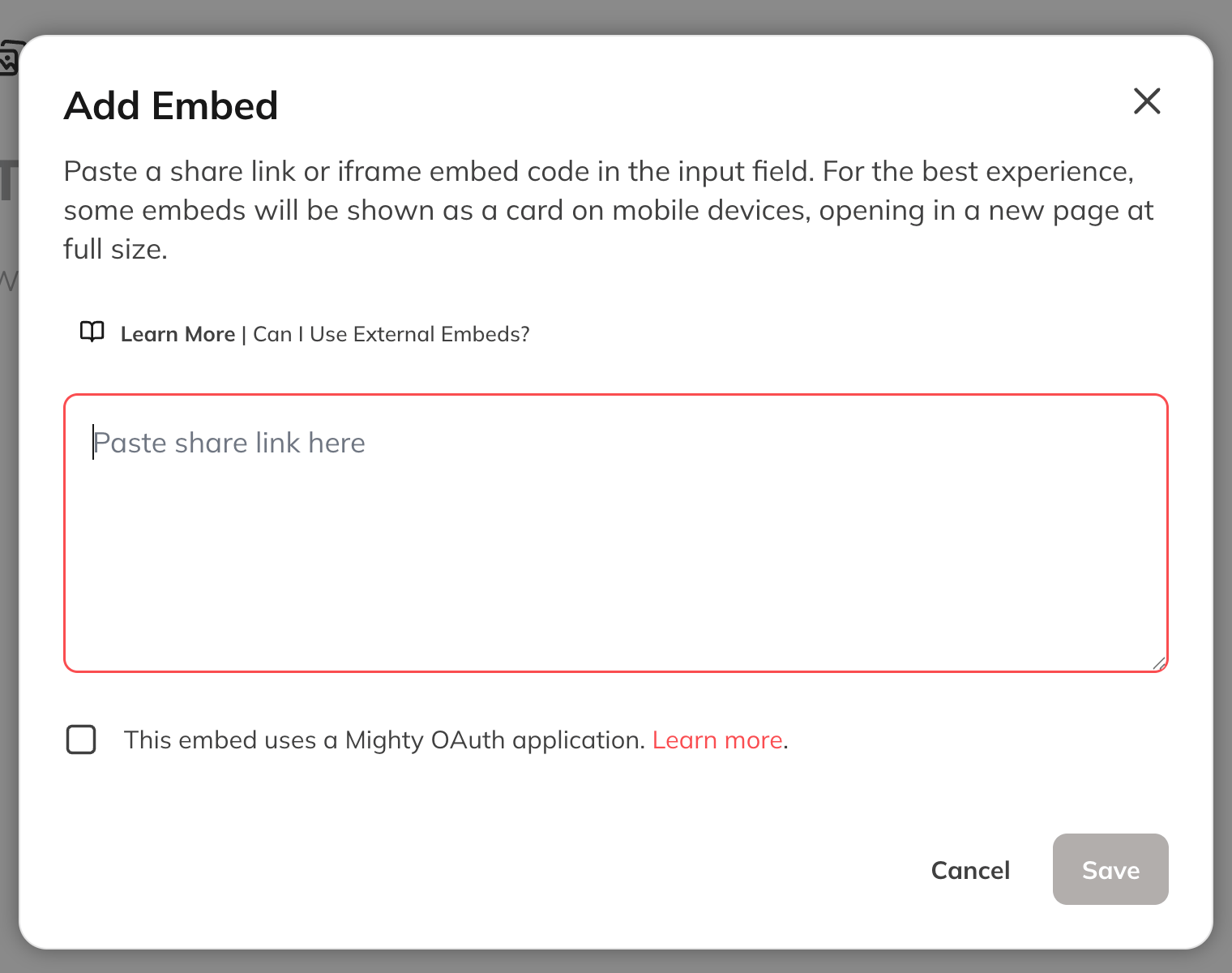
- Add your Lovable application’s full URL (e.g., https://survey-trailheads.lovable.app)
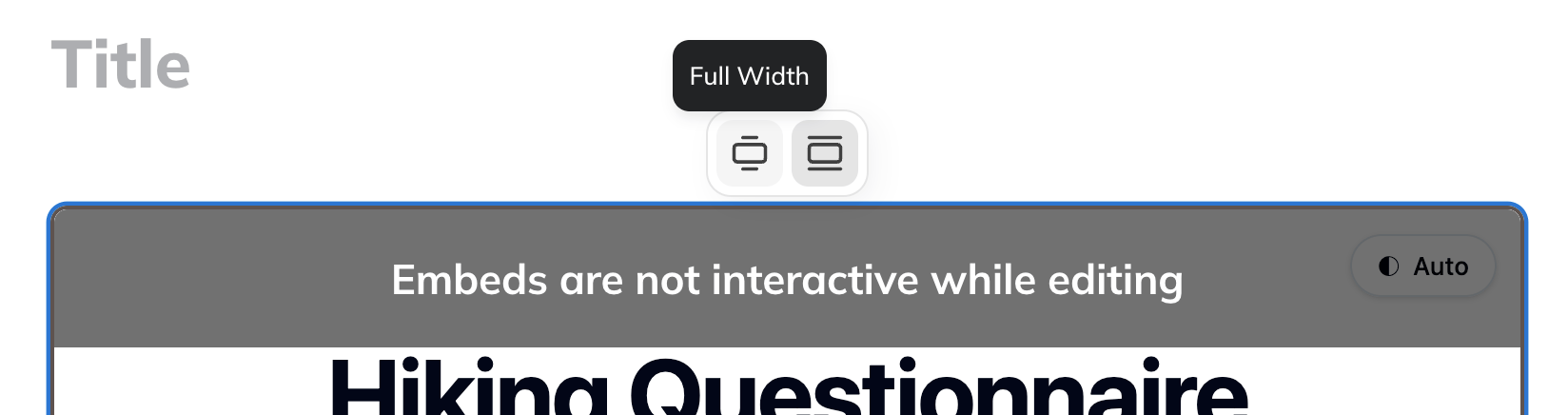
- Once embedded, you can adjust the “title” and height to your liking.
- You can also decide if you’d like the embed to be narrow or wide (when viewed on desktop computers).
Mighty API
For any of the Lovable sample projects that use the Mighty API to allow your members to connect, you’ll first need to create a new OAuth Application in your community’s Admin area.Creating OAuth Applications
Go to Admin > Integrations > OAuth Applications Select “New OAuth Application”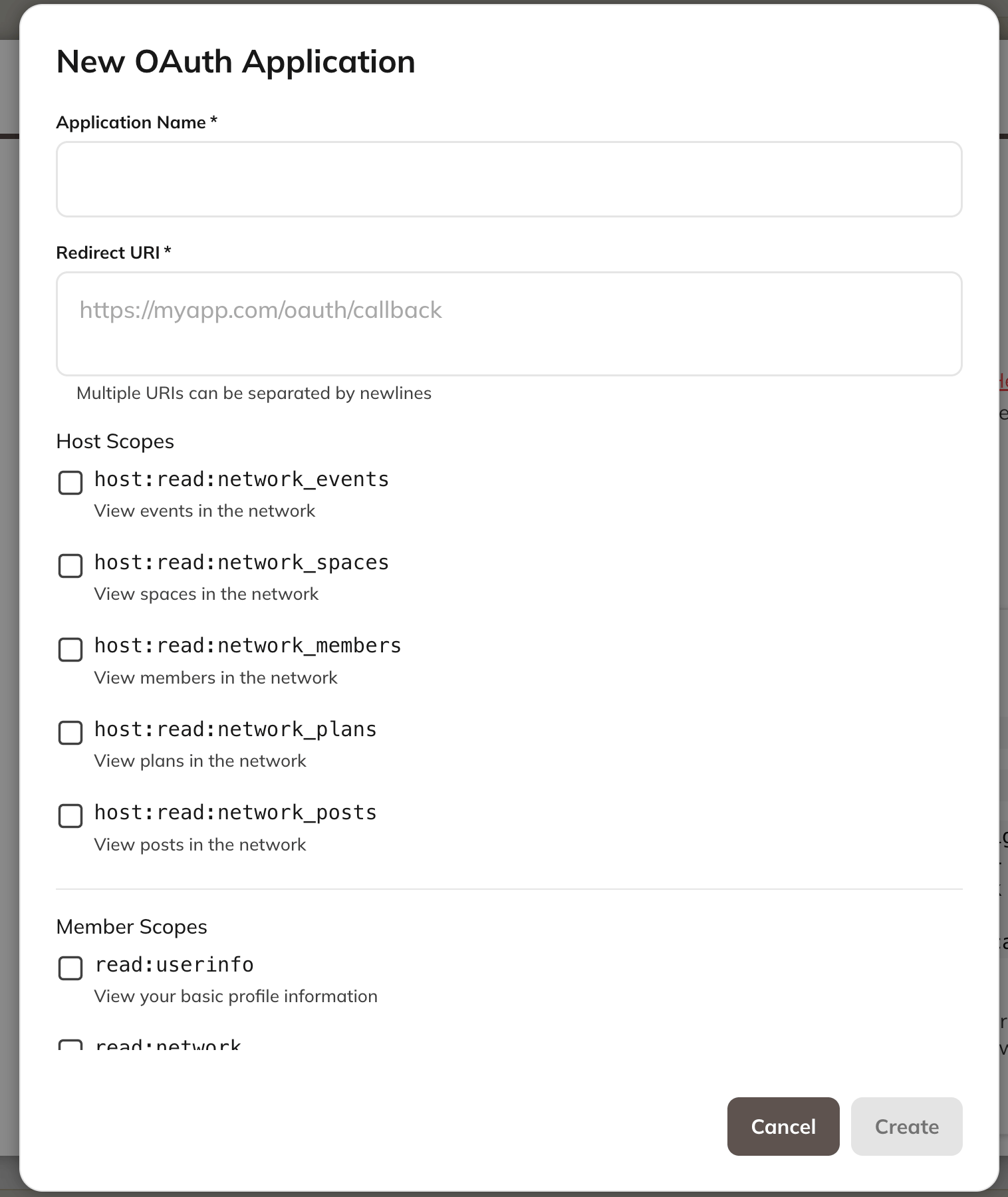
- Application Name: Give the Application a name (e.g., Hiking Tracker)
- Redirect URI: Temporarily paste in your Network’s URL (you’ll change this after you publish your feature)
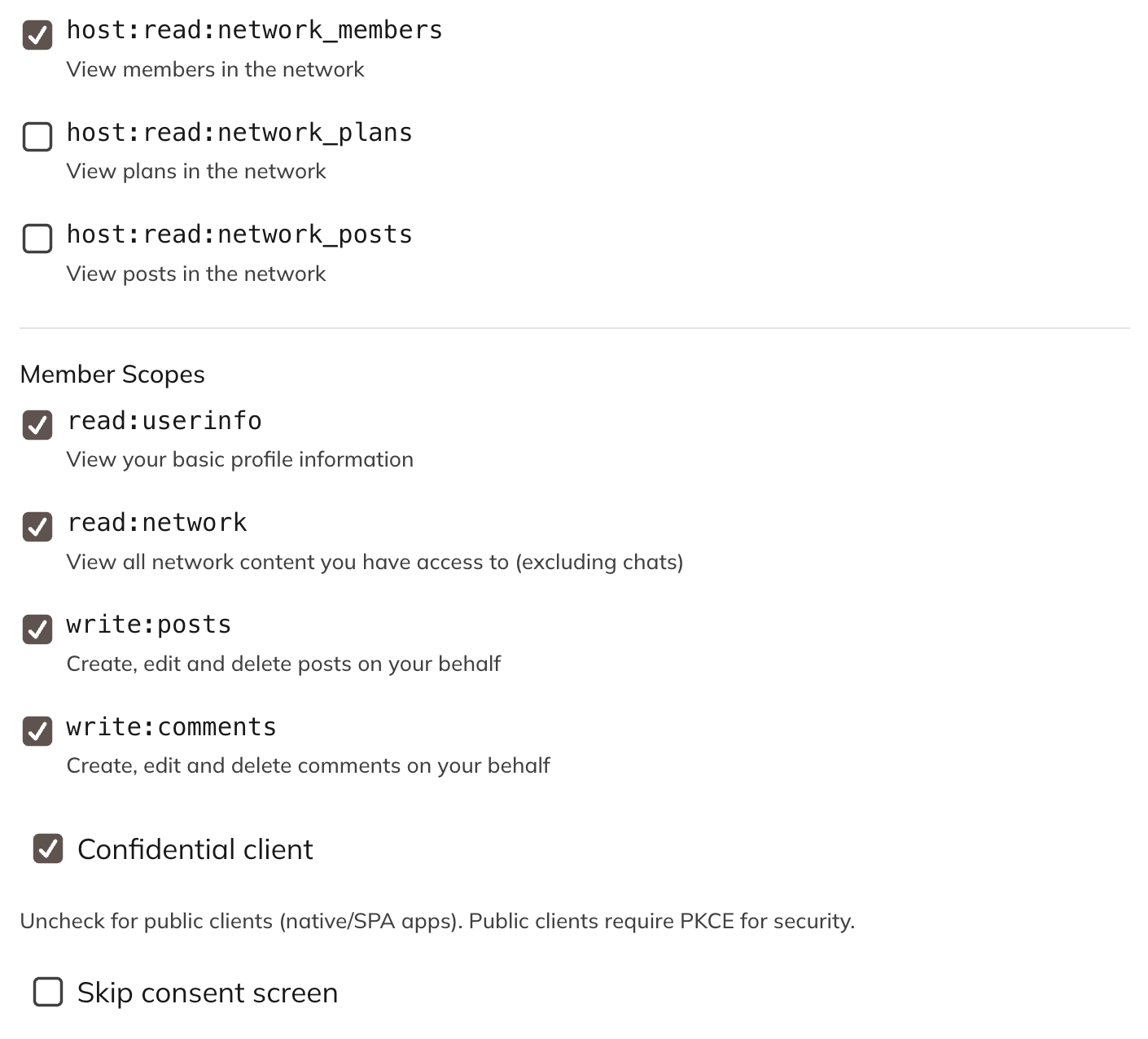
- Decide what permissions you want the new feature to have.
- If this is for members, we recommend selecting all the “Member Scopes” checkboxes.
- Here’s an example of what to select if you were creating a Habit Tracker for your members.
- After you have created the OAuth Application, head back to Lovable
- It will ask you for these pieces of information:
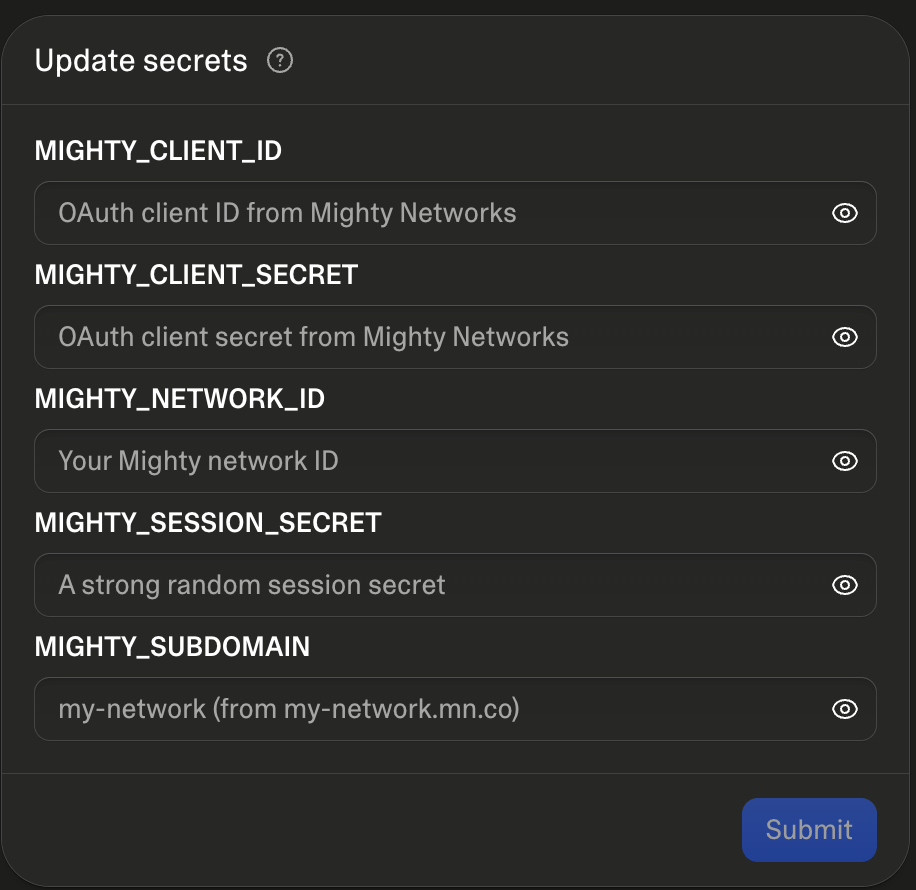
- Client ID: Copy from the OAuth Application
- Client Secret: Copy from the OAuth Application
- Network ID: Go to Admin> Integrations > Admin API to find this
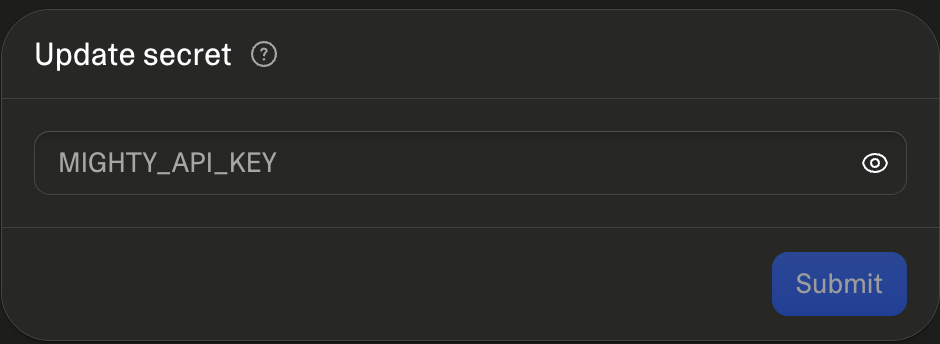
- Session Secret: Add in your own strong, random, secret value here. You can generate one easily via Lovable Cloud → Secrets → Generate Secret.
- Subdomain: You can find this in your Network url (e.g., https://trailheads2025.mn.co/ would be trailheads2025)
- After remixing one of the templates and filling out the requested information, publish your Lovable application in the upper right corner.
- Once published, you’ll see an (expected) error message about the Redirect URI not being valid. To fix this, ask Lovable to do the following:
To fix the Redirect URI error, please give me every possible Lovable preview URL I need to share back with Mighty (including preview URLs within popups) along with the redirect URI for the published application.
- Head back to your Network and edit your OAuth Application.
- In the Redirect URI box, remove your Network url and add all of those provided URIs and save your changes.
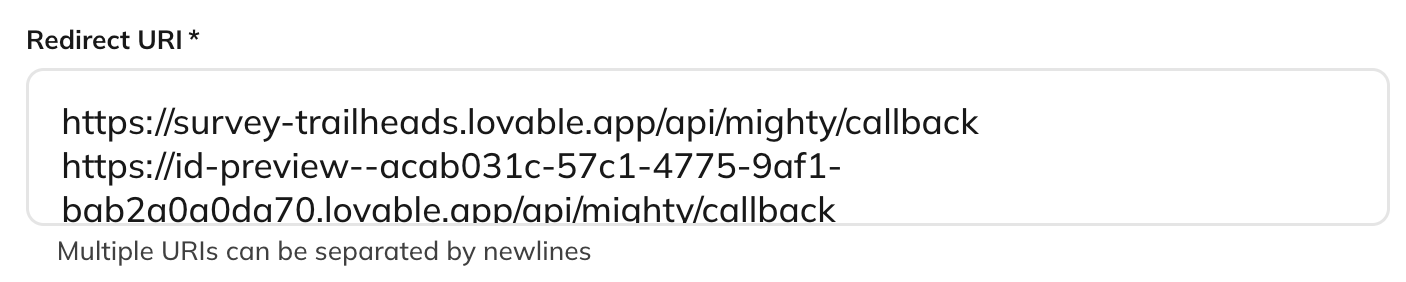
- Your feature should now work across all platforms, including within the Lovable preview area so that you can easily iterate and adjust before republishing any additional changes you’d like to make.
- Note: that to work within the Lovable preview area, you’ll see a brief popup window when connecting, but this popup won’t be present when embedding your application into Mighty, or accessing it at its standalone URL.
- Finally, you will embed it in Mighty: open a Page, Article, Lesson or anywhere you can embed
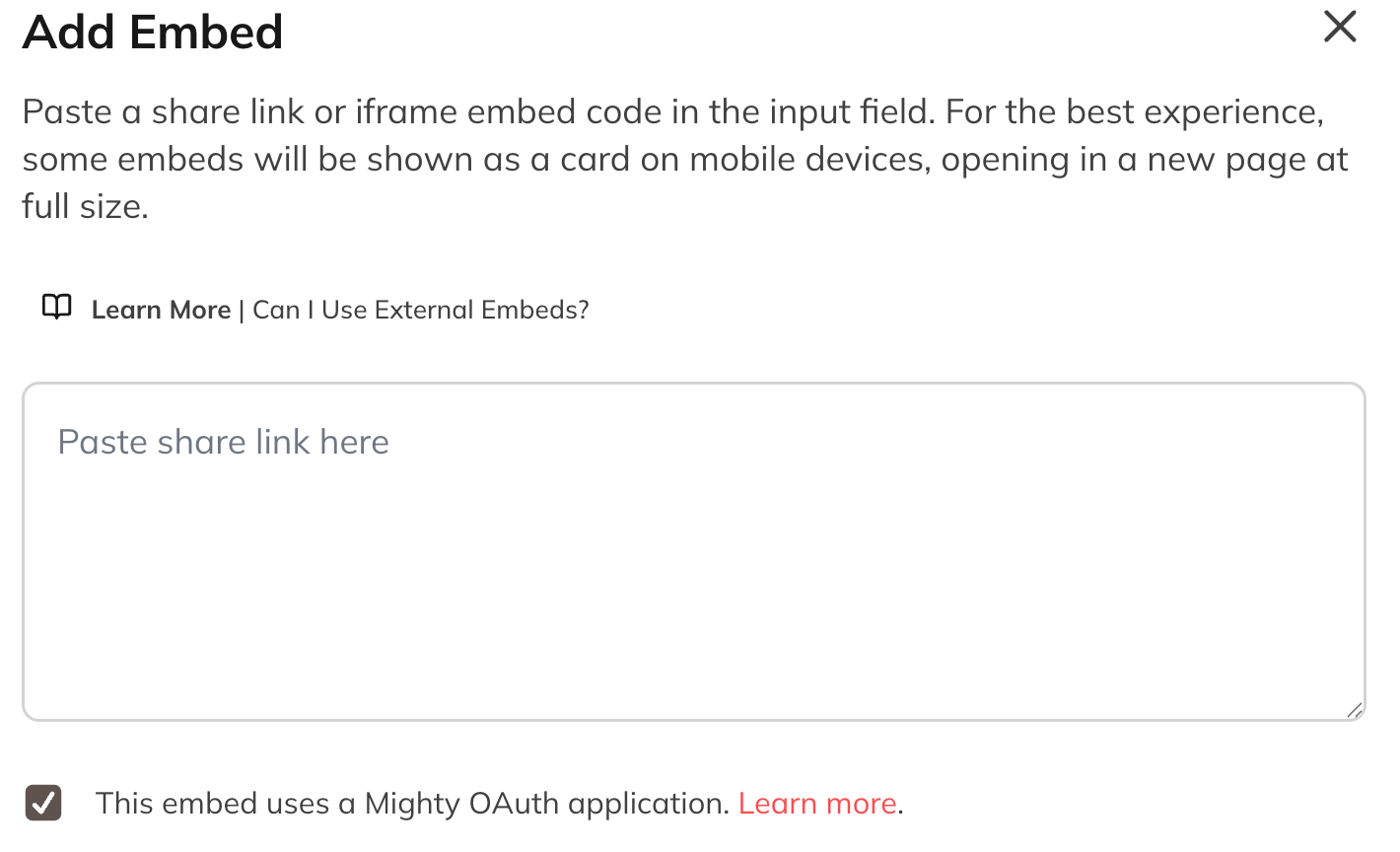
- Add your Lovable application’s full URL (e.g., https://survey-trailheads.lovable.app)
- Be sure to select the checkbox “This embed uses a Mighty OAuth application”
- Once embedded, you can adjust the “title” and height to your liking.
- You can also decide if you’d like the embed to be narrow or wide (when viewed on desktop computers).
Important Notes and Tips
- When creating a new OAuth Application, you can decide how much access (and for which roles) to offer, and we always suggest keeping it scoped as narrowly as possible (only ask for what your app will need). Additionally, keep the “Confidential client” option checked and the “Skip consent screen” unchecked (these are the defaults anyway) unless needed for your specific case.
- When a member signs out of your community, they won’t automatically be signed out of your custom OAuth application, so be sure to offer an option for members to disconnect, and let your members know to do so if they’re using a shared device.
- When customizing your application, always be sure to prompt Lovable to properly store secrets (like API keys/secrets) or sensitive information (it should never appear in the code, and Lovable will help you with this).
- Before publishing and launching, ask Lovable to do a security review on your project.
- We’ll continue adding and updating our sample projects, so please check back often!