

Promo Codes let you offer discounts or free access to paid plans in your Mighty Network. You can use them to reward loyal members, promote special events, or test new offers without changing your core pricing.
Each promo code can apply to one or more paid plans, and you can control how long it stays active and how many times it can be used.
How to Create a Promo Code
Step 1: Go to Promo Codes
To get started:- Go to Admin > Plans & Access > Promo Codes.
- Click the ”+” icon in the upper right corner
Step 2: Add Basic Details
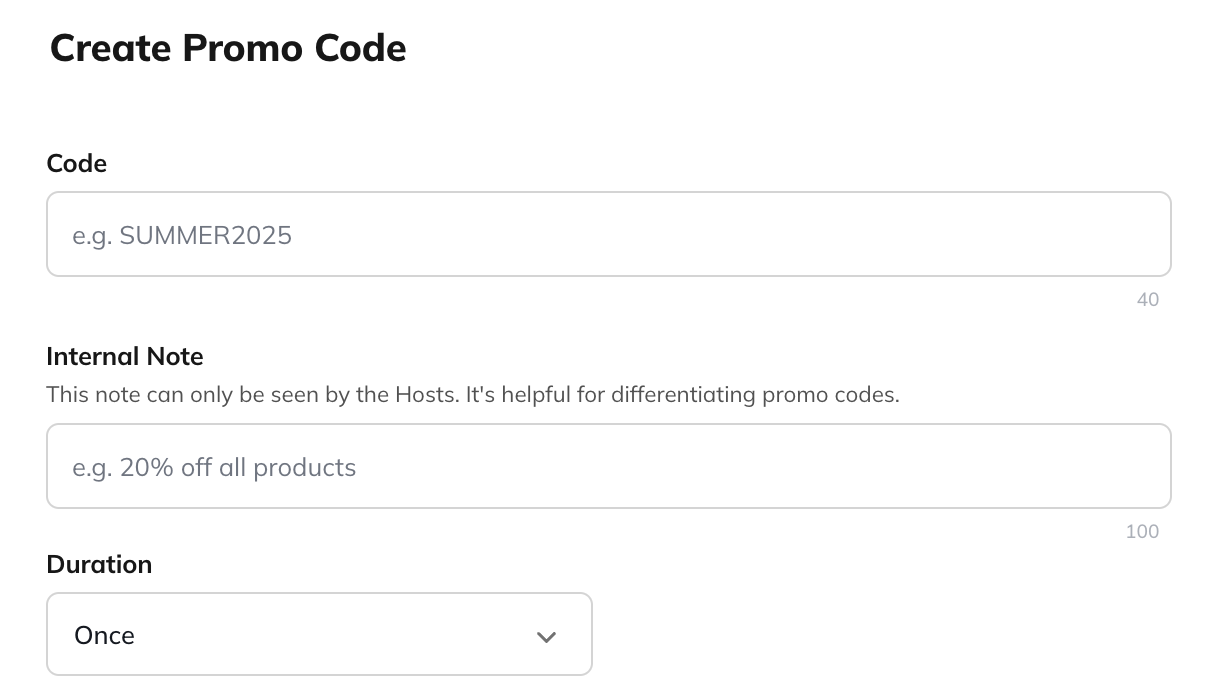
In the setup screen, you’ll enter:- Promo Code Name: The internal name for your reference.
- Code: The exact text members will enter (for example, SUMMER25 or FREEMONTH).
- Description (optional): A note about what the code is for (for example, “50% off for our summer launch”).
Step 3: Set the Duration
The duration determines how long the discount applies. For one-time payments, the discount always applies to the initial purchase only. For subscriptions, you can choose:- Once: Applies only to the first charge of a subscription. Can be a percentage or fixed-amount discount.
- Forever: Applies every time the subscription renews. Can only be a percentage discount.
-
Repeating: Applies to each renewal for a set number of months.
- For annual subscriptions, set the number of months to match the billing interval (for example, 12 months = 1 year).
- The number of months can’t exceed 99.
- Can be a percentage or fixed-amount discount.
Step 4: Choose the Discount Type
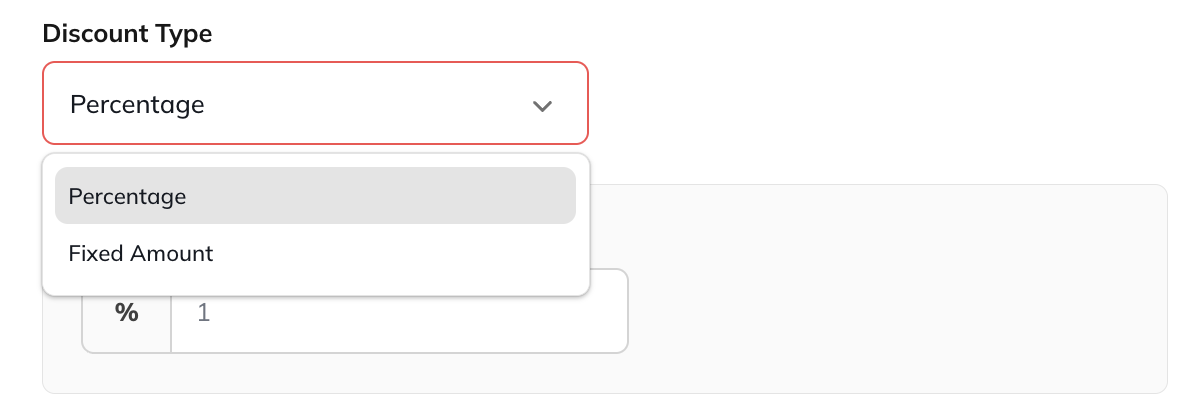
Select one of the following:- Percentage Off: Apply a percentage discount (for example, 25% off).
- Amount Off: Deduct a fixed dollar amount (for example, $10 off).
- Free Access: Offer 100% off to create a free-access link.
Step 5: Apply to Plans
Choose whether you’d like the promo code to apply to all Plans or **specific Plans.**You can assign up to 20 Plans per promo code using the dropdown menu.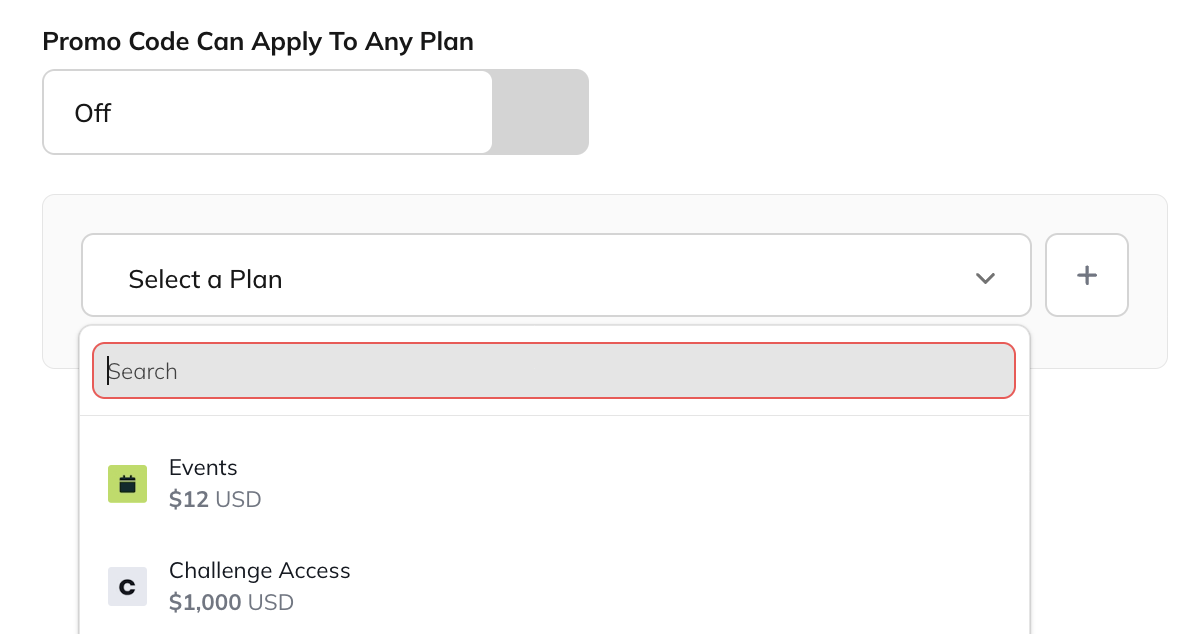
Step 6: Review Important Notes
Before saving, keep these in mind:- Promo codes can be used with any currency, but fixed amounts must be entered manually for each currency.
- You can’t add new currencies to an existing promo code. To support additional currencies, create a new one.
- Promo codes work with Free Trials—the discount applies after the trial ends.
- You can’t edit a promo code after it’s created (except for the Internal Note field).
-
You can’t create a 100% discount promo code for a one-time payment Plan (only for subscriptions).
- To offer a one-time 100% discount, create a Free Plan instead.
- Taxes and Stripe fees apply to the discounted price.
Step 7: Save and Share the Promo Code
When you’re ready, click Create. Members can enter the code during checkout on web. You can also append a promo code directly to your plan URL by adding&promo_code=YOURCODE.
Note: Use ALL CAPS when typing your promo code in the link.
Promo codes can’t be combined with other discounts or offers—members can only use one at checkout.
How to Manage and Track Promo Codes
You can make a code inactive or reactivate it from the three-dot menu next to the code. Important callouts:- You can create a promo code with the same name as another one as long as the other version is deactivated.
- You can only have one active promo code with the same name at any given time.
- You can’t reactivate a promo code if another active code with the same name exists.