3 Reasons Why You’ll Love It
- Ease. Your Brand Direction starts from your Big Purpose, ready from day one. Edit it yourself or ask Cohost to adjust it anytime.
- Consistency. Your Mighty Network always looks like your brand. Every image our Mighty Cohost creates shares the same style, mood, and colors.
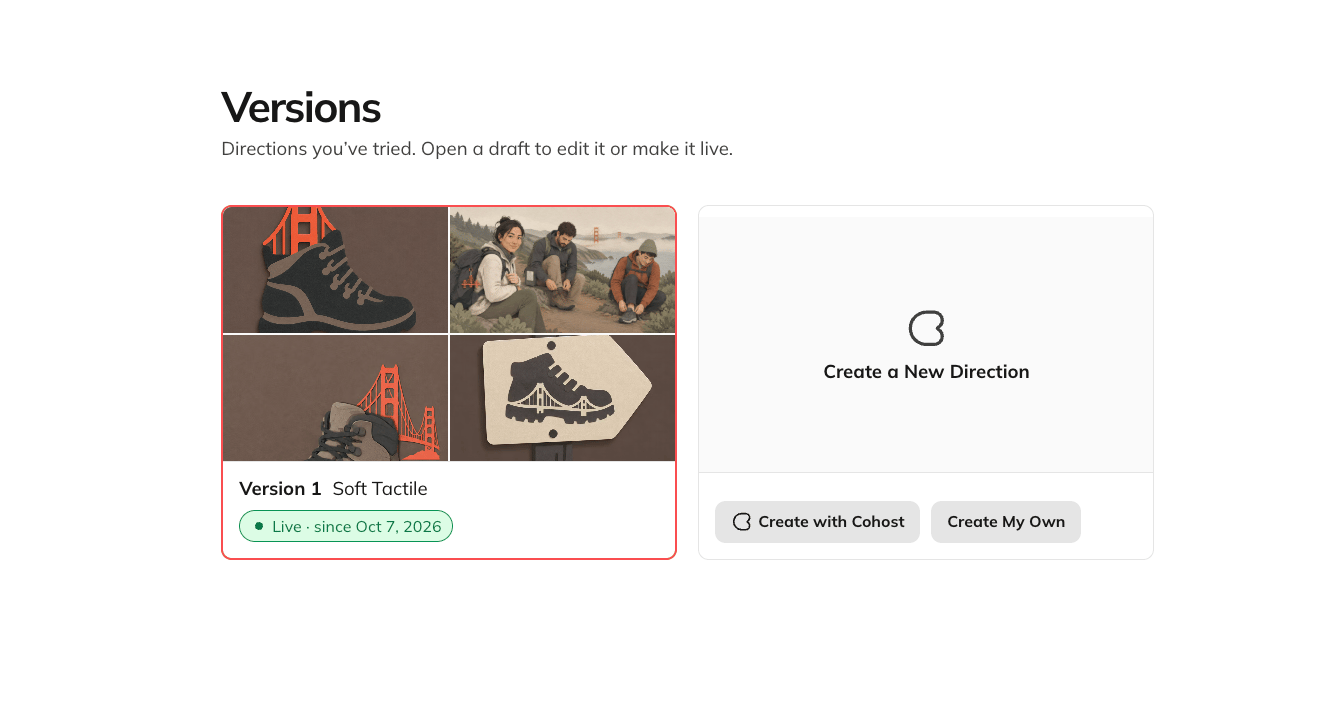
- Experimentation. Try a new look as a draft, see exactly what changed, then preview it before it goes live. Every version you try is saved for easy switching.
Your Brand Direction Options
Style. What should your images look like? Pick from 11 styles to start..Illustration
- Geometric Minimal (precise shapes, wide open space)
- Bold Graphic (thick blocks, loud color, contrast)
- Organic Handmade (ink line, wobble, human hand)
- Soft Tactile (layered cut paper, soft shadow)
- Retro Print (two inks, offset, printed warmth)
- Playful Cartoon (bright flat shapes, wobbly outline)
- Whimsical Storybook (painted washes, one charming motif)
Photography
- Editorial Natural (real light, unposed, quietly documentary)
- Refined Luxury (quiet symmetry, one gold edge)
- Gilded Layers (full-bleed photograph, flowing gilt layers)
- Dark Cinematic (near-black field, one bright edge)
Sum it up in 1 or 2 sentences, like “warm, welcoming, and quietly confident.” Motifs. What’s your community’s signature accents or vibe?
The one thing your community makes, uses, or cares for, perhaps paired with any additional elements that makes it uniquely yours. People. Who shows up in your images?
Describe who appears and how, plus anyone who should never appear. Avoid. What should Cohost never show?
List anything that’s off-brand, the more specific, the better. Palette. Which extra colors fit your brand?
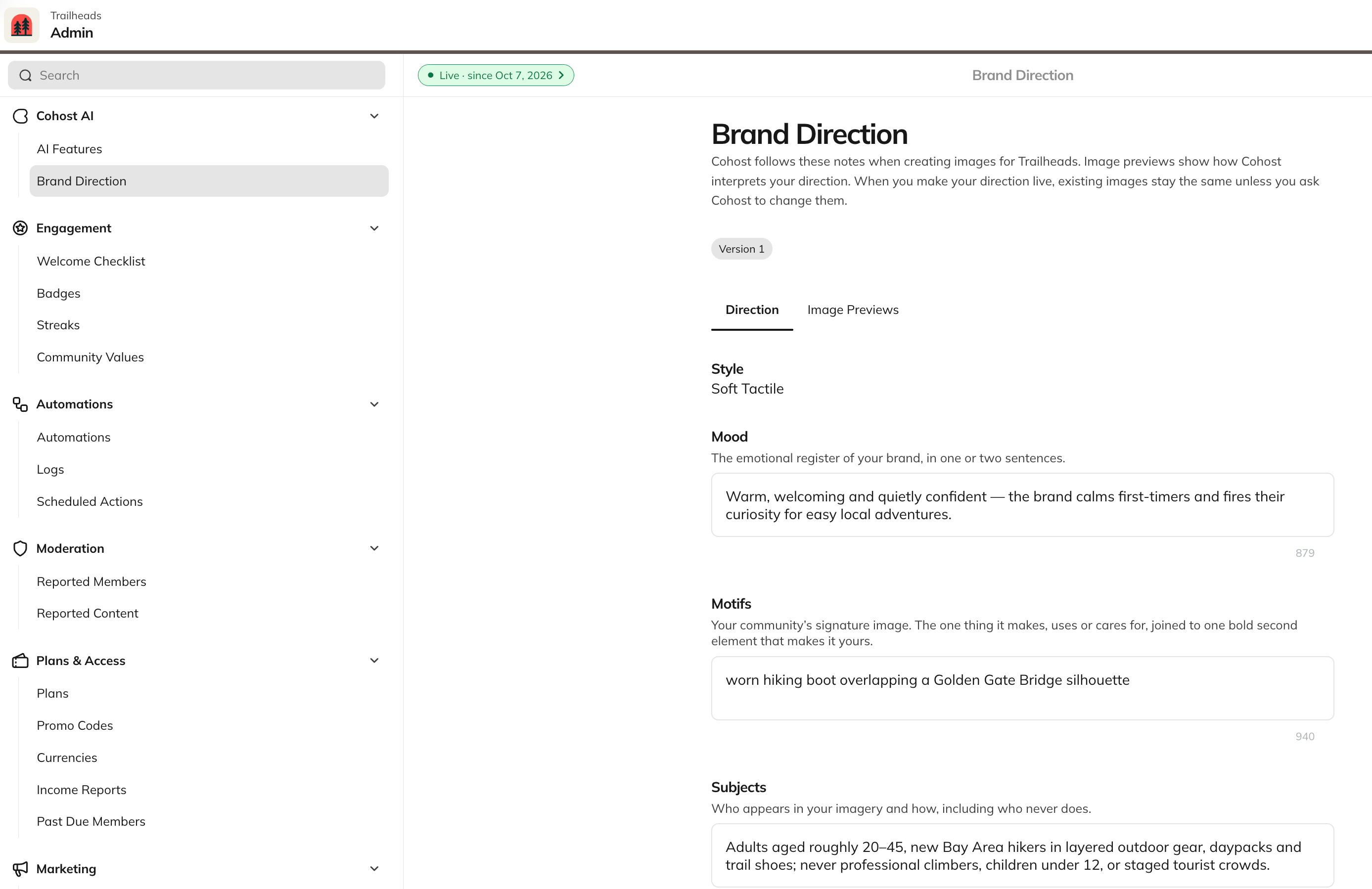
Add foreground and accent colors in words or as hex codes. Your main colors come from your colors in Admin > Branding > Colors. Tip #1 — Specific details give you the best results. For a scooter club, a motif like “a vintage Italian scooter with a chrome luggage rack” gives the AI much more to work with than just “a scooter.”
Want to Edit Your Brand Direction?
Here’s how:- Go to Admin > Cohost AI > Brand Direction.
- Select Edit in the upper right. This creates a draft, so your live direction stays in place while you work.
- For a new look, select Change Style next to your current style, pick one of the 11 styles, and select Use This Style.
- Update Mood, Motifs, Subjects, Avoid, and Palette however you like.
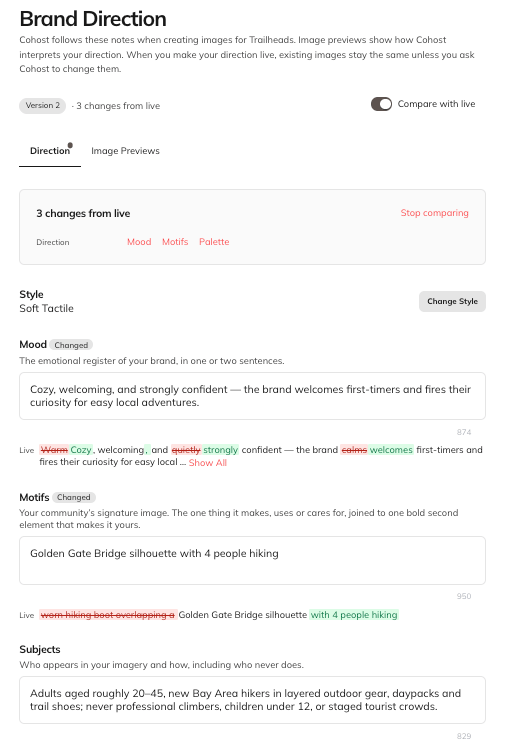
- Turn on Compare with live to see exactly what you’ve changed.
- A summary at the top shows how many changes you’ve made and which fields they’re in.
- Each edited field has a Changed label. Below it, your live text appears with removed words in red and new words in green.
- Select Stop comparing when you’re done.
- Open the Image Previews tab to see how your instructions bring your direction to life.
- Love what you see? Select Make live.
Preview Your Images
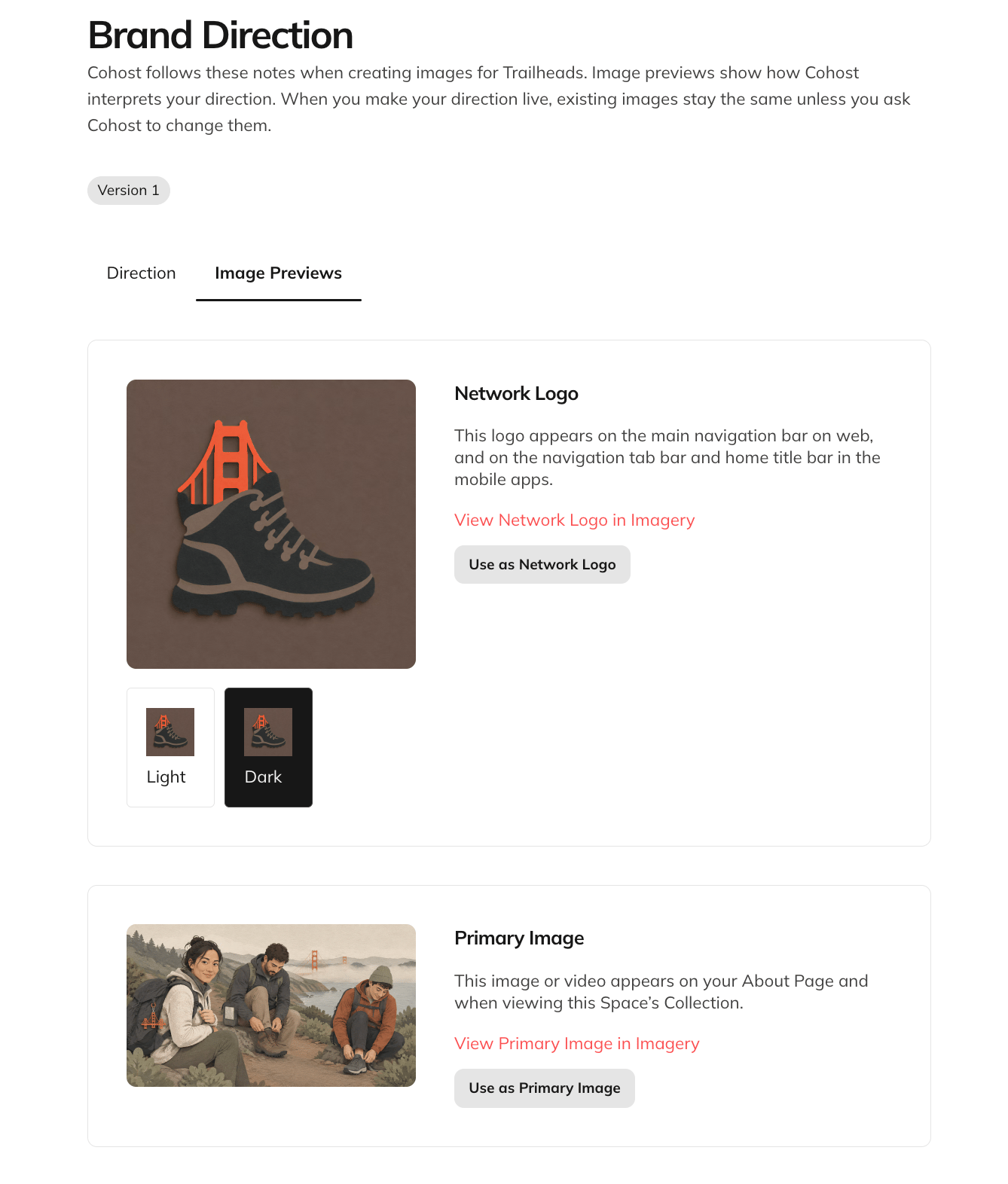
The Image Previews tab shows sample images made from your direction. Switch between Light and Dark to see both modes.- Network Logo. Like it? Select “Use as Network Logo” to apply it right away, or select View Network Logo in Imagery to see where it appears.
- Primary Image. Select Use as Primary Image to apply it.
- Badge. This is a sample Badge in your style. Select Generate Again for a fresh one, or Manage Badges to create and edit your Badges.
Coming Soon: Try It Within Mighty Cohost
Once your direction is live, you’ll soon be able to directly ask Mighty Cohost for a new image, and it’ll follow your style automatically. For example, try:- “Design a logo for my [Space name] Space.”
- “Create a new Primary Image for my Network.”
- “Make a Badge for members who complete [Course name].”
View Past Versions
Every direction you try is saved, so you can come back to it later. Here’s how you get back to prior versions:- Select the version label in the upper left, or select the three-dot menu > Versions.
- Each version shows its style and whether it’s a Draft or Live.
- Open a draft to keep editing or to make it live.
- Copy link to this version to share it with your team to review
- Discard Draft to delete a draft you don’t need