

Starting Monday, August 31, 2026, the web grace period is extending from 7 days to 14 days, giving members more time to resolve a payment issue before losing access.If payments are enabled in your Mighty Network and at least one of your Plans is a subscription or Installment Plan, members will have a card on file that’s automatically charged when their payment renews. Members on annual subscriptions receive an email reminder 30 days before renewal. For monthly subscriptions, renewal information is included directly in the payment confirmation email members receive each billing cycle—so they always have visibility into their upcoming charge. If a card expires or a payment fails, the member enters a Past Due state. During this time, our system automatically prompts them to update their card information—you don’t need to follow up manually.Want to keep the 7-day grace period instead?
You can do that from your own Stripe account—see How Do I Keep a 7-Day Grace Period? below.
How Past-Due Members Are Prompted to Update Card Details
When a payment fails, the grace period begins. During the grace period:- The member is marked Past Due, visible in Admin > Plans & Access > Plan List under the affected Plan.
- You can view all past-due members at Admin > Plans & Access > Past Due Members.
- When the member signs in, a banner appears along the bottom of the screen prompting them to update their card details. The banner links directly to the page where they can do so.
Grace Periods by Platform
Web (Stripe Payments):- The grace period lasts 14 days.
- Mighty Networks automatically sends three reminder emails prompting the member to update their payment information.
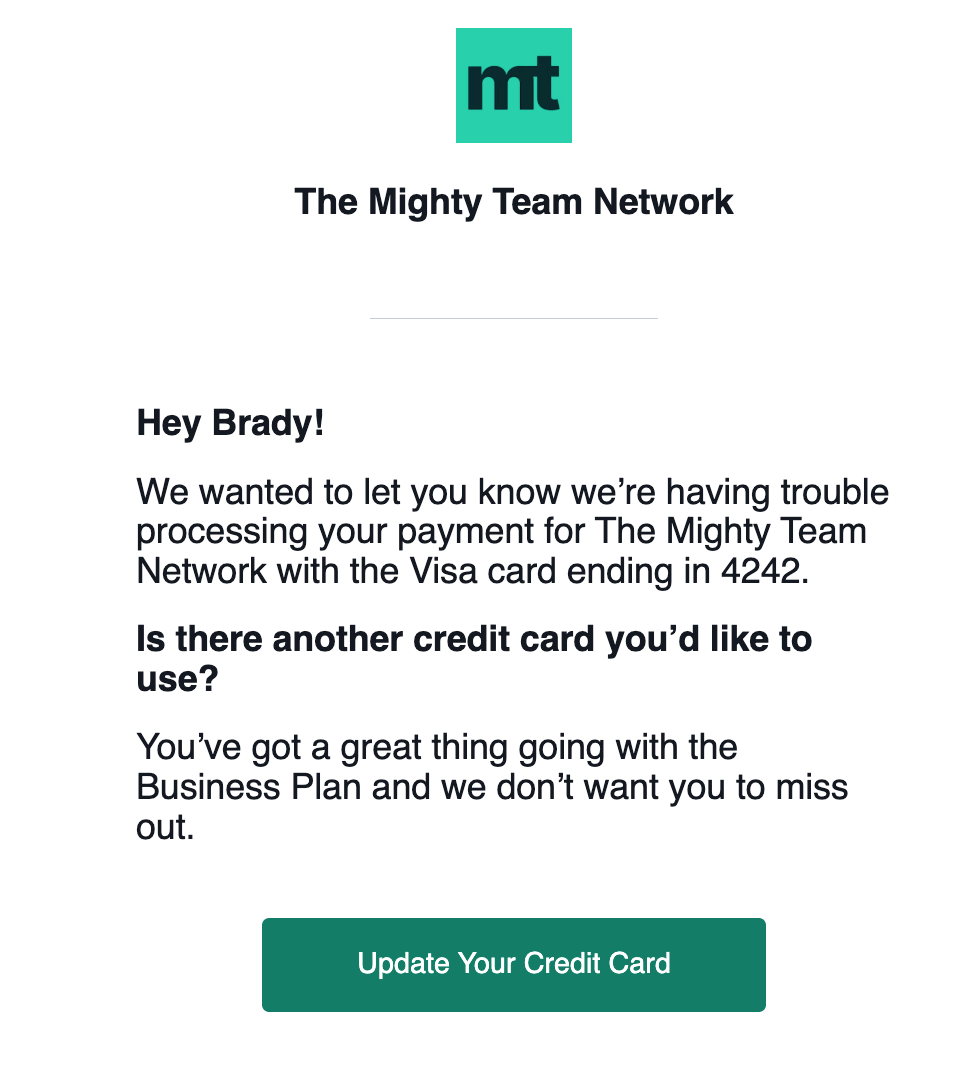
- These reminders are spaced throughout the grace period using machine learning to optimize timing.
- Stripe retries the failed payment according to the retry settings configured in your connected Stripe account—see Where Can I Configure Retry Settings in Stripe? below.
 Free Trial Members:
- Members on a Free Trial follow the same 14-day grace period process.
- The grace period lasts 16 days.
- Apple handles all billing notifications directly through the App Store.
What Happens When a Member’s Renewal Payment Fails?
When a renewal payment fails, Stripe retries it according to the retry settings configured in your connected Stripe account, while Mighty keeps the member active during a grace period of up to 14 days. Mighty will keep the subscription in its past-due grace period for up to approximately 14 days, or until the maximum retry threshold is reached, whichever comes first. After the grace period ends, Mighty cancels the subscription, voids the unpaid invoice, and the member loses access.Where Can I Configure Retry Settings in Stripe?
Retry settings are controlled by your connected Stripe account, not by Mighty. They live in the Stripe Dashboard for the account you connected to your Mighty Network—so if you want a shorter grace period or fewer retries, you can adjust them there.- Log in to the Stripe Dashboard.
- Click Settings (the gear icon, top-right).
- Under Billing, open Revenue recovery.
- Select the Retries tab.
- Under Card payments, click Manage.
- Choose Smart Retries or Custom retries and configure your retry settings.
- Click Save.
How Do I Keep a 7-Day Grace Period?
Mighty will cancel a past-due subscription as soon as either of two things happens, whichever comes first: the 14-day grace period ends, or your Stripe retry schedule runs out. So if you’d rather keep the shorter, 7-day experience your members had before, you can do that from your own Stripe account by shortening your retry schedule so it finishes within 7 days.- Log in to the Stripe Dashboard (the account connected to your Mighty Network).
- Click Settings (the gear icon, top right).
- Under Billing, open Revenue recovery, then select the Retries tab.
- Under Card payments, click Manage.
- Choose Smart Retries and set the window to 1 week, or choose Custom retries and set up to 3 retries that finish by day 7 (for example, day 3, day 6, and day 7).
- Click Save.
What Happens When a Past-Due Payment Is Resolved
When the member updates their card and the payment succeeds:- The charge is processed immediately.
- The member’s billing cycle stays the same—their next renewal date does not change.
What Happens When a Past-Due Payment Isn’t Resolved
If the member doesn’t update their payment information within the grace period:- They lose access to the Plan on day 14 (or day 16 for iOS purchases).
- If they bought the Plan on web or Android, they get an email letting them know their membership has been disabled.
- To regain access, they’ll need to purchase the Plan again and update their card details during checkout.
- They bought the Plan on iOS
- The Plan only gave them access to Spaces
- Your Mighty Network is free to join
- They have another Plan that still gives them access
What Happens If a Past-Due Member Cancels Their Plan
If a member cancels their Plan while it’s in a Past Due state, the cancellation is immediate, and they’ll lose access to that Plan right away.What Does “Pending Payment” Mean?
“Pending Payment” can indicate:- The member started checkout but didn’t complete it.
- Their card requires Strong Customer Authentication (SCA) approval from their bank.
What Is Strong Customer Authentication (SCA)?
Strong Customer Authentication (SCA) is a European regulatory requirement designed to reduce fraud and make online payments more secure. SCA applies to new card purchases online, not recurring subscription renewals. Banks must decline payments that require SCA if they aren’t properly authenticated.What Happens When You Move a Member and Their Payment Fails
If you move a member to a Paid Plan and the payment fails, here’s what happens:- The member receives an email, in-app message, and (if enabled) a mobile push notification that says:
- “Action Required: Your Host switched your Plan but payment didn’t process. Please update your billing info ASAP. Once you do, you’ll be moved and refunded as needed.”
- The member has 7 days to update their billing information before the Plan move is canceled.
- You as the Host receive an email, in-app message, and (if enabled) mobile push notification that says:
- “[Member Name] needs to update their billing information for [Plan Name]. Once their billing information is updated, they’ll be subscribed to [New Plan Name].”
- If the move required SCA verification, the member also receives:
- “Action Required: Please verify your billing information for your move to [New Plan Name]. Once verified, you’ll be subscribed.”
- If the member doesn’t update their billing info in time, the Plan move is canceled, and you’ll receive a notification confirming the cancellation.