

Ways to Use Chat
Here are a few ways you and your members can use chat in your Mighty Network:- Introduce members to each other and then leave the chat
- Quickly coordinate meetup plans for a group in a group chat
- Reach out directly to someone who shares a common interest or goal
- Gather recommendations for books, movies, or music in a Space chat
- And much more
- Private chats between 2 members
- Group chats with no limit on how many members you can add
- Space chats that let members connect inside each Space
Types of Chat
Private Chat
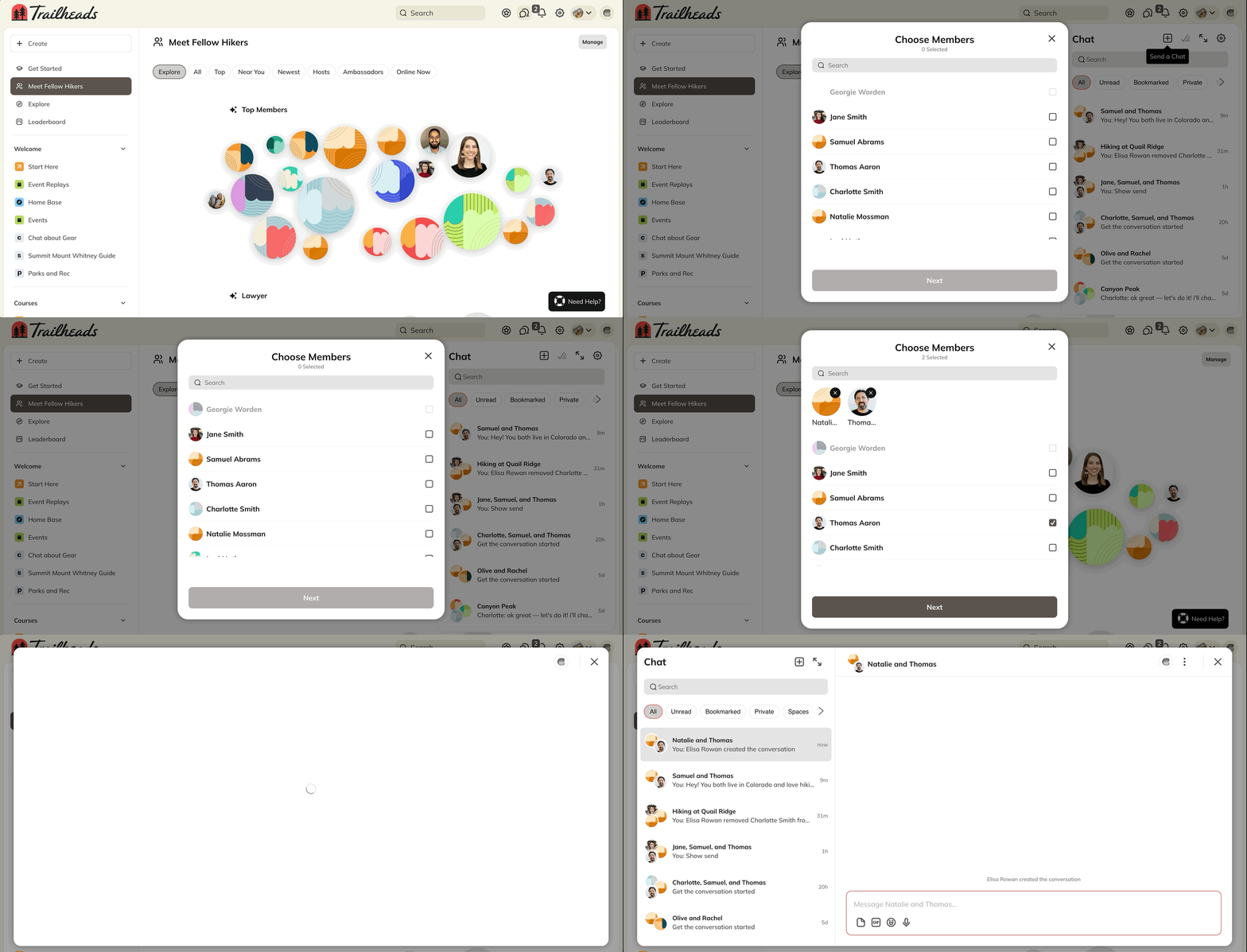
To start a chat with a member:- Click the chat icon in the upper right corner.
- Select + to start a new chat.
- Search for and select the member you want to include.
- Click Start Chat
Group Chat
- Click the chat icon in the upper right corner.
- Select + to start a new chat.
- Search for and select the member you want to include.
- You will be able to add up to 50 members at a time, however there is no limit to how many people can be in a group chat.
Managing a Conversation
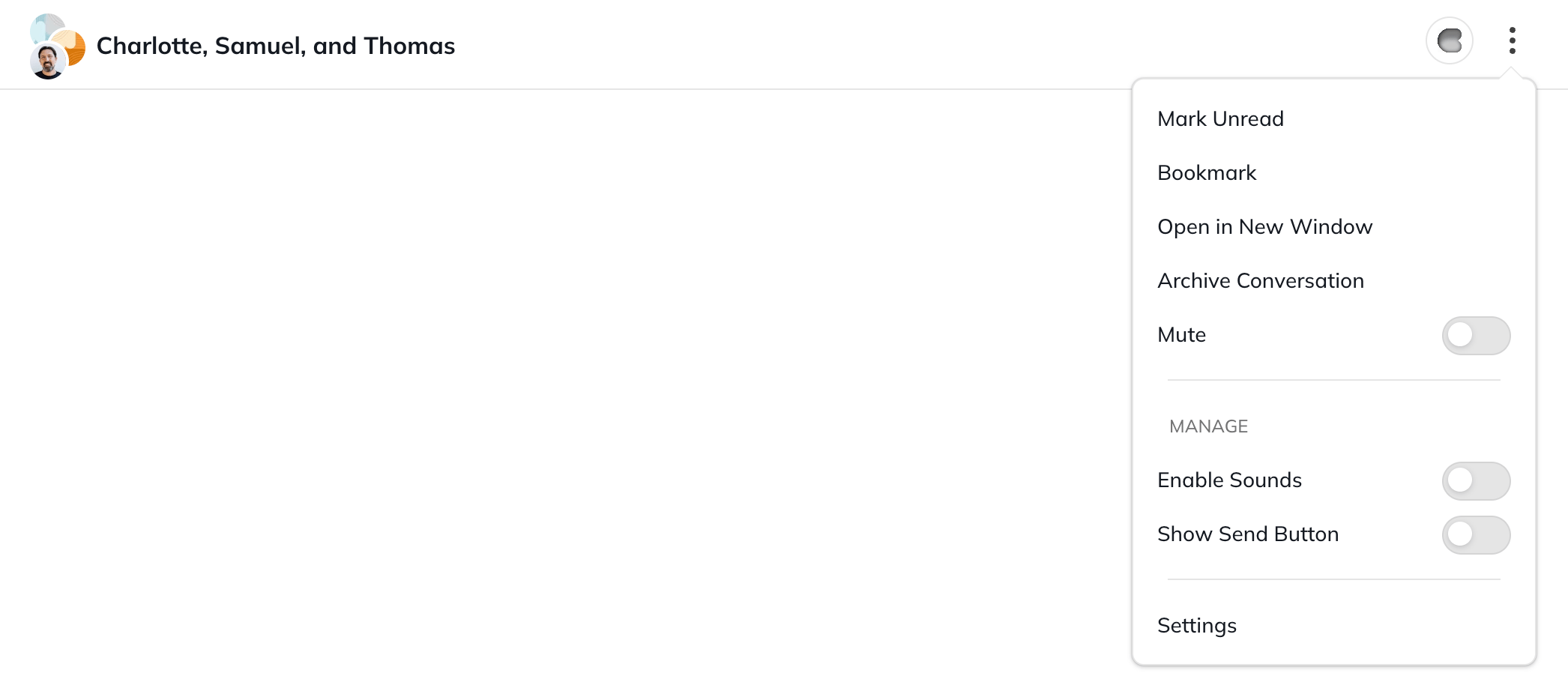
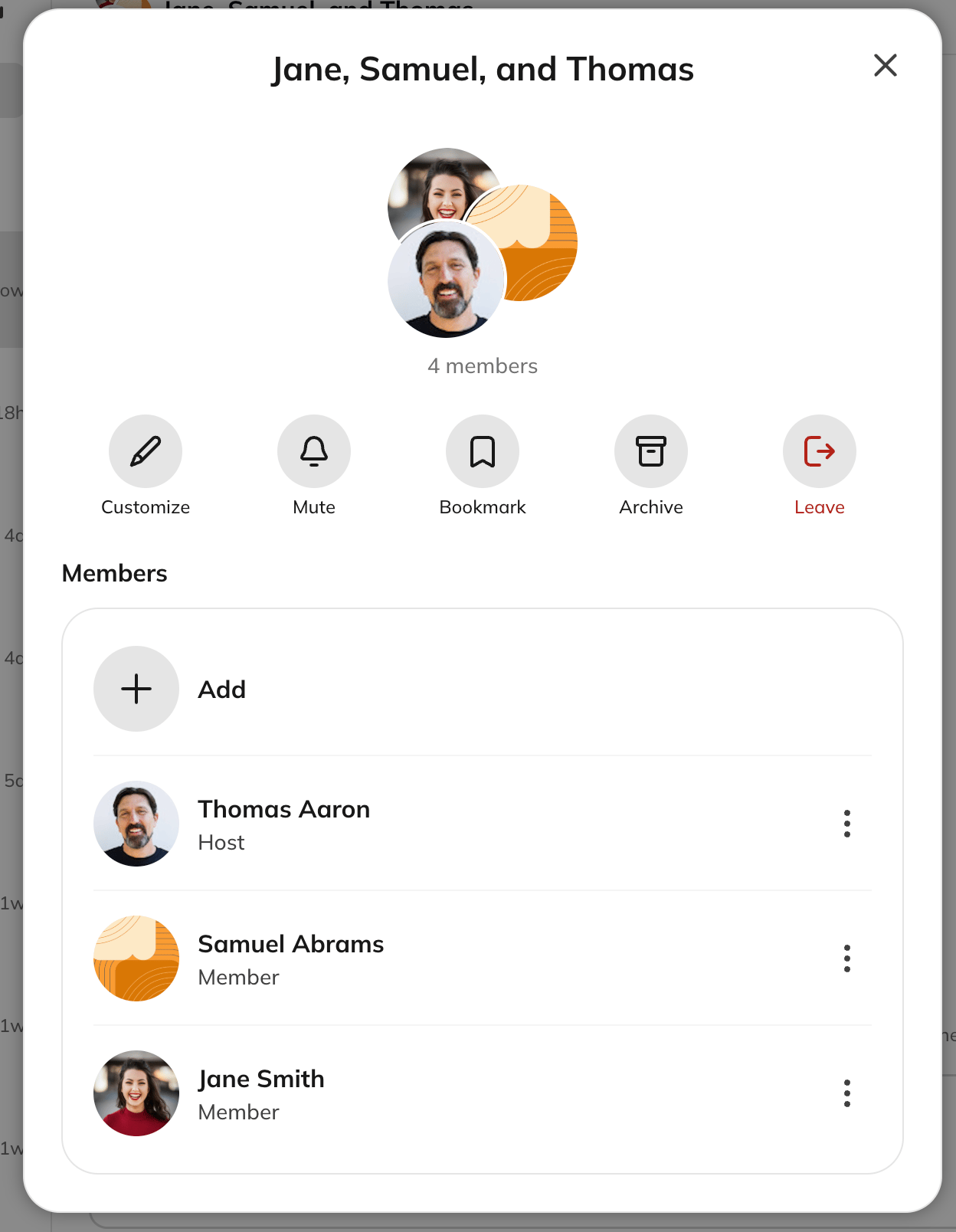
- Click on the three dot menu > Settings to see options to:
- Customize the name of the chat
- Add/remove people
- Mute the conversation
- Bookmark the conversation
- Archive the conversation
- Leave the conversation
- Any participant can do this, including in a 1:1 chat.
Adding and Removing Members
Adding Members
Go to conversation settings in the three dot menu and select the + icon to add up to 50 members at a time. There’s no limit on how large a group chat can grow.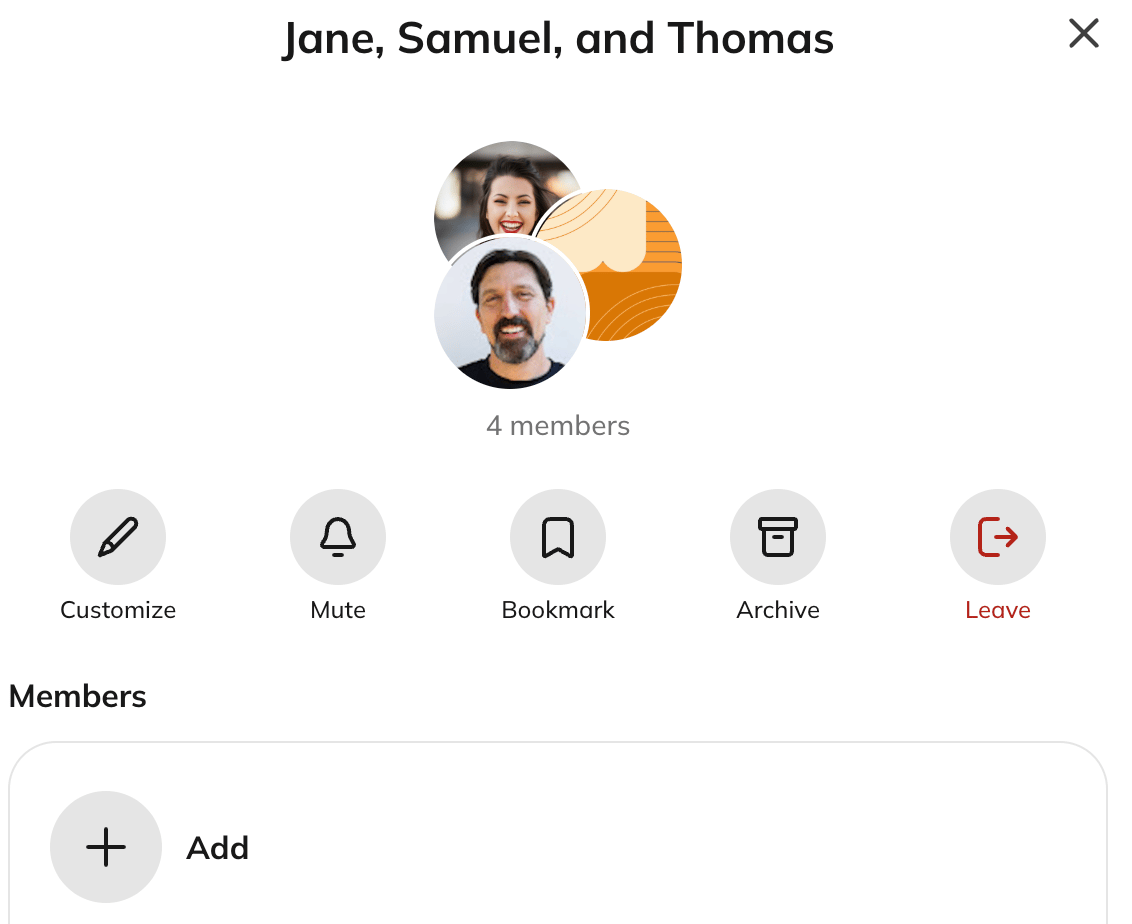
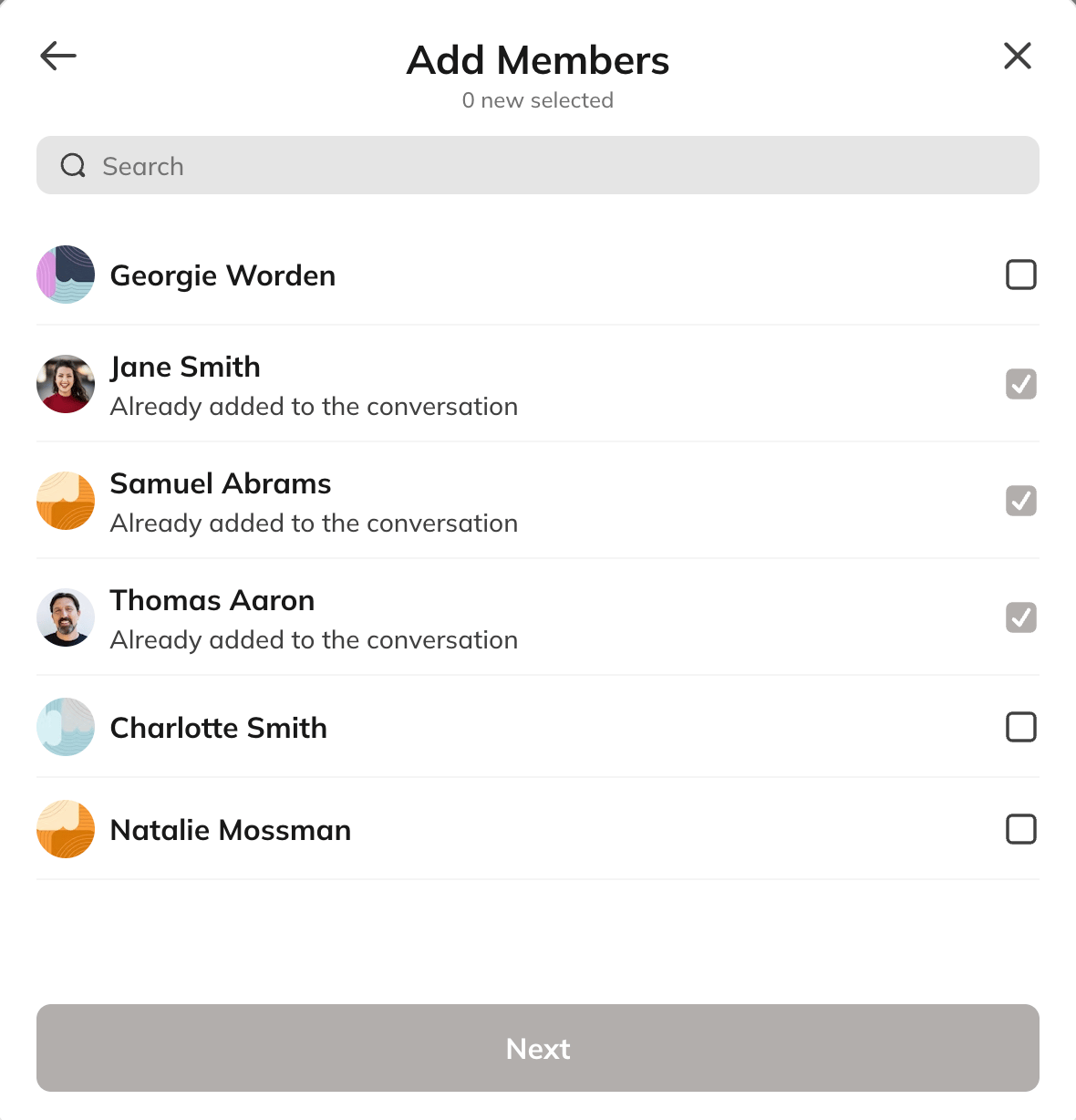
- See the full conversation history from the beginning of the chat when they join
- Won’t get a notified that they were added but they will see an unread count on their chat icon for any messages they haven’t viewed yet
Removing Members
Any member can select and remove another member from the conversation by clicking the three dot menu next to their name: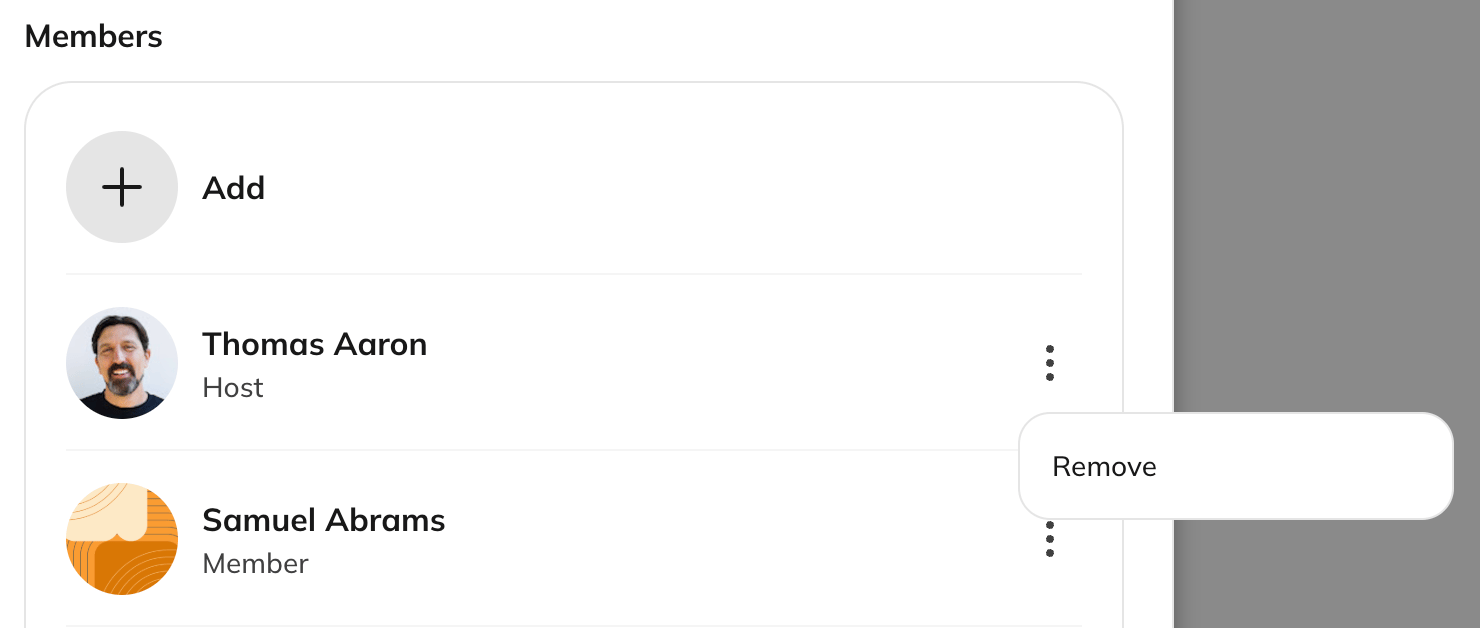
- Won’t get notified that they were removed
- If they happen to be inside the conversation when it happens, they’ll see a message that they’re no longer part of the chat. The conversation disappears from their list the next time they navigate away or refresh.
System Messages
When someone is added, removed, leaves, or renames a conversation, everyone in the chat sees a message describing what changed.Space Chat
When Space Chat is turned on, members can chat directly inside a Space.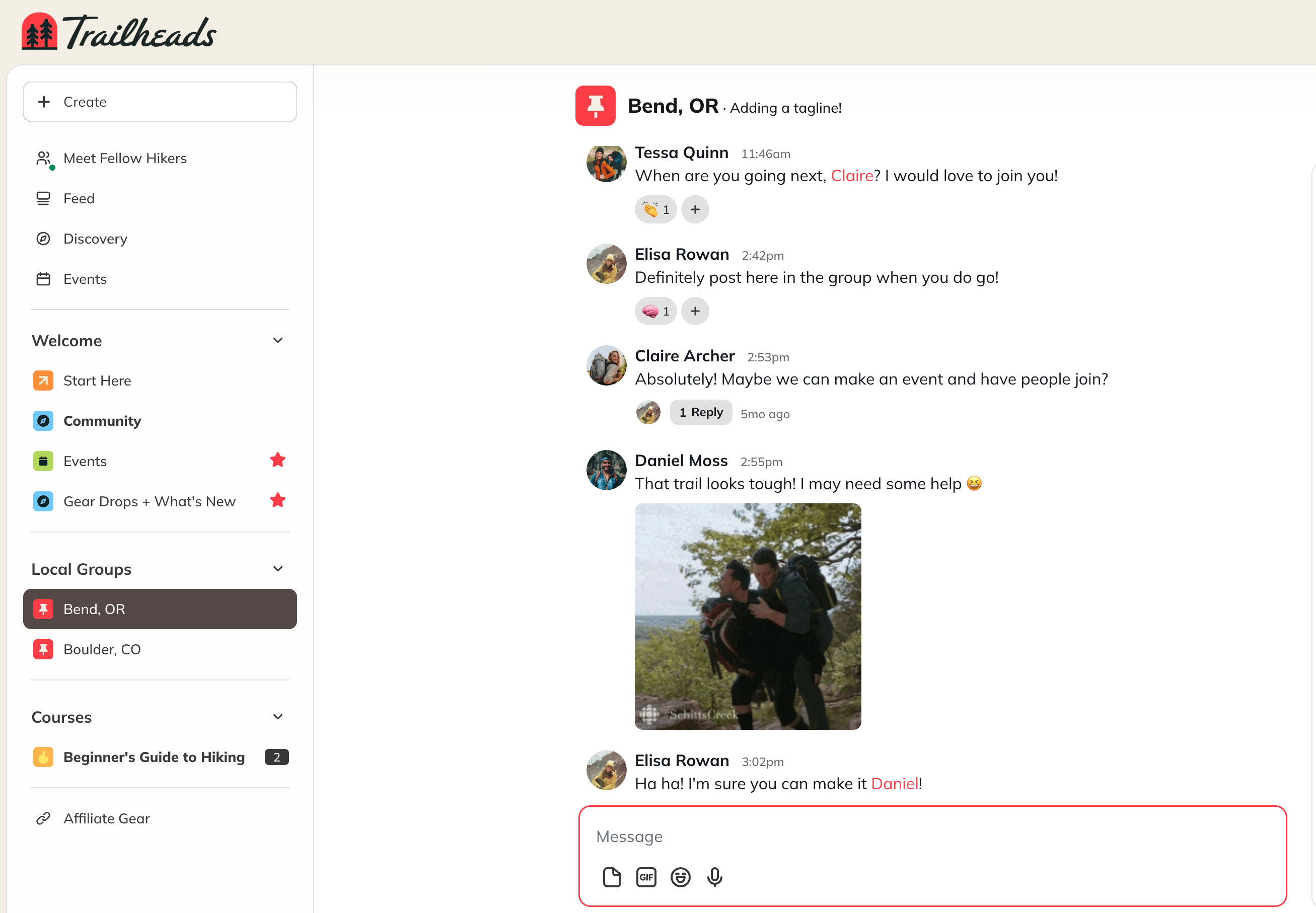
- As a number indicator in the left navigation next to the Space
- In your conversation list
Ways to Interact in Chat
Voice Notes
You can record and send voice notes (up to 10 minutes long) in any type of chat on web or mobile!

- Hosts and moderators
- Everyone
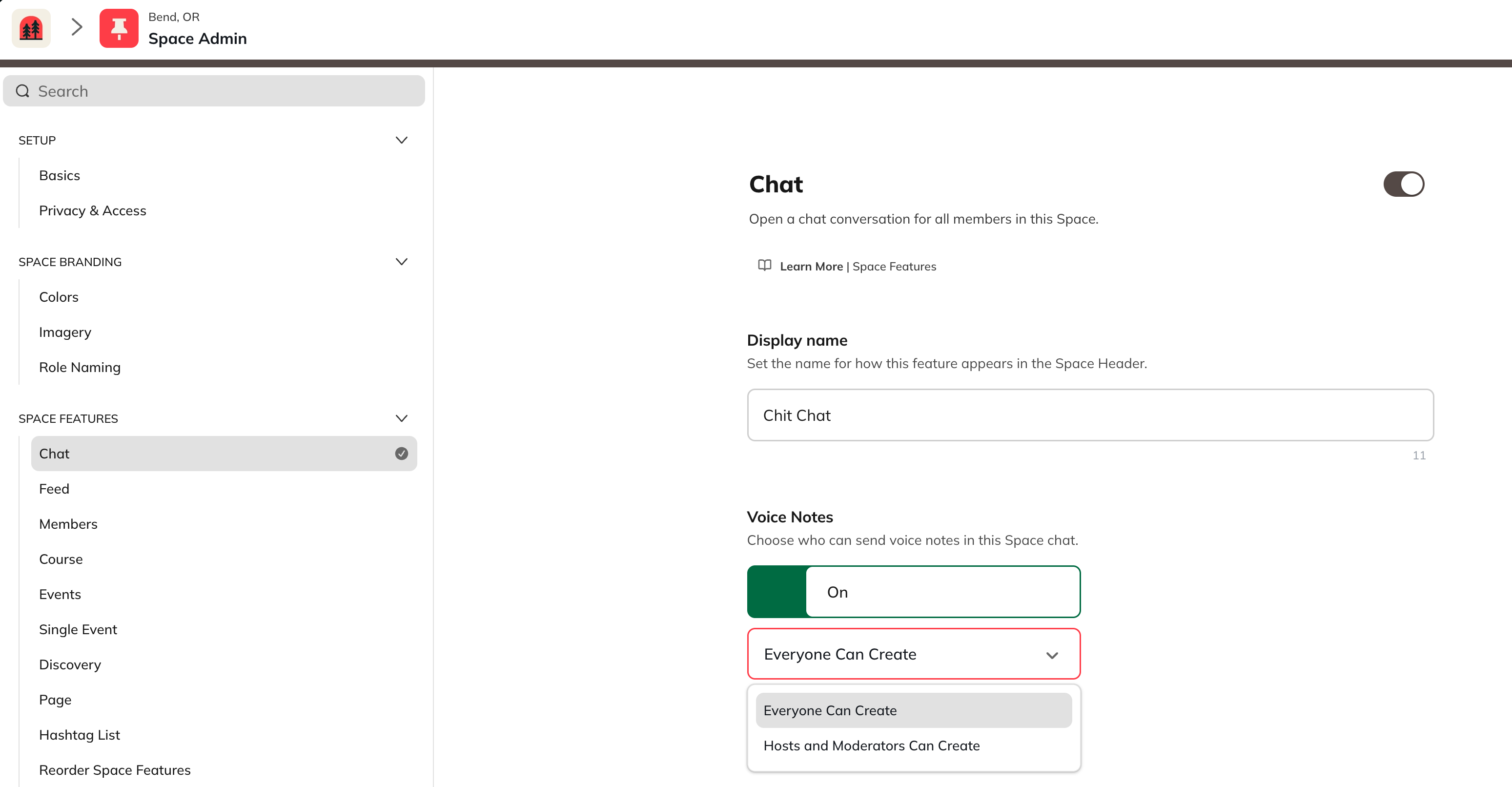
@ Mentions
In all types of chats, you can @ mention people by typing “@” followed by their name.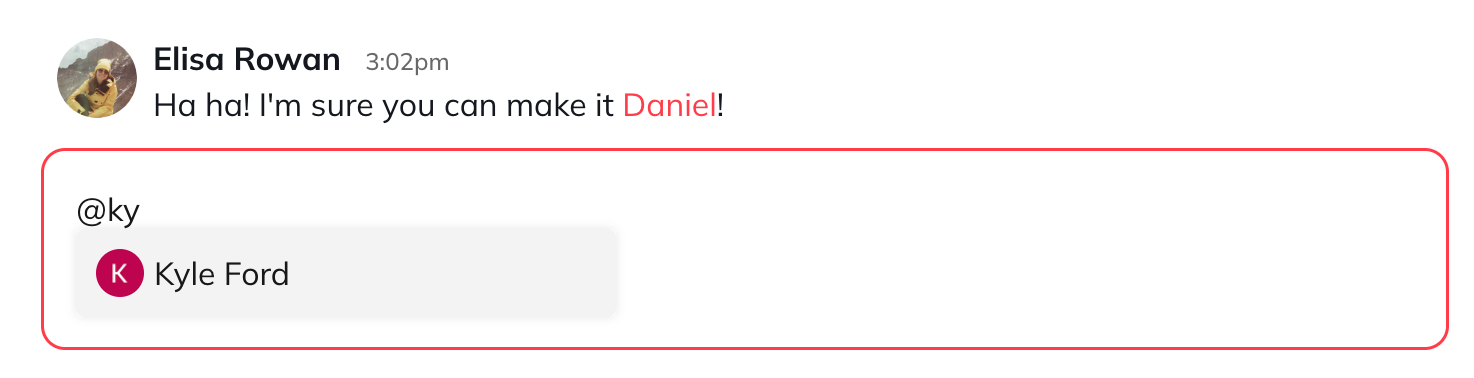
Chat Replies
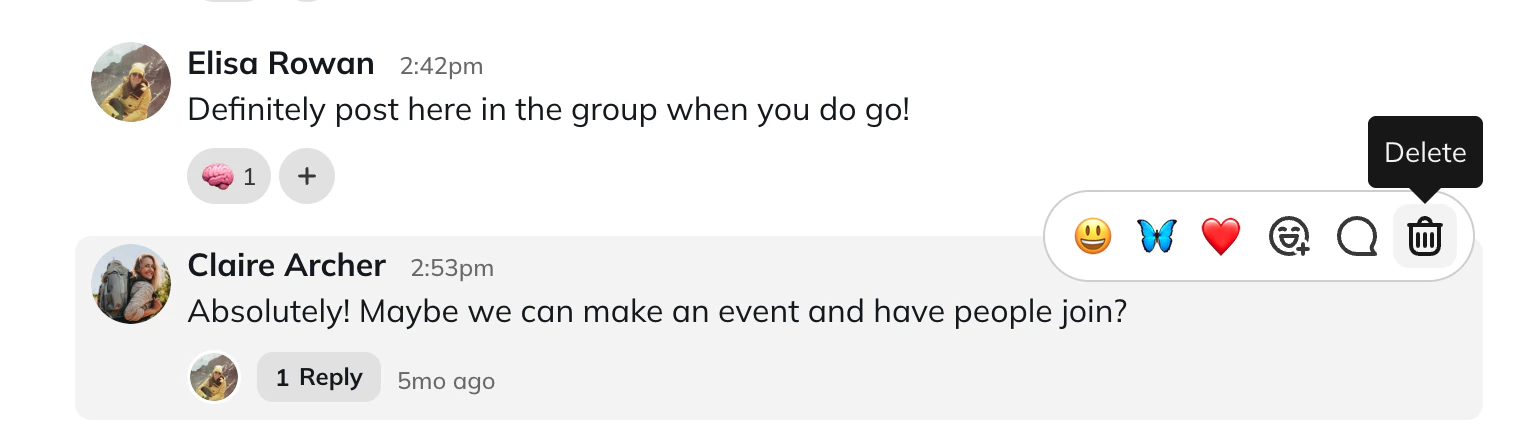
Replies help keep conversations organized, easier to follow, and more fun. You can reply in Space, private, or group chats by selecting the reply icon. When enabled, replies trigger in-app and push notifications. Chat threads also appear in your conversation list and begin with “Replies to.” To learn more, see How Do I Manage My Chat Messages?GIFs and Emoji Reactions
React with GIFs or emojis by simply selecting the icons!

Add Files
You can also add files locally from your computer to a chat!
Private Chat Options
Network Hosts can choose to turn off private chat for all members or allow members to manage chat preferences individually. To adjust these settings:- Go to Admin > Members > Member Settings > Private Chat.
- Toggle off private chat to prevent members from chatting directly. (The “+” icon to start a chat will be removed, but members will still receive Space chat notifications.)
- Allow members to control private chat individually by toggling the second option on.
Start a Conversation (AI Feature)
Available on the Launch plans and up, Start a Conversation suggests conversation starters in new chats. When opening a direct message or group chat with someone you haven’t chatted with before, select Suggest a Conversation Starter. You’ll see a draft message based on your profiles and shared interests—you can send it as-is, edit it, or select Try Again for a new suggestion.