

Global Members
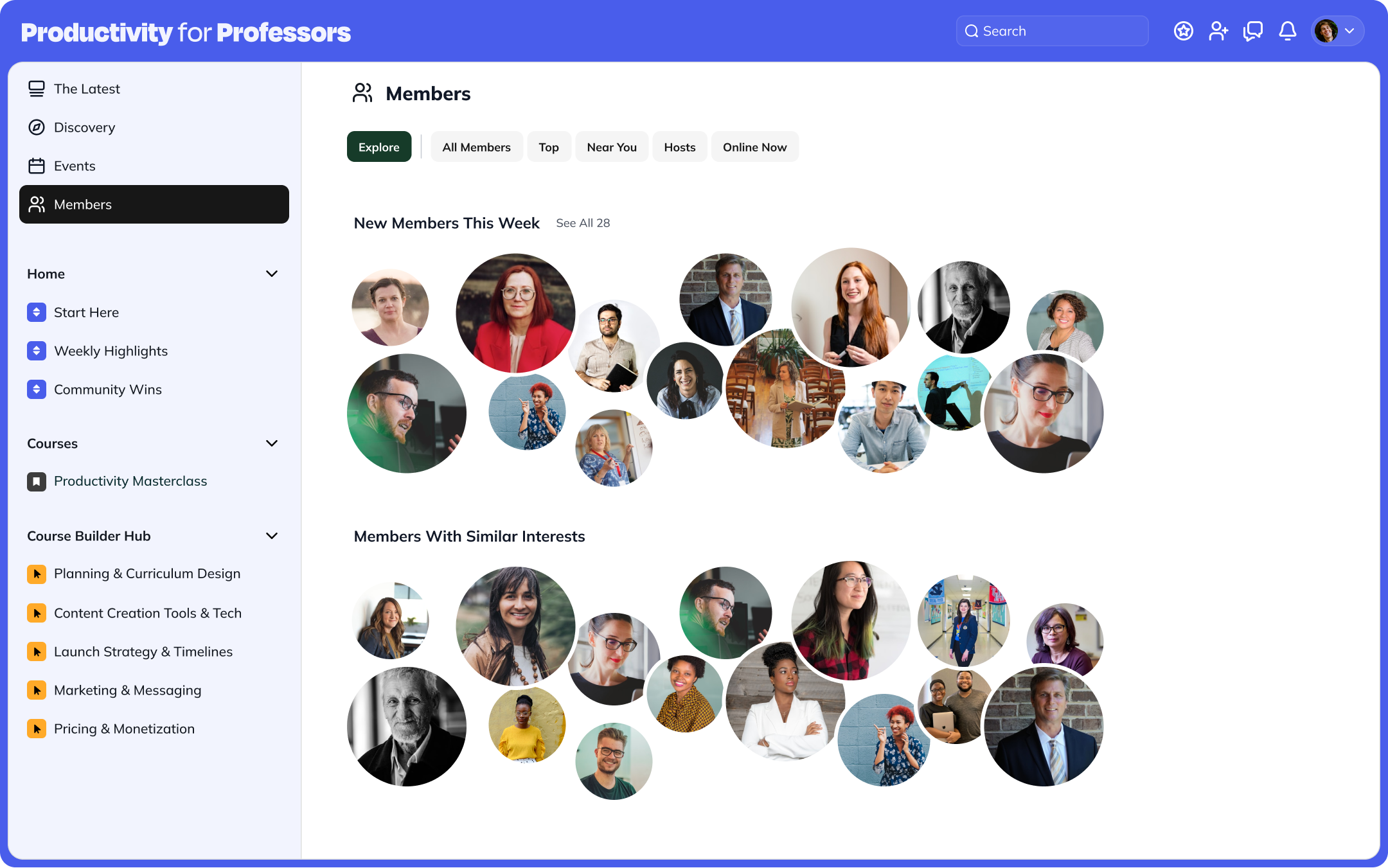 In the Global Members view, profiles are displayed in clusters:
- Top Members
- Members Near You (within 300 km)
- New Members
- If chat is toggled off at the Network level, you’ll only see View Profile.
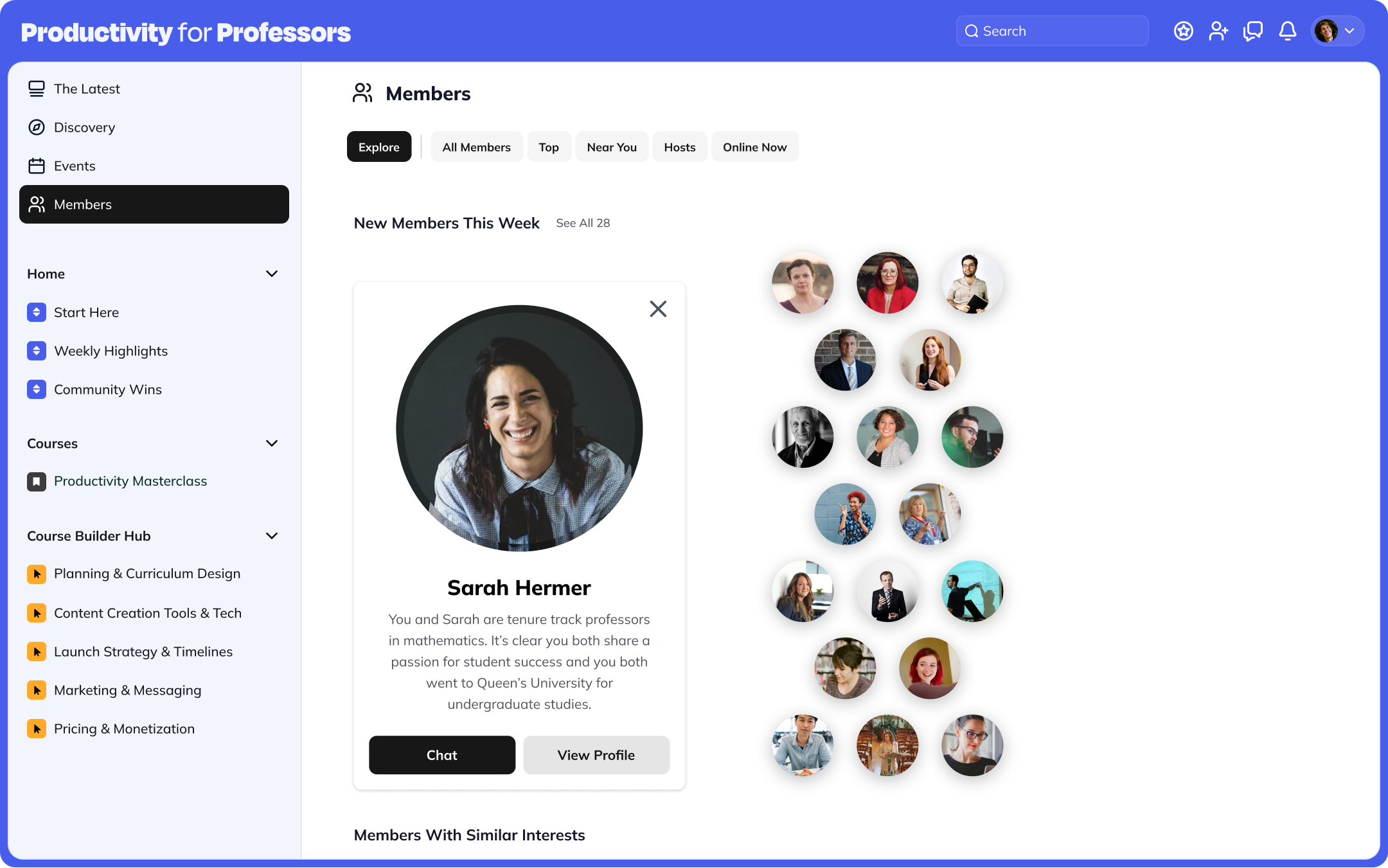 Clicking a profile expands it further to show what you and that member have in common—if Show Similarities is toggled on under Admin > Setup > AI Features.
If Show Similarities is toggled off or all Mighty Co-Host™ features are turned off, only the member’s mini bio will display.
From the expanded view, you can choose to Chat or View Profile.
Clicking a profile expands it further to show what you and that member have in common—if Show Similarities is toggled on under Admin > Setup > AI Features.
If Show Similarities is toggled off or all Mighty Co-Host™ features are turned off, only the member’s mini bio will display.
From the expanded view, you can choose to Chat or View Profile.
- Again, if chat is toggled off at the Network level, you’ll only see View Profile.
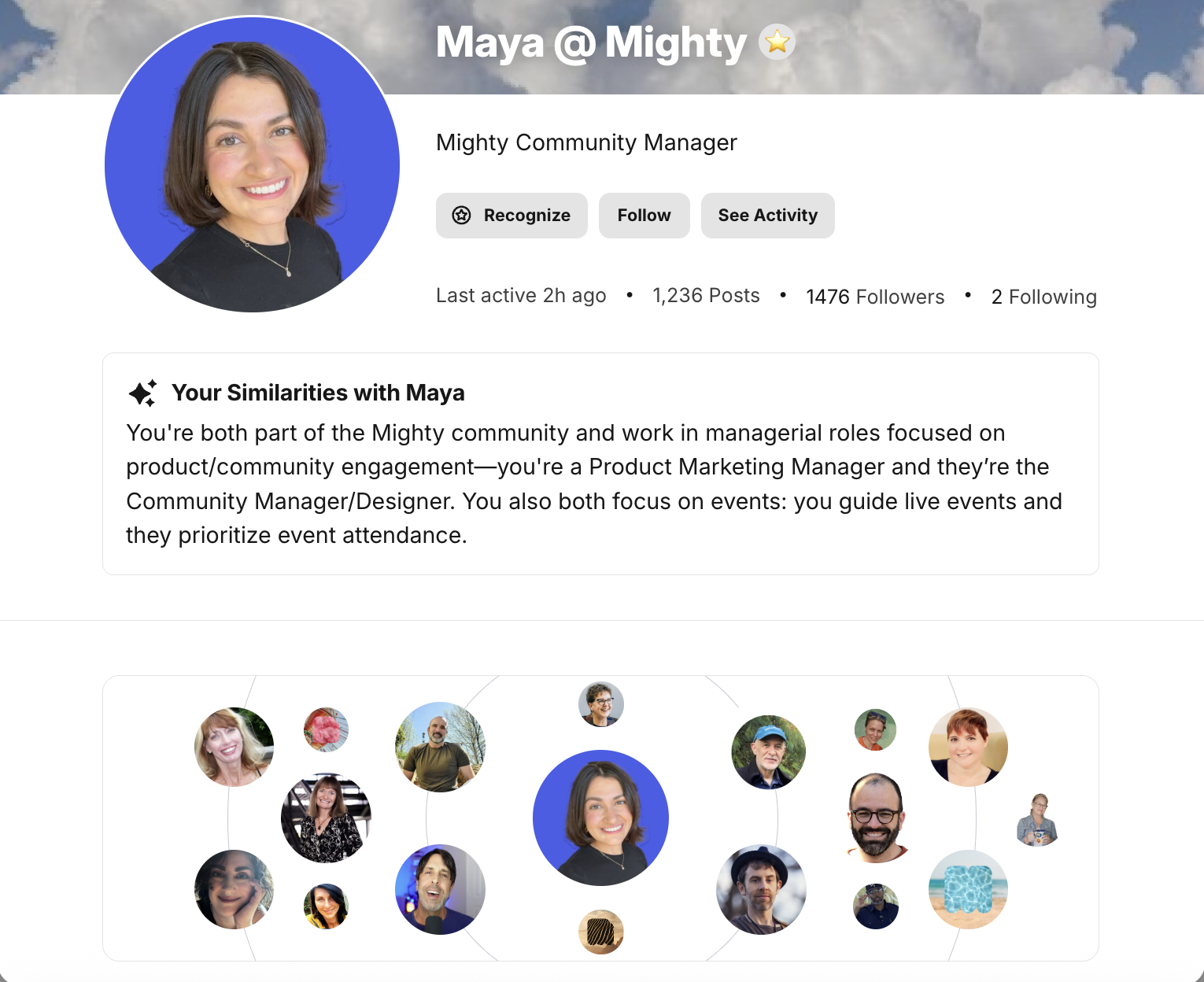
On a Member Profile
The People Explorer also appears directly on member profiles. Hovering over a profile enlarges it and shows the member’s mini bio. From there, you can see your similarities or Chat—depending on which features are enabled.- If either feature is toggled off, View Profile will replace those options.
People Explorer in Spaces
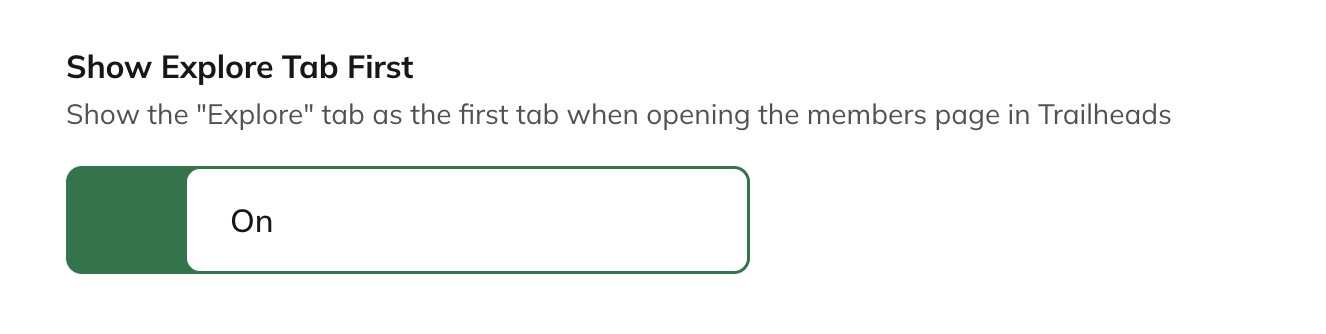
On web, if the Member feature is toggled on within a Space, you’ll see a tab called Explore. In this tab, profiles are organized in clusters: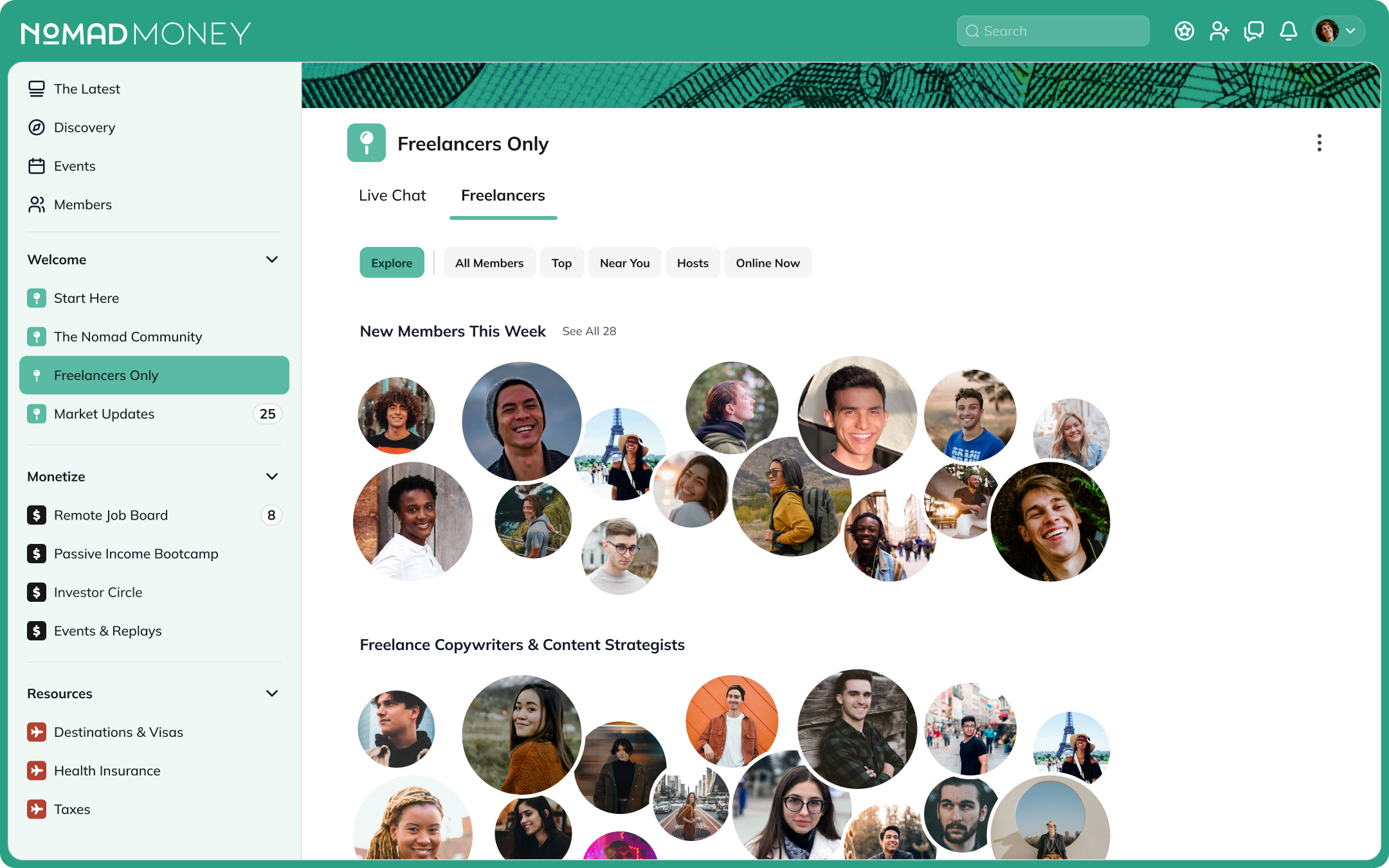 Hovering over a profile enlarges it and opens a preview card with the person’s mini bio and options to View Profile or Chat.
- If chat is toggled off at the Network level, only View Profile will appear.
- If chat is toggled off, you’ll only see View Profile.