

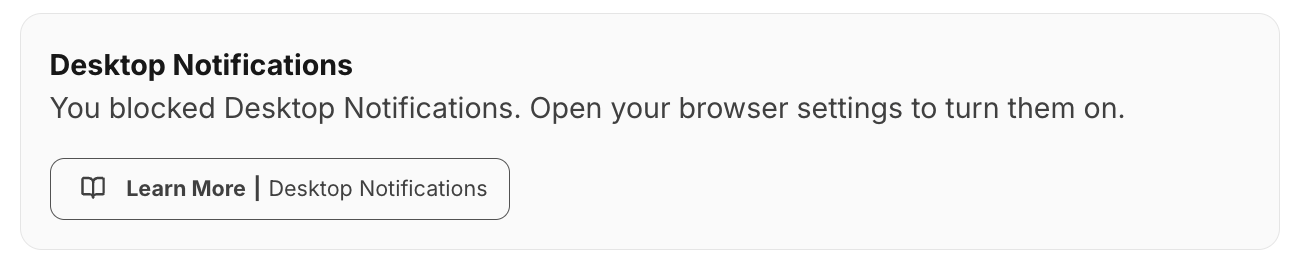
Troubleshooting Desktop Notifications
If you’re not receiving desktop notifications, follow the steps below for your browser and device.Google Chrome
- Open Chrome.
- Select More > Settings.
- Go to Privacy and Security > Site Settings > Notifications.
- Under Default behavior, choose Sites can ask to send notifications.
Safari
- Open Preferences > Websites.
- Select Notifications in the left pane.
- Use the dropdown next to any website requesting permission to allow or deny notifications.
Firefox
- Select the lock icon in the address bar.
- Choose the arrow next to Connection status.
- Select More Information, then open the Permissions tab.
- Under Send Notifications, uncheck Use Default and choose Allow.
If Browser Settings Don’t Work
You may need to adjust your computer’s notification settings.Mac
- Open System Settings > Notifications.
- Select the browser you want notifications from.
- Turn on Allow notifications.
- Choose how notifications appear (None, Banners, or Alerts).
- Make sure sound and other notification options are enabled.
Windows (PC)
- Select Start > Settings.
- Go to System > Notifications.
- Turn on Notifications at the top of the page.
- Under Notifications from apps and other senders, ensure your browser (e.g., Chrome) is turned on.