- Overview
- Sections
- Lessons
- Quizzes
Overview
Your Overview is the introduction to your Course. It’s where you add the description, expectations, and guidelines members will need before getting started.Add an Overview
When you enable the Course feature for the first time, you’ll see an example Overview. You can edit this example provided to add your own image and text.Overview Settings
At the bottom of your Overview, select Manage Overview Settings to:- Make the Overview Visible or Hidden
- Use the default thumbnail or upload a custom thumbnail
- Enable Previewing for visitors
Sections
Sections help you organize related material. Think of each Section as a mini-overview for a specific topic or module. Each Section contains Lessons.Add a Section
To add a Section:- Go to Course > Create > Add Section.
- Add your title and content.
- Save your Section.
- Add or reorder Lessons
- Make the Section Hidden or Visible
- Add an Unlock Rule (for example, completing the Overview or another Lesson)
- Add a Completion button
- Edit the thumbnail
- Enable Previewing for visitors
Add Sections to an Existing Course
Scroll to the bottom of your Course and select Create to add a new Section.Lessons
Lessons can stand alone or be placed inside Sections.Add a Lesson
To add a Lesson:- Go to Course > Create > Add Lesson.
- Add your content.
- Save your Lesson.
- Make the Lesson Hidden or Visible
- Add an Unlock Rule
- Add a Completion button
- Change the Instructor
- Edit the thumbnail
- Enable Previewing
Managing Course Content
Course Settings
For overall Course settings like naming, section behavior and display style, check out this article.Previewing Sections and Lessons
You can preview specific Sections or Lessons to people who haven’t joined the Space. Inside a Lesson or Section, open Settings and enable Preview. Visitors will see a Preview icon next to any content you’ve made available. Content with a lock icon remains hidden.Bookmarking Sections and Lessons
Members can bookmark Sections and Lessons on web:- Hover over the Section or Lesson.
- Open the three-dot menu.
- Select Bookmark.
Featuring or Pinning Sections and Lessons
You can feature Sections and Lessons in the Space’s Featured or Welcome Section.- Hidden coursework won’t appear in Featured.
- Once visible, it will reappear.
- What’s shown depends on the Space’s visibility settings.
- Pinning and unpinning must be done on web.
Bulk Actions
You have some bulk action options with your content. At the top of, you will see the option to “Bulk Select” You can select all content or just some.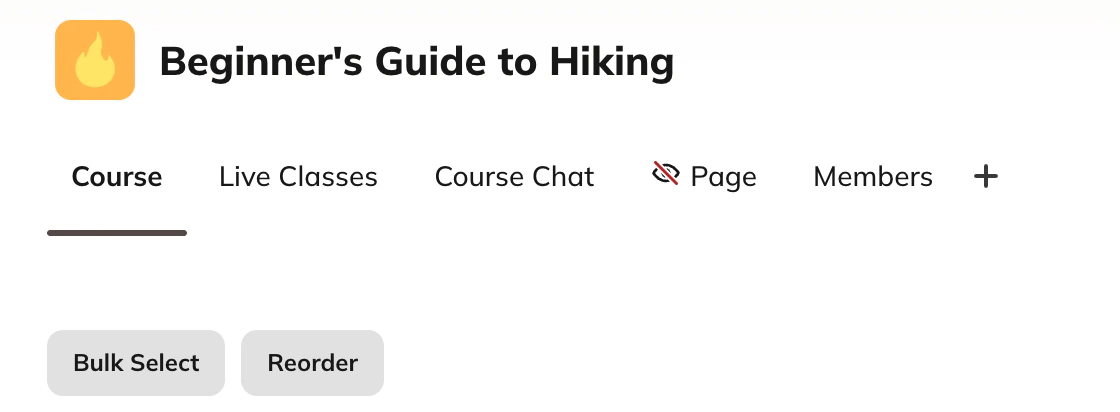
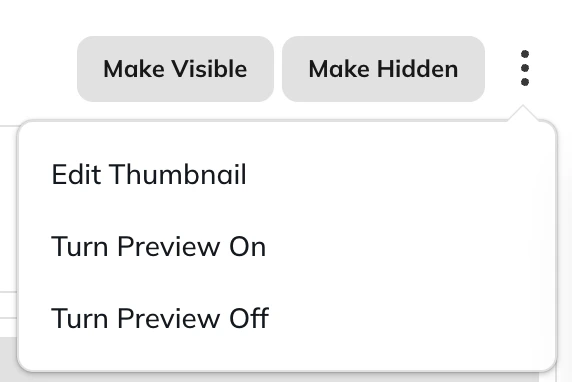
Overview and Sections:
- Edit Thumbnail
- Turn on/off preview
Lessons:
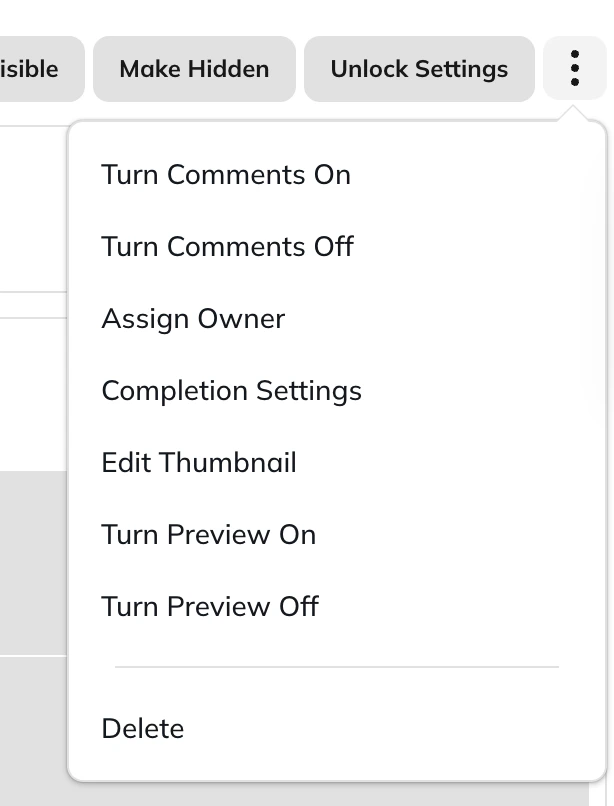
- Turn on/off comments
- Assign Owner
- Completion Settings
- Edit Thumbnail
- Turn on/off preview