

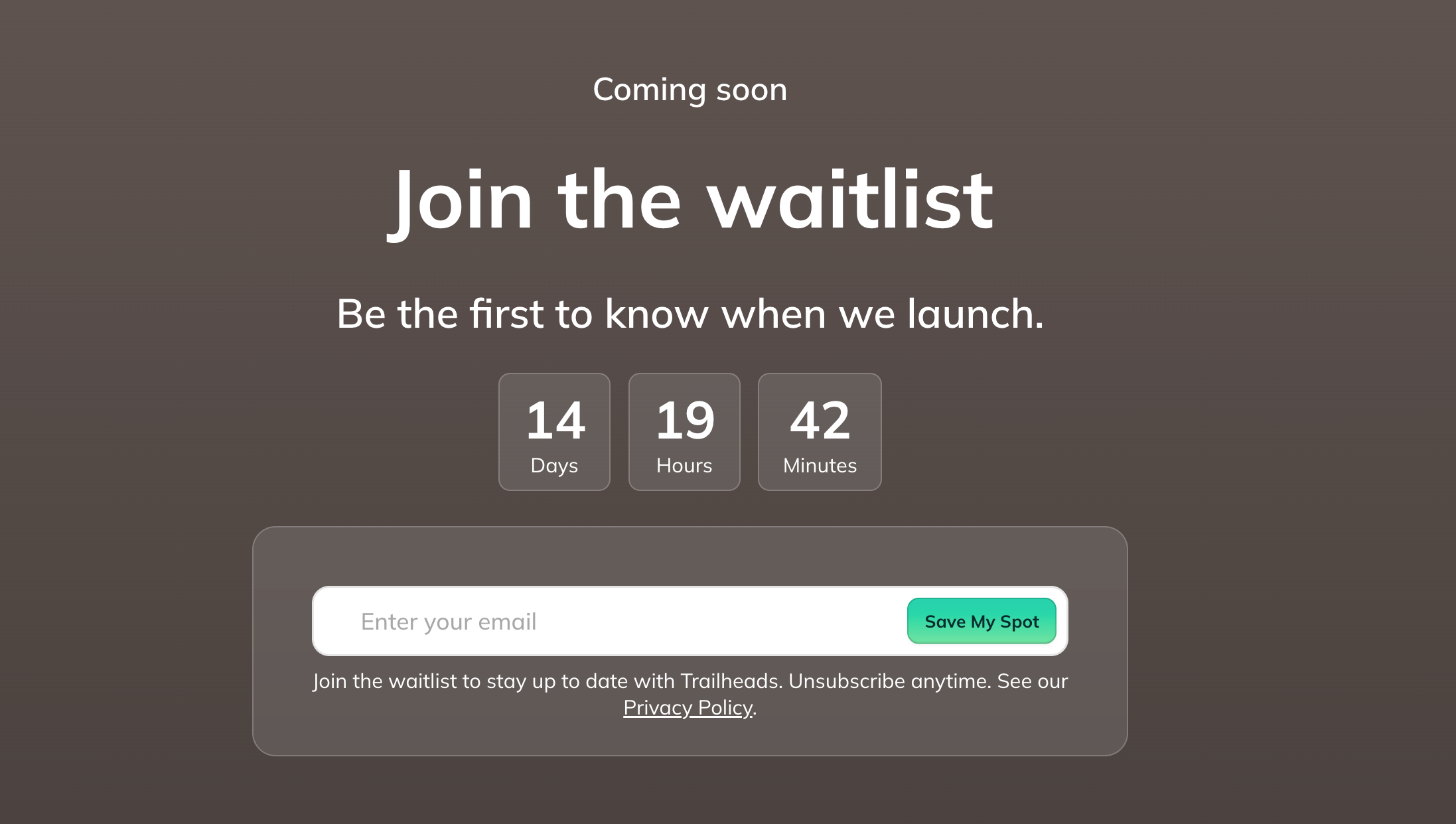
Create a Waitlist
You can create a waitlist from a Landing Page or directly from the Waitlists page in Admin.From a Landing Page
- Go to Admin > Marketing > Landing Pages.
- Create a new landing page or edit an existing one.
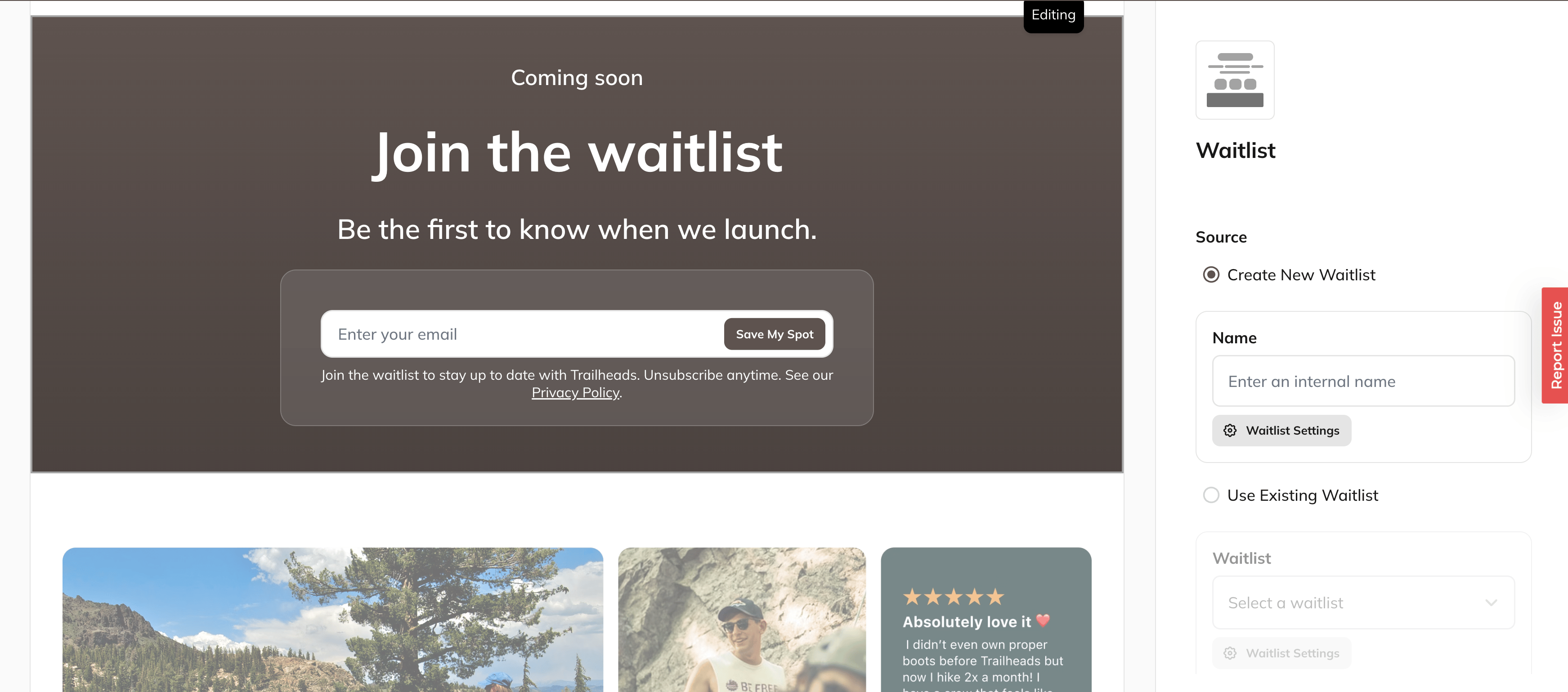
- Add a Waitlist section.
- Choose Create New Waitlist (or you can choose an existing one)
-
Complete your waitlist settings:
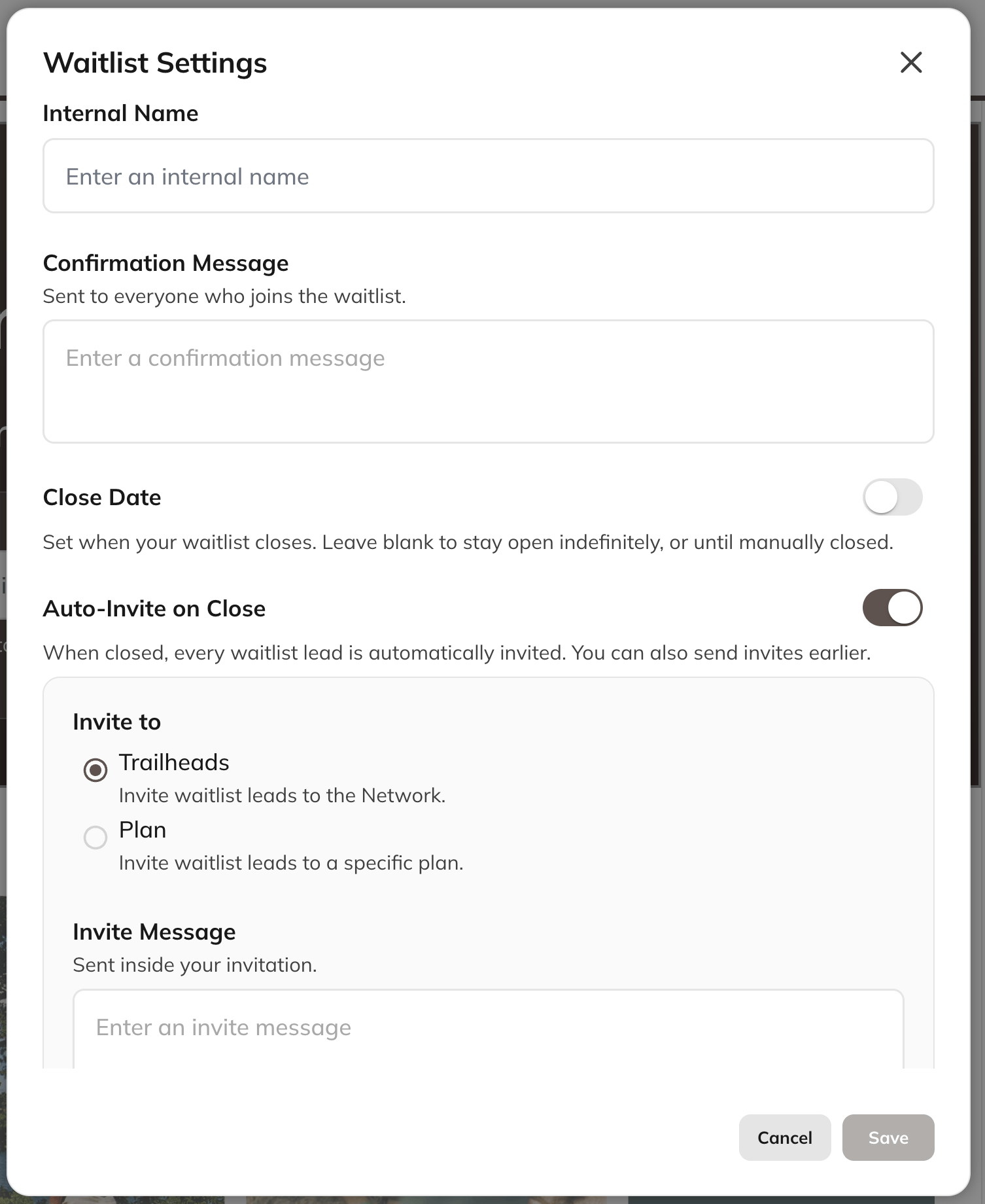
- Internal Name (for your reference)
- Customize the confirmation message -this is the message that people who join the waitlist will receive
- Close Date and Time (optional)
- If you would like to have a countdown timer, choose this option
- Auto-Invite on Close (optional)
- If you enable Auto-Invite on Close, choose whether people should be invited to:
- Your Mighty Network, or
- A specific Plan and where you would like them to land:
- Plan Landing Page
- Create Account Page
- Sign in Page
- Customize the invitation message that will be sent when the waitlist closes.
- Save your waitlist.
From the Waitlists Page
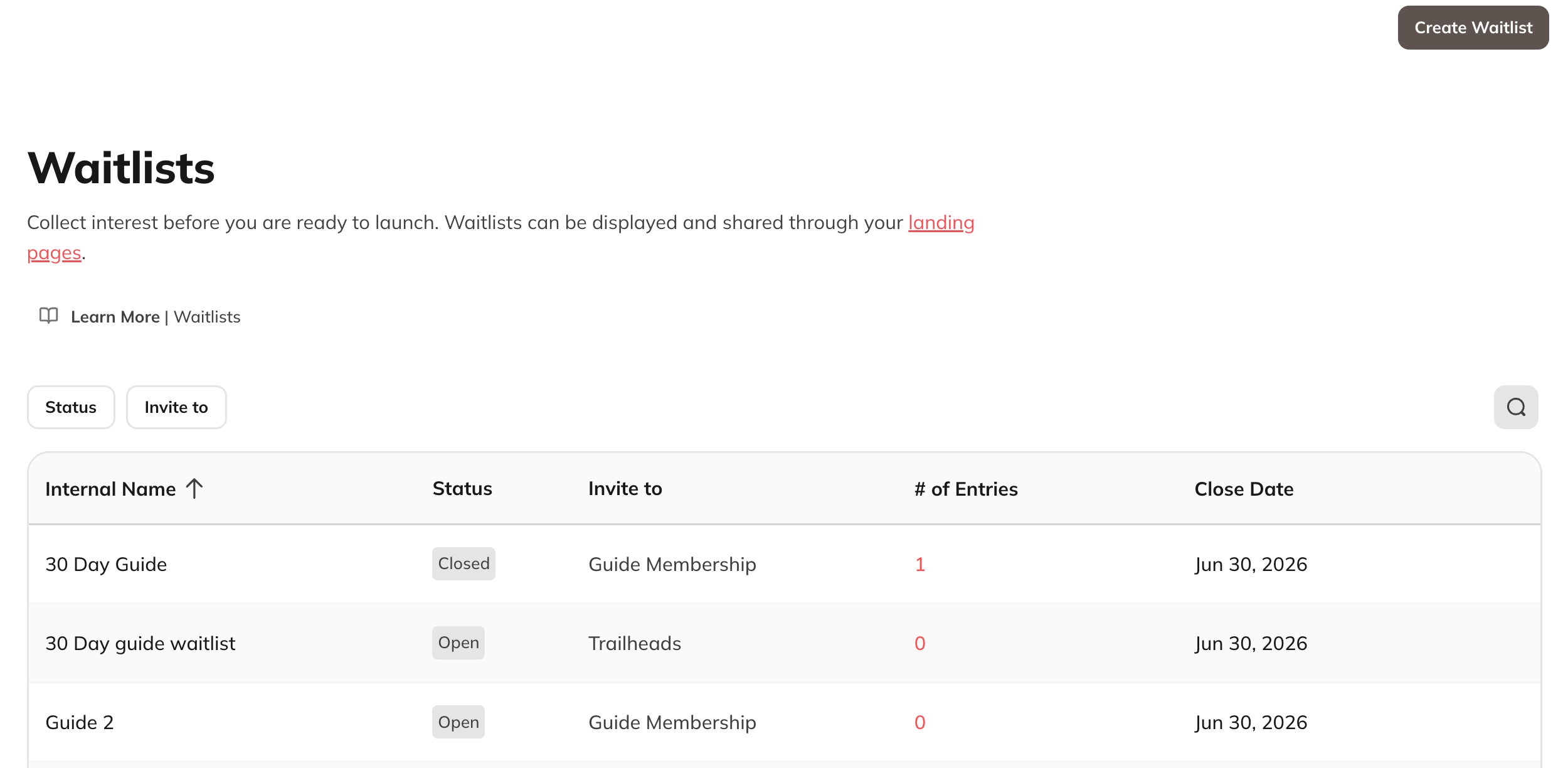
- Go to Admin > Marketing > Waitlists.
- Select Create Waitlist.
Customize Your Waitlist
Once your waitlist has been created, you can customize how it appears on your Landing Page. You can edit:- Heading and description
- Call-to-action button text
- Background image
- Optional countdown timer
Waitlist Notifications
Host notifications
As a Host, you will receive a notification (email, in-app or push) whenever someone joins a waitlist. This notification is turned on by default and you can manage it by going to Personal Settings > Notifications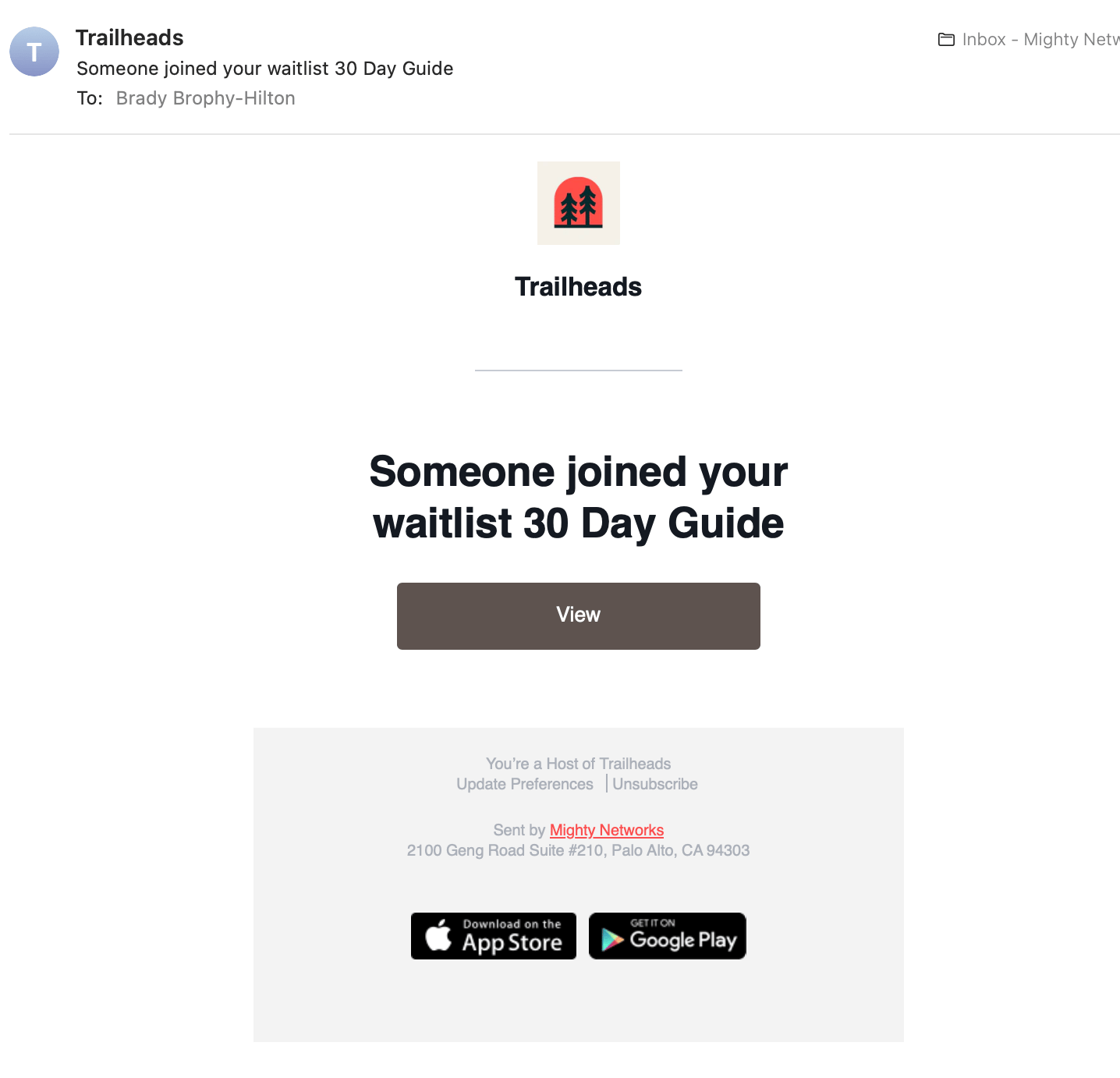
Waitlist confirmation emails
When someone joins your waitlist, they’ll automatically receive a confirmation email letting them know they’ve successfully signed up. The email also includes an unsubscribe link. If they are a full member, they will also get an in-app or push notification.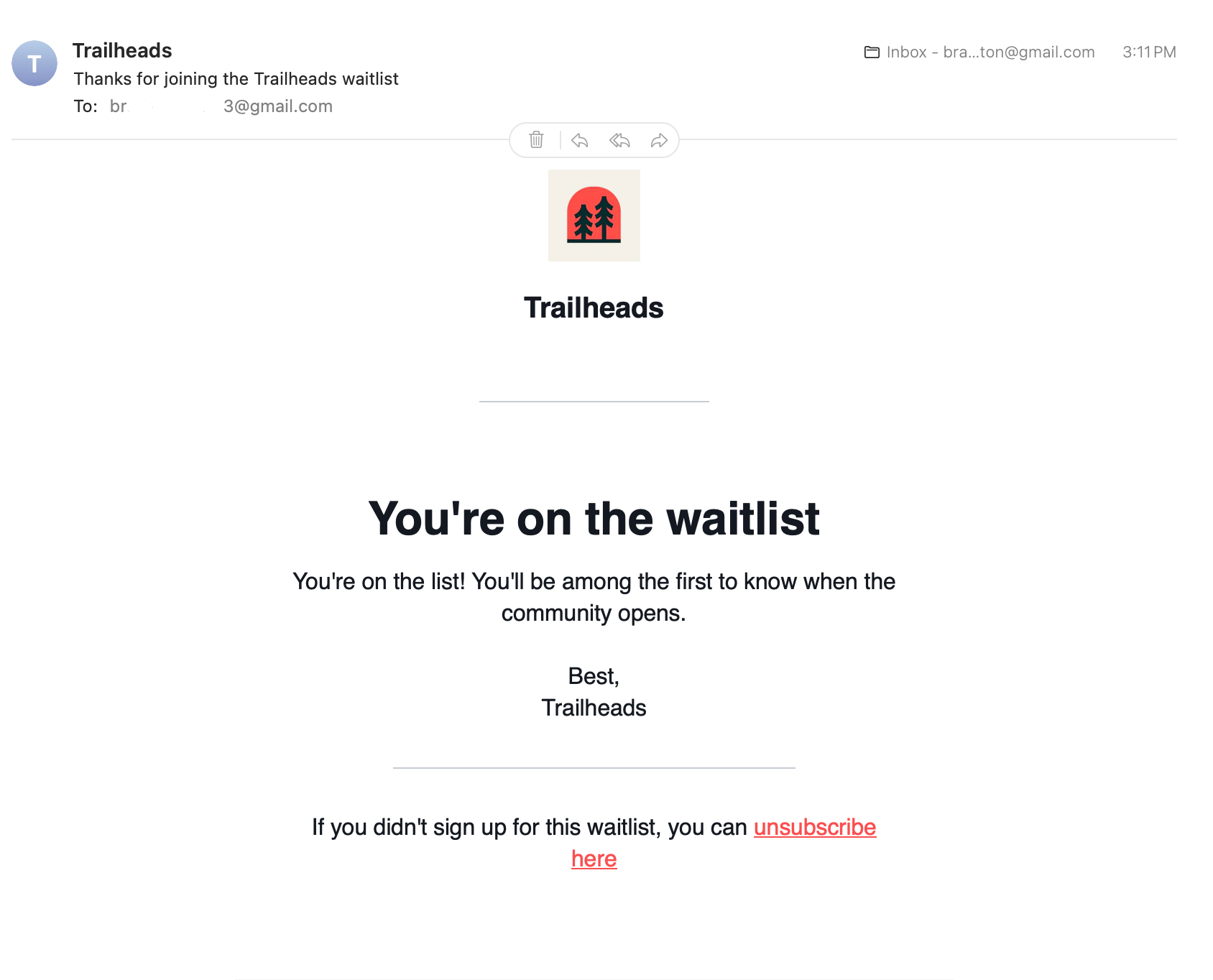
Managing Waitlists
To manage your waitlists, go to: Admin > Marketing > Waitlists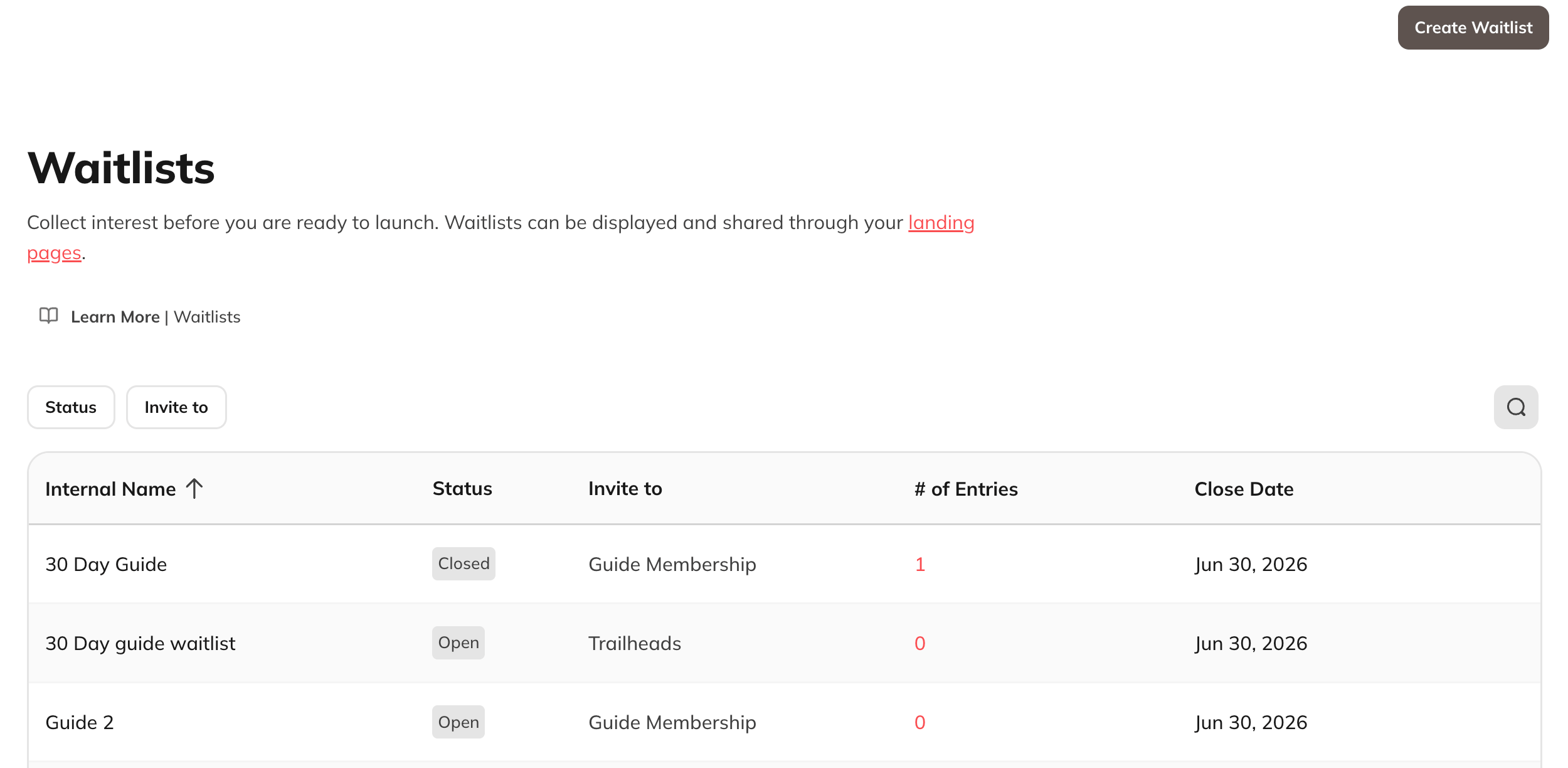
- View all waitlists
- Edit waitlists
- Sort waitlists
- View waitlist leads
- Manually close a waitlist
- Delete a waitlist
Manage Leads
All waitlist signups are available in: Admin > Members > Leads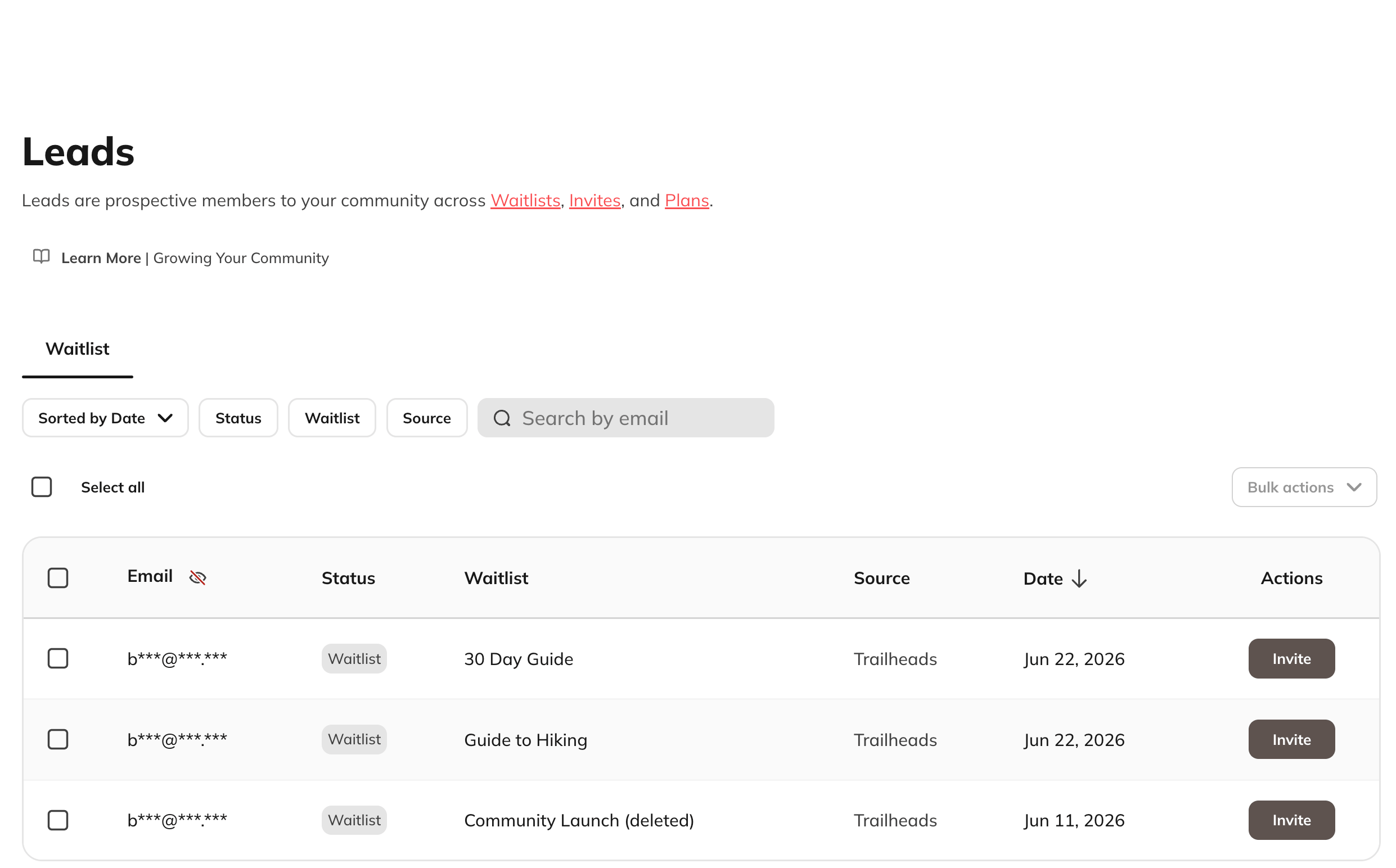
- Search by email address
- Filter by:
- Date
- Status
- Waitlist
- Source landing page
- See lead emails
- Invite individual leads
- Send bulk invitations
- Download leads as a CSV
Sync Waitlists with Kit
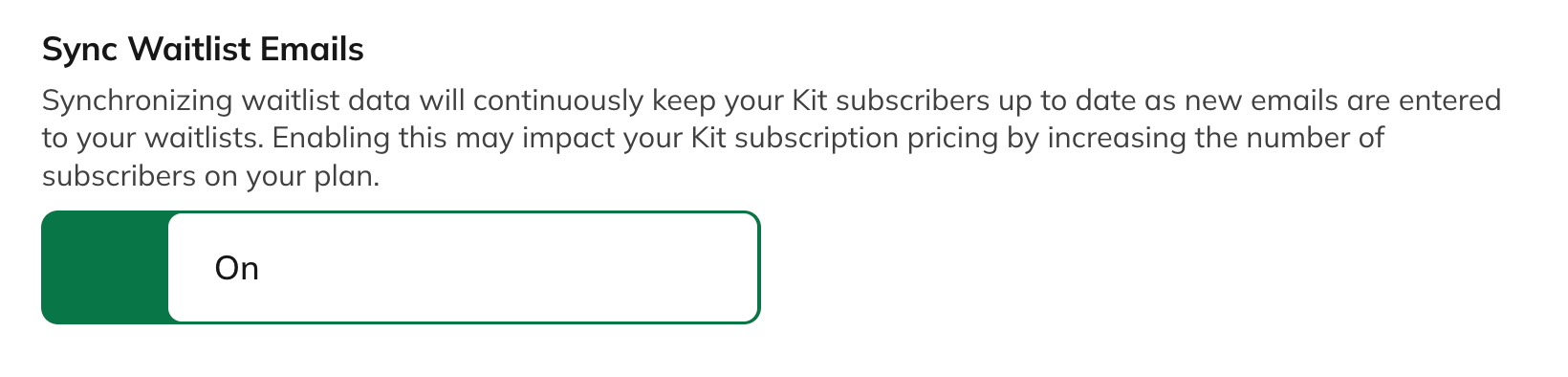
If you use the Kit integration, you can automatically sync waitlist signups. To enable syncing:- Go to Admin > Integrations > Kit.
- Turn on Sync Waitlist Emails.
- Waitlist Name
- Mighty Networks Integration
Close a Waitlist
You can manually close a waitlist at any time.- Go to Admin > Marketing > Waitlists.
- Select your waitlist.
- Click Close Waitlist.