Why You’ll Love It
- A Mighty Network that looks like you: Every image our AI features create will share the same style, mood, and colors.
- Less explaining: Describe your look once, then our AI features will use it for every image you ask them to create going forward.
- Room to play: Try a new look as a draft, see exactly what changed, then preview it before it goes live. Every version you try is saved for easy switching.
What Goes Into Your Brand Direction
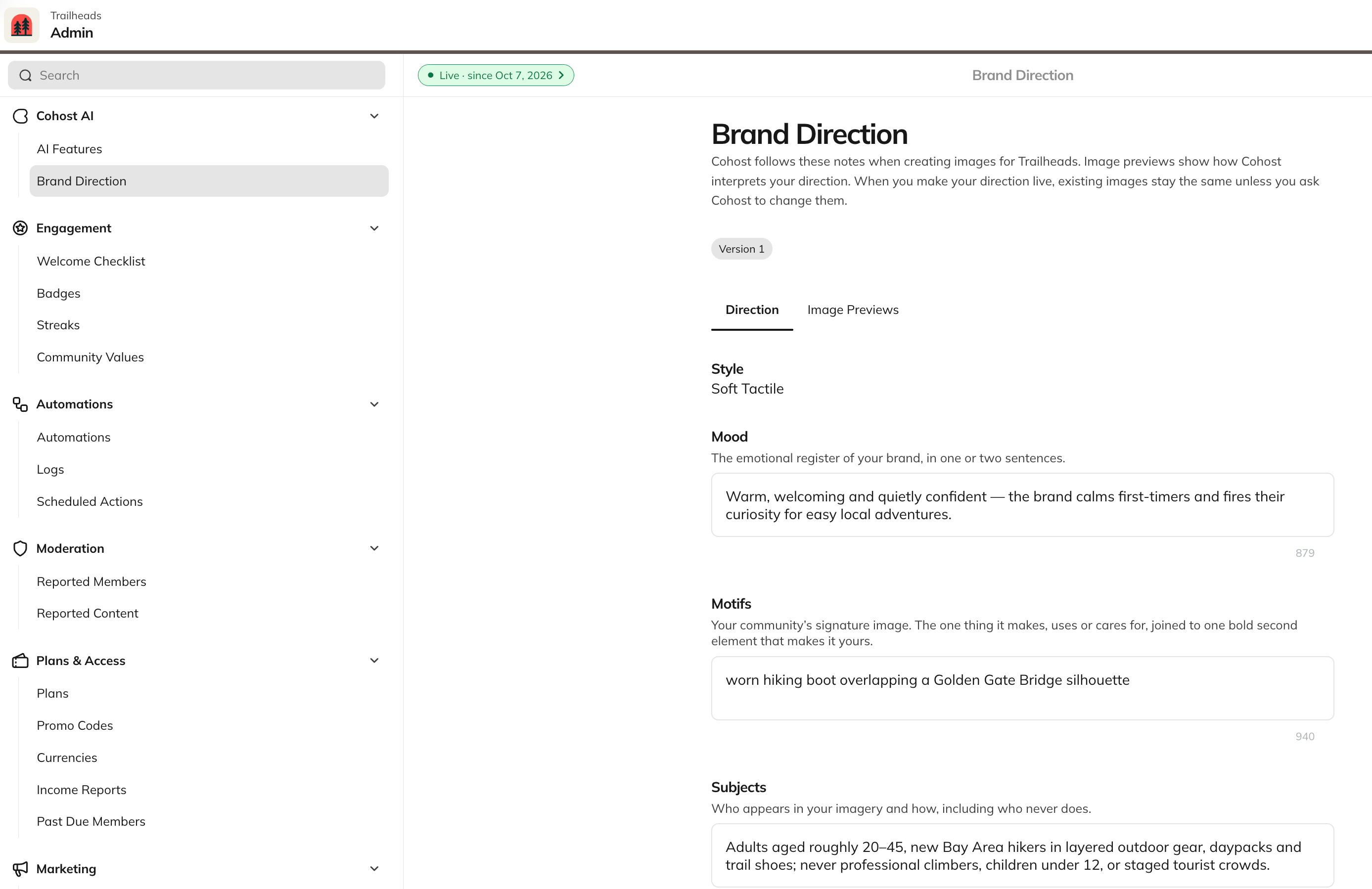
Think of it as a mini brand guide for all AI image creation features in your Mighty Network. Each part answers one simple question…Style: What should your images look like?
Pick from 11 styles.Illustration
- Geometric Minimal (precise shapes, wide open space)
- Bold Graphic (thick blocks, loud color, contrast)
- Organic Handmade (ink line, wobble, human hand)
- Soft Tactile (layered cut paper, soft shadow)
- Retro Print (two inks, offset, printed warmth)
- Playful Cartoon (bright flat shapes, wobbly outline)
- Whimsical Storybook (painted washes, one charming motif)
Photography
- Editorial Natural (real light, unposed, quietly documentary)
- Refined Luxury (quiet symmetry, one gold edge)
- Gilded Layers (full-bleed photograph, flowing gilt layers)
- Dark Cinematic (near-black field, one bright edge)
Mood: How should your images feel?
Sum it up in 1 or 2 sentences, like “warm, welcoming, and quietly confident.”Motifs: What’s your community’s signature image?
The one thing your community makes, uses, or cares for, perhaps paired with any additional elements that makes it uniquely yours.Subjects: Who shows up in your images?
Describe who appears and how, plus anyone who should never appear.Avoid: What should Cohost never show?
List anything that’s off-brand, including generic images that could belong to any community.Palette: Which extra colors fit your brand?
Add foreground and accent colors in words or as hex codes. Your main colors come from your Header and Button Colors in Admin > Branding > Colors. Tip: Specific details give you the best results. For a scooter club, a motif like “a vintage Italian scooter with a chrome luggage rack” gives the AI much more to work with than just “a scooter.”Not Sure Where to Start? Let Cohost Draft It
- Go to Admin > Cohost AI > Brand Direction.
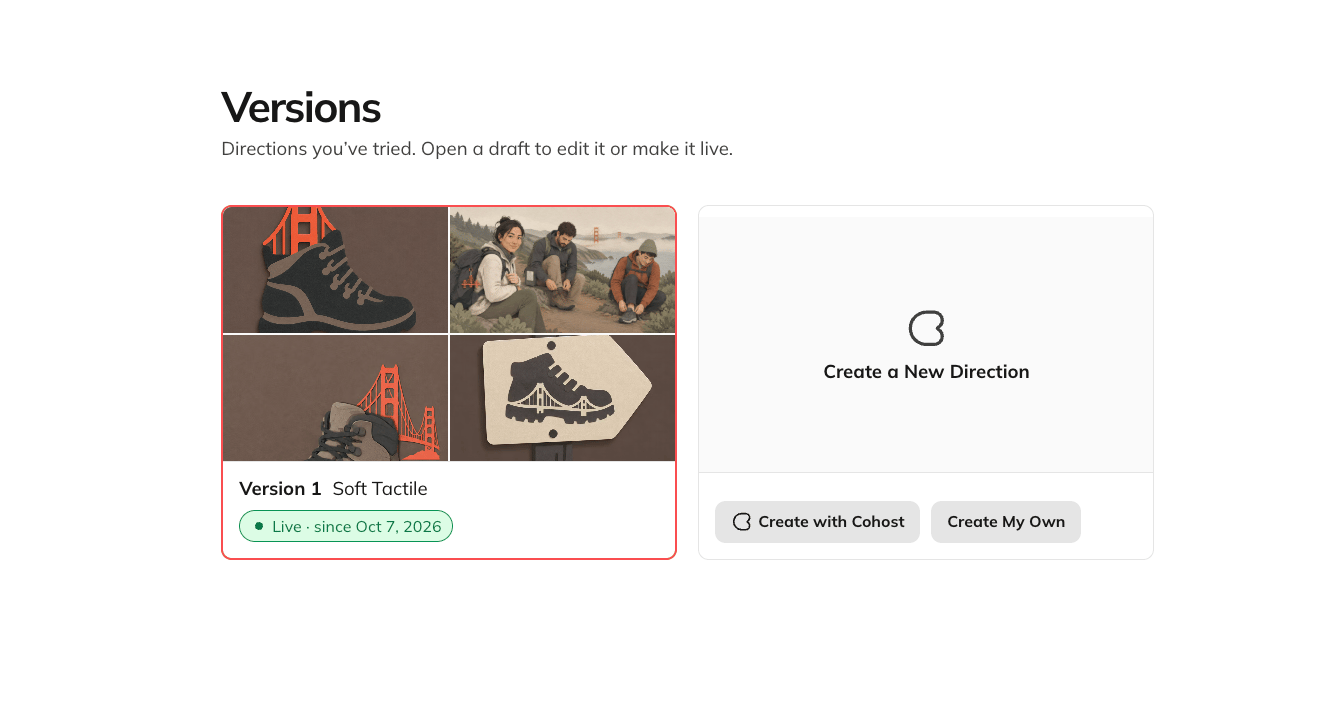
- Select the version label in the upper left (for example, “Live · since October 6, 2026”).
- Under Create a New Direction, select Create with Cohost and Cohost drafts a direction for you. If you’d rather start from a blank page, select Create My Own.
How to Edit Your Brand Direction
- Go to Admin > Cohost AI > Brand Direction.
- Select Edit in the upper right. This creates a draft, so your live direction stays in place while you work.
- For a new look, select Change Style next to your current style, pick one of the 11 styles, and select Use This Style.
- Update Mood, Motifs, Subjects, Avoid, and Palette however you like.
- Turn on Compare with live to see exactly what you’ve changed.
- A summary at the top shows how many changes you’ve made and which fields they’re in.
- Each edited field has a Changed label. Below it, your live text appears with removed words in red and new words in green.
- Select Stop comparing when you’re done.
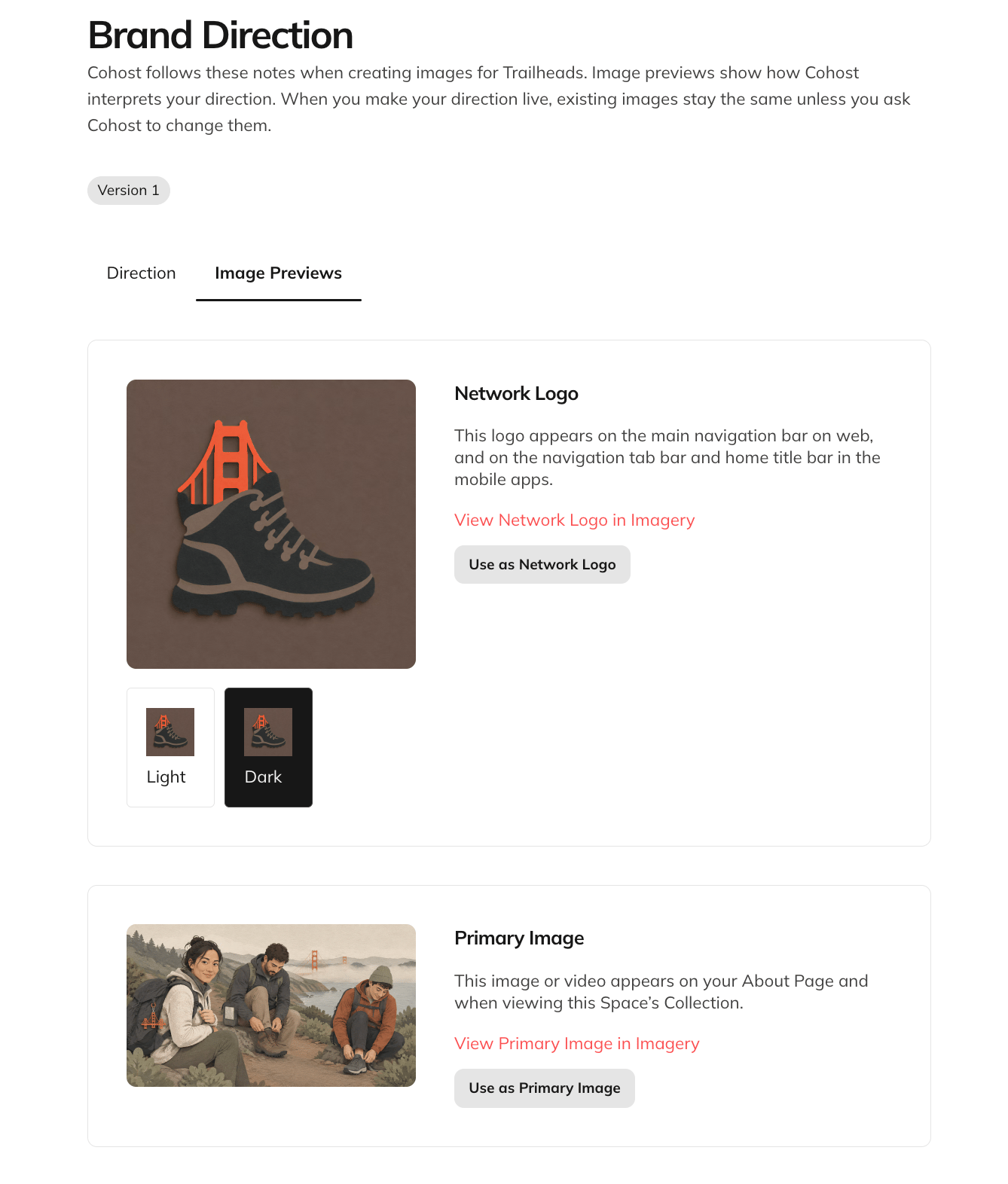
- Open the Image Previews tab to see how your instructions bring your direction to life.
- Love what you see? Select Make live.
Preview Your Images
The Image Previews tab shows sample images made from your direction. Switch between Light and Dark to see both modes.- Network Logo: Like it? Select Use as Network Logo to apply it right away, or select View Network Logo in Imagery to see where it appears.
- Primary Image: Select Use as Primary Image to apply it.
- Badge: This is a sample Badge in your style. Select Generate Again for a fresh one, or Manage Badges to create and edit your Badges.
Try It with Cohost
Once your direction is live, ask Cohost for a new image, and it’ll follow your style automatically. Try:- “Design a logo for my [Space name] Space.”
- “Create a new Primary Image for my Network.”
- “Make a Badge for members who complete [Course name].”
View Past Versions
Every direction you try is saved, so you can come back to it later.- Select the version label in the upper left, or select the three-dot menu > Versions.
- Each version shows its style and whether it’s a Draft or Live.
- Open a draft to keep editing or to make it live.
- Copy link to this version to share it with your team to review
- Discard Draft to delete a draft you don’t need