


Inviting and Managing Speakers
Invite a Speaker
The Creator of the livestream can invite Speakers from the Participants tab:- Open the Participants tab.
- Scroll or search for the viewer you want to invite.
- Select the three-dot menu next to their name.
- Choose Invite as Speaker.
 Any viewer in your Mighty Network—Host, moderator, or member—can be invited.
What Invited Speakers See
When invited:- They receive a popup invitation.

- They must grant camera and microphone permissions.
- They see a preview of their video and audio, and can change inputs before joining.
 If an invited Speaker doesn’t accept permissions right away, the invitation remains valid unless the Creator removes it.
Managing Speaker Invitations
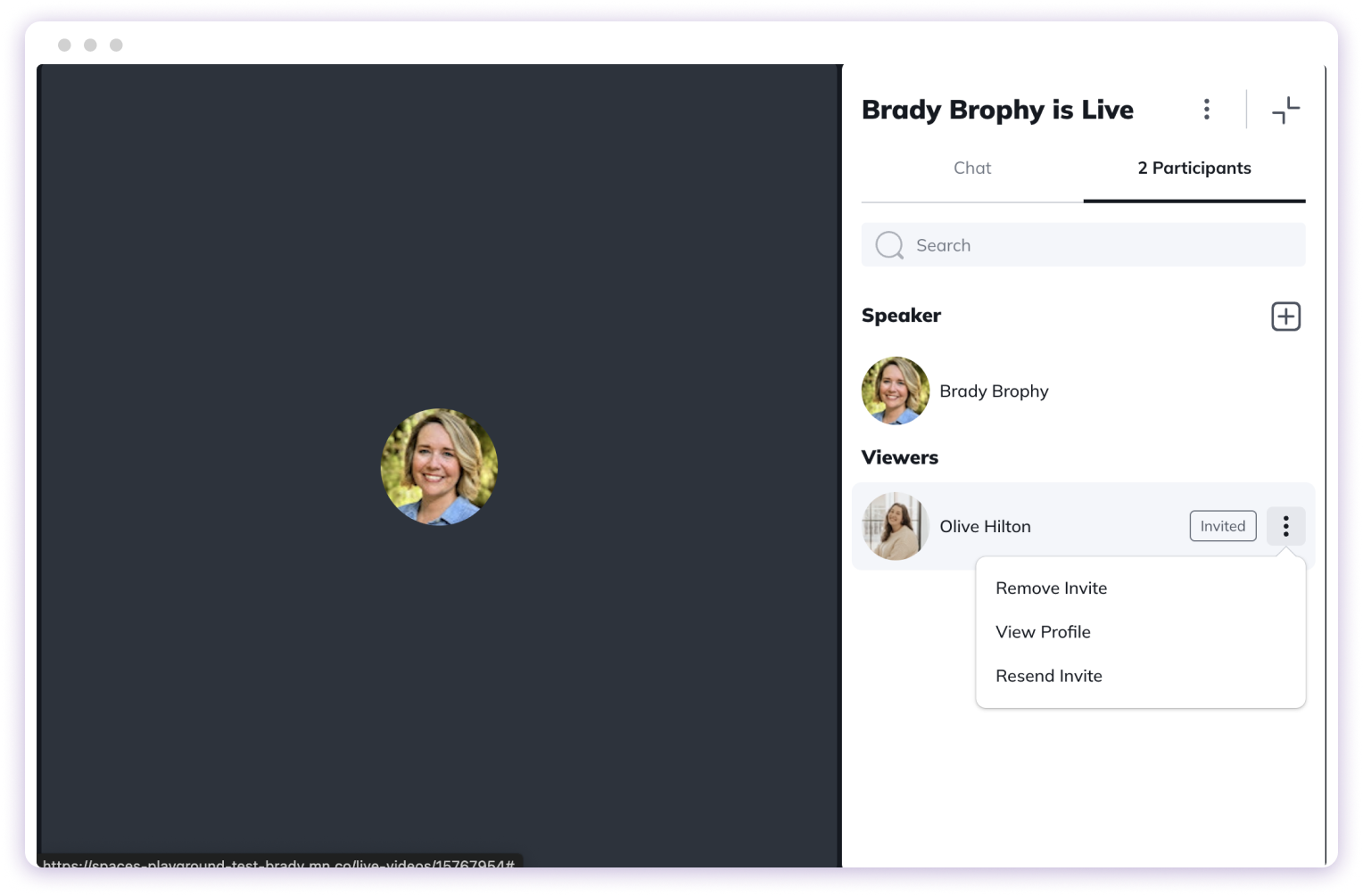
In the three-dot menu next to the viewer’s name, the Creator can:- Remove Invite
- Resend Invite
Recording Notice
If the livestream is being recorded:- Invited Speakers see a notice stating that they agree to be recorded.
- A Recording indicator appears for all participants.
Demoting a Speaker
To return a Speaker to viewer status:- Open the Participants tab.
- Select the three-dot menu next to their name.
- Choose Remove as Speaker.
Browser and Device Compatibility
Best Experience
- Desktop: Chrome is strongly recommended.
- Mobile: iOS and Android apps fully support multispeaker livestreaming.
Pre-Stream Checklist (Recommended)
For the best performance:- Join from a compatible browser/device.
- Update to the latest browser or OS version.
- Use headphones to prevent audio feedback.
- Close unnecessary apps/tabs.
- If issues occur, refresh the tab (desktop) or leave/rejoin the livestream.
Permission Requirements by Platform
Chrome (Desktop)
- Viewers: No permissions needed.
- Speakers: Must accept camera and microphone permissions.
- If permissions were denied previously, enable them in Chrome Settings.
Safari (Desktop)
- Recommended for viewing only.
- Speakers should use Chrome instead.