

When you create a Mighty Network, you’re automatically designated as the Host of your new community.
Switching Between Mighty Networks
Each Mighty Network is standalone, which means your members need to create a separate profile and login for every Network they join. Once you log in for the first time, switching between Networks is quick and seamless:- On mobile: Use the Mighty Networks apps to switch between communities without logging in again.
- On web: Go directly to the Network’s URL in your browser, and you’ll be logged in automatically.
Member Profiles
Members have their own personal profile within your Mighty Network.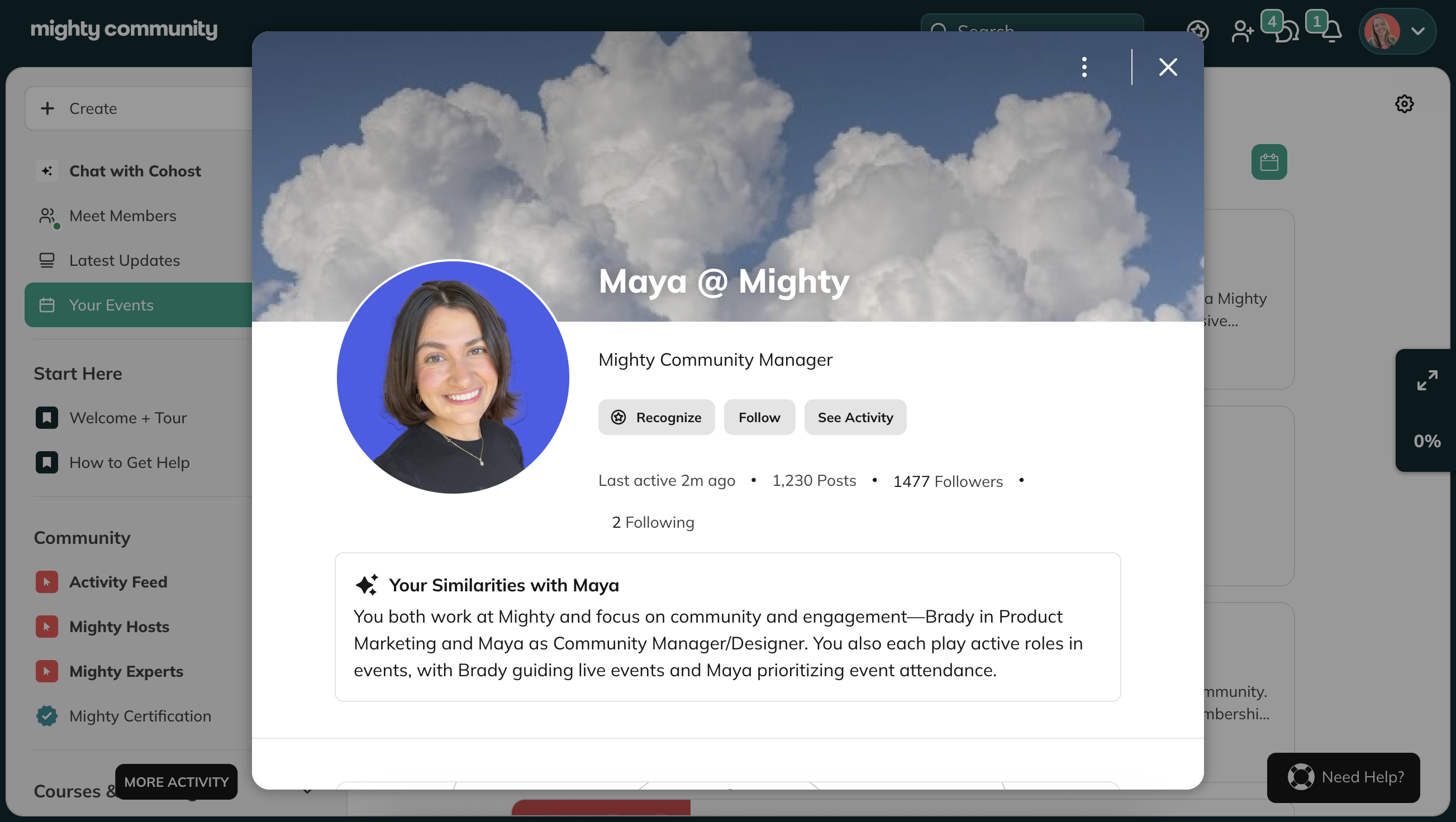 To edit their profile, click on the photo in the upper right corner > Personal Settings > Edit Profile.
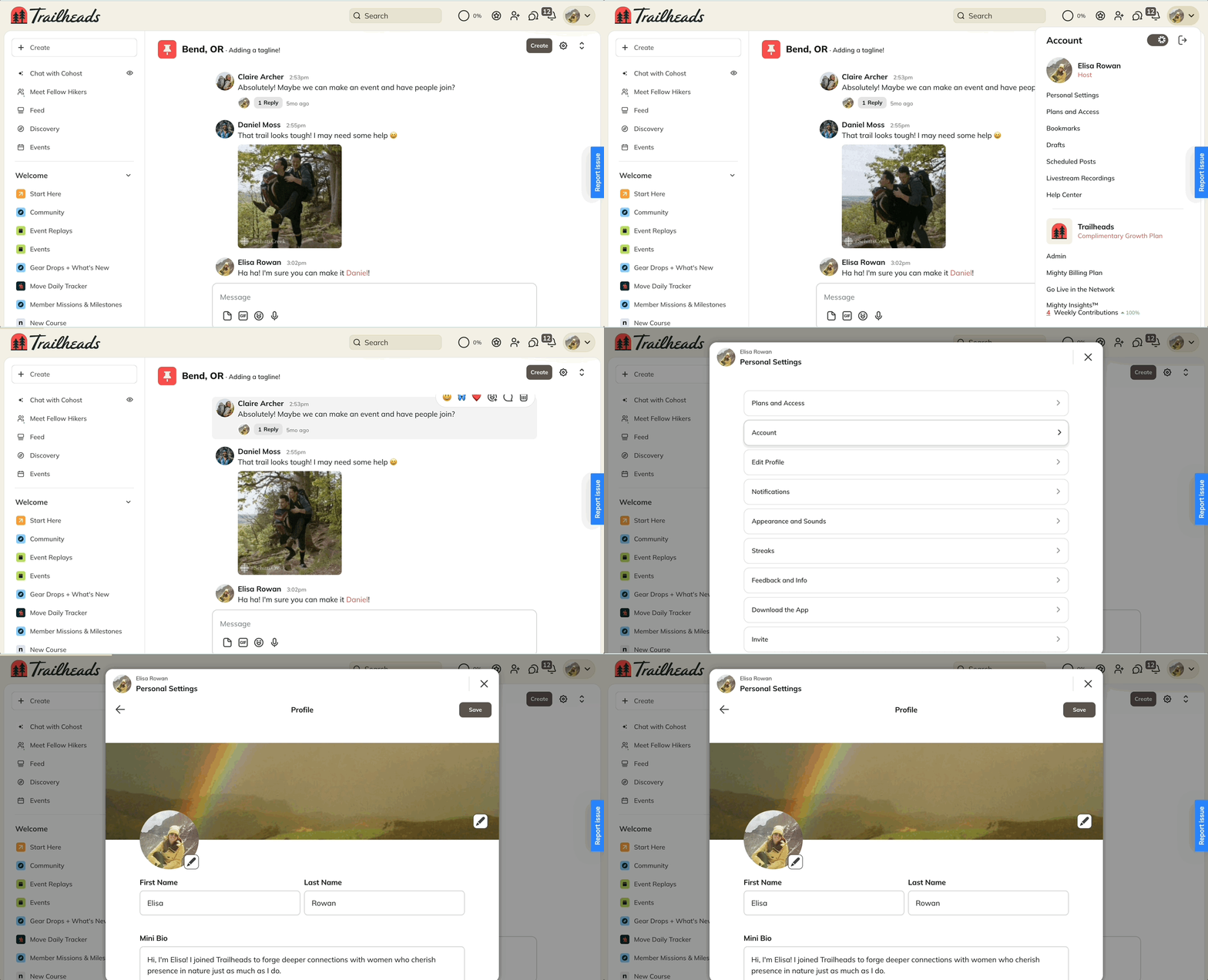 They can add:
- Profile photo: Minimum size 500 × 500 pixels (cropped into a circle). A default image appears until you upload one. Check out how to customize the style of these photos so they fit your community vibe.
- Cover photo: Appears as a horizontal banner on desktop and a vertical background on mobile. The ideal size is 1920 × 1080 pixels. Choose an image that isn’t too busy and can be cropped cleanly.
- Short bio: Fully searchable within your Network.
- Location and timezone: Optional, but helpful for connecting with nearby members.
- About Me: A short introduction that automatically posts to the Activity Feed on web (not visible in mobile apps).
- Twitter/X and Instagram links only display the platform name, even if you link to multiple profiles or posts.
- Private Facebook profiles or groups will appear as “Facebook.”
Profile Assist (AI Feature)
If your Mighty Network is on the Launch Plan or higher, you can enable Profile Assist, an AI feature that helps you and your members write your “About Me” section.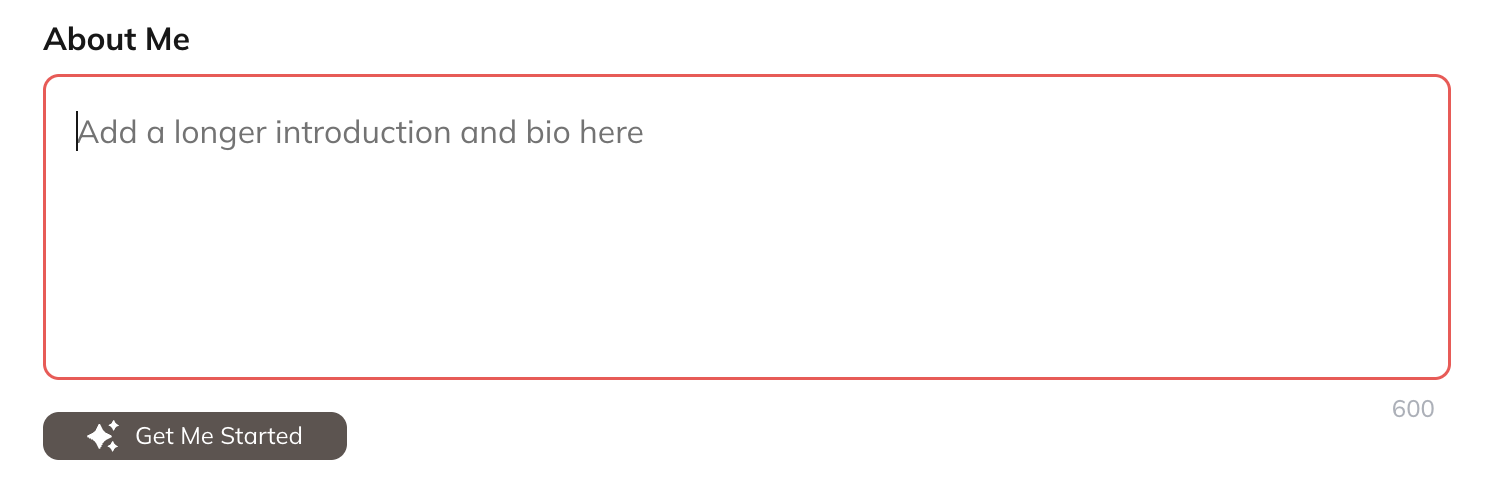 Select Get Me Started, answer three quick questions, and a draft will be generated for you. You can edit or delete the text at any time if you’d like to start over.