

Connecting OBS to your Livestream
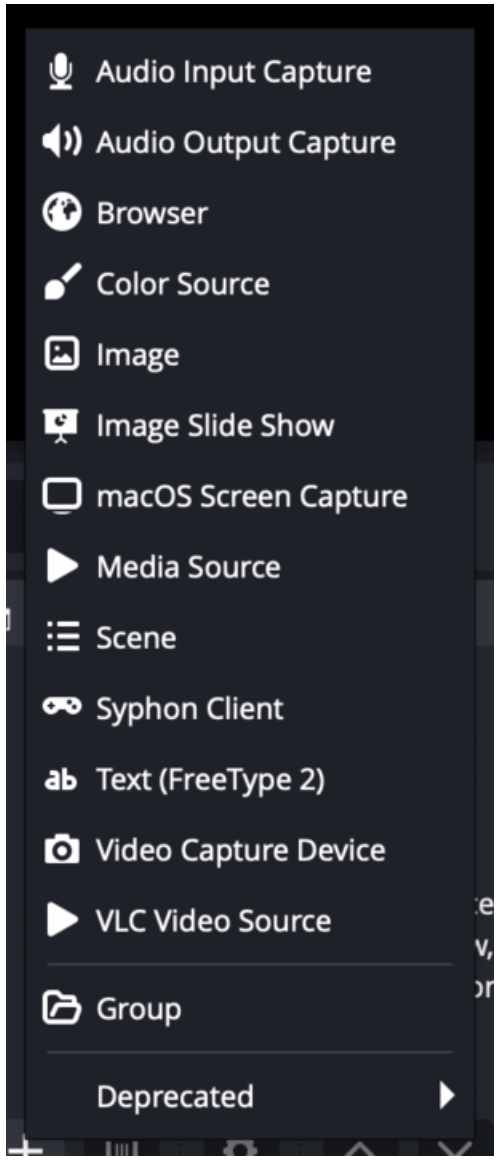
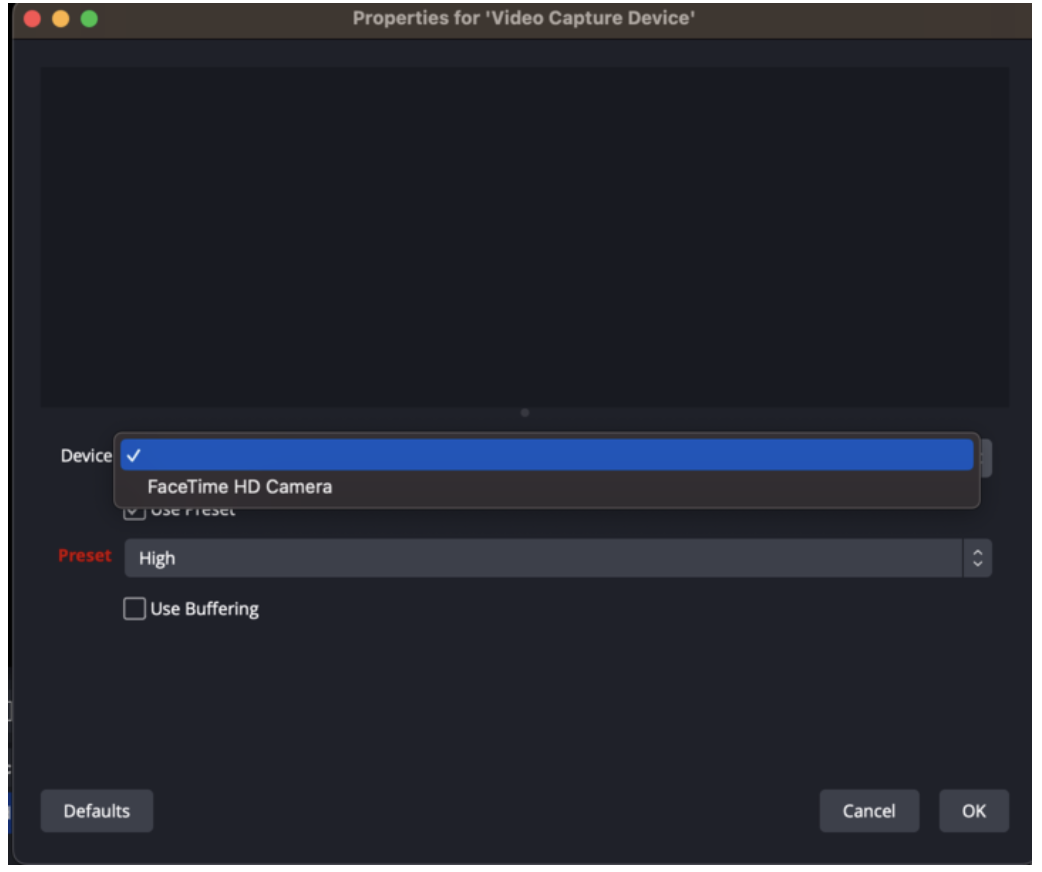
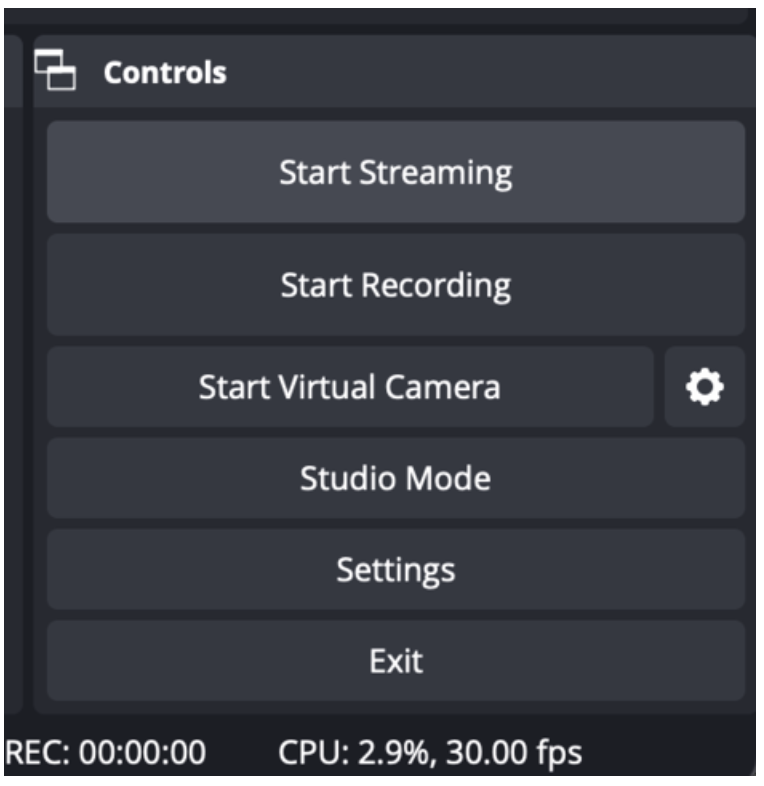
OBS is a popular (and free!) application, and it works well with Mighty’s native Livestreaming feature. For an optimal Livestreaming experience with OBS, we suggest using Google Chrome. First, you will need to download the OBS software to your computer. Open the application and allow permissions to your camera and microphone. You will see a screen like this when you first open the application.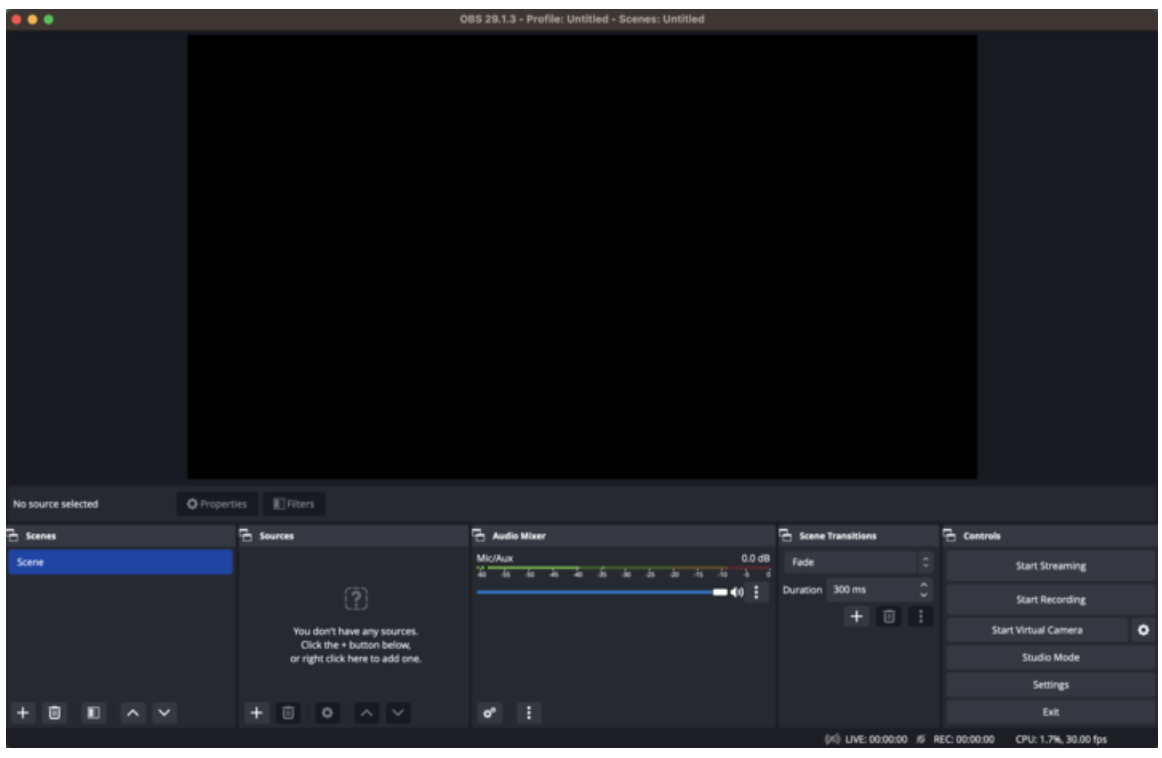
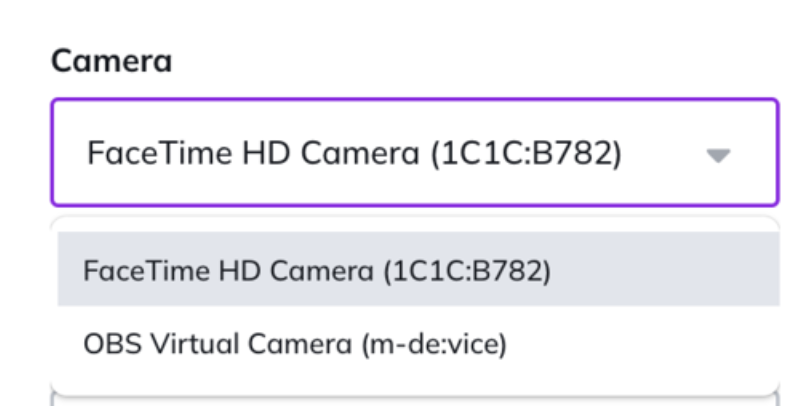
Connecting mmhmm to your Livestream
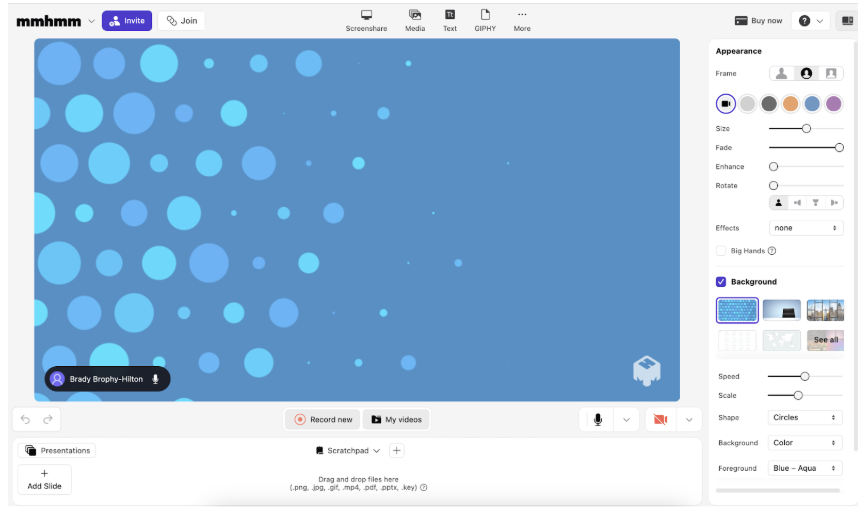
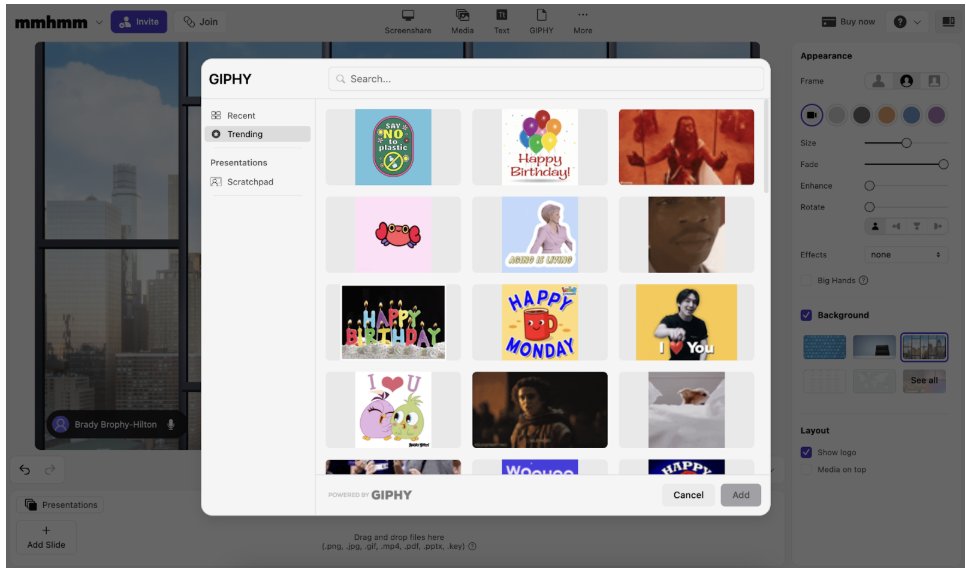
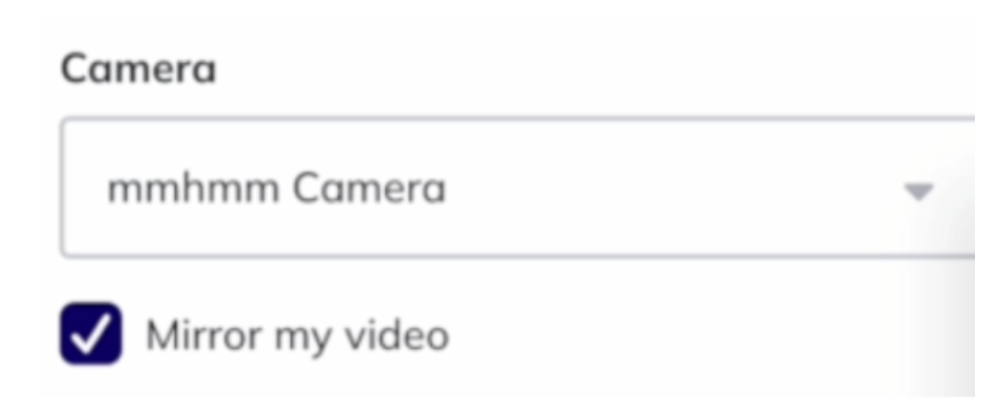
Another popular option is mmhmm, which is great for those that don’t need the extensive options offered by OBS. It has a fairly simple interface, the ability to easily add virtual backgrounds, and great features like the ability to add Gifs directly from Giphy. First, you’ll create an account and download the software to your computer. Open the application and allow permissions to your camera, microphone and install the mmhmm camera. Below is what it looks like on Mac.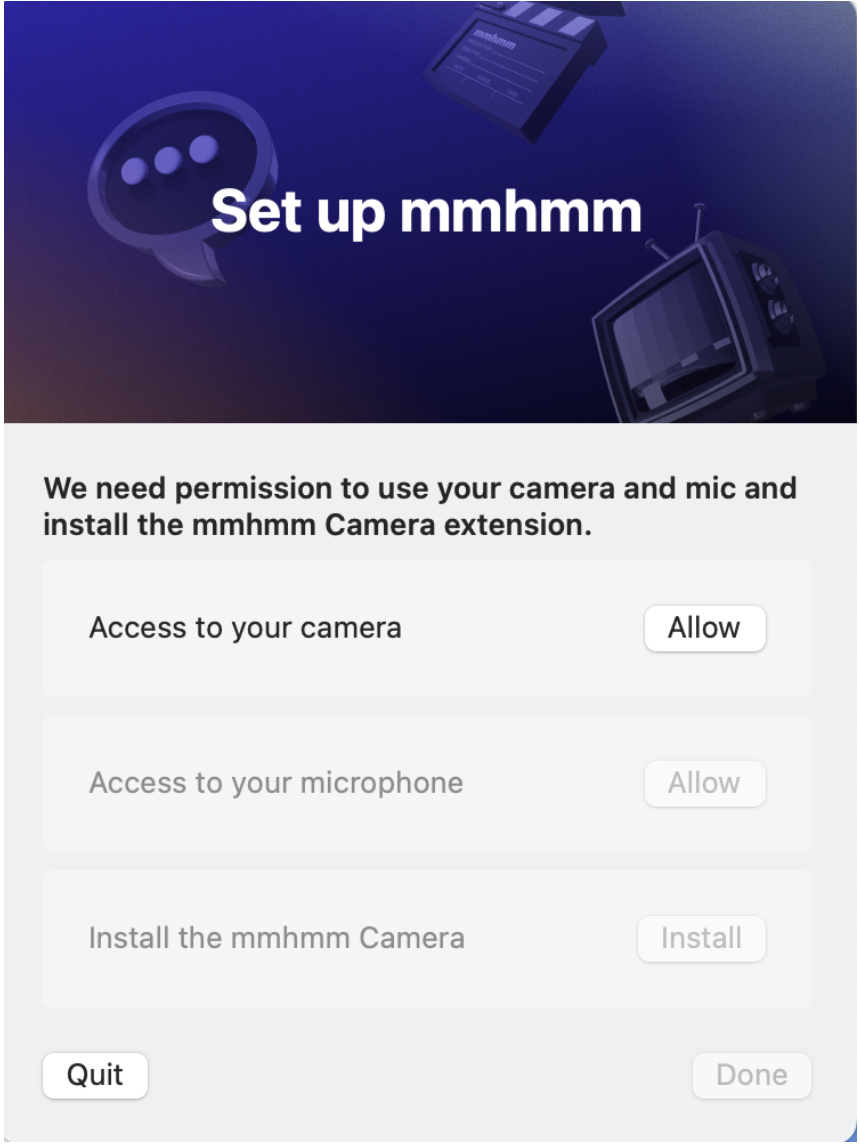
Using Virtual Backgrounds With macOS Sequoia
If you’re using macOS Sequoia and livestreaming through a browser (we recommend using Chrome), you can easily add virtual backgrounds to enhance your presentation. Here’s how:- Start your livestream and click the green video icon in your Mac’s top toolbar.
- Select “Background” from the dropdown menu.
- Choose from a variety of built-in backgrounds, such as color gradients and system wallpapers, or upload your own custom photo.