

Promotional Banners let you display custom messages to specific member audiences for a set period of time. Use them to highlight a new offer, share a discount, or drive action—right where your members already are.
You can target banners to different member segments using attributes like plan membership, tags, or badges.
Step 1: Create an Audience
Before creating a banner, define the audience you want to target.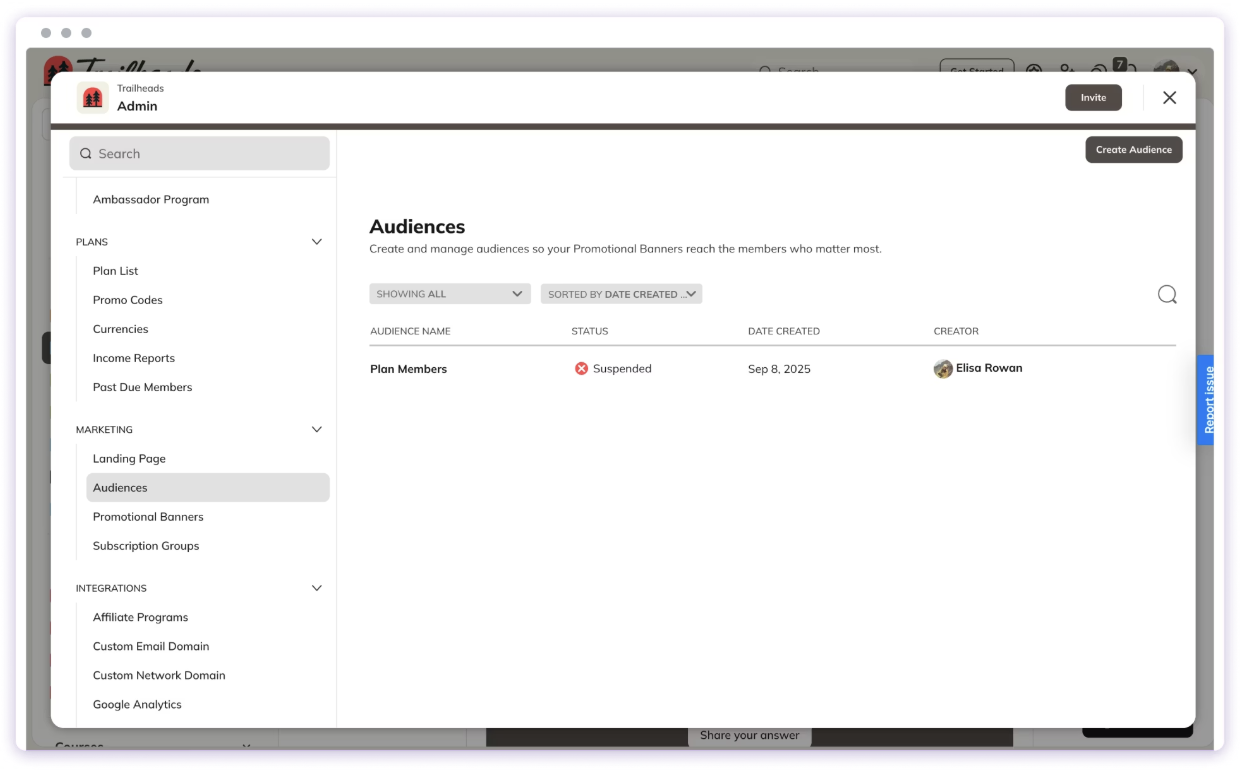
- Go to Admin > Marketing > Audiences.
- Click Create Audience.
- Give your audience a name (for example, “Plan Members”).
- Choose one or more Attributes, such as:
- Network
- Plan membership
- Space access
- Tags
- Custom fields
- Badges
- (Optional) Exclude members based on specific criteria.
Step 2: Create the Banner
Once your audience is ready:- Go to Admin > Marketing > Promotional Banners.
- Click Create New Banner.
- Internal Title: For your reference.
- Headline: The main message (for example, “Enjoy 50% Off Our New Offering”).
- Description: (Optional) Supporting text (for example, “Half off for a limited time”).
Add a Button (Optional)
You can include a call-to-action button:- Label: Choose the text (for example, “Redeem”).
- Link: Direct it to a Plan, an internal URL, or any external link.
Step 3: Choose the Audience
Select the audience you created in Step 1. Only members who meet that audience’s criteria will see the banner—and only in areas of the Network they have access to.Step 4: Set a Schedule
You can control when your banner appears and disappears.- Start Date & Time: Leave blank to publish immediately.
- End Date & Time: Leave blank to keep the banner running until manually turned off.
Step 5: Allow or Prevent Dismissal
You can let members permanently dismiss the banner. If you leave this unchecked, the banner remains visible until it expires or you manually deactivate it.Step 6: Review and Create
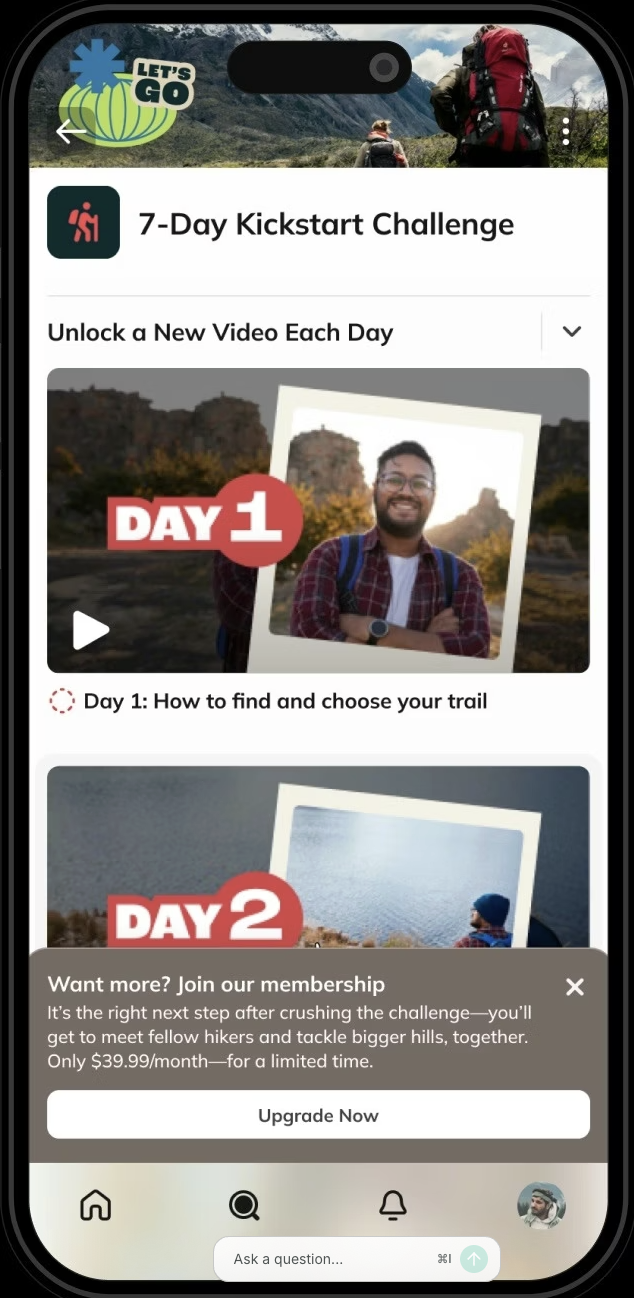
Once everything looks good, click Create. If your start time is in the future, the banner will appear as **Scheduled.** You can view, edit, duplicate, or deactivate banners anytime from Admin > Marketing > Promotional Banners. Here’s what a banner looks like on web: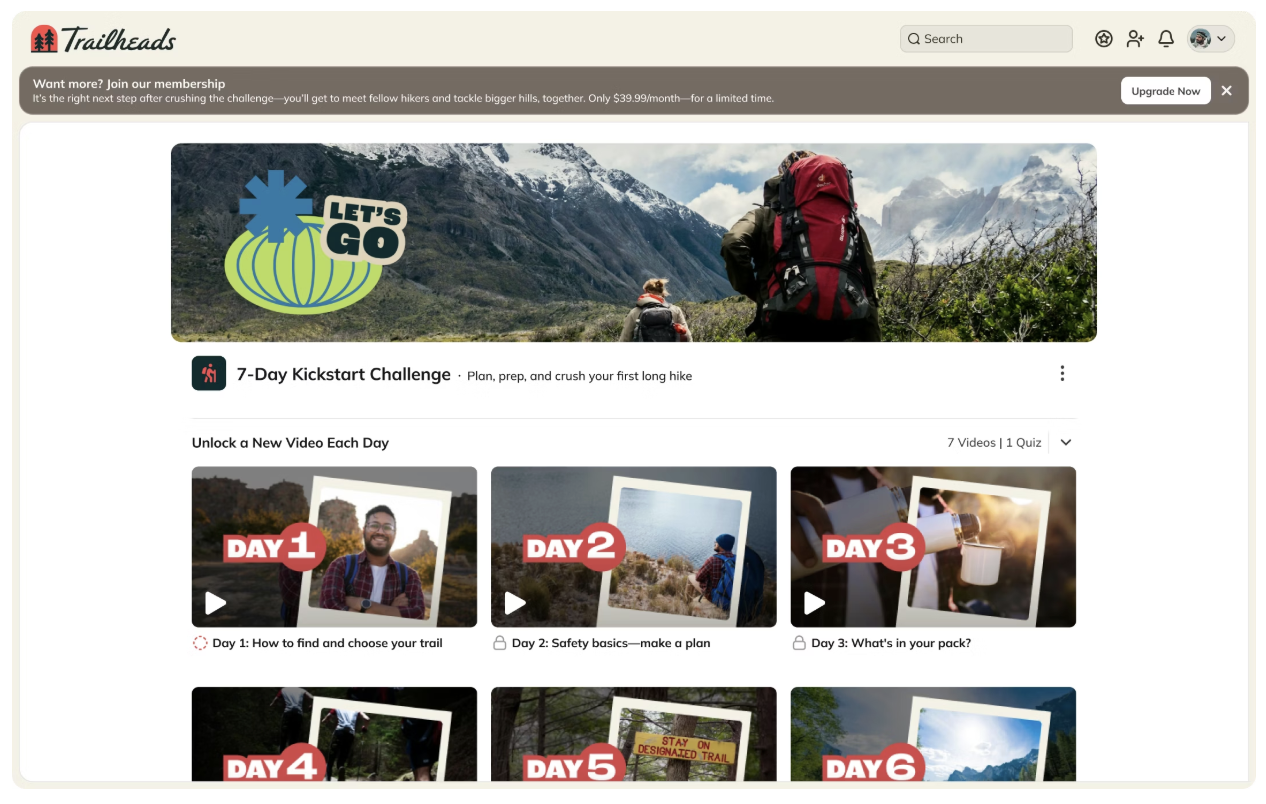
Frequently Asked Questions
Who can use Promotional Banners?
Promotional Banners are available on the Launch Plan and up.- Launch Plan: Up to 2 total (live or scheduled)
- Scale Plan: Up to 5
- Growth Plan: Up to 10
- Mighty Pro: Up to 15
How does scheduling work?
- If the Start Time is blank, the banner goes live immediately (as long as you’re under your banner limit).
- If the Start Time is set, it activates automatically at that time.
- If the End Time is set, it deactivates automatically when that time is reached.
- If the End Time is blank, it stays live until manually turned off.
What if a member qualifies for more than one banner?
If a member qualifies for multiple active banners, they’ll see the most recently created live one.Can I Customize Banners?
Yes. You can customize:- The headline
- The description
- The CTA button label and link (Plan or URL)
- If you’re using basic colors, it uses your theme color.
- If you’re using advanced colors, it matches your advanced button color.
Where can I link the CTA button?
You can link the button to:- A Plan (ideal for promotions)
- An internal URL (like an event or Space)
- An external link (like a sponsor site or form)