

Once you’ve created at least one plan in your Mighty Network, you can view and manage all of your plans in one place. This page shows a full list of plans you’ve created, along with options to view, sort, and edit each one.
How to Access Your Plans
Go to Admin > Payments > Plans — the direct path is/admin/payments/plans. You can also get there by clicking your profile picture in the top right corner > Admin > Payments > Plans.
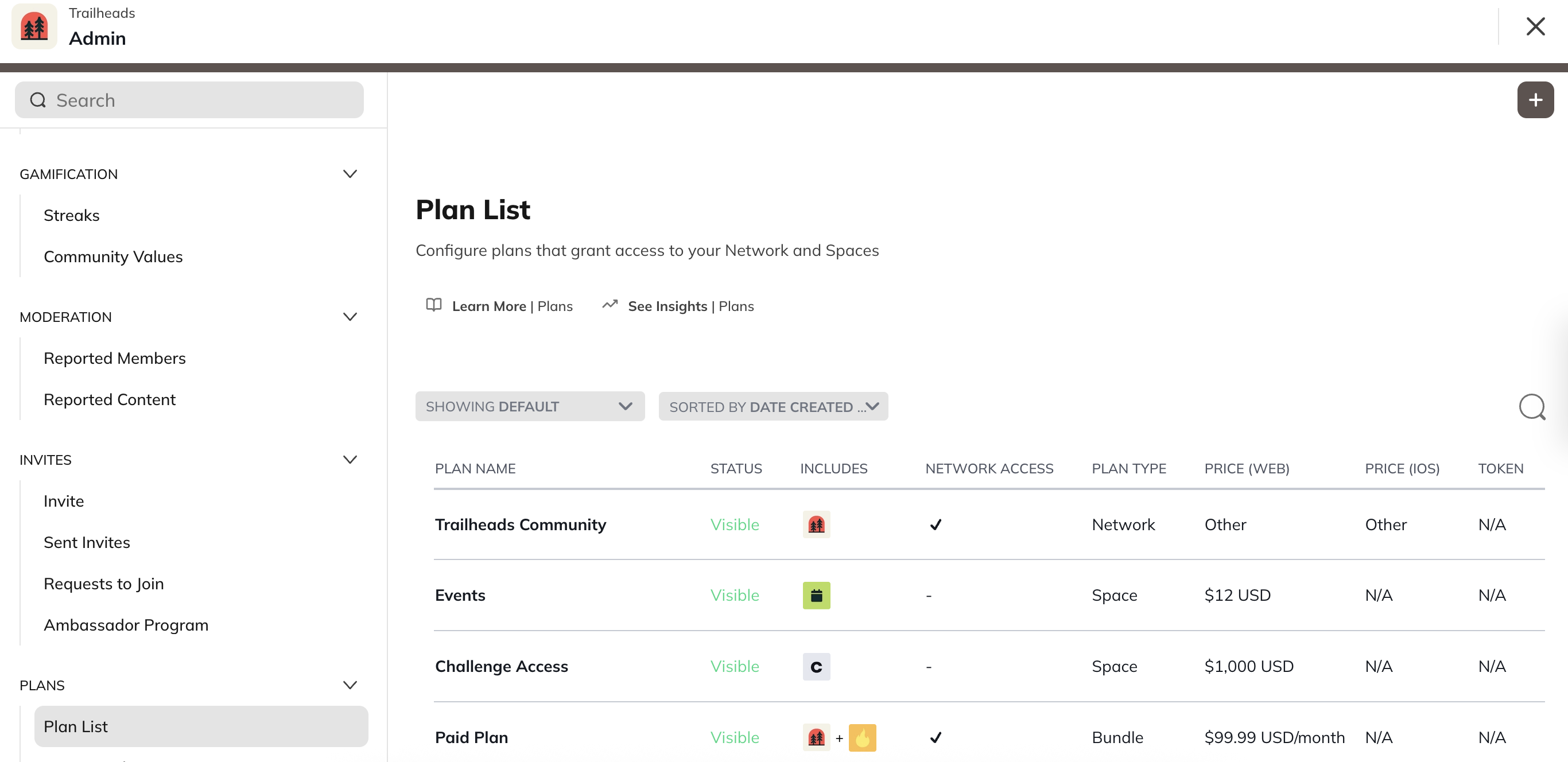
Understanding the Plans List
At the top of your Plans page, you’ll see columns that show key information about each plan:- Plan Name
- Status (Hidden or Visible)
- Includes (what the plan gives access to)
- Network Access (whether the Network is included)
- Plan Type (Space, Network, or Bundle)
- Price (web)
- Price (iOS)
- Token
- Date Created
- Members
- Plan Name (A–Z or Z–A)
- Date Created (Latest or Earliest)
- Status (Visible listed first)
- Price (Low to High or High to Low)
- Number of Members (Low to High or High to Low)
Filters
Use the Showing filter to refine what you see by Status, Network Access, Plan Type, or Pricing Type.- Status: Visible, Hidden, Pending, Rejected (iOS only), Deactivated
- Network Access: Included or Excluded
- Plan Type: Bundle, Network, or Space
- Pricing Type: Free, One-Time Payment, Subscription, Token-Gated, Installment, or Other
Managing Your Plans
From the Plans page, you’ll see your full list of plans with filters and sort options at the top. Click any plan name to see the total number of members on that plan, including members in a Free Trial (if applicable).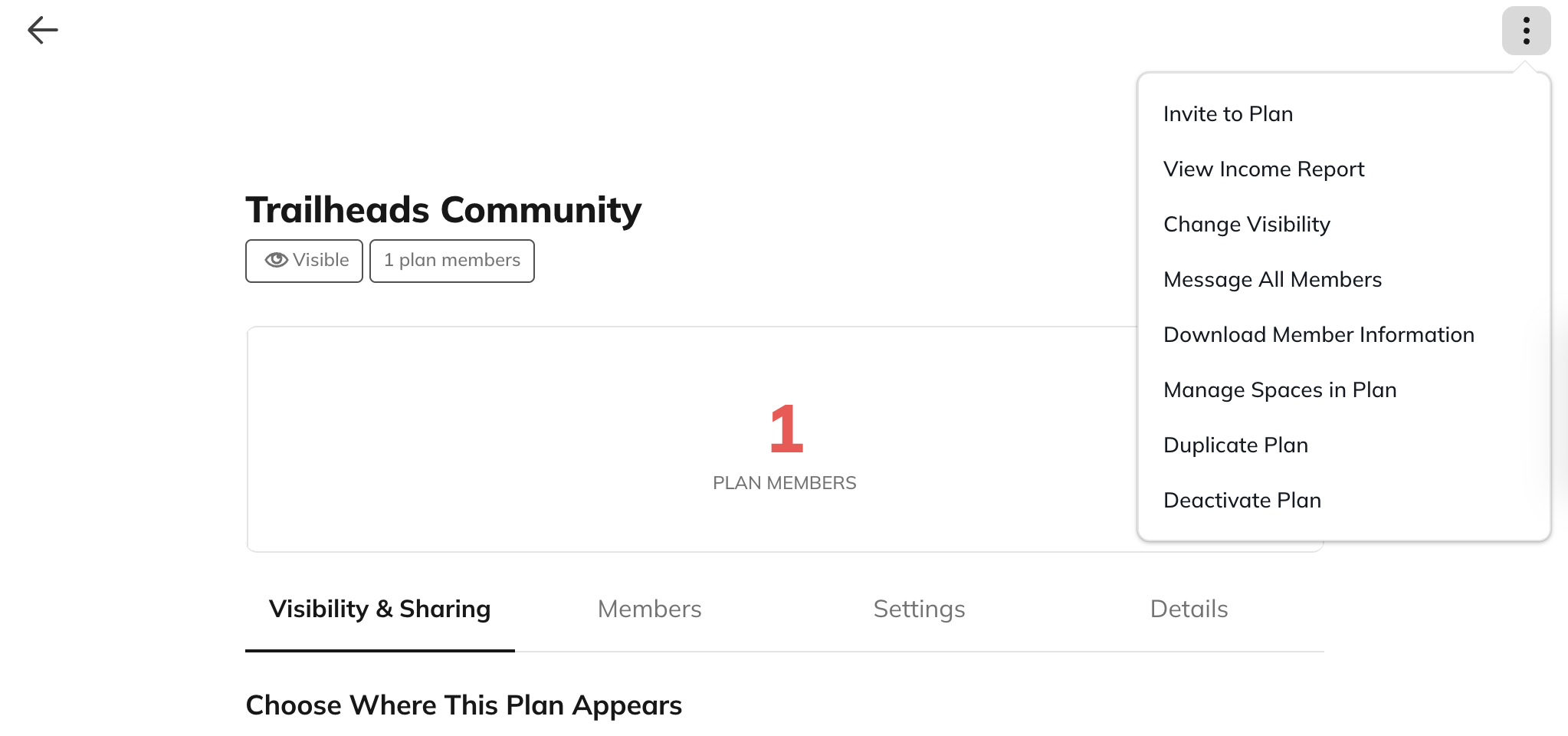 Each plan has a three-dot menu on the right with management options:
- Invite to Plan: Invite by email, upload a CSV, or import contacts. Edit the invite message if needed.
- View Income Report: See Gross Revenue, Fees, and Net Revenue for a date range. Reports summarize income from Stripe and Apple purchases.
- Change Visibility: Switch between Visible and Hidden.
- Message All Members: Send a message to everyone currently on that plan.
- Download Member Information: Download a CSV of all members in the plan.
- Manage Spaces in Plan: Add or remove Spaces connected to this plan.
- Duplicate Plan: Create a copy of an existing plan and edit details like price, name, or billing interval.
- Deactivate Plan: Permanently deactivate a plan so it’s no longer available for purchase or management.
What Happens When You Deactivate a Plan
- Free Plans: Members immediately lose access.
- One-Time Payment Plans: Members retain access as long as they remain active in your Network.
- Subscription Plans: Members keep access until the end of their current billing period.
- Free Trial Members: Immediately lose access.
Managing Token-Gated Plans and Members
Token-Gated Plans appear with all other plans in your Plan List. Currently, members of Token-Gated Plans can’t be moved to another plan.- Learn how members purchase Token-Gated Plans
- Learn how to set up Token-Gated Plans
Auto-Created Plans
In some cases, Mighty Networks automatically creates plans on your behalf (for example, during certain migrations or platform updates). These plans appear in your Plan List alongside the plans you create yourself, but they have a few special considerations:- Moving members: You can move members to and from auto-created plans the same way you would with any other plan. No backend support is required for member moves.
- Deactivating auto-created plans: As a safeguard, Hosts can’t deactivate auto-created plans on their own. If you need one of these plans deactivated, please contact our support team and we’ll take care of it for you.
- Everything else: All other management options (editing details, changing visibility, messaging members, managing Spaces, etc.) work the same as with any other plan.
Editing a Plan
Click a plan name to open its details view. You’ll see tabs with all relevant information and settings.Members Tab
View and filter member details such as:- Member Name
- Status (Pending, Free Trial, Active, Past Due, or Canceled)
- Membership Type (Full or Limited)
- Last Active
- Platform
- Next Billing Date
- Subscribed Since
- Interval
- Pending – Approval / Payment / Answers (for Plans using Screening Questions or Approvals)
- Have Answers / No Answers
Settings Tab
Review key details including:- Available platforms
- Approval status
- Free Trial period details
- Tax category
- Pricing information
- Target audience
- Membership benefits
Details Tab
Edit your plan’s:- Plan Name
- Sales Pitch
- Featured Image or Video
- Benefits List
- Full Description
- Visibility & Sharing options