The Course Page
When you open a Course, its Lessons and Sections appear in a list. Your Host sets how the list looks: thumbnails, a simple list, or a grid. Under each item’s title is what it is and how long it takes, such as Lesson · Video · 12:30. Once you start a Lesson, the time counts down and a small progress bar shows how far you’ve gotten.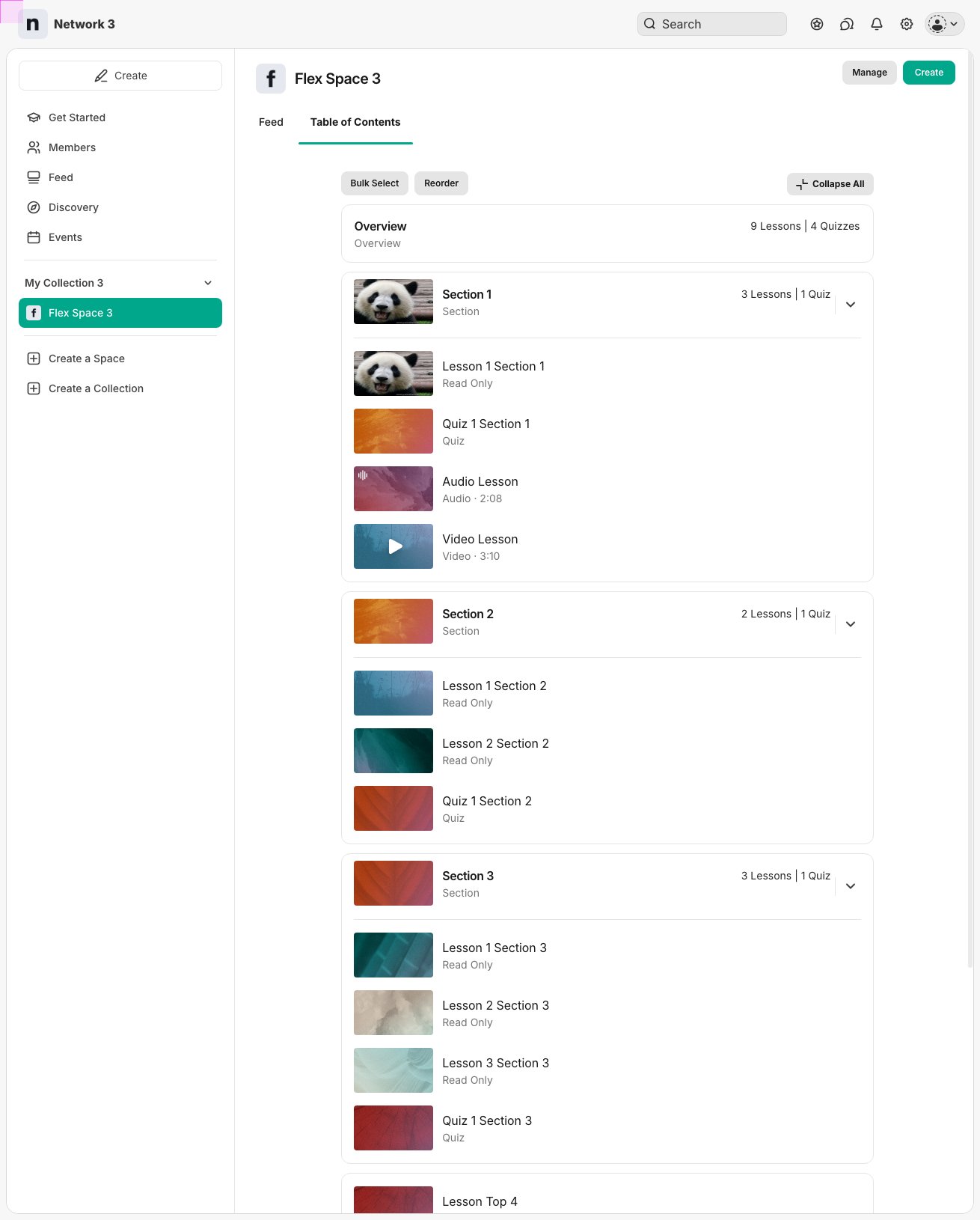
Play a Lesson From the Course List
You don’t have to open a Lesson to start listening or watching. Select the play button on any Lesson with audio or video, and it plays in the floating player at the bottom of the screen. You can keep browsing the Course, or the rest of the Mighty Network, while it plays.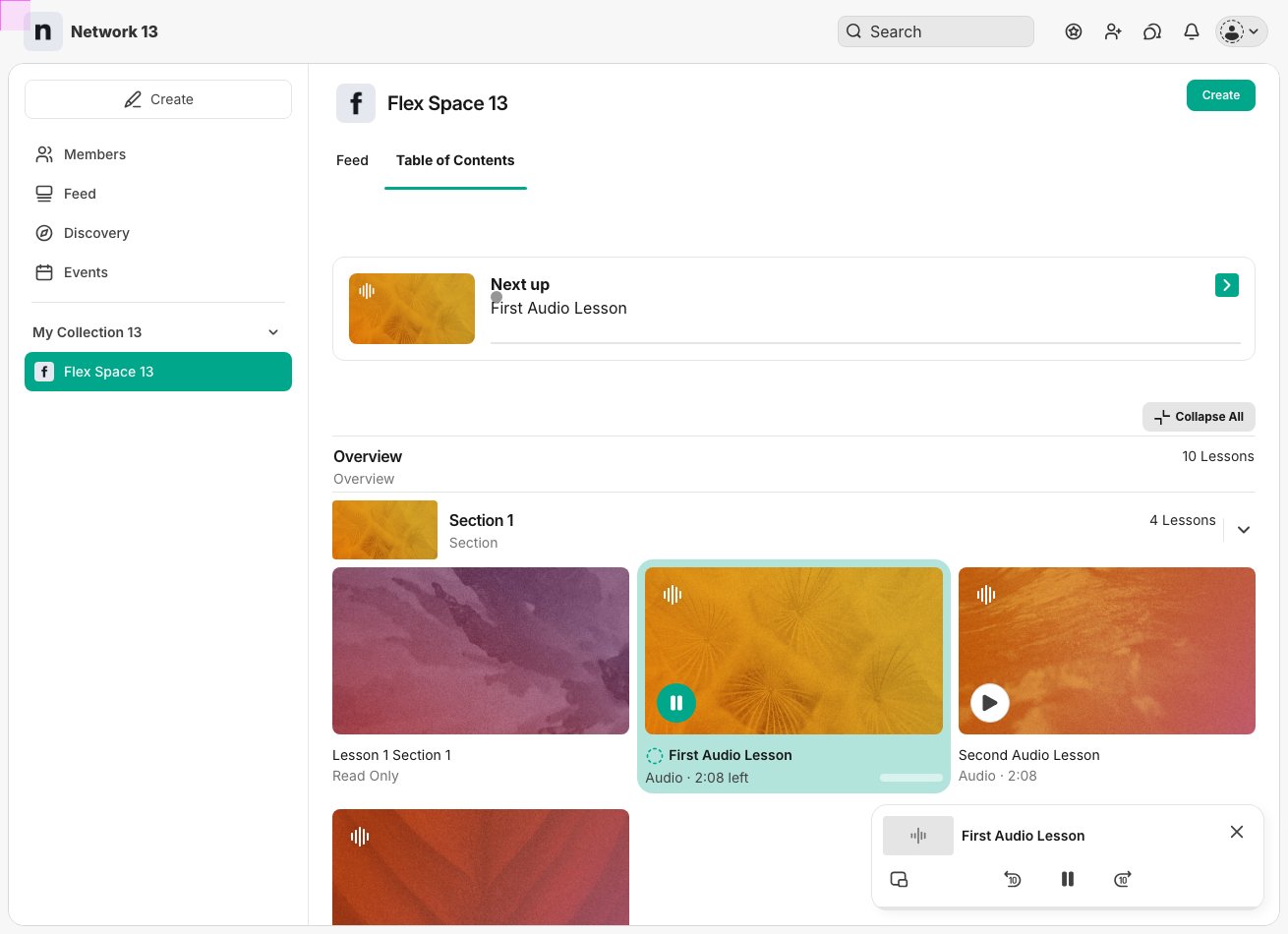
- The Course list
- A Section page, where Lessons appear as rows with play buttons
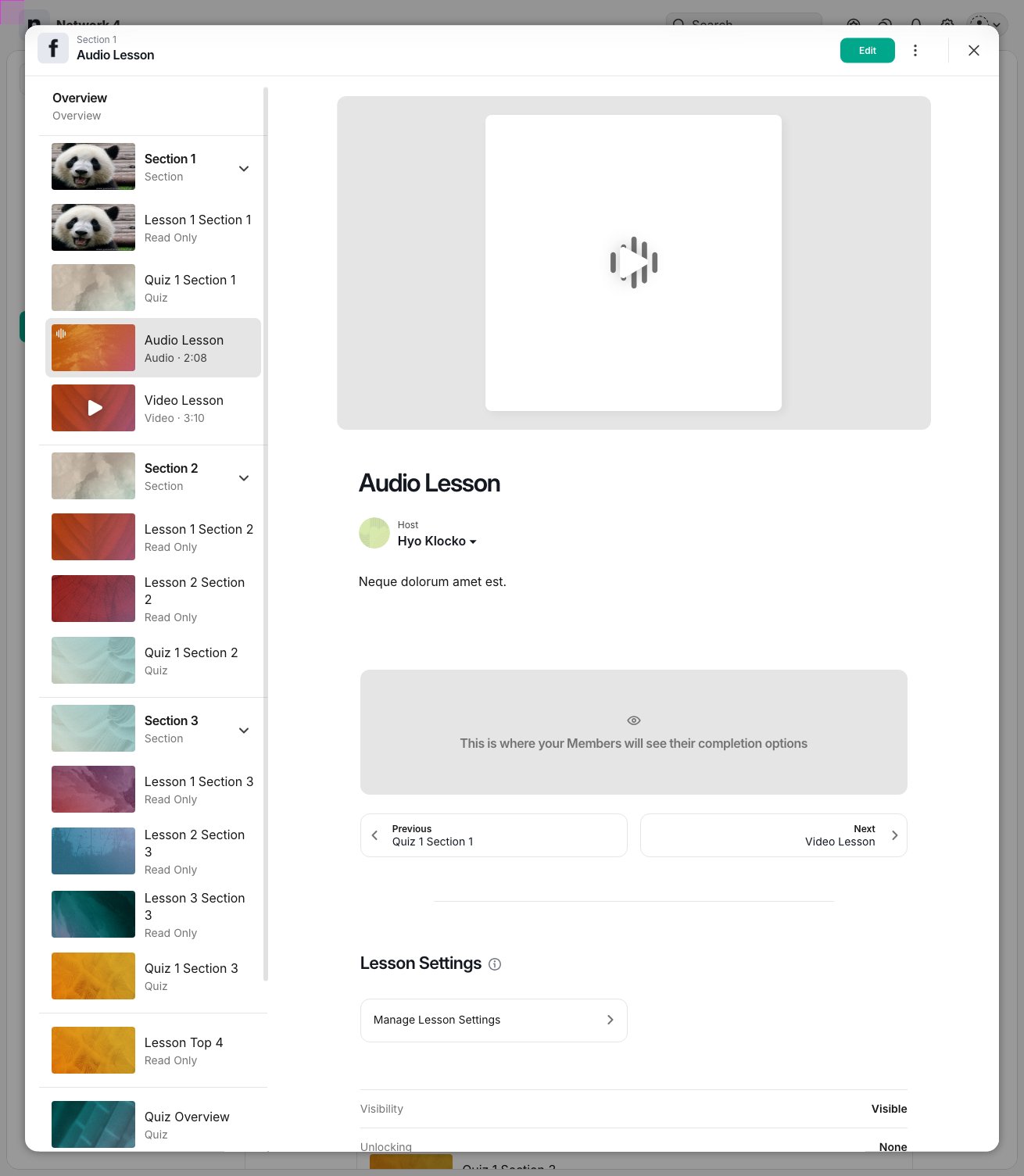
- The left panel on a Lesson page
- Locked Lessons show a grayed-out play button. You can play them once they unlock.
- Video Links (videos from YouTube, Vimeo, and other platforms) open the Lesson instead of playing in the floating player.
Continuous Playback
If your Host has turned on Continuous Playback for a Course, it plays like a playlist:- When a Lesson’s audio or video ends, the next unlocked Lesson plays automatically.
- If you leave the Lesson, the next one keeps playing in the floating player. You can read or comment elsewhere while you listen.
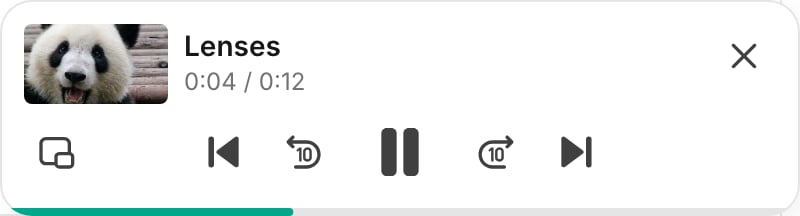
- Use the Previous and Next buttons in the Lesson player or the floating player to move between Lessons.
- Playback stops before a Lesson that isn’t unlocked yet, and the floating player lets you know there’s nothing more to play.
The Continue Progress Bar
At the bottom of the Course page, the Continue Progress bar helps you keep going:- Select Continue Progress to jump to the Lesson you’re on.
- Select Collapse to collapse the Sections in the Course.
- If your Host allows it, reset your progress from the bar’s three-dot menu.
The Lesson Page
When you open a Lesson, the left panel shows the rest of the Course in the same style as the Course page, with the same type and time details. You can start or pause a different Lesson right from the panel without leaving the page.