

How to Schedule an Action with Cohost
-
Open a Chat with Cohost.
Or go to Admin > Automations > Scheduled Actions and use the Ask Cohost box at the top of the page.
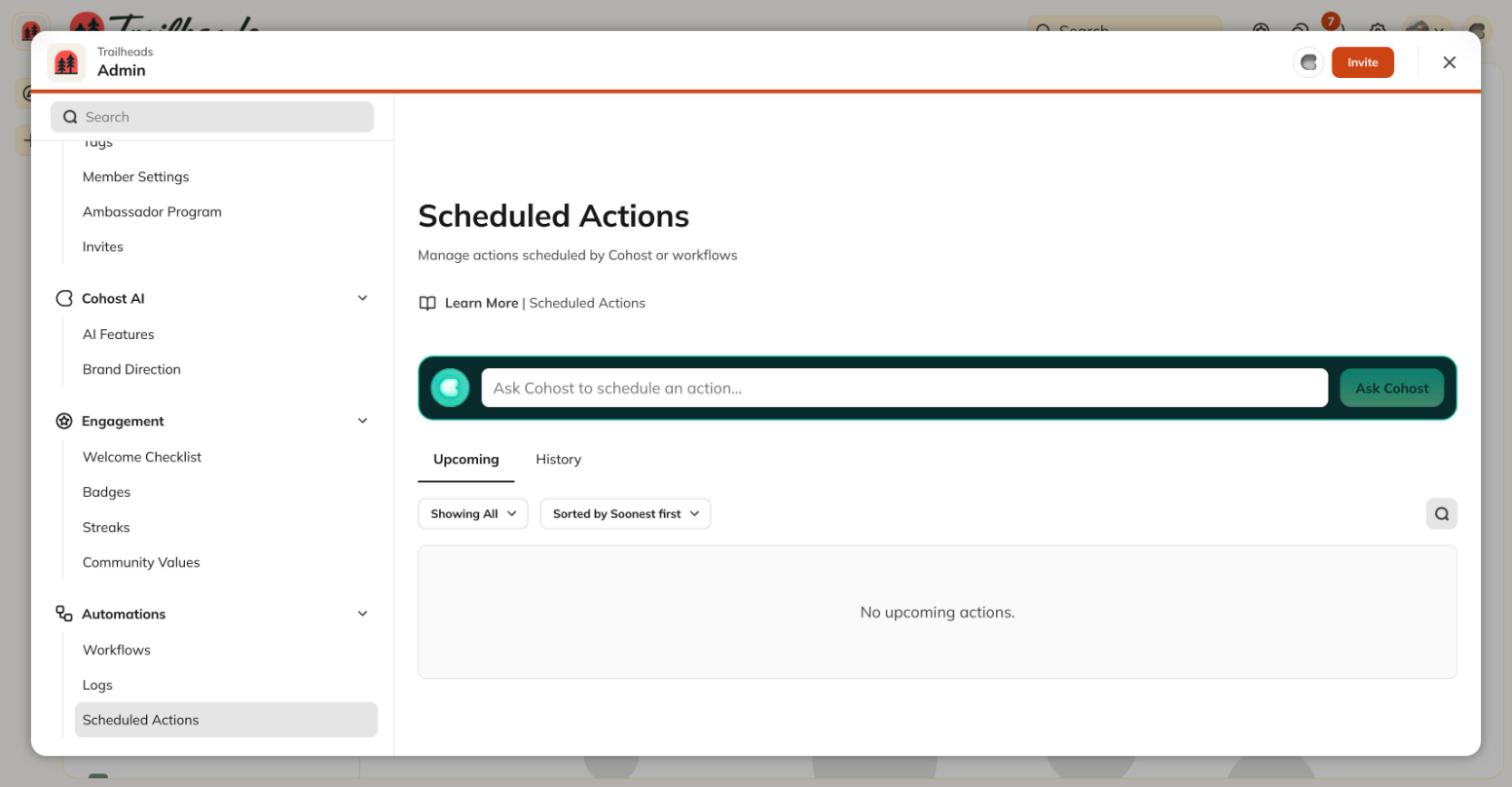
- Tell Cohost what you’d like to happen and when. For example: “Message all members to remind them about the event next Friday at 9am.”
- Review the approval card, which shows the Action and when it runs.
- Approve the card to schedule the Action.
Ideas for Scheduling Actions
Here are some ways to use scheduled Actions in your Network. Events- “Create the Spring Workshop Event on Monday at 8am so members can RSVP.”
- “Message the Events Space the morning of the workshop to remind members to join.”
- “Publish Lesson 2 of my course next Monday at 8am.”
- “Publish the Week 2 Section of my course on March 1.”
- “Publish my new membership plan on launch day at noon.”
- “Archive the early-bird plan on Friday at 11:59pm to close enrollment.”
- “Create a 20% off coupon for my plan on Black Friday.”
- “Give everyone in the Leadership Space the Graduate Badge on June 15.”
- “Message all members on the first day of next month with this month’s theme.”
- “Send Maria a Chat message in 2 weeks to check in.”
How to View or Cancel Scheduled Actions
Go to Admin > Automations > Scheduled Actions to see upcoming and past Actions. To cancel an Action that hasn’t run yet, open the menu next to it and select Cancel Action. If an Action didn’t go as expected, select View Logs from the same menu to see whether it ran. You can also ask Cohost, “What do I have scheduled?” or “Cancel the Lesson 2 Action.”How Is This Different from an Automation?
An Automation pairs a Trigger with an Action. For example, the Trigger might be a member joining your Network, which then starts the Action. Cohost schedules a one-time Action with no Trigger. You pick the exact date and time it runs. Creating full Automations with Cohost is coming later.Where to Go Next
- How Do I Chat with Cohost?
- How Can I Set Up Automations in My Mighty Network? for Actions that run from a Trigger