

3 Quick Steps to Get Started
On the Launch Plan and up, you can create a Course inside a Space using one of our Course templates.1. Create a Space Using a Course Template
When you create a new Space, select either a Cohort Course Template or Content Course Template. Cohort Course Template includes:- Course Community (Feed)
- Course Materials (Course)
- Discovery
- Members
- Course Materials (Course)
- Members
- Space Name
- Tagline
- Collection
- Privacy Level
- Charge for Access
- Invite People to Join
- View the Course
2. Add Your Course Materials
A Course includes four content types: You can add several types of content to your Course, including images, videos, native audio, media, and file attachments. To create a private podcast or audio series, add 1 Lesson per episode, or use Bulk Upload Media to add up to 15 episodes at once. To learn more, check out this article.Bulk Upload Media
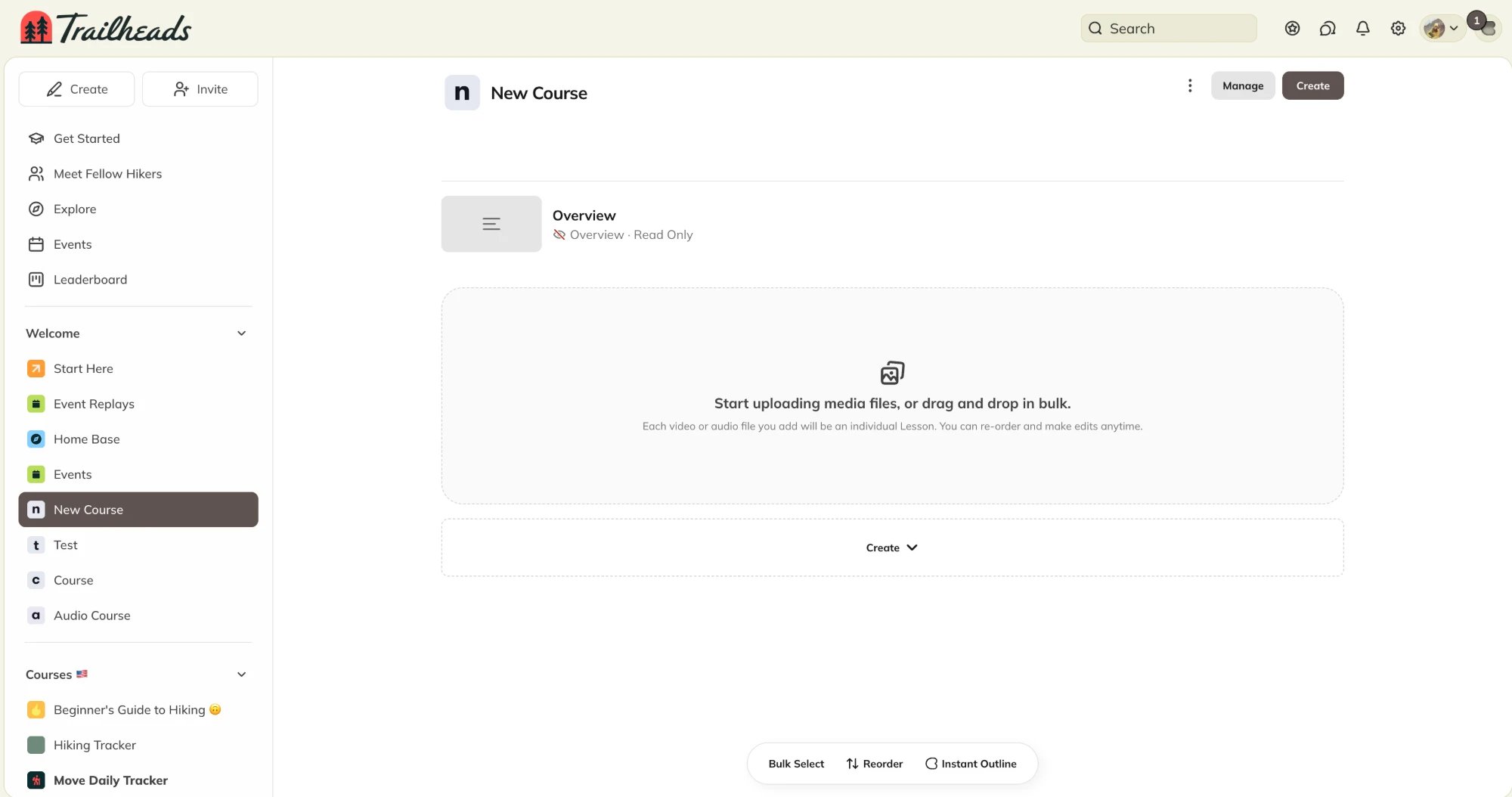
You can upload up to 15 video or audio files at once. Each file becomes its own Lesson, so you can set up a video series or podcast season in one step. To upload files in bulk:- Open your Course.
- Add your files in one of these ways:
-
Drag and drop your files into the upload area below the Overview, or select the upload area to choose files from your device.
-
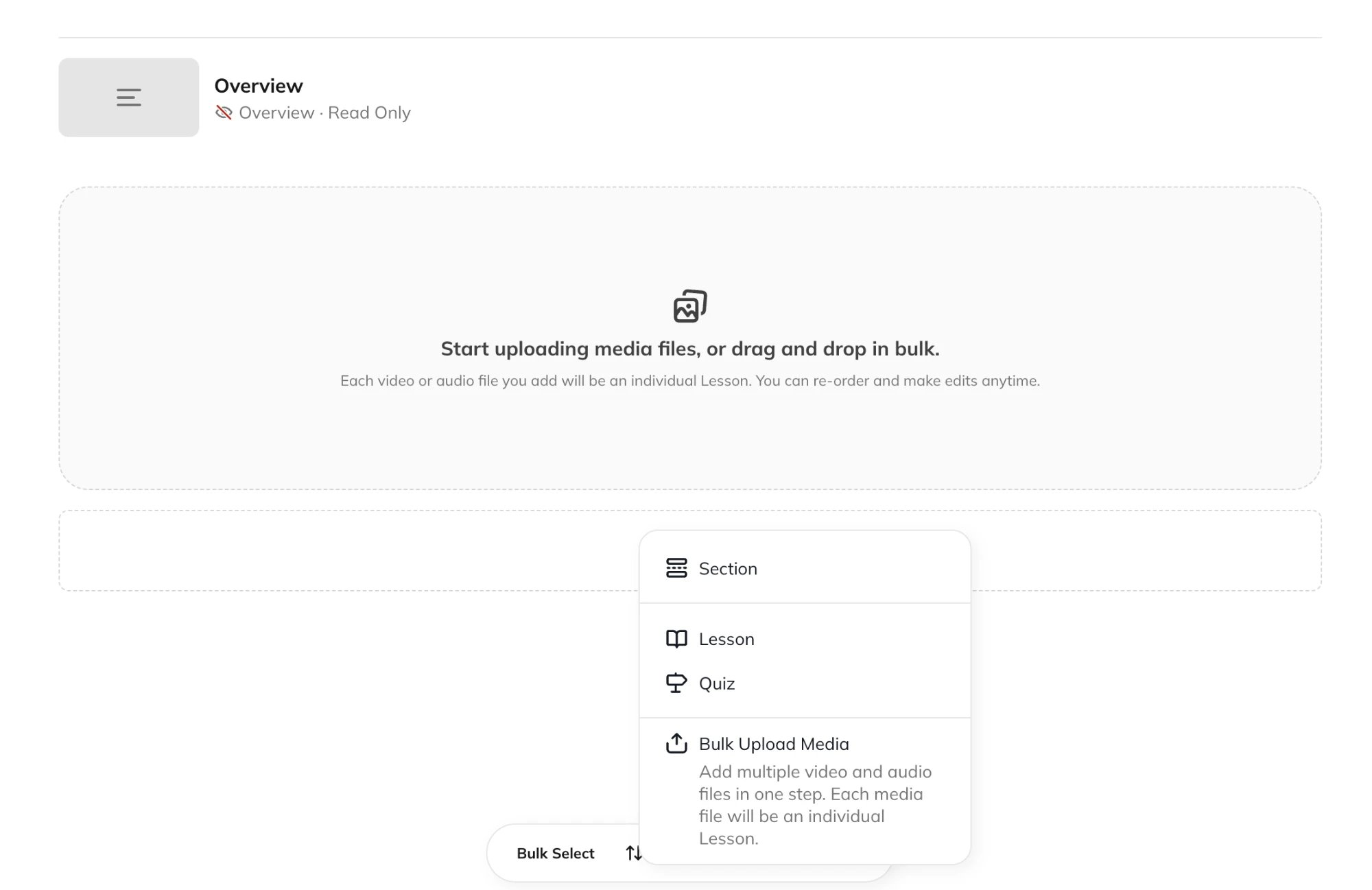
Select Create > Bulk Upload Media, then choose your files.
-
Drag and drop your files into the upload area below the Overview, or select the upload area to choose files from your device.
Instant Outline (AI Feature)
If you’re a Network Host, Cohost can draft an outline for an empty Course and build the Sections and Lessons for you.-
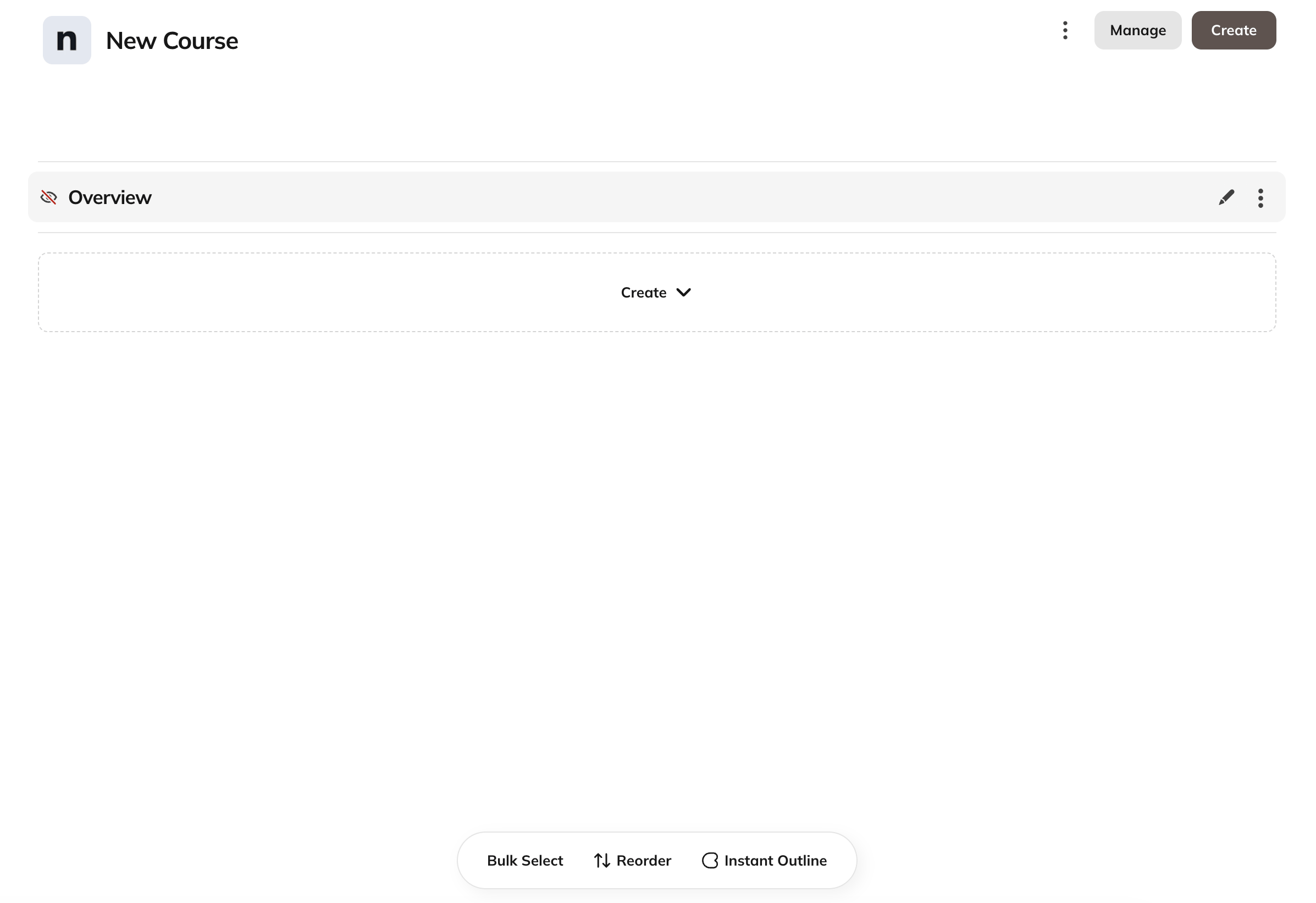
Open your empty Course and select Instant Outline in the floating toolbar at the bottom of the page.
- Cohost opens in the right panel and asks what members will learn. Describe your Course in 1 or 2 sentences. For example: “I want my members to learn how to read classic books without feeling overwhelmed.”
- Cohost drafts an outline with Sections and Lessons.
- To change the outline, tell Cohost what you want. For example: “Only 6 Lessons to start.” Cohost sends a revised outline.
- When the outline looks right, select Build It. Cohost creates the Sections and Lessons in your Course.
For Space Hosts
Select Instant Outline in the floating toolbar and enter your idea for the Course. Then select Suggest Outline to generate the outline.3. Adjust Your Course Settings
You can update Course Settings at any time by going to the gear icon in the Space > Space Features > Course.Section Naming
Customize the name of the Course, Sections, Lessons and Quizzes.Display Style
On web and mobile, choose how your Course appears: Thumbnail View, Simple View, or Grid View. Uses each Lesson’s default image. You can upload a custom thumbnail in each Lesson’s settings. Displays Lessons and Sections in a simplified list. Videos show a play icon; Quizzes show a quiz icon. Shows a more visual, dynamic layout. This view works best when you have multiple Lessons organized into Sections.Section Preferences
Choose where you would like all Sections expanded when a member first opens the Course or just a single Section. Expand All Sections: With this option, all Sections are expanded when a member opens the Course. As the member progresses through the Course, completed Sections will collapse. Expand Single Section: This option is helpful if your Course has many Sections and you don’t want to overwhelm members by showing all Lessons and Quizzes at once. Here’s how this option works:- When a member first opens the Course, if the first Lesson or Quiz is in a Section, only that Section will be expanded. If the first Lesson or Quiz is not within a Section, all Sections will be collapsed.
- Sections will expand based on a member’s progress through the Course, with only one Section expanded at a time, unless the member chooses to expand other Sections as well.
- If the member is in-progress on a Quiz or Lesson that is not inside of a Section, then all Sections are collapsed, unless the member chooses to expand other Sections as well.
Preview the Course
You can allow people outside the Course to preview Lessons or Sections, regardless of your Space’s privacy. To enable this, open the Lesson or Section and select the gear icon in the upper-right corner.Privacy
When your Course is ready, you can update privacy or add a paid plan.Your Mighty Network’s overall privacy also affects who can see a Space.Invite and Manage Course Members
You can decide whether only Hosts and moderators can invite people to the Course, or whether all members can invite. By default, all members can invite. To manage Course members, go to Members. You can:- View all members
- Welcome and message members
- Download your Course member list
Making Your Course Visible
By default, a new Course and its contents (Overview, Lessons, and Sections) are set to Hidden. This allows you to create content privately before making it visible to members.Hidden Lessons, Sections, Quizzes, and Overviews don’t appear in the Mighty Networks iOS and Android apps, even for Hosts. Use a web browser to view Hidden content. To build your Course or make content Visible, use a web browser or ask Cohost.
Make Your Entire Course Visible
- Go to your Course.
- Select Bulk Select in the floating toolbar at the bottom of the page.
- Choose to make all—or any—Lessons or Sections Visible or Hidden.
Make Individual Lessons or Sections Visible
You can also make specific items visible anytime. Open the Overview, Lesson, or Section and select the gear icon in the upper-right corner. When you make a Lesson, Section, or Overview visible, the following will appear to students:- The title
- The first few lines of the body text
- The thumbnail image
If You’re Starting From Scratch: Use a Live Course
If you don’t yet have Course content, you can run your first Course live. Turn on the Feed feature as your main Course page, invite a small group of students, and follow a simple weekly rhythm:- Topic: Share it live (Zoom or Crowdcast).
- Case Study: Show the Topic in action.
- Challenge: Give members an action for the week.
- Result: Help members achieve one win each week.