

Hashtag Basics
Hashtags can include letters, numbers, or underscores. They can’t include other special characters (like & or $) or extra spaces. As you type, you’ll see a dropdown showing existing hashtags. Continue typing to create a new one. You may also see a list of Highlighted Hashtags featured in a Space:
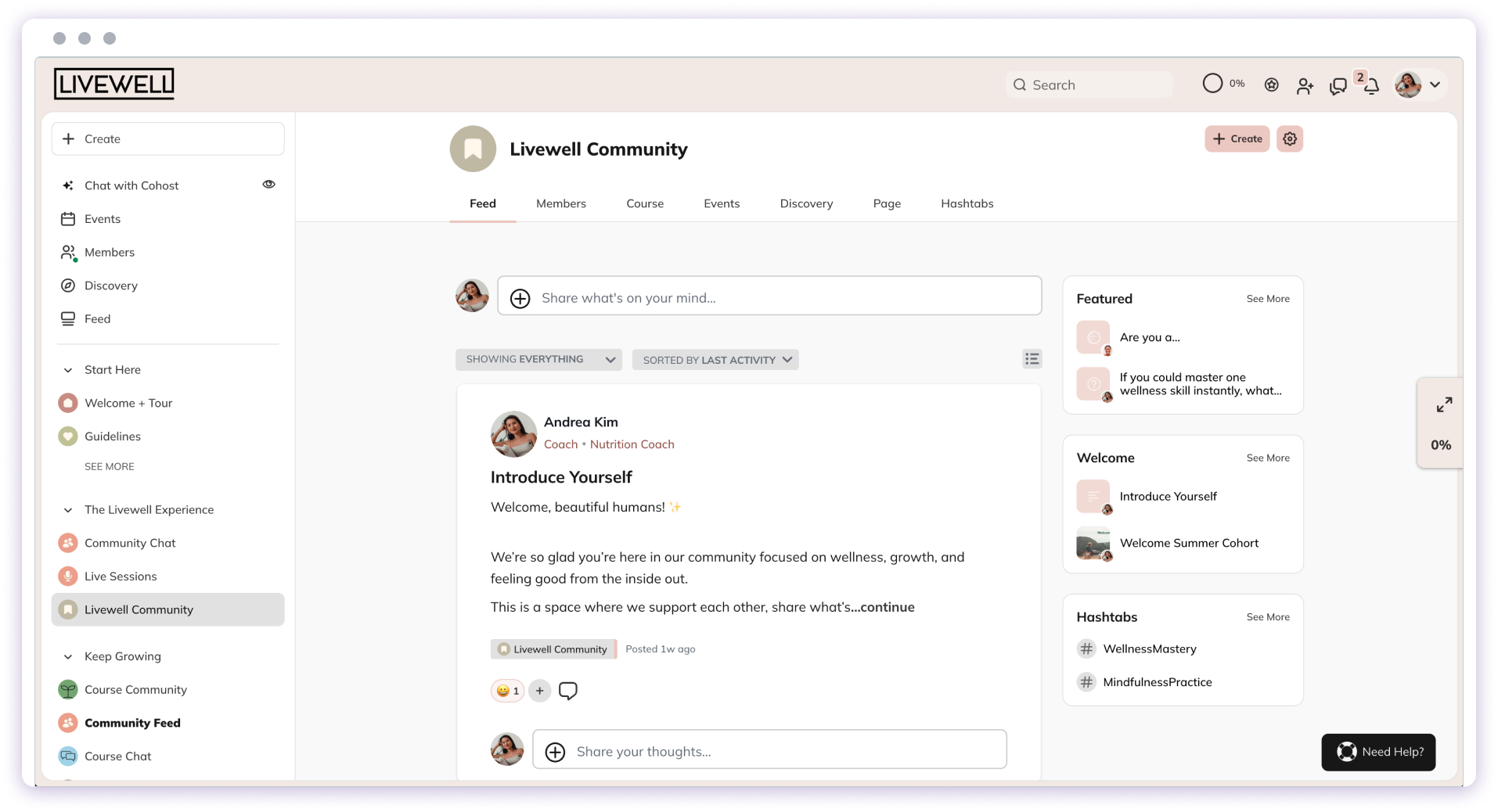
Searching for Hashtags
When you click a hashtag, you’ll see search results for all content across the Mighty Network that includes it, sorted by relevance. To view all results for a hashtag across every Space you have access to:- Click Search in a Space.
- Click the highlighted hashtag.
- At the top of the results, de-select the Space filter to Search All Spaces.

Hashtag Prompt
When creating Posts, Articles, or comments on web (and on iOS or Android for Posts), you’ll see a prompt to add a hashtag. Click the prompt to insert a # where your cursor is. As you type, a dropdown will appear showing hashtags— including any highlighted hashtags in that Space.