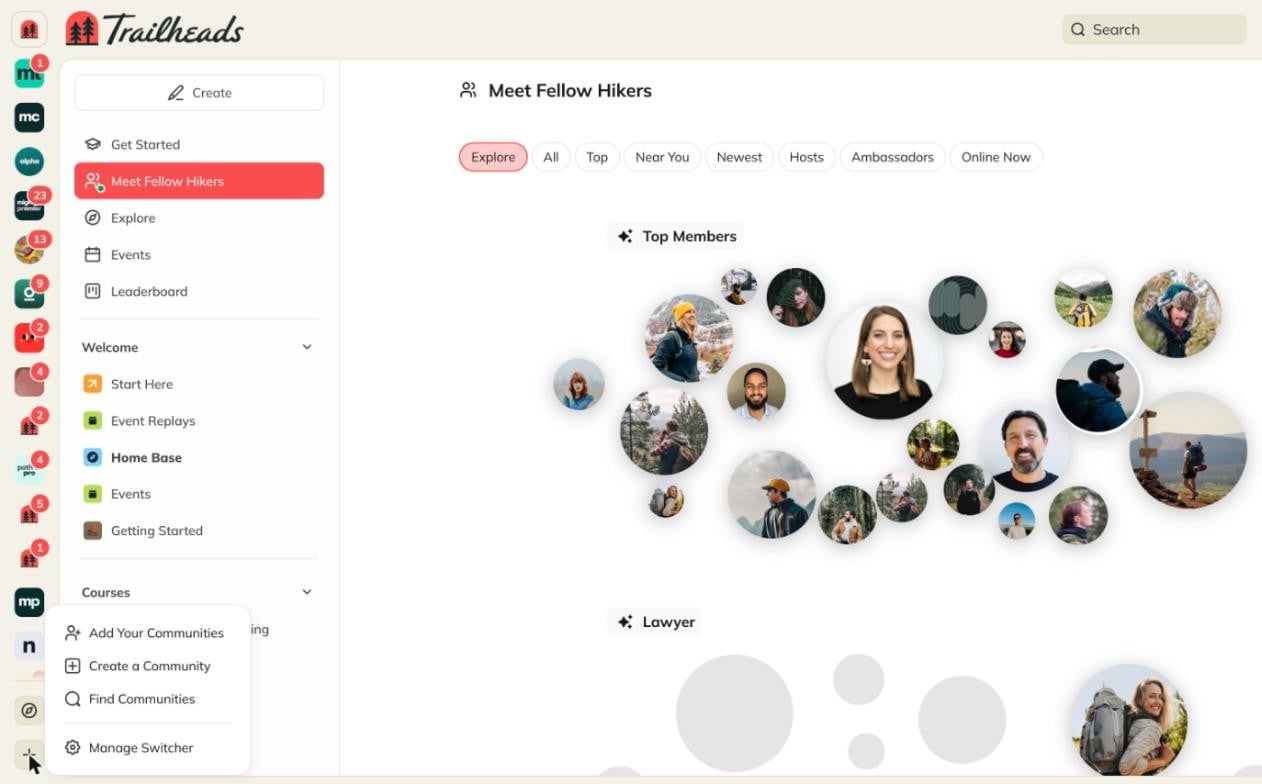
What Is the Community Switcher?
The Community Switcher lists the communities on Mighty you belong to, so you can move between them from inside any of your communities.- All your communities, one place: see every community tied to your email once you confirm it, including ones you joined with a different email address.
- New activity at a glance: see which of your communities have new activity, even ones you haven’t signed in to yet on this browser.
- Your communities stay separate: your profile, activity, and history stay separate in each community.
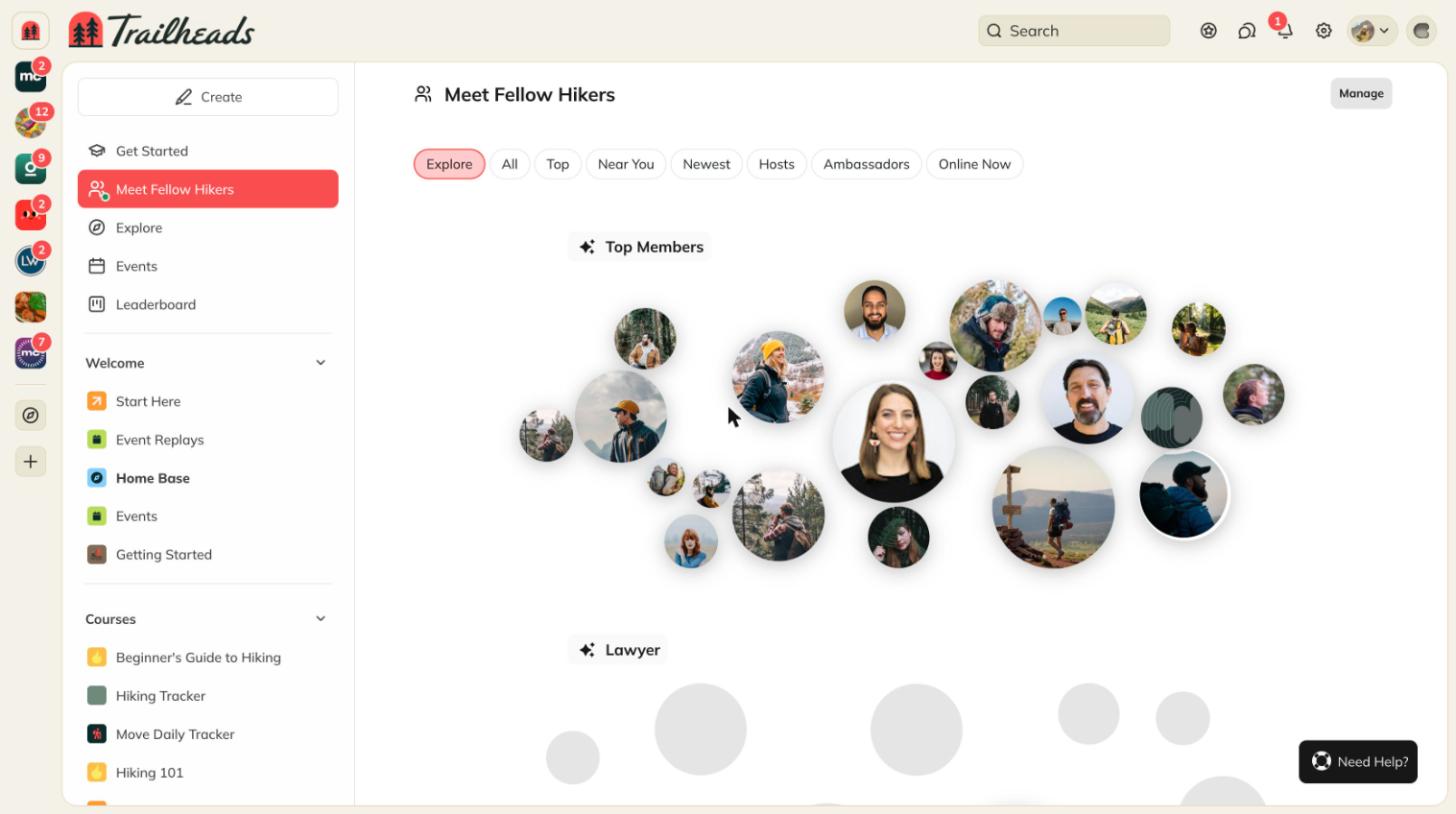
How Do I Set Up the Community Switcher on Web?
The first time you use the Community Switcher on a browser, you’ll only see the community you’re in. Confirm your email once to see the rest:- Select + in the Community Switcher, just below your community’s logo, then select Confirm Your Email.
- Enter the code we send to your email.
How Do I Switch to Another Community?
On web, your communities appear along the side of the page.- Select the community you want to visit.
- If you haven’t signed in to that community on this browser yet, selecting it takes you to that community’s sign-in page.
- Sign in the way you usually do. You only need to do this once per browser.
How Do I Add Communities I Joined with Another Email?
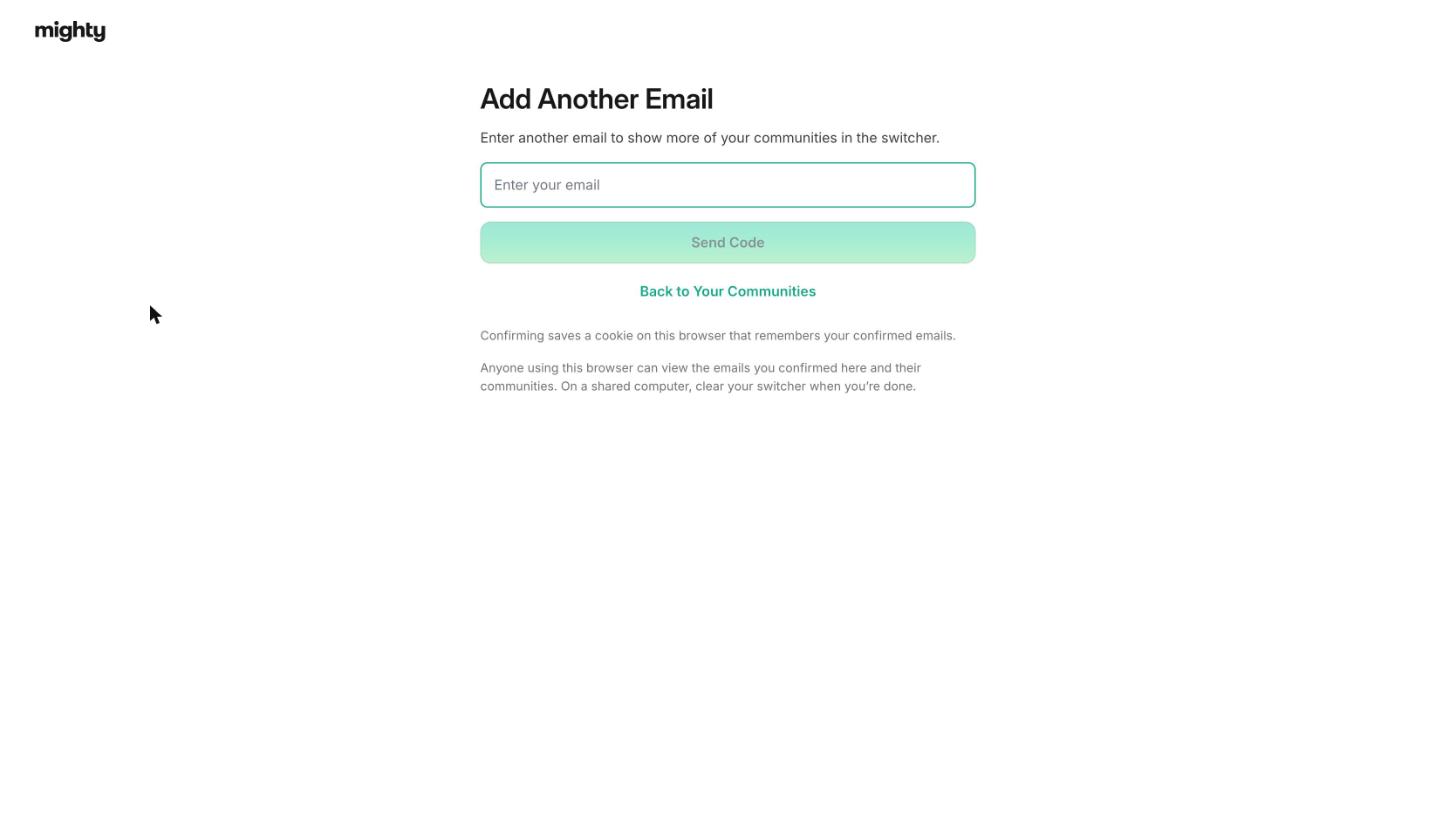
If you joined some communities with a different email address, such as a work email and a personal email, you can add that email to your Community Switcher on web.- Select + in the Community Switcher, then select Add Your Communities.
- Select Add Another Email and enter the email address.
- Enter the code we send to that email.
How Do I Choose Which Communities Appear?
On web, select Manage Switcher in the + menu to open Your Communities, where you can:- Hide a community: hide a community you don’t want to see in your Switcher. You’re still a member, and you can show it again anytime.
- Remove an email: remove an email you added, along with the communities tied to it.