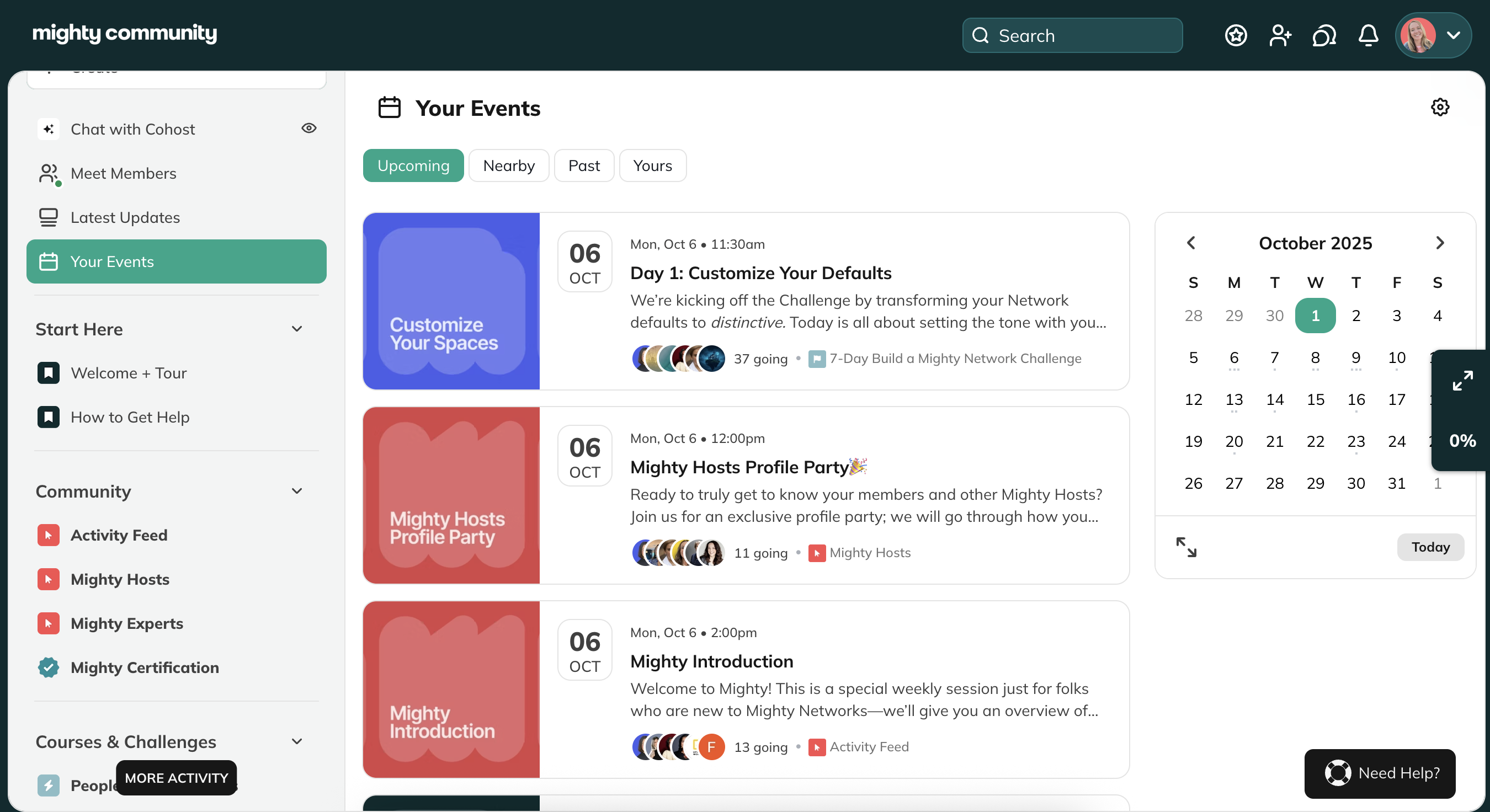
How to RSVP to an Event
Find the Event- Go to the Event you want to attend.
-
Select one:
- Going
- Maybe
- Not Going
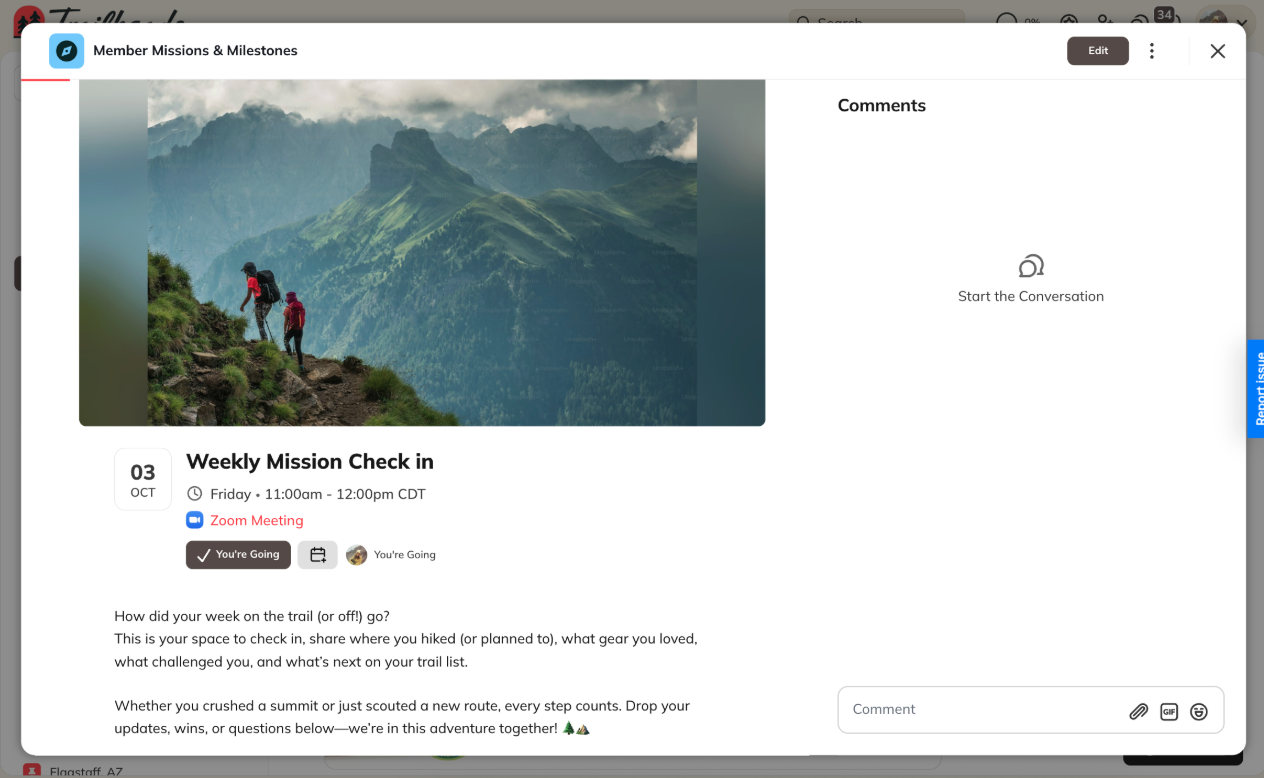
- For recurring Events, you can RSVP to specific ones in the series.
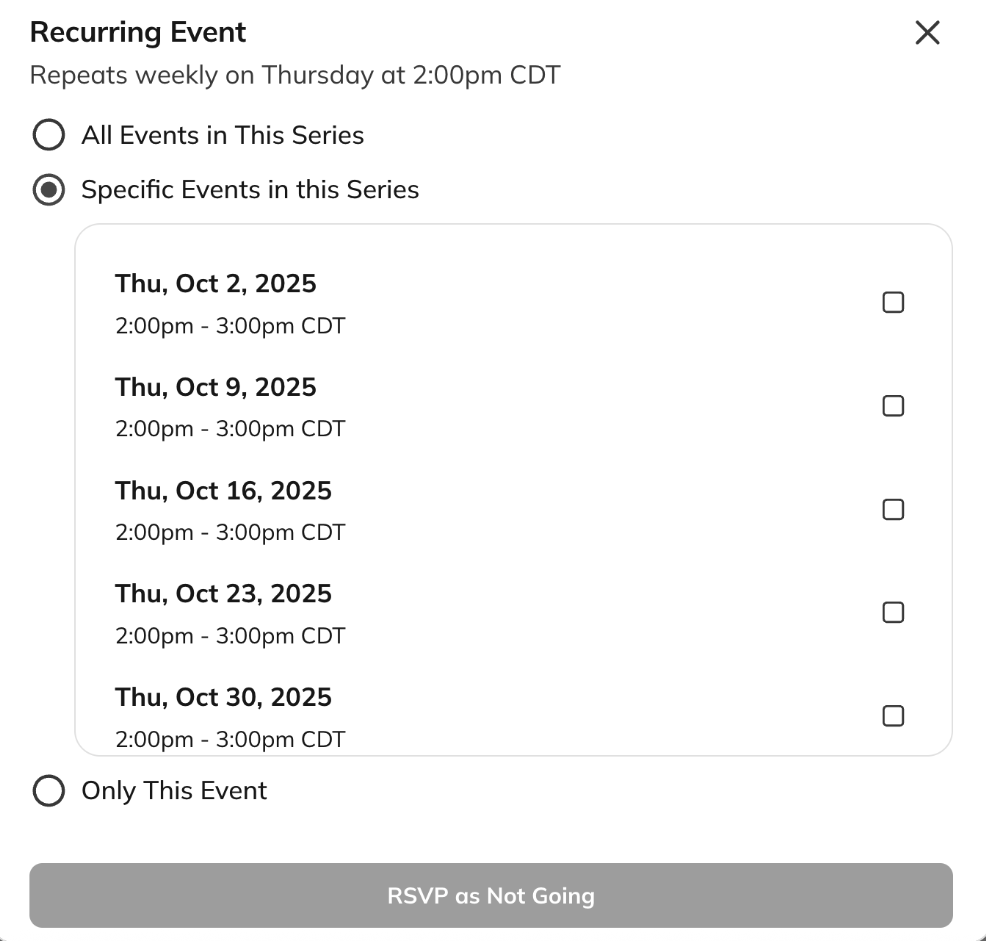 After You RSVP “Going”
- Change your RSVP if needed.
- See who else is attending.
- Add the Event to your calendar by clicking Add to Calendar.
- Get reminders: you’ll receive a notification about 10 minutes before the Event (by email, push, or both—depending on your settings).
- Change your RSVP
- See who else has RSVP’d
- After RSVPing, select Add to Calendar to save it to your personal calendar.
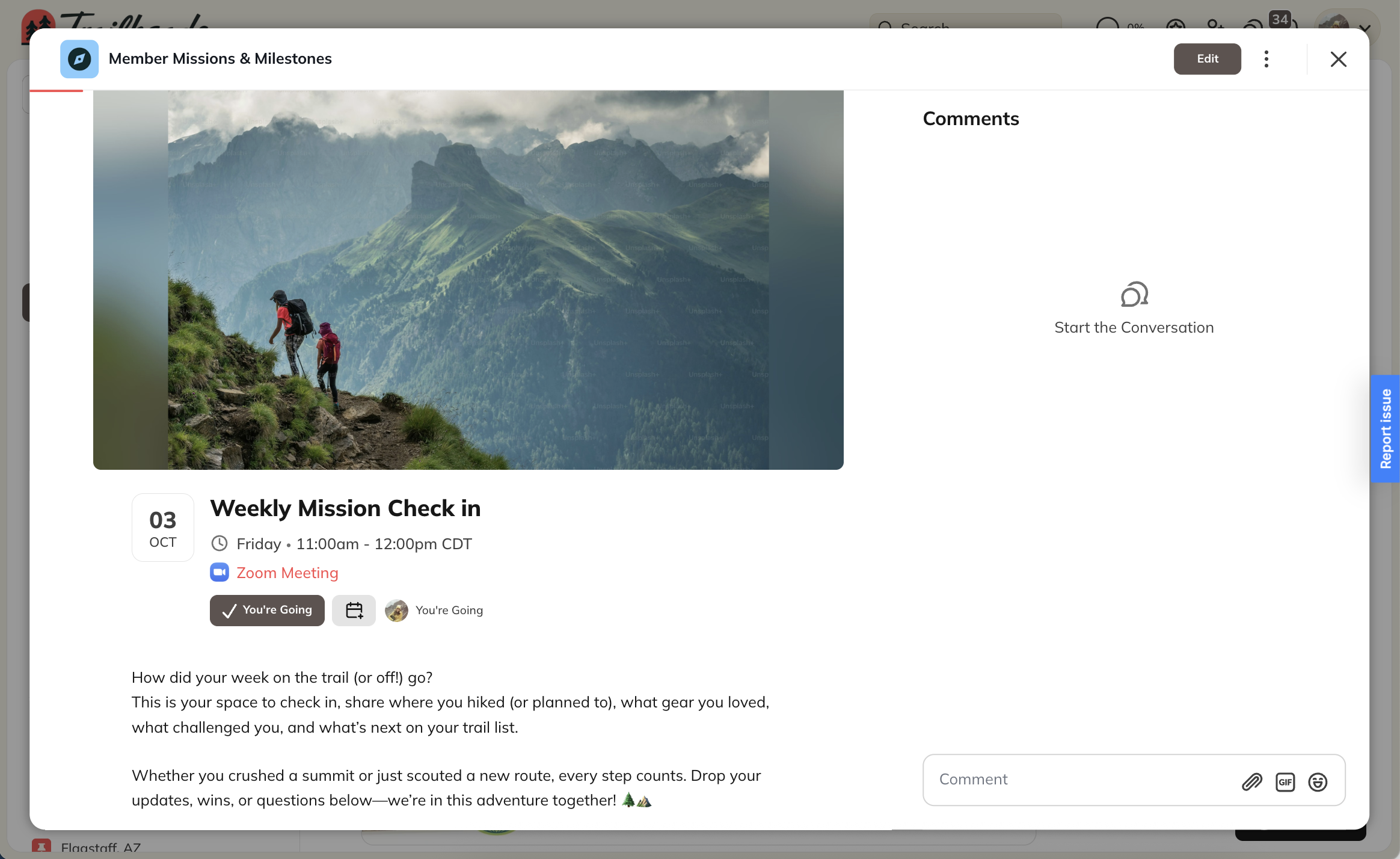
What Happens When the Event Starts?
- If you RSVP’d Yes or No: You can’t change your RSVP after the Event begins.
- If you didn’t RSVP: The option to RSVP disappears once the Event starts.
- If you RSVP’d Maybe: You can still change to Yes or No after the Event starts, but once you decide, the option goes away.
- After the Event ends: The RSVP prompt is no longer visible.
How to Attend an Event
-
Find Your Event
- Livestream Events:
- On the event page, there will be a countdown on the event.
- If the countdown ends but the livestream hasn’t started, you will see “The livestream will begin shortly!”
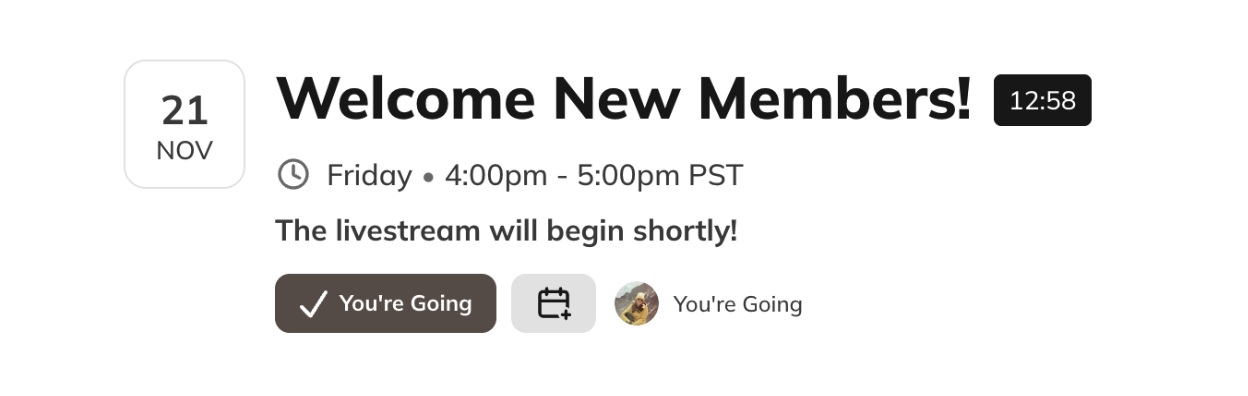
- After the livestream begins, you will see “Join the Livestream” which will take you directly to the live video.
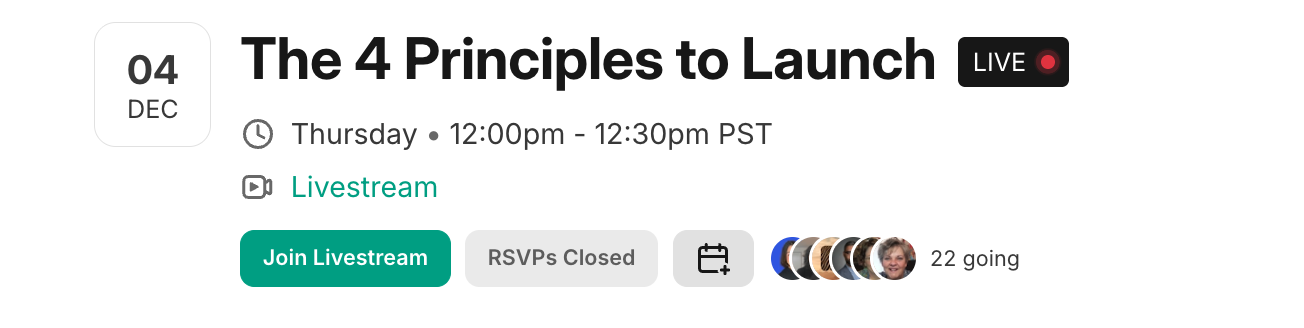
- Zoom Events: The Event page shows “Zoom Meeting” which is a hyperlink to the Zoom meeting.
-
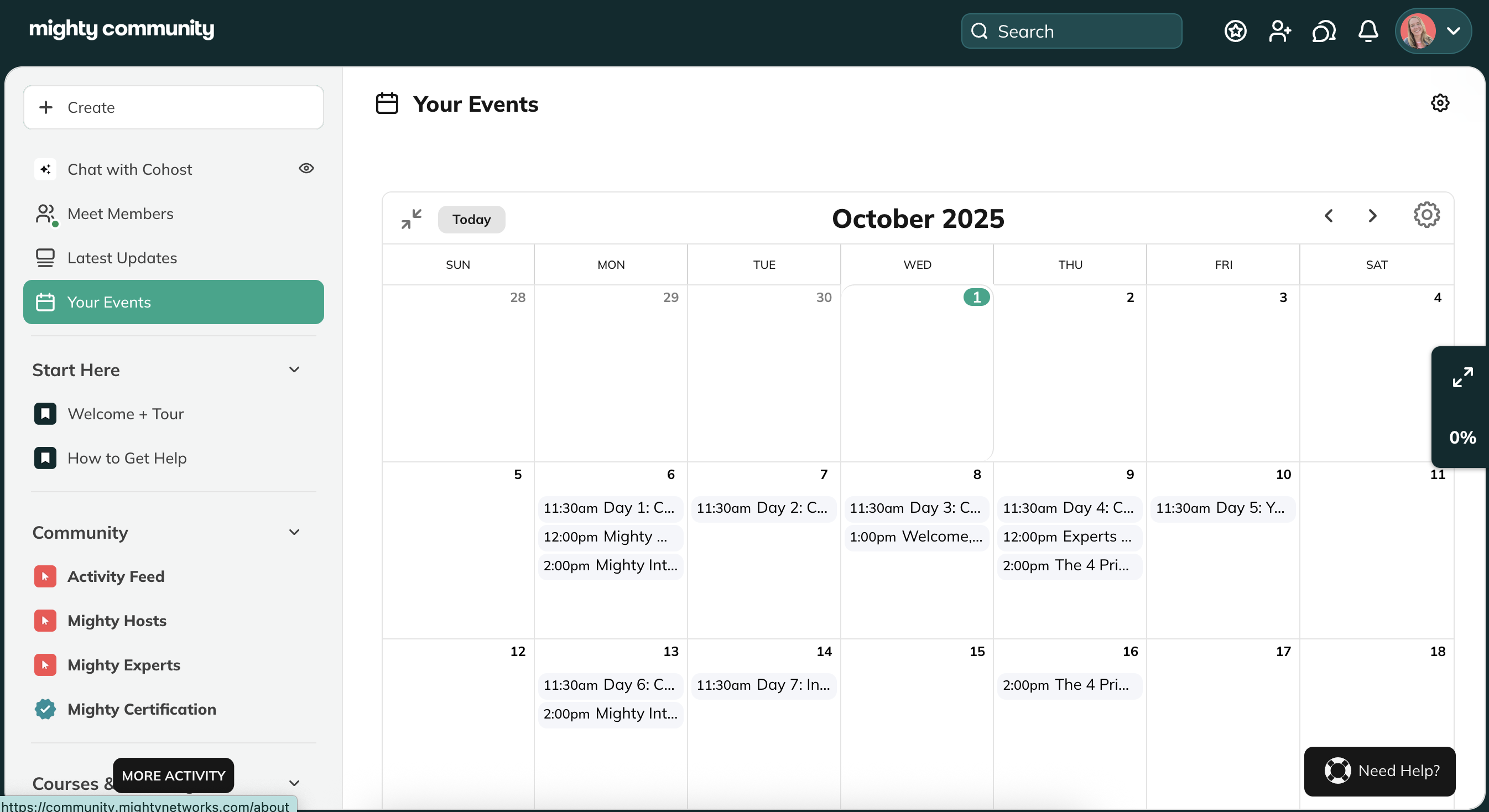
Explore Calendar View (Web only)
- Expand the calendar in the top-right corner.
- Use the arrows to browse past or future months.
- Sync Events to your Google, Outlook, or Apple calendar. You can sync all Events or only the ones you RSVP’d to.
Global Event Feature
If your Host has enabled it, you’ll see a Global Event Feature in the upper-left corner of your Mighty Network. This feature gathers all Events from across your Network into one place, making it easy to see everything you can join.