How to deactivate your account in a Mighty Network, and what happens to your subscriptions and purchases when you do.
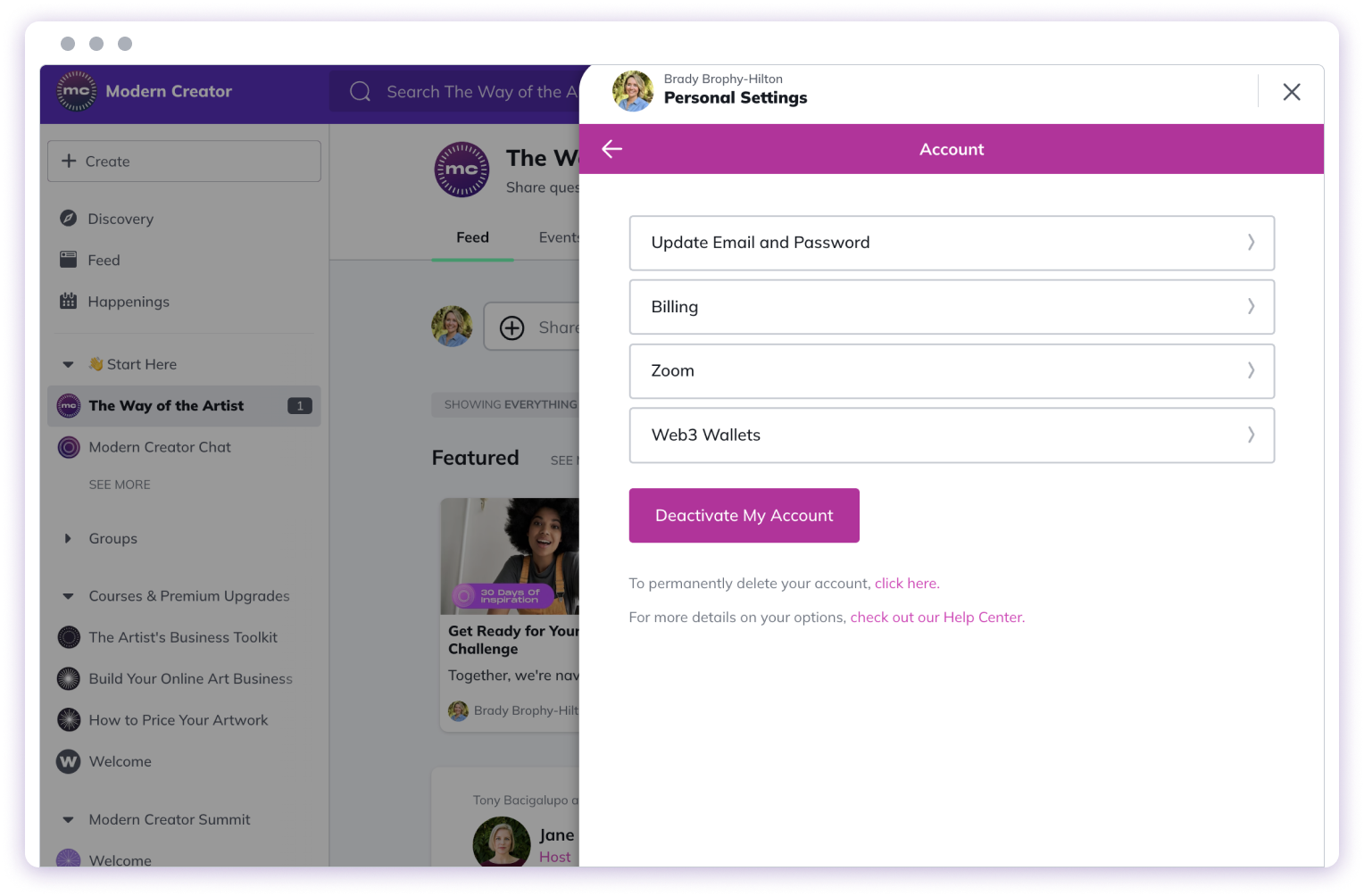
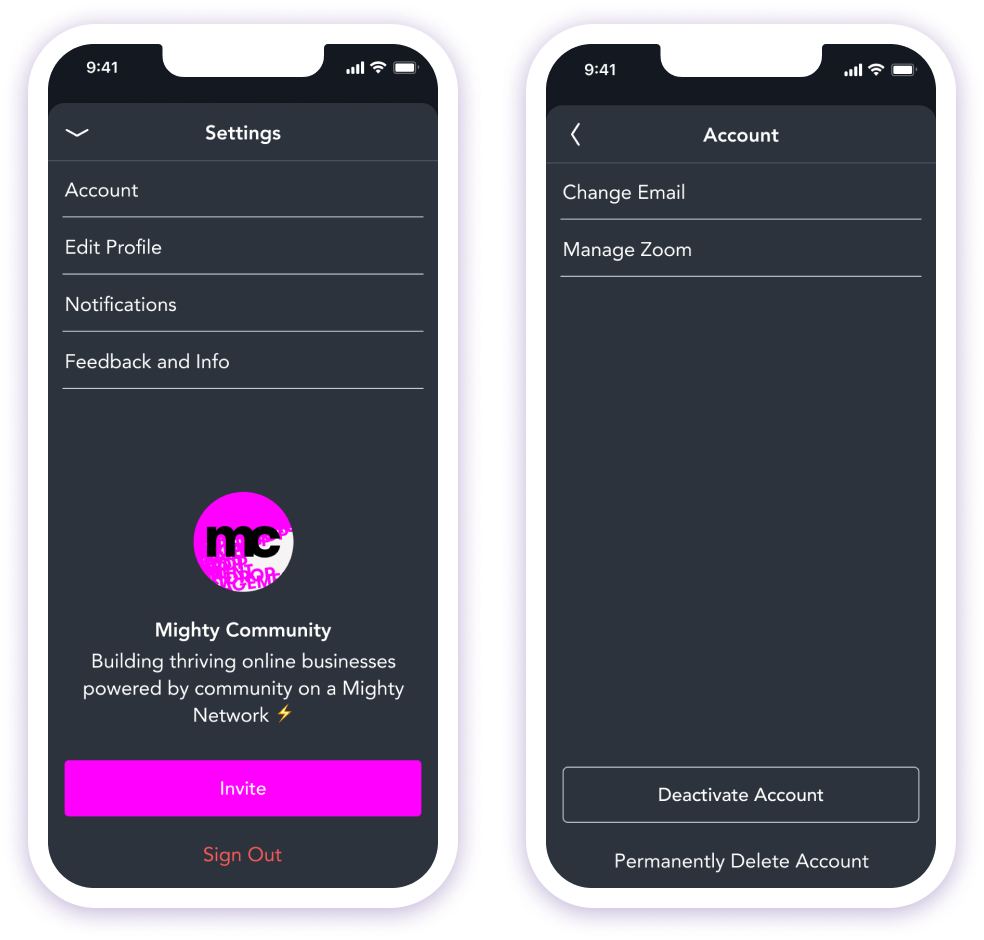
You can choose to leave a Mighty Network you belong to by logging into your account on web and going to your Profile Image > Personal Settings > Account > Deactivate My Account.On the Android app, you can go to Personal Settings > Account > Deactivate My Account > Confirmation.(At the moment, it is not possible to deactivate your account from the iOS app. To do so, you’ll need to login to your account via web browser with the instructions as outlined above.)From here, if you choose to Leave this Network you will instantly leave the Network and you’ll stop receiving notifications. However, keep in mind that when you leave a Network, your activity (such as any comments or posts that you added) will still be visible to other members.You can also permanently delete your account on the same menu by using the link found under the text: “To permanently delete your account, click here.”Here’s what it looks like on the web:Here’s what it looks like on mobile:
When you leave a Mighty Network, you lose access to everything inside it right away, including content you paid for.Subscriptions: If you have an active monthly or annual subscription, you’ll need to cancel it in Plans and Access before you can deactivate your account. Here’s how to cancel a subscription.If your subscription is already canceled and still running until the end of your billing period, deactivating your account ends it immediately. You won’t be charged again, but you won’t get a refund for the rest of the period.Subscriptions through Apple: If you subscribed through the iOS app, Mighty Networks can’t cancel your subscription for you. Cancel it in your iPhone or iPad settings so you aren’t charged again.One-time purchases: Anything you bought with a one-time payment stays on your account, but you won’t get a refund. If you rejoin the Network later, you’ll get access to those Spaces again.
If you decide to rejoin that Mighty Network in the future, you can log in again with the same email address or login credentials you used before. Your one-time purchases come back, but canceled subscriptions don’t. You’ll need to subscribe again to get access to Spaces that are part of a subscription.
If you would instead prefer to permanently delete your account and remove all of your activity and posts from that Network, click the option to permanently delete your account link at the bottom of the page when you’re signed in on your web browser (Chrome, Safari, etc.). Permanently deleting your account also removes your one-time purchases, and they can’t be restored.
{"docsConfig":{"theme":"mint","$schema":"https://mintlify.com/docs.json","name":"Mighty Networks Developer","colors":{"primary":"#00D0AD","light":"#00A79B","dark":"#092B2E"},"logo":{"light":"https://mintcdn.com/mightynetworks/cjKzog-1y3nMilPn/logo/mighty-logo-dark.svg?fit=max\u0026auto=format\u0026n=cjKzog-1y3nMilPn\u0026q=85\u0026s=c90d8dbb9299fdbeeae3322260723786","dark":"https://mintcdn.com/mightynetworks/cjKzog-1y3nMilPn/logo/mighty-logo-white.svg?fit=max\u0026auto=format\u0026n=cjKzog-1y3nMilPn\u0026q=85\u0026s=a7e77753d6ca8cad57cbe7bc3547e146"},"favicon":"https://mintcdn.com/mightynetworks/IZtx7t9K5RmmTeY0/favicon.svg?fit=max\u0026auto=format\u0026n=IZtx7t9K5RmmTeY0\u0026q=85\u0026s=93198434f74f03d7aabca62a4c517ddb","navbar":{},"footer":{"socials":{"x":"https://x.com/mightynetworks","linkedin":"https://linkedin.com/company/mightynetworks","instagram":"https://instagram.com/mightynetworks"}},"integrations":{"ga4":{"measurementId":"G-ZLQKQ88327"}},"contextual":{"options":["copy","view","chatgpt","claude","perplexity","mcp","cursor","vscode"],"display":"header"},"styling":{"latex":false},"navigation":{"pages":[]}},"deployment":{"deploymentMetadataValue":{"subdomain":"mightynetworks","hasAudioNarration":false,"actualSubdomain":"mightynetworks","customDomains":["docs.mightynetworks.com"],"gitSource":{"type":"github","owner":"untitledstartup","repo":"mintlify-docs","deployBranch":"main","contentDirectory":"","isPrivate":true,"mountPath":"","label":""},"chroma":{"liveDeploymentHistoryId":"6aec927bada4d37850e319c9","collectionId":"b83a22db-2072-4675-a952-0a4ebb58073e","schemaVersion":"v3","latestBuiltDeploymentHistoryId":"6aec927bada4d37850e319c9"},"entitlements":{"AI_CHAT":{"status":"ENABLED"},"WEB_MCP":{"status":"ENABLED"},"NARRATION":{"status":"ENABLED"}},"buildId":"6aed4f2e723b9ce633e22a50","clientVersion":"0.0.4074","searchFilterCounts":[{"language":"default","tag":"Mighty API","count":1004},{"language":"default","tag":"Types","count":792},{"language":"default","tag":"Mutations","count":193},{"language":"default","tag":"For Hosts","count":187},{"language":"default","tag":"Admin API","count":143},{"language":"default","tag":"Webhooks","count":97},{"language":"default","tag":"Payments and Access","count":41},{"language":"default","tag":"For Members","count":28},{"language":"default","tag":"Setting Up Your Network","count":27},{"language":"default","tag":"Content and Messaging","count":26}]},"assistantConfig":{"deflection":{"enabled":true,"email":"help@mightynetworks.com","showHelpButton":true}},"basePath":"","hasChatPermissions":true,"hasWebMcpPermissions":true,"toggles":[{"name":"kill-isr","enabled":true,"variant":{"name":"disabled","enabled":false,"feature_enabled":true},"impressionData":false},{"name":"agent-mintlify-slack","enabled":true,"variant":{"name":"disabled","enabled":false,"feature_enabled":true},"impressionData":false},{"name":"agent-integrations-settings","enabled":true,"variant":{"name":"disabled","enabled":false,"feature_enabled":true},"impressionData":false},{"name":"rbac-expansion","enabled":true,"variant":{"name":"disabled","enabled":false,"feature_enabled":true},"impressionData":false},{"name":"automations-pr-grouping","enabled":true,"variant":{"name":"disabled","enabled":false,"feature_enabled":true},"impressionData":false},{"name":"custom-prefix","enabled":true,"variant":{"name":"disabled","enabled":false,"feature_enabled":true},"impressionData":false},{"name":"analytics-v7","enabled":true,"variant":{"name":"disabled","enabled":false,"feature_enabled":true},"impressionData":false},{"name":"user-flows-analytics","enabled":true,"variant":{"name":"disabled","enabled":false,"feature_enabled":true},"impressionData":false},{"name":"no-publish-flow","enabled":true,"variant":{"name":"disabled","enabled":false,"feature_enabled":true},"impressionData":false},{"name":"workos-onboarding","enabled":true,"variant":{"name":"disabled","enabled":false,"feature_enabled":true},"impressionData":false},{"name":"llms-txt-v2","enabled":true,"variant":{"name":"disabled","enabled":false,"feature_enabled":true},"impressionData":false},{"name":"snapshot-serving-live","enabled":true,"variant":{"name":"disabled","enabled":false,"feature_enabled":true},"impressionData":false},{"name":"stripTemperatureMiddleware","enabled":true,"variant":{"name":"disabled","enabled":false,"feature_enabled":true},"impressionData":false},{"name":"support-platform-pylon-zendesk","enabled":true,"variant":{"name":"disabled","enabled":false,"feature_enabled":true},"impressionData":false},{"name":"snapshot-serving","enabled":true,"variant":{"name":"disabled","enabled":false,"feature_enabled":true},"impressionData":false},{"name":"instant-rollback","enabled":true,"variant":{"name":"disabled","enabled":false,"feature_enabled":true},"impressionData":false},{"name":"granular-notifications-server","enabled":true,"variant":{"name":"disabled","enabled":false,"feature_enabled":true},"impressionData":false},{"name":"granular-notifications","enabled":true,"variant":{"name":"disabled","enabled":false,"feature_enabled":true},"impressionData":false},{"name":"automations-fable","enabled":true,"variant":{"name":"disabled","enabled":false,"feature_enabled":true},"impressionData":false},{"name":"fixed-ai-action-pricing","enabled":true,"variant":{"name":"disabled","enabled":false,"feature_enabled":true},"impressionData":false},{"name":"automation-resolve-merge-conflict","enabled":true,"variant":{"name":"disabled","enabled":false,"feature_enabled":true},"impressionData":false},{"name":"scoped-publishing","enabled":true,"variant":{"name":"disabled","enabled":false,"feature_enabled":true},"impressionData":false},{"name":"mintql","enabled":true,"variant":{"name":"disabled","enabled":false,"feature_enabled":true},"impressionData":false},{"name":"page-level-analytics","enabled":true,"variant":{"name":"disabled","enabled":false,"feature_enabled":true},"impressionData":false},{"name":"editor-version-history-v2","enabled":true,"variant":{"name":"disabled","enabled":false,"feature_enabled":true},"impressionData":false},{"name":"billing-page-v2","enabled":true,"variant":{"name":"disabled","enabled":false,"feature_enabled":true},"impressionData":false},{"name":"full-page-search","enabled":true,"variant":{"name":"disabled","enabled":false,"feature_enabled":true},"impressionData":false},{"name":"workspace-projects","enabled":true,"variant":{"name":"disabled","enabled":false,"feature_enabled":true},"impressionData":false},{"name":"assistant-v5","enabled":true,"variant":{"name":"disabled","enabled":false,"feature_enabled":true},"impressionData":false},{"name":"fork-pr-previews","enabled":true,"variant":{"name":"disabled","enabled":false,"feature_enabled":true},"impressionData":false},{"name":"revalidation-jwt","enabled":true,"variant":{"name":"disabled","enabled":false,"feature_enabled":true},"impressionData":false},{"name":"vite-origin","enabled":true,"variant":{"name":"disabled","enabled":false,"feature_enabled":true},"impressionData":false},{"name":"workos-sso-scim","enabled":true,"variant":{"name":"disabled","enabled":false,"feature_enabled":true},"impressionData":false},{"name":"hobby-abuse-scan","enabled":true,"variant":{"name":"disabled","enabled":false,"feature_enabled":true},"impressionData":false},{"name":"dashboard-inbox","enabled":true,"variant":{"name":"disabled","enabled":false,"feature_enabled":true},"impressionData":false},{"name":"workos-signup","enabled":true,"variant":{"name":"disabled","enabled":false,"feature_enabled":true},"impressionData":false},{"name":"turbopuffer-dual-write","enabled":true,"variant":{"name":"disabled","enabled":false,"feature_enabled":true},"impressionData":false},{"name":"workos-enabled","enabled":true,"variant":{"name":"disabled","enabled":false,"feature_enabled":true},"impressionData":false},{"name":"approve-review-flow","enabled":true,"variant":{"name":"disabled","enabled":false,"feature_enabled":true},"impressionData":false},{"name":"sso-setup-deadline-banner","enabled":true,"variant":{"name":"disabled","enabled":false,"feature_enabled":true},"impressionData":false},{"name":"turbopuffer-serve","enabled":true,"variant":{"name":"disabled","enabled":false,"feature_enabled":true},"impressionData":false},{"name":"live-agents","enabled":true,"variant":{"name":"disabled","enabled":false,"feature_enabled":true},"impressionData":false},{"name":"comment-mode","enabled":true,"variant":{"name":"disabled","enabled":false,"feature_enabled":true},"impressionData":false}],"googleFontsInlined":false},"customCss":[],"page":{"pagePath":"for-members/account-and-purchases/how-do-i-leave-a-mighty-network","slug":"/for-members/account-and-purchases/how-do-i-leave-a-mighty-network","pageMetadata":{"title":"How Do I Leave a Mighty Network?","description":"How to deactivate your account in a Mighty Network, and what happens to your subscriptions and purchases when you do.","href":"/for-members/account-and-purchases/how-do-i-leave-a-mighty-network"},"description":{"compiledSource":"\"use strict\";\nconst {jsx: _jsx} = arguments[0];\nconst {useMDXComponents: _provideComponents} = arguments[0];\nfunction _createMdxContent(props) {\n const _components = {\n p: \"p\",\n ..._provideComponents(),\n ...props.components\n };\n return _jsx(_components.p, {\n children: \"How to deactivate your account in a Mighty Network, and what happens to your subscriptions and purchases when you do.\"\n });\n}\nfunction MDXContent(props = {}) {\n const {wrapper: MDXLayout} = {\n ..._provideComponents(),\n ...props.components\n };\n return MDXLayout ? _jsx(MDXLayout, {\n ...props,\n children: _jsx(_createMdxContent, {\n ...props\n })\n }) : _createMdxContent(props);\n}\nreturn {\n default: MDXContent\n};\n","frontmatter":{},"scope":{}},"pageType":"default","mdx":{"mdxSource":{"compiledSource":"\"use strict\";const{Fragment:_Fragment,jsx:_jsx,jsxs:_jsxs}=arguments[0];const{useMDXComponents:_provideComponents}=arguments[0];function _createMdxContent(props){const _components={a:`a`,em:`em`,p:`p`,strong:`strong`,..._provideComponents(),...props.components},{Heading,OptimizedImage}=_components;if(!Heading)_missingMdxReference(`Heading`,true);if(!OptimizedImage)_missingMdxReference(`OptimizedImage`,true);return _jsxs(_Fragment,{children:[_jsxs(_components.p,{children:[`You can choose to leave a Mighty Network you belong to by logging into your account on web and going to your `,_jsx(_components.strong,{children:`Profile Image > Personal Settings > Account > Deactivate My Account.`})]}),`\n`,_jsxs(_components.p,{children:[`On the Android app, you can go to `,_jsx(_components.strong,{children:`Personal Settings > Account > Deactivate My Account > Confirmation.`})]}),`\n`,_jsx(_components.p,{children:_jsx(_components.em,{children:`(At the moment, it is not possible to deactivate your account from the iOS app. To do so, you’ll need to login to your account via web browser with the instructions as outlined above.)`})}),`\n`,_jsxs(_components.p,{children:[`From here, if you choose to `,_jsx(_components.strong,{children:`Leave this Network`}),` you will instantly leave the Network and you’ll stop receiving notifications. However, keep in mind that when you leave a Network, your activity (such as any comments or posts that you added) will still be visible to other members.`]}),`\n`,_jsx(_components.p,{children:`You can also permanently delete your account on the same menu by using the link found under the text: “To permanently delete your account, click here.”`}),`\n`,_jsx(_components.p,{children:`Here’s what it looks like on the web:`}),`\n`,_jsx(_components.p,{children:_jsx(_components.a,{href:`/images/for-members/account-and-purchases/how-do-i-leave-a-mighty-network/deactivate-account.png`,children:_jsx(OptimizedImage,{src:`https://mintcdn.com/mightynetworks/r6LTGB_CO0UQIgPh/images/for-members/account-and-purchases/how-do-i-leave-a-mighty-network/deactivate-account.png?fit=max\u0026auto=format\u0026n=r6LTGB_CO0UQIgPh\u0026q=85\u0026s=5eadc86be9d7b2b50d54622316648d4a`,alt:``,\"data-og-width\":`1528`,width:`1528`,\"data-og-height\":`1004`,height:`1004`,\"data-path\":`images/for-members/account-and-purchases/how-do-i-leave-a-mighty-network/deactivate-account.png`,\"data-optimize\":`true`,\"data-opv\":`3`,srcset:`https://mintcdn.com/mightynetworks/r6LTGB_CO0UQIgPh/images/for-members/account-and-purchases/how-do-i-leave-a-mighty-network/deactivate-account.png?w=280\u0026fit=max\u0026auto=format\u0026n=r6LTGB_CO0UQIgPh\u0026q=85\u0026s=7557ceab2066ed28269da44f9242322d 280w, https://mintcdn.com/mightynetworks/r6LTGB_CO0UQIgPh/images/for-members/account-and-purchases/how-do-i-leave-a-mighty-network/deactivate-account.png?w=560\u0026fit=max\u0026auto=format\u0026n=r6LTGB_CO0UQIgPh\u0026q=85\u0026s=fe17a4b653c8332d3ea76b582567d499 560w, https://mintcdn.com/mightynetworks/r6LTGB_CO0UQIgPh/images/for-members/account-and-purchases/how-do-i-leave-a-mighty-network/deactivate-account.png?w=840\u0026fit=max\u0026auto=format\u0026n=r6LTGB_CO0UQIgPh\u0026q=85\u0026s=3ffaa119f57bb0b51ec79e9d072fe7cd 840w, https://mintcdn.com/mightynetworks/r6LTGB_CO0UQIgPh/images/for-members/account-and-purchases/how-do-i-leave-a-mighty-network/deactivate-account.png?w=1100\u0026fit=max\u0026auto=format\u0026n=r6LTGB_CO0UQIgPh\u0026q=85\u0026s=40fa2f69c736104192d18f46eeab0b53 1100w, https://mintcdn.com/mightynetworks/r6LTGB_CO0UQIgPh/images/for-members/account-and-purchases/how-do-i-leave-a-mighty-network/deactivate-account.png?w=1650\u0026fit=max\u0026auto=format\u0026n=r6LTGB_CO0UQIgPh\u0026q=85\u0026s=0777b121541ffa57346375625e508856 1650w, https://mintcdn.com/mightynetworks/r6LTGB_CO0UQIgPh/images/for-members/account-and-purchases/how-do-i-leave-a-mighty-network/deactivate-account.png?w=2500\u0026fit=max\u0026auto=format\u0026n=r6LTGB_CO0UQIgPh\u0026q=85\u0026s=b391c682f5bda1ad0d8bae77cc1f5b9a 2500w`})})}),`\n`,_jsx(_components.p,{children:`Here’s what it looks like on mobile:`}),`\n`,_jsx(_components.p,{children:_jsx(_components.a,{href:`/images/for-members/account-and-purchases/how-do-i-leave-a-mighty-network/change-email-mobile.png`,children:_jsx(OptimizedImage,{src:`https://mintcdn.com/mightynetworks/r6LTGB_CO0UQIgPh/images/for-members/account-and-purchases/how-do-i-leave-a-mighty-network/change-email-mobile.png?fit=max\u0026auto=format\u0026n=r6LTGB_CO0UQIgPh\u0026q=85\u0026s=b549869ac685d8380492fa97af02876e`,alt:``,\"data-og-width\":`984`,width:`984`,\"data-og-height\":`940`,height:`940`,\"data-path\":`images/for-members/account-and-purchases/how-do-i-leave-a-mighty-network/change-email-mobile.png`,\"data-optimize\":`true`,\"data-opv\":`3`,srcset:`https://mintcdn.com/mightynetworks/r6LTGB_CO0UQIgPh/images/for-members/account-and-purchases/how-do-i-leave-a-mighty-network/change-email-mobile.png?w=280\u0026fit=max\u0026auto=format\u0026n=r6LTGB_CO0UQIgPh\u0026q=85\u0026s=54f2e12d4af150fdd230500c1785202e 280w, https://mintcdn.com/mightynetworks/r6LTGB_CO0UQIgPh/images/for-members/account-and-purchases/how-do-i-leave-a-mighty-network/change-email-mobile.png?w=560\u0026fit=max\u0026auto=format\u0026n=r6LTGB_CO0UQIgPh\u0026q=85\u0026s=0c7524d207db242eb2f643eff0662064 560w, https://mintcdn.com/mightynetworks/r6LTGB_CO0UQIgPh/images/for-members/account-and-purchases/how-do-i-leave-a-mighty-network/change-email-mobile.png?w=840\u0026fit=max\u0026auto=format\u0026n=r6LTGB_CO0UQIgPh\u0026q=85\u0026s=b8eb586cc389d1145456f4b85c94dcc3 840w, https://mintcdn.com/mightynetworks/r6LTGB_CO0UQIgPh/images/for-members/account-and-purchases/how-do-i-leave-a-mighty-network/change-email-mobile.png?w=1100\u0026fit=max\u0026auto=format\u0026n=r6LTGB_CO0UQIgPh\u0026q=85\u0026s=a3f49720d340a8115c8055713f4036c8 1100w, https://mintcdn.com/mightynetworks/r6LTGB_CO0UQIgPh/images/for-members/account-and-purchases/how-do-i-leave-a-mighty-network/change-email-mobile.png?w=1650\u0026fit=max\u0026auto=format\u0026n=r6LTGB_CO0UQIgPh\u0026q=85\u0026s=b960295881ca01c195e63374af298e67 1650w, https://mintcdn.com/mightynetworks/r6LTGB_CO0UQIgPh/images/for-members/account-and-purchases/how-do-i-leave-a-mighty-network/change-email-mobile.png?w=2500\u0026fit=max\u0026auto=format\u0026n=r6LTGB_CO0UQIgPh\u0026q=85\u0026s=ac873e84c8d55ff1b1947d66ef95c282 2500w`})})}),`\n`,_jsx(Heading,{level:`2`,id:`what-happens-to-your-subscriptions-and-purchases`,children:`What happens to your subscriptions and purchases`}),`\n`,_jsx(_components.p,{children:`When you leave a Mighty Network, you lose access to everything inside it right away, including content you paid for.`}),`\n`,_jsxs(_components.p,{children:[_jsx(_components.strong,{children:`Subscriptions:`}),` If you have an active monthly or annual subscription, you’ll need to cancel it in `,_jsx(_components.strong,{children:`Plans and Access`}),` before you can deactivate your account. `,_jsx(_components.a,{href:`/for-members/account-and-purchases/how-do-i-manage-my-membership-or-space-purchases`,children:`Here’s how to cancel a subscription`}),`.`]}),`\n`,_jsx(_components.p,{children:`If your subscription is already canceled and still running until the end of your billing period, deactivating your account ends it immediately. You won’t be charged again, but you won’t get a refund for the rest of the period.`}),`\n`,_jsxs(_components.p,{children:[_jsx(_components.strong,{children:`Subscriptions through Apple:`}),` If you subscribed through the iOS app, Mighty Networks can’t cancel your subscription for you. Cancel it in your iPhone or iPad settings so you aren’t charged again.`]}),`\n`,_jsxs(_components.p,{children:[_jsx(_components.strong,{children:`One-time purchases:`}),` Anything you bought with a one-time payment stays on your account, but you won’t get a refund. If you rejoin the Network later, you’ll get access to those Spaces again.`]}),`\n`,_jsx(Heading,{level:`2`,id:`rejoining-a-network`,children:`Rejoining a Network`}),`\n`,_jsx(_components.p,{children:`If you decide to rejoin that Mighty Network in the future, you can log in again with the same email address or login credentials you used before. Your one-time purchases come back, but canceled subscriptions don’t. You’ll need to subscribe again to get access to Spaces that are part of a subscription.`}),`\n`,_jsx(Heading,{level:`2`,id:`permanently-deleting-your-account`,children:`Permanently deleting your account`}),`\n`,_jsxs(_components.p,{children:[`If you would instead prefer to permanently delete your account and remove `,_jsx(_components.em,{children:`all`}),` of your activity and posts from that Network, click the option to `,_jsx(_components.strong,{children:`permanently delete your account`}),` link at the bottom of the page when you’re signed in `,_jsx(_components.strong,{children:`on your web browser (Chrome, Safari, etc.)`}),`. Permanently deleting your account also removes your one-time purchases, and they can’t be restored.`]})]})}function MDXContent(props={}){const{wrapper:MDXLayout}={..._provideComponents(),...props.components};return MDXLayout?_jsx(MDXLayout,{...props,children:_jsx(_createMdxContent,{...props})}):_createMdxContent(props)}return{default:MDXContent};function _missingMdxReference(id,component){throw new Error(`Expected `+(component?`component`:`object`)+\" `\"+id+\"` to be defined: you likely forgot to import, pass, or provide it.\")}","frontmatter":{},"scope":{"config":{},"pageMetadata":{"title":"How Do I Leave a Mighty Network?","description":"How to deactivate your account in a Mighty Network, and what happens to your subscriptions and purchases when you do.","href":"/for-members/account-and-purchases/how-do-i-leave-a-mighty-network"}}},"mdxSourceWithNoJs":null},"mdxExtracts":{"tableOfContents":[{"title":"What happens to your subscriptions and purchases","slug":"what-happens-to-your-subscriptions-and-purchases","depth":2,"children":[]},{"title":"Rejoining a Network","slug":"rejoining-a-network","depth":2,"children":[]},{"title":"Permanently deleting your account","slug":"permanently-deleting-your-account","depth":2,"children":[]}],"codeExamples":{}},"jsLinks":["/_mintlify/custom/mightynetworks/e7bab3355c638c3e/graphiql-explorer-loader.js"],"subdomain":"mightynetworks","siteName":"Mighty Networks Developer","title":"How Do I Leave a Mighty Network? - Mighty Networks Developer","navMaps":{"firstHrefInVersion":{},"firstHrefInLanguage":{}},"lastModified":"2026-11-04T19:12:33.400Z","originalFileLocation":"for-members/account-and-purchases/how-do-i-leave-a-mighty-network.mdx"},"headHtml":"\u003cscript data-mint-head>(function(){var d=document.documentElement,p=null;if(!p){try{p=localStorage.getItem(\"isDarkMode\")}catch(e){}if(p==='true')p='dark';else if(p==='false')p='light';if(p!=='light'\u0026\u0026p!=='dark'\u0026\u0026p!=='system')p=\"system\"}var r=p==='system'?(matchMedia(\"(prefers-color-scheme: dark)\").matches?'dark':'light'):p;d.classList.remove(r==='dark'?'light':'dark');d.classList.add(r);d.setAttribute(\"data-theme-preference\",p)})();\u003c/script>\u003cmeta data-mint-head name=\"description\" content=\"How to deactivate your account in a Mighty Network, and what happens to your subscriptions and purchases when you do.\">\u003cmeta data-mint-head name=\"application-name\" content=\"Mighty Networks Developer\">\u003cmeta data-mint-head name=\"generator\" content=\"Mintlify\">\u003clink data-mint-head rel=\"icon\" type=\"image/png\" sizes=\"192x192\" href=\"/mintlify-assets/_mintlify/favicons/mightynetworks/yH2661_jwtt-RAOr/_generated/favicon/android-chrome-192x192.png\" media=\"(prefers-color-scheme: light)\">\u003clink data-mint-head rel=\"apple-touch-icon\" type=\"image/png\" sizes=\"180x180\" href=\"/mintlify-assets/_mintlify/favicons/mightynetworks/yH2661_jwtt-RAOr/_generated/favicon/apple-touch-icon.png\">\u003clink data-mint-head rel=\"icon\" type=\"image/png\" sizes=\"16x16\" href=\"/mintlify-assets/_mintlify/favicons/mightynetworks/yH2661_jwtt-RAOr/_generated/favicon/favicon-16x16.png\" media=\"(prefers-color-scheme: light)\">\u003clink data-mint-head rel=\"icon\" type=\"image/png\" sizes=\"32x32\" href=\"/mintlify-assets/_mintlify/favicons/mightynetworks/yH2661_jwtt-RAOr/_generated/favicon/favicon-32x32.png\" media=\"(prefers-color-scheme: light)\">\u003clink data-mint-head rel=\"shortcut icon\" type=\"image/x-icon\" href=\"/mintlify-assets/_mintlify/favicons/mightynetworks/yH2661_jwtt-RAOr/_generated/favicon/favicon.ico\" media=\"(prefers-color-scheme: light)\">\u003clink data-mint-head rel=\"icon\" type=\"image/png\" sizes=\"192x192\" href=\"/mintlify-assets/_mintlify/favicons/mightynetworks/yH2661_jwtt-RAOr/_generated/favicon-dark/android-chrome-192x192.png\" media=\"(prefers-color-scheme: dark)\">\u003clink data-mint-head rel=\"icon\" type=\"image/png\" sizes=\"16x16\" href=\"/mintlify-assets/_mintlify/favicons/mightynetworks/yH2661_jwtt-RAOr/_generated/favicon-dark/favicon-16x16.png\" media=\"(prefers-color-scheme: dark)\">\u003clink data-mint-head rel=\"icon\" type=\"image/png\" sizes=\"32x32\" href=\"/mintlify-assets/_mintlify/favicons/mightynetworks/yH2661_jwtt-RAOr/_generated/favicon-dark/favicon-32x32.png\" media=\"(prefers-color-scheme: dark)\">\u003clink data-mint-head rel=\"shortcut icon\" type=\"image/x-icon\" href=\"/mintlify-assets/_mintlify/favicons/mightynetworks/yH2661_jwtt-RAOr/_generated/favicon-dark/favicon.ico\" media=\"(prefers-color-scheme: dark)\">\u003cmeta data-mint-head property=\"og:title\" content=\"How Do I Leave a Mighty Network? - Mighty Networks Developer\">\u003cmeta data-mint-head property=\"og:description\" content=\"How to deactivate your account in a Mighty Network, and what happens to your subscriptions and purchases when you do.\">\u003cmeta data-mint-head property=\"og:site_name\" content=\"Mighty Networks Developer\">\u003cmeta data-mint-head property=\"og:url\" content=\"https://docs.mightynetworks.com/for-members/account-and-purchases/how-do-i-leave-a-mighty-network\">\u003cmeta data-mint-head property=\"og:type\" content=\"website\">\u003cmeta data-mint-head property=\"og:image\" content=\"https://mightynetworks.mintlify.site/_mintlify/api/og/v2?division=Account+and+Purchases\u0026amp;title=How+Do+I+Leave+a+Mighty+Network%3F\u0026amp;description=How+to+deactivate+your+account+in+a+Mighty+Network%2C+and+what+happens+to+your+subscriptions+and+purchases+when+you+do.\u0026amp;theme=cddbfbc6b779c22277fa1c7e\u0026amp;signature=f54ee2a57cb8abd30e96a531f3591f1871503230588be0bd3d4a712a8c70020f\">\u003cmeta data-mint-head property=\"og:image:width\" content=\"1200\">\u003cmeta data-mint-head property=\"og:image:height\" content=\"630\">\u003cmeta data-mint-head name=\"twitter:card\" content=\"summary_large_image\">\u003cmeta data-mint-head name=\"twitter:title\" content=\"How Do I Leave a Mighty Network? - Mighty Networks Developer\">\u003cmeta data-mint-head name=\"twitter:description\" content=\"How to deactivate your account in a Mighty Network, and what happens to your subscriptions and purchases when you do.\">\u003cmeta data-mint-head name=\"twitter:image\" content=\"https://mightynetworks.mintlify.site/_mintlify/api/og/v2?division=Account+and+Purchases\u0026amp;title=How+Do+I+Leave+a+Mighty+Network%3F\u0026amp;description=How+to+deactivate+your+account+in+a+Mighty+Network%2C+and+what+happens+to+your+subscriptions+and+purchases+when+you+do.\u0026amp;theme=cddbfbc6b779c22277fa1c7e\u0026amp;signature=f54ee2a57cb8abd30e96a531f3591f1871503230588be0bd3d4a712a8c70020f\">\u003cmeta data-mint-head name=\"twitter:image:width\" content=\"1200\">\u003cmeta data-mint-head name=\"twitter:image:height\" content=\"630\">\u003cmeta data-mint-head name=\"msapplication-config\" content=\"/mintlify-assets/_mintlify/favicons/mightynetworks/yH2661_jwtt-RAOr/_generated/favicon/browserconfig.xml\">\u003cmeta data-mint-head name=\"apple-mobile-web-app-title\" content=\"Mighty Networks Developer\">\u003cmeta data-mint-head name=\"msapplication-TileColor\" content=\"#00D0AD\">\u003clink data-mint-head rel=\"canonical\" href=\"https://docs.mightynetworks.com/for-members/account-and-purchases/how-do-i-leave-a-mighty-network\">\u003clink data-mint-head rel=\"alternate\" type=\"application/xml\" href=\"/sitemap.xml\">\u003clink data-mint-head rel=\"alternate\" type=\"text/markdown\" href=\"/for-members/account-and-purchases/how-do-i-leave-a-mighty-network.md\">\u003cscript data-mint-head type=\"application/ld+json\">{\"@context\":\"https://schema.org\",\"@graph\":[{\"@type\":\"Organization\",\"@id\":\"https://docs.mightynetworks.com/#organization\",\"name\":\"Mighty Networks Developer\",\"url\":\"https://docs.mightynetworks.com\",\"logo\":{\"@type\":\"ImageObject\",\"url\":\"https://mintcdn.com/mightynetworks/cjKzog-1y3nMilPn/logo/mighty-logo-dark.svg?fit=max\u0026auto=format\u0026n=cjKzog-1y3nMilPn\u0026q=85\u0026s=c90d8dbb9299fdbeeae3322260723786\"}},{\"@type\":\"WebSite\",\"@id\":\"https://docs.mightynetworks.com#website\",\"name\":\"Mighty Networks Developer\",\"url\":\"https://docs.mightynetworks.com\",\"publisher\":{\"@id\":\"https://docs.mightynetworks.com/#organization\"}},{\"@type\":\"WebPage\",\"@id\":\"https://docs.mightynetworks.com/for-members/account-and-purchases/how-do-i-leave-a-mighty-network#webpage\",\"url\":\"https://docs.mightynetworks.com/for-members/account-and-purchases/how-do-i-leave-a-mighty-network\",\"name\":\"How Do I Leave a Mighty Network?\",\"description\":\"How to deactivate your account in a Mighty Network, and what happens to your subscriptions and purchases when you do.\",\"dateModified\":\"2026-11-04T19:12:33.400Z\",\"isPartOf\":{\"@id\":\"https://docs.mightynetworks.com#website\"},\"breadcrumb\":{\"@id\":\"https://docs.mightynetworks.com/for-members/account-and-purchases/how-do-i-leave-a-mighty-network#breadcrumb\"}},{\"@type\":\"BreadcrumbList\",\"@id\":\"https://docs.mightynetworks.com/for-members/account-and-purchases/how-do-i-leave-a-mighty-network#breadcrumb\",\"itemListElement\":[{\"@type\":\"ListItem\",\"position\":1,\"name\":\"Account and Purchases\",\"item\":\"https://docs.mightynetworks.com/for-members/account-and-purchases/how-do-i-manage-my-personal-settings\"},{\"@type\":\"ListItem\",\"position\":2,\"name\":\"How Do I Leave a Mighty Network?\",\"item\":\"https://docs.mightynetworks.com/for-members/account-and-purchases/how-do-i-leave-a-mighty-network\"}]},{\"@type\":[\"Article\",\"TechArticle\"],\"@id\":\"https://docs.mightynetworks.com/for-members/account-and-purchases/how-do-i-leave-a-mighty-network#article\",\"headline\":\"How Do I Leave a Mighty Network?\",\"name\":\"How Do I Leave a Mighty Network?\",\"description\":\"How to deactivate your account in a Mighty Network, and what happens to your subscriptions and purchases when you do.\",\"url\":\"https://docs.mightynetworks.com/for-members/account-and-purchases/how-do-i-leave-a-mighty-network\",\"mainEntityOfPage\":{\"@id\":\"https://docs.mightynetworks.com/for-members/account-and-purchases/how-do-i-leave-a-mighty-network#webpage\"},\"dateModified\":\"2026-11-04T19:12:33.400Z\",\"publisher\":{\"@id\":\"https://docs.mightynetworks.com/#organization\"},\"isPartOf\":{\"@id\":\"https://docs.mightynetworks.com#website\"}}]}\u003c/script>\u003cscript data-mint-head type=\"application/ld+json\">{\"@context\":\"https://schema.org\",\"@type\":\"WebSite\",\"name\":\"Mighty Networks Developer\",\"creator\":{\"@type\":\"Organization\",\"name\":\"Mintlify\",\"url\":\"https://mintlify.com\"}}\u003c/script>","siteName":"Mighty Networks Developer","nav":{"global":null,"tabs":[{"tab":"For Hosts","pages":[{"title":"For Hosts","href":"/for-hosts/meet-mighty/watch-a-full-tour-of-a-mighty-network"}]},{"tab":"For Members","groups":[{"group":"Explore Mighty","boost":3,"pages":[{"title":"What is a Mighty Network?","href":"/for-members/explore-mighty/what-is-a-mighty-network"},{"title":"How Do I Join a Mighty Network?","href":"/for-members/explore-mighty/how-do-i-join-a-mighty-network"},{"title":"Where Can I Get Help?","href":"/for-members/explore-mighty/where-can-i-get-help"},{"title":"Can I Access My Mighty Network from an App?","href":"/for-members/explore-mighty/can-i-access-my-mighty-network-from-an-app"},{"title":"I Want To Become a Host. How Do I Do That?","href":"/for-members/explore-mighty/i-want-to-become-a-host-how-do-i-do-that"},{"title":"Does Mighty Networks Sell My Data?","href":"/for-members/explore-mighty/does-mighty-networks-sell-my-data"}]},{"group":"Engage and Interact","boost":3,"pages":[{"title":"How Do I Post in a Mighty Network?","href":"/for-members/engage-and-interact/how-do-i-post-in-a-mighty-network"},{"title":"How Do I Use Hashtags in My Mighty Network?","href":"/for-members/engage-and-interact/how-do-i-use-hashtags-in-my-mighty-network"},{"title":"How Do I RSVP and Attend Events as a Member?","href":"/for-members/engage-and-interact/how-do-i-rsvp-and-attend-events-as-a-member"},{"title":"How Does the Feed Work?","href":"/for-members/engage-and-interact/how-does-the-feed-work"},{"title":"What Do Courses Look Like for Members?","href":"/for-members/engage-and-interact/what-do-courses-look-like-for-members"},{"title":"How Do I Create Events as a Member?","href":"/for-members/engage-and-interact/how-do-i-create-events-as-a-member"},{"title":"My Host is Going Live—Where Do I Watch Them?","href":"/for-members/engage-and-interact/my-host-is-going-livewhere-do-i-watch-them"},{"title":"How Do Streaks, Recognitions and the Leaderboard Work?","href":"/for-members/engage-and-interact/what-are-streaks-and-recognitions"},{"title":"How Do I Set My Preferred Language?","href":"/for-members/engage-and-interact/HowDoISetMyPreferredLanguage"},{"title":"How Do I Chat With Other Members? ","href":"/for-members/engage-and-interact/untitled-page"},{"title":"Can I Connect My AI Assistant to My Network?","href":"/for-members/engage-and-interact/can-i-connect-my-ai-assistant-to-my-network"},{"title":"How Do I Join a Waitlist? ","href":"/for-members/engage-and-interact/untitled-page-1"}]},{"group":"Account and Purchases","boost":3,"pages":[{"title":"How Do I Manage My Personal Settings?","href":"/for-members/account-and-purchases/how-do-i-manage-my-personal-settings"},{"title":"How Do I Set or Reset My Password?","href":"/for-members/account-and-purchases/how-do-i-set-or-reset-my-password"},{"title":"How Do I Update My Billing Information?","href":"/for-members/account-and-purchases/how-do-i-update-my-billing-information"},{"title":"How Do I Manage My Membership or Space Purchases?","href":"/for-members/account-and-purchases/how-do-i-manage-my-membership-or-space-purchases"},{"title":"How Do I Purchase a Token-Gated Plan?","description":null,"href":"/for-members/account-and-purchases/how-do-i-purchase-a-token-gated-plan"},{"title":"How Do I Leave a Mighty Network?","href":"/for-members/account-and-purchases/how-do-i-leave-a-mighty-network"},{"title":"Why Can't I Log In to My Mighty Network?","description":null,"href":"/for-members/account-and-purchases/why-cant-i-log-in-to-my-mighty-network"},{"title":"What Notifications Will I Get as a Member?","href":"/for-members/account-and-purchases/what-notifications-will-i-get-as-a-member"},{"title":"How Can I Get Technical Support as a Member?","href":"/for-members/account-and-purchases/how-can-i-get-technical-support-as-a-member"},{"title":"Browser and Device Support","href":"/for-members/account-and-purchases/browser-and-device-support"}]}]},{"tab":"API Guides","pages":[{"title":"API Guides","href":"/guides"}]},{"tab":"Mighty API","pages":[{"title":"Mighty API","href":"/api/overview"}]},{"tab":"Webhooks","pages":[{"title":"Webhooks","href":"/api/webhooks"}]},{"tab":"Admin API","versions":[{"version":"v1","groups":[{"group":"Overview","pages":[{"title":"Admin API","icon":"code","href":"/admin-api"},{"title":"Changelog","icon":"clock-rotate-left","href":"/admin-api-changelog"},{"title":"Deprecation policy","icon":"hourglass-half","href":"/deprecation-policy"},{"title":"Authentication","icon":"key","href":"/authentication"},{"title":"Pagination","icon":"list","href":"/api-pagination"},{"title":"Error Handling","icon":"triangle-exclamation","href":"/api-error-handling"}]},{"group":"Members","pages":[{"title":"Return members of the given space","deprecated":null,"version":null,"openapi":"https://api.mn.co/admin/v1/spec/rest.json get /admin/v1/networks/{network_id}/spaces/{space_id}/members","href":"/api-reference/members/return-members-of-the-given-space"},{"title":"Add a user as a member to the space\n\nThe user is added immediately. Depending on the space, the new member may receive a\nwelcome email, and there is no option to turn it off.\n","deprecated":null,"version":null,"openapi":"https://api.mn.co/admin/v1/spec/rest.json post /admin/v1/networks/{network_id}/spaces/{space_id}/members","href":"/api-reference/members/add-a-user-as-a-member-to-the-spacethe-user-is-added-immediately-depending-on-the-space-the-new-member-may-receive-awelcome-email-and-there-is-no-option-to-turn-it-off"},{"title":"Return a single member by user ID","deprecated":null,"version":null,"openapi":"https://api.mn.co/admin/v1/spec/rest.json get /admin/v1/networks/{network_id}/spaces/{space_id}/members/{user_id}/","href":"/api-reference/members/return-a-single-member-by-user-id"},{"title":"Update a member's role in the space","deprecated":null,"version":null,"openapi":"https://api.mn.co/admin/v1/spec/rest.json put /admin/v1/networks/{network_id}/spaces/{space_id}/members/{user_id}/","href":"/api-reference/members/update-a-members-role-in-the-space"},{"title":"Remove a member from the space","deprecated":null,"version":null,"openapi":"https://api.mn.co/admin/v1/spec/rest.json delete /admin/v1/networks/{network_id}/spaces/{space_id}/members/{user_id}/","href":"/api-reference/members/remove-a-member-from-the-space"},{"title":"Update a member's role in the space","deprecated":null,"version":null,"openapi":"https://api.mn.co/admin/v1/spec/rest.json patch /admin/v1/networks/{network_id}/spaces/{space_id}/members/{user_id}/","href":"/api-reference/members/update-a-members-role-in-the-space-1"},{"title":"Ban a user from the Network","deprecated":null,"version":null,"openapi":"https://api.mn.co/admin/v1/spec/rest.json post /admin/v1/networks/{network_id}/spaces/{space_id}/members/{user_id}/ban","href":"/api-reference/members/ban-a-user-from-the-network"},{"title":"Return members of the given plan","deprecated":null,"version":null,"openapi":"https://api.mn.co/admin/v1/spec/rest.json get /admin/v1/networks/{network_id}/plans/{plan_id}/members","href":"/api-reference/members/return-members-of-the-given-plan"},{"title":"Add a member directly to a free/nonpaid plan, granting them access\n\nThe member will be granted access immediately; no invite is sent. The member is not\nnotified, and there is no option to send a notification.\n","deprecated":null,"version":null,"openapi":"https://api.mn.co/admin/v1/spec/rest.json post /admin/v1/networks/{network_id}/plans/{plan_id}/members","href":"/api-reference/members/add-a-member-directly-to-a-freenonpaid-plan-granting-them-accessthe-member-will-be-granted-access-immediately;-no-invite-is-sent-the-member-is-notnotified-and-there-is-no-option-to-send-a-notification"},{"title":"Return a single member by member ID","deprecated":null,"version":null,"openapi":"https://api.mn.co/admin/v1/spec/rest.json get /admin/v1/networks/{network_id}/plans/{plan_id}/members/{member_id}/","href":"/api-reference/members/return-a-single-member-by-member-id"},{"title":"Return members of the given Network","deprecated":null,"version":null,"openapi":"https://api.mn.co/admin/v1/spec/rest.json get /admin/v1/networks/{network_id}/members","href":"/api-reference/members/return-members-of-the-given-network"},{"title":"Create a new member in the Network","deprecated":null,"version":null,"openapi":"https://api.mn.co/admin/v1/spec/rest.json post /admin/v1/networks/{network_id}/members","href":"/api-reference/members/create-a-new-member-in-the-network"},{"title":"Return a single member by ID","deprecated":null,"version":null,"openapi":"https://api.mn.co/admin/v1/spec/rest.json get /admin/v1/networks/{network_id}/members/{id}/","href":"/api-reference/members/return-a-single-member-by-id"},{"title":"Update a member's role in the Network","deprecated":null,"version":null,"openapi":"https://api.mn.co/admin/v1/spec/rest.json put /admin/v1/networks/{network_id}/members/{id}/","href":"/api-reference/members/update-a-members-role-in-the-network"},{"title":"Delete a member's account (soft delete)","deprecated":null,"version":null,"openapi":"https://api.mn.co/admin/v1/spec/rest.json delete /admin/v1/networks/{network_id}/members/{id}/","href":"/api-reference/members/delete-a-members-account-soft-delete"},{"title":"Update a member's role in the Network","deprecated":null,"version":null,"openapi":"https://api.mn.co/admin/v1/spec/rest.json patch /admin/v1/networks/{network_id}/members/{id}/","href":"/api-reference/members/update-a-members-role-in-the-network-1"},{"title":"Return a single member by email address","deprecated":null,"version":null,"openapi":"https://api.mn.co/admin/v1/spec/rest.json get /admin/v1/networks/{network_id}/members/by_email","href":"/api-reference/members/return-a-single-member-by-email-address"},{"title":"Remove a member from the Network (can rejoin)","deprecated":null,"version":null,"openapi":"https://api.mn.co/admin/v1/spec/rest.json delete /admin/v1/networks/{network_id}/members/{id}/network_membership","href":"/api-reference/members/remove-a-member-from-the-network-can-rejoin"}]},{"group":"Courseworks","pages":[{"title":"Returns a list of coursework items for the given space (course)","deprecated":null,"version":null,"openapi":"https://api.mn.co/admin/v1/spec/rest.json get /admin/v1/networks/{network_id}/spaces/{space_id}/courseworks","href":"/api-reference/courseworks/returns-a-list-of-coursework-items-for-the-given-space-course"},{"title":"Create a new coursework item (lesson, quiz, or section)","deprecated":null,"version":null,"openapi":"https://api.mn.co/admin/v1/spec/rest.json post /admin/v1/networks/{network_id}/spaces/{space_id}/courseworks","href":"/api-reference/courseworks/create-a-new-coursework-item-lesson-quiz-or-section"},{"title":"Returns a single coursework item by ID","deprecated":null,"version":null,"openapi":"https://api.mn.co/admin/v1/spec/rest.json get /admin/v1/networks/{network_id}/spaces/{space_id}/courseworks/{id}/","href":"/api-reference/courseworks/returns-a-single-coursework-item-by-id"},{"title":"Update an existing coursework item","deprecated":null,"version":null,"openapi":"https://api.mn.co/admin/v1/spec/rest.json put /admin/v1/networks/{network_id}/spaces/{space_id}/courseworks/{id}/","href":"/api-reference/courseworks/update-an-existing-coursework-item"},{"title":"Delete a coursework item","deprecated":null,"version":null,"openapi":"https://api.mn.co/admin/v1/spec/rest.json delete /admin/v1/networks/{network_id}/spaces/{space_id}/courseworks/{id}/","href":"/api-reference/courseworks/delete-a-coursework-item"},{"title":"Update an existing coursework item","deprecated":null,"version":null,"openapi":"https://api.mn.co/admin/v1/spec/rest.json patch /admin/v1/networks/{network_id}/spaces/{space_id}/courseworks/{id}/","href":"/api-reference/courseworks/update-an-existing-coursework-item-1"}]},{"group":"Reactions","pages":[{"title":"Returns a list of reactions for a specific post","deprecated":null,"version":null,"openapi":"https://api.mn.co/admin/v1/spec/rest.json get /admin/v1/networks/{network_id}/posts/{post_id}/reactions","href":"/api-reference/reactions/returns-a-list-of-reactions-for-a-specific-post"},{"title":"Create a new reaction on a post","deprecated":null,"version":null,"openapi":"https://api.mn.co/admin/v1/spec/rest.json post /admin/v1/networks/{network_id}/posts/{post_id}/reactions","href":"/api-reference/reactions/create-a-new-reaction-on-a-post"},{"title":"Delete the reaction from a post","deprecated":null,"version":null,"openapi":"https://api.mn.co/admin/v1/spec/rest.json delete /admin/v1/networks/{network_id}/posts/{post_id}/reactions","href":"/api-reference/reactions/delete-the-reaction-from-a-post"},{"title":"Returns a list of reactions for a specific comment","deprecated":null,"version":null,"openapi":"https://api.mn.co/admin/v1/spec/rest.json get /admin/v1/networks/{network_id}/comments/{comment_id}/reactions","href":"/api-reference/reactions/returns-a-list-of-reactions-for-a-specific-comment"},{"title":"Create a new reaction on a comment","deprecated":null,"version":null,"openapi":"https://api.mn.co/admin/v1/spec/rest.json post /admin/v1/networks/{network_id}/comments/{comment_id}/reactions","href":"/api-reference/reactions/create-a-new-reaction-on-a-comment"},{"title":"Delete the reaction from a comment","deprecated":null,"version":null,"openapi":"https://api.mn.co/admin/v1/spec/rest.json delete /admin/v1/networks/{network_id}/comments/{comment_id}/reactions","href":"/api-reference/reactions/delete-the-reaction-from-a-comment"}]},{"group":"Mute","pages":[{"title":"Mute a post for a specific user (unfollow notifications)","deprecated":null,"version":null,"openapi":"https://api.mn.co/admin/v1/spec/rest.json post /admin/v1/networks/{network_id}/posts/{post_id}/mute","href":"/api-reference/mute/mute-a-post-for-a-specific-user-unfollow-notifications"},{"title":"Unmute a post for a specific user (refollow notifications)","deprecated":null,"version":null,"openapi":"https://api.mn.co/admin/v1/spec/rest.json delete /admin/v1/networks/{network_id}/posts/{post_id}/mute","href":"/api-reference/mute/unmute-a-post-for-a-specific-user-refollow-notifications"}]},{"group":"Comments","pages":[{"title":"Returns a list of comments for a specific post","deprecated":null,"version":null,"openapi":"https://api.mn.co/admin/v1/spec/rest.json get /admin/v1/networks/{network_id}/posts/{post_id}/comments","href":"/api-reference/comments/returns-a-list-of-comments-for-a-specific-post"},{"title":"Create a new comment on a post","deprecated":null,"version":null,"openapi":"https://api.mn.co/admin/v1/spec/rest.json post /admin/v1/networks/{network_id}/posts/{post_id}/comments","href":"/api-reference/comments/create-a-new-comment-on-a-post"},{"title":"Query details of a specific comment by its ID","deprecated":null,"version":null,"openapi":"https://api.mn.co/admin/v1/spec/rest.json get /admin/v1/networks/{network_id}/posts/{post_id}/comments/{id}/","href":"/api-reference/comments/query-details-of-a-specific-comment-by-its-id"},{"title":"Delete a comment from a post","deprecated":null,"version":null,"openapi":"https://api.mn.co/admin/v1/spec/rest.json delete /admin/v1/networks/{network_id}/posts/{post_id}/comments/{id}/","href":"/api-reference/comments/delete-a-comment-from-a-post"}]},{"group":"Invites","pages":[{"title":"Return all invites for the given plan","deprecated":null,"version":null,"openapi":"https://api.mn.co/admin/v1/spec/rest.json get /admin/v1/networks/{network_id}/plans/{plan_id}/invites","href":"/api-reference/invites/return-all-invites-for-the-given-plan"},{"title":"Create an invite to a plan","deprecated":null,"version":null,"openapi":"https://api.mn.co/admin/v1/spec/rest.json post /admin/v1/networks/{network_id}/plans/{plan_id}/invites","href":"/api-reference/invites/create-an-invite-to-a-plan"},{"title":"Return a single invite by ID","deprecated":null,"version":null,"openapi":"https://api.mn.co/admin/v1/spec/rest.json get /admin/v1/networks/{network_id}/plans/{plan_id}/invites/{id}/","href":"/api-reference/invites/return-a-single-invite-by-id"},{"title":"Resend an existing invite","deprecated":null,"version":null,"openapi":"https://api.mn.co/admin/v1/spec/rest.json put /admin/v1/networks/{network_id}/plans/{plan_id}/invites/{id}/","href":"/api-reference/invites/resend-an-existing-invite"},{"title":"Revoke an unaccepted invite","deprecated":null,"version":null,"openapi":"https://api.mn.co/admin/v1/spec/rest.json delete /admin/v1/networks/{network_id}/plans/{plan_id}/invites/{id}/","href":"/api-reference/invites/revoke-an-unaccepted-invite"},{"title":"Resend an existing invite","deprecated":null,"version":null,"openapi":"https://api.mn.co/admin/v1/spec/rest.json patch /admin/v1/networks/{network_id}/plans/{plan_id}/invites/{id}/","href":"/api-reference/invites/resend-an-existing-invite-1"},{"title":"Returns a list of invitations for the current Network","deprecated":null,"version":null,"openapi":"https://api.mn.co/admin/v1/spec/rest.json get /admin/v1/networks/{network_id}/invites","href":"/api-reference/invites/returns-a-list-of-invitations-for-the-current-network"},{"title":"Create a new invite and send an email to the intended recipient","deprecated":null,"version":null,"openapi":"https://api.mn.co/admin/v1/spec/rest.json post /admin/v1/networks/{network_id}/invites","href":"/api-reference/invites/create-a-new-invite-and-send-an-email-to-the-intended-recipient"},{"title":"Update an invite","deprecated":null,"version":null,"openapi":"https://api.mn.co/admin/v1/spec/rest.json put /admin/v1/networks/{network_id}/invites/{id}/","href":"/api-reference/invites/update-an-invite"},{"title":"Delete an unaccepted invite","deprecated":null,"version":null,"openapi":"https://api.mn.co/admin/v1/spec/rest.json delete /admin/v1/networks/{network_id}/invites/{id}/","href":"/api-reference/invites/delete-an-unaccepted-invite"},{"title":"Update an invite","deprecated":null,"version":null,"openapi":"https://api.mn.co/admin/v1/spec/rest.json patch /admin/v1/networks/{network_id}/invites/{id}/","href":"/api-reference/invites/update-an-invite-1"}]},{"group":"Tags","pages":[{"title":"Return tags for the given member","deprecated":null,"version":null,"openapi":"https://api.mn.co/admin/v1/spec/rest.json get /admin/v1/networks/{network_id}/members/{member_id}/tags","href":"/api-reference/tags/return-tags-for-the-given-member"},{"title":"Add a tag to a member","deprecated":null,"version":null,"openapi":"https://api.mn.co/admin/v1/spec/rest.json post /admin/v1/networks/{network_id}/members/{member_id}/tags","href":"/api-reference/tags/add-a-tag-to-a-member"},{"title":"Return a single tag by ID for the given member","deprecated":null,"version":null,"openapi":"https://api.mn.co/admin/v1/spec/rest.json get /admin/v1/networks/{network_id}/members/{member_id}/tags/{tag_id}/","href":"/api-reference/tags/return-a-single-tag-by-id-for-the-given-member"},{"title":"Remove a tag from a member","deprecated":null,"version":null,"openapi":"https://api.mn.co/admin/v1/spec/rest.json delete /admin/v1/networks/{network_id}/members/{member_id}/tags/{tag_id}/","href":"/api-reference/tags/remove-a-tag-from-a-member"},{"title":"Return all tags for the Network","deprecated":null,"version":null,"openapi":"https://api.mn.co/admin/v1/spec/rest.json get /admin/v1/networks/{network_id}/tags","href":"/api-reference/tags/return-all-tags-for-the-network"},{"title":"Create a new tag","deprecated":null,"version":null,"openapi":"https://api.mn.co/admin/v1/spec/rest.json post /admin/v1/networks/{network_id}/tags","href":"/api-reference/tags/create-a-new-tag"},{"title":"Return a single tag by ID","deprecated":null,"version":null,"openapi":"https://api.mn.co/admin/v1/spec/rest.json get /admin/v1/networks/{network_id}/tags/{id}/","href":"/api-reference/tags/return-a-single-tag-by-id"},{"title":"Update a tag","deprecated":null,"version":null,"openapi":"https://api.mn.co/admin/v1/spec/rest.json put /admin/v1/networks/{network_id}/tags/{id}/","href":"/api-reference/tags/update-a-tag"},{"title":"Delete a tag","deprecated":null,"version":null,"openapi":"https://api.mn.co/admin/v1/spec/rest.json delete /admin/v1/networks/{network_id}/tags/{id}/","href":"/api-reference/tags/delete-a-tag"},{"title":"Update a tag","deprecated":null,"version":null,"openapi":"https://api.mn.co/admin/v1/spec/rest.json patch /admin/v1/networks/{network_id}/tags/{id}/","href":"/api-reference/tags/update-a-tag-1"}]},{"group":"Spaces","pages":[{"title":"Return spaces for a given member","deprecated":null,"version":null,"openapi":"https://api.mn.co/admin/v1/spec/rest.json get /admin/v1/networks/{network_id}/members/{member_id}/spaces","href":"/api-reference/spaces/return-spaces-for-a-given-member"},{"title":"Returns a list of spaces for the current Network","deprecated":null,"version":null,"openapi":"https://api.mn.co/admin/v1/spec/rest.json get /admin/v1/networks/{network_id}/spaces","href":"/api-reference/spaces/returns-a-list-of-spaces-for-the-current-network"},{"title":"Create a new space in the Network","deprecated":null,"version":null,"openapi":"https://api.mn.co/admin/v1/spec/rest.json post /admin/v1/networks/{network_id}/spaces","href":"/api-reference/spaces/create-a-new-space-in-the-network"},{"title":"Query details of a specific space by its ID","deprecated":null,"version":null,"openapi":"https://api.mn.co/admin/v1/spec/rest.json get /admin/v1/networks/{network_id}/spaces/{id}","href":"/api-reference/spaces/query-details-of-a-specific-space-by-its-id"},{"title":"Update a space by its ID","deprecated":null,"version":null,"openapi":"https://api.mn.co/admin/v1/spec/rest.json put /admin/v1/networks/{network_id}/spaces/{id}","href":"/api-reference/spaces/update-a-space-by-its-id"},{"title":"Delete a space by its ID","deprecated":null,"version":null,"openapi":"https://api.mn.co/admin/v1/spec/rest.json delete /admin/v1/networks/{network_id}/spaces/{id}","href":"/api-reference/spaces/delete-a-space-by-its-id"},{"title":"Update a space by its ID","deprecated":null,"version":null,"openapi":"https://api.mn.co/admin/v1/spec/rest.json patch /admin/v1/networks/{network_id}/spaces/{id}","href":"/api-reference/spaces/update-a-space-by-its-id-1"}]},{"group":"Plans","pages":[{"title":"Return all plans that a member has access to","deprecated":null,"version":null,"openapi":"https://api.mn.co/admin/v1/spec/rest.json get /admin/v1/networks/{network_id}/members/{member_id}/plans","href":"/api-reference/plans/return-all-plans-that-a-member-has-access-to"},{"title":"Return all plans in the Network","deprecated":null,"version":null,"openapi":"https://api.mn.co/admin/v1/spec/rest.json get /admin/v1/networks/{network_id}/plans","href":"/api-reference/plans/return-all-plans-in-the-network"},{"title":"Return a single plan by ID","deprecated":null,"version":null,"openapi":"https://api.mn.co/admin/v1/spec/rest.json get /admin/v1/networks/{network_id}/plans/{id}/","href":"/api-reference/plans/return-a-single-plan-by-id"},{"title":"Archive a plan. Paid subscriptions usually cancel at the end of their current billing period, and members keep access until then. Some, such as free trials and past-due subscriptions, end immediately.","deprecated":null,"version":null,"openapi":"https://api.mn.co/admin/v1/spec/rest.json delete /admin/v1/networks/{network_id}/plans/{id}/","href":"/api-reference/plans/archive-a-plan-paid-subscriptions-usually-cancel-at-the-end-of-their-current-billing-period-and-members-keep-access-until-then-some-such-as-free-trials-and-past-due-subscriptions-end-immediately"},{"title":"Remove a member from a plan by canceling their subscription or purchase","deprecated":null,"version":null,"openapi":"https://api.mn.co/admin/v1/spec/rest.json delete /admin/v1/networks/{network_id}/plans/{plan_id}/members/{id}/","href":"/api-reference/plans/remove-a-member-from-a-plan-by-canceling-their-subscription-or-purchase"}]},{"group":"PasswordResets","pages":[{"title":"Send a password reset email to a member","deprecated":null,"version":null,"openapi":"https://api.mn.co/admin/v1/spec/rest.json post /admin/v1/networks/{network_id}/members/{member_id}/password_resets","href":"/api-reference/passwordresets/send-a-password-reset-email-to-a-member"}]},{"group":"Badges","pages":[{"title":"Return badges for the given member","deprecated":null,"version":null,"openapi":"https://api.mn.co/admin/v1/spec/rest.json get /admin/v1/networks/{network_id}/members/{member_id}/badges","href":"/api-reference/badges/return-badges-for-the-given-member"},{"title":"Add a badge to the given member","deprecated":null,"version":null,"openapi":"https://api.mn.co/admin/v1/spec/rest.json post /admin/v1/networks/{network_id}/members/{member_id}/badges","href":"/api-reference/badges/add-a-badge-to-the-given-member"},{"title":"Return a single badge by ID for the given member","deprecated":null,"version":null,"openapi":"https://api.mn.co/admin/v1/spec/rest.json get /admin/v1/networks/{network_id}/members/{member_id}/badges/{badge_id}/","href":"/api-reference/badges/return-a-single-badge-by-id-for-the-given-member"},{"title":"Remove a badge from the given member","deprecated":null,"version":null,"openapi":"https://api.mn.co/admin/v1/spec/rest.json delete /admin/v1/networks/{network_id}/members/{member_id}/badges/{badge_id}/","href":"/api-reference/badges/remove-a-badge-from-the-given-member"},{"title":"Return all badges for the Network","deprecated":null,"version":null,"openapi":"https://api.mn.co/admin/v1/spec/rest.json get /admin/v1/networks/{network_id}/badges","href":"/api-reference/badges/return-all-badges-for-the-network"},{"title":"Create a new badge","deprecated":null,"version":null,"openapi":"https://api.mn.co/admin/v1/spec/rest.json post /admin/v1/networks/{network_id}/badges","href":"/api-reference/badges/create-a-new-badge"},{"title":"Return a single badge by ID","deprecated":null,"version":null,"openapi":"https://api.mn.co/admin/v1/spec/rest.json get /admin/v1/networks/{network_id}/badges/{id}/","href":"/api-reference/badges/return-a-single-badge-by-id"},{"title":"Update a badge","deprecated":null,"version":null,"openapi":"https://api.mn.co/admin/v1/spec/rest.json put /admin/v1/networks/{network_id}/badges/{id}/","href":"/api-reference/badges/update-a-badge"},{"title":"Delete a badge","deprecated":null,"version":null,"openapi":"https://api.mn.co/admin/v1/spec/rest.json delete /admin/v1/networks/{network_id}/badges/{id}/","href":"/api-reference/badges/delete-a-badge"},{"title":"Update a badge","deprecated":null,"version":null,"openapi":"https://api.mn.co/admin/v1/spec/rest.json patch /admin/v1/networks/{network_id}/badges/{id}/","href":"/api-reference/badges/update-a-badge-1"}]},{"group":"Rsvps","pages":[{"title":"List RSVPs for an event","deprecated":null,"version":null,"openapi":"https://api.mn.co/admin/v1/spec/rest.json get /admin/v1/networks/{network_id}/events/{event_id}/rsvps","href":"/api-reference/rsvps/list-rsvps-for-an-event"},{"title":"Create or update an RSVP for an event","deprecated":null,"version":null,"openapi":"https://api.mn.co/admin/v1/spec/rest.json post /admin/v1/networks/{network_id}/events/{event_id}/rsvps","href":"/api-reference/rsvps/create-or-update-an-rsvp-for-an-event"},{"title":"Get a specific RSVP by ID","deprecated":null,"version":null,"openapi":"https://api.mn.co/admin/v1/spec/rest.json get /admin/v1/networks/{network_id}/events/{event_id}/rsvps/{id}/","href":"/api-reference/rsvps/get-a-specific-rsvp-by-id"},{"title":"Update an existing RSVP","deprecated":null,"version":null,"openapi":"https://api.mn.co/admin/v1/spec/rest.json put /admin/v1/networks/{network_id}/events/{event_id}/rsvps/{id}/","href":"/api-reference/rsvps/update-an-existing-rsvp"},{"title":"Delete an RSVP","deprecated":null,"version":null,"openapi":"https://api.mn.co/admin/v1/spec/rest.json delete /admin/v1/networks/{network_id}/events/{event_id}/rsvps/{id}/","href":"/api-reference/rsvps/delete-an-rsvp"},{"title":"Update an existing RSVP","deprecated":null,"version":null,"openapi":"https://api.mn.co/admin/v1/spec/rest.json patch /admin/v1/networks/{network_id}/events/{event_id}/rsvps/{id}/","href":"/api-reference/rsvps/update-an-existing-rsvp-1"}]},{"group":"Options","pages":[{"title":"Return all options for a profile field","deprecated":null,"version":null,"openapi":"https://api.mn.co/admin/v1/spec/rest.json get /admin/v1/networks/{network_id}/custom_fields/{custom_field_id}/options","href":"/api-reference/options/return-all-options-for-a-profile-field"},{"title":"Create a new option for a profile field","deprecated":null,"version":null,"openapi":"https://api.mn.co/admin/v1/spec/rest.json post /admin/v1/networks/{network_id}/custom_fields/{custom_field_id}/options","href":"/api-reference/options/create-a-new-option-for-a-profile-field"},{"title":"Return a single option by ID","deprecated":null,"version":null,"openapi":"https://api.mn.co/admin/v1/spec/rest.json get /admin/v1/networks/{network_id}/custom_fields/{custom_field_id}/options/{id}/","href":"/api-reference/options/return-a-single-option-by-id"},{"title":"Update an option","deprecated":null,"version":null,"openapi":"https://api.mn.co/admin/v1/spec/rest.json put /admin/v1/networks/{network_id}/custom_fields/{custom_field_id}/options/{id}/","href":"/api-reference/options/update-an-option"},{"title":"Delete an option","deprecated":null,"version":null,"openapi":"https://api.mn.co/admin/v1/spec/rest.json delete /admin/v1/networks/{network_id}/custom_fields/{custom_field_id}/options/{id}/","href":"/api-reference/options/delete-an-option"},{"title":"Update an option","deprecated":null,"version":null,"openapi":"https://api.mn.co/admin/v1/spec/rest.json patch /admin/v1/networks/{network_id}/custom_fields/{custom_field_id}/options/{id}/","href":"/api-reference/options/update-an-option-1"}]},{"group":"Answers","pages":[{"title":"Return all responses for a member to a profile field","deprecated":null,"version":null,"openapi":"https://api.mn.co/admin/v1/spec/rest.json get /admin/v1/networks/{network_id}/custom_fields/{custom_field_id}/members/{member_id}/answers","href":"/api-reference/answers/return-all-responses-for-a-member-to-a-profile-field"},{"title":"Create or update a member's response to a profile field","deprecated":null,"version":null,"openapi":"https://api.mn.co/admin/v1/spec/rest.json post /admin/v1/networks/{network_id}/custom_fields/{custom_field_id}/members/{member_id}/answers","href":"/api-reference/answers/create-or-update-a-members-response-to-a-profile-field"},{"title":"Delete a member's response to a profile field","deprecated":null,"version":null,"openapi":"https://api.mn.co/admin/v1/spec/rest.json delete /admin/v1/networks/{network_id}/custom_fields/{custom_field_id}/members/{member_id}/answers","href":"/api-reference/answers/delete-a-members-response-to-a-profile-field"},{"title":"Return a single response by ID","deprecated":null,"version":null,"openapi":"https://api.mn.co/admin/v1/spec/rest.json get /admin/v1/networks/{network_id}/custom_fields/{custom_field_id}/members/{member_id}/answers/{id}/","href":"/api-reference/answers/return-a-single-response-by-id"}]},{"group":"Subscriptions","pages":[{"title":"List all payment subscriptions for the Network","deprecated":null,"version":null,"openapi":"https://api.mn.co/admin/v1/spec/rest.json get /admin/v1/networks/{network_id}/subscriptions","href":"/api-reference/subscriptions/list-all-payment-subscriptions-for-the-network"},{"title":"Get details of a specific payment subscription","deprecated":null,"version":null,"openapi":"https://api.mn.co/admin/v1/spec/rest.json get /admin/v1/networks/{network_id}/subscriptions/{id}","href":"/api-reference/subscriptions/get-details-of-a-specific-payment-subscription"},{"title":"Cancel a payment subscription","deprecated":null,"version":null,"openapi":"https://api.mn.co/admin/v1/spec/rest.json delete /admin/v1/networks/{network_id}/subscriptions/{id}","href":"/api-reference/subscriptions/cancel-a-payment-subscription"}]},{"group":"Purchases","pages":[{"title":"Return purchases and subscriptions for the given Network","deprecated":null,"version":null,"openapi":"https://api.mn.co/admin/v1/spec/rest.json get /admin/v1/networks/{network_id}/purchases","href":"/api-reference/purchases/return-purchases-and-subscriptions-for-the-given-network"},{"title":"Return a single purchase by ID","deprecated":null,"version":null,"openapi":"https://api.mn.co/admin/v1/spec/rest.json get /admin/v1/networks/{network_id}/purchases/{id}/","href":"/api-reference/purchases/return-a-single-purchase-by-id"},{"title":"Remove a member from a plan (revoke purchase access). Note: Cannot remove members from Apple In-App Purchases.","deprecated":null,"version":null,"openapi":"https://api.mn.co/admin/v1/spec/rest.json delete /admin/v1/networks/{network_id}/purchases/{id}/","href":"/api-reference/purchases/remove-a-member-from-a-plan-revoke-purchase-access-note:-cannot-remove-members-from-apple-in-app-purchases"}]},{"group":"Posts","pages":[{"title":"Returns a list of posts for the current Network","deprecated":null,"version":null,"openapi":"https://api.mn.co/admin/v1/spec/rest.json get /admin/v1/networks/{network_id}/posts","href":"/api-reference/posts/returns-a-list-of-posts-for-the-current-network"},{"title":"Create a new post, and optionally notify the Network","deprecated":null,"version":null,"openapi":"https://api.mn.co/admin/v1/spec/rest.json post /admin/v1/networks/{network_id}/posts","href":"/api-reference/posts/create-a-new-post-and-optionally-notify-the-network"},{"title":"Query details of a specific post by its ID","deprecated":null,"version":null,"openapi":"https://api.mn.co/admin/v1/spec/rest.json get /admin/v1/networks/{network_id}/posts/{id}/","href":"/api-reference/posts/query-details-of-a-specific-post-by-its-id"},{"title":"Update an existing post or article","deprecated":null,"version":null,"openapi":"https://api.mn.co/admin/v1/spec/rest.json put /admin/v1/networks/{network_id}/posts/{id}/","href":"/api-reference/posts/update-an-existing-post-or-article"},{"title":"Delete a post or article","deprecated":null,"version":null,"openapi":"https://api.mn.co/admin/v1/spec/rest.json delete /admin/v1/networks/{network_id}/posts/{id}/","href":"/api-reference/posts/delete-a-post-or-article"},{"title":"Update an existing post or article","deprecated":null,"version":null,"openapi":"https://api.mn.co/admin/v1/spec/rest.json patch /admin/v1/networks/{network_id}/posts/{id}/","href":"/api-reference/posts/update-an-existing-post-or-article-1"}]},{"group":"Polls","pages":[{"title":"Returns a paginated list of polls and questions in the Network","deprecated":null,"version":null,"openapi":"https://api.mn.co/admin/v1/spec/rest.json get /admin/v1/networks/{network_id}/polls","href":"/api-reference/polls/returns-a-paginated-list-of-polls-and-questions-in-the-network"},{"title":"Creates a new poll or question in the Network","deprecated":null,"version":null,"openapi":"https://api.mn.co/admin/v1/spec/rest.json post /admin/v1/networks/{network_id}/polls","href":"/api-reference/polls/creates-a-new-poll-or-question-in-the-network"},{"title":"Returns details of a specific poll or question","deprecated":null,"version":null,"openapi":"https://api.mn.co/admin/v1/spec/rest.json get /admin/v1/networks/{network_id}/polls/{id}/","href":"/api-reference/polls/returns-details-of-a-specific-poll-or-question"},{"title":"Updates a poll or question","deprecated":null,"version":null,"openapi":"https://api.mn.co/admin/v1/spec/rest.json put /admin/v1/networks/{network_id}/polls/{id}/","href":"/api-reference/polls/updates-a-poll-or-question"},{"title":"Deletes a poll or question","deprecated":null,"version":null,"openapi":"https://api.mn.co/admin/v1/spec/rest.json delete /admin/v1/networks/{network_id}/polls/{id}/","href":"/api-reference/polls/deletes-a-poll-or-question"},{"title":"Updates a poll or question","deprecated":null,"version":null,"openapi":"https://api.mn.co/admin/v1/spec/rest.json patch /admin/v1/networks/{network_id}/polls/{id}/","href":"/api-reference/polls/updates-a-poll-or-question-1"}]},{"group":"Networks","pages":[{"title":"Returns details of the Network - must match the Network owning the requesting API key","deprecated":null,"version":null,"openapi":"https://api.mn.co/admin/v1/spec/rest.json get /admin/v1/networks/{network_id}/","href":"/api-reference/networks/returns-details-of-the-network--must-match-the-network-owning-the-requesting-api-key"}]},{"group":"Me","pages":[{"title":"Return information about the authenticated access token","deprecated":null,"version":null,"openapi":"https://api.mn.co/admin/v1/spec/rest.json get /admin/v1/networks/{network_id}/me","href":"/api-reference/me/return-information-about-the-authenticated-access-token"}]},{"group":"Events","pages":[{"title":"Returns a paginated list of events in the Network","deprecated":null,"version":null,"openapi":"https://api.mn.co/admin/v1/spec/rest.json get /admin/v1/networks/{network_id}/events","href":"/api-reference/events/returns-a-paginated-list-of-events-in-the-network"},{"title":"Creates a new event in the Network","deprecated":null,"version":null,"openapi":"https://api.mn.co/admin/v1/spec/rest.json post /admin/v1/networks/{network_id}/events","href":"/api-reference/events/creates-a-new-event-in-the-network"},{"title":"Returns details of a specific event","deprecated":null,"version":null,"openapi":"https://api.mn.co/admin/v1/spec/rest.json get /admin/v1/networks/{network_id}/events/{id}/","href":"/api-reference/events/returns-details-of-a-specific-event"},{"title":"Updates an existing event","deprecated":null,"version":null,"openapi":"https://api.mn.co/admin/v1/spec/rest.json put /admin/v1/networks/{network_id}/events/{id}/","href":"/api-reference/events/updates-an-existing-event"},{"title":"Deletes an event","deprecated":null,"version":null,"openapi":"https://api.mn.co/admin/v1/spec/rest.json delete /admin/v1/networks/{network_id}/events/{id}/","href":"/api-reference/events/deletes-an-event"},{"title":"Updates an existing event","deprecated":null,"version":null,"openapi":"https://api.mn.co/admin/v1/spec/rest.json patch /admin/v1/networks/{network_id}/events/{id}/","href":"/api-reference/events/updates-an-existing-event-1"}]},{"group":"CustomFields","pages":[{"title":"Return profile fields of the given Network","deprecated":null,"version":null,"openapi":"https://api.mn.co/admin/v1/spec/rest.json get /admin/v1/networks/{network_id}/custom_fields","href":"/api-reference/customfields/return-profile-fields-of-the-given-network"},{"title":"Create a new profile field","deprecated":null,"version":null,"openapi":"https://api.mn.co/admin/v1/spec/rest.json post /admin/v1/networks/{network_id}/custom_fields","href":"/api-reference/customfields/create-a-new-profile-field"},{"title":"Return a single profile field by ID","deprecated":null,"version":null,"openapi":"https://api.mn.co/admin/v1/spec/rest.json get /admin/v1/networks/{network_id}/custom_fields/{id}/","href":"/api-reference/customfields/return-a-single-profile-field-by-id"},{"title":"Update a profile field","deprecated":null,"version":null,"openapi":"https://api.mn.co/admin/v1/spec/rest.json put /admin/v1/networks/{network_id}/custom_fields/{id}/","href":"/api-reference/customfields/update-a-profile-field"},{"title":"Delete a profile field","deprecated":null,"version":null,"openapi":"https://api.mn.co/admin/v1/spec/rest.json delete /admin/v1/networks/{network_id}/custom_fields/{id}/","href":"/api-reference/customfields/delete-a-profile-field"},{"title":"Update a profile field","deprecated":null,"version":null,"openapi":"https://api.mn.co/admin/v1/spec/rest.json patch /admin/v1/networks/{network_id}/custom_fields/{id}/","href":"/api-reference/customfields/update-a-profile-field-1"}]},{"group":"Collections","pages":[{"title":"Return all collections in the Network","deprecated":null,"version":null,"openapi":"https://api.mn.co/admin/v1/spec/rest.json get /admin/v1/networks/{network_id}/collections","href":"/api-reference/collections/return-all-collections-in-the-network"},{"title":"Create a new collection","deprecated":null,"version":null,"openapi":"https://api.mn.co/admin/v1/spec/rest.json post /admin/v1/networks/{network_id}/collections","href":"/api-reference/collections/create-a-new-collection"},{"title":"Return a single collection by ID","deprecated":null,"version":null,"openapi":"https://api.mn.co/admin/v1/spec/rest.json get /admin/v1/networks/{network_id}/collections/{id}/","href":"/api-reference/collections/return-a-single-collection-by-id"},{"title":"Update a collection by its ID","deprecated":null,"version":null,"openapi":"https://api.mn.co/admin/v1/spec/rest.json put /admin/v1/networks/{network_id}/collections/{id}/","href":"/api-reference/collections/update-a-collection-by-its-id"},{"title":"Delete a collection","deprecated":null,"version":null,"openapi":"https://api.mn.co/admin/v1/spec/rest.json delete /admin/v1/networks/{network_id}/collections/{id}/","href":"/api-reference/collections/delete-a-collection"},{"title":"Update a collection by its ID","deprecated":null,"version":null,"openapi":"https://api.mn.co/admin/v1/spec/rest.json patch /admin/v1/networks/{network_id}/collections/{id}/","href":"/api-reference/collections/update-a-collection-by-its-id-1"},{"title":"Reorder spaces within a collection","deprecated":null,"version":null,"openapi":"https://api.mn.co/admin/v1/spec/rest.json put /admin/v1/networks/{network_id}/collections/{id}/order","href":"/api-reference/collections/reorder-spaces-within-a-collection"}]},{"group":"Assets","pages":[{"title":"Upload a new asset (image or file)","deprecated":null,"version":null,"openapi":"https://api.mn.co/admin/v1/spec/rest.json post /admin/v1/networks/{network_id}/assets","href":"/api-reference/assets/upload-a-new-asset-image-or-file"}]},{"group":"AbuseReports","pages":[{"title":"Returns a list of abuse reports for the current Network","deprecated":null,"version":null,"openapi":"https://api.mn.co/admin/v1/spec/rest.json get /admin/v1/networks/{network_id}/abuse_reports","href":"/api-reference/abusereports/returns-a-list-of-abuse-reports-for-the-current-network"}]}]}]}]},"basePath":"","title":"How Do I Leave a Mighty Network? - Mighty Networks Developer","buildId":"dpl_BLQvU86QFwq3AhPofSTw6q8dGWKm","deploymentId":"dpl_BLQvU86QFwq3AhPofSTw6q8dGWKm","dynamics":["a74be98ba7"],"chunks":["zoom-image-lightbox-CLQdF-Ar.js","lightbox-handle-r17bVUz3.js"]}