> ## Documentation Index
> Fetch the complete documentation index at: https://docs.mightynetworks.com/llms.txt
> Use this file to discover all available pages before exploring further.
# Can I Access My Mighty Network from an App?
Your Mighty Network is always within reach. You can access it from the **desktop web**, **mobile web** (through your Network's [subdomain](https://docs.mightynetworks.com/for-hosts/admin-and-moderation/can-i-change-the-default-mnco-domain-for-my-mighty-network) or [custom domain](https://docs.mightynetworks.com/for-hosts/admin-and-moderation/can-i-use-my-own-web-domain-with-mighty-networks)), or our **[native iOS](https://apps.apple.com/us/app/id1081683081?utm_source=intercom\&utm_medium=getting_started\&utm_campaign=download_mobile_apps\&utm_content=) and [Android apps](https://play.google.com/store/apps/details?id=com.mightybell.mb\&hl=en_US\&gl=US)**.
More than 65% of engagement across Mighty Networks happens on mobile—so we highly recommend downloading the app for the best experience.
## Download the Mighty Networks App
You can download the free Mighty Networks app from the **App Store** or **Google Play Store** by searching for **“Mighty Networks.”**
* **iOS:** Compatible with iPhone and iPad. Requires iOS version 15 or higher.
* **Android:** Works on all current Android devices.
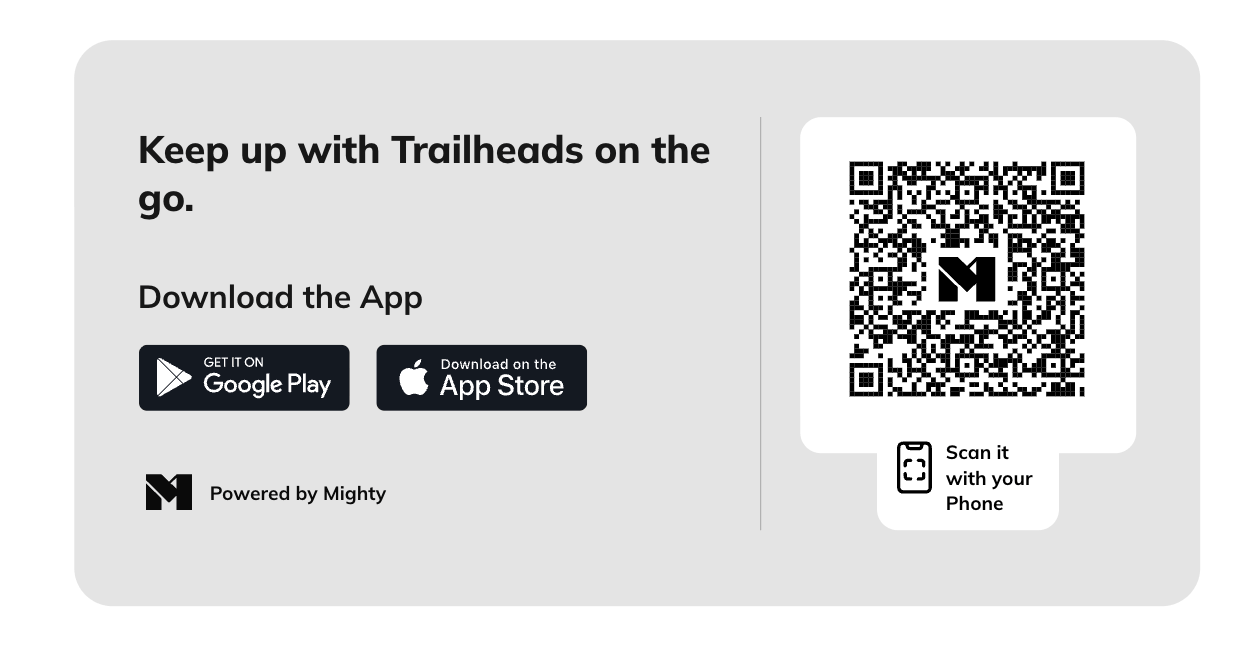
You can also download the app directly from your **Personal Settings** page:
1. On the web, go to **Personal Settings > Download the App.**
2. Open your phone’s camera and scan the QR code that appears.
3. Follow the link to download the app for your Mighty Network.
[ ](/images/for-members/explore-mighty/can-i-access-my-mighty-network-from-an-app/Screenshot-2025-11-06-at-2_34_37-E2-80-AFPM.png)
To see which devices support our app, [check out this guide here](https://docs.mightynetworks.com/for-members/account-and-purchases/browser-and-device-support).
## Finding Your Mighty Network on the Mobile Apps
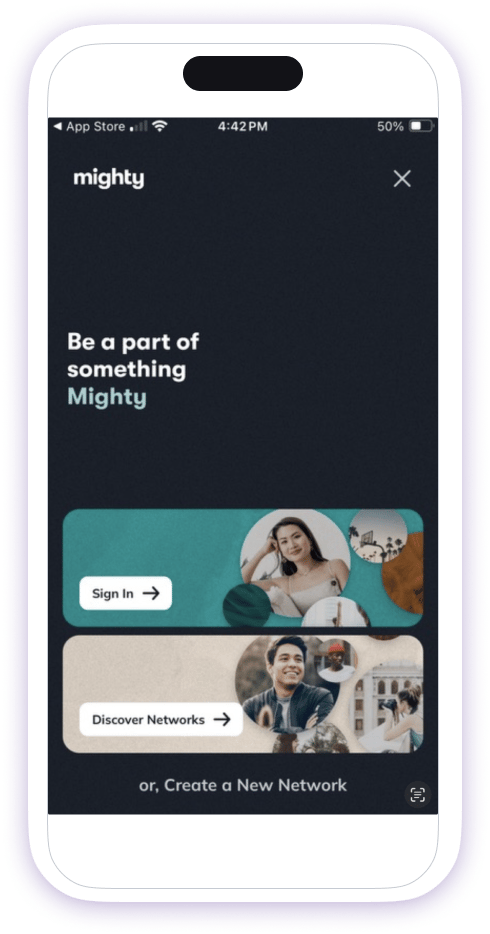
After you’ve installed the app, you’ll see two options when you open it: **Sign In** or **Discover Networks.**
* **Sign In**: Enter your email to receive a link to all Mighty Networks you’re part of.
* **Discover Networks**: Search for your Mighty Network by name and sign in when prompted.
Once you’ve signed in, the app will remember your Mighty Network until you log out.
[
](/images/for-members/explore-mighty/can-i-access-my-mighty-network-from-an-app/Screenshot-2025-11-06-at-2_34_37-E2-80-AFPM.png)
To see which devices support our app, [check out this guide here](https://docs.mightynetworks.com/for-members/account-and-purchases/browser-and-device-support).
## Finding Your Mighty Network on the Mobile Apps
After you’ve installed the app, you’ll see two options when you open it: **Sign In** or **Discover Networks.**
* **Sign In**: Enter your email to receive a link to all Mighty Networks you’re part of.
* **Discover Networks**: Search for your Mighty Network by name and sign in when prompted.
Once you’ve signed in, the app will remember your Mighty Network until you log out.
[ ](/images/for-members/explore-mighty/can-i-access-my-mighty-network-from-an-app/new-app-sign-in.png)
To join another Mighty Network:
1. Open the left navigation panel.
2. Tap **Switch Networks.**
3. Select the **+** button to search for and add another Mighty Network.
## Accessing Hidden Mighty Networks
If your Mighty Network's [privacy](https://docs.mightynetworks.com/for-hosts/setting-up-your-network/how-do-i-set-the-privacy-settings-for-my-network) setting is **Only invited members can see and find it**, it won't appear in the app's search results.
To access your hidden Network:
1. Log in to your Mighty Network using your **mobile web browser.**
2. Tap the prompt at the bottom that says **View in App.**
3. Follow the link to open your Mighty Network in the app.
You’ll only need to do this the first time you visit.
## Enabling Mobile Push Notifications
Mobile Push notifications are **off by default.**
To turn them on:
1. Download the **Mighty Networks App.**
2. On the web, click **Download App** to generate a QR code, then scan it with your phone.
3. After downloading, you’ll be prompted to **enable notifications.**
To manage them later, go to **Profile Picture > Personal Settings > Notifications** and toggle **Mobile Push** on or off.
If you previously denied notifications, go to your **device settings** to manually enable them.
## Internet Connection Requirements
Course and video content require an active internet connection. Members must be connected to **Wi-Fi** or within a **cellular data range** to access content. Offline access is not currently supported.
](/images/for-members/explore-mighty/can-i-access-my-mighty-network-from-an-app/new-app-sign-in.png)
To join another Mighty Network:
1. Open the left navigation panel.
2. Tap **Switch Networks.**
3. Select the **+** button to search for and add another Mighty Network.
## Accessing Hidden Mighty Networks
If your Mighty Network's [privacy](https://docs.mightynetworks.com/for-hosts/setting-up-your-network/how-do-i-set-the-privacy-settings-for-my-network) setting is **Only invited members can see and find it**, it won't appear in the app's search results.
To access your hidden Network:
1. Log in to your Mighty Network using your **mobile web browser.**
2. Tap the prompt at the bottom that says **View in App.**
3. Follow the link to open your Mighty Network in the app.
You’ll only need to do this the first time you visit.
## Enabling Mobile Push Notifications
Mobile Push notifications are **off by default.**
To turn them on:
1. Download the **Mighty Networks App.**
2. On the web, click **Download App** to generate a QR code, then scan it with your phone.
3. After downloading, you’ll be prompted to **enable notifications.**
To manage them later, go to **Profile Picture > Personal Settings > Notifications** and toggle **Mobile Push** on or off.
If you previously denied notifications, go to your **device settings** to manually enable them.
## Internet Connection Requirements
Course and video content require an active internet connection. Members must be connected to **Wi-Fi** or within a **cellular data range** to access content. Offline access is not currently supported.