> ## Documentation Index
> Fetch the complete documentation index at: https://docs.mightynetworks.com/llms.txt
> Use this file to discover all available pages before exploring further.
# How Do I Chat With Other Members?
**Chat** is a simple, powerful way for you to connect with other members and keep conversations flowing—whether it’s one-on-one or in a group of any size.
## Types of Chat
* **Private chats** between 2 members
* **Group chats** with no limit on how many members you can add
* **Space chats** connecting inside of a Space
## Private Chat
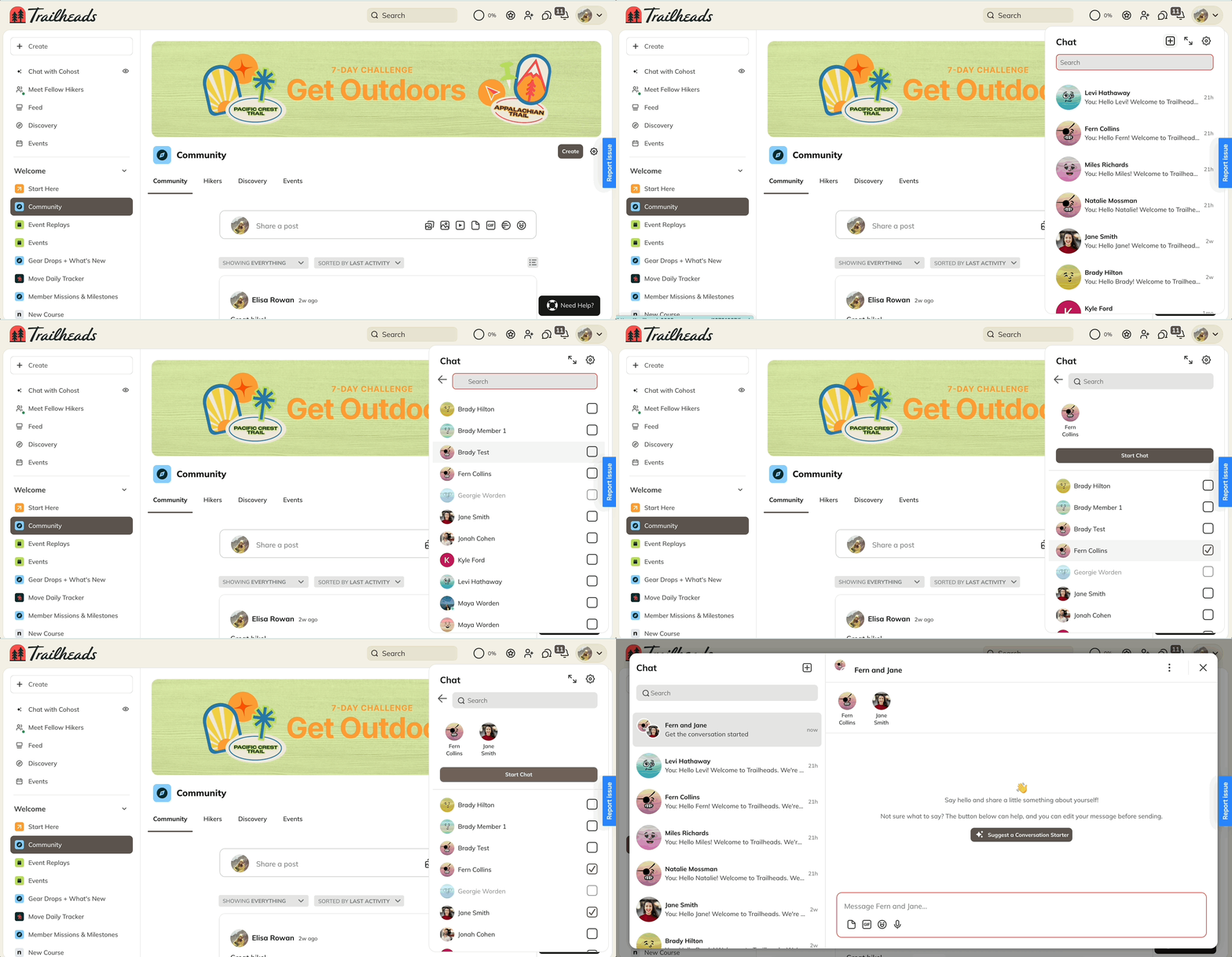
To start a chat with a member:
* Click the **chat** icon in the upper right corner.
* Select **+** to start a new chat.
* Search for and select the member you want to include.
* Click **Start Chat**
You can also start a private chat by visiting a member’s profile and selecting **Chat**.
## **Group Chat**
* Click the **chat** icon in the upper right corner.
* Select **+** to start a new chat.
* Search for and select the member you want to include.
* You will be able to add up to 50 members at a time, however there is no limit to how many people can be in a group chat.
## Managing a Conversation
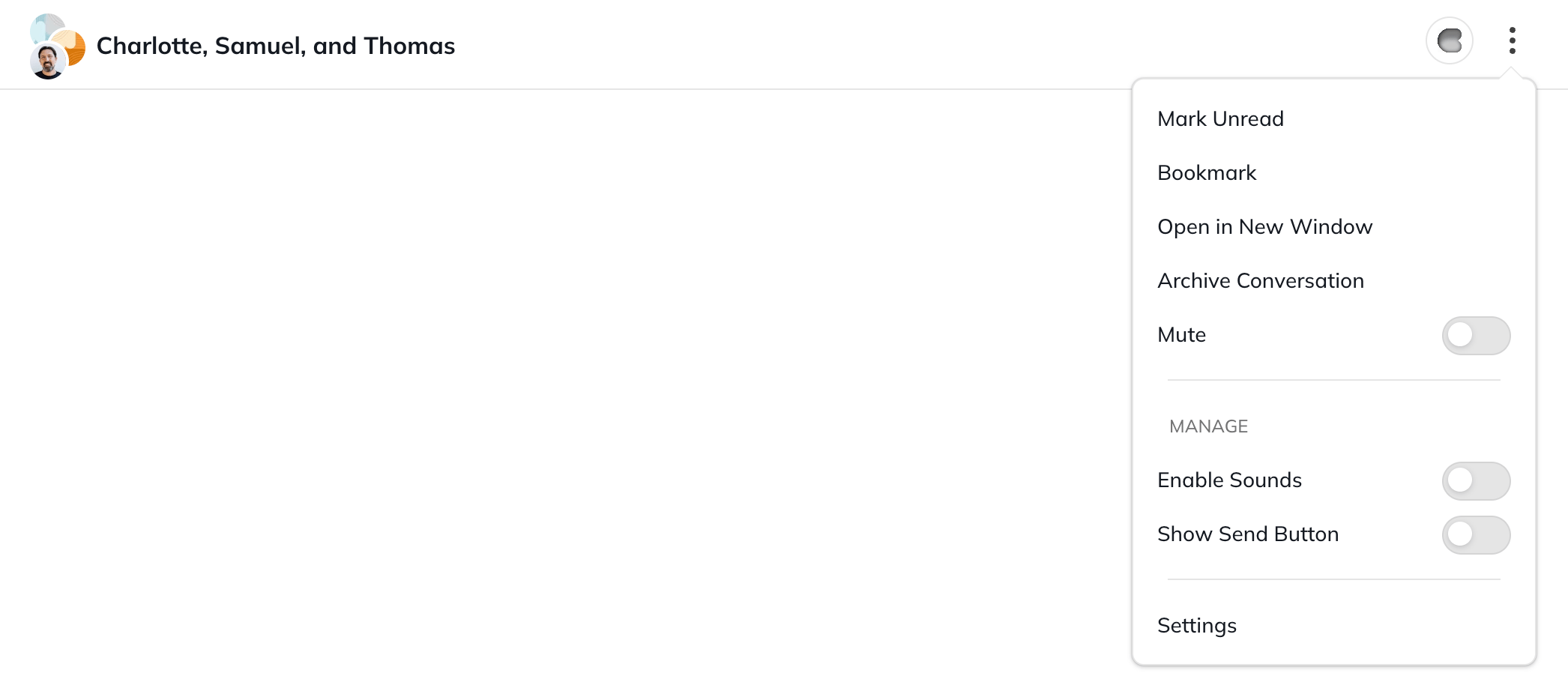
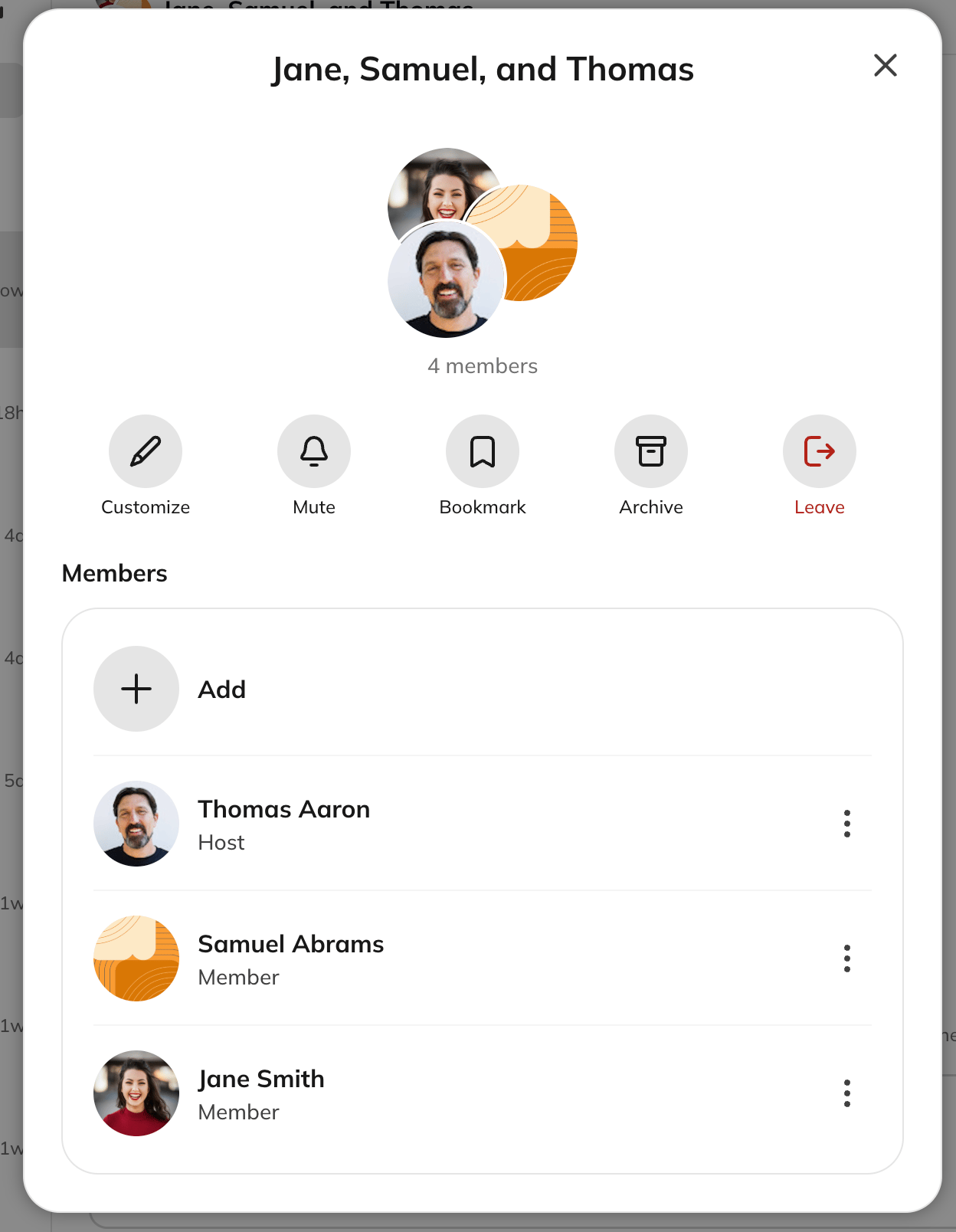
* Click on the three dot menu > Settings to see options to:
* **Customize** the name of the chat
* **Add/remove** people
* **Mute** the conversation
* **Bookmark** the conversation
* **Archive** the conversation
* **Leave** the conversation
* Any participant can do this, including in a 1:1 chat.
## Adding and Removing Members
### Adding Members
Go to conversation settings in the three dot menu and select the **+** icon to add up to 50 people at a time. There’s no limit on how large a group chat can grow.
The list won’t show people who are already in the chat, have private chat disabled, are blocked, or are limited members.
If a conversation with the same people already exists, we’ll ask whether you want to add them there or start a new conversation.
**Added members:**
* See the full conversation history from the beginning of the chat when they join
* Won’t get notified that they were added, but they’ll see an unread count on their chat icon for any messages they haven’t viewed yet
### Removing Members
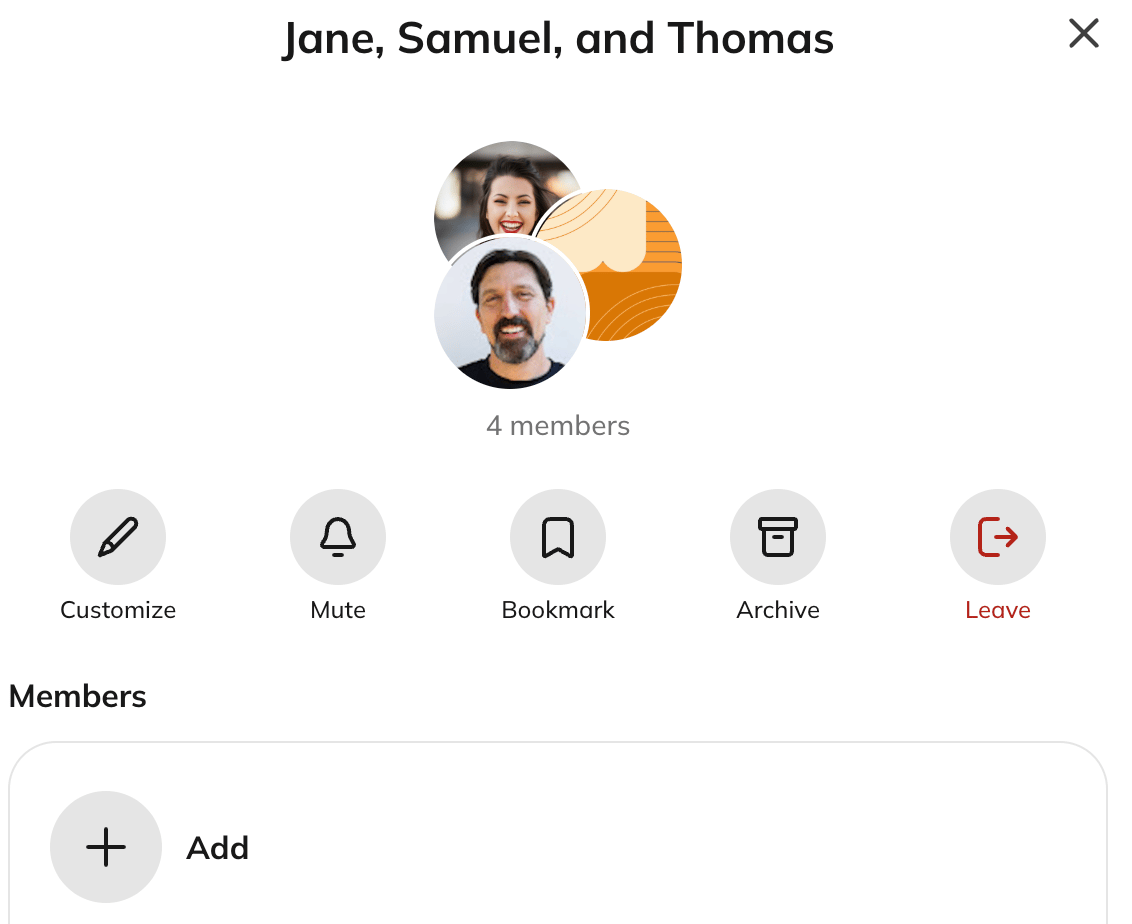
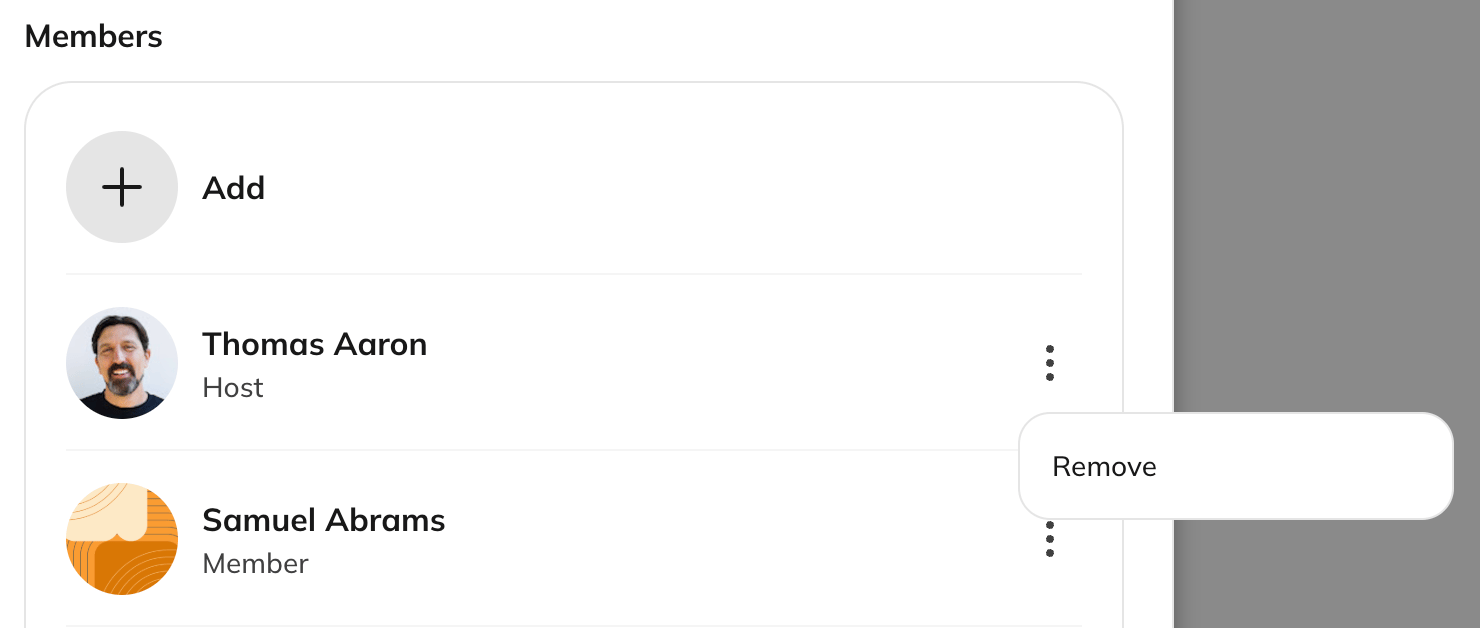
Any member can select and remove another member from the conversation by clicking the three dot menu next to their name:
**Removed Members**
* Won't get notified that they were removed
* If they happen to be inside the conversation when it happens, they’ll see a message that they’re no longer part of the chat. The conversation disappears from their list the next time they navigate away or refresh.
## System Messages
When someone is added, removed, leaves, or renames a conversation, everyone in the chat sees a message describing what changed.
## **Space Chat**
Inside of each Space, there is the ability to chat with other members.
Depending on the type of community you're a part of, your Host may or may not have this feature flipped on.
You’ll see Space chat notifications:
* As a number indicator in the left navigation next to the Space
* In your **conversation list**
To learn how to manage the chat messages in the conversation list, check out the article "[How Do I Manage My Chat Messages?](https://faq.mightynetworks.com/en/articles/9354575-how-do-i-manage-my-chat-messages)"
You can delete messages by hovering over them and selecting **Delete**.
## **Ways to Interact in Chat**
## **Voice Notes**
You can record and send voice notes (up to 10 minutes) in any type of chat on web or mobile.
**Voice notes** also come with:
* Transcripts (with non-English language detection)
* Playback speed control
## **@ Mentions**
In all types of chats, you can @ mention people by typing “@” followed by their name.
When you mention someone in a chat, they’ll get an in-app and mobile push notification.
If you mention someone who doesn’t have access to the chat, you’ll see an error message:
“This member will not be notified because they are not a member of this Chat.”
## **Chat Replies**
**Replies** help keep conversations organized, easier to follow, and more fun.
You can reply in Space, private, or group chats by selecting the **reply** icon.
When enabled, replies trigger in-app and push notifications.
Chat threads also appear in your **conversation list** and begin with “Replies to.”
To learn more, see [**How Do I Manage My Chat Messages?**](https://docs.mightynetworks.com/for-hosts/content-and-messaging/how-do-i-manage-my-chat-messages#how-do-i-manage-my-chat-messages)
## **GIFs and Emoji Reactions**
React with [GIFs or emojis](https://docs.mightynetworks.com/for-members/engage-and-interact/how-do-i-post-in-a-mighty-network#hashtags-gifs-and-emojis) by simply selecting the icons!
## **Add Files**
You can also add files locally from your computer to a chat!
## **Start a Conversation**
If your Host has this AI feature enabled, then you will see the option to “Suggest a Conversation Starter”.
When opening a direct message or group chat with someone you haven’t chatted with before, select **Suggest a Conversation Starter**.
You’ll see a draft message based on your profiles and shared interests—you can send it as-is, edit it, or select **Try Again** for a new suggestion.
## **Turning Chat On or Off**
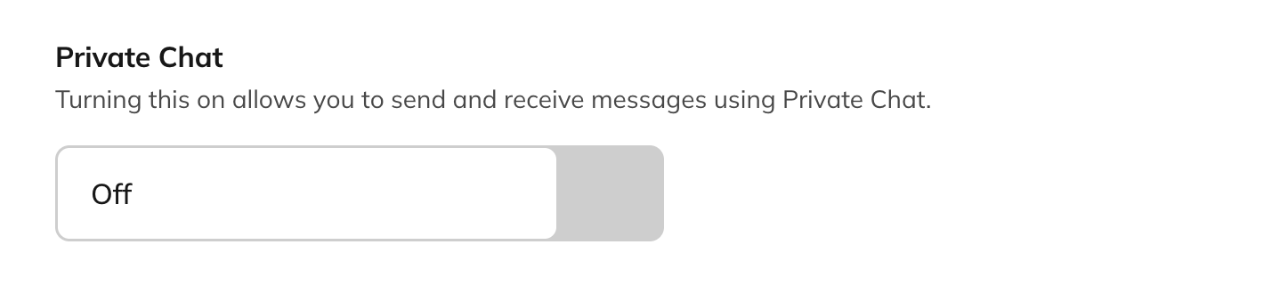
Your Host may have also allow you to turn off your individual private chat.
If that's an option, you will be able to see it in your [**Personal Settings**](https://faq.mightynetworks.com/en/articles/9953997-how-do-i-manage-my-personal-settings)\*\* > Chat.\*\*
Because any participant can add someone to a conversation, a 1:1 chat isn’t guaranteed to stay just between 2 people unless everyone in it chooses to keep it that way.
 ## **Group Chat**
* Click the **chat** icon in the upper right corner.
* Select **+** to start a new chat.
* Search for and select the member you want to include.
* You will be able to add up to 50 members at a time, however there is no limit to how many people can be in a group chat.
## Managing a Conversation
* Click on the three dot menu > Settings to see options to:
* **Customize** the name of the chat
* **Add/remove** people
* **Mute** the conversation
* **Bookmark** the conversation
* **Archive** the conversation
* **Leave** the conversation
* Any participant can do this, including in a 1:1 chat.
## **Group Chat**
* Click the **chat** icon in the upper right corner.
* Select **+** to start a new chat.
* Search for and select the member you want to include.
* You will be able to add up to 50 members at a time, however there is no limit to how many people can be in a group chat.
## Managing a Conversation
* Click on the three dot menu > Settings to see options to:
* **Customize** the name of the chat
* **Add/remove** people
* **Mute** the conversation
* **Bookmark** the conversation
* **Archive** the conversation
* **Leave** the conversation
* Any participant can do this, including in a 1:1 chat.
 ## Adding and Removing Members
### Adding Members
Go to conversation settings in the three dot menu and select the **+** icon to add up to 50 people at a time. There’s no limit on how large a group chat can grow.
## Adding and Removing Members
### Adding Members
Go to conversation settings in the three dot menu and select the **+** icon to add up to 50 people at a time. There’s no limit on how large a group chat can grow.
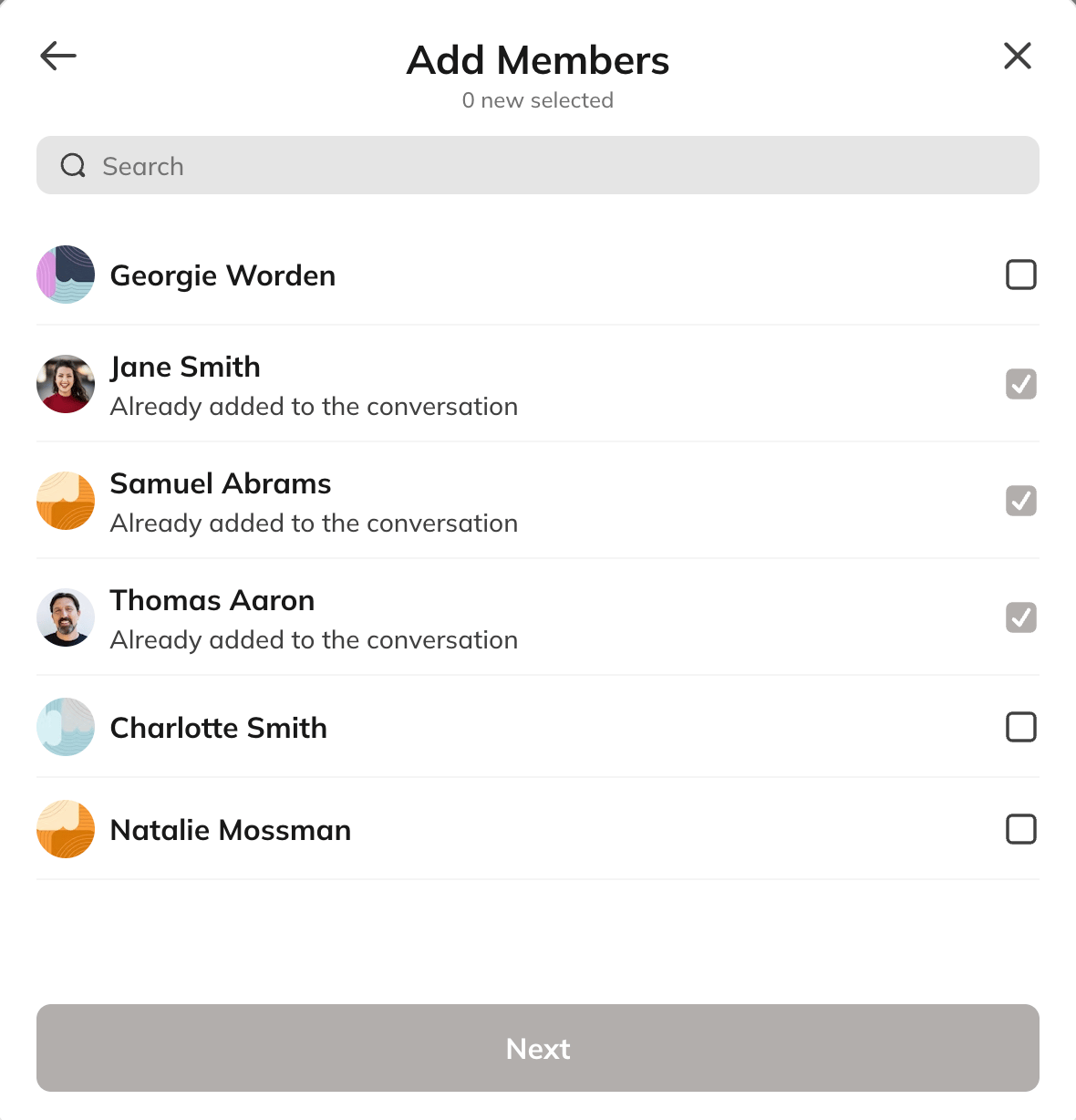 The list won’t show people who are already in the chat, have private chat disabled, are blocked, or are limited members.
If a conversation with the same people already exists, we’ll ask whether you want to add them there or start a new conversation.
**Added members:**
* See the full conversation history from the beginning of the chat when they join
* Won’t get notified that they were added, but they’ll see an unread count on their chat icon for any messages they haven’t viewed yet
### Removing Members
Any member can select and remove another member from the conversation by clicking the three dot menu next to their name:
The list won’t show people who are already in the chat, have private chat disabled, are blocked, or are limited members.
If a conversation with the same people already exists, we’ll ask whether you want to add them there or start a new conversation.
**Added members:**
* See the full conversation history from the beginning of the chat when they join
* Won’t get notified that they were added, but they’ll see an unread count on their chat icon for any messages they haven’t viewed yet
### Removing Members
Any member can select and remove another member from the conversation by clicking the three dot menu next to their name:
 **Removed Members**
* Won't get notified that they were removed
* If they happen to be inside the conversation when it happens, they’ll see a message that they’re no longer part of the chat. The conversation disappears from their list the next time they navigate away or refresh.
## System Messages
When someone is added, removed, leaves, or renames a conversation, everyone in the chat sees a message describing what changed.
## **Space Chat**
Inside of each Space, there is the ability to chat with other members.
Depending on the type of community you're a part of, your Host may or may not have this feature flipped on.
You’ll see Space chat notifications:
* As a number indicator in the left navigation next to the Space
* In your **conversation list**
To learn how to manage the chat messages in the conversation list, check out the article "[How Do I Manage My Chat Messages?](https://faq.mightynetworks.com/en/articles/9354575-how-do-i-manage-my-chat-messages)"
You can delete messages by hovering over them and selecting **Delete**.
## **Ways to Interact in Chat**
## **Voice Notes**
You can record and send voice notes (up to 10 minutes) in any type of chat on web or mobile.
**Removed Members**
* Won't get notified that they were removed
* If they happen to be inside the conversation when it happens, they’ll see a message that they’re no longer part of the chat. The conversation disappears from their list the next time they navigate away or refresh.
## System Messages
When someone is added, removed, leaves, or renames a conversation, everyone in the chat sees a message describing what changed.
## **Space Chat**
Inside of each Space, there is the ability to chat with other members.
Depending on the type of community you're a part of, your Host may or may not have this feature flipped on.
You’ll see Space chat notifications:
* As a number indicator in the left navigation next to the Space
* In your **conversation list**
To learn how to manage the chat messages in the conversation list, check out the article "[How Do I Manage My Chat Messages?](https://faq.mightynetworks.com/en/articles/9354575-how-do-i-manage-my-chat-messages)"
You can delete messages by hovering over them and selecting **Delete**.
## **Ways to Interact in Chat**
## **Voice Notes**
You can record and send voice notes (up to 10 minutes) in any type of chat on web or mobile.
 **Voice notes** also come with:
* Transcripts (with non-English language detection)
* Playback speed control
## **@ Mentions**
In all types of chats, you can @ mention people by typing “@” followed by their name.
**Voice notes** also come with:
* Transcripts (with non-English language detection)
* Playback speed control
## **@ Mentions**
In all types of chats, you can @ mention people by typing “@” followed by their name.
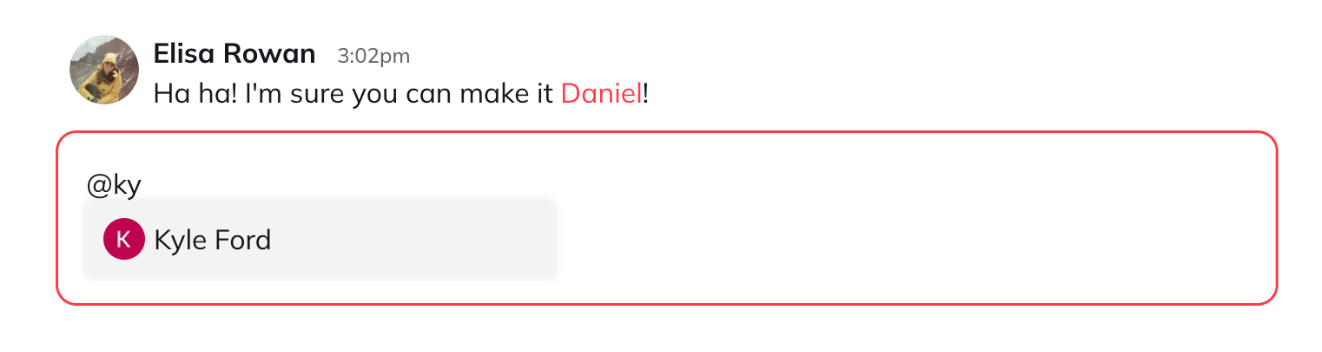 When you mention someone in a chat, they’ll get an in-app and mobile push notification.
If you mention someone who doesn’t have access to the chat, you’ll see an error message:
“This member will not be notified because they are not a member of this Chat.”
## **Chat Replies**
**Replies** help keep conversations organized, easier to follow, and more fun.
You can reply in Space, private, or group chats by selecting the **reply** icon.
When enabled, replies trigger in-app and push notifications.
When you mention someone in a chat, they’ll get an in-app and mobile push notification.
If you mention someone who doesn’t have access to the chat, you’ll see an error message:
“This member will not be notified because they are not a member of this Chat.”
## **Chat Replies**
**Replies** help keep conversations organized, easier to follow, and more fun.
You can reply in Space, private, or group chats by selecting the **reply** icon.
When enabled, replies trigger in-app and push notifications.
 Chat threads also appear in your **conversation list** and begin with “Replies to.”
To learn more, see [**How Do I Manage My Chat Messages?**](https://docs.mightynetworks.com/for-hosts/content-and-messaging/how-do-i-manage-my-chat-messages#how-do-i-manage-my-chat-messages)
## **GIFs and Emoji Reactions**
React with [GIFs or emojis](https://docs.mightynetworks.com/for-members/engage-and-interact/how-do-i-post-in-a-mighty-network#hashtags-gifs-and-emojis) by simply selecting the icons!
Chat threads also appear in your **conversation list** and begin with “Replies to.”
To learn more, see [**How Do I Manage My Chat Messages?**](https://docs.mightynetworks.com/for-hosts/content-and-messaging/how-do-i-manage-my-chat-messages#how-do-i-manage-my-chat-messages)
## **GIFs and Emoji Reactions**
React with [GIFs or emojis](https://docs.mightynetworks.com/for-members/engage-and-interact/how-do-i-post-in-a-mighty-network#hashtags-gifs-and-emojis) by simply selecting the icons!
 ## **Add Files**
You can also add files locally from your computer to a chat!
## **Add Files**
You can also add files locally from your computer to a chat!
 ## **Start a Conversation**
If your Host has this AI feature enabled, then you will see the option to “Suggest a Conversation Starter”.
When opening a direct message or group chat with someone you haven’t chatted with before, select **Suggest a Conversation Starter**.
You’ll see a draft message based on your profiles and shared interests—you can send it as-is, edit it, or select **Try Again** for a new suggestion.
## **Turning Chat On or Off**
Your Host may have also allow you to turn off your individual private chat.
If that's an option, you will be able to see it in your [**Personal Settings**](https://faq.mightynetworks.com/en/articles/9953997-how-do-i-manage-my-personal-settings)\*\* > Chat.\*\*
## **Start a Conversation**
If your Host has this AI feature enabled, then you will see the option to “Suggest a Conversation Starter”.
When opening a direct message or group chat with someone you haven’t chatted with before, select **Suggest a Conversation Starter**.
You’ll see a draft message based on your profiles and shared interests—you can send it as-is, edit it, or select **Try Again** for a new suggestion.
## **Turning Chat On or Off**
Your Host may have also allow you to turn off your individual private chat.
If that's an option, you will be able to see it in your [**Personal Settings**](https://faq.mightynetworks.com/en/articles/9953997-how-do-i-manage-my-personal-settings)\*\* > Chat.\*\*
 Because any participant can add someone to a conversation, a 1:1 chat isn’t guaranteed to stay just between 2 people unless everyone in it chooses to keep it that way.