> ## Documentation Index
> Fetch the complete documentation index at: https://docs.mightynetworks.com/llms.txt
> Use this file to discover all available pages before exploring further.
# How Do I Create and Manage My Collections?
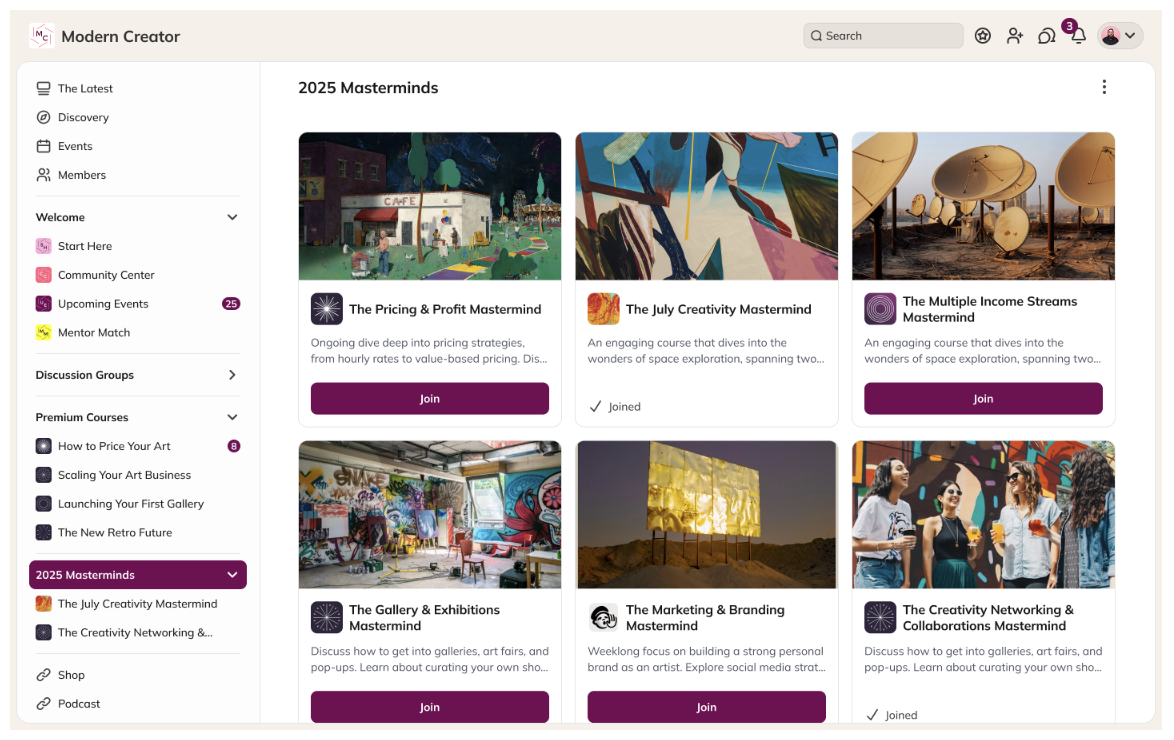
**Collections** make it easy to organize your Spaces in Mighty Networks. You can group related Spaces together, hide Collections while you’re setting things up, or feature specific Spaces or Plans for members to explore.
 ### Looking for guidance? [Chat with Cohost!](https://docs.mightynetworks.com/for-hosts/setting-up-your-network/how-do-i-chat-with-cohost#how-do-i-chat-with-cohost)
It will be able to name and create your new Collection.
## How to Create a Collection
It’s easy! You have two ways to create one:
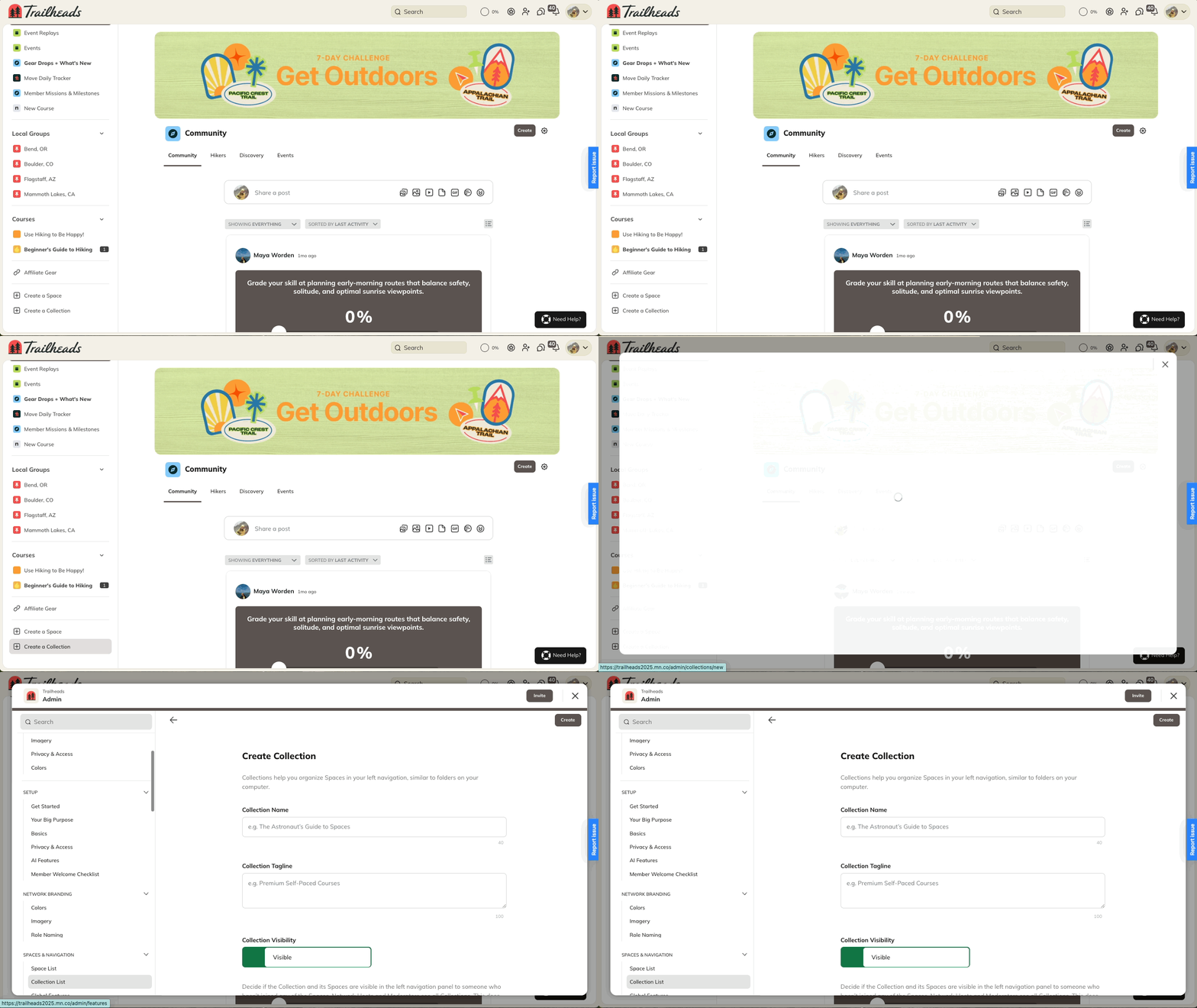
**From the main navigation:**
* Go to the bottom of the left-hand menu.
* Select **Create > Collection**.
* Add a **name** and an optional **tagline**.
### Looking for guidance? [Chat with Cohost!](https://docs.mightynetworks.com/for-hosts/setting-up-your-network/how-do-i-chat-with-cohost#how-do-i-chat-with-cohost)
It will be able to name and create your new Collection.
## How to Create a Collection
It’s easy! You have two ways to create one:
**From the main navigation:**
* Go to the bottom of the left-hand menu.
* Select **Create > Collection**.
* Add a **name** and an optional **tagline**.
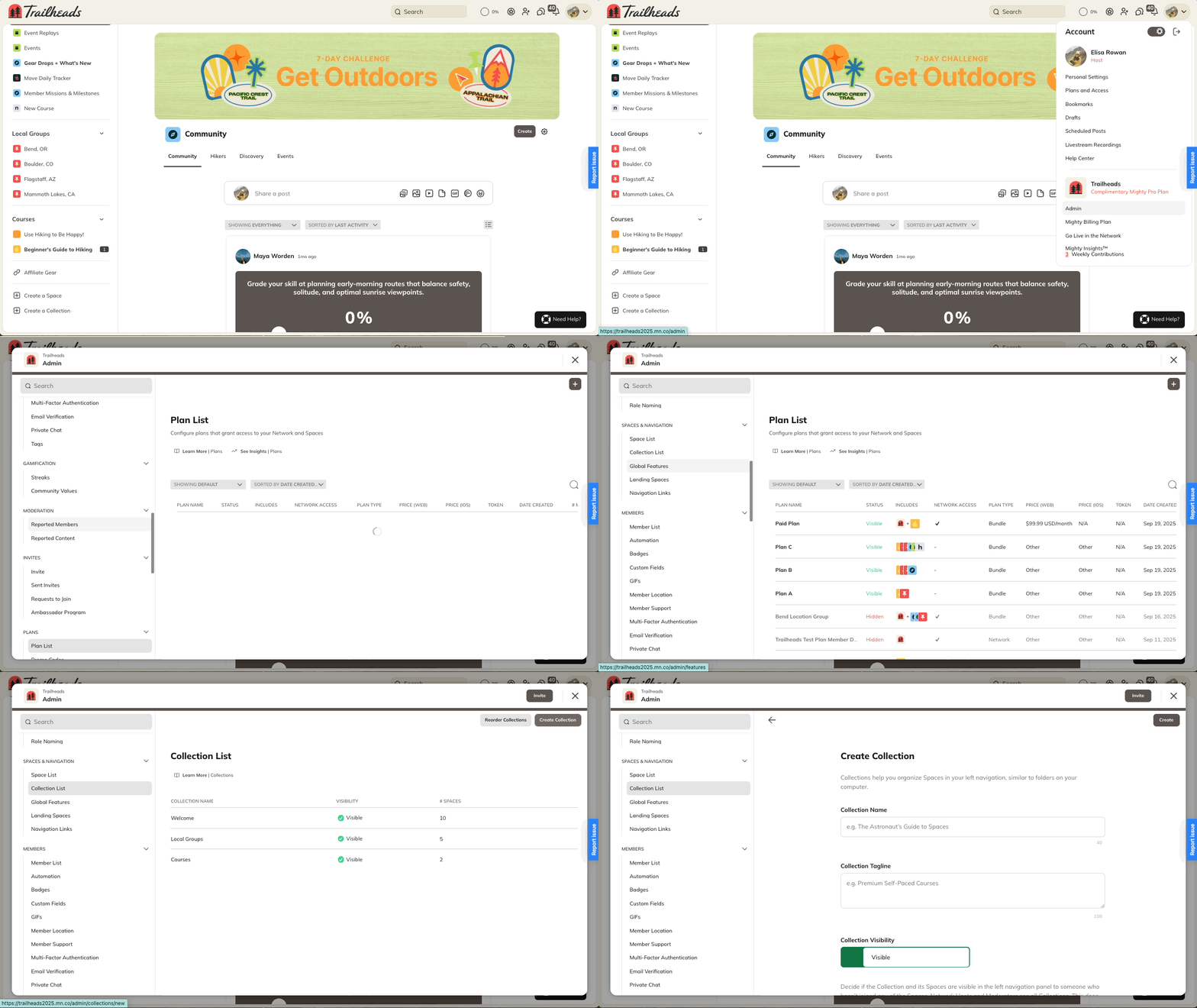
 **From Admin:**
* Go to **Admin > Spaces & Navigation > Collection List**.
* Click **Create Collection**.
**From Admin:**
* Go to **Admin > Spaces & Navigation > Collection List**.
* Click **Create Collection**.
 ## How to Access Collection Settings
Both **Network Hosts** and **Network Moderators** can access Collection Settings.
You can open **Collection Settings** in a few ways:
* Go to the Collection and click the **gear icon**.
* Go to **Admin > Spaces & Navigation > Collection List**, then use the **three-dot menu > Manage Collection**.
* From the left-hand navigation, **hover over the Collection name** and click the **three-dot menu > Manage Collection**.
**Note:** The images and videos shown in a Collection come from the [primary image or video](https://docs.mightynetworks.com/for-hosts/setting-up-your-network/how-do-i-set-up-my-space-branding) for each Space.
## Collection Details
In **Collection Details**, you can:
* Rename the Collection
* Add or edit a tagline
* Hide or delete the Collection
## Reordering
You can reorder both **Spaces within a Collection** and **Collections themselves**:
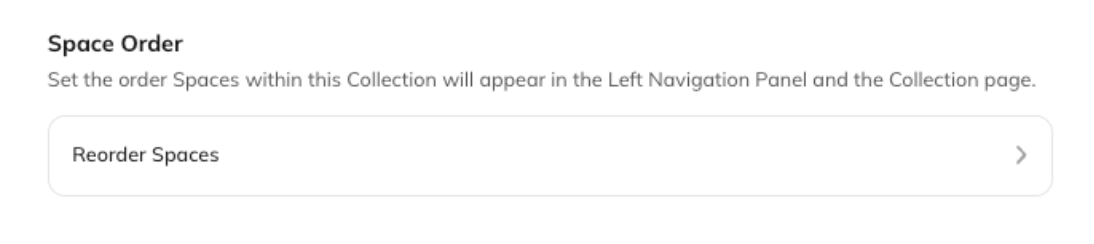
* **Reorder Spaces:**
* Go to Drag and drop them in the order you want.
## How to Access Collection Settings
Both **Network Hosts** and **Network Moderators** can access Collection Settings.
You can open **Collection Settings** in a few ways:
* Go to the Collection and click the **gear icon**.
* Go to **Admin > Spaces & Navigation > Collection List**, then use the **three-dot menu > Manage Collection**.
* From the left-hand navigation, **hover over the Collection name** and click the **three-dot menu > Manage Collection**.
**Note:** The images and videos shown in a Collection come from the [primary image or video](https://docs.mightynetworks.com/for-hosts/setting-up-your-network/how-do-i-set-up-my-space-branding) for each Space.
## Collection Details
In **Collection Details**, you can:
* Rename the Collection
* Add or edit a tagline
* Hide or delete the Collection
## Reordering
You can reorder both **Spaces within a Collection** and **Collections themselves**:
* **Reorder Spaces:**
* Go to Drag and drop them in the order you want.
 * **Reorder Collections:**
* Go to **Admin > Spaces & Navigation > Collection List > Reorder Collections**.
## Collection Visibility
Hiding a Collection controls whether it appears in the left-hand menu for members who haven’t joined any Spaces inside it.
* **Hosts and Moderators** always see all Collections.
* Hiding a Collection doesn’t change the [**privacy**](https://docs.mightynetworks.com/for-hosts/setting-up-your-network/how-do-i-set-the-privacy-settings-for-a-space) of the Spaces inside.
**Possible reasons to hide Collections:**
* Hide Collections as a **staging area** for Spaces you’re still building.
* Create a **Collection** just for Hosts and Moderators to coordinate.
## Deleting or Sharing a Collection
* **Delete:** Go to **Manage Collection Settings** or use the **three-dot menu > Delete**.
* **Share:** In the **three-dot menu**, select **Share** to copy a direct link.
* This link shows members all the Spaces within the Collection.
Collections themselves don’t have privacy settings — but the Spaces inside them do. If you want to sell access to Spaces in a Collection, check out [**“How do I Create a Plan?”**](https://docs.mightynetworks.com/for-hosts/payments-and-access/how-do-i-create-a-plan)
If a member sees a **“See More”** prompt under a Collection after joining all visible Spaces, it means the Collection has hidden Spaces they can’t access.
## Featuring Plans or Spaces
You can highlight **Plans or Spaces** within a Collection:
* **To feature Plans:**
* Go to **Manage Collection** > **Reorder Spaces and select the Plans Carousel**
* Members will see a scrolling row of featured plans.
* **Reorder Collections:**
* Go to **Admin > Spaces & Navigation > Collection List > Reorder Collections**.
## Collection Visibility
Hiding a Collection controls whether it appears in the left-hand menu for members who haven’t joined any Spaces inside it.
* **Hosts and Moderators** always see all Collections.
* Hiding a Collection doesn’t change the [**privacy**](https://docs.mightynetworks.com/for-hosts/setting-up-your-network/how-do-i-set-the-privacy-settings-for-a-space) of the Spaces inside.
**Possible reasons to hide Collections:**
* Hide Collections as a **staging area** for Spaces you’re still building.
* Create a **Collection** just for Hosts and Moderators to coordinate.
## Deleting or Sharing a Collection
* **Delete:** Go to **Manage Collection Settings** or use the **three-dot menu > Delete**.
* **Share:** In the **three-dot menu**, select **Share** to copy a direct link.
* This link shows members all the Spaces within the Collection.
Collections themselves don’t have privacy settings — but the Spaces inside them do. If you want to sell access to Spaces in a Collection, check out [**“How do I Create a Plan?”**](https://docs.mightynetworks.com/for-hosts/payments-and-access/how-do-i-create-a-plan)
If a member sees a **“See More”** prompt under a Collection after joining all visible Spaces, it means the Collection has hidden Spaces they can’t access.
## Featuring Plans or Spaces
You can highlight **Plans or Spaces** within a Collection:
* **To feature Plans:**
* Go to **Manage Collection** > **Reorder Spaces and select the Plans Carousel**
* Members will see a scrolling row of featured plans.
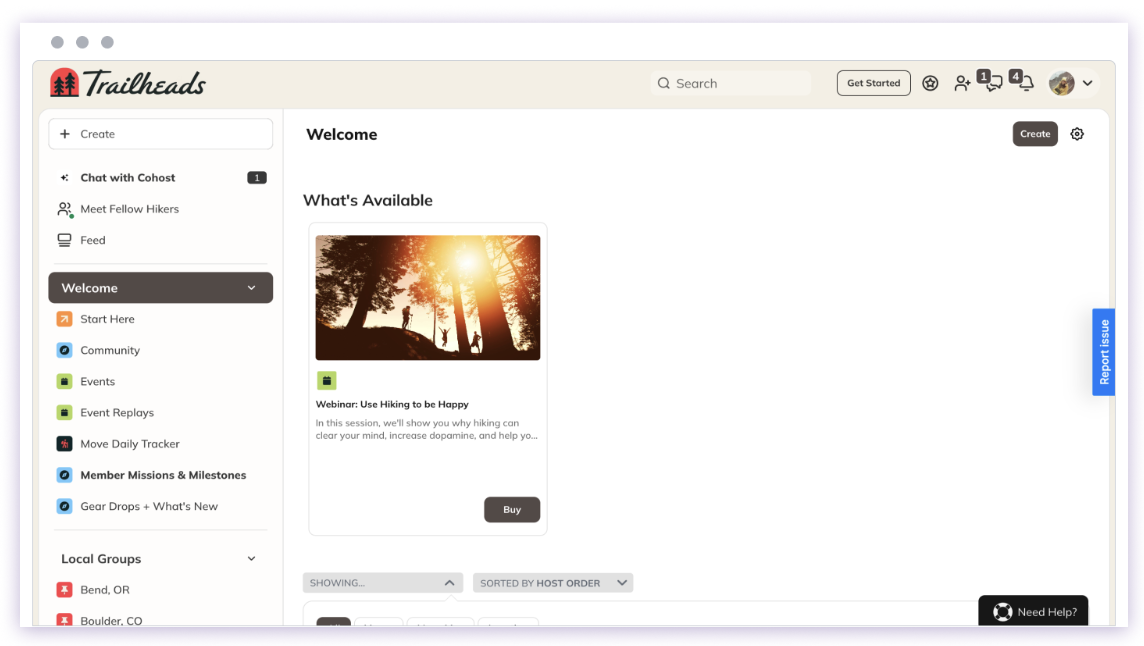 * **To feature Spaces:**
* Click the **three-dot menu** next to a Space and choose **Add this to > Featured Section**.
## Collection Limits
You can have up to **30 Collections** in your Mighty Network. Once your Collections are set up, start **adding Spaces** to them to organize your community.
* **To feature Spaces:**
* Click the **three-dot menu** next to a Space and choose **Add this to > Featured Section**.
## Collection Limits
You can have up to **30 Collections** in your Mighty Network. Once your Collections are set up, start **adding Spaces** to them to organize your community.