> ## Documentation Index
> Fetch the complete documentation index at: https://docs.mightynetworks.com/llms.txt
> Use this file to discover all available pages before exploring further.
# How Do I Manage My Leads?
Network Hosts and moderators can manage everyone who hasn't joined their Mighty Network yet from one place: the Leads page. This includes people you've invited, people waiting on approval for a plan with [screening questions](https://docs.mightynetworks.com/for-hosts/payments-and-access/can-i-set-up-questions-and-approval-for-my-members), and people who've signed up for a [waitlist](https://docs.mightynetworks.com/for-hosts/payments-and-access/how-do-i-create-a-waitlist).
### How to Find the Leads Page
To manage your leads, go to **Admin > Members > Leads**.
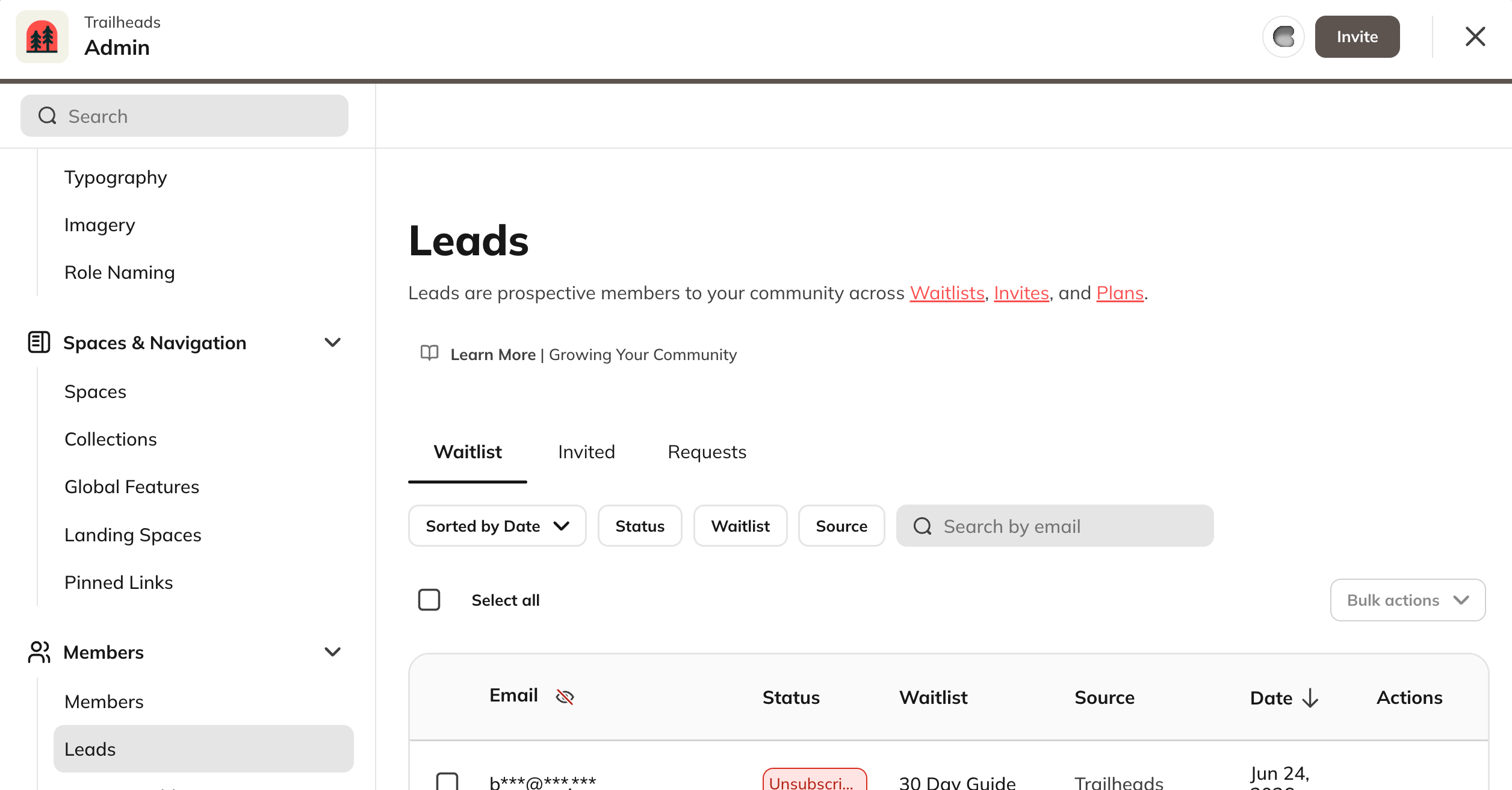 You can use the **search bar** to find a specific lead by name or email.
From here, you can manage 3 types of leads: **Sent Invites**, **Requests to Join**, and **Waitlist Leads**.
### Sent Invites
#### Sorting Options
You can sort your invite list by:
* **Last Updated:** Newest or Oldest (default)
* **Invited At:** Newest or Oldest (based on when the invite was created)
* **Name:** A–Z or Z–A (by recipient first name)
#### Filters
You can filter your invite list by:
* **Status:** Sent, Opened, Clicked, Joined, Stale, Bounced, Spam, or Unsubscribed
* **Reminded:** Yes (invites that have been resent) or No (invites sent only once)
* **Invite To:** Filter by specific Plans that have associated invites
You can select multiple options within each filter to see invites matching any of your selections.
#### Definition of Statuses
**Invite Sent**
* The invitee was sent an email invitation.
* **Actions you can take:** Open the three-dot menu next to the person's name to **Remind** (resend the invitation immediately) or **Revoke** (cancel the invitation; if they click the link, they'll be redirected to your landing page).
**Clicked**
* The invitee clicked the invitation link but didn't complete creating a profile.
* **Actions you can take:** Use the three-dot menu to **Remind** or **Revoke** the invitation.
**Joined**
* The invitee accepted the invitation and joined your Mighty Network.
* **Actions you can take:** Select the three-dot menu to **View Profile**.
**Reminder Sent**
* Once an invite is sent, Mighty Networks automatically delivers up to 3 reminders — after 3, 10, and 30 days.
* **Actions you can take:** You can still manually **Remind** or **Revoke** the invitation from the three-dot menu.
**Stale**
* After the final reminder (30 days), the invitation becomes "Stale." The invite link becomes invalid 30 days later.
* **Actions you can take:** Choose **Invite Again** to resend or **Revoke** to cancel. If your original invitation included a custom message, it will be reused when you resend.
**Unsubscribed**
* The invitee unsubscribed from Mighty Networks emails and didn't receive the invitation.
* **Actions you can take:** Contact the Mighty Networks Team via the **Need Help?** button (bottom right corner when logged in on web) or email [**help@mightynetworks.com**](mailto:help@mightynetworks.com).
**Invalid**
* The invitation wasn't delivered because the email address was invalid.
* **Actions you can take:** Contact the Mighty Networks Team for assistance.
**Revoked**
* The invitation was revoked, and the join link no longer works. The invitee won't receive a notification.
* **Actions you can take:** Choose **Invite Again** to resend. If the original invitation had a custom message, it will be reused.
**Spam**
* The invitee marked your invitation as spam in their email provider.
* **Actions you can take:** Contact the Mighty Networks Team via **Need Help?** or email [**help@mightynetworks.com**](mailto:help@mightynetworks.com).
#### Preventing Spam and Invalid Invites
Mighty Networks takes spam prevention seriously, and we have several mechanisms in place to protect Hosts and members from abuse of our system.
When inviting new members to join your Mighty Network, always start with a **clean, verified list of email addresses**. This helps ensure that your invites are sent quickly and reliably.
If the list you upload includes invalid email addresses, addresses that bounce, or addresses from suspicious domains, your invites will be automatically **flagged and not sent**. When this happens, you'll receive a **notification** letting you know that your invite list needs to be cleaned and validated before sending again.
If you'd prefer to skip email validation altogether, you can share your **Invite Link** directly through a third-party email platform such as **Mailchimp** or **Kit** for faster delivery.
#### How to Validate Email Addresses
Mighty Networks cannot validate or reveal which specific email addresses were flagged. However, you can use a third-party validation service to clean your list before sending more invites.
Both of the options below are **GDPR compliant**:
* **DeBounce:** Identifies bounced, disposable, or deactivated emails.
* **NeverBounce:** Offers bulk list cleaning and automated email verification.
After validating your list, try sending your invites again through your Mighty Network.
### Requests to Join
If you've added [screening questions or approval](https://docs.mightynetworks.com/for-hosts/payments-and-access/can-i-set-up-questions-and-approval-for-my-members) requirements to any plan, you can manage requests to join from the Leads page.
In this table, you'll see each person's first name, last name, email, date requested, plan name, and status. You can also view their answers if screening questions are enabled.
From here, you can:
* **Approve** or **Decline** requests (use the three-dot menu to decline).
* **View Answers** for anyone who completed screening questions.
* See who has already **Joined** your Mighty Network.
#### Who Can Approve Requests
* **Network Hosts** can view and approve all requests across the Network.
* **Space Hosts** can only approve requests for plans that include their own Space.
* Space Hosts won't see requests for plans that include the full Network or other Spaces.
### Waitlist Leads
Everyone who signs up for a waitlist also shows up on the Leads page, so you have one place to see every prospective member, no matter how they found you.
From the Leads page, you can filter waitlist signups by:
* **Date**
* **Status**
* **Waitlist** (which waitlist they signed up for)
* **Source landing page**
On the Explore Plan and above, you can also:
* See lead emails
* Invite individual leads
* Send bulk invitations
* Download leads as a CSV
You can use the **search bar** to find a specific lead by name or email.
From here, you can manage 3 types of leads: **Sent Invites**, **Requests to Join**, and **Waitlist Leads**.
### Sent Invites
#### Sorting Options
You can sort your invite list by:
* **Last Updated:** Newest or Oldest (default)
* **Invited At:** Newest or Oldest (based on when the invite was created)
* **Name:** A–Z or Z–A (by recipient first name)
#### Filters
You can filter your invite list by:
* **Status:** Sent, Opened, Clicked, Joined, Stale, Bounced, Spam, or Unsubscribed
* **Reminded:** Yes (invites that have been resent) or No (invites sent only once)
* **Invite To:** Filter by specific Plans that have associated invites
You can select multiple options within each filter to see invites matching any of your selections.
#### Definition of Statuses
**Invite Sent**
* The invitee was sent an email invitation.
* **Actions you can take:** Open the three-dot menu next to the person's name to **Remind** (resend the invitation immediately) or **Revoke** (cancel the invitation; if they click the link, they'll be redirected to your landing page).
**Clicked**
* The invitee clicked the invitation link but didn't complete creating a profile.
* **Actions you can take:** Use the three-dot menu to **Remind** or **Revoke** the invitation.
**Joined**
* The invitee accepted the invitation and joined your Mighty Network.
* **Actions you can take:** Select the three-dot menu to **View Profile**.
**Reminder Sent**
* Once an invite is sent, Mighty Networks automatically delivers up to 3 reminders — after 3, 10, and 30 days.
* **Actions you can take:** You can still manually **Remind** or **Revoke** the invitation from the three-dot menu.
**Stale**
* After the final reminder (30 days), the invitation becomes "Stale." The invite link becomes invalid 30 days later.
* **Actions you can take:** Choose **Invite Again** to resend or **Revoke** to cancel. If your original invitation included a custom message, it will be reused when you resend.
**Unsubscribed**
* The invitee unsubscribed from Mighty Networks emails and didn't receive the invitation.
* **Actions you can take:** Contact the Mighty Networks Team via the **Need Help?** button (bottom right corner when logged in on web) or email [**help@mightynetworks.com**](mailto:help@mightynetworks.com).
**Invalid**
* The invitation wasn't delivered because the email address was invalid.
* **Actions you can take:** Contact the Mighty Networks Team for assistance.
**Revoked**
* The invitation was revoked, and the join link no longer works. The invitee won't receive a notification.
* **Actions you can take:** Choose **Invite Again** to resend. If the original invitation had a custom message, it will be reused.
**Spam**
* The invitee marked your invitation as spam in their email provider.
* **Actions you can take:** Contact the Mighty Networks Team via **Need Help?** or email [**help@mightynetworks.com**](mailto:help@mightynetworks.com).
#### Preventing Spam and Invalid Invites
Mighty Networks takes spam prevention seriously, and we have several mechanisms in place to protect Hosts and members from abuse of our system.
When inviting new members to join your Mighty Network, always start with a **clean, verified list of email addresses**. This helps ensure that your invites are sent quickly and reliably.
If the list you upload includes invalid email addresses, addresses that bounce, or addresses from suspicious domains, your invites will be automatically **flagged and not sent**. When this happens, you'll receive a **notification** letting you know that your invite list needs to be cleaned and validated before sending again.
If you'd prefer to skip email validation altogether, you can share your **Invite Link** directly through a third-party email platform such as **Mailchimp** or **Kit** for faster delivery.
#### How to Validate Email Addresses
Mighty Networks cannot validate or reveal which specific email addresses were flagged. However, you can use a third-party validation service to clean your list before sending more invites.
Both of the options below are **GDPR compliant**:
* **DeBounce:** Identifies bounced, disposable, or deactivated emails.
* **NeverBounce:** Offers bulk list cleaning and automated email verification.
After validating your list, try sending your invites again through your Mighty Network.
### Requests to Join
If you've added [screening questions or approval](https://docs.mightynetworks.com/for-hosts/payments-and-access/can-i-set-up-questions-and-approval-for-my-members) requirements to any plan, you can manage requests to join from the Leads page.
In this table, you'll see each person's first name, last name, email, date requested, plan name, and status. You can also view their answers if screening questions are enabled.
From here, you can:
* **Approve** or **Decline** requests (use the three-dot menu to decline).
* **View Answers** for anyone who completed screening questions.
* See who has already **Joined** your Mighty Network.
#### Who Can Approve Requests
* **Network Hosts** can view and approve all requests across the Network.
* **Space Hosts** can only approve requests for plans that include their own Space.
* Space Hosts won't see requests for plans that include the full Network or other Spaces.
### Waitlist Leads
Everyone who signs up for a waitlist also shows up on the Leads page, so you have one place to see every prospective member, no matter how they found you.
From the Leads page, you can filter waitlist signups by:
* **Date**
* **Status**
* **Waitlist** (which waitlist they signed up for)
* **Source landing page**
On the Explore Plan and above, you can also:
* See lead emails
* Invite individual leads
* Send bulk invitations
* Download leads as a CSV