> ## Documentation Index
> Fetch the complete documentation index at: https://docs.mightynetworks.com/llms.txt
> Use this file to discover all available pages before exploring further.
# How Do I Create an Email Newsletter?
On the [**Scale Plan**](https://docs.mightynetworks.com/for-hosts/meet-mighty/whats-included-in-the-mighty-networks-business-plan) and up, you can seamlessly integrate your [**Kit**](http://kit.com/) account with your **Mighty Network** to send customizable email newsletters, drip campaigns, and more.
With this built-in integration, you can add the following Mighty content directly into your Kit emails:
* [Plans](https://docs.mightynetworks.com/for-hosts/payments-and-access/how-do-i-create-a-plan)
* [Articles](https://docs.mightynetworks.com/for-hosts/content-and-messaging/how-do-i-create-an-article-in-my-mighty-network)
* [Events](https://docs.mightynetworks.com/for-hosts/events-and-livestream/how-do-i-create-events-in-my-mighty-network)
* [Members](https://docs.mightynetworks.com/for-hosts/admin-and-moderation/how-do-i-view-and-manage-my-members)
* Lists (e.g., Top Articles, Top Members, and Upcoming Events)
**Note:** Posts aren’t included in this integration.
**Already connected Kit?** To move to the latest version of the integration, disconnect and then reconnect from your Mighty Network under **Admin > Integrations > Kit**. Your sync settings are saved to your Network and carry over, so confirm them once you reconnect.
## Before You Begin
To use this integration, you’ll need a Kit account on the **Creator** or **Creator Pro** plan.
As a Mighty Network Host, you’ll also receive a [**30-day extended free trial**](https://app.kit.com/users/signup?promo=30MNE23) to try Kit and explore the integration.
## How to Connect Kit
You can connect from either Mighty or Kit.
### From Mighty Networks
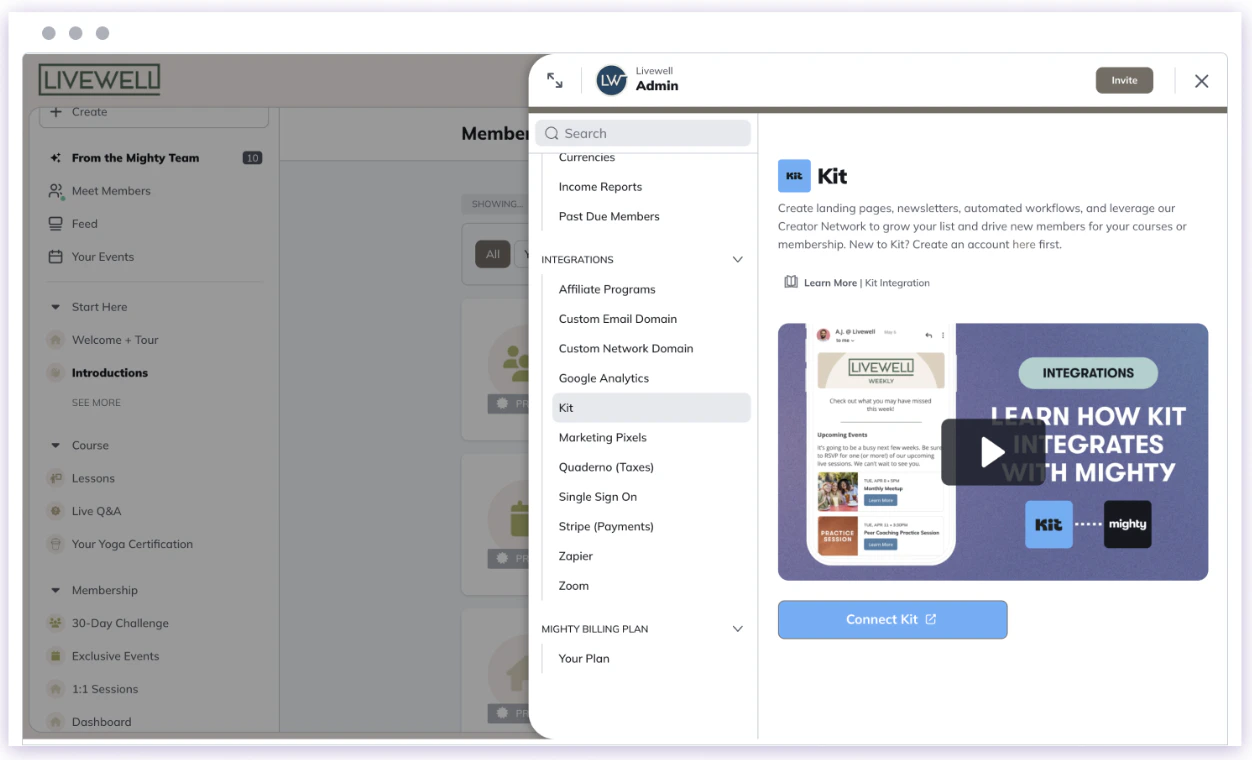
1. Go to **Admin > Integrations > Kit**.
2. Select **Connect Kit**.
3. You’ll be redirected to [Kit](http://kit.com/), where you can either create a new account or log in to an existing one.
You will see two screens to authorize the connection
You will see a screen two screens to authorize the connection
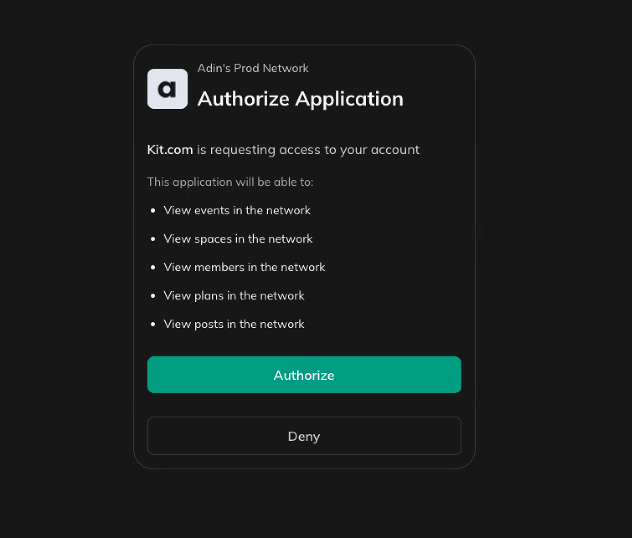
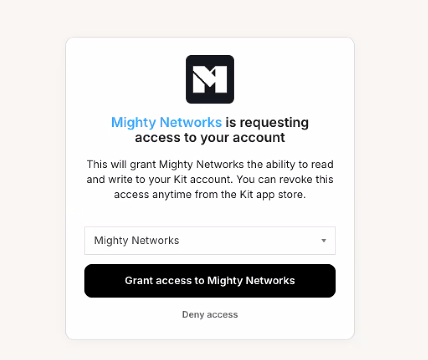 The final connection step opens in a new tab. If your original tab still shows as not connected, refresh it to see the updated status.
### From Kit
1. Go to the [Mighty Networks app details page](https://app.kit.com/apps/4177) or the [Kit App Store](https://app.kit.com/apps).
2. Select **Install** and follow the prompts to connect your Mighty Network.
3. If your Network uses a custom domain, you may be asked to enter your Network address to continue.
The final connection step opens in a new tab. If your original tab still shows as not connected, refresh it to see the updated status.
### From Kit
1. Go to the [Mighty Networks app details page](https://app.kit.com/apps/4177) or the [Kit App Store](https://app.kit.com/apps).
2. Select **Install** and follow the prompts to connect your Mighty Network.
3. If your Network uses a custom domain, you may be asked to enter your Network address to continue.
 You can confirm that the integration was successful from the **Advanced** tab of your Kit account settings.
## Managing Your Kit Account
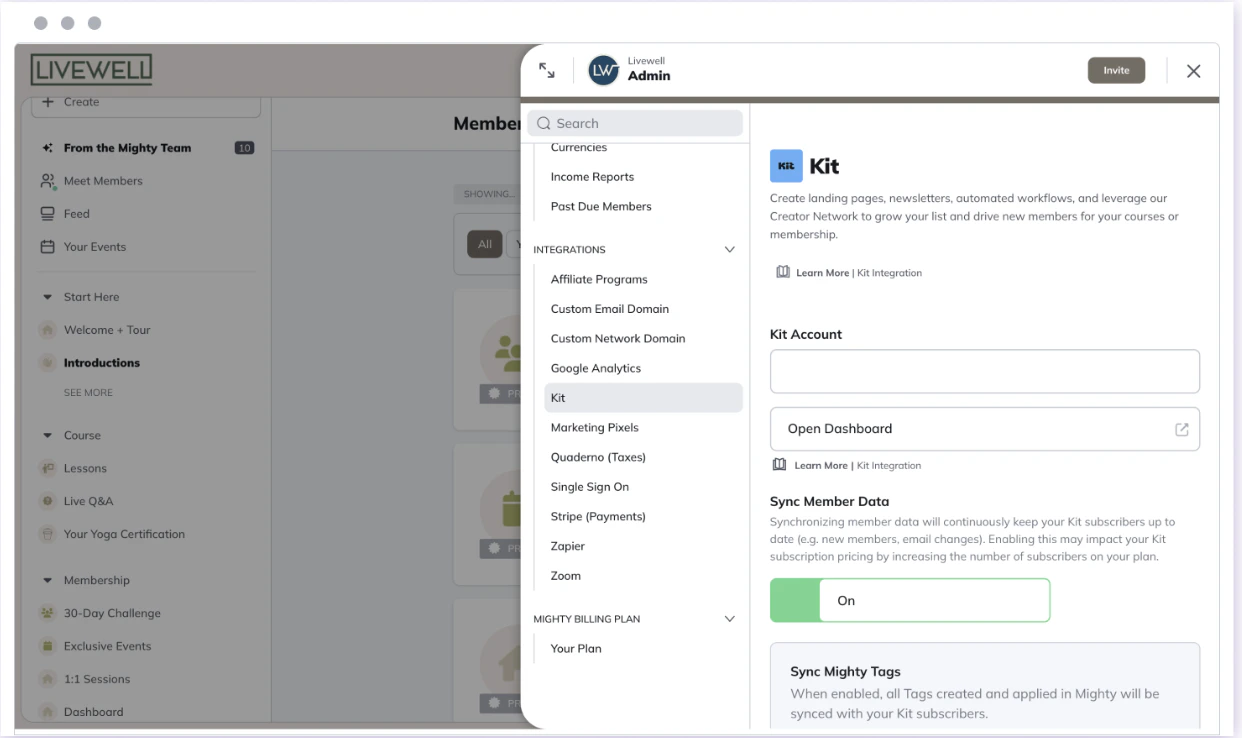
Once you connect your account, you'll see a screen where you can change your Kit settings.
1. **Kit Account:** Displays the email connected to your Mighty Network.
2. **Open Dashboard:** Opens your Kit account in a new browser tab.
You can confirm that the integration was successful from the **Advanced** tab of your Kit account settings.
## Managing Your Kit Account
Once you connect your account, you'll see a screen where you can change your Kit settings.
1. **Kit Account:** Displays the email connected to your Mighty Network.
2. **Open Dashboard:** Opens your Kit account in a new browser tab.
 ## Syncing Member Data
**Sync Member Data** is off by default. Enable it to sync member information between Mighty and Kit.
When you enable it, a confirmation message appears. Once syncing is active:
1. Mighty Network member information is synced to your Kit account.
2. Members receive the tags “Your Network Name” and “Mighty Networks Integration.”
3. If a member leaves, is banned, or deleted, the “Mighty Networks Integration” tag is removed.
4. Updates to member names or emails in Mighty automatically sync to Kit.
5. Members who have unsubscribed from marketing emails aren’t synced.
## Limited Memberships
[Limited memberships](https://docs.mightynetworks.com/for-hosts/payments-and-access/what-is-a-full-vs-limited-membership)—those with access to specific Spaces only—are also synced and receive three tags:
* **Mighty Integration**
* **\[Network Name]**
* **Limited Member \[Network Name]**
To find active limited members, filter by members with both **Mighty Integration** and **Limited Member \[Network Name]** tags.
For more information on syncing your member data, [check out this article](https://help.kit.com/en/articles/8440987-managing-mighty-networks-subscribers).
## Syncing Tags
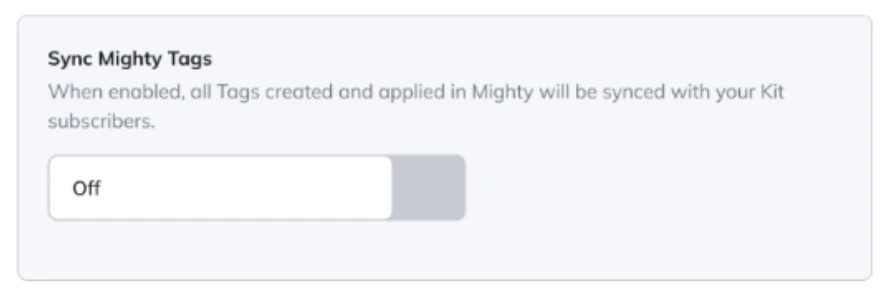
If **Sync Member Data** is enabled, you’ll also see the option to **Sync Mighty Tags**.
Tags are internal member segments that can be synced with Kit to create email audiences (for example, “Legacy Members” or “First-Time Homebuyers”).
When a new Tag is created in Mighty, it automatically appears in Kit as:
## Syncing Member Data
**Sync Member Data** is off by default. Enable it to sync member information between Mighty and Kit.
When you enable it, a confirmation message appears. Once syncing is active:
1. Mighty Network member information is synced to your Kit account.
2. Members receive the tags “Your Network Name” and “Mighty Networks Integration.”
3. If a member leaves, is banned, or deleted, the “Mighty Networks Integration” tag is removed.
4. Updates to member names or emails in Mighty automatically sync to Kit.
5. Members who have unsubscribed from marketing emails aren’t synced.
## Limited Memberships
[Limited memberships](https://docs.mightynetworks.com/for-hosts/payments-and-access/what-is-a-full-vs-limited-membership)—those with access to specific Spaces only—are also synced and receive three tags:
* **Mighty Integration**
* **\[Network Name]**
* **Limited Member \[Network Name]**
To find active limited members, filter by members with both **Mighty Integration** and **Limited Member \[Network Name]** tags.
For more information on syncing your member data, [check out this article](https://help.kit.com/en/articles/8440987-managing-mighty-networks-subscribers).
## Syncing Tags
If **Sync Member Data** is enabled, you’ll also see the option to **Sync Mighty Tags**.
Tags are internal member segments that can be synced with Kit to create email audiences (for example, “Legacy Members” or “First-Time Homebuyers”).
When a new Tag is created in Mighty, it automatically appears in Kit as:
(Network Name) (Mighty)
 ## Syncing Waitlist Leads
If you're running a [Waitlist](https://docs.mightynetworks.com/for-hosts/payments-and-access/how-do-i-create-a-waitlist), you can automatically sync waitlist signups to Kit.
1. Go to **Admin > Integrations > Kit**.
2. Turn on **Sync Waitlist Emails**.
Waitlist signups are sent to Kit with the **Waitlist Name** and **Mighty Networks Integration** tags. Once someone creates an account, their Network tag is added too.
**Note:** Turning on syncing will sync existing signups retroactively.
## Deleting or Editing Tags
If you delete a Tag in Mighty:
* Members are unsubscribed from that Tag in Kit.
Any changes made directly in Kit (like renaming or deleting a Tag) will be overwritten during the next sync. Mighty is always the **source of truth** for Tags.
## How to Use the Integration
To start using the integration:
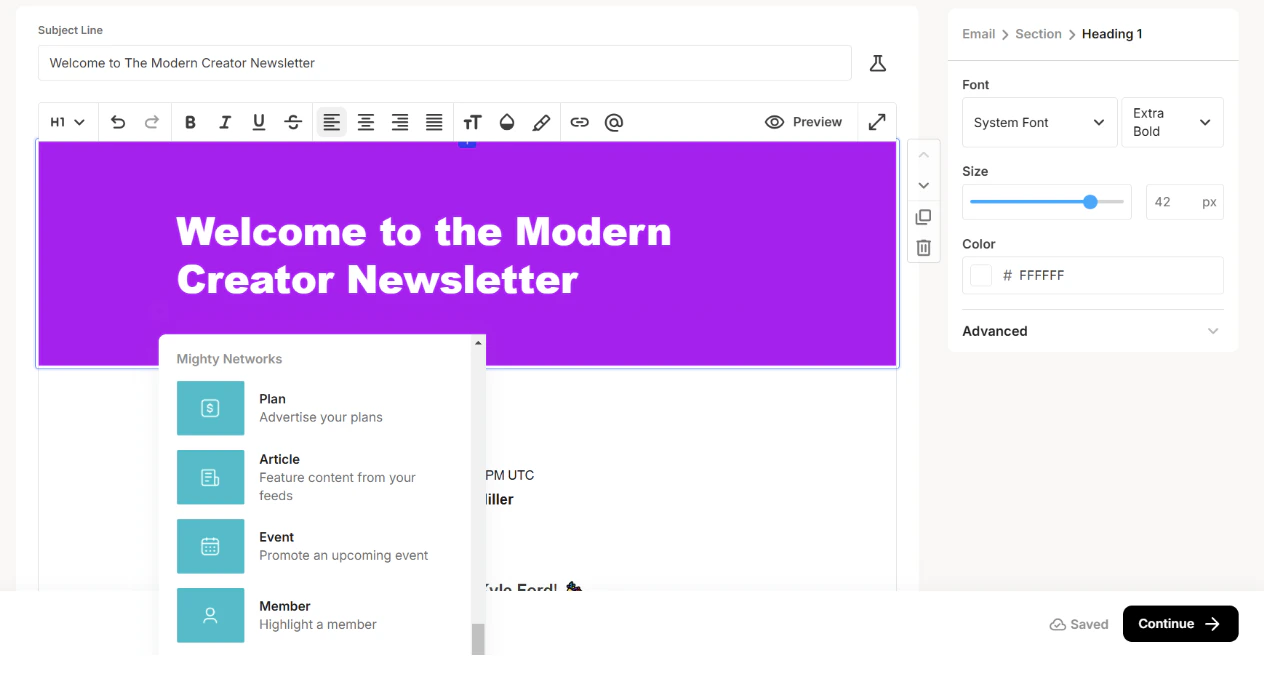
1. In Kit, go to [**Send > Broadcast**](https://help.kit.com/en/articles/2934648-creating-sending-and-sharing-broadcasts) or [**Sequence**](https://help.kit.com/en/articles/2502629-creating-and-sending-a-sequence-in-convertkit).
2. Open the email editor and click the **+** icon.
3. Choose from new **Mighty Networks content blocks** to add content directly from your Network.
## Syncing Waitlist Leads
If you're running a [Waitlist](https://docs.mightynetworks.com/for-hosts/payments-and-access/how-do-i-create-a-waitlist), you can automatically sync waitlist signups to Kit.
1. Go to **Admin > Integrations > Kit**.
2. Turn on **Sync Waitlist Emails**.
Waitlist signups are sent to Kit with the **Waitlist Name** and **Mighty Networks Integration** tags. Once someone creates an account, their Network tag is added too.
**Note:** Turning on syncing will sync existing signups retroactively.
## Deleting or Editing Tags
If you delete a Tag in Mighty:
* Members are unsubscribed from that Tag in Kit.
Any changes made directly in Kit (like renaming or deleting a Tag) will be overwritten during the next sync. Mighty is always the **source of truth** for Tags.
## How to Use the Integration
To start using the integration:
1. In Kit, go to [**Send > Broadcast**](https://help.kit.com/en/articles/2934648-creating-sending-and-sharing-broadcasts) or [**Sequence**](https://help.kit.com/en/articles/2502629-creating-and-sending-a-sequence-in-convertkit).
2. Open the email editor and click the **+** icon.
3. Choose from new **Mighty Networks content blocks** to add content directly from your Network.
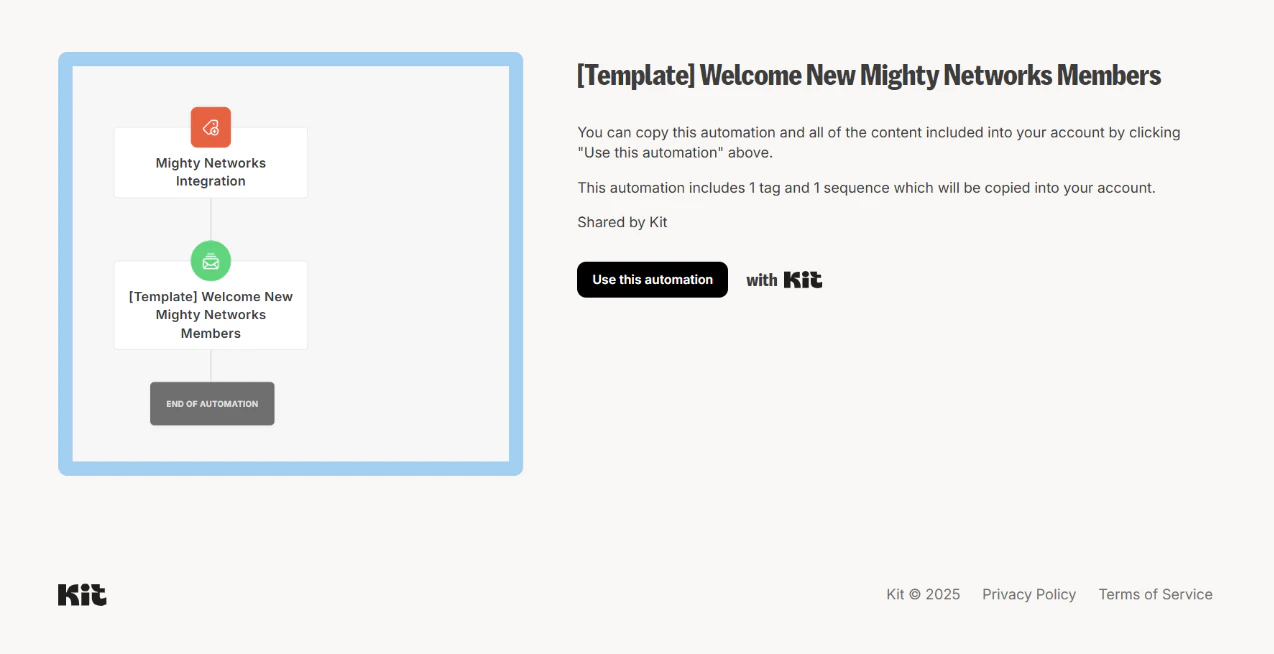 You can also explore Kit’s [Visual Automations](https://help.kit.com/en/articles/2502666-how-to-use-convertkit-visual-automations) like this [Template to Welcome New Members to your Mighty Network](https://app.kit.com/a/c247c11e23).
## How to Disconnect Kit
You can disconnect Kit from either Mighty or Kit. Disconnecting from your Mighty Network is the most reliable way to fully end the connection on both sides.
### From Mighty Networks
1. Go to **Admin > Integrations > Kit**.
2. Select **Disconnect**.
3. Confirm the disconnection when prompted.
### From Kit
1. Go to the [Mighty Networks app details page](https://app.kit.com/apps/4177) or the [Kit App Store](https://app.kit.com/apps).
2. Select **Uninstall**.
3. Confirm in the pop-up window.
**Note:** It may take a few minutes for changes to fully sync after disconnecting.
Even after disconnecting, any synced members will remain subscribers in Kit, and you can still send emails that contain Mighty content you’ve already added to drafts.
To learn more about the integration, how to sync your members and all the new possibilities, check out these articles from Kit:
* [How to connect Mighty Networks and Kit](http://help.kit.com/en/articles/8440960-how-to-connect-mighty-networks-and-convertkit)
* [How to add Mighty Networks content to your emails](https://help.kit.com/en/articles/8440970-how-to-add-mighty-networks-content-blocks-to-your-emails)
* [Syncing your Mighty Networks subscribers to Kit](https://help.kit.com/en/articles/8440987-managing-mighty-networks-subscribers)
## You're all connected, now what?
You can also explore Kit’s [Visual Automations](https://help.kit.com/en/articles/2502666-how-to-use-convertkit-visual-automations) like this [Template to Welcome New Members to your Mighty Network](https://app.kit.com/a/c247c11e23).
## How to Disconnect Kit
You can disconnect Kit from either Mighty or Kit. Disconnecting from your Mighty Network is the most reliable way to fully end the connection on both sides.
### From Mighty Networks
1. Go to **Admin > Integrations > Kit**.
2. Select **Disconnect**.
3. Confirm the disconnection when prompted.
### From Kit
1. Go to the [Mighty Networks app details page](https://app.kit.com/apps/4177) or the [Kit App Store](https://app.kit.com/apps).
2. Select **Uninstall**.
3. Confirm in the pop-up window.
**Note:** It may take a few minutes for changes to fully sync after disconnecting.
Even after disconnecting, any synced members will remain subscribers in Kit, and you can still send emails that contain Mighty content you’ve already added to drafts.
To learn more about the integration, how to sync your members and all the new possibilities, check out these articles from Kit:
* [How to connect Mighty Networks and Kit](http://help.kit.com/en/articles/8440960-how-to-connect-mighty-networks-and-convertkit)
* [How to add Mighty Networks content to your emails](https://help.kit.com/en/articles/8440970-how-to-add-mighty-networks-content-blocks-to-your-emails)
* [Syncing your Mighty Networks subscribers to Kit](https://help.kit.com/en/articles/8440987-managing-mighty-networks-subscribers)
## You're all connected, now what?