> ## Documentation Index
> Fetch the complete documentation index at: https://docs.mightynetworks.com/llms.txt
> Use this file to discover all available pages before exploring further.
# How Do I Add Custom Fields?
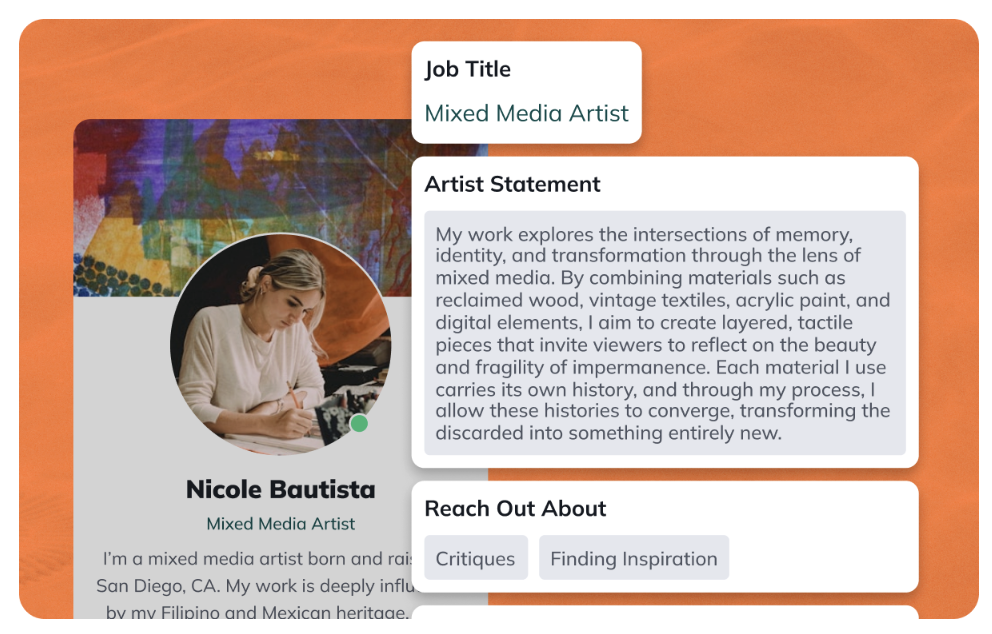
Custom Fields are available on the [**Launch plan**](https://docs.mightynetworks.com/for-hosts/meet-mighty/whats-included-in-the-mighty-networks-courses-plan) and up. They help you gather key details about your members so you can create better experiences and foster stronger connections in your Mighty Network.
Custom Fields currently support **dropdown**, **short text**, and **long text** response types.
## How to Create a Custom Field
To create a new Custom Field, go to **Admin > Members > Custom Fields** — the direct path is `/admin/custom-fields` — and select **Create Field**.
Then follow these steps:
1. **Choose a response type** Decide how members will respond: You can’t edit the response type after creating the field.
* **Dropdown** — single or multi-select
* **Short text** — up to 255 characters
* **Long text** — up to 2,000 characters
2. **Name and describe the field**
* Enter a **Field name**, which will appear on the member profile if you set the field to be visible.
* Add a **description** that appears next to the input field.
* Add **placeholder text** that appears when the field is empty.
3. Click **Next: Configure** to move to setup.
## Configuring Dropdown Fields
If you select **single** or **multi-select**, you’ll see configuration options for dropdowns.
* **Response limits:** For multi-select fields, set a response limit between 2 and 40 options.
* **Custom responses:** Choose whether to allow members to add their own responses (up to 40 characters). Once added, custom responses appear as dropdown options for all members.
* **Dropdown options:** Add up to **20 options** when you first create the field. You can add more later—there’s no limit.
## Configuring Text Fields
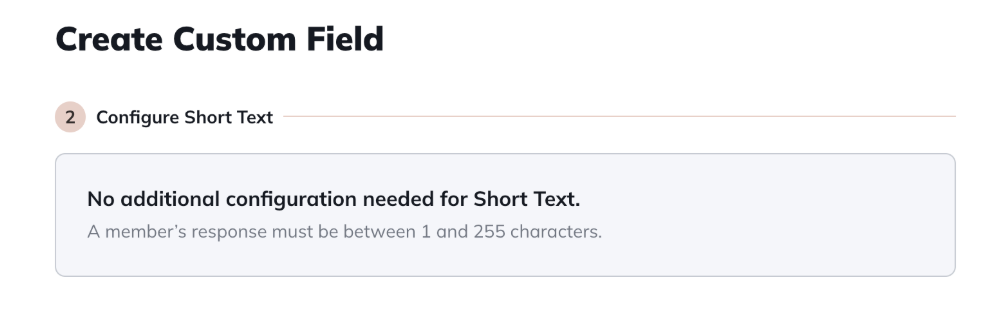
Short and long text fields don’t require additional configuration.Use short text for brief responses (1–255 characters) and long text for open-ended answers (1–2,000 characters).
## Setting Privacy Options
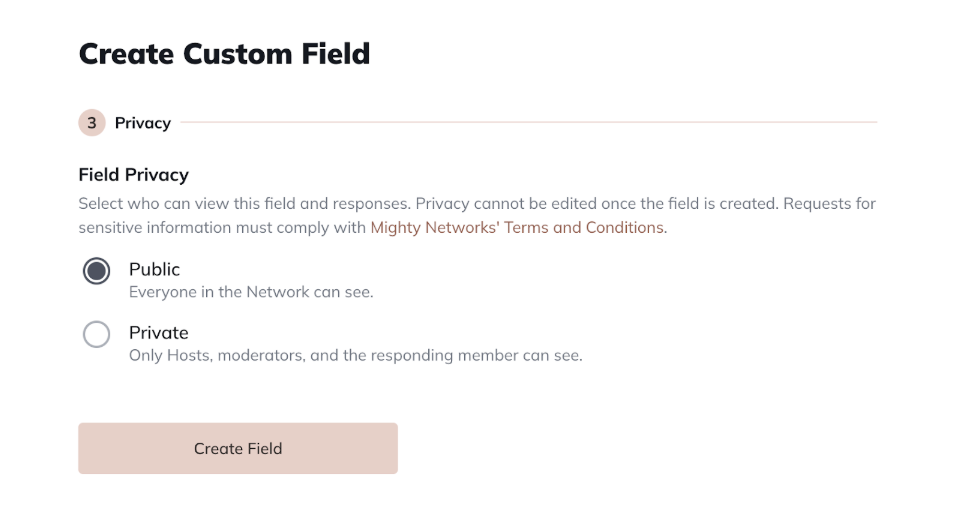
For every Custom Field, you’ll configure **privacy settings** that determine who can view responses.These settings **cannot be changed later.**
* **Public:** Everyone in the Network can see responses.
* **Private:** Only Hosts, moderators, and the responding member can see responses.
Be mindful not to request sensitive information. All data collection must comply with [Mighty Networks' Terms and Conditions](https://www.mightynetworks.com/terms-of-use#_gl=1*19b37fh*_ga*MTk2NTgxNzEyMy4xNzI1MjkzMTg5*_ga_T49FMYQ9FZ*MTcyNTkxMjMzMi4yMy4xLjE3MjU5MTYwMDUuMC4wLjA.*_ga_NEGJ2SXNP7*MTcyNTkxMjMzMi4yOTAuMS4xNzI1OTE2MDA0LjcuMC4w).
## Making a Field Visible
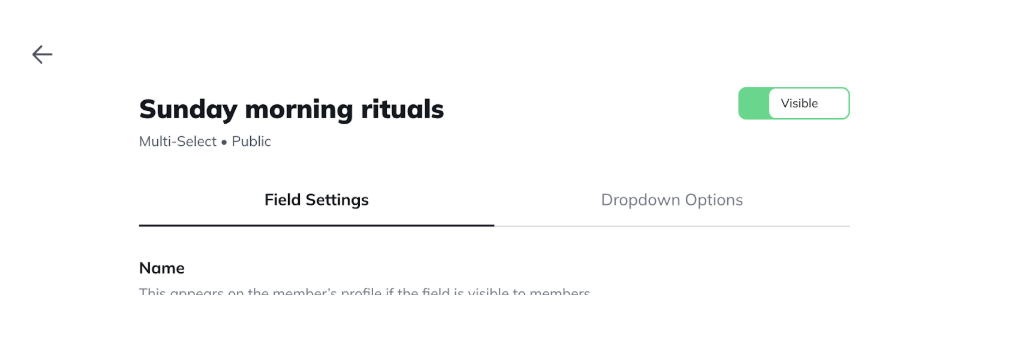
After you create a field, it’s hidden by default.To make it visible, toggle **Visible** in the upper right corner of the field.
You’ll also have the option to **notify all members**. If enabled, members will receive an email and in-app notification letting them know a new field is available.
## Managing Custom Fields
All of your fields appear in the **Custom Fields list**. From here, you can:
* Edit a field
* Change the Display Field
* Hide or make a field visible
* Delete a field
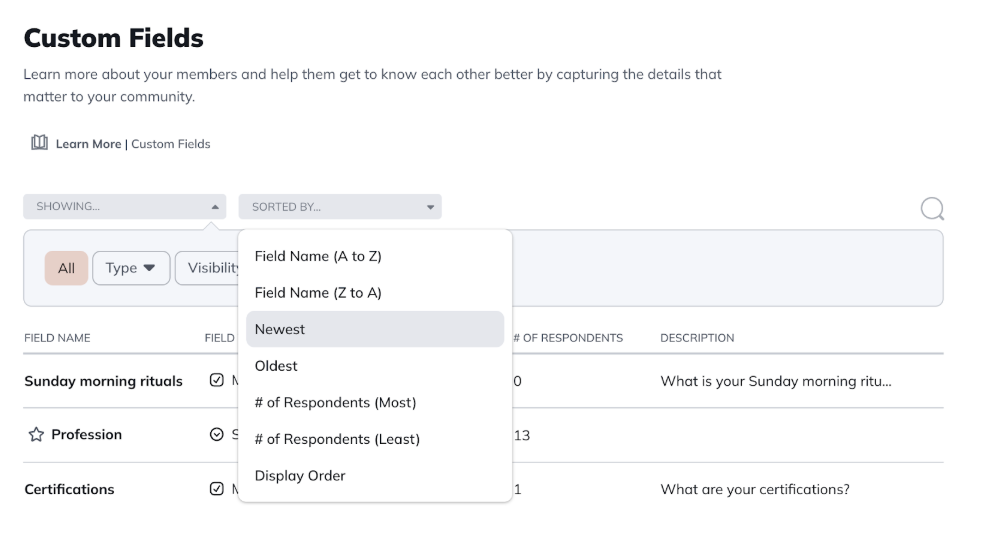
You can filter and sort the list by type, visibility, privacy, field name, or number of respondents.
And you can sort by the following:
* Field Name (A to Z)
* Field Name (Z to A)
* Newest
* Oldest
* Display Order
## Display Fields
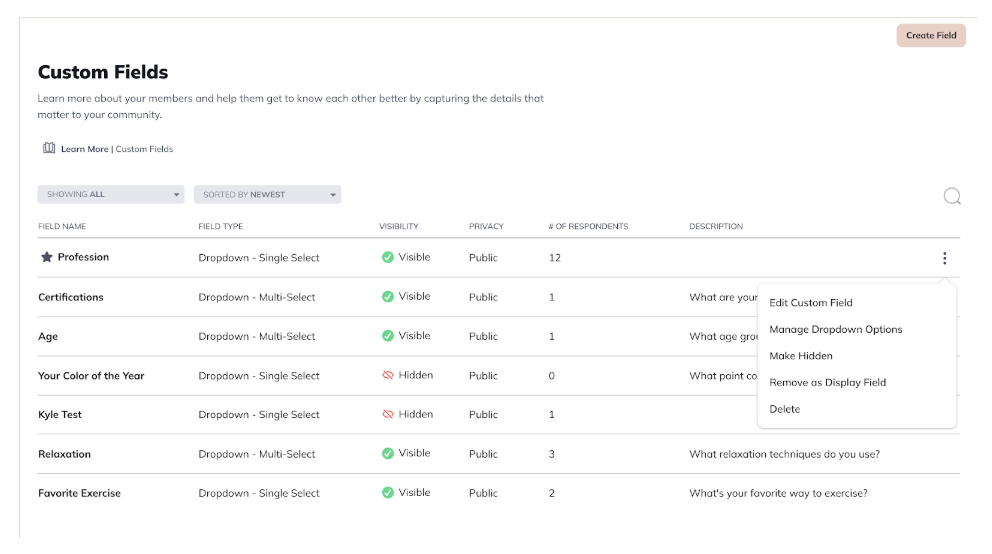
The **Display Field** is the primary field that appears on member profiles and under the **Explore** filter in Global and Space Members.A star icon appears next to the current Display Field.
Only **public single-select** fields can be set as the Display Field.
To change it:
1. Open the **three-dot menu** next to the current Display Field and select **Remove as Display Field**.
2. Choose another eligible field and set it as the Display Field.
## Merging and Reordering Fields
* **Merge options:** If you allow custom responses for dropdowns, you can merge duplicate or similar responses. Go to **Edit Custom Field > Merge Option Into…** to combine them.
* **Reorder fields:** Change the order in which fields appear on member profiles by going to **Members > Reorder Custom Fields**.
## Viewing Member Responses
To review responses:
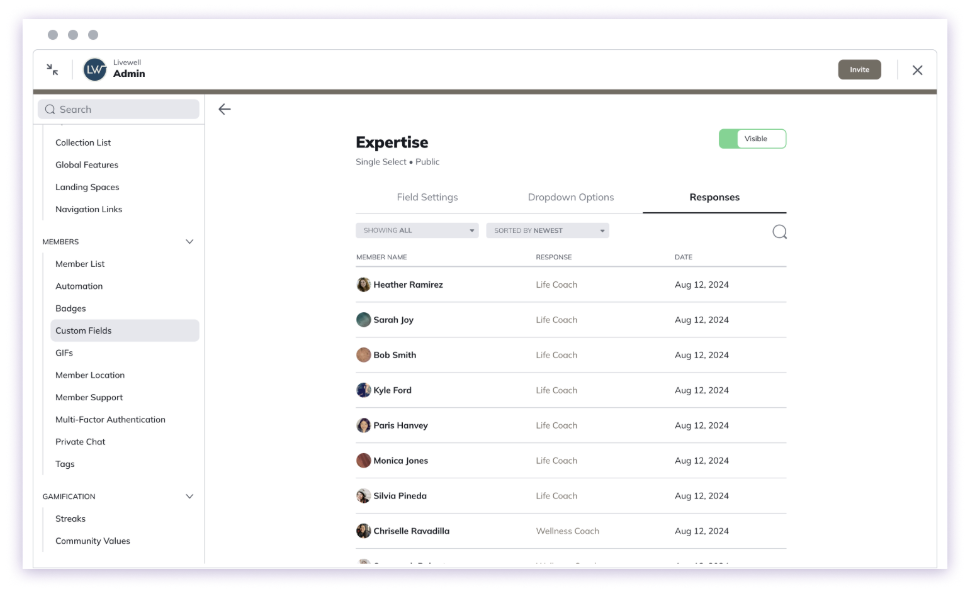
* From the **Custom Fields list**, open the **three-dot menu** next to a field and select **Edit Custom Field**. Then click the **Responses** tab.
* You can also view and filter responses in the **Member List** under [**Admin > Members > Member List**](https://docs.mightynetworks.com/for-hosts/admin-and-moderation/how-do-i-view-and-manage-my-members).
## Member Experience
Members will see Custom Fields when editing their profile or by going to Personal Settings > Account > Private Responses.
You can also choose to notify them of new fields when they are created. The notifications will take them directly to their profile where they can fill out their answers.
After they select their response and click “Save”, they will see the response on their profile.
If they click on their response > **See Members**, they will see a list of the members who selected the same response.
## Using Custom Fields in Automations
Custom Fields can be used in **Automations**, which combine a **Trigger** and an **Action**.
You can trigger actions when a member:
* **Responds to a Custom Field**, or
* **Removes a response to a Custom Field.**
To learn more, check out this article [How Can I Set Up Automations?](https://docs.mightynetworks.com/for-hosts/automations/how-can-i-set-up-automations-in-my-mighty-network)
## Search and Insights
* **Search:** Members can use the global search bar to find others who selected the same dropdown responses, including both predefined and custom ones.
* [**Mighty Insights™:**](https://docs.mightynetworks.com/for-hosts/analytics-and-integrations/what-is-mighty-insights) Use the **Custom Fields dashboard** in Mighty Insights™ to see data such as total respondents, field types, visibility, and privacy settings. You can also open a **Detail Dashboard** for deeper insights.
[**Looking for ideas? Check out our Guide to Custom Fields 101.**](https://docs.google.com/document/d/1DB3bescloNXX3zFEqv4jHWrjHGvrpdTj8hg-9iGyoSU/edit?usp=sharing)
[**Need a guide for your members on how to edit, access, and manage Custom Fields? Click here.**](https://docs.mightynetworks.com/for-hosts/gamification/how-do-i-add-custom-fields)
 ## How to Create a Custom Field
To create a new Custom Field, go to **Admin > Members > Custom Fields** — the direct path is `/admin/custom-fields` — and select **Create Field**.
Then follow these steps:
1. **Choose a response type** Decide how members will respond: You can’t edit the response type after creating the field.
* **Dropdown** — single or multi-select
* **Short text** — up to 255 characters
* **Long text** — up to 2,000 characters
2. **Name and describe the field**
* Enter a **Field name**, which will appear on the member profile if you set the field to be visible.
* Add a **description** that appears next to the input field.
* Add **placeholder text** that appears when the field is empty.
3. Click **Next: Configure** to move to setup.
## Configuring Dropdown Fields
If you select **single** or **multi-select**, you’ll see configuration options for dropdowns.
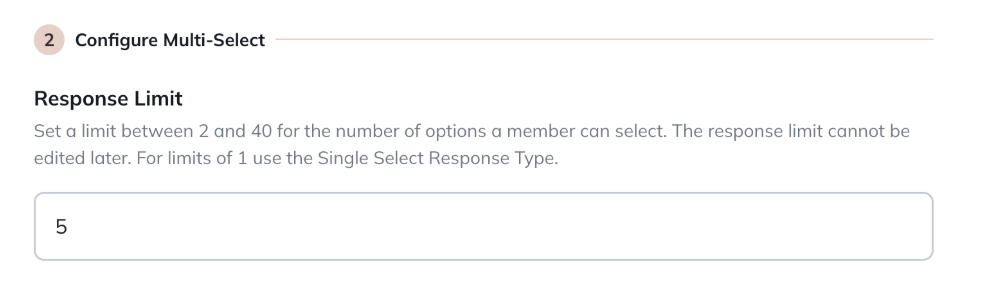
* **Response limits:** For multi-select fields, set a response limit between 2 and 40 options.
## How to Create a Custom Field
To create a new Custom Field, go to **Admin > Members > Custom Fields** — the direct path is `/admin/custom-fields` — and select **Create Field**.
Then follow these steps:
1. **Choose a response type** Decide how members will respond: You can’t edit the response type after creating the field.
* **Dropdown** — single or multi-select
* **Short text** — up to 255 characters
* **Long text** — up to 2,000 characters
2. **Name and describe the field**
* Enter a **Field name**, which will appear on the member profile if you set the field to be visible.
* Add a **description** that appears next to the input field.
* Add **placeholder text** that appears when the field is empty.
3. Click **Next: Configure** to move to setup.
## Configuring Dropdown Fields
If you select **single** or **multi-select**, you’ll see configuration options for dropdowns.
* **Response limits:** For multi-select fields, set a response limit between 2 and 40 options.
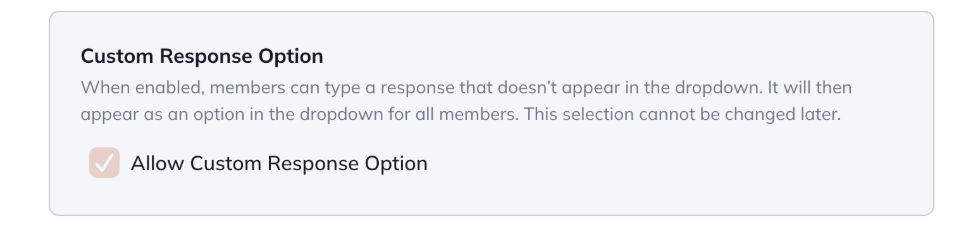
 * **Custom responses:** Choose whether to allow members to add their own responses (up to 40 characters). Once added, custom responses appear as dropdown options for all members.
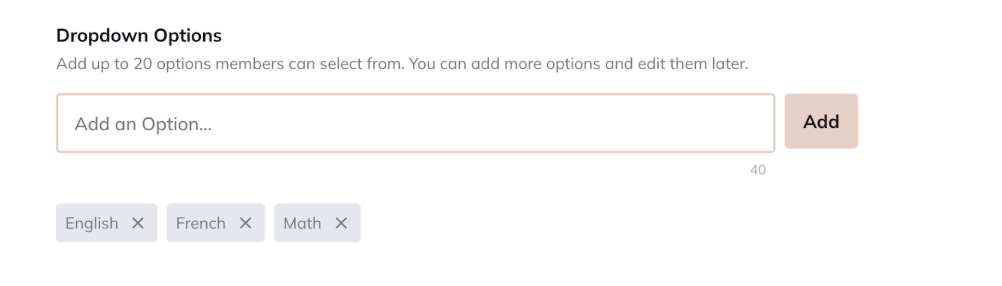
 * **Dropdown options:** Add up to **20 options** when you first create the field. You can add more later—there’s no limit.
 ## Configuring Text Fields
Short and long text fields don’t require additional configuration.Use short text for brief responses (1–255 characters) and long text for open-ended answers (1–2,000 characters).
## Configuring Text Fields
Short and long text fields don’t require additional configuration.Use short text for brief responses (1–255 characters) and long text for open-ended answers (1–2,000 characters).
 ## Setting Privacy Options
For every Custom Field, you’ll configure **privacy settings** that determine who can view responses.These settings **cannot be changed later.**
* **Public:** Everyone in the Network can see responses.
* **Private:** Only Hosts, moderators, and the responding member can see responses.
Be mindful not to request sensitive information. All data collection must comply with [Mighty Networks' Terms and Conditions](https://www.mightynetworks.com/terms-of-use#_gl=1*19b37fh*_ga*MTk2NTgxNzEyMy4xNzI1MjkzMTg5*_ga_T49FMYQ9FZ*MTcyNTkxMjMzMi4yMy4xLjE3MjU5MTYwMDUuMC4wLjA.*_ga_NEGJ2SXNP7*MTcyNTkxMjMzMi4yOTAuMS4xNzI1OTE2MDA0LjcuMC4w).
## Setting Privacy Options
For every Custom Field, you’ll configure **privacy settings** that determine who can view responses.These settings **cannot be changed later.**
* **Public:** Everyone in the Network can see responses.
* **Private:** Only Hosts, moderators, and the responding member can see responses.
Be mindful not to request sensitive information. All data collection must comply with [Mighty Networks' Terms and Conditions](https://www.mightynetworks.com/terms-of-use#_gl=1*19b37fh*_ga*MTk2NTgxNzEyMy4xNzI1MjkzMTg5*_ga_T49FMYQ9FZ*MTcyNTkxMjMzMi4yMy4xLjE3MjU5MTYwMDUuMC4wLjA.*_ga_NEGJ2SXNP7*MTcyNTkxMjMzMi4yOTAuMS4xNzI1OTE2MDA0LjcuMC4w).
 ## Making a Field Visible
After you create a field, it’s hidden by default.To make it visible, toggle **Visible** in the upper right corner of the field.
You’ll also have the option to **notify all members**. If enabled, members will receive an email and in-app notification letting them know a new field is available.
## Making a Field Visible
After you create a field, it’s hidden by default.To make it visible, toggle **Visible** in the upper right corner of the field.
You’ll also have the option to **notify all members**. If enabled, members will receive an email and in-app notification letting them know a new field is available.
 ## Managing Custom Fields
All of your fields appear in the **Custom Fields list**. From here, you can:
* Edit a field
* Change the Display Field
* Hide or make a field visible
* Delete a field
You can filter and sort the list by type, visibility, privacy, field name, or number of respondents.
And you can sort by the following:
* Field Name (A to Z)
* Field Name (Z to A)
* Newest
* Oldest
* Display Order
## Managing Custom Fields
All of your fields appear in the **Custom Fields list**. From here, you can:
* Edit a field
* Change the Display Field
* Hide or make a field visible
* Delete a field
You can filter and sort the list by type, visibility, privacy, field name, or number of respondents.
And you can sort by the following:
* Field Name (A to Z)
* Field Name (Z to A)
* Newest
* Oldest
* Display Order
 ## Display Fields
The **Display Field** is the primary field that appears on member profiles and under the **Explore** filter in Global and Space Members.A star icon appears next to the current Display Field.
Only **public single-select** fields can be set as the Display Field.
To change it:
1. Open the **three-dot menu** next to the current Display Field and select **Remove as Display Field**.
2. Choose another eligible field and set it as the Display Field.
## Display Fields
The **Display Field** is the primary field that appears on member profiles and under the **Explore** filter in Global and Space Members.A star icon appears next to the current Display Field.
Only **public single-select** fields can be set as the Display Field.
To change it:
1. Open the **three-dot menu** next to the current Display Field and select **Remove as Display Field**.
2. Choose another eligible field and set it as the Display Field.
 ## Merging and Reordering Fields
* **Merge options:** If you allow custom responses for dropdowns, you can merge duplicate or similar responses. Go to **Edit Custom Field > Merge Option Into…** to combine them.
* **Reorder fields:** Change the order in which fields appear on member profiles by going to **Members > Reorder Custom Fields**.
## Viewing Member Responses
To review responses:
* From the **Custom Fields list**, open the **three-dot menu** next to a field and select **Edit Custom Field**. Then click the **Responses** tab.
* You can also view and filter responses in the **Member List** under [**Admin > Members > Member List**](https://docs.mightynetworks.com/for-hosts/admin-and-moderation/how-do-i-view-and-manage-my-members).
## Merging and Reordering Fields
* **Merge options:** If you allow custom responses for dropdowns, you can merge duplicate or similar responses. Go to **Edit Custom Field > Merge Option Into…** to combine them.
* **Reorder fields:** Change the order in which fields appear on member profiles by going to **Members > Reorder Custom Fields**.
## Viewing Member Responses
To review responses:
* From the **Custom Fields list**, open the **three-dot menu** next to a field and select **Edit Custom Field**. Then click the **Responses** tab.
* You can also view and filter responses in the **Member List** under [**Admin > Members > Member List**](https://docs.mightynetworks.com/for-hosts/admin-and-moderation/how-do-i-view-and-manage-my-members).
 ## Member Experience
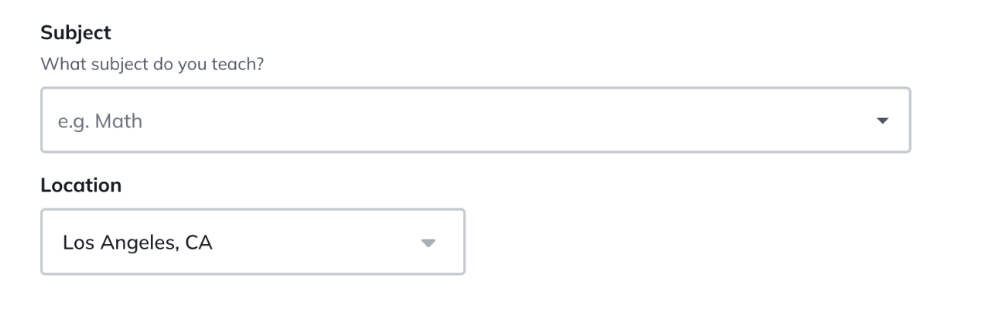
Members will see Custom Fields when editing their profile or by going to Personal Settings > Account > Private Responses.
You can also choose to notify them of new fields when they are created. The notifications will take them directly to their profile where they can fill out their answers.
## Member Experience
Members will see Custom Fields when editing their profile or by going to Personal Settings > Account > Private Responses.
You can also choose to notify them of new fields when they are created. The notifications will take them directly to their profile where they can fill out their answers.
 After they select their response and click “Save”, they will see the response on their profile.
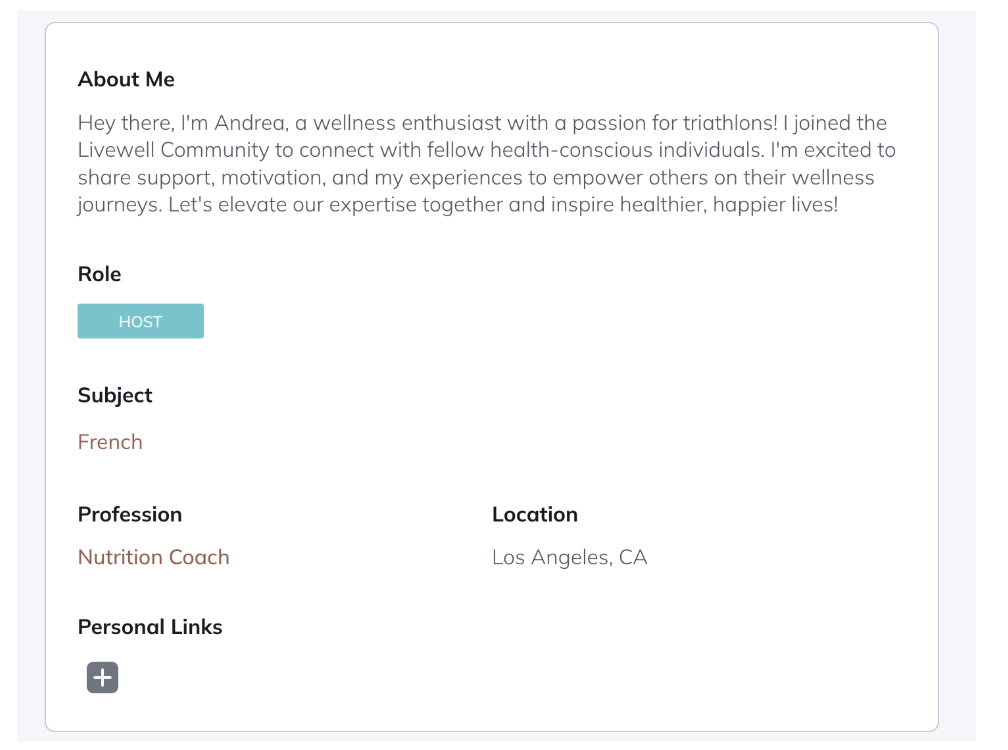 If they click on their response > **See Members**, they will see a list of the members who selected the same response.
## Using Custom Fields in Automations
Custom Fields can be used in **Automations**, which combine a **Trigger** and an **Action**.
You can trigger actions when a member:
* **Responds to a Custom Field**, or
* **Removes a response to a Custom Field.**
To learn more, check out this article [How Can I Set Up Automations?](https://docs.mightynetworks.com/for-hosts/automations/how-can-i-set-up-automations-in-my-mighty-network)
## Search and Insights
* **Search:** Members can use the global search bar to find others who selected the same dropdown responses, including both predefined and custom ones.
* [**Mighty Insights™:**](https://docs.mightynetworks.com/for-hosts/analytics-and-integrations/what-is-mighty-insights) Use the **Custom Fields dashboard** in Mighty Insights™ to see data such as total respondents, field types, visibility, and privacy settings. You can also open a **Detail Dashboard** for deeper insights.
[**Looking for ideas? Check out our Guide to Custom Fields 101.**](https://docs.google.com/document/d/1DB3bescloNXX3zFEqv4jHWrjHGvrpdTj8hg-9iGyoSU/edit?usp=sharing)
[**Need a guide for your members on how to edit, access, and manage Custom Fields? Click here.**](https://docs.mightynetworks.com/for-hosts/gamification/how-do-i-add-custom-fields)
If they click on their response > **See Members**, they will see a list of the members who selected the same response.
## Using Custom Fields in Automations
Custom Fields can be used in **Automations**, which combine a **Trigger** and an **Action**.
You can trigger actions when a member:
* **Responds to a Custom Field**, or
* **Removes a response to a Custom Field.**
To learn more, check out this article [How Can I Set Up Automations?](https://docs.mightynetworks.com/for-hosts/automations/how-can-i-set-up-automations-in-my-mighty-network)
## Search and Insights
* **Search:** Members can use the global search bar to find others who selected the same dropdown responses, including both predefined and custom ones.
* [**Mighty Insights™:**](https://docs.mightynetworks.com/for-hosts/analytics-and-integrations/what-is-mighty-insights) Use the **Custom Fields dashboard** in Mighty Insights™ to see data such as total respondents, field types, visibility, and privacy settings. You can also open a **Detail Dashboard** for deeper insights.
[**Looking for ideas? Check out our Guide to Custom Fields 101.**](https://docs.google.com/document/d/1DB3bescloNXX3zFEqv4jHWrjHGvrpdTj8hg-9iGyoSU/edit?usp=sharing)
[**Need a guide for your members on how to edit, access, and manage Custom Fields? Click here.**](https://docs.mightynetworks.com/for-hosts/gamification/how-do-i-add-custom-fields)