> ## Documentation Index
> Fetch the complete documentation index at: https://docs.mightynetworks.com/llms.txt
> Use this file to discover all available pages before exploring further.
# Is There a Calendar View for Events?
The **Calendar View** in Mighty Networks helps you and your members see all upcoming Events in one place. You can also **sync Events directly to your personal calendar**—like Google Calendar, Outlook, or Apple Calendar—so you never miss a session.
[ ](/images/for-hosts/events-and-livestream/is-there-a-calendar-view-for-events/Screenshot-2025-11-11-at-4_25_50-PM.png)
## Viewing Events in Calendar View
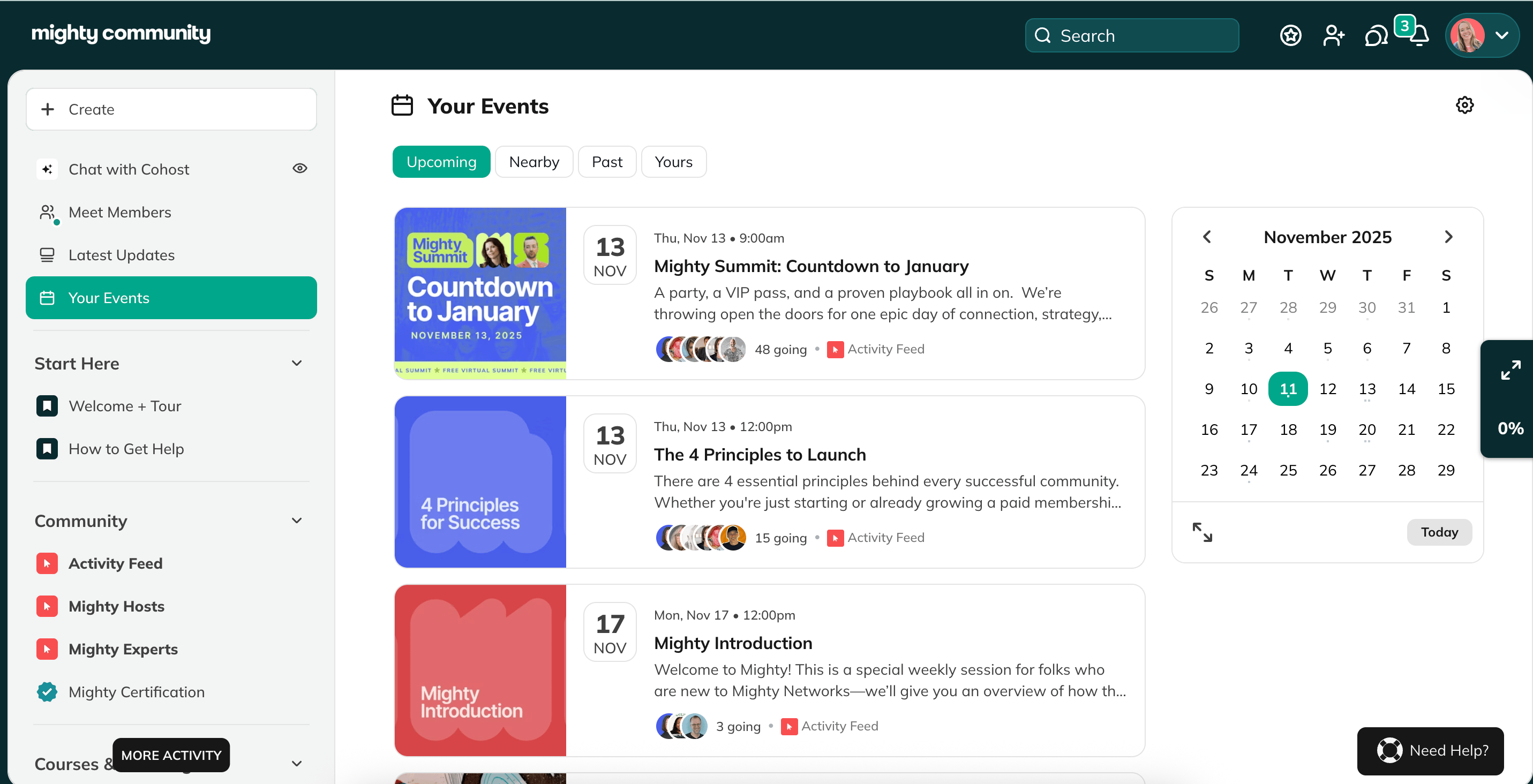
When you view Events on the web, you’ll see an **Expand Calendar** icon on the right side of your Events list—either in a Space or in your **Global Events** feature.
1. Click the **Expand** icon to open the full-page Calendar View.
2. You’ll see one month at a time.
3. Use the arrows to move between past or upcoming months.
[
](/images/for-hosts/events-and-livestream/is-there-a-calendar-view-for-events/Screenshot-2025-11-11-at-4_25_50-PM.png)
## Viewing Events in Calendar View
When you view Events on the web, you’ll see an **Expand Calendar** icon on the right side of your Events list—either in a Space or in your **Global Events** feature.
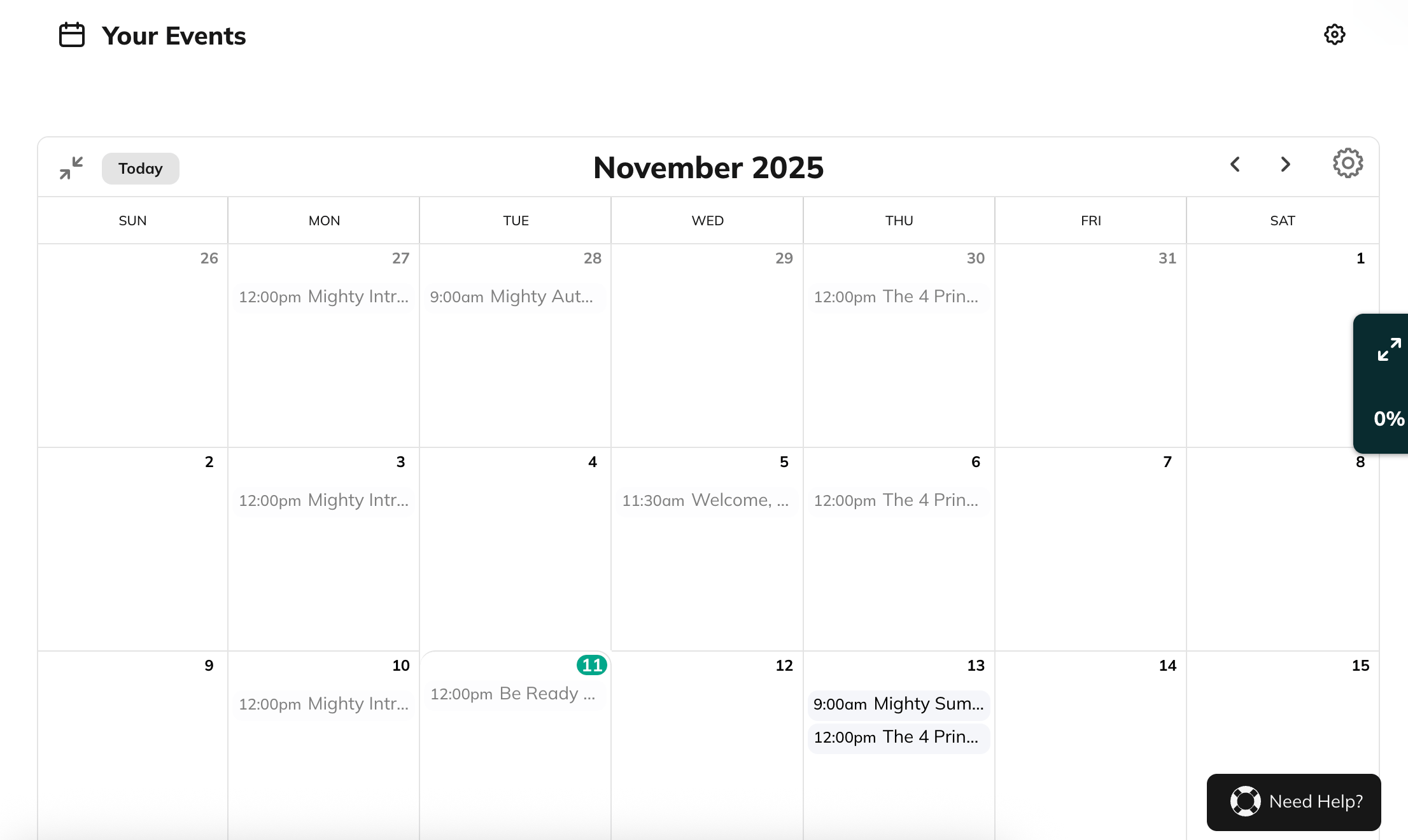
1. Click the **Expand** icon to open the full-page Calendar View.
2. You’ll see one month at a time.
3. Use the arrows to move between past or upcoming months.
[ ](/images/for-hosts/events-and-livestream/is-there-a-calendar-view-for-events/Screenshot-2025-11-11-at-4_26_02-PM.png)
## How Events Display in the Calendar
* If you have the **Global Events feature** enabled, you’ll see all Events you have access to across your Mighty Network—listed in chronological order.
* Inside a Space, you’ll only see Events happening in that specific Space.
* Members see only Events in Spaces they belong to.
## Choose Which Events to Display
Click the **gear icon** to choose:
* **Show All Events**, or
* **Show My Events Only** (Events you’ve RSVP’d to)
You can find the gear icon in two places:
* On the **small calendar sidebar** of the Events page, next to the **Expand** icon.
* In the upper-right corner of the **full-page calendar** after you expand it.
To view details, just click an Event from the calendar—it will open in full-page view.
## Syncing Events with Your Personal Calendar
From the **Calendar View**, you can automatically sync Mighty Networks Events to your personal calendar.
## How to Sync Your Events
1. On the web, open the Events page in a Space or in your **Global Events** feature.
2. Click the **gear icon** on the calendar sidebar, next to the **Expand** icon (not the Space settings gear). You can also expand the calendar first and click the gear icon in its top-right corner.
3. Select **Sync to My Calendar**.
4. Choose your sync options:
* **Only Events I’ve RSVP’d to**, or
* **All Events**
5. Select your calendar service:
* **Google Calendar**
* **Outlook Calendar**
* **Apple Calendar**
On iOS, the sync option connects to Apple Calendar. On Android, you’ll be redirected to Google Calendar via your browser.
## Syncing Individual Events
You can also add a **single Event** to your personal calendar directly from its Event page.
* Click **Add to Calendar** on the Event.
* Choose your preferred calendar app.
* Follow the prompts to export that Event only.
## Keeping Your Calendar Up to Date
Once synced, your personal calendar will automatically update with any Event changes made in your Mighty Network—including deleted Events.
However, the update timing depends on your calendar provider:
* **Google Calendar:** Syncs every few hours to a few days.
* **Apple Calendar:** Defaults to syncing weekly (we recommend setting it to **every 1 hour**).
* **Outlook Calendar:** Syncs every few hours to a few days.
The shorter your sync interval, the faster new updates appear.
## Manually Refreshing Your Calendar
If your Events aren’t updating:
1. Remove the subscribed Mighty Networks calendar from your personal calendar.
2. Return to your Mighty Network and **sync again** using the steps above.
If you’re using Apple’s iCal, you can also select the Events in your calendar and delete them manually before re-adding.
## Helping Your Members Stay Synced
If you edit an Event scheduled within two weeks, you’ll see an option to **message your members**. You can use this to remind them how to refresh their calendars and make sure their updates are reflected.
Here’s a simple message you can send:
“If you don’t see the latest updates in your calendar, remove your Mighty Networks calendar and re-add it using the sync steps in your Events calendar view.”
## Event Reminder Notifications
Members who RSVP **Going** or **Maybe** automatically receive reminders:
* **Online Events:** 10 minutes before the Event starts
* **Local Events:** 24 hours before
For virtual Events, the reminder includes a link to the Event inside Mighty Networks (not directly to the external meeting link).
](/images/for-hosts/events-and-livestream/is-there-a-calendar-view-for-events/Screenshot-2025-11-11-at-4_26_02-PM.png)
## How Events Display in the Calendar
* If you have the **Global Events feature** enabled, you’ll see all Events you have access to across your Mighty Network—listed in chronological order.
* Inside a Space, you’ll only see Events happening in that specific Space.
* Members see only Events in Spaces they belong to.
## Choose Which Events to Display
Click the **gear icon** to choose:
* **Show All Events**, or
* **Show My Events Only** (Events you’ve RSVP’d to)
You can find the gear icon in two places:
* On the **small calendar sidebar** of the Events page, next to the **Expand** icon.
* In the upper-right corner of the **full-page calendar** after you expand it.
To view details, just click an Event from the calendar—it will open in full-page view.
## Syncing Events with Your Personal Calendar
From the **Calendar View**, you can automatically sync Mighty Networks Events to your personal calendar.
## How to Sync Your Events
1. On the web, open the Events page in a Space or in your **Global Events** feature.
2. Click the **gear icon** on the calendar sidebar, next to the **Expand** icon (not the Space settings gear). You can also expand the calendar first and click the gear icon in its top-right corner.
3. Select **Sync to My Calendar**.
4. Choose your sync options:
* **Only Events I’ve RSVP’d to**, or
* **All Events**
5. Select your calendar service:
* **Google Calendar**
* **Outlook Calendar**
* **Apple Calendar**
On iOS, the sync option connects to Apple Calendar. On Android, you’ll be redirected to Google Calendar via your browser.
## Syncing Individual Events
You can also add a **single Event** to your personal calendar directly from its Event page.
* Click **Add to Calendar** on the Event.
* Choose your preferred calendar app.
* Follow the prompts to export that Event only.
## Keeping Your Calendar Up to Date
Once synced, your personal calendar will automatically update with any Event changes made in your Mighty Network—including deleted Events.
However, the update timing depends on your calendar provider:
* **Google Calendar:** Syncs every few hours to a few days.
* **Apple Calendar:** Defaults to syncing weekly (we recommend setting it to **every 1 hour**).
* **Outlook Calendar:** Syncs every few hours to a few days.
The shorter your sync interval, the faster new updates appear.
## Manually Refreshing Your Calendar
If your Events aren’t updating:
1. Remove the subscribed Mighty Networks calendar from your personal calendar.
2. Return to your Mighty Network and **sync again** using the steps above.
If you’re using Apple’s iCal, you can also select the Events in your calendar and delete them manually before re-adding.
## Helping Your Members Stay Synced
If you edit an Event scheduled within two weeks, you’ll see an option to **message your members**. You can use this to remind them how to refresh their calendars and make sure their updates are reflected.
Here’s a simple message you can send:
“If you don’t see the latest updates in your calendar, remove your Mighty Networks calendar and re-add it using the sync steps in your Events calendar view.”
## Event Reminder Notifications
Members who RSVP **Going** or **Maybe** automatically receive reminders:
* **Online Events:** 10 minutes before the Event starts
* **Local Events:** 24 hours before
For virtual Events, the reminder includes a link to the Event inside Mighty Networks (not directly to the external meeting link).