> ## Documentation Index
> Fetch the complete documentation index at: https://docs.mightynetworks.com/llms.txt
> Use this file to discover all available pages before exploring further.
# How Do I Schedule a Livestream Event?
Scheduling a [**livestream**](https://docs.mightynetworks.com/for-hosts/events-and-livestream/how-do-i-livestream-in-my-network) in your Mighty Network is a powerful way to bring members together for real-time connection and engagement
## Create Your Event
* Go to the **Space** where you want to host the livestream and make sure the [**Event feature**](https://docs.mightynetworks.com/for-hosts/setting-up-your-network/how-do-i-add-features-to-a-space) is enabled.
* Select **Create > Event**.
* **Note:** Event creation is available on **web** only.
* Add an Event title, banner, thumbnail, and description.
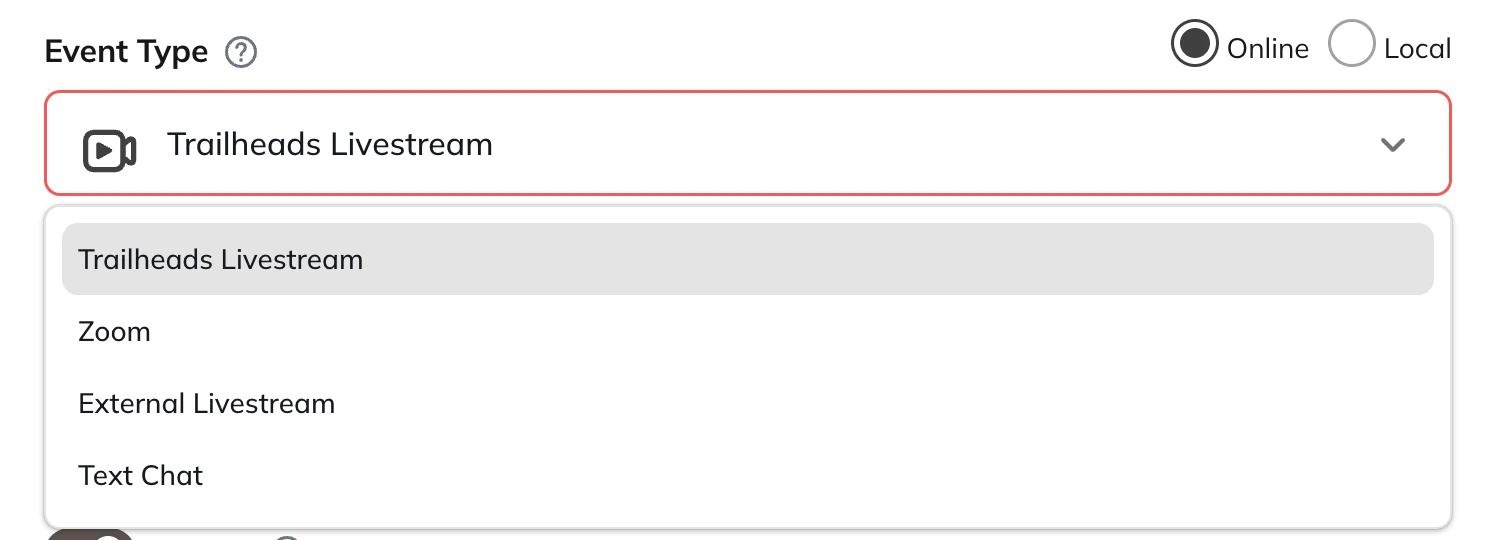
* Under **Event Type**, choose **\[Network Name] Livestream**.
* Set the date and time for your livestream.
 For more details on how to create an Event, [**check out this article**](https://docs.mightynetworks.com/for-hosts/events-and-livestream/how-do-i-create-events-in-my-mighty-network)**.**
## Start Your Livestream and Link It to the Event
When you’re ready to go live:
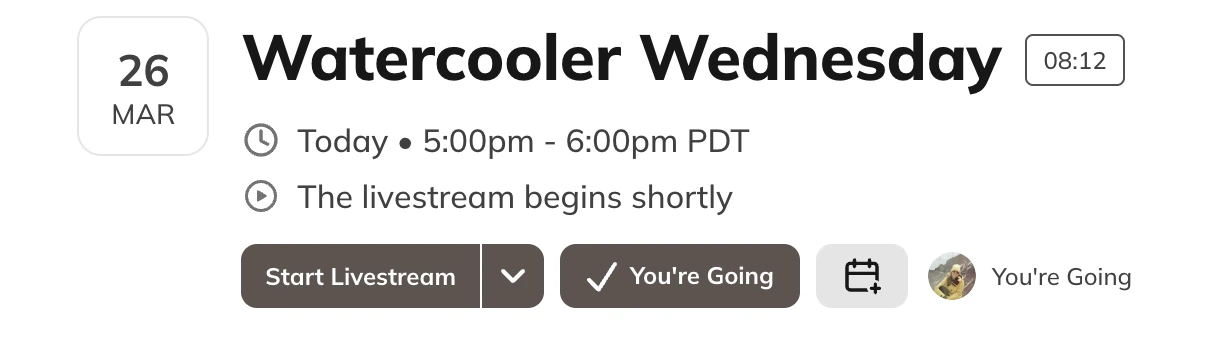
* Head to your Event and select **"Start Livestream"**
For more details on how to create an Event, [**check out this article**](https://docs.mightynetworks.com/for-hosts/events-and-livestream/how-do-i-create-events-in-my-mighty-network)**.**
## Start Your Livestream and Link It to the Event
When you’re ready to go live:
* Head to your Event and select **"Start Livestream"**
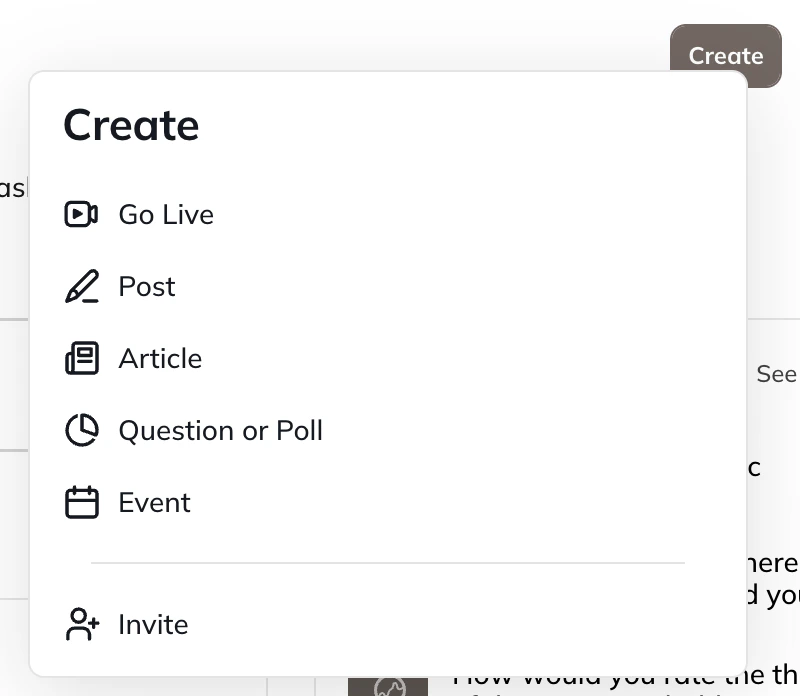
 * You can also go to **Create > Go Live**
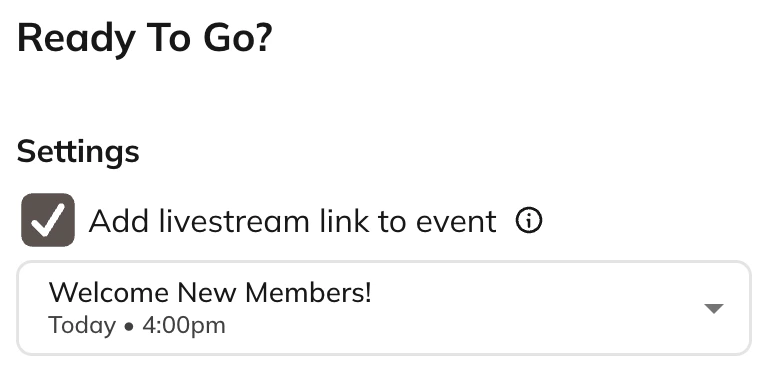
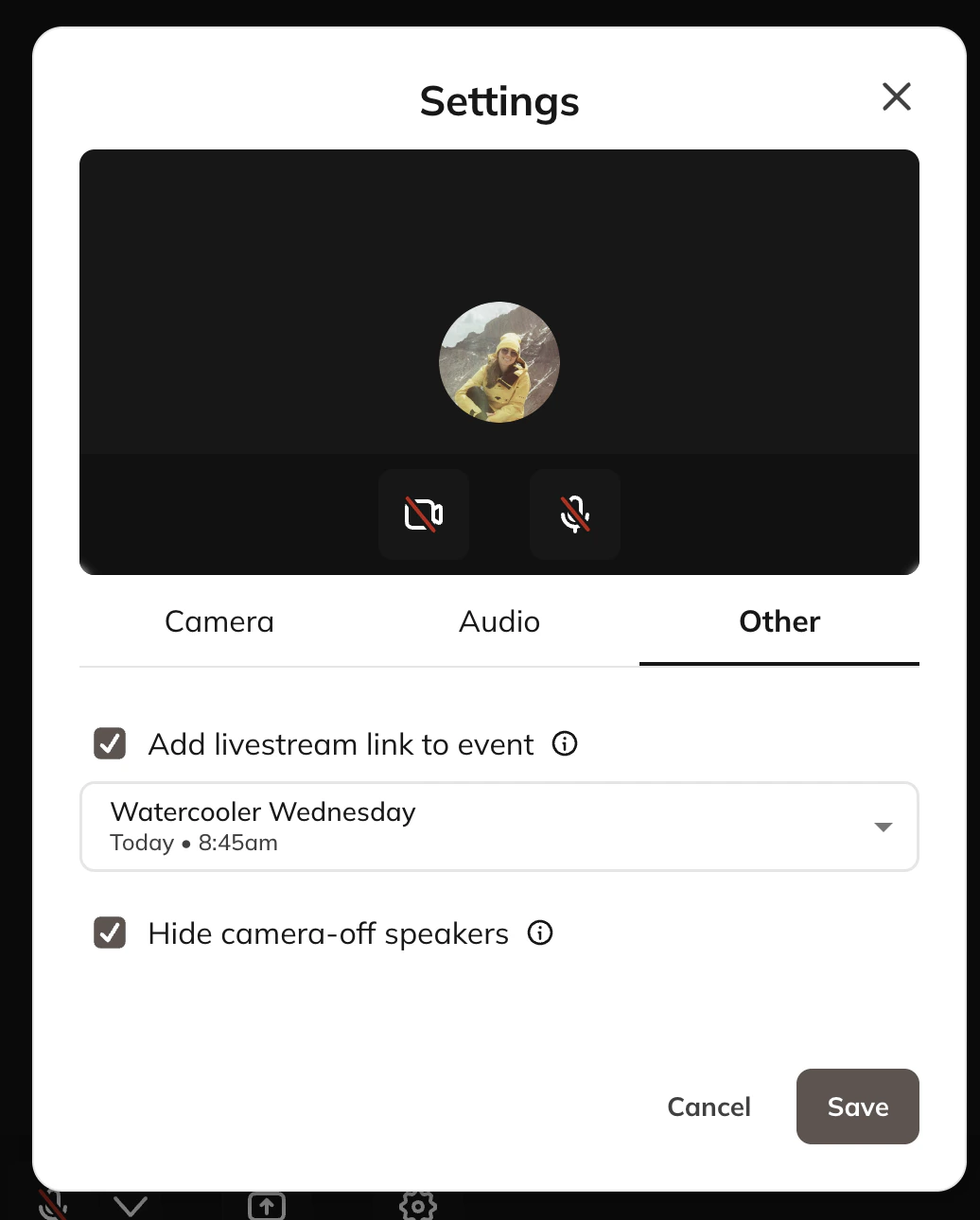
 * On the **Ready to Go** page, you can select or change the Event under **Add livestream link to Event**.
* A dropdown will appear if there are multiple Events scheduled within **30 minutes** of your start time.
* If you are going live from the Network, the event option will not appear.
* After you select the Event, it will automatically link the Event to your livestream
* You will not be able to switch from one Event to another in these settings, you will need to start a new livestream
* On the **Ready to Go** page, you can select or change the Event under **Add livestream link to Event**.
* A dropdown will appear if there are multiple Events scheduled within **30 minutes** of your start time.
* If you are going live from the Network, the event option will not appear.
* After you select the Event, it will automatically link the Event to your livestream
* You will not be able to switch from one Event to another in these settings, you will need to start a new livestream
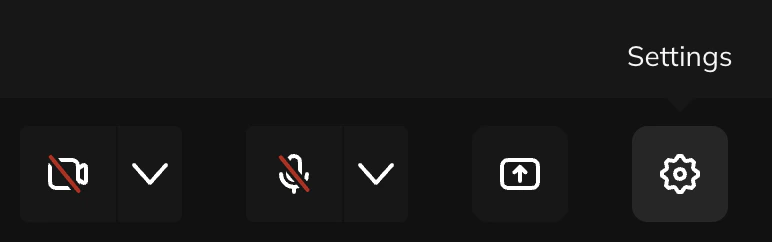
 * If you start the livestream and forget to add the Event, you can do so after by going to the gear icon in your settings > **Other tab.**
 ## What Members See
Members will see a message on the Event **"The livestream begins shortly" .**
30 minutes before the Event, they will see the option to "Join Waiting Room"
## What Members See
Members will see a message on the Event **"The livestream begins shortly" .**
30 minutes before the Event, they will see the option to "Join Waiting Room"
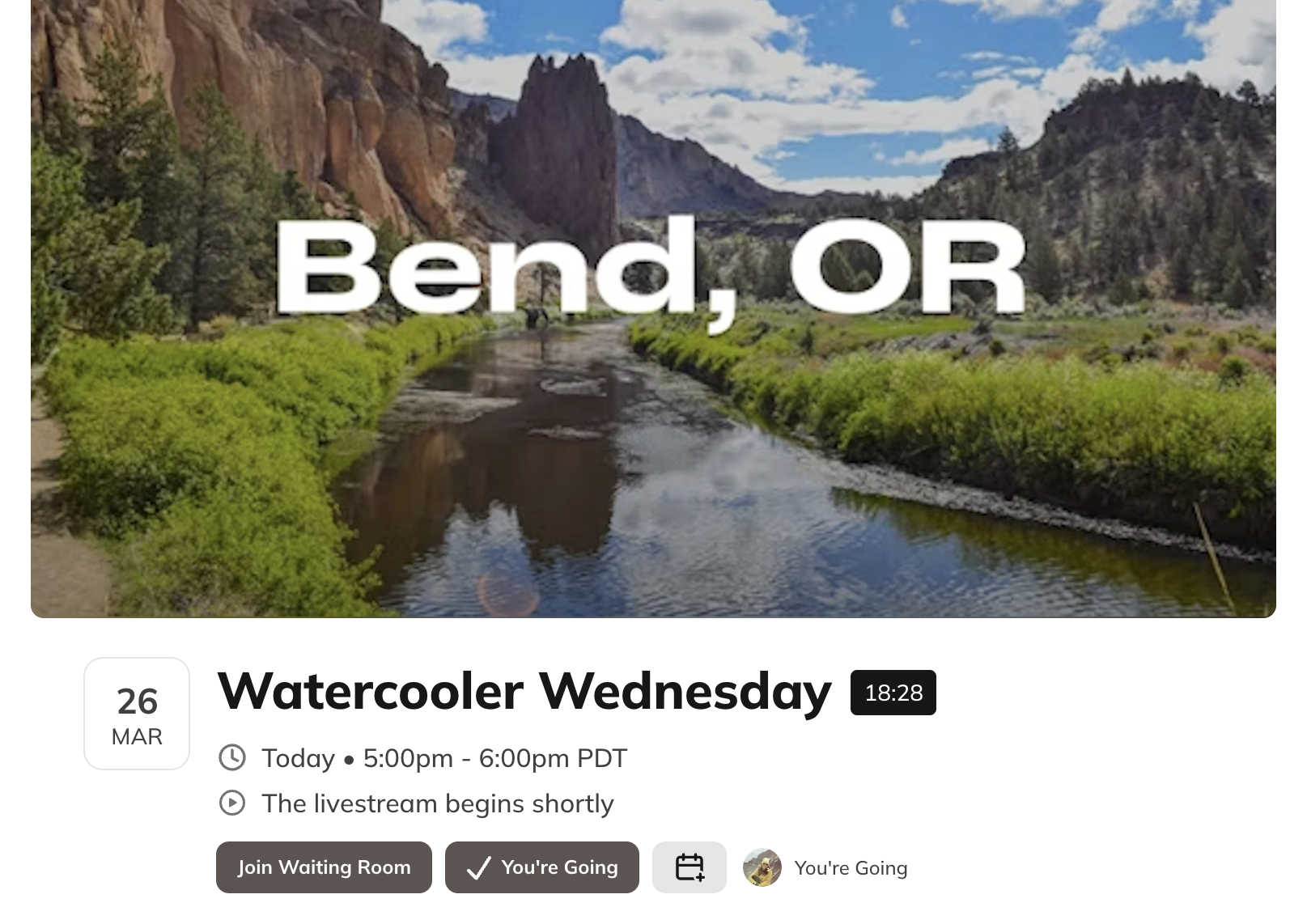 After you start the livestream, they will see "Join the Livestream" which will take them directly to the live video.