> ## Documentation Index
> Fetch the complete documentation index at: https://docs.mightynetworks.com/llms.txt
> Use this file to discover all available pages before exploring further.
# How Do I Post a Livestream Replay?
If you choose to record your livestream, you’ll receive an **email** and an **in-app notification** when the replay is ready.
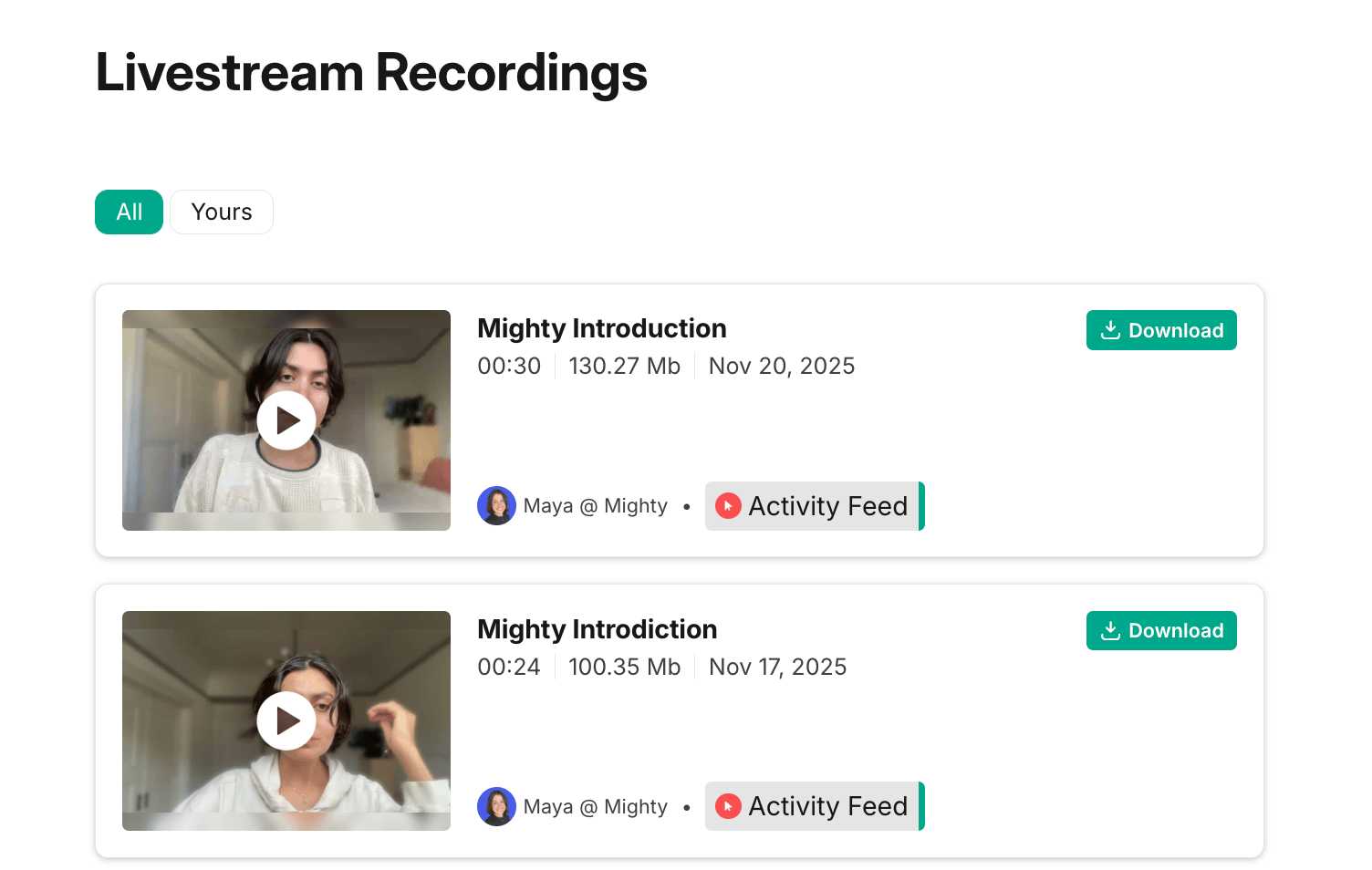
Clicking the notification takes you directly to the recording.You can also access all recordings by going to your **profile icon > Livestream Recordings**.
## Filters
* **Yours**: Shows only your recordings, with the most recent at the top.
* **All**: Shows every recording created by Network Hosts across your Mighty Network.
[](/images/for-hosts/events-and-livestream/how-do-i-post-a-livestream-replay/Screenshot-2025-11-21-at-3_21_54-PM.png)
## Previewing, Downloading, and Managing Recordings
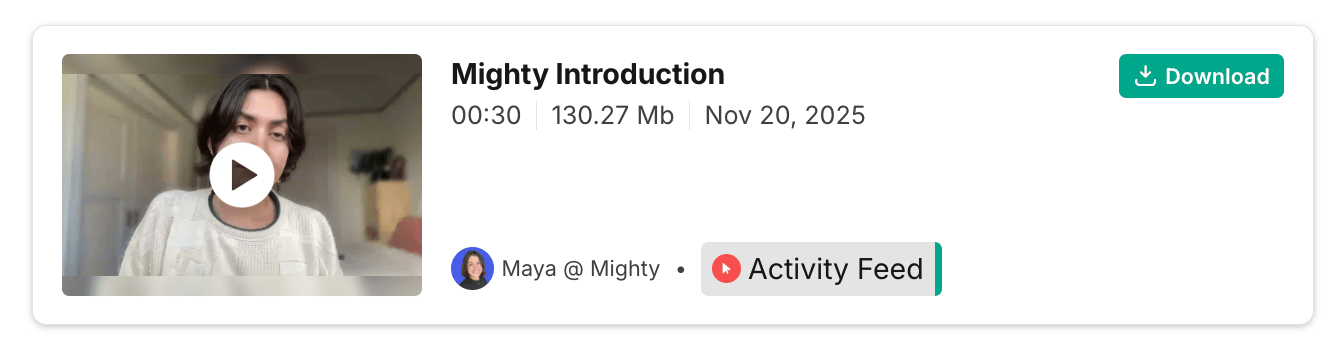
You can play the video to preview it before posting. Each recording has an automatic thumbnail, which you can change after the replay is added to a post.
* To **download** the recording, click **↓ Download**.
[](/images/for-hosts/events-and-livestream/how-do-i-post-a-livestream-replay/Screenshot-2025-11-21-at-3_22_42-PM.png)
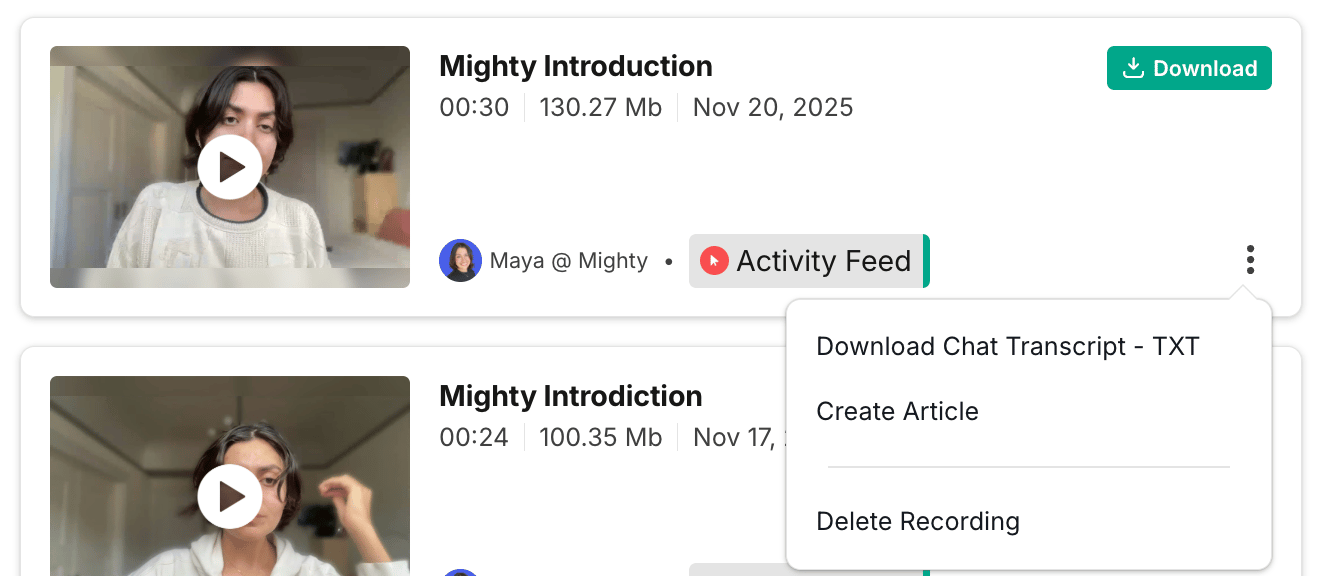
* You can delete recordings on **web** and **mobile web** only.
* Use the **three-dot menu** to download a timestamped transcript of all chat messages.
[](/images/for-hosts/events-and-livestream/how-do-i-post-a-livestream-replay/Screenshot-2025-11-21-at-3_23_58-PM.png)
## Creating an Article with the Replay
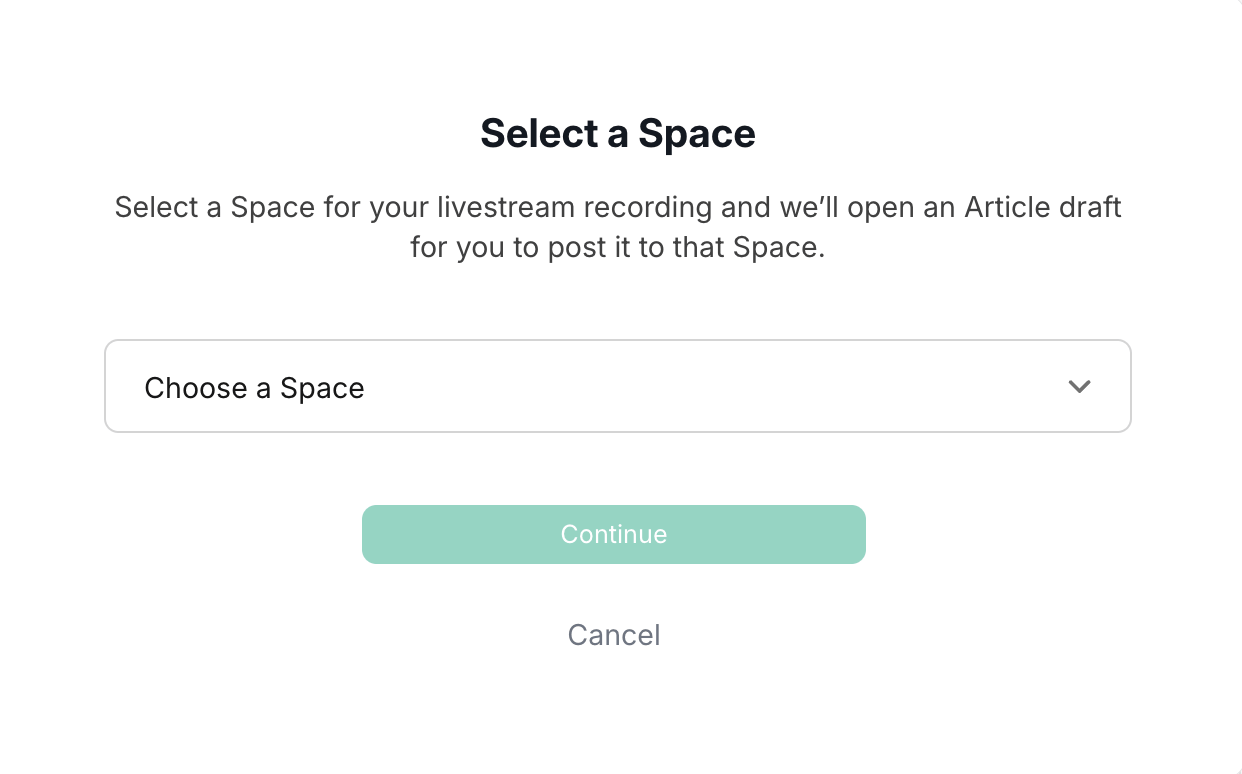
If you don’t need to edit the recording first, select **[Create Article](https://docs.mightynetworks.com/for-hosts/content-and-messaging/how-do-i-create-an-article-in-my-mighty-network)** to generate an Article with the replay already embedded.
You can only post Articles on **web** and **mobile web**.
Choose the **Space** where the Article should appear.Articles must be **[enabled in that Space](https://docs.mightynetworks.com/for-hosts/setting-up-your-network/how-do-i-add-features-to-a-space)**, and you’ll need permission to post there.
[](/images/for-hosts/events-and-livestream/how-do-i-post-a-livestream-replay/Screenshot-2025-11-21-at-3_24_48-PM.png)
## Adding the Recording to a Course
If you download your recording, you can upload it into a Space with the **Course** feature enabled to build a replay library.
To upload:
1. Click the **+** button to **[Create a Lesson](https://docs.mightynetworks.com/for-hosts/courses/how-do-i-organize-my-course-with-overviews-sections-and-lessons)**
2. Select **Add Photo, Video, or File**.
3. Choose your **.mp4** file.
While your video uploads, we recommend adding an overview of the livestream and sharing links, resources, or next steps.
You can also upload the **chat transcript** or **slide deck** as file attachments.
After processing, you can upload a **custom thumbnail**, or keep the default (a black frame with a play button).
 ](/images/for-hosts/events-and-livestream/how-do-i-post-a-livestream-replay/Screenshot-2025-11-21-at-3_21_54-PM.png)
## Previewing, Downloading, and Managing Recordings
You can play the video to preview it before posting. Each recording has an automatic thumbnail, which you can change after the replay is added to a post.
* To **download** the recording, click **↓ Download**.
[
](/images/for-hosts/events-and-livestream/how-do-i-post-a-livestream-replay/Screenshot-2025-11-21-at-3_21_54-PM.png)
## Previewing, Downloading, and Managing Recordings
You can play the video to preview it before posting. Each recording has an automatic thumbnail, which you can change after the replay is added to a post.
* To **download** the recording, click **↓ Download**.
[ ](/images/for-hosts/events-and-livestream/how-do-i-post-a-livestream-replay/Screenshot-2025-11-21-at-3_22_42-PM.png)
* You can delete recordings on **web** and **mobile web** only.
* Use the **three-dot menu** to download a timestamped transcript of all chat messages.
[
](/images/for-hosts/events-and-livestream/how-do-i-post-a-livestream-replay/Screenshot-2025-11-21-at-3_22_42-PM.png)
* You can delete recordings on **web** and **mobile web** only.
* Use the **three-dot menu** to download a timestamped transcript of all chat messages.
[ ](/images/for-hosts/events-and-livestream/how-do-i-post-a-livestream-replay/Screenshot-2025-11-21-at-3_23_58-PM.png)
## Creating an Article with the Replay
If you don’t need to edit the recording first, select **[Create Article](https://docs.mightynetworks.com/for-hosts/content-and-messaging/how-do-i-create-an-article-in-my-mighty-network)** to generate an Article with the replay already embedded.
You can only post Articles on **web** and **mobile web**.
Choose the **Space** where the Article should appear.Articles must be **[enabled in that Space](https://docs.mightynetworks.com/for-hosts/setting-up-your-network/how-do-i-add-features-to-a-space)**, and you’ll need permission to post there.
[
](/images/for-hosts/events-and-livestream/how-do-i-post-a-livestream-replay/Screenshot-2025-11-21-at-3_23_58-PM.png)
## Creating an Article with the Replay
If you don’t need to edit the recording first, select **[Create Article](https://docs.mightynetworks.com/for-hosts/content-and-messaging/how-do-i-create-an-article-in-my-mighty-network)** to generate an Article with the replay already embedded.
You can only post Articles on **web** and **mobile web**.
Choose the **Space** where the Article should appear.Articles must be **[enabled in that Space](https://docs.mightynetworks.com/for-hosts/setting-up-your-network/how-do-i-add-features-to-a-space)**, and you’ll need permission to post there.
[ ](/images/for-hosts/events-and-livestream/how-do-i-post-a-livestream-replay/Screenshot-2025-11-21-at-3_24_48-PM.png)
## Adding the Recording to a Course
If you download your recording, you can upload it into a Space with the **Course** feature enabled to build a replay library.
To upload:
1. Click the **+** button to **[Create a Lesson](https://docs.mightynetworks.com/for-hosts/courses/how-do-i-organize-my-course-with-overviews-sections-and-lessons)**
2. Select **Add Photo, Video, or File**.
3. Choose your **.mp4** file.
While your video uploads, we recommend adding an overview of the livestream and sharing links, resources, or next steps.
You can also upload the **chat transcript** or **slide deck** as file attachments.
After processing, you can upload a **custom thumbnail**, or keep the default (a black frame with a play button).
](/images/for-hosts/events-and-livestream/how-do-i-post-a-livestream-replay/Screenshot-2025-11-21-at-3_24_48-PM.png)
## Adding the Recording to a Course
If you download your recording, you can upload it into a Space with the **Course** feature enabled to build a replay library.
To upload:
1. Click the **+** button to **[Create a Lesson](https://docs.mightynetworks.com/for-hosts/courses/how-do-i-organize-my-course-with-overviews-sections-and-lessons)**
2. Select **Add Photo, Video, or File**.
3. Choose your **.mp4** file.
While your video uploads, we recommend adding an overview of the livestream and sharing links, resources, or next steps.
You can also upload the **chat transcript** or **slide deck** as file attachments.
After processing, you can upload a **custom thumbnail**, or keep the default (a black frame with a play button).