> ## Documentation Index
> Fetch the complete documentation index at: https://docs.mightynetworks.com/llms.txt
> Use this file to discover all available pages before exploring further.
# How Do I Livestream in My Network?
As a **Network Host on any Paid Plan**, you can go live in any Space where you're also a **Space Host**.
On [**Mighty Pro**](https://docs.mightynetworks.com/for-hosts/meet-mighty/what-is-mighty-pro) and [**Growth**](https://docs.mightynetworks.com/for-hosts/meet-mighty/whats-included-in-the-mighty-networks-growth-plan), Network Hosts can contact our team to enable livestreaming permissions for Space Hosts and Network moderators.
Any member with access to the Space can join your livestream.
You can have up to **nine people** on screen at once (including the Host).
Livestreaming is available on **web**, **iOS**, and **Android**.
On **Android**, viewers can minimize a livestream into picture-in-picture mode to stay engaged while doing other tasks. (Coming to iOS in the future.)
For details on multiple speakers, see: [How Do I Add Speakers to a Livestream?](https://docs.mightynetworks.com/for-hosts/events-and-livestream/can-i-have-multiple-speakers-during-a-livestream)
## Start a Livestream
## Going Live on Web
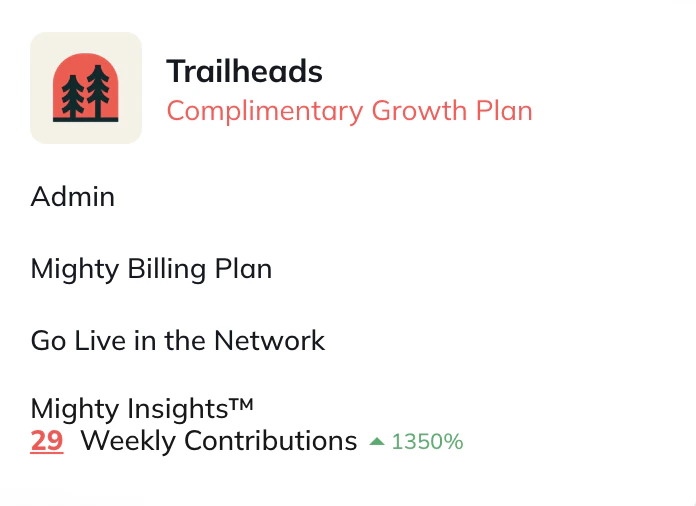
**To go live to the entire Network:**
1. Click your **profile icon** (upper right).
2. Select **Go Live in the Network**.
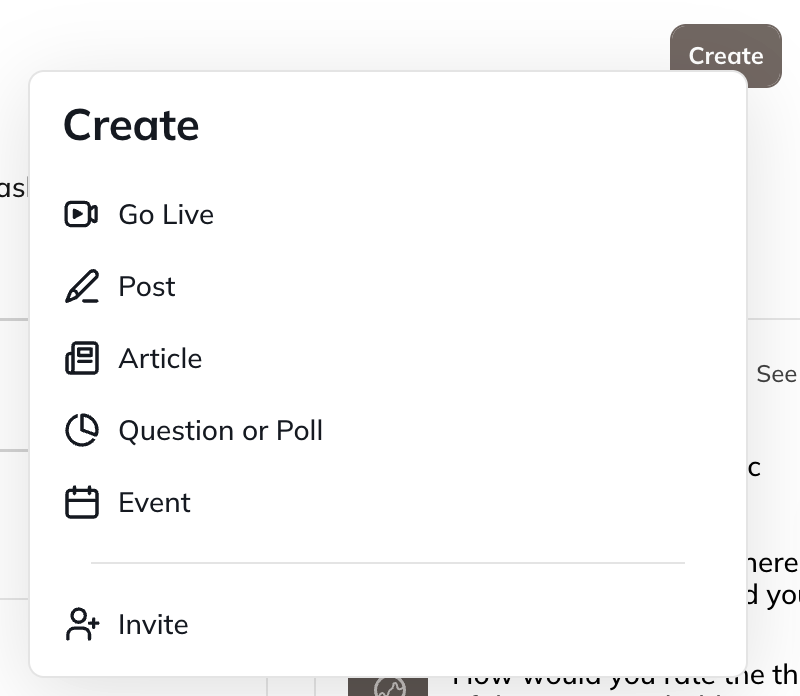
**To go live in a specific Space:**
1. Click **Create** (upper right).
2. Select **Go Live**.
## Going Live on Mobile (iOS and Android)
**To go live to the entire Network:**
* Tap the **camera icon** in any Global Feature.
**To go live within a Space:**
* Open the **three-dot menu** in the upper right corner and select **Go Live**.
## Livestream Setup Options
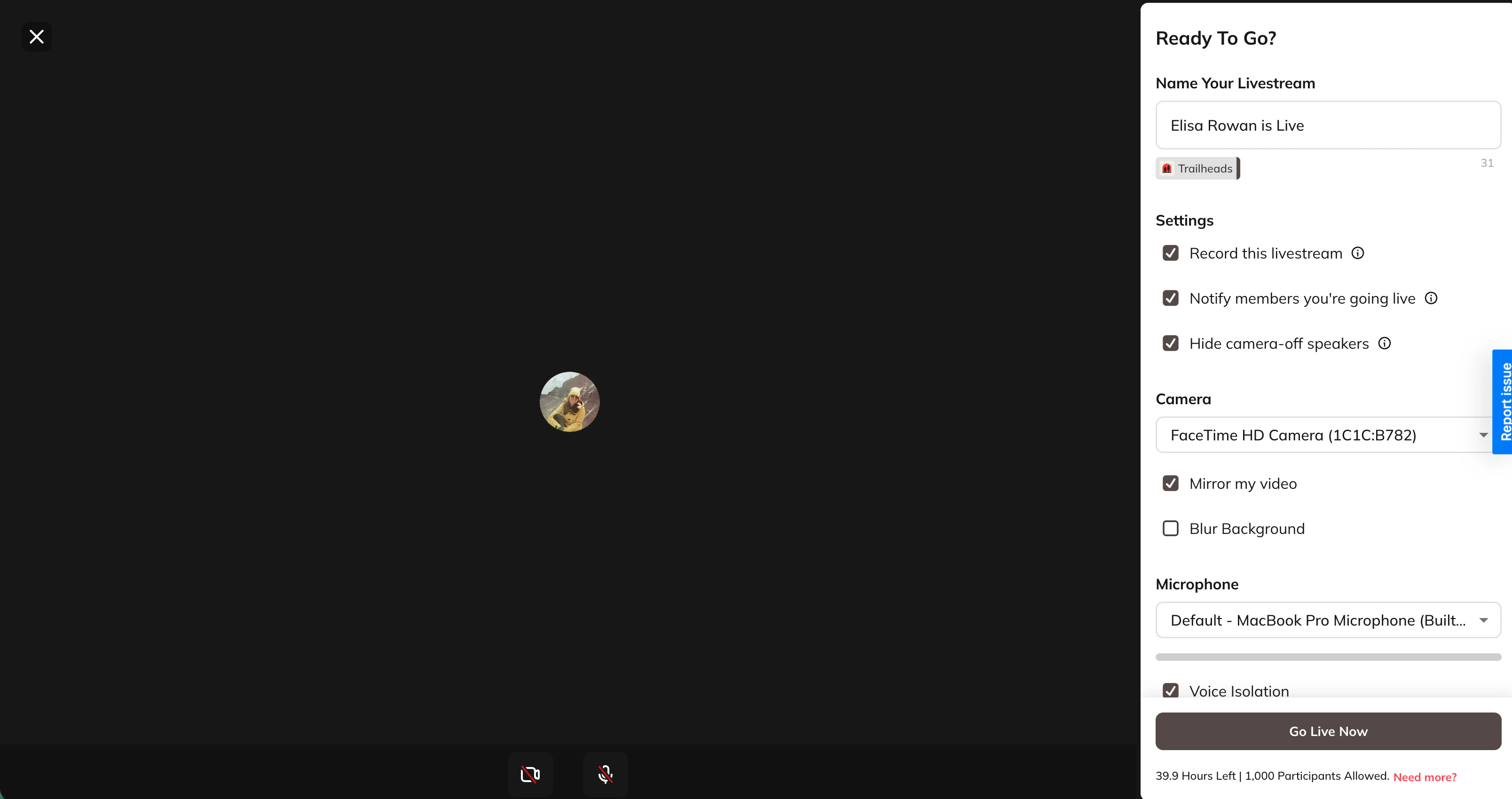
When you go live, you’ll be prompted to allow access to your **camera** and **microphone**.
You’ll then see setup options:
**Name Your Livestream**
**Settings**
* **Record this livestream**: Automatically start recording when you go live (the recording will be available afterward).
* **Notify your members**: Sends both email and push notifications when you go live.
* **Hide camera-off speakers:** When enabled, attendees with their camera off will not be shown as tiles in the livestream.
* **Add livestream [link to an Event](https://docs.mightynetworks.com/for-hosts/events-and-livestream/how-do-i-schedule-a-livestream-event)**[:](https://docs.mightynetworks.com/for-hosts/events-and-livestream/how-do-i-schedule-a-livestream-event) Link your livestream to an Event happening within 30 minutes of your start time.
**Camera**
* **Camera Source**
* **Mirror my video**
* **Blur Background**
**Microphone**
* **Microphone source**
* **Voice Isolation** (reduces background noise)
* **Speaker source + test audio** (Chrome only)
At the bottom center, you can mute your microphone or turn your camera off before starting.
When you click **Go Live Now**, the livestream prepares and displays a countdown.
**Important:** Audio and video captured during the countdown will be included in the recording.
Your previous settings are saved for next time.
## Livestream Settings While Live
At the bottom of your livestream window (web and mobile):
* **Camera icon**: Change camera source or blur your background.
* **Microphone icon**: Change microphone or speaker source (web only) and enable Voice Isolation.
* **Share Screen:** You can share your screen during the livestream.
* **Gear icon**: Adjust camera, microphone, and mirroring, hide camera-off settings
## Screen Sharing
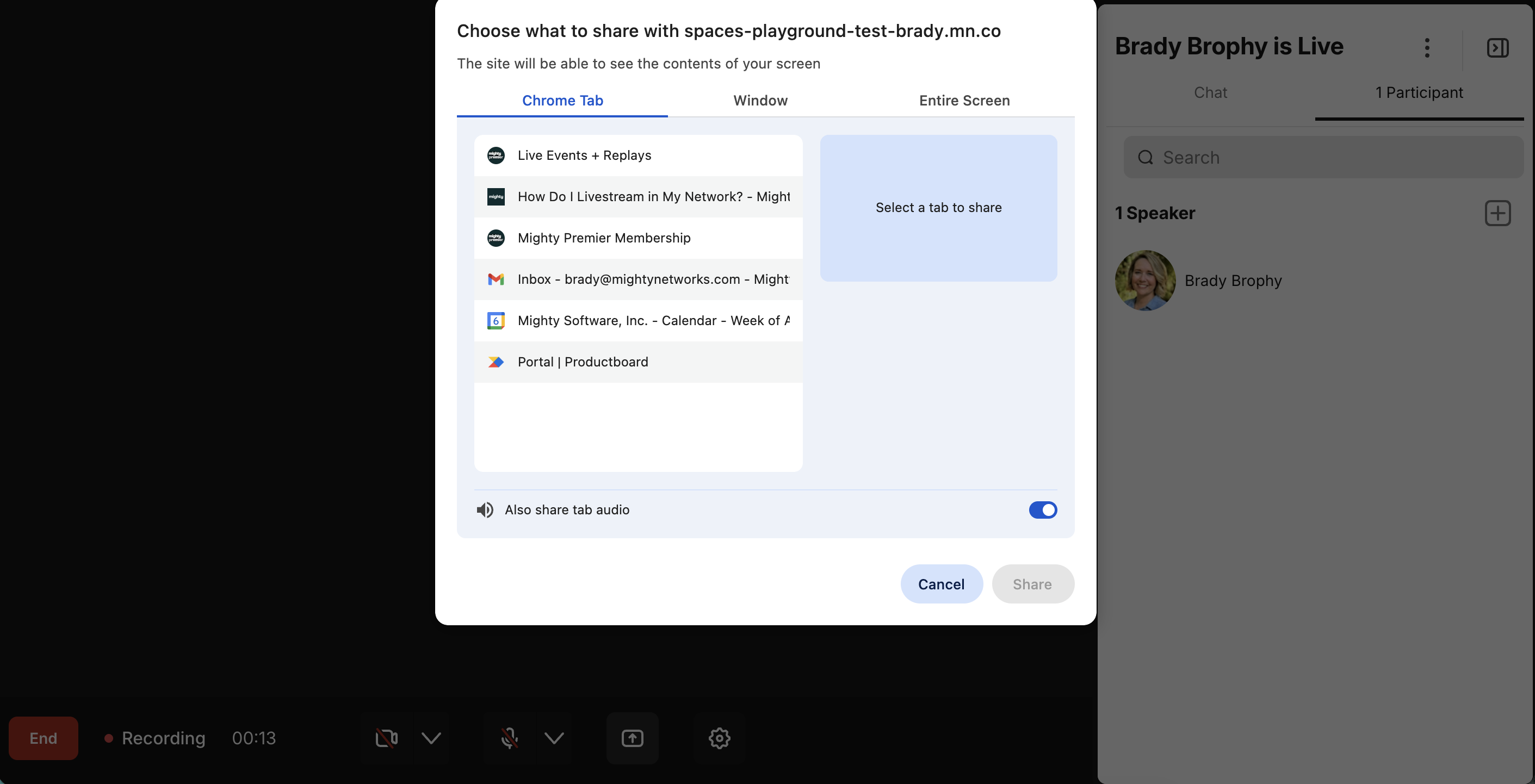
You can share your screen during the livestream.
* Click **Share Screen** at the bottom of the livestream window.
* Choose the window or screen you want to share.
* Share a Tab if you only want one tab to show (not the whole desktop)
* Share a Window for one browser window to show (with all tabs)
* Share Entire Screen if you want your whole desktop to show.
* Your video will appear in the corner while screen sharing.
Screen sharing is **not** available on:
* iPad
* Safari
Mobile users can flip to the rear camera to show their screen instead.
### Browser notes
* **Chrome**: Can share a tab with audio.
* Other browsers: Share video only; audio must be captured by your microphone.
* **Safari**: Screen sharing doesn’t work—use Chrome instead.
## Multiple Speakers
Livestreams can have up to 9 total Speakers (including the Creator of the livestream). To learn more, [**check out this article.**](https://docs.mightynetworks.com/for-hosts/events-and-livestream/can-i-have-multiple-speakers-during-a-livestream)
## Livestream Chat
During a livestream, members can chat in real time to react, ask questions, and share insights. Here’s how chat works for both Hosts and members.
### Chat Controls for Hosts and Moderators
[Space Hosts and Space moderators](https://docs.mightynetworks.com/for-hosts/admin-and-moderation/what-permissions-do-space-hosts-and-space-moderators-have) have the ability to **delete chat messages** during a livestream.
To delete a message (web):
1. Hover over the message.
2. Click the **trash icon**.
### Viewer Chat Experience (Web)
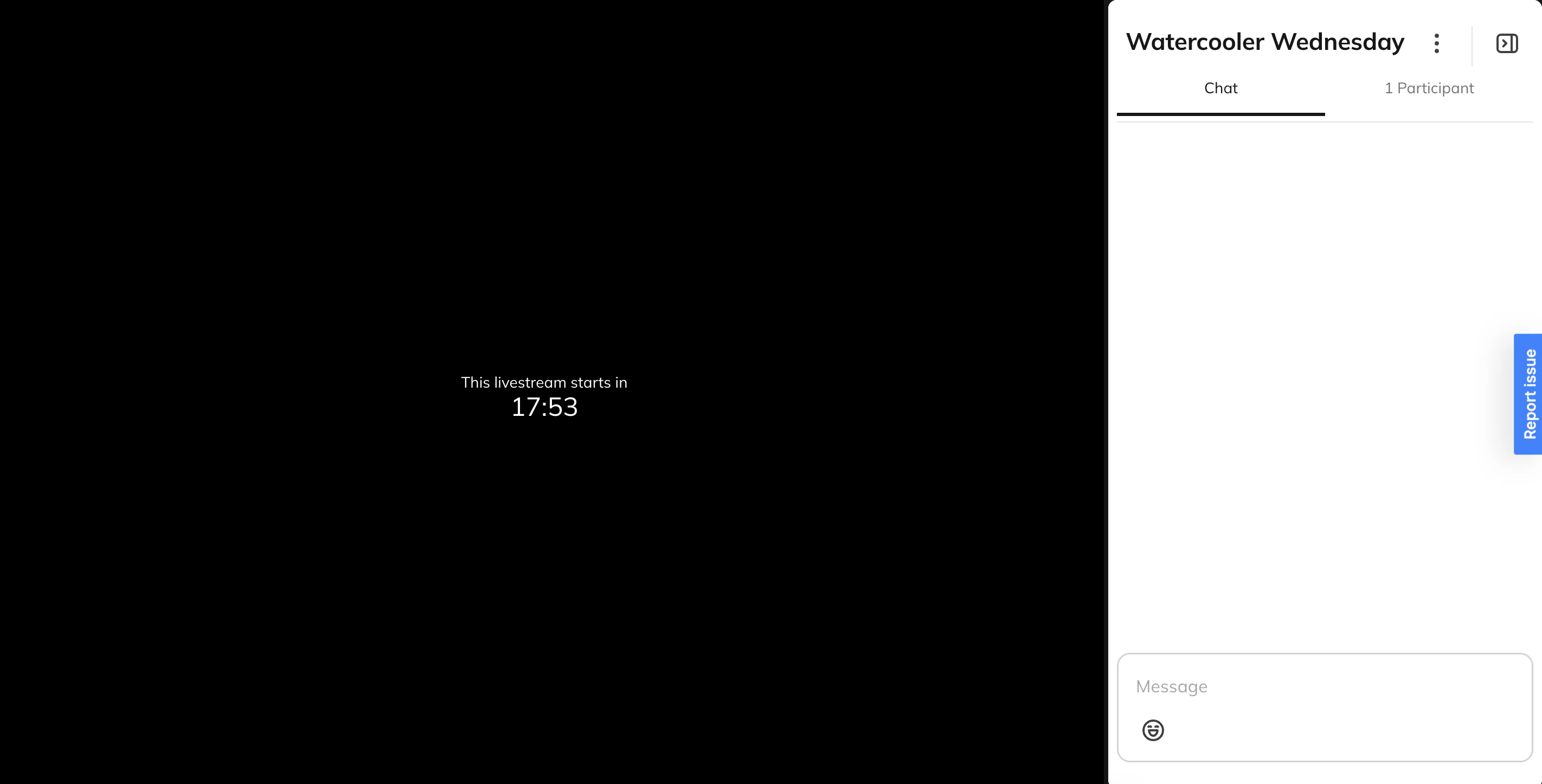
* Chat appears in the panel next to the livestream.
* Viewers can toggle chat **on or off** for themselves.
* The **participant list** is displayed in a separate tab and updates in real time.
### Viewer Chat Experience (Mobile)
* The livestream fills the screen.
* Chat messages appear halfway up the screen and fade after a moment.
* Members can scroll through previous messages at any time.
* A viewer count icon at the bottom shows how many people are watching; tapping it opens the viewer list.
## Livestream Viewer Experience
When you go live, a livestream banner appears at the top of your Mighty Network. It shows:
* Livestream title
* Video preview
* Participant count
Select the banner to open the livestream in a flyout.
If multiple livestreams are happening in different Spaces, members can browse and join any of them.
## Join a Livestream
Members, Hosts, and moderators can join by:
* Selecting a notification (if enabled)
* Selecting **Join Livestream** on the banner
* Joining from the Event page or waiting room
## Joining from an Event
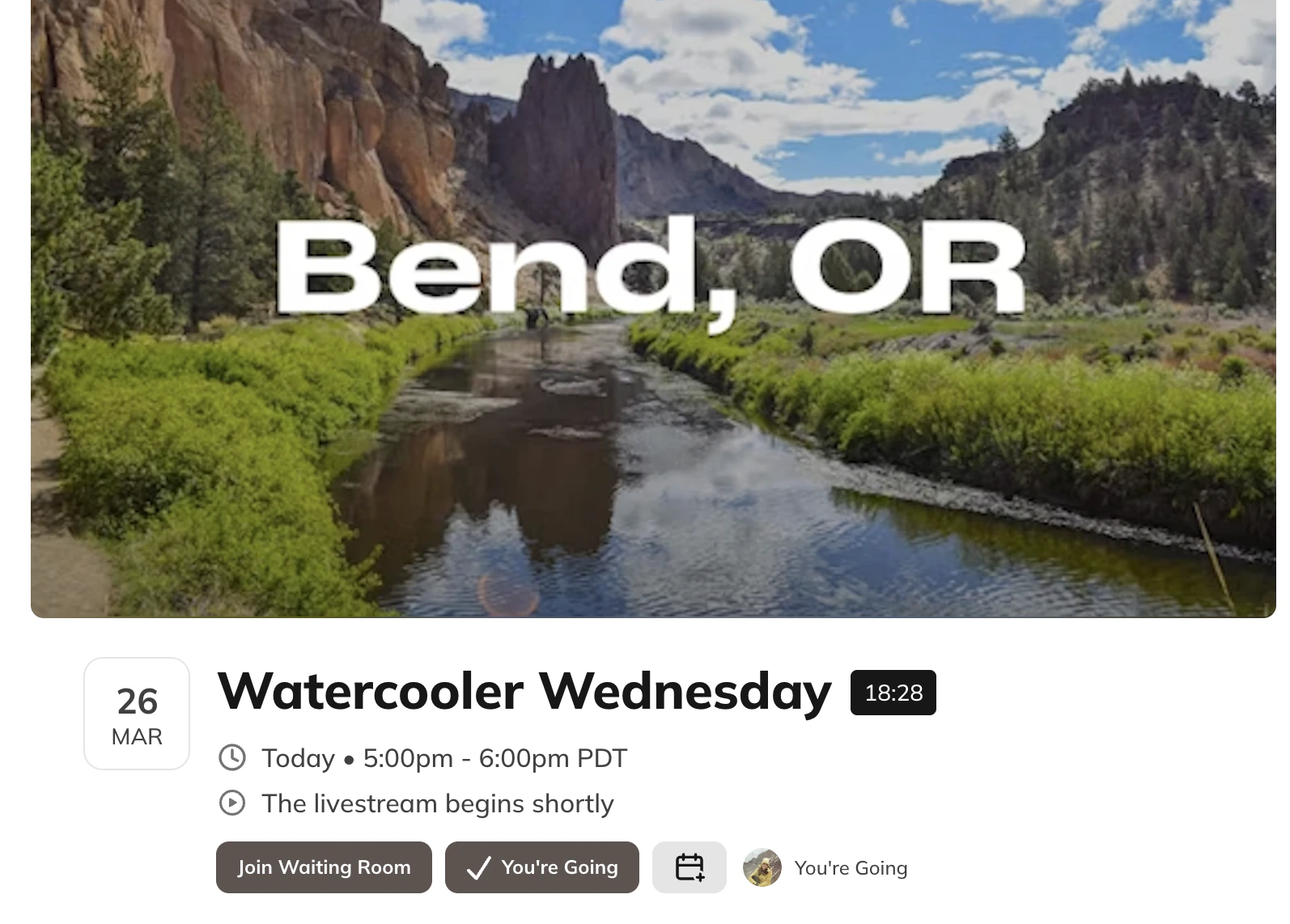
If a livestream is connected to an event, members can join directly from the event page.
Before the livestream starts:
* They can select **Join Waiting Room** up to 30 minutes before the start of the event to chat with other members.
When the livestream begins:
* Members in the waiting room join automatically and the chat will carry over
* Or, they can go to the Event page and select **Join Livestream**
## Ending a Livestream
## On Web
You’ll see:
* **End Livestream** (upper left)
* A livestream timer
* A right-hand panel with **Chat** and **Participants**
Chat can be toggled off by viewers.
After ending the livestream, participants see a confirmation message.
## On Mobile
You’ll see:
* **End**
* Camera and microphone toggles
* Chat toggle
* Front/rear camera switch
* Flashlight toggle (rear camera)
Chat messages appear briefly on screen and can be scrolled at any time.
Ending requires confirmation before the livestream fully stops.
## More Livestream Help
* [**How Do I Post a Livestream Replay?**](https://docs.mightynetworks.com/for-hosts/events-and-livestream/how-do-i-post-a-livestream-replay)
* [**How Do I Schedule a Livestream Event?**](https://docs.mightynetworks.com/for-hosts/events-and-livestream/how-do-i-schedule-a-livestream-event)
* [**How Do I Add Speakers to a Livestream?**](https://docs.mightynetworks.com/for-hosts/events-and-livestream/can-i-have-multiple-speakers-during-a-livestream)
 **To go live in a specific Space:**
1. Click **Create** (upper right).
2. Select **Go Live**.
**To go live in a specific Space:**
1. Click **Create** (upper right).
2. Select **Go Live**.
 ## Going Live on Mobile (iOS and Android)
**To go live to the entire Network:**
* Tap the **camera icon** in any Global Feature.
**To go live within a Space:**
* Open the **three-dot menu** in the upper right corner and select **Go Live**.
## Livestream Setup Options
When you go live, you’ll be prompted to allow access to your **camera** and **microphone**.
You’ll then see setup options:
**Name Your Livestream**
**Settings**
* **Record this livestream**: Automatically start recording when you go live (the recording will be available afterward).
* **Notify your members**: Sends both email and push notifications when you go live.
* **Hide camera-off speakers:** When enabled, attendees with their camera off will not be shown as tiles in the livestream.
* **Add livestream [link to an Event](https://docs.mightynetworks.com/for-hosts/events-and-livestream/how-do-i-schedule-a-livestream-event)**[:](https://docs.mightynetworks.com/for-hosts/events-and-livestream/how-do-i-schedule-a-livestream-event) Link your livestream to an Event happening within 30 minutes of your start time.
**Camera**
* **Camera Source**
* **Mirror my video**
* **Blur Background**
**Microphone**
* **Microphone source**
* **Voice Isolation** (reduces background noise)
* **Speaker source + test audio** (Chrome only)
## Going Live on Mobile (iOS and Android)
**To go live to the entire Network:**
* Tap the **camera icon** in any Global Feature.
**To go live within a Space:**
* Open the **three-dot menu** in the upper right corner and select **Go Live**.
## Livestream Setup Options
When you go live, you’ll be prompted to allow access to your **camera** and **microphone**.
You’ll then see setup options:
**Name Your Livestream**
**Settings**
* **Record this livestream**: Automatically start recording when you go live (the recording will be available afterward).
* **Notify your members**: Sends both email and push notifications when you go live.
* **Hide camera-off speakers:** When enabled, attendees with their camera off will not be shown as tiles in the livestream.
* **Add livestream [link to an Event](https://docs.mightynetworks.com/for-hosts/events-and-livestream/how-do-i-schedule-a-livestream-event)**[:](https://docs.mightynetworks.com/for-hosts/events-and-livestream/how-do-i-schedule-a-livestream-event) Link your livestream to an Event happening within 30 minutes of your start time.
**Camera**
* **Camera Source**
* **Mirror my video**
* **Blur Background**
**Microphone**
* **Microphone source**
* **Voice Isolation** (reduces background noise)
* **Speaker source + test audio** (Chrome only)
 At the bottom center, you can mute your microphone or turn your camera off before starting.
When you click **Go Live Now**, the livestream prepares and displays a countdown.
**Important:** Audio and video captured during the countdown will be included in the recording.
Your previous settings are saved for next time.
## Livestream Settings While Live
At the bottom of your livestream window (web and mobile):
At the bottom center, you can mute your microphone or turn your camera off before starting.
When you click **Go Live Now**, the livestream prepares and displays a countdown.
**Important:** Audio and video captured during the countdown will be included in the recording.
Your previous settings are saved for next time.
## Livestream Settings While Live
At the bottom of your livestream window (web and mobile):
 * **Camera icon**: Change camera source or blur your background.
* **Microphone icon**: Change microphone or speaker source (web only) and enable Voice Isolation.
* **Share Screen:** You can share your screen during the livestream.
* **Gear icon**: Adjust camera, microphone, and mirroring, hide camera-off settings
## Screen Sharing
You can share your screen during the livestream.
* Click **Share Screen** at the bottom of the livestream window.
* Choose the window or screen you want to share.
* Share a Tab if you only want one tab to show (not the whole desktop)
* Share a Window for one browser window to show (with all tabs)
* Share Entire Screen if you want your whole desktop to show.
* Your video will appear in the corner while screen sharing.
* **Camera icon**: Change camera source or blur your background.
* **Microphone icon**: Change microphone or speaker source (web only) and enable Voice Isolation.
* **Share Screen:** You can share your screen during the livestream.
* **Gear icon**: Adjust camera, microphone, and mirroring, hide camera-off settings
## Screen Sharing
You can share your screen during the livestream.
* Click **Share Screen** at the bottom of the livestream window.
* Choose the window or screen you want to share.
* Share a Tab if you only want one tab to show (not the whole desktop)
* Share a Window for one browser window to show (with all tabs)
* Share Entire Screen if you want your whole desktop to show.
* Your video will appear in the corner while screen sharing.
 Screen sharing is **not** available on:
* iPad
* Safari
Mobile users can flip to the rear camera to show their screen instead.
### Browser notes
* **Chrome**: Can share a tab with audio.
* Other browsers: Share video only; audio must be captured by your microphone.
* **Safari**: Screen sharing doesn’t work—use Chrome instead.
## Multiple Speakers
Livestreams can have up to 9 total Speakers (including the Creator of the livestream). To learn more, [**check out this article.**](https://docs.mightynetworks.com/for-hosts/events-and-livestream/can-i-have-multiple-speakers-during-a-livestream)
## Livestream Chat
During a livestream, members can chat in real time to react, ask questions, and share insights. Here’s how chat works for both Hosts and members.
### Chat Controls for Hosts and Moderators
[Space Hosts and Space moderators](https://docs.mightynetworks.com/for-hosts/admin-and-moderation/what-permissions-do-space-hosts-and-space-moderators-have) have the ability to **delete chat messages** during a livestream.
To delete a message (web):
1. Hover over the message.
2. Click the **trash icon**.
### Viewer Chat Experience (Web)
* Chat appears in the panel next to the livestream.
* Viewers can toggle chat **on or off** for themselves.
* The **participant list** is displayed in a separate tab and updates in real time.
### Viewer Chat Experience (Mobile)
* The livestream fills the screen.
* Chat messages appear halfway up the screen and fade after a moment.
* Members can scroll through previous messages at any time.
* A viewer count icon at the bottom shows how many people are watching; tapping it opens the viewer list.
## Livestream Viewer Experience
When you go live, a livestream banner appears at the top of your Mighty Network. It shows:
* Livestream title
* Video preview
* Participant count
Select the banner to open the livestream in a flyout.
If multiple livestreams are happening in different Spaces, members can browse and join any of them.
## Join a Livestream
Members, Hosts, and moderators can join by:
* Selecting a notification (if enabled)
* Selecting **Join Livestream** on the banner
* Joining from the Event page or waiting room
## Joining from an Event
If a livestream is connected to an event, members can join directly from the event page.
Before the livestream starts:
* They can select **Join Waiting Room** up to 30 minutes before the start of the event to chat with other members.
When the livestream begins:
* Members in the waiting room join automatically and the chat will carry over
* Or, they can go to the Event page and select **Join Livestream**
Screen sharing is **not** available on:
* iPad
* Safari
Mobile users can flip to the rear camera to show their screen instead.
### Browser notes
* **Chrome**: Can share a tab with audio.
* Other browsers: Share video only; audio must be captured by your microphone.
* **Safari**: Screen sharing doesn’t work—use Chrome instead.
## Multiple Speakers
Livestreams can have up to 9 total Speakers (including the Creator of the livestream). To learn more, [**check out this article.**](https://docs.mightynetworks.com/for-hosts/events-and-livestream/can-i-have-multiple-speakers-during-a-livestream)
## Livestream Chat
During a livestream, members can chat in real time to react, ask questions, and share insights. Here’s how chat works for both Hosts and members.
### Chat Controls for Hosts and Moderators
[Space Hosts and Space moderators](https://docs.mightynetworks.com/for-hosts/admin-and-moderation/what-permissions-do-space-hosts-and-space-moderators-have) have the ability to **delete chat messages** during a livestream.
To delete a message (web):
1. Hover over the message.
2. Click the **trash icon**.
### Viewer Chat Experience (Web)
* Chat appears in the panel next to the livestream.
* Viewers can toggle chat **on or off** for themselves.
* The **participant list** is displayed in a separate tab and updates in real time.
### Viewer Chat Experience (Mobile)
* The livestream fills the screen.
* Chat messages appear halfway up the screen and fade after a moment.
* Members can scroll through previous messages at any time.
* A viewer count icon at the bottom shows how many people are watching; tapping it opens the viewer list.
## Livestream Viewer Experience
When you go live, a livestream banner appears at the top of your Mighty Network. It shows:
* Livestream title
* Video preview
* Participant count
Select the banner to open the livestream in a flyout.
If multiple livestreams are happening in different Spaces, members can browse and join any of them.
## Join a Livestream
Members, Hosts, and moderators can join by:
* Selecting a notification (if enabled)
* Selecting **Join Livestream** on the banner
* Joining from the Event page or waiting room
## Joining from an Event
If a livestream is connected to an event, members can join directly from the event page.
Before the livestream starts:
* They can select **Join Waiting Room** up to 30 minutes before the start of the event to chat with other members.
When the livestream begins:
* Members in the waiting room join automatically and the chat will carry over
* Or, they can go to the Event page and select **Join Livestream**
 ## Ending a Livestream
## On Web
You’ll see:
* **End Livestream** (upper left)
* A livestream timer
* A right-hand panel with **Chat** and **Participants**
Chat can be toggled off by viewers.
After ending the livestream, participants see a confirmation message.
## On Mobile
You’ll see:
* **End**
* Camera and microphone toggles
* Chat toggle
* Front/rear camera switch
* Flashlight toggle (rear camera)
Chat messages appear briefly on screen and can be scrolled at any time.
Ending requires confirmation before the livestream fully stops.
## More Livestream Help
* [**How Do I Post a Livestream Replay?**](https://docs.mightynetworks.com/for-hosts/events-and-livestream/how-do-i-post-a-livestream-replay)
* [**How Do I Schedule a Livestream Event?**](https://docs.mightynetworks.com/for-hosts/events-and-livestream/how-do-i-schedule-a-livestream-event)
* [**How Do I Add Speakers to a Livestream?**](https://docs.mightynetworks.com/for-hosts/events-and-livestream/can-i-have-multiple-speakers-during-a-livestream)
## Ending a Livestream
## On Web
You’ll see:
* **End Livestream** (upper left)
* A livestream timer
* A right-hand panel with **Chat** and **Participants**
Chat can be toggled off by viewers.
After ending the livestream, participants see a confirmation message.
## On Mobile
You’ll see:
* **End**
* Camera and microphone toggles
* Chat toggle
* Front/rear camera switch
* Flashlight toggle (rear camera)
Chat messages appear briefly on screen and can be scrolled at any time.
Ending requires confirmation before the livestream fully stops.
## More Livestream Help
* [**How Do I Post a Livestream Replay?**](https://docs.mightynetworks.com/for-hosts/events-and-livestream/how-do-i-post-a-livestream-replay)
* [**How Do I Schedule a Livestream Event?**](https://docs.mightynetworks.com/for-hosts/events-and-livestream/how-do-i-schedule-a-livestream-event)
* [**How Do I Add Speakers to a Livestream?**](https://docs.mightynetworks.com/for-hosts/events-and-livestream/can-i-have-multiple-speakers-during-a-livestream)