> ## Documentation Index
> Fetch the complete documentation index at: https://docs.mightynetworks.com/llms.txt
> Use this file to discover all available pages before exploring further.
# Can I Have Multiple Speakers During a Livestream?
Livestreams can include up to **9 Speakers total** (the Creator + 8 additional Speakers).
At this time, only **Network Hosts** can start a livestream in a Mighty Network or a Space.
This feature is available on **web** and **mobile**, but we strongly recommend using **Google Chrome** to host or join a livestream (not Safari or Firefox).
[ ](/images/for-hosts/events-and-livestream/can-i-have-multiple-speakers-during-a-livestream/25017796310541)
## Inviting and Managing Speakers
## Invite a Speaker
The **Creator of the livestream** can invite Speakers from the **Participants** tab:
* Open the **Participants** tab.
* Scroll or search for the viewer you want to invite.
* Select the **three-dot menu** next to their name.
* Choose **Invite as Speaker**.
[
](/images/for-hosts/events-and-livestream/can-i-have-multiple-speakers-during-a-livestream/25017796310541)
## Inviting and Managing Speakers
## Invite a Speaker
The **Creator of the livestream** can invite Speakers from the **Participants** tab:
* Open the **Participants** tab.
* Scroll or search for the viewer you want to invite.
* Select the **three-dot menu** next to their name.
* Choose **Invite as Speaker**.
[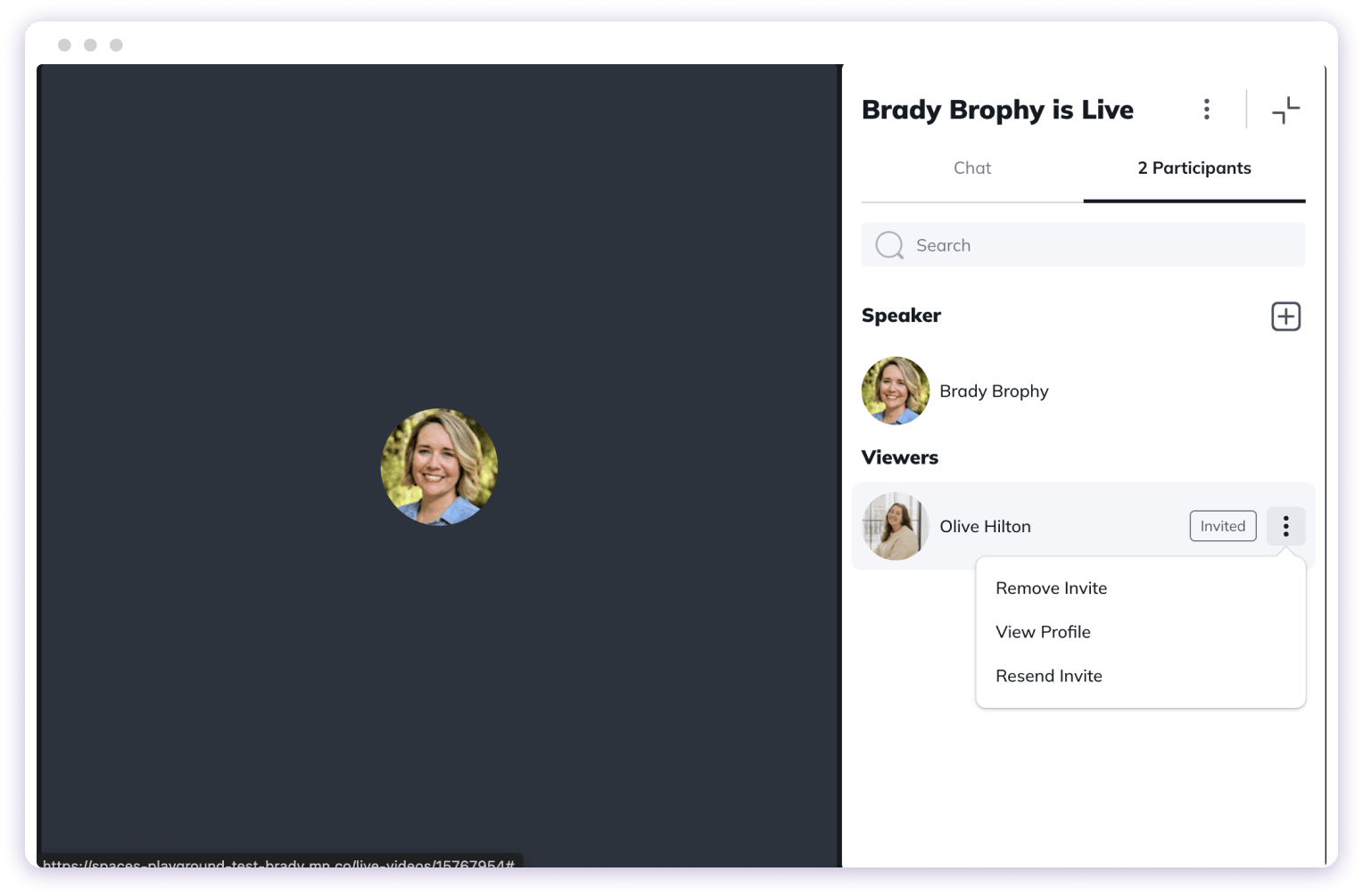 ](/images/for-hosts/events-and-livestream/can-i-have-multiple-speakers-during-a-livestream/resend-invite.png)
Any viewer in your Mighty Network—Host, moderator, or member—can be invited.
## What Invited Speakers See
When invited:
* They receive a **popup invitation**.
[
](/images/for-hosts/events-and-livestream/can-i-have-multiple-speakers-during-a-livestream/resend-invite.png)
Any viewer in your Mighty Network—Host, moderator, or member—can be invited.
## What Invited Speakers See
When invited:
* They receive a **popup invitation**.
[ ](/images/for-hosts/events-and-livestream/can-i-have-multiple-speakers-during-a-livestream/25017796317453)
* They must grant **camera and microphone permissions**.
* They see a **preview** of their video and audio, and can change inputs before joining.
[
](/images/for-hosts/events-and-livestream/can-i-have-multiple-speakers-during-a-livestream/25017796317453)
* They must grant **camera and microphone permissions**.
* They see a **preview** of their video and audio, and can change inputs before joining.
[ ](/images/for-hosts/events-and-livestream/can-i-have-multiple-speakers-during-a-livestream/25017796329101)
If an invited Speaker doesn’t accept permissions right away, the invitation remains valid unless the Creator removes it.
## Managing Speaker Invitations
In the **three-dot menu** next to the viewer’s name, the Creator can:
* **Remove Invite**
* **Resend Invite**
If a Speaker disconnects, they keep their Speaker status as long as the Creator hasn’t removed it.
## Recording Notice
If the livestream is being recorded:
* Invited Speakers see a notice stating that they agree to be recorded.
* A **Recording** indicator appears for all participants.
## Demoting a Speaker
To return a Speaker to viewer status:
1. Open the **Participants** tab.
2. Select the **three-dot menu** next to their name.
3. Choose **Remove as Speaker**.
## Browser and Device Compatibility
## Best Experience
* Desktop: **Chrome** is strongly recommended.
* Mobile: iOS and Android apps fully support multispeaker livestreaming.
## Pre-Stream Checklist (Recommended)
For the best performance:
* Join from a compatible browser/device.
* Update to the latest browser or OS version.
* Use headphones to prevent audio feedback.
* Close unnecessary apps/tabs.
* If issues occur, refresh the tab (desktop) or leave/rejoin the livestream.
## Permission Requirements by Platform
### Chrome (Desktop)
* Viewers: No permissions needed.
* Speakers: Must accept camera and microphone permissions.
* If permissions were denied previously, enable them in **Chrome Settings**.
### Safari (Desktop)
* Recommended for viewing only.
* **Speakers should use Chrome** instead.
### iOS (Mobile)
Viewers: Must accept device microphone/camera prompts (required by iOS).Speakers: Must also accept browser permissions when invited.If declined, iOS will open system settings to re-enable both.
### Android (Mobile)
Viewers: Must accept device microphone/camera prompts.Speakers: Must accept browser permissions when invited.If declined, Android will open system settings to re-enable both.
](/images/for-hosts/events-and-livestream/can-i-have-multiple-speakers-during-a-livestream/25017796329101)
If an invited Speaker doesn’t accept permissions right away, the invitation remains valid unless the Creator removes it.
## Managing Speaker Invitations
In the **three-dot menu** next to the viewer’s name, the Creator can:
* **Remove Invite**
* **Resend Invite**
If a Speaker disconnects, they keep their Speaker status as long as the Creator hasn’t removed it.
## Recording Notice
If the livestream is being recorded:
* Invited Speakers see a notice stating that they agree to be recorded.
* A **Recording** indicator appears for all participants.
## Demoting a Speaker
To return a Speaker to viewer status:
1. Open the **Participants** tab.
2. Select the **three-dot menu** next to their name.
3. Choose **Remove as Speaker**.
## Browser and Device Compatibility
## Best Experience
* Desktop: **Chrome** is strongly recommended.
* Mobile: iOS and Android apps fully support multispeaker livestreaming.
## Pre-Stream Checklist (Recommended)
For the best performance:
* Join from a compatible browser/device.
* Update to the latest browser or OS version.
* Use headphones to prevent audio feedback.
* Close unnecessary apps/tabs.
* If issues occur, refresh the tab (desktop) or leave/rejoin the livestream.
## Permission Requirements by Platform
### Chrome (Desktop)
* Viewers: No permissions needed.
* Speakers: Must accept camera and microphone permissions.
* If permissions were denied previously, enable them in **Chrome Settings**.
### Safari (Desktop)
* Recommended for viewing only.
* **Speakers should use Chrome** instead.
### iOS (Mobile)
Viewers: Must accept device microphone/camera prompts (required by iOS).Speakers: Must also accept browser permissions when invited.If declined, iOS will open system settings to re-enable both.
### Android (Mobile)
Viewers: Must accept device microphone/camera prompts.Speakers: Must accept browser permissions when invited.If declined, Android will open system settings to re-enable both.