> ## Documentation Index
> Fetch the complete documentation index at: https://docs.mightynetworks.com/llms.txt
> Use this file to discover all available pages before exploring further.
# How Do I Track Member Completion and Progress?
When creating or managing [**Lessons**](https://docs.mightynetworks.com/for-hosts/courses/how-do-i-organize-my-course-with-overviews-sections-and-lessons) inside the [**Course feature**](https://docs.mightynetworks.com/for-hosts/courses/how-do-i-build-a-course-in-my-mighty-network), you can set both **unlocking** and **completion** requirements. These settings help guide members through your Course in the order and pace you choose.
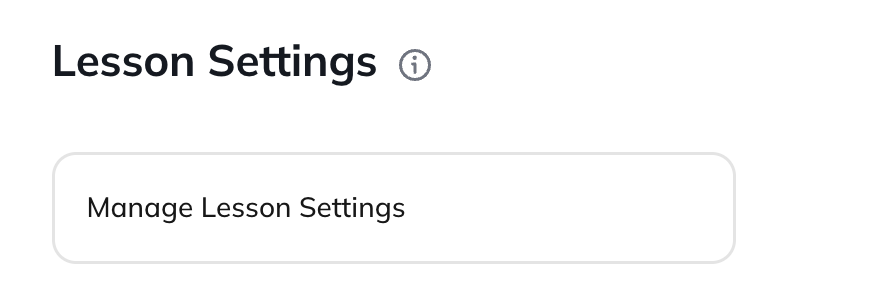
To update settings for a Lesson, open the Lesson and select **Manage Lesson Settings**.
 ## Unlock Options for Lessons
These are the unlock options available today:
## Unlock Options for Lessons
These are the unlock options available today:
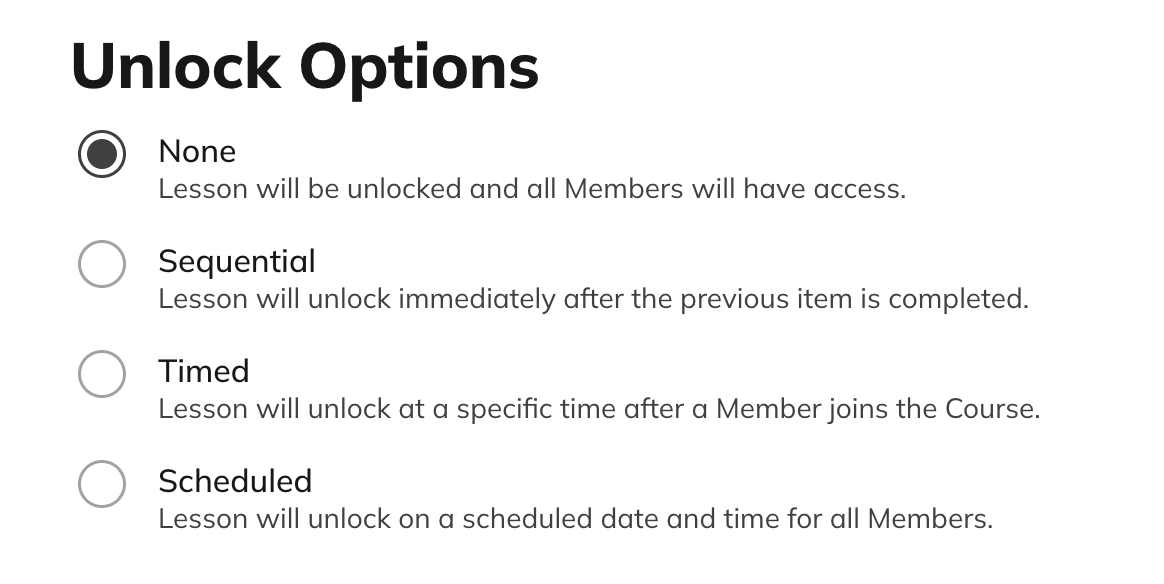 ## None
The Lesson is available immediately when the member starts the Course.
## Sequential
Members unlock the Lesson only after completing the previous one.This is a per-user experience, so unlock timing varies by member.
## Timed
The Lesson unlocks a set number of days after a member joins the Space.
* Unlocks at the exact join time (e.g., joined at 12pm → unlocks at 12pm).
* Members are notified when new material unlocks.
* If new Lessons are added after a member joins, timers still apply to the **original** join date.
* If a member leaves and rejoins, the timer still uses the **first** join date.
* Bulk-selecting Timed Unlock applies the **same unlock day** to all selected Lessons.
* To stagger unlocks (e.g., Day 7 → Day 14 → Day 21), set each Lesson individually.
## Scheduled
The Lesson unlocks on a specific date and time.
* To keep it hidden until the unlock date, set the Lesson to **Hidden**.
* If Visible, members can see the Lesson title but can’t access content until the unlock time.
## Important
Any unlock changes apply to **existing members and new members**.
To change the Unlock Settings for multiple Lessons at once, hover your cursor over a Lesson and tick the box to the left. You'll then see the option to select multiple Lessons or Select All.
## What Locked Lessons Look Like
Locked Lessons will have a time icon, when hovering over it will show when the Lesson will unlock.
## None
The Lesson is available immediately when the member starts the Course.
## Sequential
Members unlock the Lesson only after completing the previous one.This is a per-user experience, so unlock timing varies by member.
## Timed
The Lesson unlocks a set number of days after a member joins the Space.
* Unlocks at the exact join time (e.g., joined at 12pm → unlocks at 12pm).
* Members are notified when new material unlocks.
* If new Lessons are added after a member joins, timers still apply to the **original** join date.
* If a member leaves and rejoins, the timer still uses the **first** join date.
* Bulk-selecting Timed Unlock applies the **same unlock day** to all selected Lessons.
* To stagger unlocks (e.g., Day 7 → Day 14 → Day 21), set each Lesson individually.
## Scheduled
The Lesson unlocks on a specific date and time.
* To keep it hidden until the unlock date, set the Lesson to **Hidden**.
* If Visible, members can see the Lesson title but can’t access content until the unlock time.
## Important
Any unlock changes apply to **existing members and new members**.
To change the Unlock Settings for multiple Lessons at once, hover your cursor over a Lesson and tick the box to the left. You'll then see the option to select multiple Lessons or Select All.
## What Locked Lessons Look Like
Locked Lessons will have a time icon, when hovering over it will show when the Lesson will unlock.
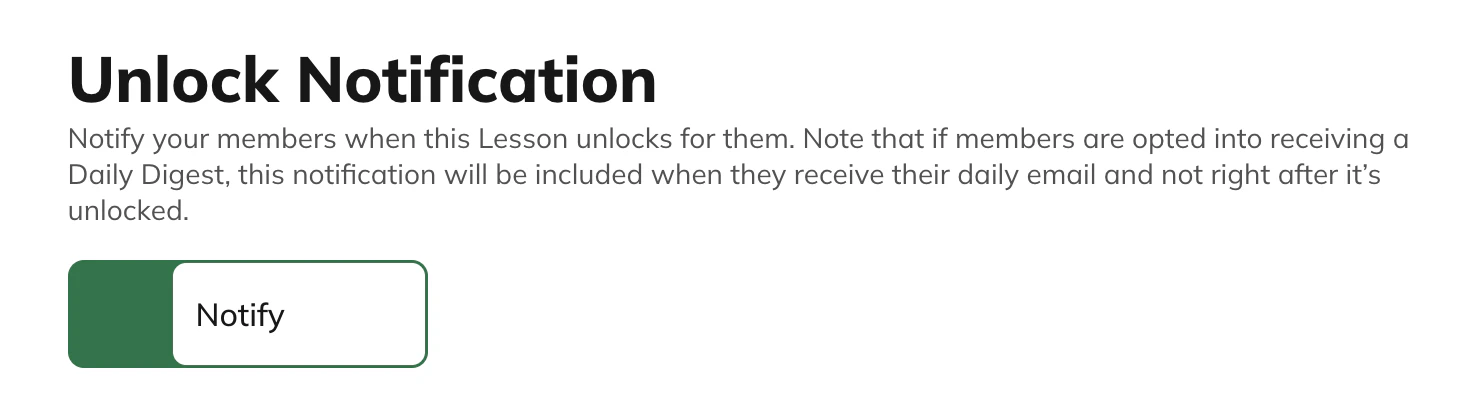
 ## Unlock Notifications
For **Scheduled** and **Timed** unlocks, you can choose whether members receive a notification.
* **Toggle ON** → Members receive a notification when the Lesson unlocks.
* **Toggle OFF** → No notification is sent.
This toggle is disabled for all other unlock types.
## Unlock Notifications
For **Scheduled** and **Timed** unlocks, you can choose whether members receive a notification.
* **Toggle ON** → Members receive a notification when the Lesson unlocks.
* **Toggle OFF** → No notification is sent.
This toggle is disabled for all other unlock types.
 ## Completion Tracking for Lessons
These are the available completion options:
## Completion Tracking for Lessons
These are the available completion options:
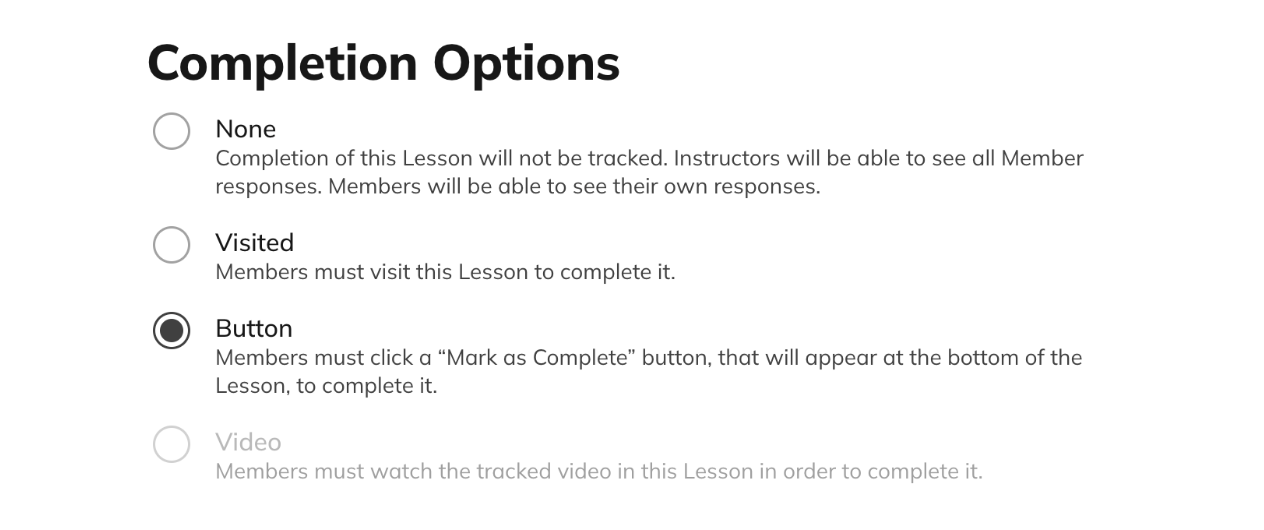 ## None
The completion of the Lesson won't be tracked.
## Visited
A member must open the Lesson to complete it.
## Button
A member must click **Mark as Complete**.
**Note:** If Unlock Settings = **None**, Button Completion does **not** block access to the next Lesson. To require completion, use **Sequential** unlocking.
## Video
A member must watch the entire **tracked** video.
* You can track **native MP4 uploads** or **embedded YouTube videos**.
* Loom, Vimeo, and Wistia **cannot** be tracked.
* Only **one** tracked video per Lesson.
* Choose the tracked video using the **timer icon**.
* Members may fast-forward through both embedded and native videos.
Video resumes where members left off only when tracking is enabled.
## Additional Notes
* You cannot reset completion on behalf of a member.
* Edits to completion settings apply immediately to all members.
* If you add a new video and enable tracking, members who previously completed the Lesson **stay completed**.
* If you choose any of the completion options, there will be a checkmark next to the Lesson once it's been completed.
## Completion Automation
You can use Automations to assign **Badges, send confetti and more** when members complete a:
* Lesson
* Section
* Quiz
[**Learn more here**](https://docs.mightynetworks.com/for-hosts/automations/how-can-i-set-up-automations-in-my-mighty-network)
## Measuring Member Completion
If completion tracking is on, you can see each member’s progress at a glance.
Go to:
**Space Settings > Members > Member List**
You’ll see:
* % complete
* Last Lesson or Quiz viewed
* Last Lesson or Quiz completed
Completion data also appears in the downloadable member list and inside the Members feature (if enabled in the Space).
## Reset Progress
You can also allow members to reset their Course progress:
1. Go to the Space’s **gear icon**.
2. Select **Features > Course > Reset Progress** and toggle it on.
When enabled, members can reset their progress:
* From the **Next Up** card (three-dot menu).
* On both web and mobile.
## What happens when progress is reset:
* Lesson progress and Quiz attempts are cleared.
* Locked content may become locked again.
* Hosts cannot reset progress on a member’s behalf.
* Previous Quiz attempts still appear in the CSV export.
* If a removed member rejoins with the same account, their previous Course progress is restored.
## Understanding the “Next Up” Section
The **Next Up** section guides members through the Course based on your settings.It appears only when:
* Completion tracking is enabled, **and**
* Unlock or completion rules apply.
**Space Hosts do not see Next Up** (members only).
## None
The completion of the Lesson won't be tracked.
## Visited
A member must open the Lesson to complete it.
## Button
A member must click **Mark as Complete**.
**Note:** If Unlock Settings = **None**, Button Completion does **not** block access to the next Lesson. To require completion, use **Sequential** unlocking.
## Video
A member must watch the entire **tracked** video.
* You can track **native MP4 uploads** or **embedded YouTube videos**.
* Loom, Vimeo, and Wistia **cannot** be tracked.
* Only **one** tracked video per Lesson.
* Choose the tracked video using the **timer icon**.
* Members may fast-forward through both embedded and native videos.
Video resumes where members left off only when tracking is enabled.
## Additional Notes
* You cannot reset completion on behalf of a member.
* Edits to completion settings apply immediately to all members.
* If you add a new video and enable tracking, members who previously completed the Lesson **stay completed**.
* If you choose any of the completion options, there will be a checkmark next to the Lesson once it's been completed.
## Completion Automation
You can use Automations to assign **Badges, send confetti and more** when members complete a:
* Lesson
* Section
* Quiz
[**Learn more here**](https://docs.mightynetworks.com/for-hosts/automations/how-can-i-set-up-automations-in-my-mighty-network)
## Measuring Member Completion
If completion tracking is on, you can see each member’s progress at a glance.
Go to:
**Space Settings > Members > Member List**
You’ll see:
* % complete
* Last Lesson or Quiz viewed
* Last Lesson or Quiz completed
Completion data also appears in the downloadable member list and inside the Members feature (if enabled in the Space).
## Reset Progress
You can also allow members to reset their Course progress:
1. Go to the Space’s **gear icon**.
2. Select **Features > Course > Reset Progress** and toggle it on.
When enabled, members can reset their progress:
* From the **Next Up** card (three-dot menu).
* On both web and mobile.
## What happens when progress is reset:
* Lesson progress and Quiz attempts are cleared.
* Locked content may become locked again.
* Hosts cannot reset progress on a member’s behalf.
* Previous Quiz attempts still appear in the CSV export.
* If a removed member rejoins with the same account, their previous Course progress is restored.
## Understanding the “Next Up” Section
The **Next Up** section guides members through the Course based on your settings.It appears only when:
* Completion tracking is enabled, **and**
* Unlock or completion rules apply.
**Space Hosts do not see Next Up** (members only).