> ## Documentation Index
> Fetch the complete documentation index at: https://docs.mightynetworks.com/llms.txt
> Use this file to discover all available pages before exploring further.
# How Do I Upload Native Audio to My Mighty Network?
> Upload audio files to Articles, Lessons, Events, Pages, and Posts, and learn how members listen across web and mobile.
Bring audio directly into your Mighty Network and give members more ways to learn, connect, and participate. With native audio, you can create podcasts, audio lessons, guided experiences, voice updates, and more inside your Network.
Native audio works across web and mobile, so members can keep listening wherever they are. A member can start an audio file, lock their phone, and keep listening on a walk. When they come back later, they can pick up right where they left off.
If your Mighty Network is on the [**Explore Plan**](/for-hosts/meet-mighty/exploreplan) and up, you can upload audio files directly to your Network.
## What You Can Create With Native Audio
Native audio works across learning, coaching, community, and conversation. For example, you can create:
* **Private podcasts and audio series**: Create a [**Course**](/for-hosts/courses/how-do-i-build-a-course-in-my-mighty-network) with 1 [**Lesson**](/for-hosts/courses/how-do-i-organize-my-course-with-overviews-sections-and-lessons) per episode so members can move through a structured series.
* **Coaching sessions**: Share longer coaching recordings, trainings, or reflections members can return to anytime.
* **Guided practices**: Offer meditations, breathwork, visualizations, journaling prompts, workouts, or other experiences designed to be heard.
* **Audio lessons**: Create audio-first Lessons members can listen to away from their screen.
* **Voice updates**: Share a quick audio [**Post**](/for-hosts/content-and-messaging/how-do-i-create-a-post-in-my-mighty-network) when you want something more personal than a written announcement.
* **Member prompts**: Record a question, challenge, or reflection and invite members to continue the conversation in the [**Feed**](/for-hosts/setting-up-your-network/what-is-the-feed-and-how-does-it-work).
* **Bonus or exclusive content**: Share private interviews, behind-the-scenes recordings, or subscriber-only audio.
* **Audio companions**: Add a short recording inside an [**Article**](/for-hosts/content-and-messaging/how-do-i-create-an-article-in-my-mighty-network), Lesson, or Page to explain, demonstrate, pronounce, or expand on written content.
* **Event replays and follow-ups**: Share an audio recap, reflection, or recording members can return to after an [**Event**](/for-hosts/events-and-livestream/how-do-i-create-events-in-my-mighty-network).
* **Stories and interviews**: Bring member stories, expert conversations, interviews, or narrative content directly into your Network.
Members can keep listening while they explore your Mighty Network, leave the app, or lock their phone. That makes audio especially useful for experiences that don't require members to stay in front of a screen.
## Who Can Upload Native Audio
The following roles can upload audio:
* [**Network Hosts**](/for-hosts/admin-and-moderation/what-permissions-do-network-hosts-and-network-moderators-have)
* [**Network moderators**](/for-hosts/admin-and-moderation/what-permissions-do-network-hosts-and-network-moderators-have)
* [**Space Hosts**](/for-hosts/admin-and-moderation/what-permissions-do-space-hosts-and-space-moderators-have)
* [**Space moderators**](/for-hosts/admin-and-moderation/what-permissions-do-space-hosts-and-space-moderators-have)
Members can listen to native audio, but they can't upload audio files.
## Audio Upload Limits
* **Maximum file size:** 250MB per audio file
## Where You Can Add Audio
You can add native audio in 3 places, depending on the experience you want to create:
* **Primary Media**: Make audio the main experience on an [**Article**](/for-hosts/content-and-messaging/how-do-i-create-an-article-in-my-mighty-network), [**Lesson**](/for-hosts/courses/how-do-i-organize-my-course-with-overviews-sections-and-lessons), [**Event**](/for-hosts/events-and-livestream/how-do-i-create-events-in-my-mighty-network), or [**Page**](/for-hosts/setting-up-your-network/how-do-i-add-features-to-a-space). This gives members the fullest listening experience and is the best choice for podcasts, audio lessons, coaching sessions, guided practices, and other longer-form audio.
* **Posts**: Share audio directly in the [**Feed**](/for-hosts/setting-up-your-network/what-is-the-feed-and-how-does-it-work) for voice updates, announcements, prompts, quick tips, and other conversational content.
* **Inside Articles, Lessons, and Pages**: Add shorter audio clips alongside written content when the audio supports or expands on what members are reading.
### Add Audio as Primary Media
Primary Media puts your audio at the top of an Article, Lesson, Event, or Page.
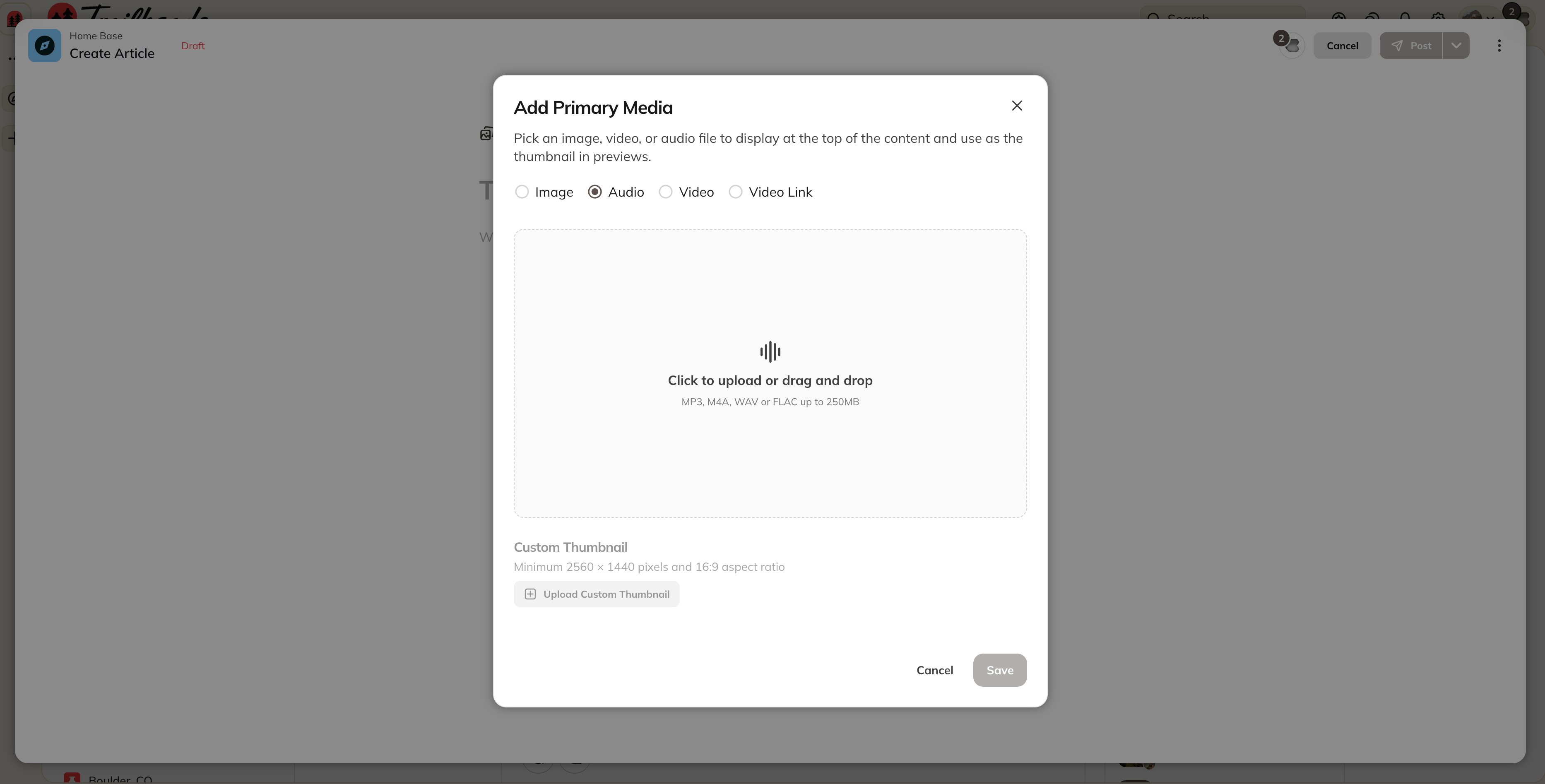
We recommend Primary Media when audio is the focus of your content. It supports resume playback across devices and lets you add a custom thumbnail, making it a strong choice for podcasts, guided practices, coaching sessions, and audio lessons.
To add audio as Primary Media:
1. Open the Article, Lesson, Event, or Page you want to edit.
2. Select the **Primary Media** area at the top of the editor.
3. Select **Audio** and upload your file.
4. Add a custom thumbnail (optional).
5. Select **Save** or **Post**.
### Add Audio to a Post
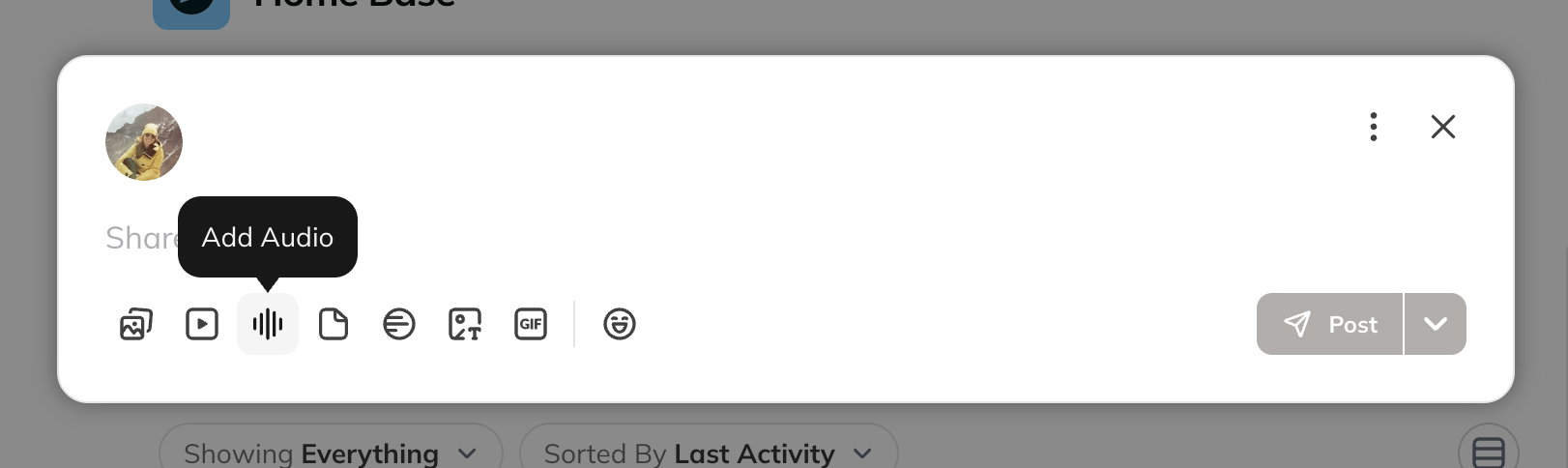
Add audio to a Post when you want to share something quickly in the Feed, such as a voice update, announcement, coaching tip, reflection, or conversation prompt.
To add audio to a Post:
1. In a [**Space**](/for-hosts/setting-up-your-network/how-do-i-create-and-manage-my-spaces), select **Create > Post**, or select **Share a Post**.
2. Select **Add Audio** and upload your file.
3. Add a custom thumbnail (optional).
4. Select **Post**.
### Add Audio to an Article, Lesson, or Page
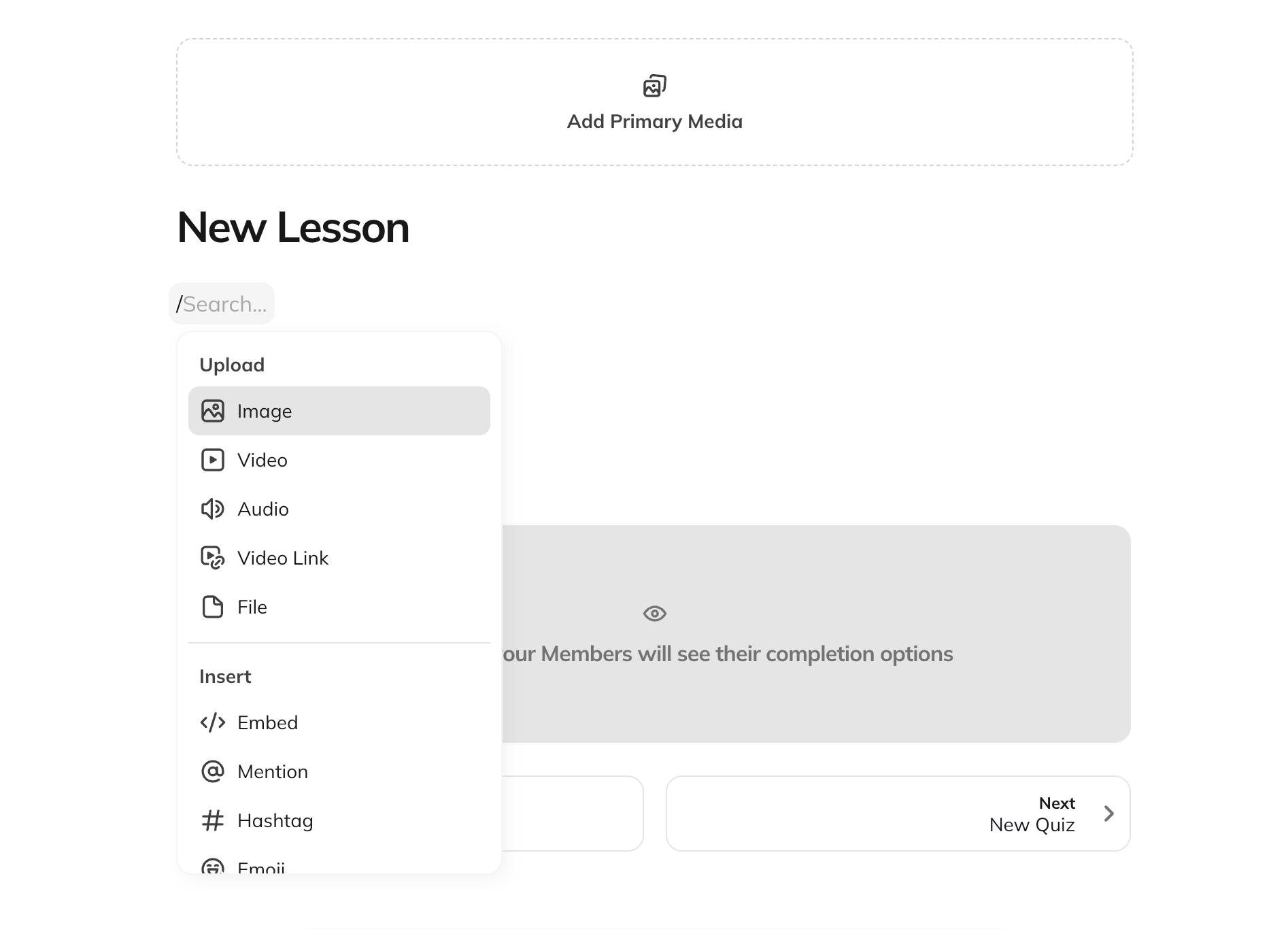
You can place audio alongside written content inside an Article, Lesson, or Page. This works well for short explanations, reflections, exercises, pronunciation guides, examples, or clips that complement the surrounding content.
To add audio to an Article, Lesson, or Page:
1. Open the Article, Lesson, or Page.
2. Press **Enter** to create a new line.
3. Type **/** or select the **+** icon, then select **Audio**.
4. Upload your audio file and add a custom thumbnail (optional).
5. Publish your changes.
## The Listening Experience
Members can keep listening as they move through your Mighty Network or go about their day.
* **Background playback and lock screen controls**: On mobile, audio keeps playing when members leave the app or lock their phone. They can play, pause, and move forward or backward through the audio from their device controls.
* **Playback speed**: Members can listen at 0.5x to 2x speed.
* **Resume playback**: Audio resumes where members left off across sessions and across web, iOS, and Android.
* **Floating player**: Members can keep listening while exploring other parts of your Mighty Network.
* **On web**: The floating player appears at the bottom of the screen.
* **On iOS and Android**: Members can use the floating player to pause, skip, change playback speed, or return to the original content.
## Where to Go Next
* [**How Do I Upload Native Videos to My Mighty Network?**](/for-hosts/events-and-livestream/how-do-i-upload-native-videos-to-my-mighty-network)
* [**How Do I Create an Article in My Mighty Network?**](/for-hosts/content-and-messaging/how-do-i-create-an-article-in-my-mighty-network)
* [**How Do I Build a Course in My Mighty Network?**](/for-hosts/courses/how-do-i-build-a-course-in-my-mighty-network)
 ### Add Audio to a Post
Add audio to a Post when you want to share something quickly in the Feed, such as a voice update, announcement, coaching tip, reflection, or conversation prompt.
To add audio to a Post:
1. In a [**Space**](/for-hosts/setting-up-your-network/how-do-i-create-and-manage-my-spaces), select **Create > Post**, or select **Share a Post**.
2. Select **Add Audio** and upload your file.
3. Add a custom thumbnail (optional).
4. Select **Post**.
### Add Audio to a Post
Add audio to a Post when you want to share something quickly in the Feed, such as a voice update, announcement, coaching tip, reflection, or conversation prompt.
To add audio to a Post:
1. In a [**Space**](/for-hosts/setting-up-your-network/how-do-i-create-and-manage-my-spaces), select **Create > Post**, or select **Share a Post**.
2. Select **Add Audio** and upload your file.
3. Add a custom thumbnail (optional).
4. Select **Post**.
 ### Add Audio to an Article, Lesson, or Page
You can place audio alongside written content inside an Article, Lesson, or Page. This works well for short explanations, reflections, exercises, pronunciation guides, examples, or clips that complement the surrounding content.
To add audio to an Article, Lesson, or Page:
1. Open the Article, Lesson, or Page.
2. Press **Enter** to create a new line.
3. Type **/** or select the **+** icon, then select **Audio**.
4. Upload your audio file and add a custom thumbnail (optional).
5. Publish your changes.
### Add Audio to an Article, Lesson, or Page
You can place audio alongside written content inside an Article, Lesson, or Page. This works well for short explanations, reflections, exercises, pronunciation guides, examples, or clips that complement the surrounding content.
To add audio to an Article, Lesson, or Page:
1. Open the Article, Lesson, or Page.
2. Press **Enter** to create a new line.
3. Type **/** or select the **+** icon, then select **Audio**.
4. Upload your audio file and add a custom thumbnail (optional).
5. Publish your changes.
 ## The Listening Experience
Members can keep listening as they move through your Mighty Network or go about their day.
* **Background playback and lock screen controls**: On mobile, audio keeps playing when members leave the app or lock their phone. They can play, pause, and move forward or backward through the audio from their device controls.
* **Playback speed**: Members can listen at 0.5x to 2x speed.
* **Resume playback**: Audio resumes where members left off across sessions and across web, iOS, and Android.
* **Floating player**: Members can keep listening while exploring other parts of your Mighty Network.
* **On web**: The floating player appears at the bottom of the screen.
* **On iOS and Android**: Members can use the floating player to pause, skip, change playback speed, or return to the original content.
## Where to Go Next
* [**How Do I Upload Native Videos to My Mighty Network?**](/for-hosts/events-and-livestream/how-do-i-upload-native-videos-to-my-mighty-network)
* [**How Do I Create an Article in My Mighty Network?**](/for-hosts/content-and-messaging/how-do-i-create-an-article-in-my-mighty-network)
* [**How Do I Build a Course in My Mighty Network?**](/for-hosts/courses/how-do-i-build-a-course-in-my-mighty-network)
## The Listening Experience
Members can keep listening as they move through your Mighty Network or go about their day.
* **Background playback and lock screen controls**: On mobile, audio keeps playing when members leave the app or lock their phone. They can play, pause, and move forward or backward through the audio from their device controls.
* **Playback speed**: Members can listen at 0.5x to 2x speed.
* **Resume playback**: Audio resumes where members left off across sessions and across web, iOS, and Android.
* **Floating player**: Members can keep listening while exploring other parts of your Mighty Network.
* **On web**: The floating player appears at the bottom of the screen.
* **On iOS and Android**: Members can use the floating player to pause, skip, change playback speed, or return to the original content.
## Where to Go Next
* [**How Do I Upload Native Videos to My Mighty Network?**](/for-hosts/events-and-livestream/how-do-i-upload-native-videos-to-my-mighty-network)
* [**How Do I Create an Article in My Mighty Network?**](/for-hosts/content-and-messaging/how-do-i-create-an-article-in-my-mighty-network)
* [**How Do I Build a Course in My Mighty Network?**](/for-hosts/courses/how-do-i-build-a-course-in-my-mighty-network)