> ## Documentation Index
> Fetch the complete documentation index at: https://docs.mightynetworks.com/llms.txt
> Use this file to discover all available pages before exploring further.
# How Do I Manage My Chat Messages?
You have several options for managing your chat messages and controlling what you see in your conversation list.
## Understanding Your Chat Messages
In your chat conversation list, you may see:
* **Private and group chats** (direct messages with one or more members)
* **Space chats** (conversations happening inside a Space)
* **Chat replies** (responses to messages in any chat type)
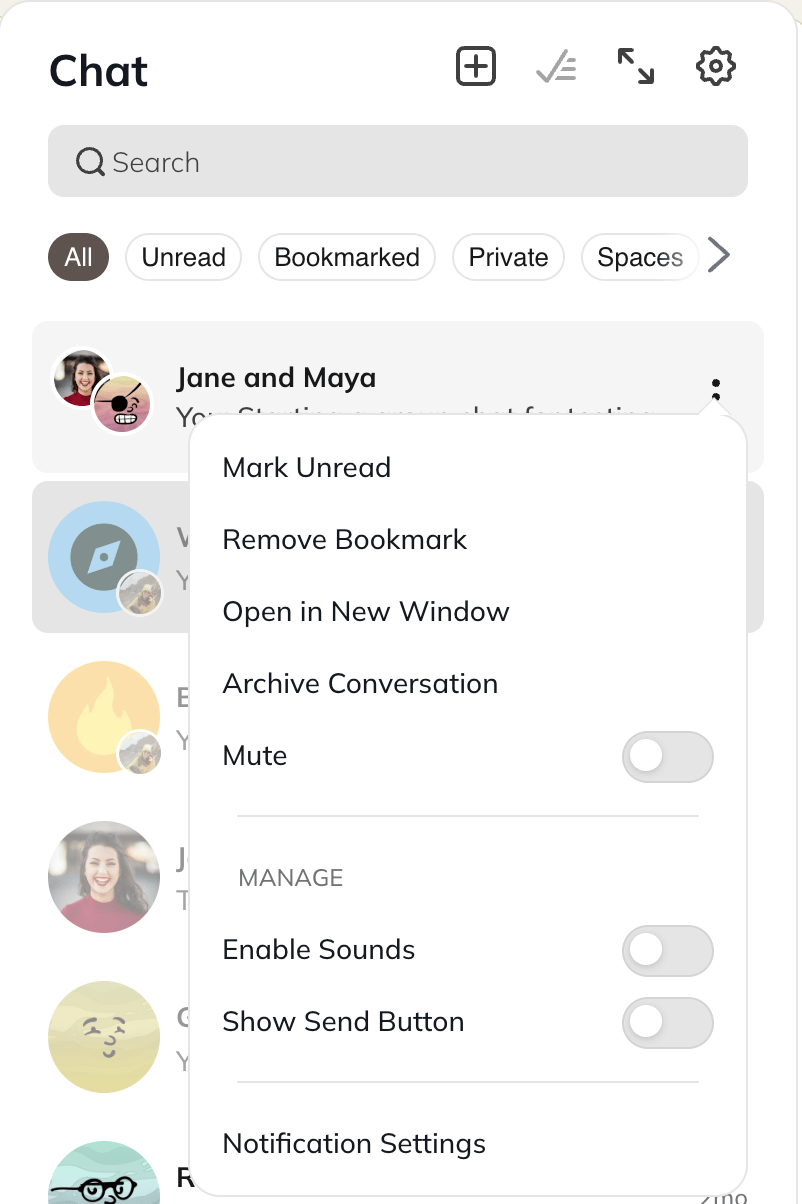
In the three dot menu of any message, you can choose to:
* Mark it read/unread
* Bookmark
* Open in a New Window Mute
* Enable Sounds
* Show Send Button
* Access your Notification Settings for your account
 * When you mute a conversation:
* You won’t receive unread indicators on the chat icon or in your left navigation.
* The conversation will stay muted until you choose to unmute it.
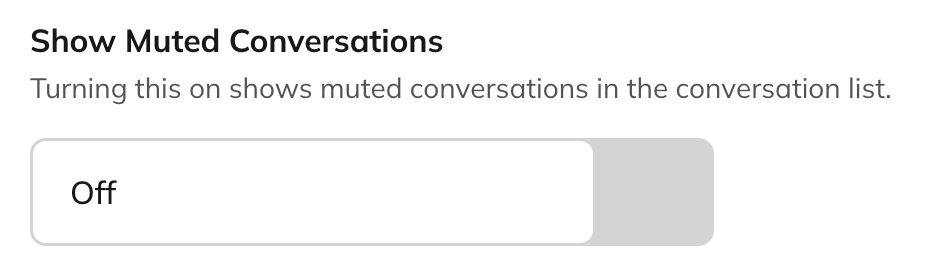
* If you would like to remove seeing muted conversations in your chat list, head to Personal Settings > Chat and toggle *off* the option there
* When you mute a conversation:
* You won’t receive unread indicators on the chat icon or in your left navigation.
* The conversation will stay muted until you choose to unmute it.
* If you would like to remove seeing muted conversations in your chat list, head to Personal Settings > Chat and toggle *off* the option there
 * When you bookmark a conversation:
* You will be able to find it in your "Bookmarked" filter
## Chat Management Options
You can further customize what appears in your chat list with filters.
## **Filters**
Select a filter to view only the messages that match that category.
* All
* Unread
* Bookmarked
* Private
* Spaces
* Muted
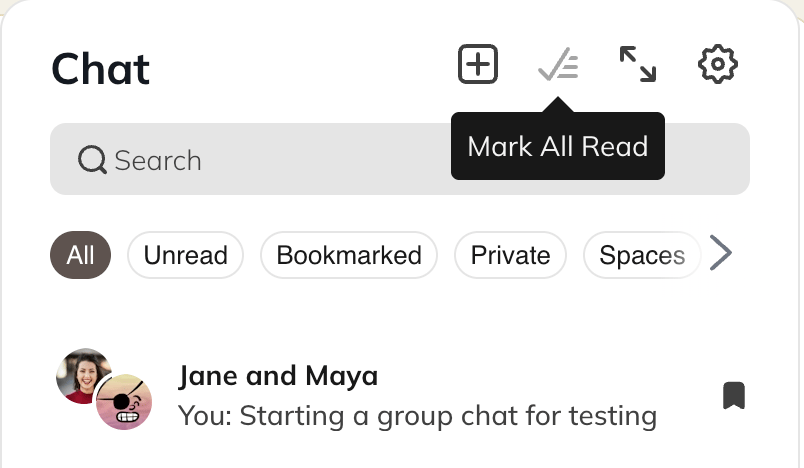
### Mark All as Read
This will clear all new notifications in your chat list.
* When you bookmark a conversation:
* You will be able to find it in your "Bookmarked" filter
## Chat Management Options
You can further customize what appears in your chat list with filters.
## **Filters**
Select a filter to view only the messages that match that category.
* All
* Unread
* Bookmarked
* Private
* Spaces
* Muted
### Mark All as Read
This will clear all new notifications in your chat list.
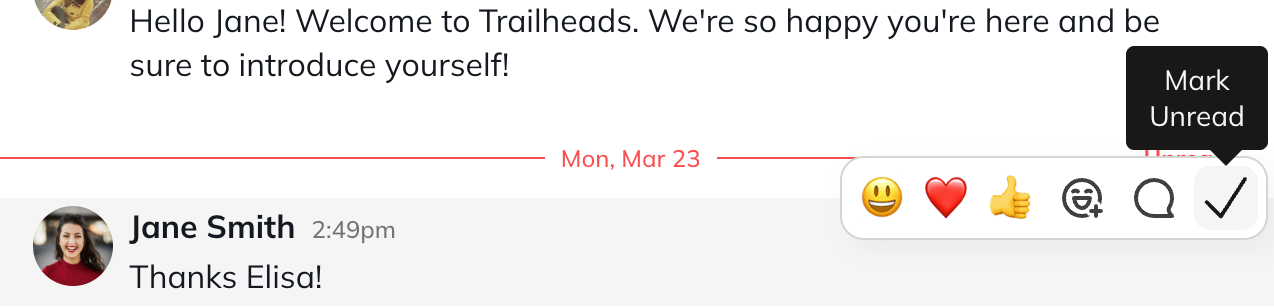
 ### Mark Individual Threads as Unread
This will mark individual chat messages as unread.
### Mark Individual Threads as Unread
This will mark individual chat messages as unread.
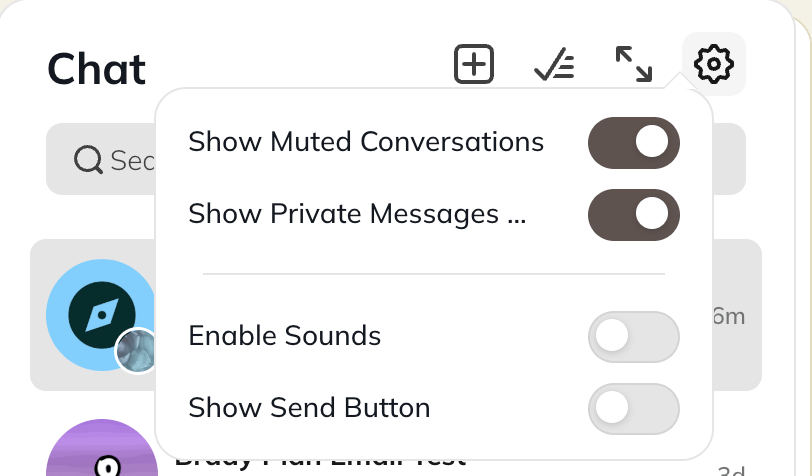
 ### Show Muted Conversations
When enabled, muted conversations will still appear in your chat list.
### Show Private Messages
When enabled, only private chats (one-to-one or group) appear in your conversation list.
Space chats will be hidden, and you won’t receive chat icon notifications for them.However, you’ll still see unread indicators for Space chats in the **Left Navigation Panel**.
### Show Muted Conversations
When enabled, muted conversations will still appear in your chat list.
### Show Private Messages
When enabled, only private chats (one-to-one or group) appear in your conversation list.
Space chats will be hidden, and you won’t receive chat icon notifications for them.However, you’ll still see unread indicators for Space chats in the **Left Navigation Panel**.
 ## Chat Notifications
Muting a conversation stops all notifications for that chat.
To change how you receive notifications, go to: **Personal Settings > Notifications**
For more details, see our [**notifications article**](https://docs.mightynetworks.com/for-hosts/content-and-messaging/what-notifications-will-i-get-as-a-host).
## Modifying How Messages Are Sent
You can choose whether your private chat messages send when you press **Enter** or when you click a **Send** button.
1. Click the **chat icon** in the upper-right corner.
2. Click the **gear icon**.
3. Toggle **Show Send Button** on or off.
## Existing Chat Conversations
## On mobile
Tap the **chat icon** to open your chat list, access previous conversations, or start new ones.
## On web
Click the **chat icon** in the upper-right corner to view your existing chats.
## Archiving Chat Conversations
Archiving hides a chat from your list.
The conversation reappears if someone posts a new message.
To unarchive a conversation:
* For group or multi-member chats: Recreate the chat with the same members. When you select **Start Chat**, the conversation will continue where you left off.
* For one-to-one chats:Go to the member’s profile and select **Chat**.
For information on blocking or reporting members, see [**How Do Members Block or Report Others?**](https://docs.mightynetworks.com/for-hosts/admin-and-moderation/how-do-members-block-or-report-others)
## Chat Notifications
Muting a conversation stops all notifications for that chat.
To change how you receive notifications, go to: **Personal Settings > Notifications**
For more details, see our [**notifications article**](https://docs.mightynetworks.com/for-hosts/content-and-messaging/what-notifications-will-i-get-as-a-host).
## Modifying How Messages Are Sent
You can choose whether your private chat messages send when you press **Enter** or when you click a **Send** button.
1. Click the **chat icon** in the upper-right corner.
2. Click the **gear icon**.
3. Toggle **Show Send Button** on or off.
## Existing Chat Conversations
## On mobile
Tap the **chat icon** to open your chat list, access previous conversations, or start new ones.
## On web
Click the **chat icon** in the upper-right corner to view your existing chats.
## Archiving Chat Conversations
Archiving hides a chat from your list.
The conversation reappears if someone posts a new message.
To unarchive a conversation:
* For group or multi-member chats: Recreate the chat with the same members. When you select **Start Chat**, the conversation will continue where you left off.
* For one-to-one chats:Go to the member’s profile and select **Chat**.
For information on blocking or reporting members, see [**How Do Members Block or Report Others?**](https://docs.mightynetworks.com/for-hosts/admin-and-moderation/how-do-members-block-or-report-others)